
01Who this is for
- Community admins, can tailor navigation to match their group’s workflow and branding.
- Community owners, can tailor navigation to match their group’s workflow and branding.
02Community tabs, explained
The tab customization feature gives admins and owners the ability to reorder the community navigation, rename each tab with any text, and hide tabs that are not required. Required tabs such as Discussion and About stay visible but can still be renamed or moved.
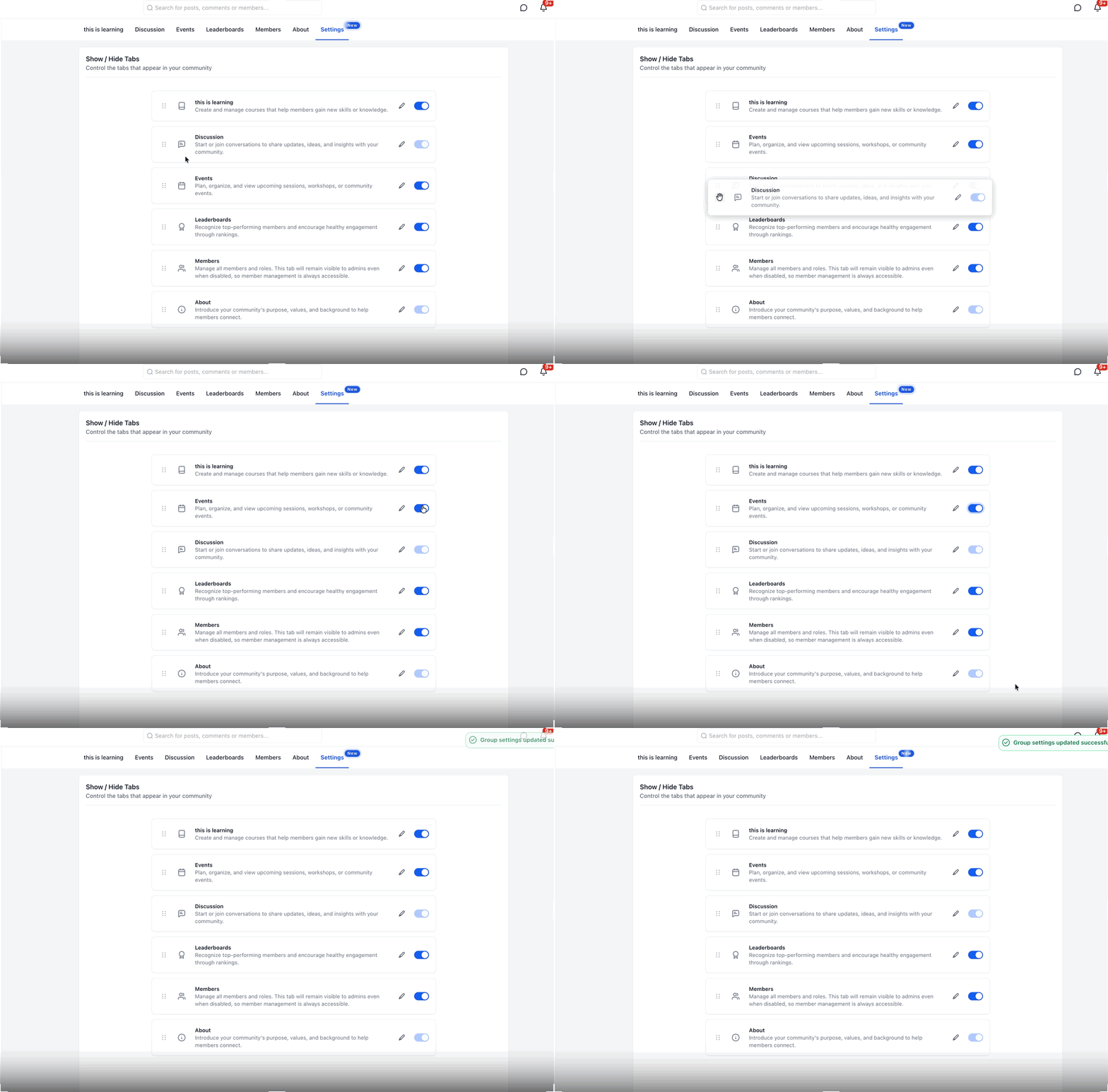
All changes are applied the moment you adjust a setting. There is no save button; the platform records the new order, label or visibility right away and keeps the configuration across page reloads and future sessions.
These controls are found in the community settings panel, located next to the existing Show/Hide Tabs section for each community group.
03How businesses use community tabs
- Online coaching platform. Admins can move the Learning tab to the front, rename it to Courses, and hide the Leaderboard tab if it isn’t used. The steps are performed in the community settings, and members see the new order immediately.
- Professional association. Owners rename the Events tab to Meetups and reorder it before Discussion to match their event centric workflow. They also toggle off the unused Members tab, all within the same settings screen.
- Fitness studio. The studio’s admin reorders the calendar related tab to the top, changes its label to Schedule, and disables the Members tab if it is not needed. The changes persist for every member logging into the community.
04Before you start
- You must have admin or owner access to the community group.
- The community group must already exist in HighLevel.
05How to set up and use community tabs in HighLevel
Customize community tabs
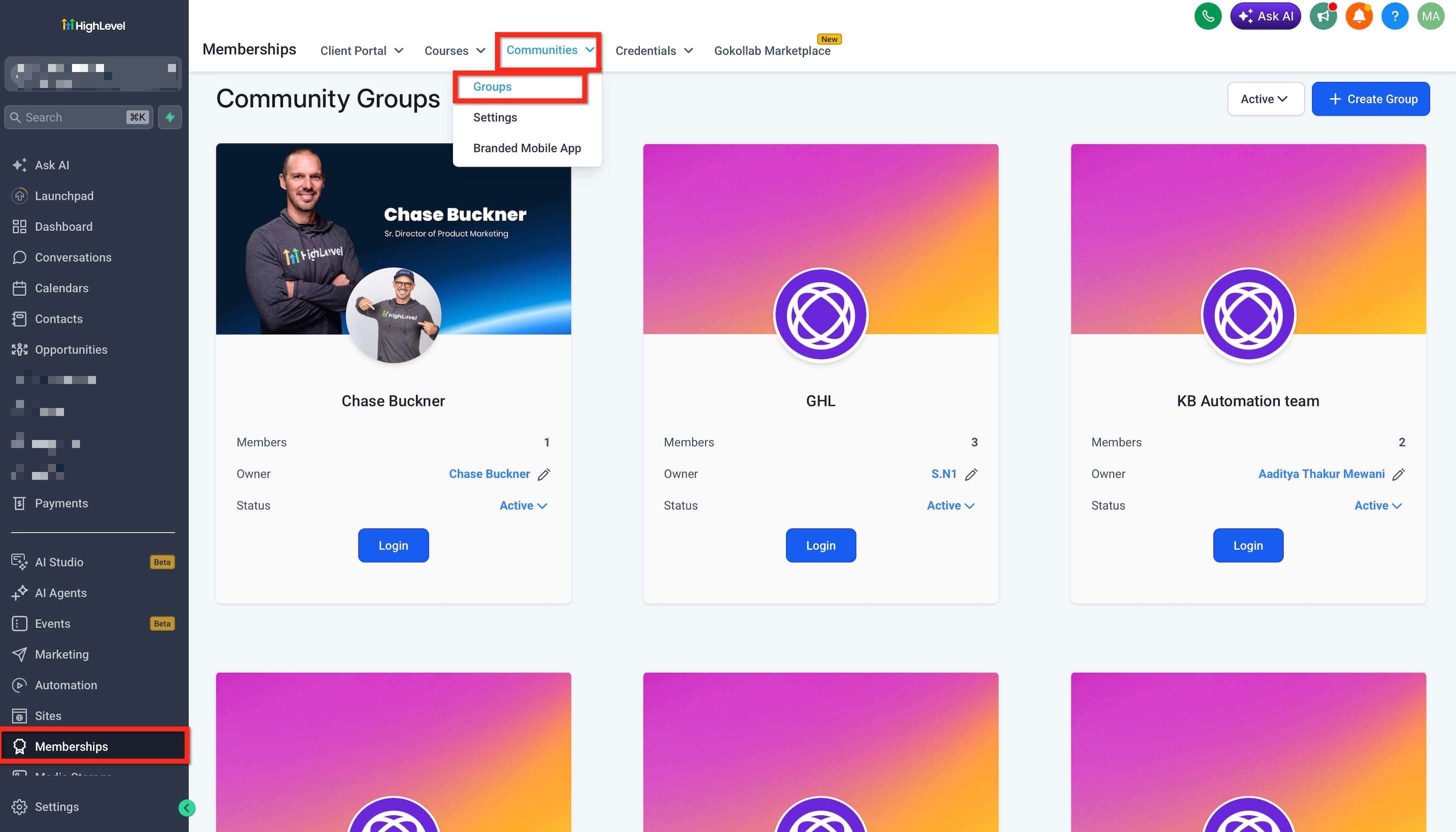
- Open the desired community group via Memberships > Communities > Groups and log in to that group.
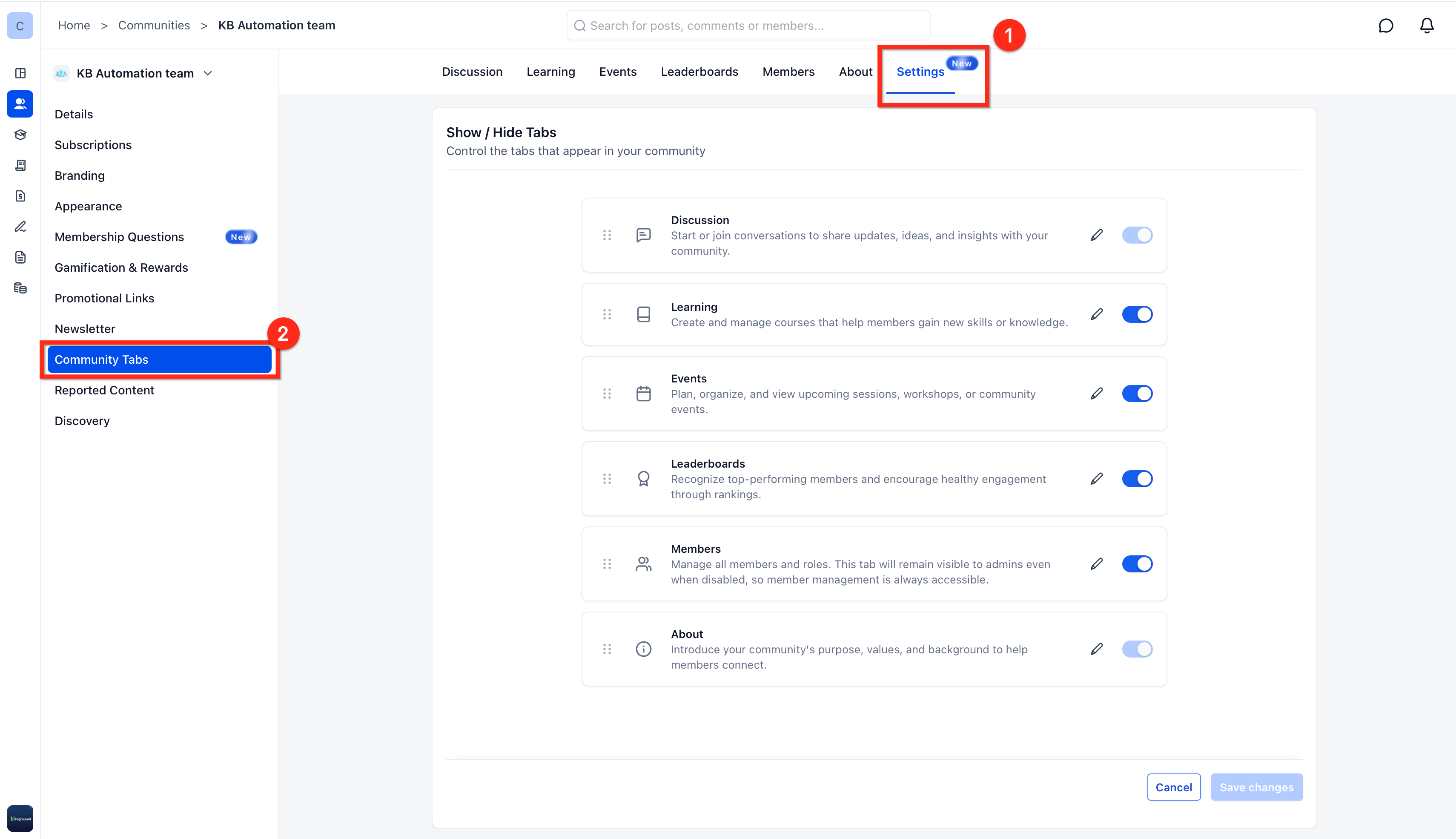
- Click the gear icon to open the community settings panel and locate the tab customization controls.
- Drag the six dot handle next to a tab name and move it up or down to set the new order.
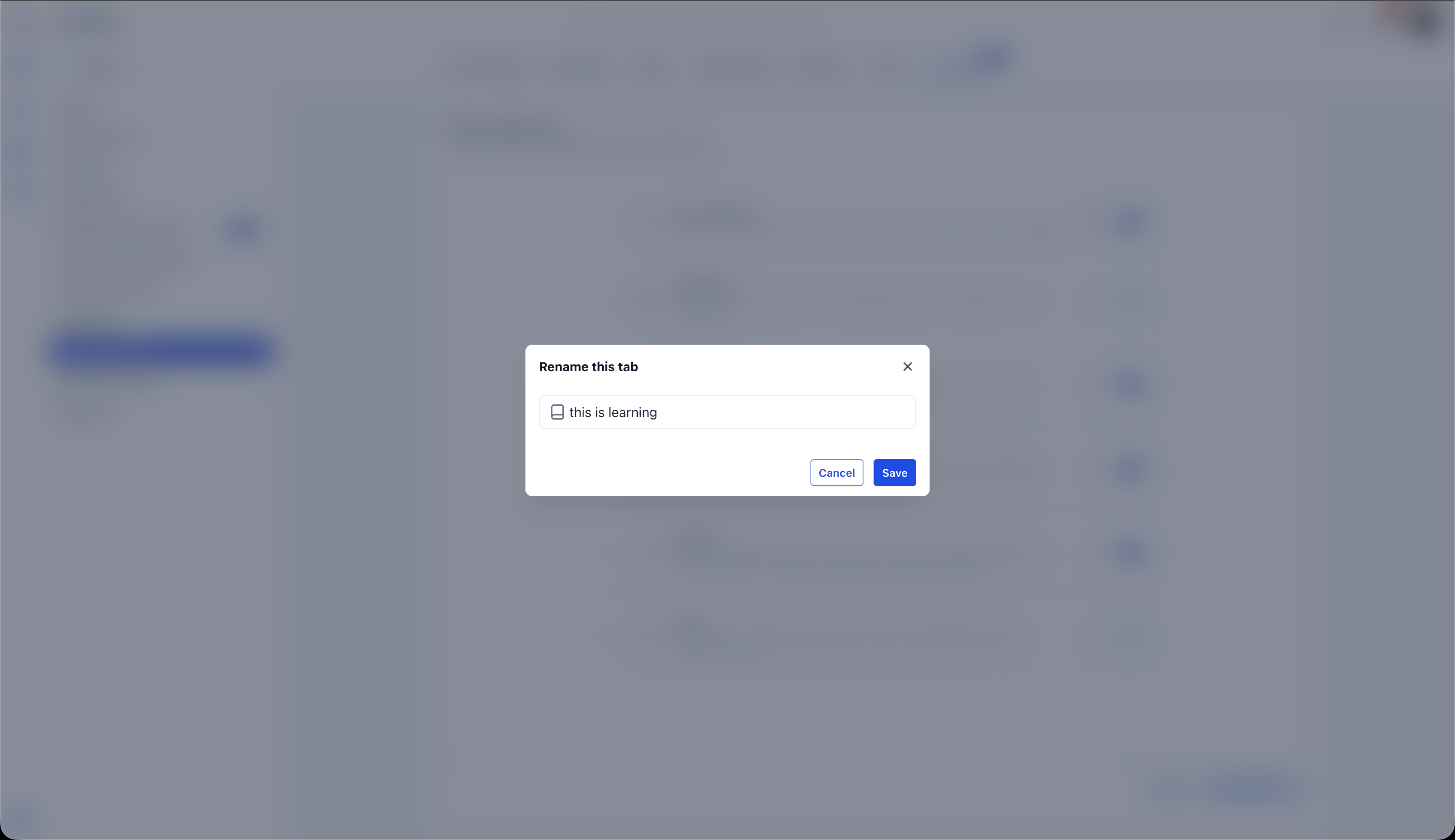
- Edit the text field beside a tab’s default name, delete the existing text, and type a new label.
- Toggle the switch next to any non required tab to the off position to hide it from members.
- Refresh the community page or log in as a member to confirm the new layout, order, and visibility.
06What it looks like in HighLevel
07Settings that matter
- Show/Hide Tabs. Controls whether each default tab is visible in the community navigation.
- Tab customization controls. Provides drag handles for reordering, text fields for renaming, and toggle switches for disabling tabs.
08Things to know before you rely on it
- The Discussion and About tabs cannot be disabled; their toggle switches are unavailable.
- Custom tab names are not translated; the exact text entered appears for all members regardless of language.
- Only users with admin or owner permissions can modify tab order, names, or visibility.
- There is no automatic reset button; returning to default names and order must be done manually.
09How it connects to the rest of HighLevel
- Learn how to set up and manage a HighLevel community Community setup guide
- Manage members inside groups within HighLevel Group member management
- Review HighLevel pricing and plan options Pricing page
Michael's take

Every community wants members to find the right place quickly, but default tabs can feel generic and cluttered. By rearranging and renaming tabs, you give your group a navigation that matches your specific workflow and branding.
The first thing I’d get right is the order of the most used tabs. Drag the six dot handles until the top of the list reflects the flow your members follow. That way the navigation feels natural from the moment they log in.