
01Who this is for
- Founders of online education businesses benefit because they can host all learning assets and payments within one platform.
- Coaches who need a simple way to package training videos and worksheets into a sellable course.
- Community managers who want to make courses available to members directly in the HighLevel Community Learning area.
02Courses and membership sites, explained
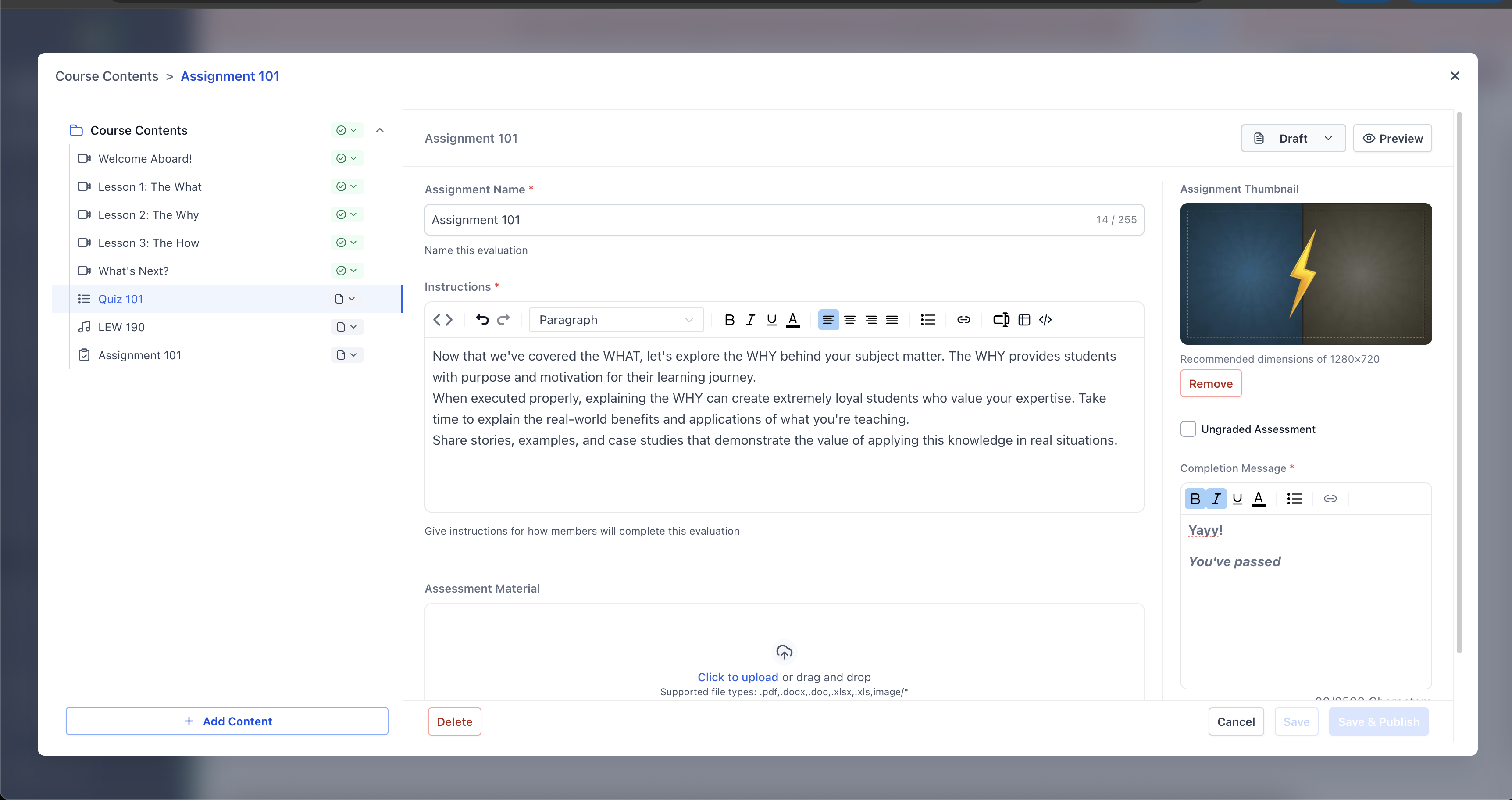
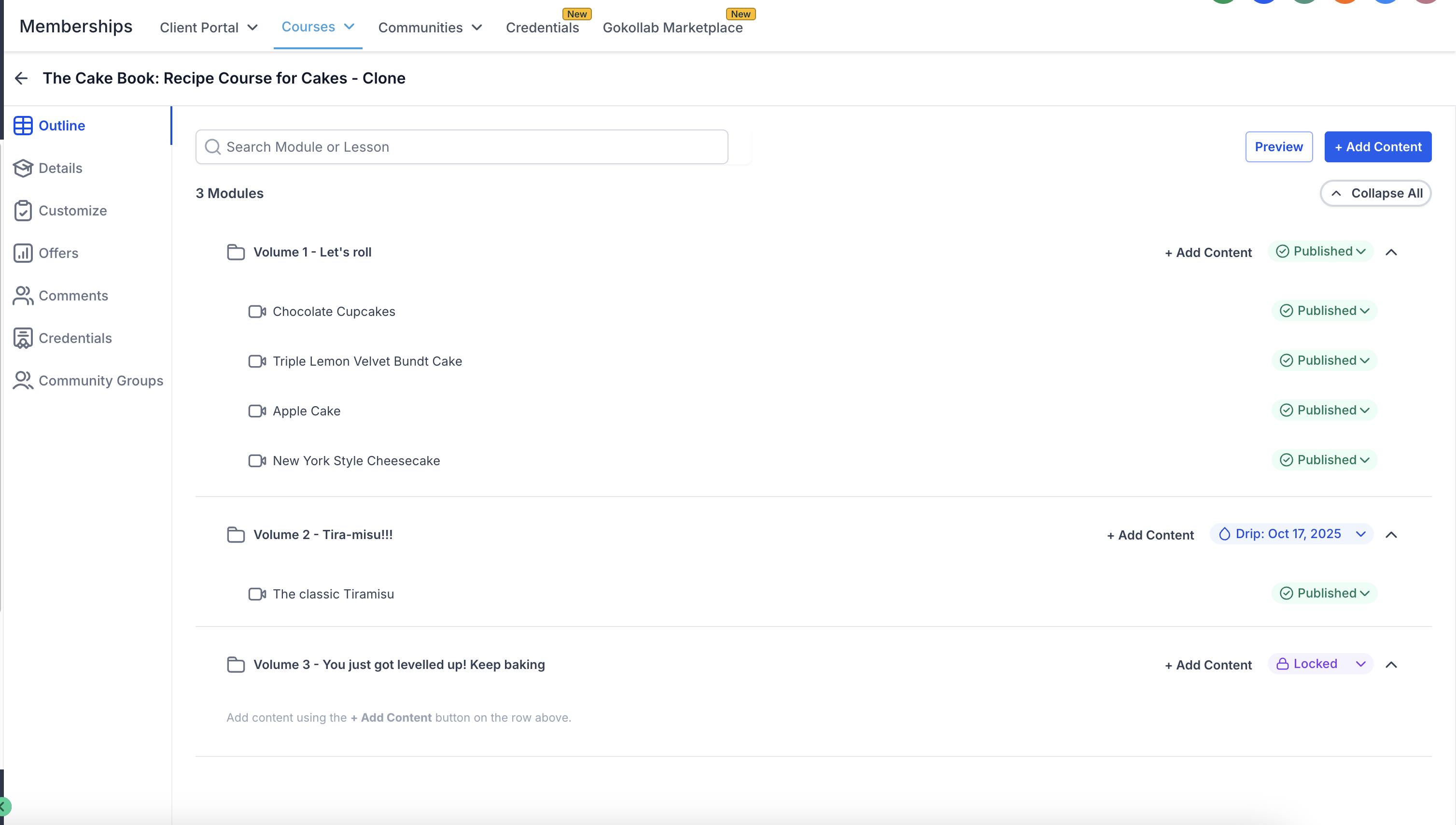
HighLevel Courses provide a workspace where creators assemble modules, lessons, media files, quizzes and assignments. The Course Editor shows a map of the course on the left and an editing pane on the right, allowing you to edit and rearrange items without leaving the page.
When the content is ready, you package one or more courses into an offer. Offers define whether access is free, a one time payment, or a recurring subscription. Publishing an offer makes it visible to sales flows and automation.
Learners reach the material through the Client Portal, which presents courses alongside other client resources. Access can also be granted automatically with workflows or through the Learning section of HighLevel Communities.
03How businesses use courses and membership sites
- Online fitness coaching business. The coach creates a new course, uploads workout videos and PDFs, then sets up an offer priced as a monthly subscription. After publishing, members log into the Client Portal to follow the program.
- Professional certification organization. The organization builds a multi module course with quizzes and assignments, bundles it into a paid offer, and publishes the offer. Candidates purchase the offer and complete the assessments within the course editor.
- Local trade association. The association adds a free learning track to its community, using the Learning area to host the course. Members access the content without extra payment, while the association manages the course through the Course Editor.
04The numbers and rules that matter
- Supported Course video formats allow files up to 5GB.
- Other Course file types have lower limits.
05Before you start
- Access to Memberships > Courses in the relevant subaccount.
- All course media, PDFs, quizzes and assignments prepared.
- A course thumbnail ready if you want one displayed.
- A supported payment provider connected for any paid offers.
- Decision on whether the learner access will be free, one time, or recurring.
06How to set up and use courses and membership sites in HighLevel
Set up a new course
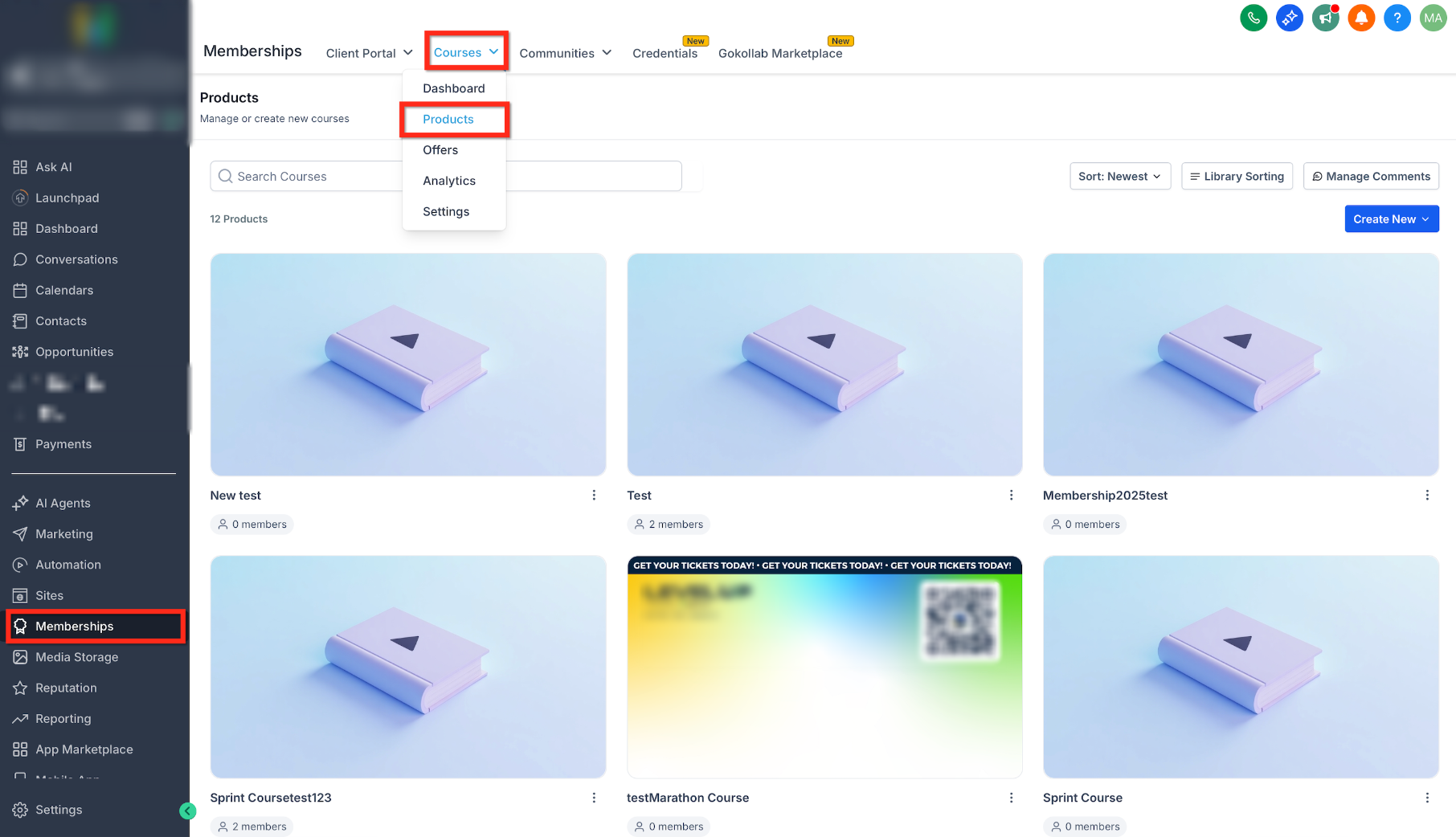
- From the Subaccount View, click Memberships.
- Select Courses.
- Open Products.
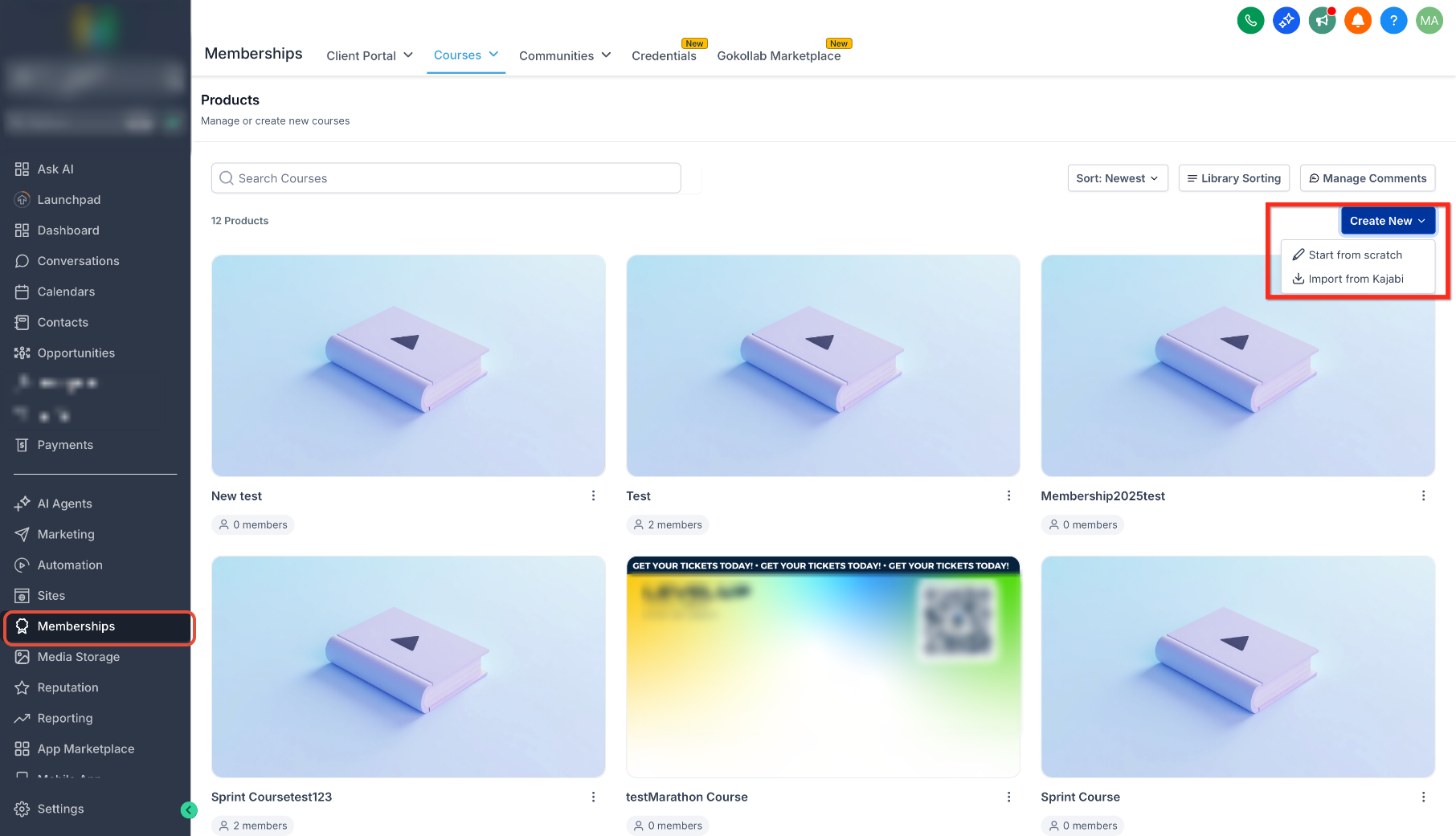
- Click Create New.
- Select Start from scratch.
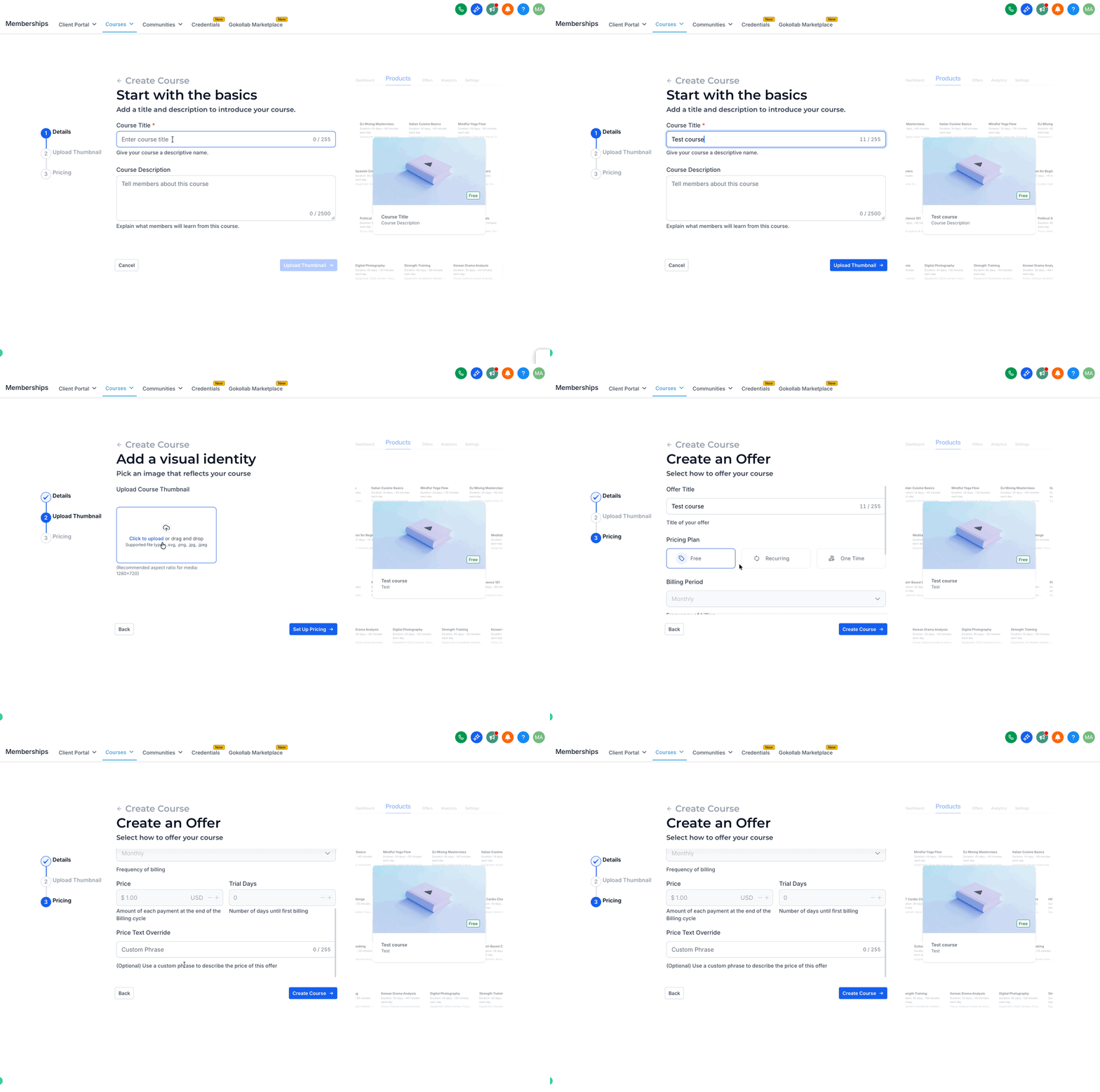
- Enter the Course Title.
- Enter the Course Description.
- Upload a course thumbnail if desired.
- Complete the available pricing and course settings.
- Click Create Course.
Build and organize course content
- Go to Memberships > Courses > Products.
- Select the course you want to edit.
- Open the course editor.
- Use the Course Map on the left to review the course structure.
- Select a lesson, quiz, assignment, or other supported content to edit.
- Drag and drop items to reorganize supported content.
- Expand or collapse modules to focus on a specific portion.
- Review supported content status information and quick actions.
Create and publish a course offer
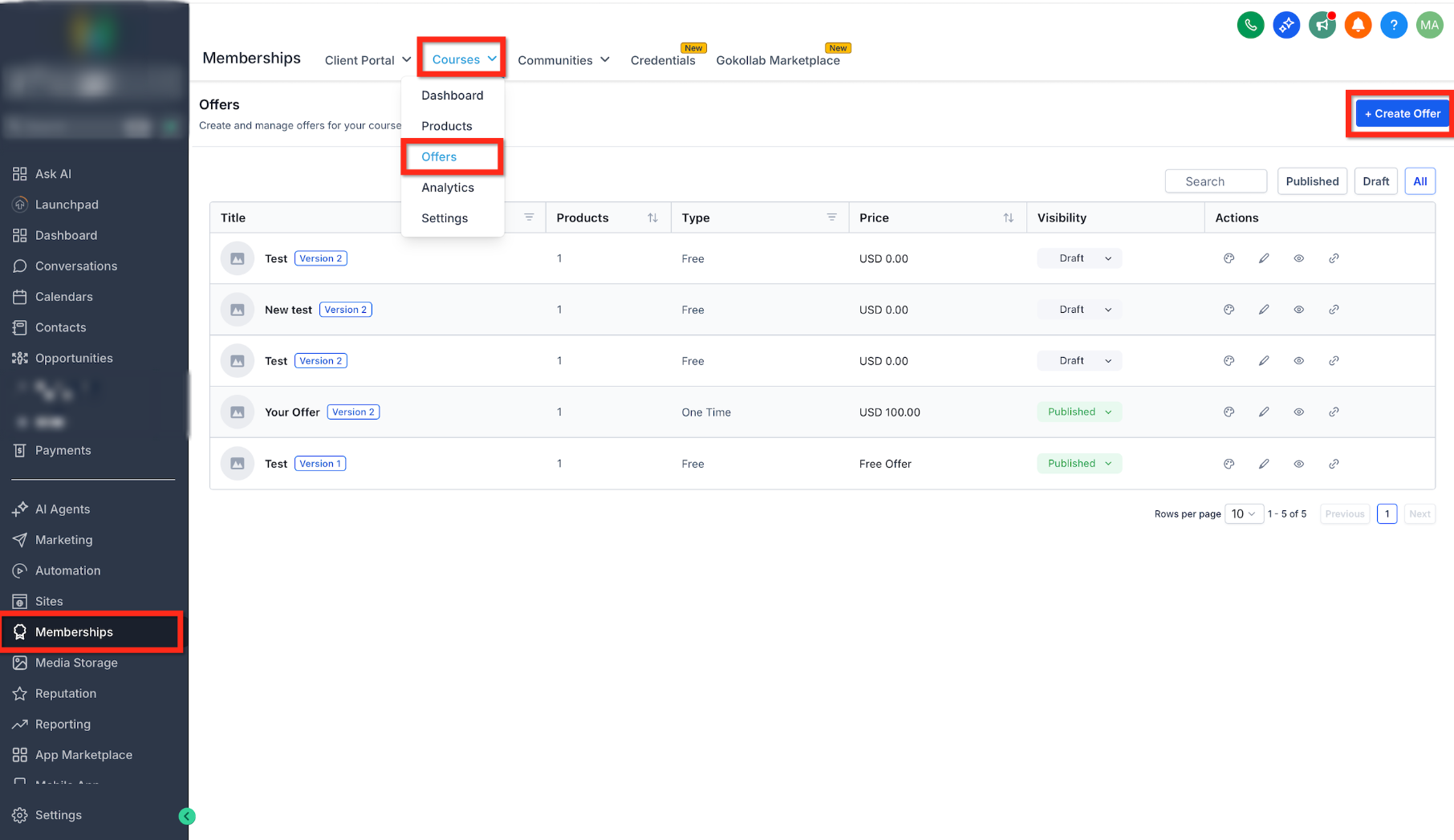
- Go to Memberships > Courses.
- Open Offers.
- Click + Create Offer.
- Enter the offer details.
- Select the course product or products you want to include.
- Configure the available pricing for the offer.
- Click Create or Save.
- Open the offer after creating it.
- Review the attached course products and pricing.
- Change the offer from Draft to Published.
- Save the offer.
07What it looks like in HighLevel
08Settings that matter
- Course Title. Defines the displayed name of the course for learners.
- Course Description. Provides the summary shown to learners before they enroll.
- Course thumbnail. Sets the visual image that represents the course in listings.
- Pricing and course settings. Controls the cost model and access options such as free, one time or recurring.
- Offer details. Specifies the name, description and any branding for the offer.
- Course product. Determines which course(s) are included when the offer is purchased.
- Offer pricing. Sets the amount and billing cycle learners will be charged.
- Offer status. Switches the offer between Draft and Published to control visibility.
- Client Portal Settings. Manages branding, domain, language, authentication and portal behavior for learner access.
09Things to know before you rely on it
- Supported video files may be up to 5GB in size.
- Other file types have smaller upload limits that vary by type.
- User interface labels and button names can differ depending on account rollout.
10How it connects to the rest of HighLevel
- Add quizzes or assessments to your course content. Create quizzes
- Apply a theme to customize the look of your membership portal. Membership themes
- Offer paid courses inside a HighLevel Community Learning area. Paid community courses
Michael's take

When you have a steady stream of paying members or a recurring training program, the course builder can feel like a worthwhile investment. Automating enrollment through workflows can simplify management compared to handling access manually.
If your content is a one off or you lack the bandwidth to keep the course material up to date, the investment may not seem justified. The 5 GB video limit can be a blocker for high resolution content, and configuring payment providers and Client Portal branding adds steps that some solo practitioners might find excessive.