
01Paid courses, explained
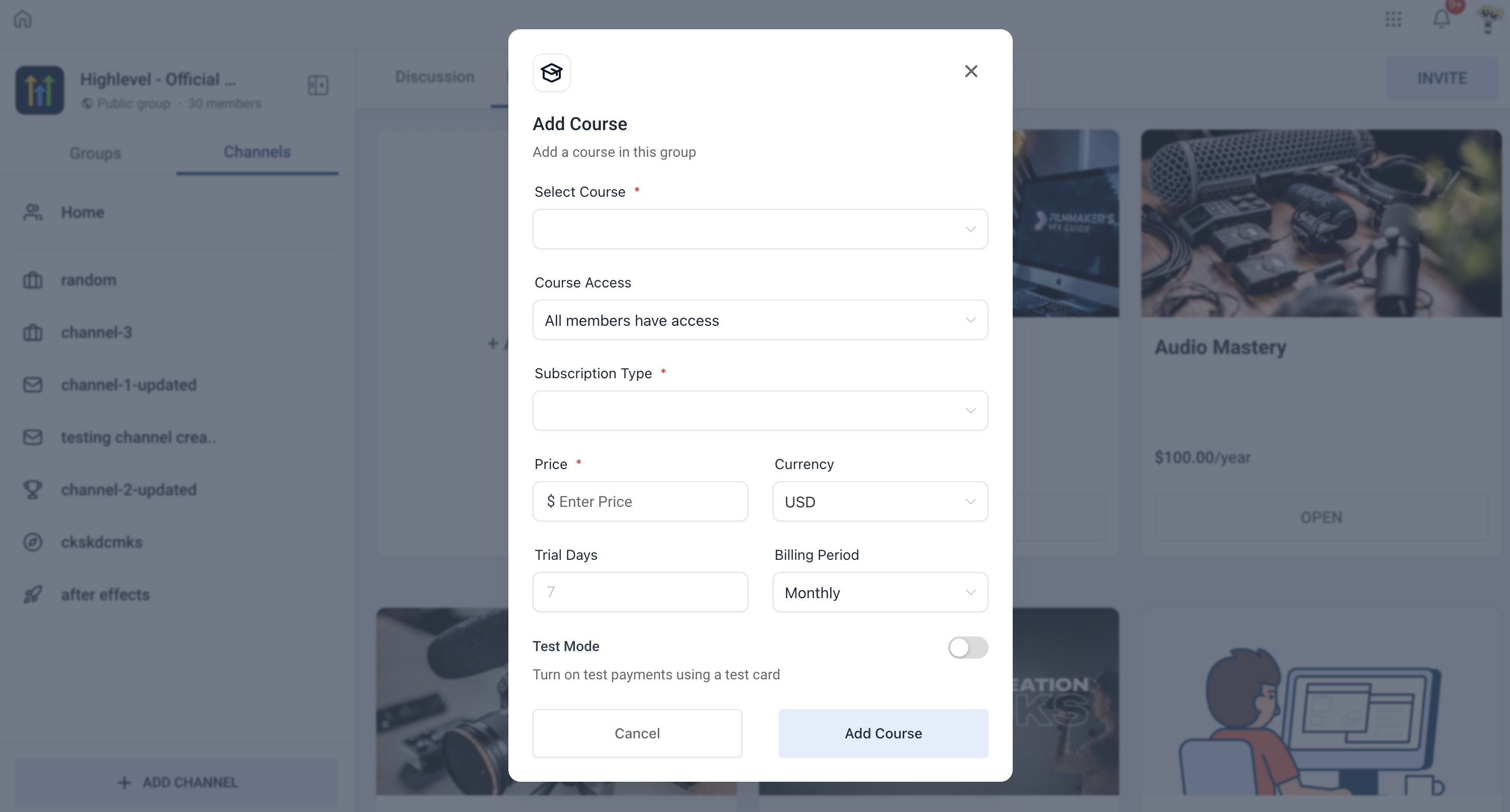
Paid courses let community owners and admins sell courses inside their HighLevel communities. The feature allows a course to be priced with a one time fee or a recurring subscription. Learners see the course in the Learning Tab, purchase it, and receive email confirmation.
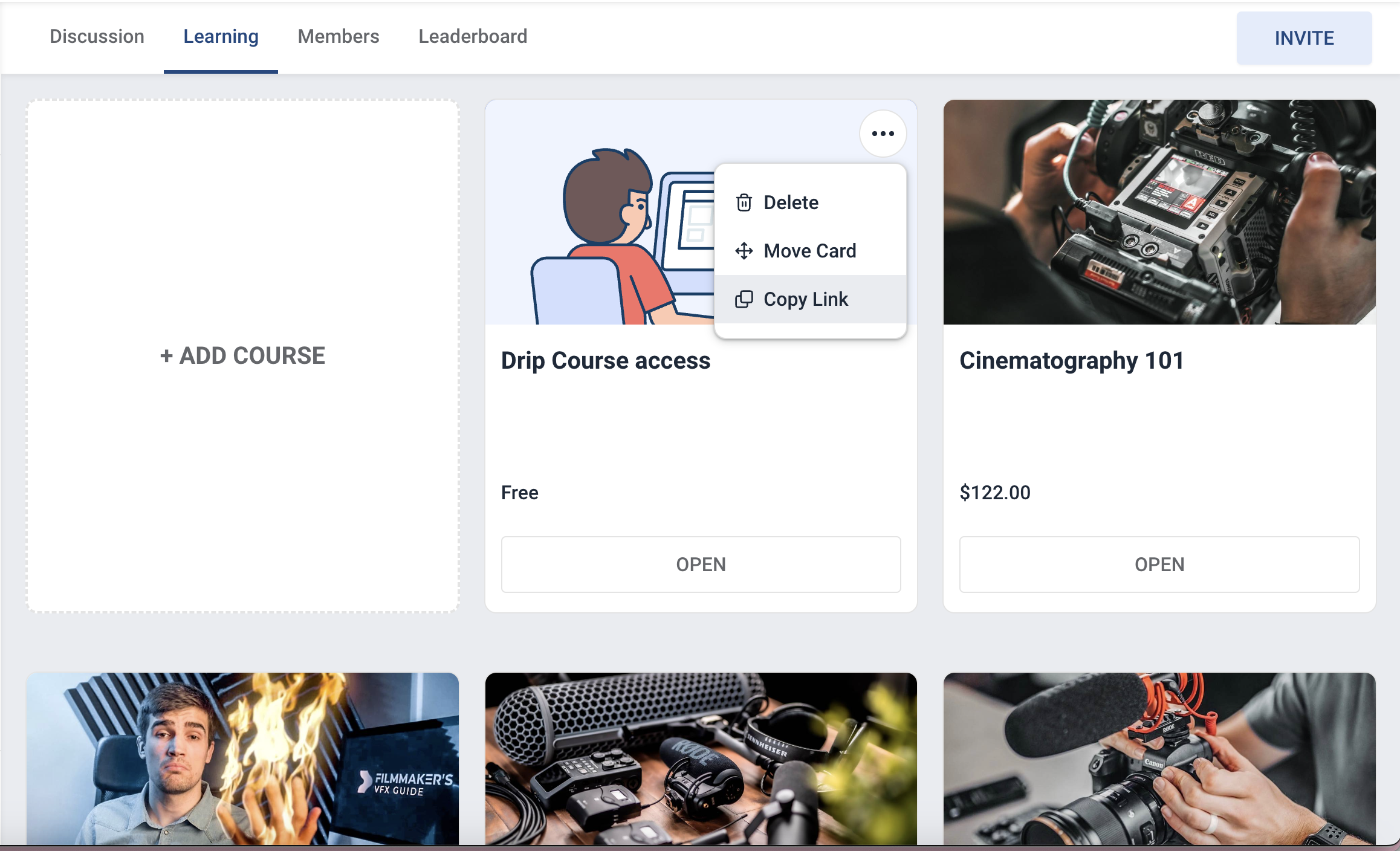
The Learning Page now includes tools for arranging courses, sending automatic payment notifications, and adjusting payment settings. Admins can change price, currency, trial periods, or tax options at any time.
02How businesses use paid courses
- Monetize educational content. A coach can create a membership style course, set a price, and sell it to community members. Learners purchase through the Learning Tab and gain access.
- Offer subscription based training. A software trainer can choose a recurring fee, set a trial period, and let members stay enrolled while they pay. The system handles subscription cancellations and emails.
03How to set up and use paid courses in HighLevel
Add a paid course
- Navigate to the Learning Tab.
- Select the option to add a new course.
- Enter course title, description, and content.
- Set pricing. Choose one time fee or recurring subscription, enter price, and select currency.
- Configure taxes if needed.
- Enable test mode to trial the checkout.
04What it looks like in HighLevel
05Settings that matter
- Test mode. When enabled, admins or owners can test the payment flow using test card details.
- Automatic email notifications. Sends emails for successful payments and subscription cancellations to creators and learners.
- Move courses. Allows admins to reorder courses on the Learning Page by dragging and dropping.
- Payment settings. Admins can change course fee, payment frequency, trial period, and currency at any time.
Michael's take

Michael ReimerFounder of CRM Pros, HighLevel Commander and Certified Admin
Testing the checkout with test mode can help verify that the payment flow works before learners enroll.
I recommend starting with a pilot course, using the copy link button to share it, and confirming that email notifications arrive as expected.
Read the full details on HighLevel →Published November 2, 2026 · Updated November 3, 2026