
01Who this is for
- Founders of SaaS businesses who need precise brand matching across their community pages.
- Fitness studio owners who want to adjust layout and buttons for mobile members only.
- Online educators who wish to add small interactive scripts to a single course group.
02Custom CSS/JS, explained
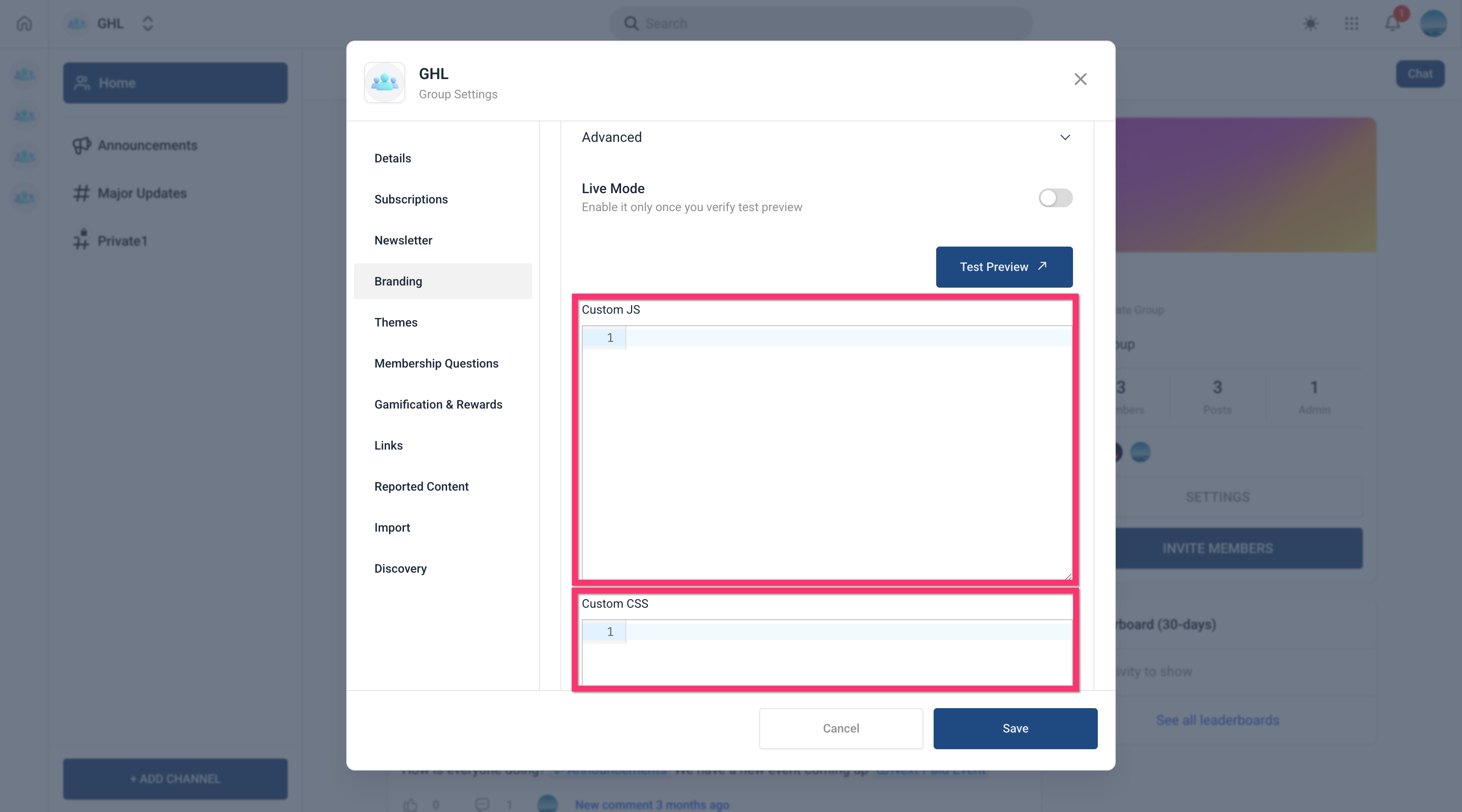
The feature lets you embed your own styling rules and JavaScript snippets inside a specific community group. The code lives in the group's Settings under the Branding tab, so it does not touch other groups. After pasting the code you can preview it in a safe mode, then enable Live Mode to make it visible to members.
The custom code runs only for the selected group, giving you granular control over fonts, spacing, dark mode handling, and micro interactions. It is managed from the Memberships > Communities > Groups section of the platform.
03How businesses use custom CSS/JS
- Brand alignment. Paste CSS that matches the brand’s colors, fonts, and spacing, preview with Test Preview, then activate Live Mode so members see the updated branding only in that group.
- Interactive enhancements. Add a small JavaScript snippet that adds click to expand behavior or other micro interactions, test it safely, and turn it on for members with Live Mode.
- Dark mode styling. Insert CSS that uses the .dark class to style elements when night mode is active, preview both light and dark modes, and publish the changes.
04Before you start
- You must be logged into a subaccount that contains the community.
- The group you want to edit must already exist.
05How to set up and use custom CSS/JS in HighLevel
Add custom CSS/JS to groups
- Sign in to your subaccount.
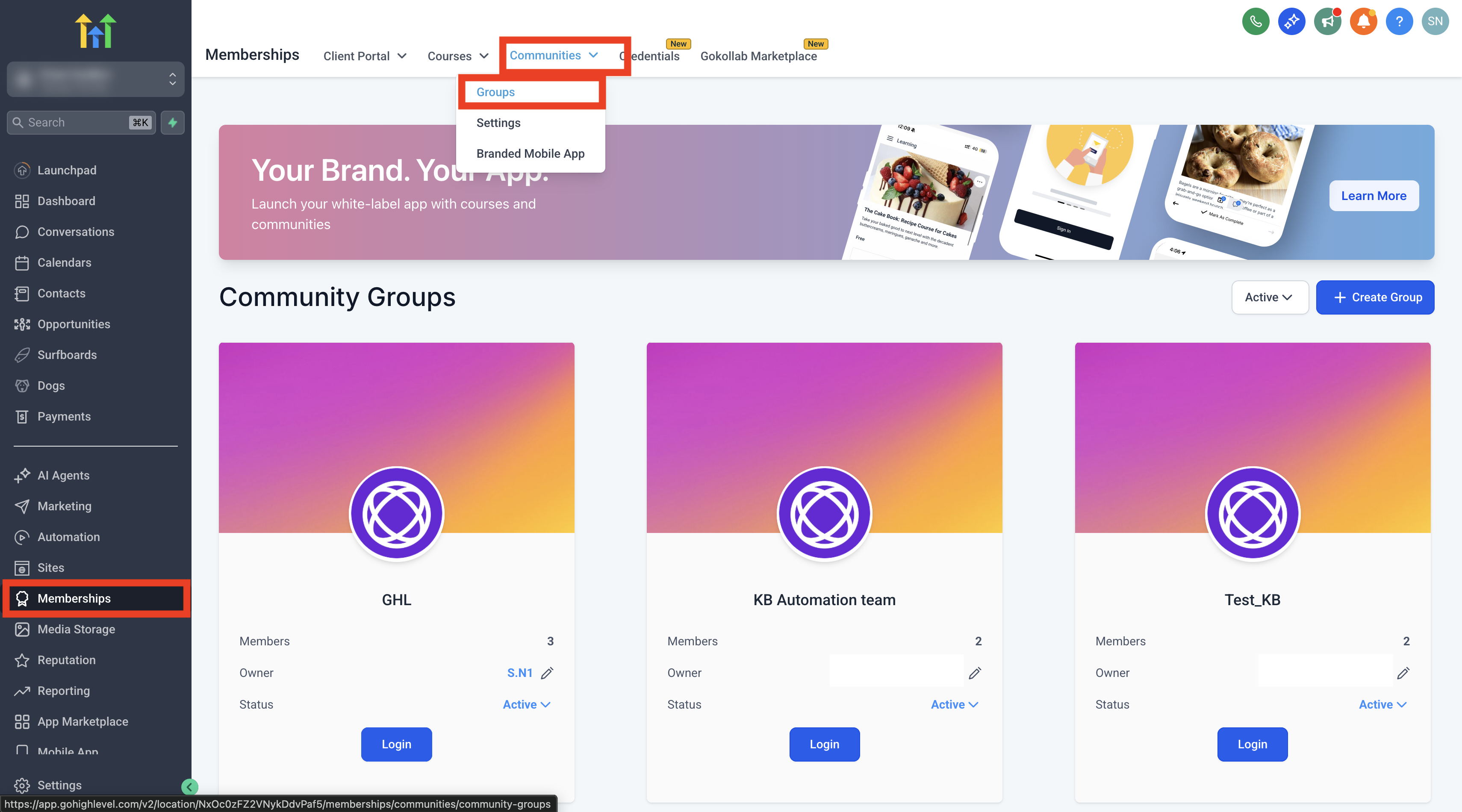
- Go to Memberships > Communities > Groups.
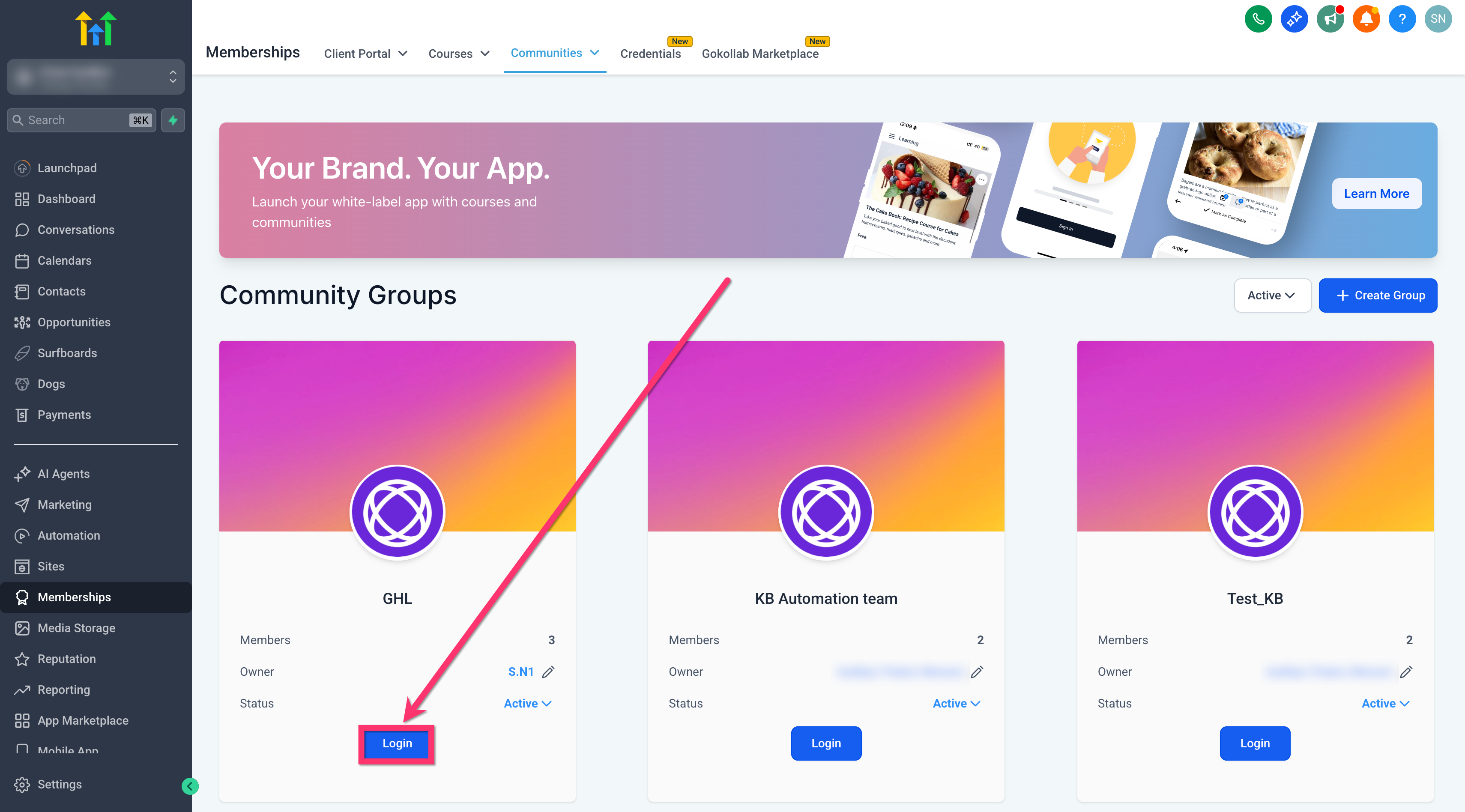
- Open the group you want to customize.
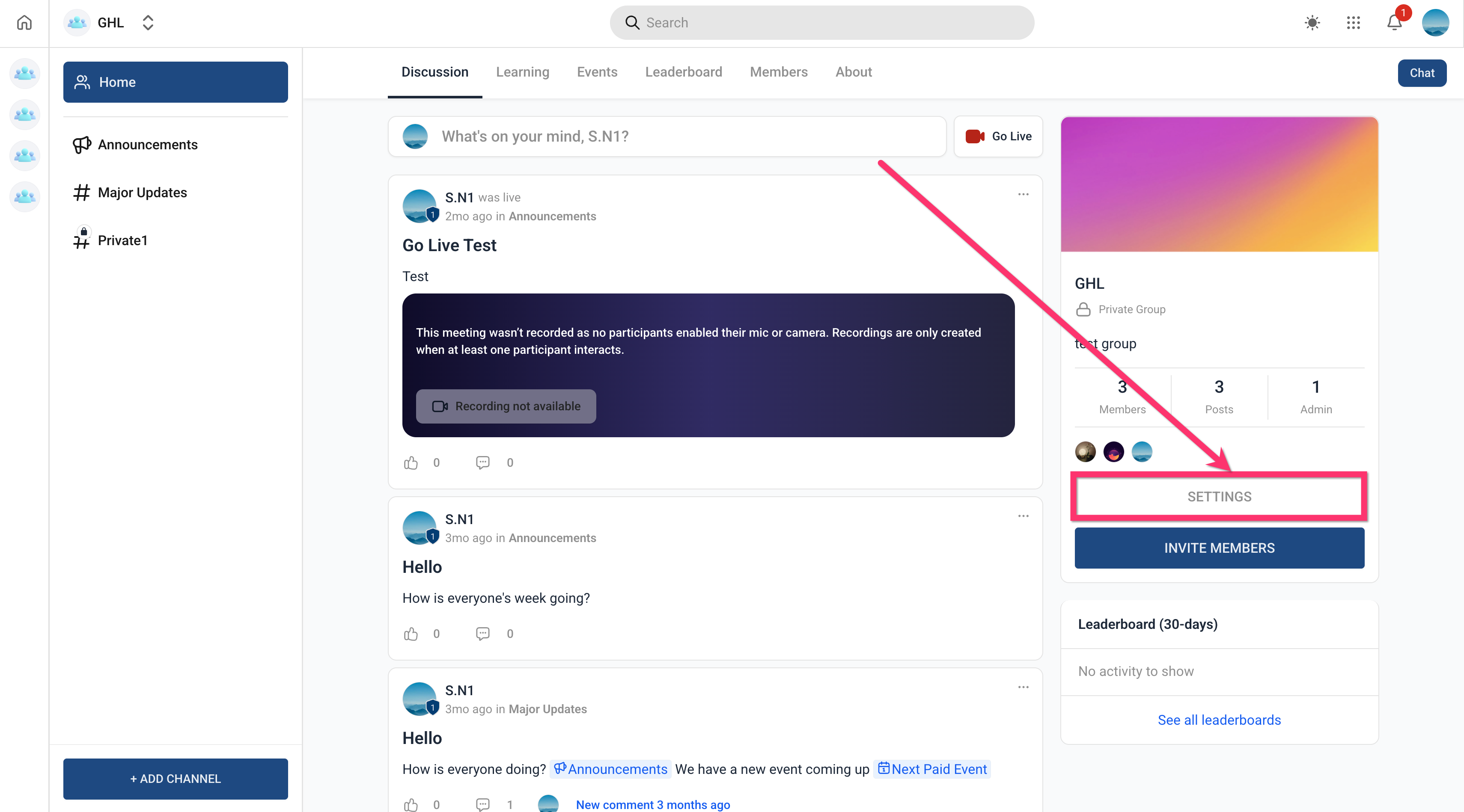
- Click Settings for that group.
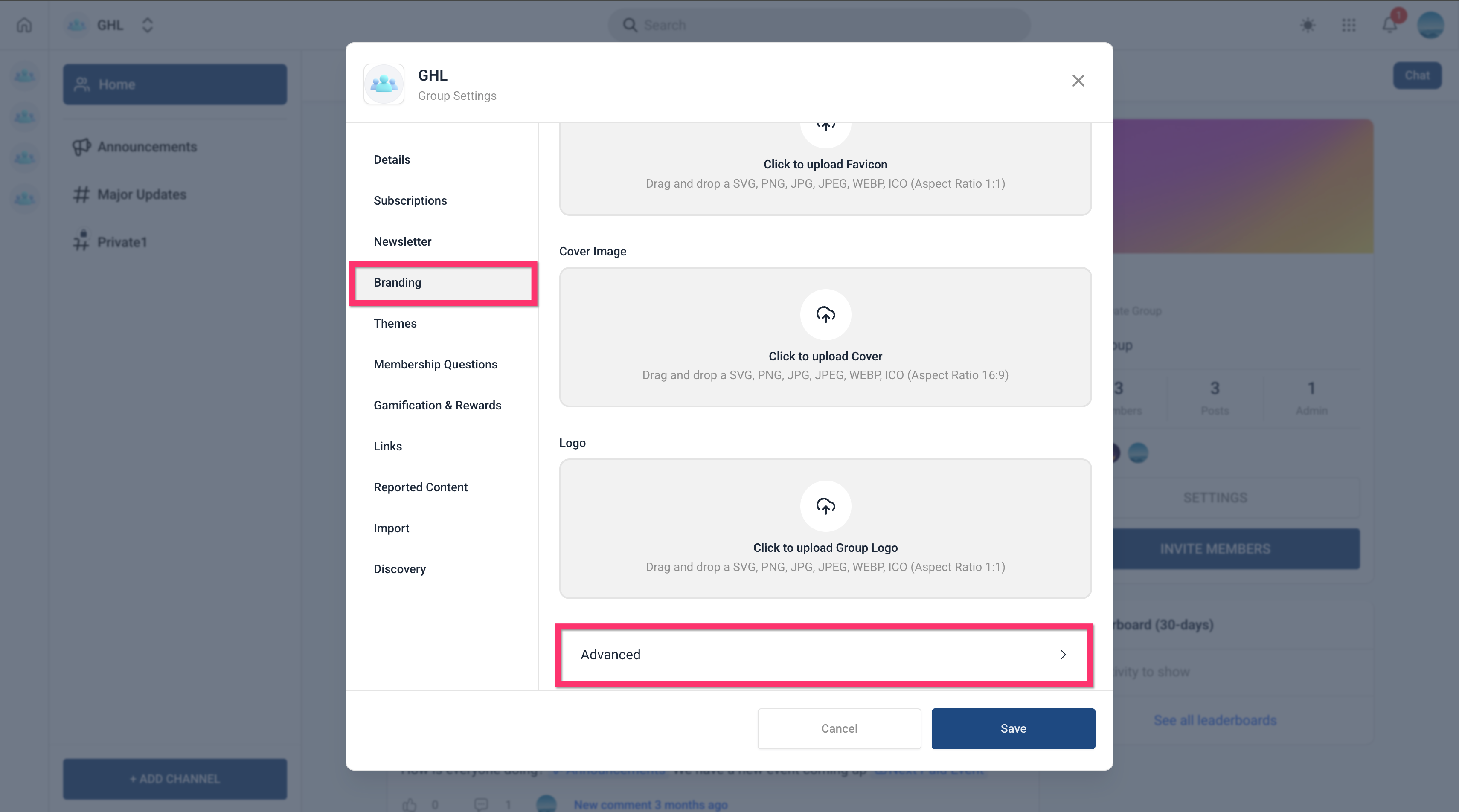
- Select the Branding tab and expand Advanced Options.
- Paste your code into the Custom CSS and Custom JavaScript fields.
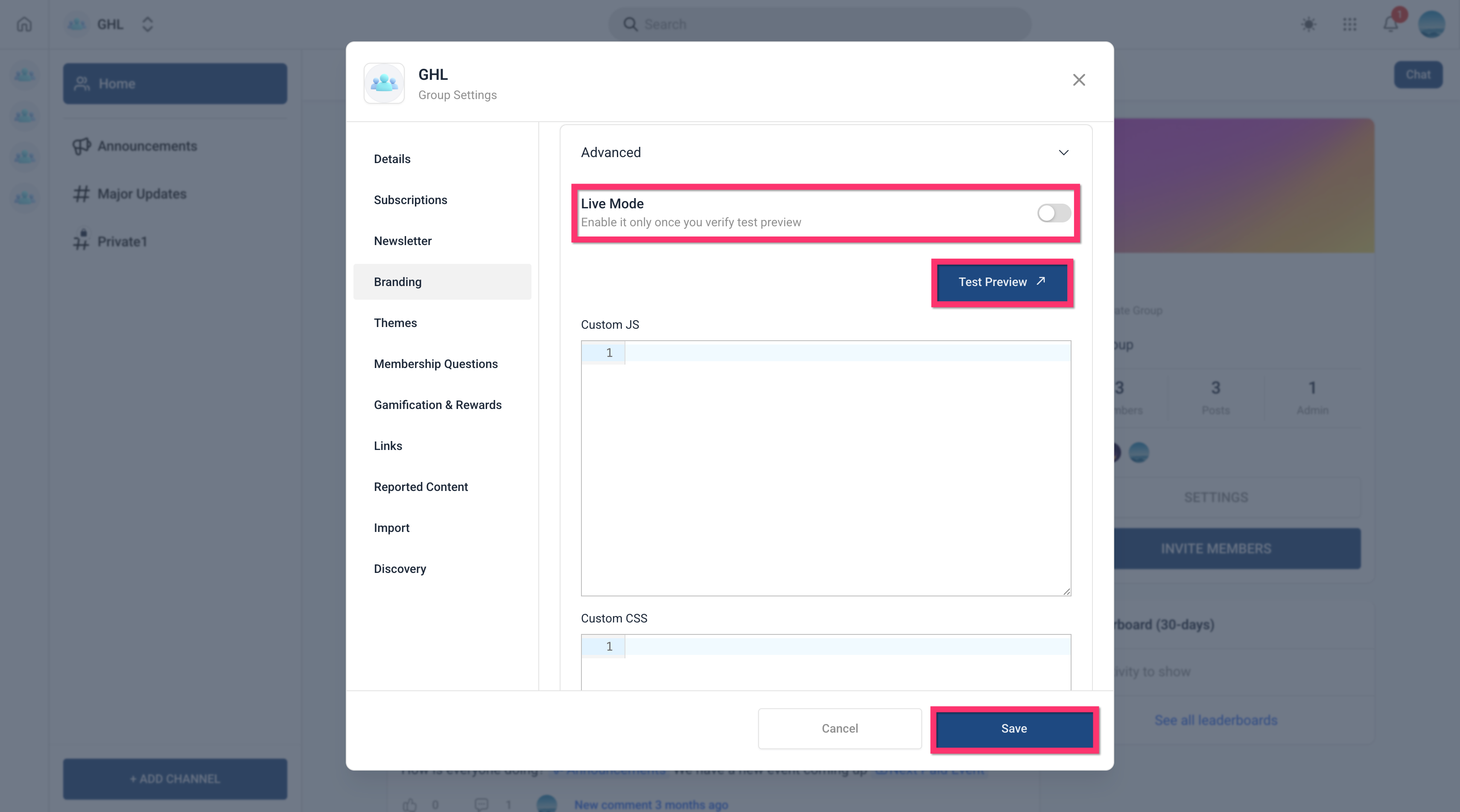
- Press Test Preview to view the changes.
- Turn Live Mode on when the preview meets your expectations.
- Click Save to apply the custom code.
06What it looks like in HighLevel
07Settings that matter
- Custom CSS. Accepts CSS rules that style elements within the selected group only.
- Custom JavaScript. Accepts JavaScript that runs inside the selected group’s pages.
- Live Mode. Controls whether the pasted CSS/JS is visible to members; off keeps the code in preview only.
08Things to know before you rely on it
- HighLevel does not give guidance, recommendations, or support for custom code.
- Use the .dark class to target dark mode styles; avoid overly broad selectors that could affect unintended elements.
- For temporary troubleshooting, add 'customCode=false' to the community URL to disable custom code for the current session.
09If something goes wrong
- Need to quickly disable custom code. Turn Live Mode off.
- Issues appear after applying custom code. Add 'customCode=false' to the community URL to disable the code temporarily and isolate the problem.
10How it connects to the rest of HighLevel
- Create and manage a HighLevel community Community setup
- Manage members inside groups in HighLevel Member management
- HighLevel pricing and plans Pricing
Michael's take

When adding branding tweaks, I paste the CSS, hit Test Preview, and only turn Live Mode on once the preview matches the brand guide. I also keep the ‘customCode=false’ URL trick handy for quick sanity checks before spending time debugging.