
01Who this is for
- Entrepreneurs who want a branded hub for customer engagement and brand loyalty.
- Educators needing a structured space to deliver courses, track progress, and interact with learners.
- Coaches or consultants aiming to manage client groups, schedule sessions, and reward participation.
02Communities, explained
The Communities feature adds a dedicated area inside HighLevel where members can discuss, view content, and take part in events. It lives under the Communities section of the dashboard and connects to other platform tools like email, automation, and the Learning tab.
Administrators can set a custom domain, upload branding assets, and fine tune the look of the portal. Member access is governed by roles such as Admin, Contributor, or Member, and groups can be marked public or private.
Additional capabilities include channel creation for topic specific chats, course attachment for structured learning, event scheduling with reminders, and gamification through points, badges and leaderboards.
03How businesses use communities
- Fitness studio. The studio creates a community for members, adds private groups for class discussions, attaches workout courses, schedules live Q&A events and uses points to unlock premium content.
- Software training company. The company builds a community, uploads its training courses, sets a custom domain for branding, and configures email reminders for upcoming webinars and new module releases.
- Consulting agency. The agency creates a members only space, invites clients with specific roles, creates channels for project updates, and rewards clients with badge levels for completing assessments.
04How to set up and use communities in HighLevel
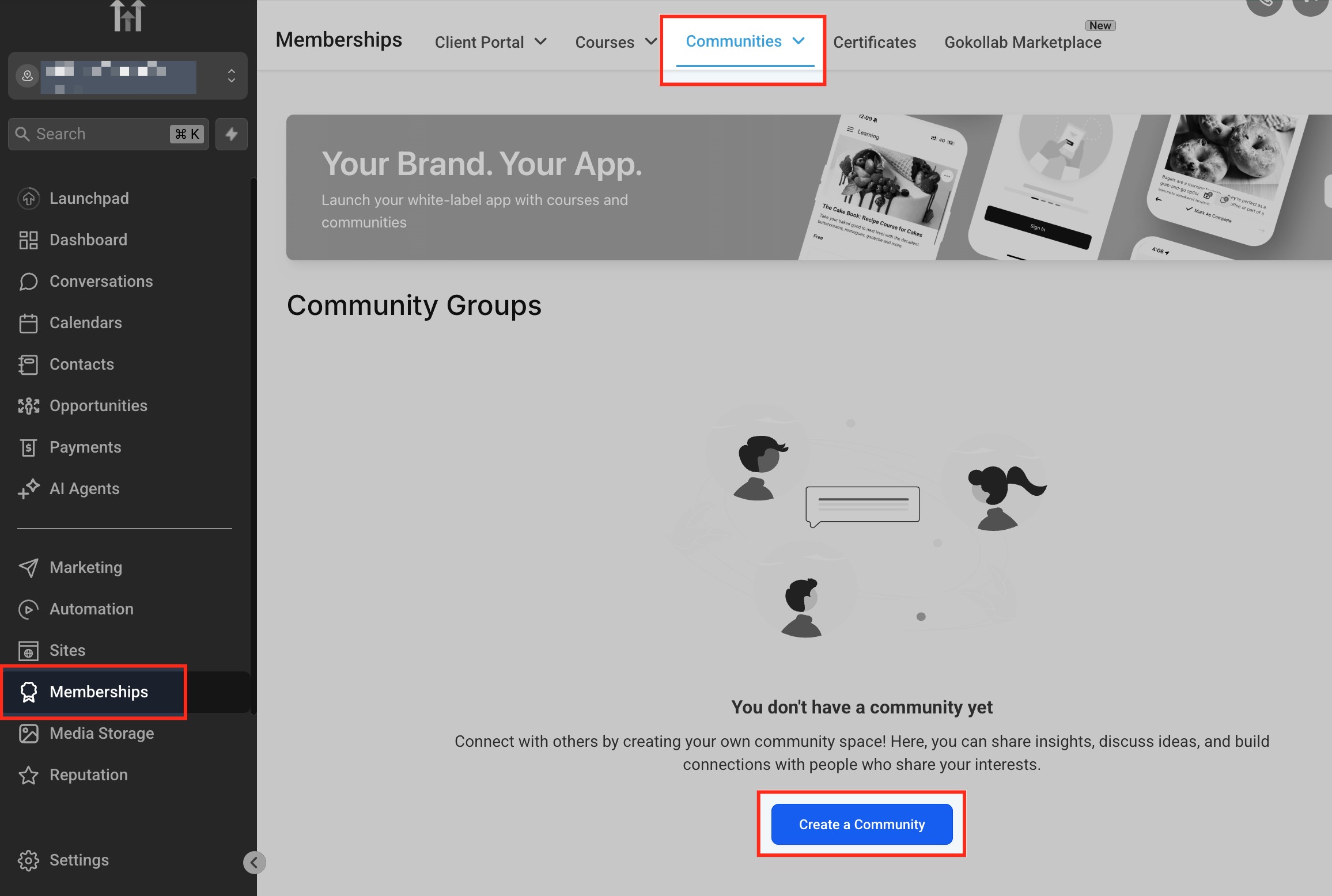
Create a new community
- Open the Communities section from the HighLevel dashboard.
- Click the Create New Community button.
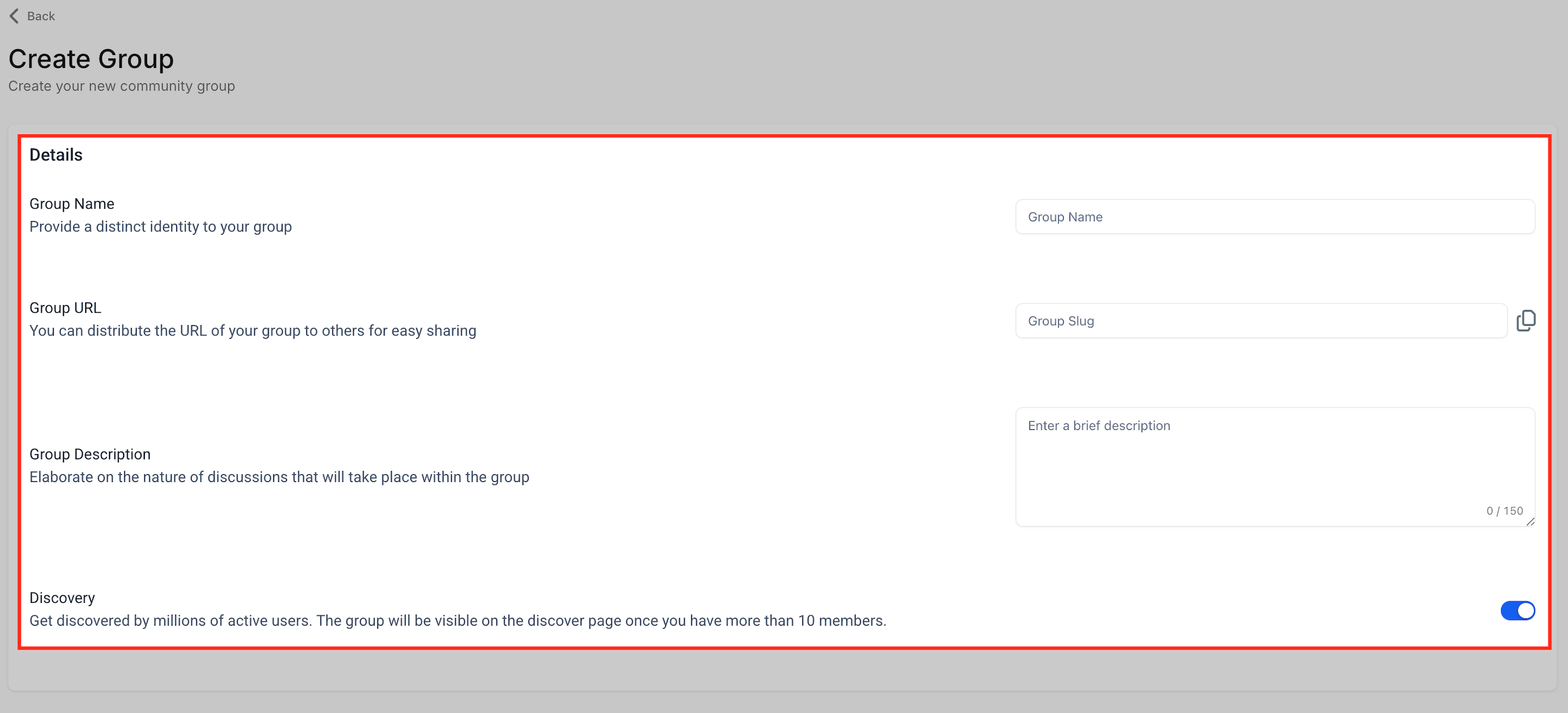
- Enter the community name, URL and a short description.
- Save the community to finish creation.
Set up a custom domain
- Navigate to Memberships > Communities > Settings.
- Locate the custom domain field and type the desired domain.
- Update the DNS records to point to HighLevel as instructed.
- Click Update Domain and wait for DNS propagation.
Configure email notifications
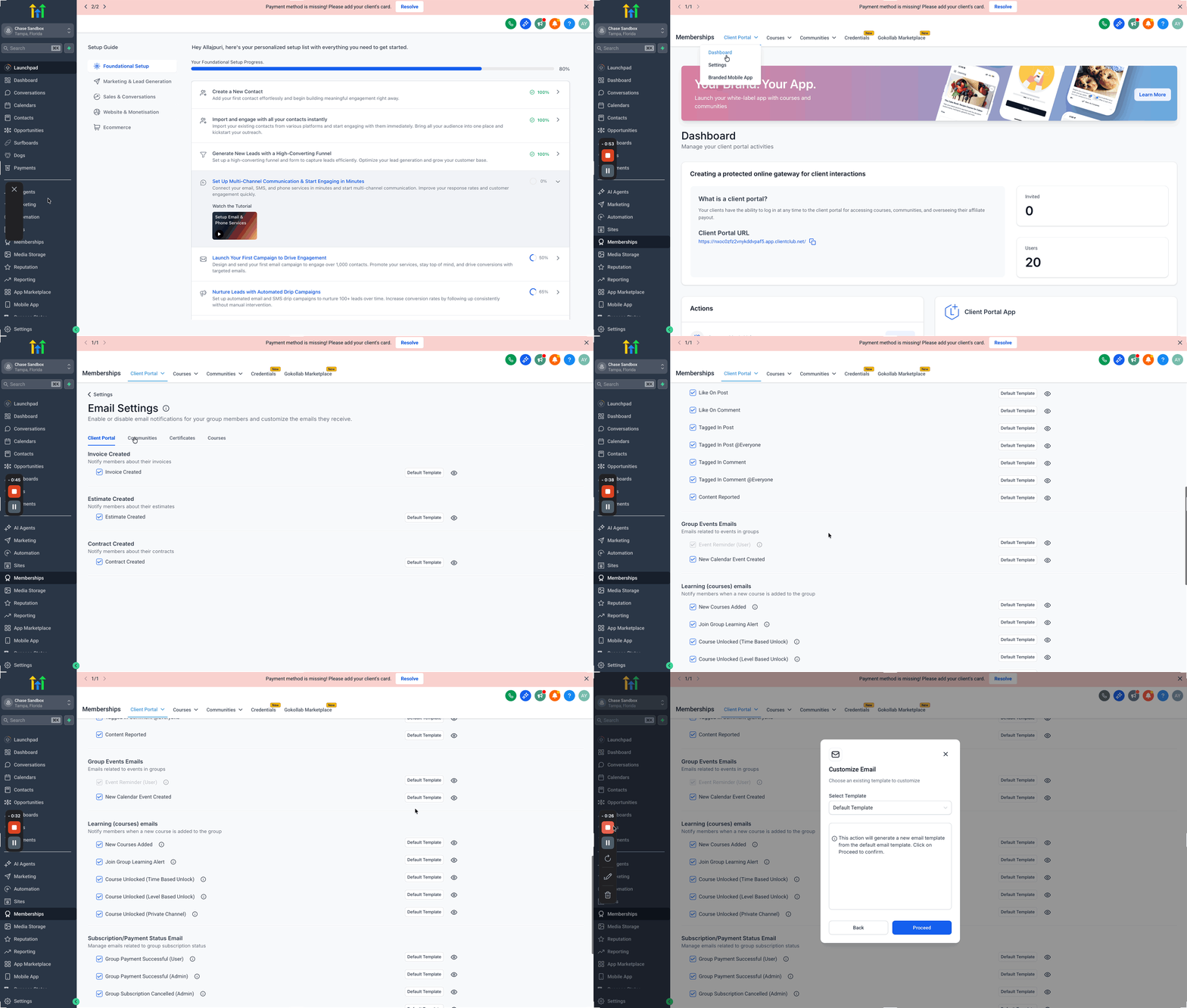
- Open Sites and select Client Portal.
- Go to Memberships, then Settings, then Email Settings.
- Choose Communities and enable or disable the notification types you need.
- Save the changes to apply the email settings.
Customize email templates
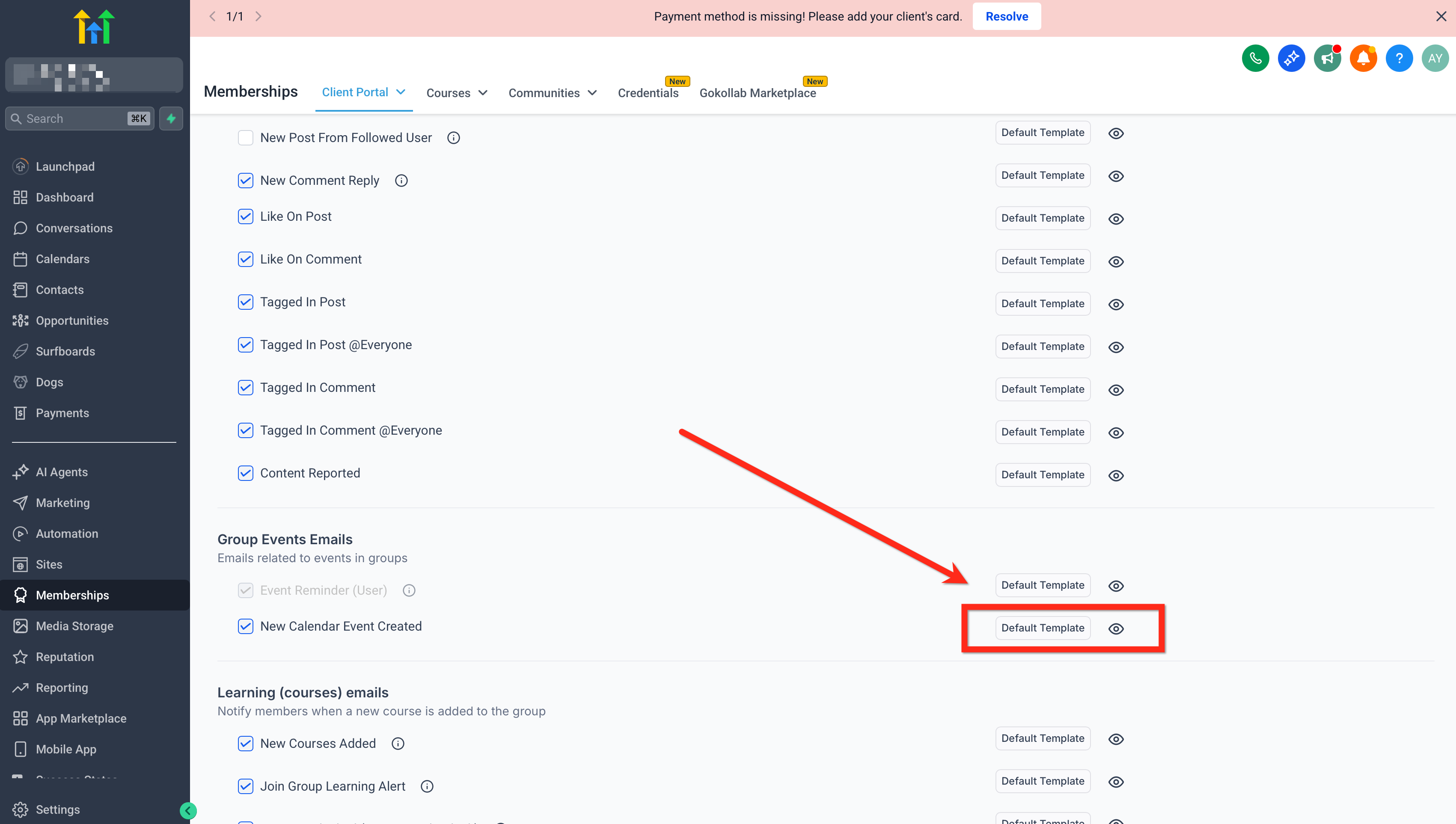
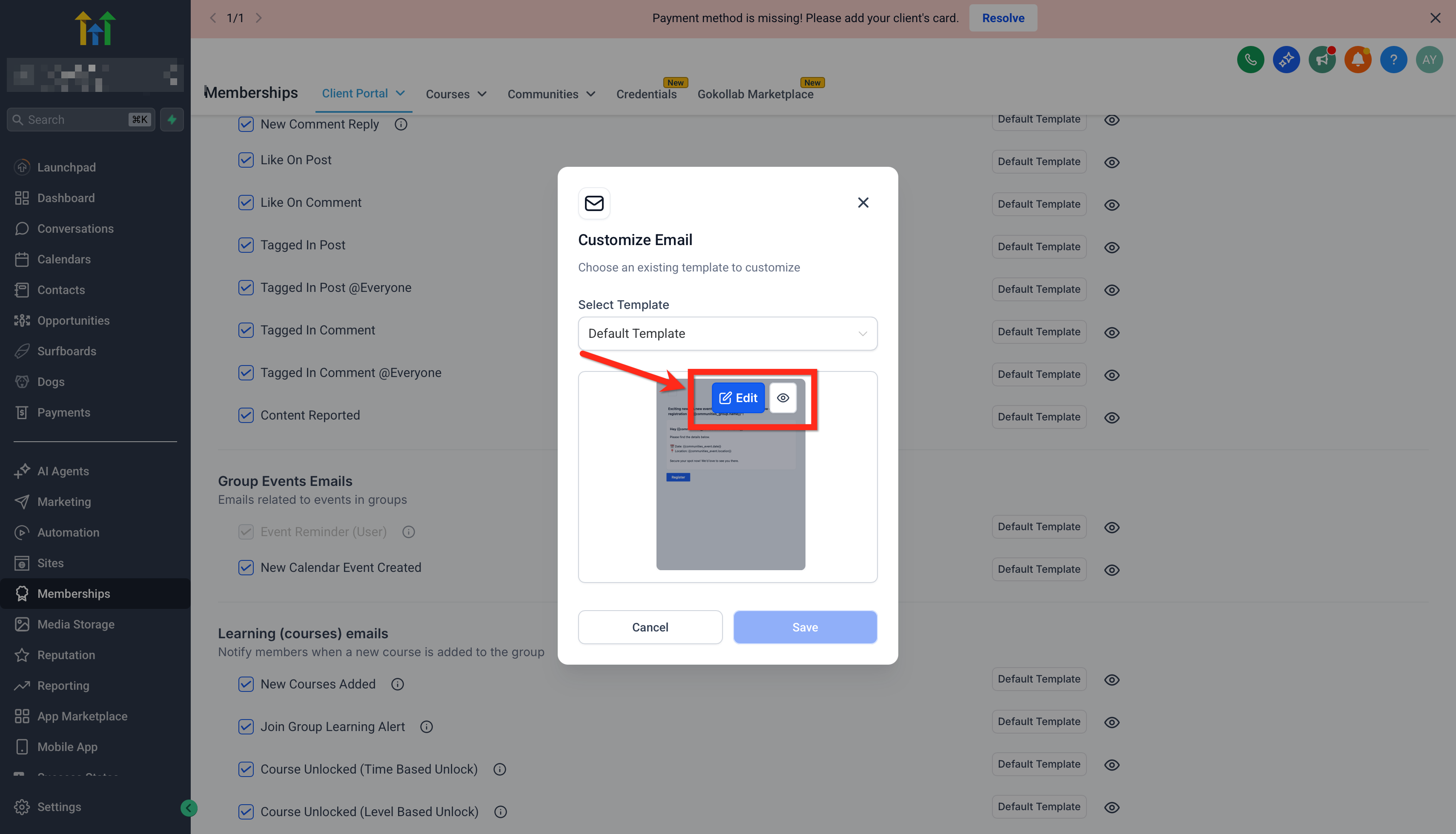
- Select the Group Event Reminder Email option.
- Click Default Template and choose Edit.
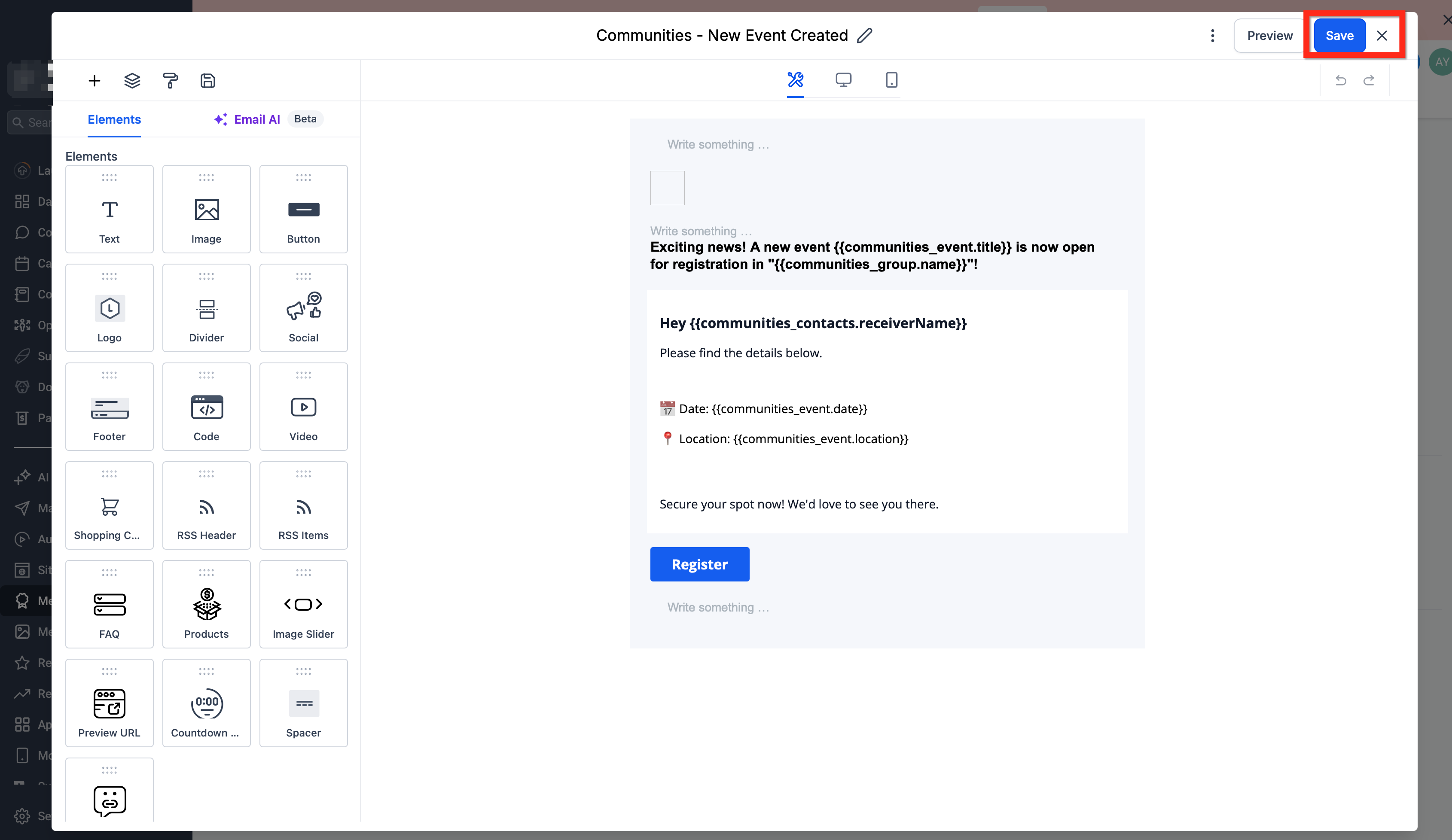
- Modify the subject line and body, adding merge fields as required.
- Preview the email and save the template.
Manage memberships and roles
- Enter the Members tab inside the community.
- Press the Invite Members button.
- Toggle Give Administrative Privileges if the invitee needs full access.
- After the member joins, adjust their role via the three dot menu.
Create and organize groups
- Go to the Groups section in the community panel.
- Click the blue Create Group button.
- Enter the group name, short description and set privacy options.
- Assign moderators during setup if needed.
- Save the group and invite members to join.
Set up channels
- Within a group, click the + Add Channel button on the left panel.
- Enter a channel name such as Announcements or SOPs.
- Choose an icon and set any privacy preferences.
- Save the new channel.
Add and manage courses
- Open the Learning tab inside the community.
- Click the + Add Course button.
- Select an existing course from your library or create a new one.
- Set visibility options (all members, restricted, buy now, time unlock) and save.
Create and schedule events
- Navigate to the Events tab in the community.
- Click Create Event.
- Enter the event title, description, banner image and meeting link.
- Choose a one time or recurring schedule.
- Enable reminders and save the event.
Implement rewards and gamification
- Open the Leaderboard section to view existing member levels.
- Go to Gamification & Rewards in Settings.
- Assign rewards such as course access, discounts or roles to each level.
- Create workflows that trigger rewards when members complete actions.
05What it looks like in HighLevel
06Settings that matter
- Custom domain. Controls the branded URL used to access the community instead of the default system address.
- Group Invitation Email. Sends an invitation when a user is added to a community or group.
- Group Membership Status Emails. Notifies users and admins about approval, rejection, requests and private channel assignments.
- General Group Emails. Alerts members about comments, likes, tags, content reports and new calendar events.
- Learning (Courses) Emails. Informs members when new courses are added, when they join learning groups, or when course access changes.
- Role Change Notifications. Keeps members updated about promotions, demotions or ownership transfers within the community.
07Things to know before you rely on it
- Domain verification may take up to 48 hours for DNS changes to propagate.
- Deleting a community removes all content, members and discussions permanently.
08If something goes wrong
- Domain verification fails. Confirm that DNS records match HighLevel’s requirements and wait up to 48 hours for propagation.
09How it connects to the rest of HighLevel
- How to manage members inside groups Manage group members
- Guidance on handling community content Manage content
- Set up paid groups to monetize access Paid groups
Michael's take

Communities are a solid option if you need a branded space for members to interact and access exclusive content. Skip it if you have no need for a dedicated community platform.