
01Who this is for
- SaaS Founders, need structured channels for product announcements and support topics.
- Online educators, use posts to deliver lessons, embed videos and share files with students.
- Non profit organizers, rely on community discussions and reactions to engage volunteers.
02Content management, explained
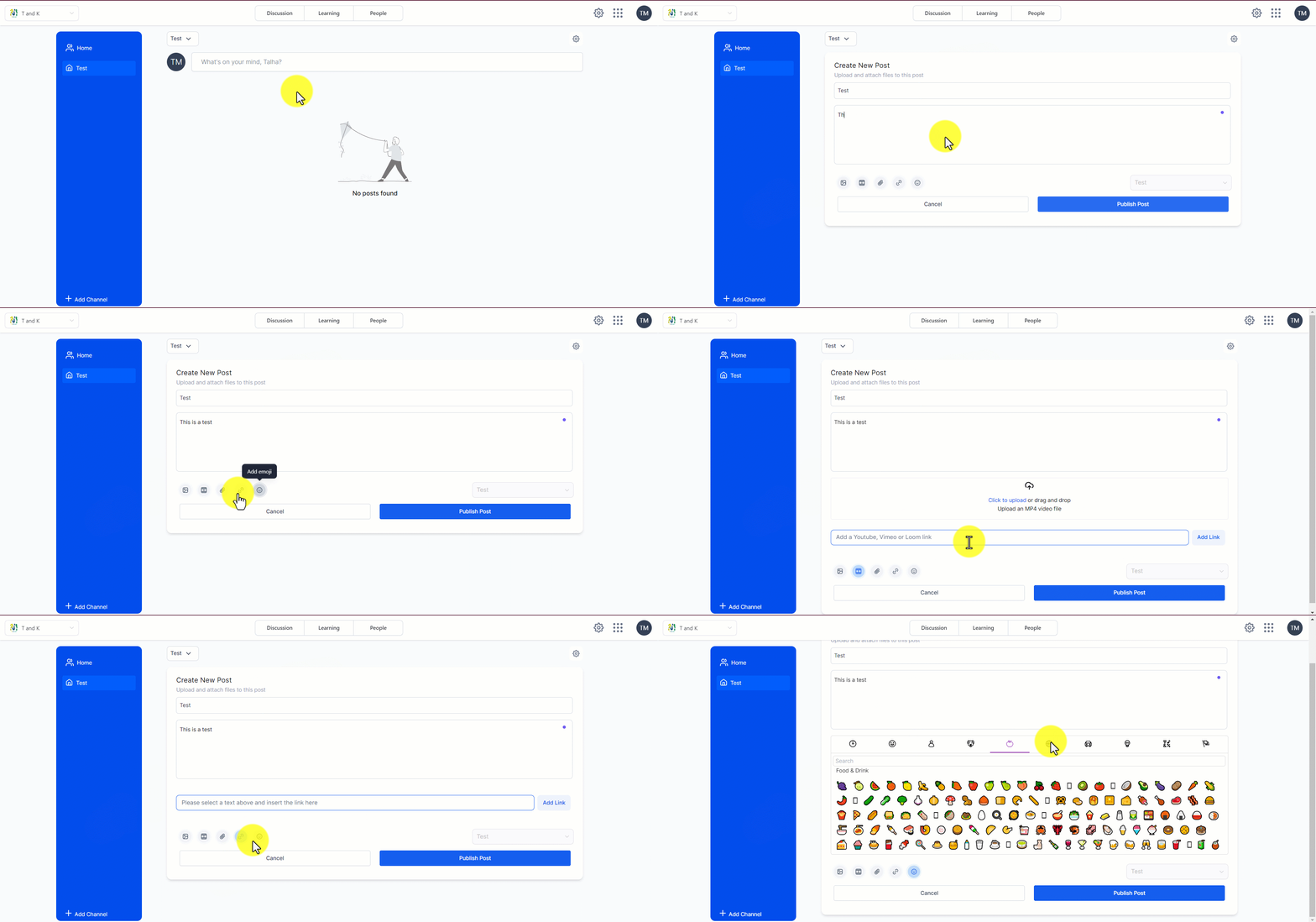
Content Management provides a set of tools inside each group to organise conversations. Admins can create topic based channels, each with a name, description and icon. Members create posts that belong to a selected channel and can enrich them with text, images, videos, attachments, links and emojis.
Posts appear on the Home Timeline, which aggregates content from all channels, and can be viewed in a modal window or on a dedicated page. Comments and likes are tracked in real time, and both admins and members can edit or delete their own content. Moderation rules may place posts on hold for review.
All of these features live within the Communities section of HighLevel, accessible from the group interface where channels appear on the left bar and the posting area resides in the main view.
03How businesses use content management
- SaaS company. Create a channel for each product module, then publish posts with release notes, attached PDFs and embedded tutorial videos. Team members comment and like to surface important updates.
- Online education platform. Set up a channel per course, post lesson content with images, embed YouTube videos, add assignment PDFs as attachments, and enable students to discuss via comments and reactions.
- Non profit organization. Create channels for different programs, share news posts with images and links to external resources, and let supporters interact through comments and emojis to drive engagement.
04The numbers and rules that matter
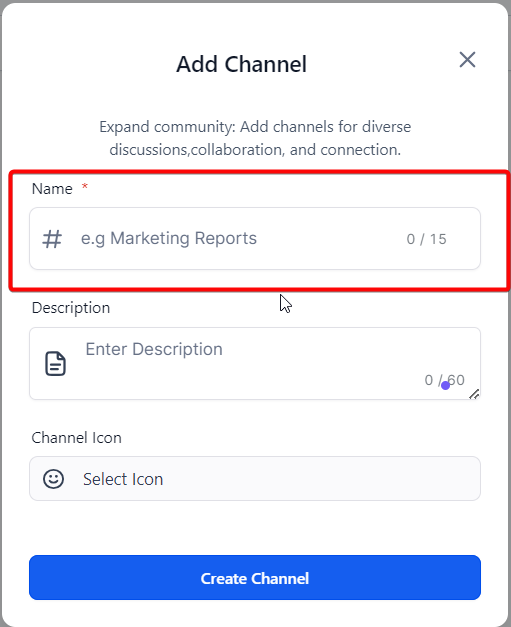
- Channel name limit: 15 characters.
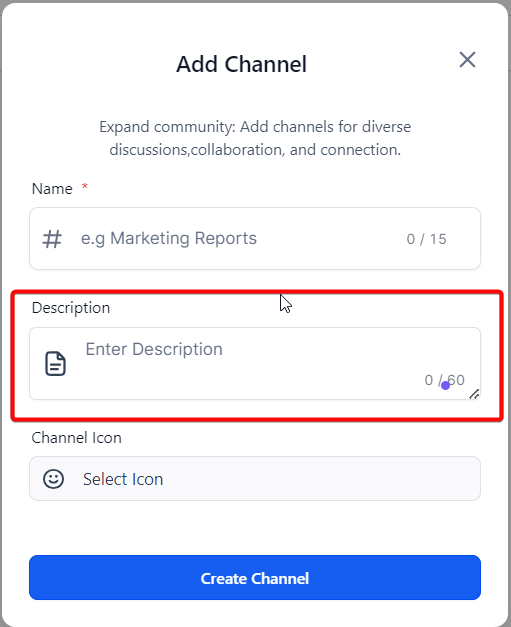
- Channel description limit: 60 characters.
- Maximum image dimensions: 800x400px.
- Video upload format: MP4.
- No official maximum video file size; recommendation to keep under 100 MB.
05Before you start
- A group channel must exist before a post can be published in that channel.
06How to set up and use content management in HighLevel
Create a channel
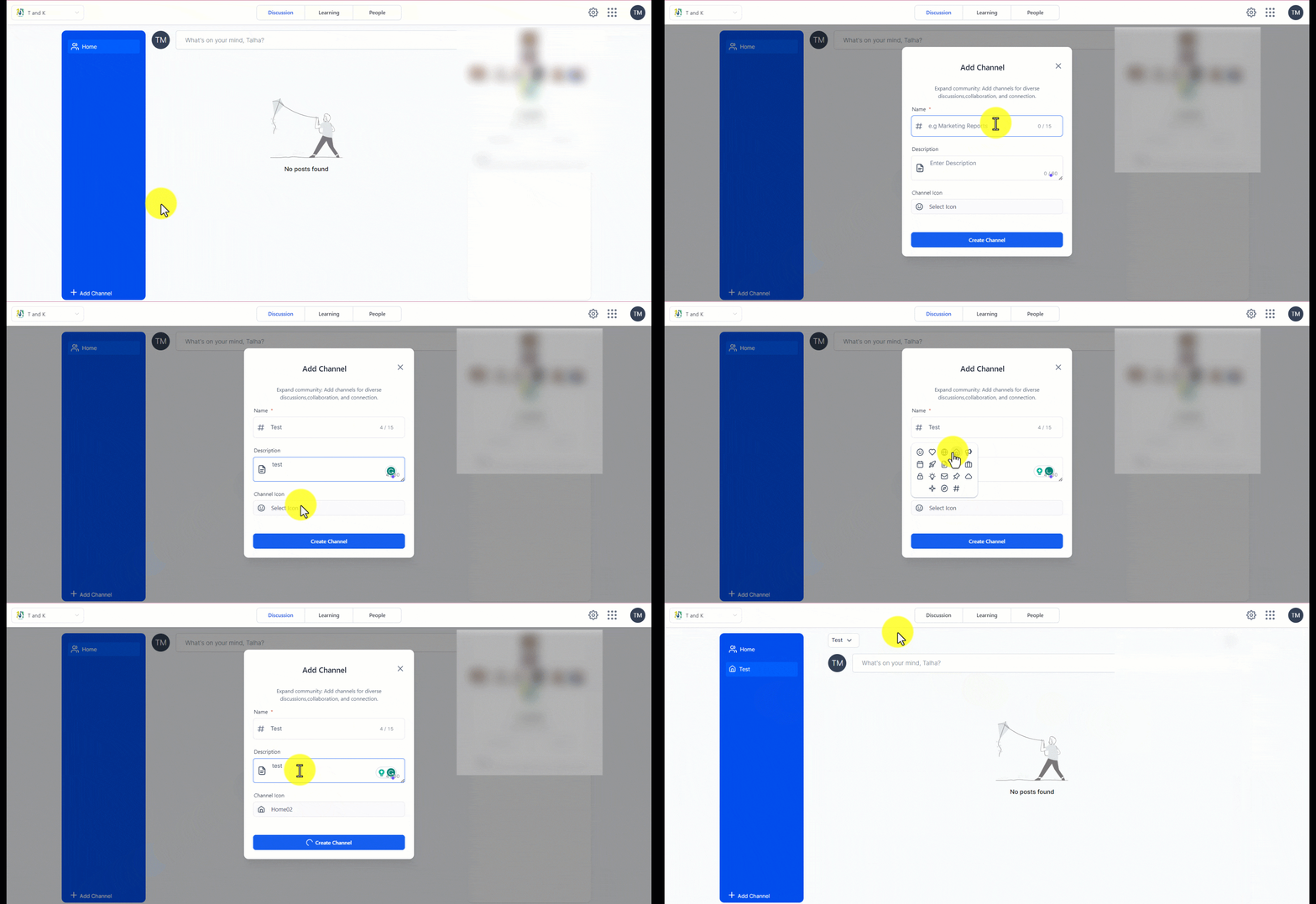
- Click the Add Channel button in the group’s left bar.
- Enter a channel name (up to 15 characters).
- Provide a channel description (up to 60 characters).
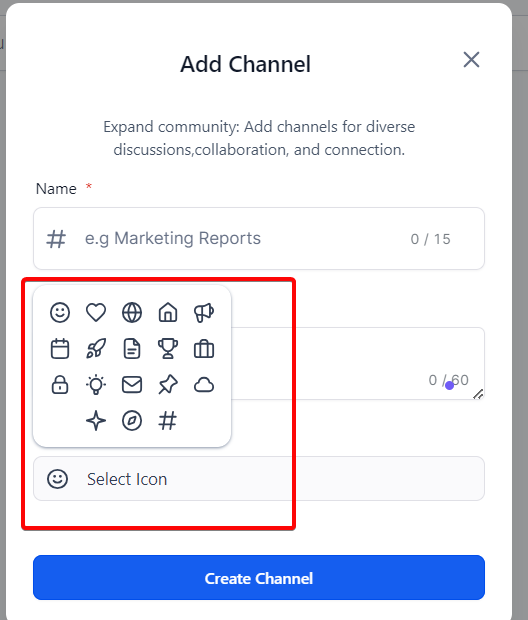
- Select a channel icon from the available options.
- Confirm the details to create the channel.
Create a post
- Navigate to the desired group channel.
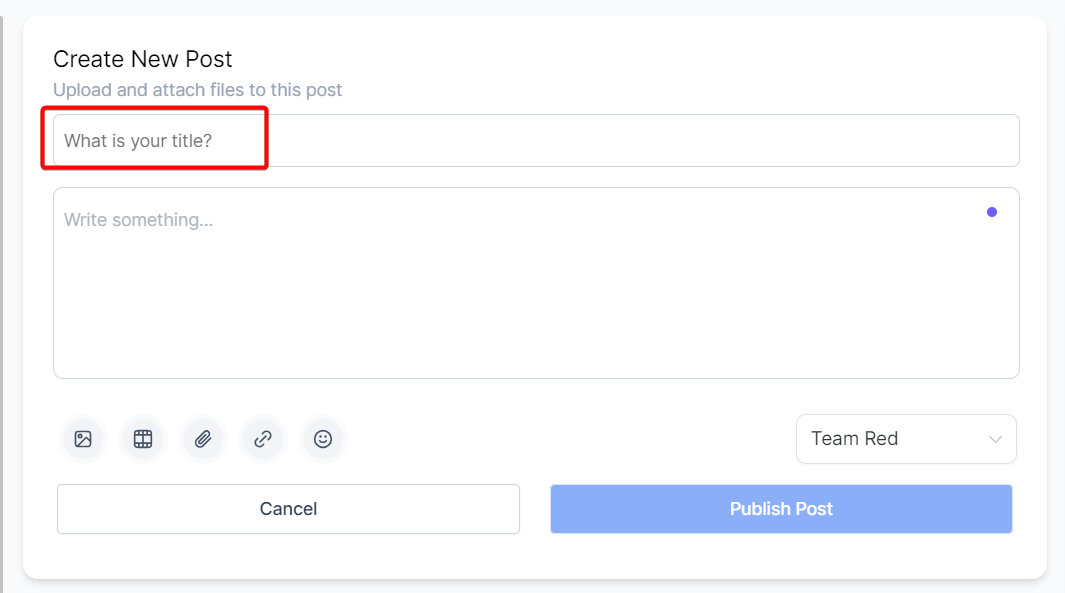
- Enter a concise post title.
- Write the post body with the main content.
- Add an image file (SVG, PNG, JPG or GIF) within size limits.
- Upload an MP4 video file if needed.
- Embed an external video by pasting its share link and adding the link.
- Highlight text, paste a URL and click Add Link to insert a hyperlink.
- Select an emoji from the library to include in the post.
- Click Publish Post to make the content live.
- If the post contains moderation keywords, it may be held for admin review before appearing to members.
Move a post to another channel
- Click the three dot icon at the top right of the post.
- Select the Move to Channel option.
- Choose the destination public or private channel.
- Click Move to relocate the post.
Delete a post
- Find the post you want to remove.
- Click the three dot icon on the right side of the post.
- Choose Delete Post to permanently remove it.
07What it looks like in HighLevel
08Settings that matter
- Channel Name. Defines the short identifier for a channel and is limited to 15 characters.
- Channel Description. Provides a brief summary of the channel’s purpose, limited to 60 characters.
- Channel Icon. Selects a visual symbol that appears next to the channel name in the list.
09Things to know before you rely on it
- Channel names can be no longer than 15 characters.
- Channel descriptions are limited to 60 characters.
- Image uploads must fit within 800 × 400 px dimensions.
- Video files have no listed maximum size, but keeping them under 100 MB is recommended for optimal performance.
- Posts that contain moderation keywords may be held for admin review before appearing to members.
10How it connects to the rest of HighLevel
- Add custom CSS or JavaScript to enhance group appearance. Custom CSS/JS
- Set up paid groups to charge for community access. Paid groups
- Enable gamification with points, badges and leaderboards. Gamification
Michael's take

Most people think the postcreation form is just for text, then they forget about the channel structure and end up with a chaotic feed. I would first map out the topics you want and set up clear channels before anyone starts posting.
Once the channels exist, I would test the move post feature to make sure any misplaced content can be shifted without losing comments or reactions. That little check saves a lot of rework later.