
01Who this is for
- Course creators can monetize exclusive content by requiring payment before members join a group.
- Coaches and trainers can protect premium community spaces and collect recurring fees for ongoing support.
- Membership managers can control private group entry and automate refunds when necessary.
02Paid groups, explained
Paid Groups is a part of the Communities area in HighLevel. From a Community’s Settings you can define prices that members must pay before gaining access. Two payment models are available: a one time fee that grants unlimited entry, and a recurring subscription that provides access for each billing period.
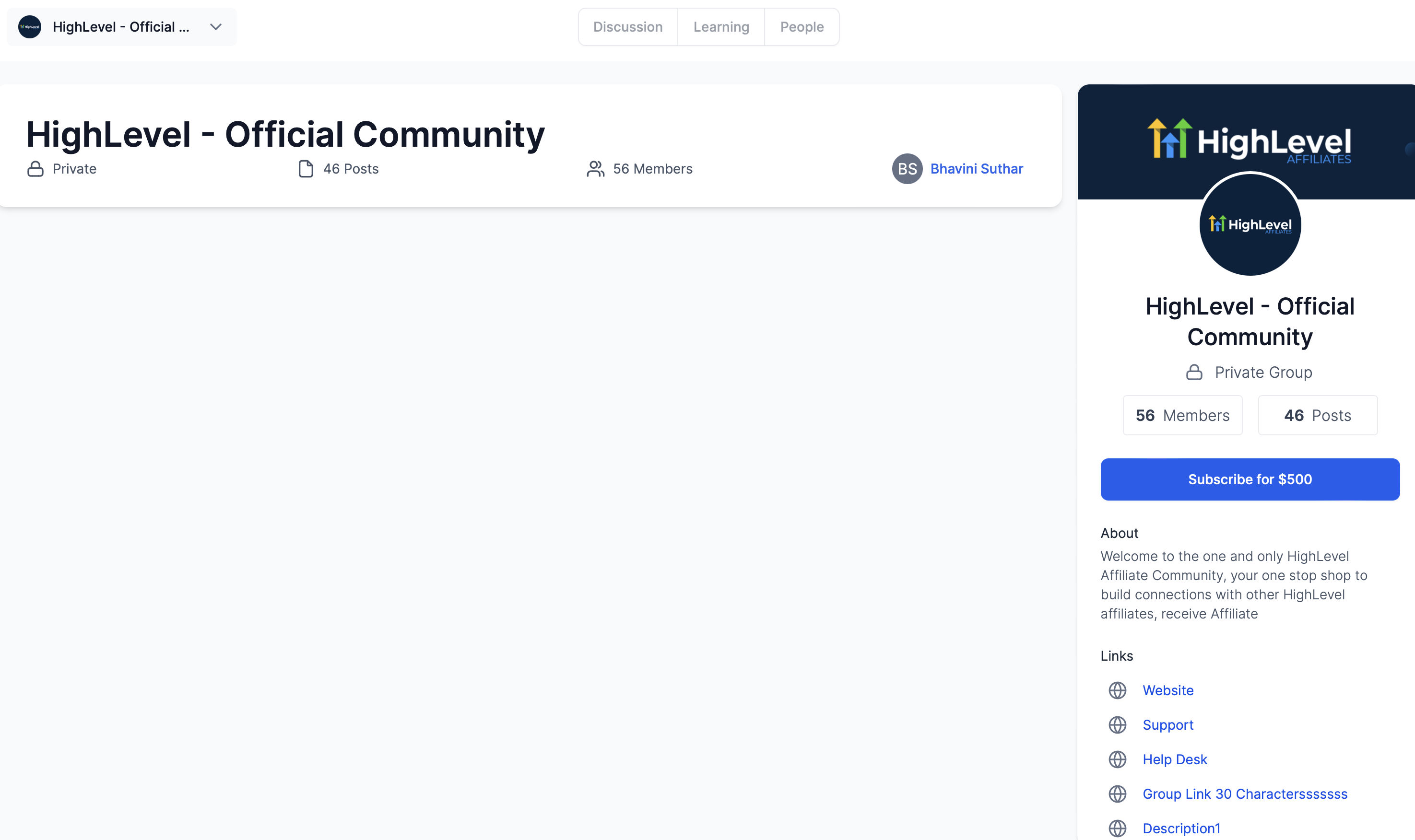
The pricing details are stored under Settings > Subscriptions. When a price is saved, the group description automatically shows the cost to prospective members. Payments follow the existing Payments configuration, so taxes set up in Payments > Settings > Taxes are applied at checkout. After a payment, members receive a confirmation email and admins are notified.
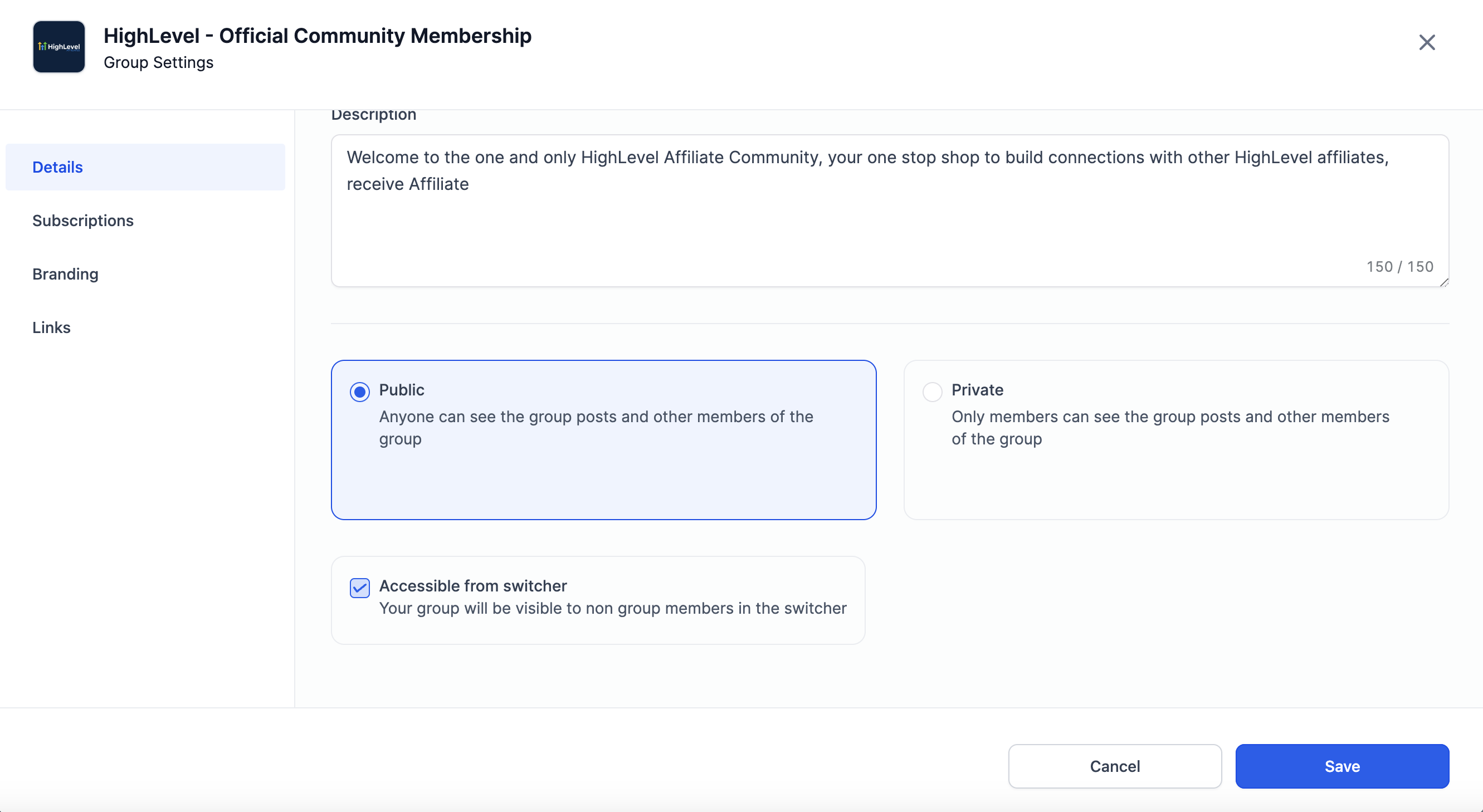
Access rules differ by group type. Public groups enroll users immediately after payment, while private groups require an admin to approve the request in the People tab. Cancelled subscriptions remove the member from the group and trigger email notices to both user and admin.
03How businesses use paid groups
- Online fitness coach. The coach creates a private community for premium clients, sets a monthly recurring price in Settings > Subscriptions, and then approves each member request in the People tab. Clients pay through the checkout, receive access, and are removed automatically if they cancel.
- Software tutorial site. The site builds a public group that holds exclusive video lessons, configures a one time fee, and publishes the price in the group description. Users pay once, get instant membership, and receive a confirmation email.
- Professional association. The association offers a private members only forum, adds a yearly subscription fee, and uses the People tab to accept membership requests after payment. When a member asks for a refund, the admin issues it from Payments > Transactions.
04The numbers and rules that matter
- One time payment gives unlimited access after payment.
- Minimum and maximum charge amounts are defined by Stripe’s currency guide.
05Before you start
- A Community must already exist in HighLevel before configuring Paid Groups.
06How to set up and use paid groups in HighLevel
Set up one time payment
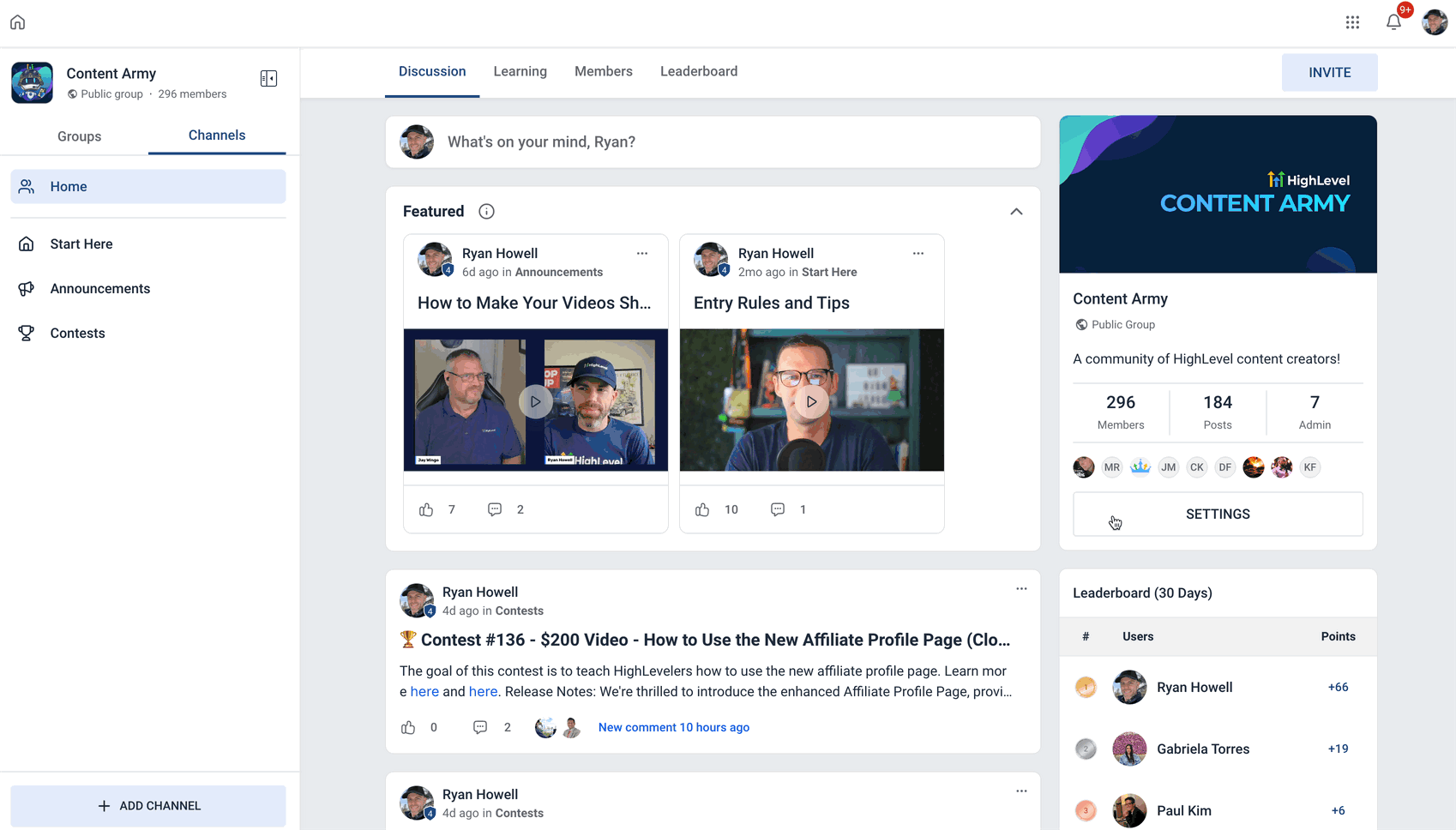
- Log into the desired Community.
- Open Settings and choose Subscriptions.
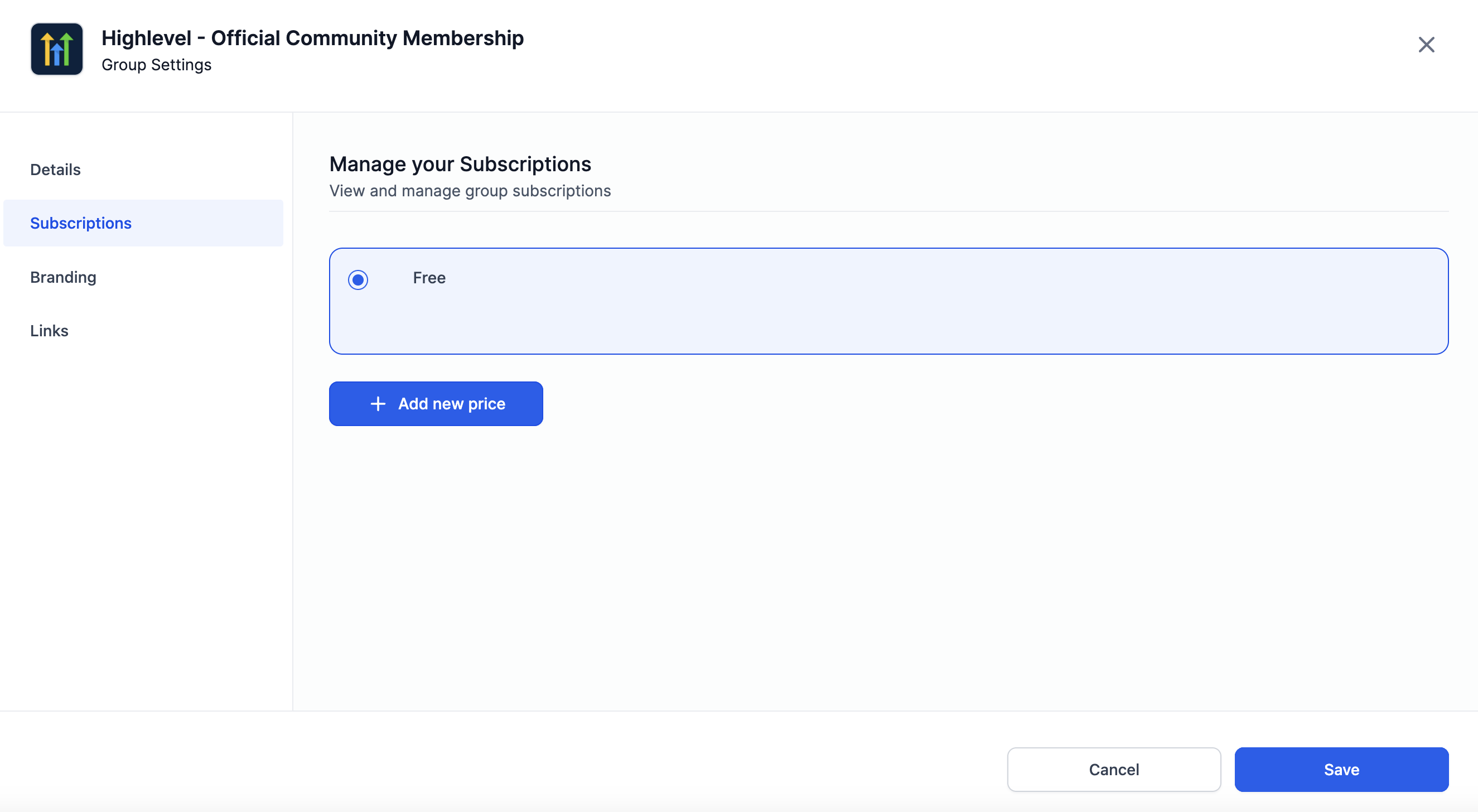
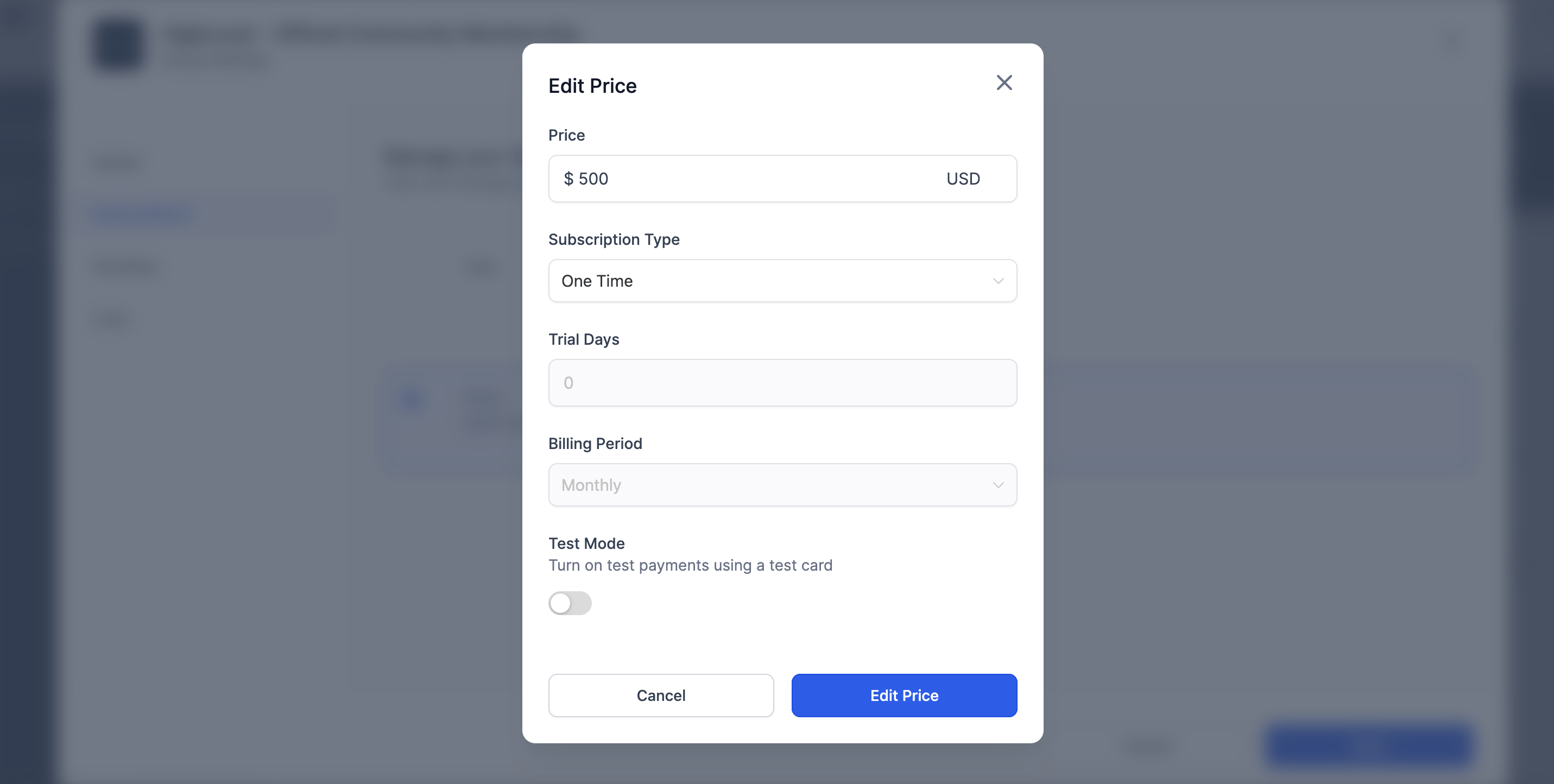
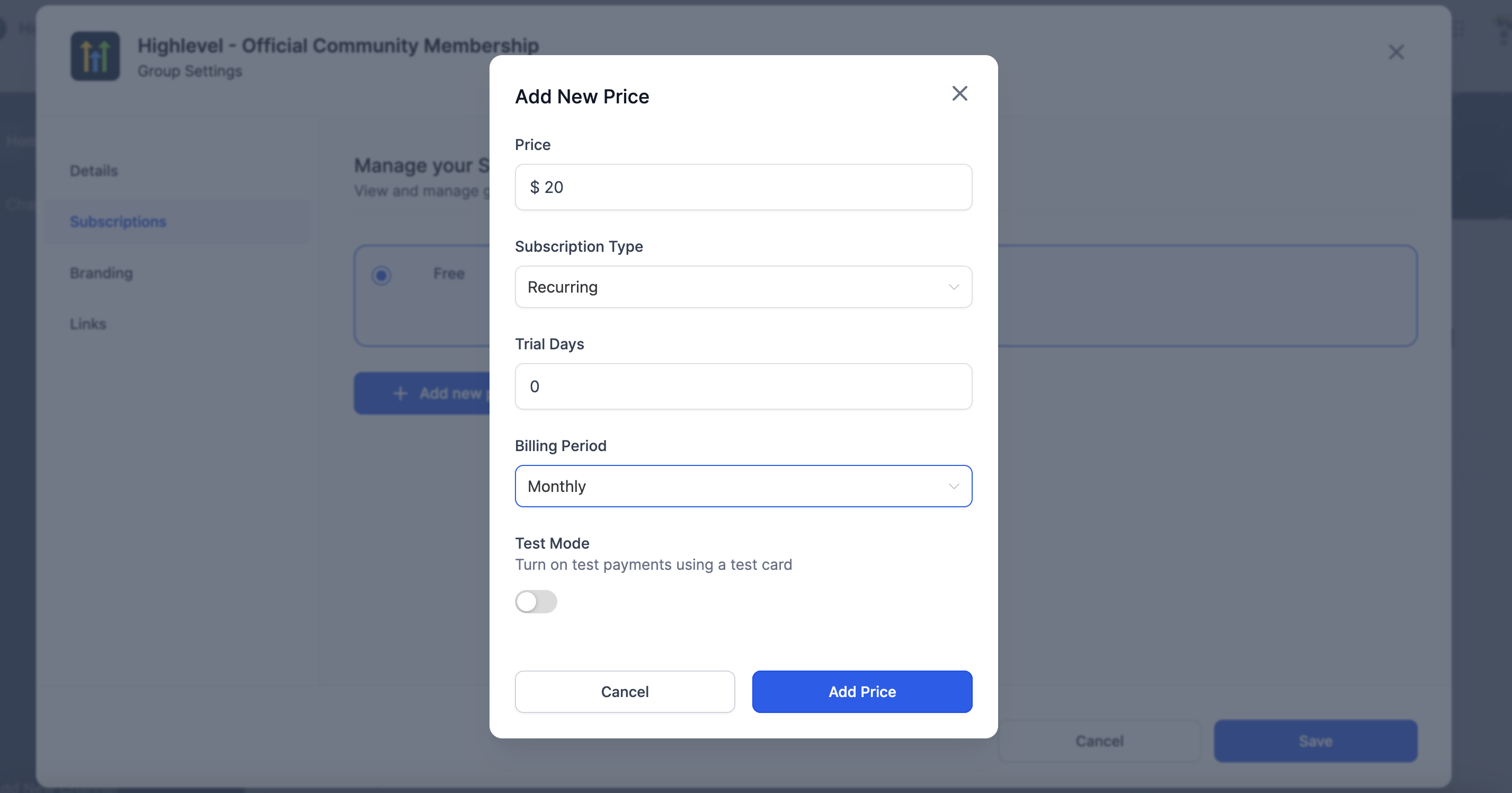
- Click Add new price, enter the amount and select the type as one time.
- Press Add then Save to create the price.
- Optionally enable Test Mode to try a payment.
Set up recurring subscription
- Log into the desired Community.
- Open Settings and choose Subscriptions.
- Click Add new price, enter the amount, select the type as recurring, and set trial days and billing period.
- Press Add then Save to create the recurring plan.
- Optionally enable Test Mode to try a payment.
Grant access for private groups
- After payment, go to the People tab.
- Filter the list to Requested members.
- Click Accept to add the member to the private group.
Issue a refund in HighLevel
- Open Payments and select Transactions.
- Find the transaction line item and click the three dots icon on the right.
- Choose Refund from the dropdown menu.
- Confirm the refund to complete the process.
07What it looks like in HighLevel
08Settings that matter
- Subscriptions. Controls the price amount, payment type (one time or recurring), trial days and billing period for a paid group.
- Test Mode. When turned on, allows you to simulate a payment without processing a real charge.
09Things to know before you rely on it
- Taxes are applied only if you have Automatic Taxes or Manual Tax Rates configured in Payments.
- Minimum and maximum charge amounts follow Stripe’s currency limits; see stripe.com/docs/currencies for details.
- The group description updates automatically after a price is saved.
10How it connects to the rest of HighLevel
- Create and manage a HighLevel community Community setup
- Manage members inside groups in HighLevel Member management
- Paid courses in HighLevel communities: set up and sell Paid courses
Michael's take

Most people think they can just flip a switch and members will automatically get access after they pay. In reality you still need to handle the membership request for private groups, just like any other community. I would set up the payment first, test it in Test Mode, then walk through the acceptance flow to make sure everything works before you open it to the public.
Once the process is solid, I’d add the tax settings you need and decide whether a one time or recurring model fits your content. That way you avoid surprise cancellations or refunds later on.