
01Who this is for
- Online coaches who need a branded learning portal that feels like a mobile app for their clients.
- Professional associations that want members to access resources from any device without separate native apps.
- Fitness studios seeking a cost effective way to deliver class videos and schedules with their own logo and colors.
02Whitelabel membership PWAs, explained
The Membership PWA is a web based wrapper that mimics a native app. It runs inside a supported browser and can be added to a home screen or desktop, giving users quick access to the membership portal. Because it lives in the Legacy Memberships experience, all content and settings are managed through the HighLevel interface.
When enabled, the PWA appears as an installable icon. Users launch it from the shortcut and interact with the membership site just as they would in a regular browser, but without needing to enter a URL each time. Updates are applied automatically whenever the portal content changes.
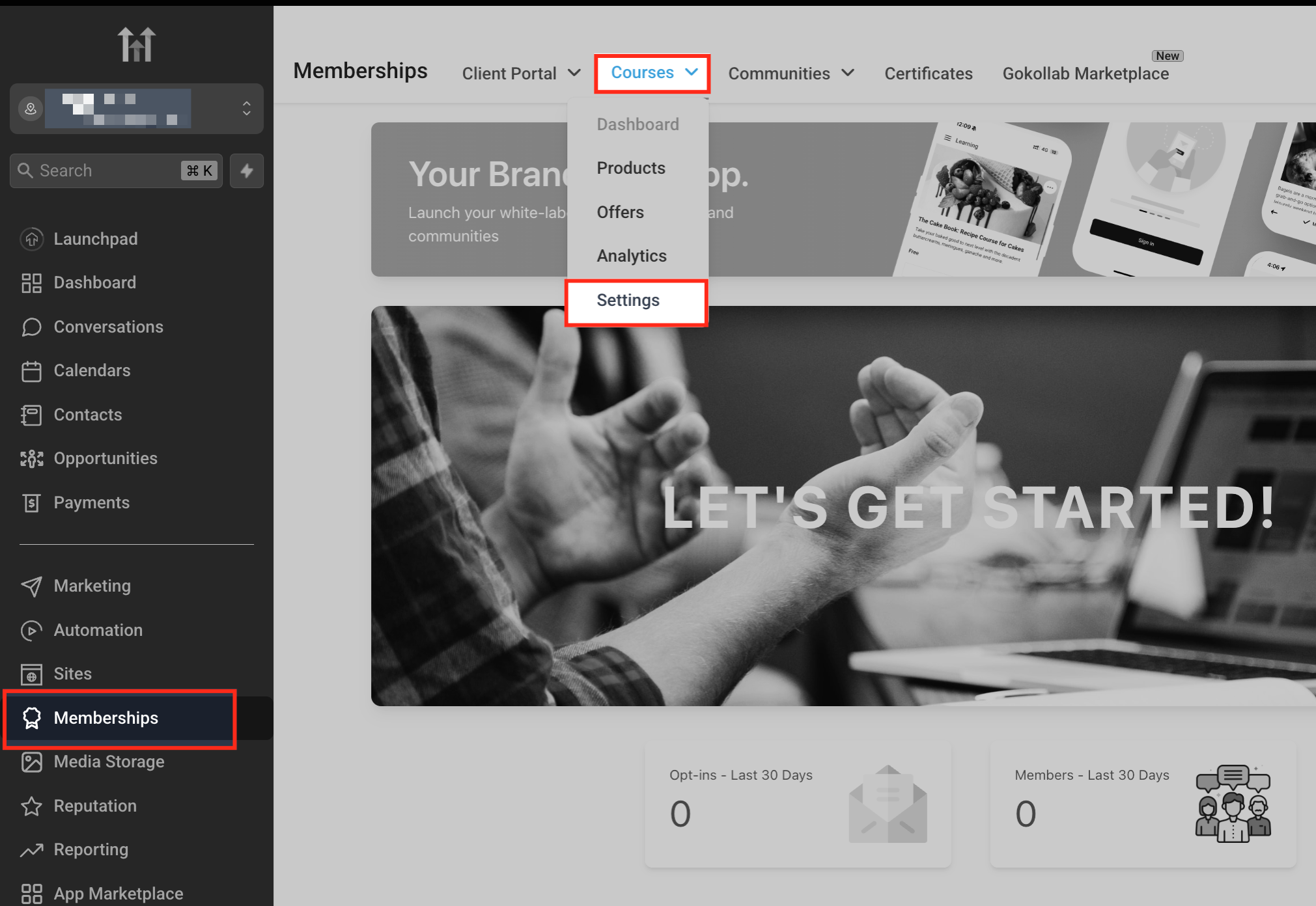
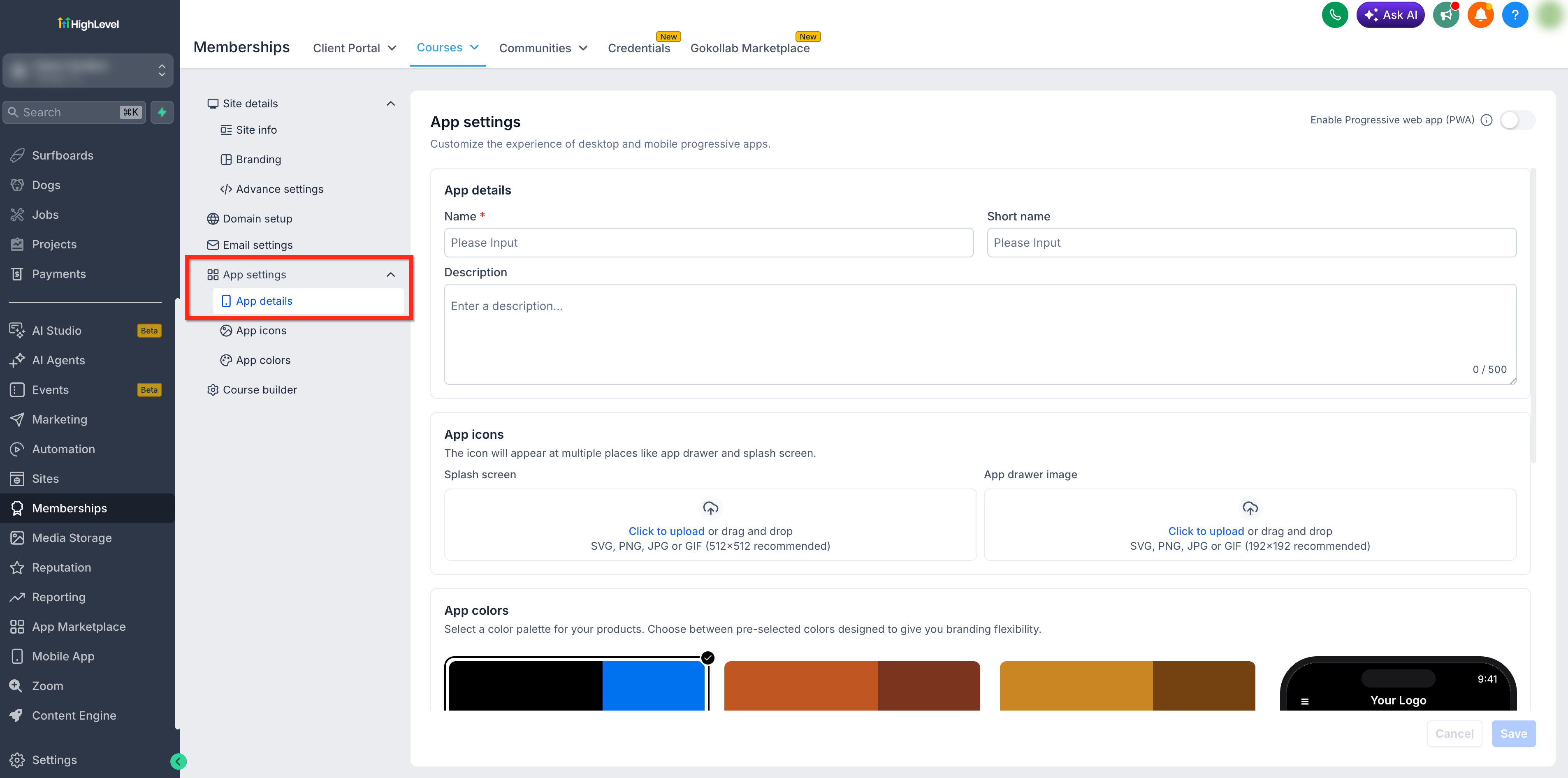
All configuration lives under Memberships > Courses > Settings in a subaccount that is using Legacy Memberships. The App Settings tile contains the toggles, branding fields, icons, and color palette that define the PWA’s look and behavior.
03How businesses use whitelabel membership PWA
- Online coaching business. The coach enables the PWA, enters the program name, uploads their logo and selects a theme color. Clients sign in through the browser and add the shortcut to their phone, accessing lessons with a single tap.
- Professional association. The association configures the PWA, adds a short name and description, and uploads the required icons. Members install the app from the association portal and open it from the desktop dock to view resources.
- Fitness studio. The studio turns on the PWA, sets the studio name and icon, and chooses a color palette that matches its branding. Participants install the app on Android or iOS and launch class schedules directly from their home screen.
04The numbers and rules that matter
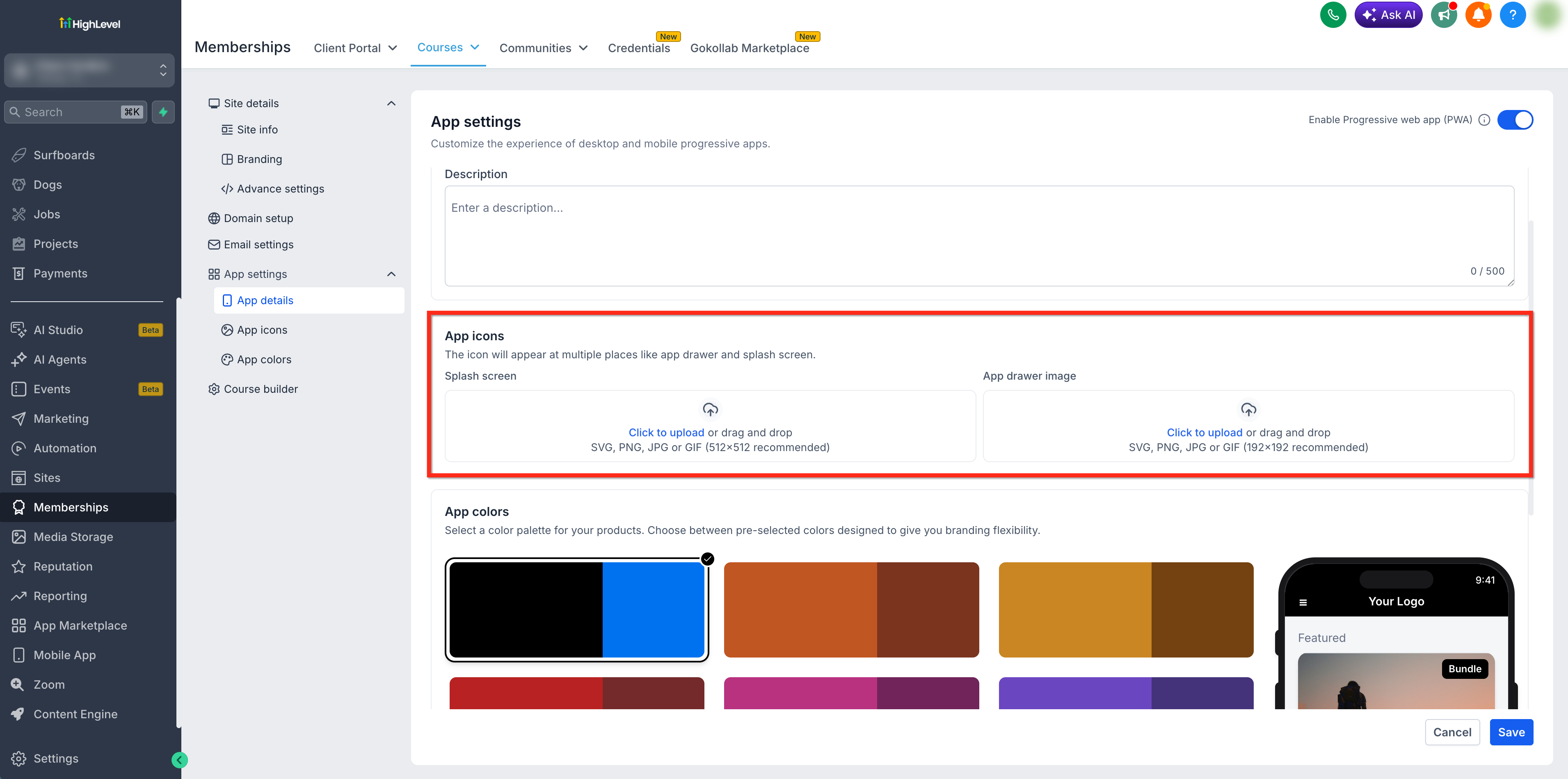
- App icon sizes required: 512x512 and 192x192 in.jpg or.png format.
05Before you start
- Customize branding in Legacy Memberships > Courses > Settings > Branding.
- Create courses, offers, and access levels in Legacy Memberships > Courses > Products.
- Optionally connect a custom domain via Settings > Domains.
06How to set up and use whitelabel membership PWA in HighLevel
Set up whitelabel membership PWA
- Open the subaccount and navigate to Memberships.
- If the Client Portal appears, switch to Legacy Memberships using the Memberships switcher.
- Select Courses > Settings from the top navigation.
- If the App Settings tile is not visible, verify that the location is using Legacy Memberships.
- Click the App Settings (App Details) tile.
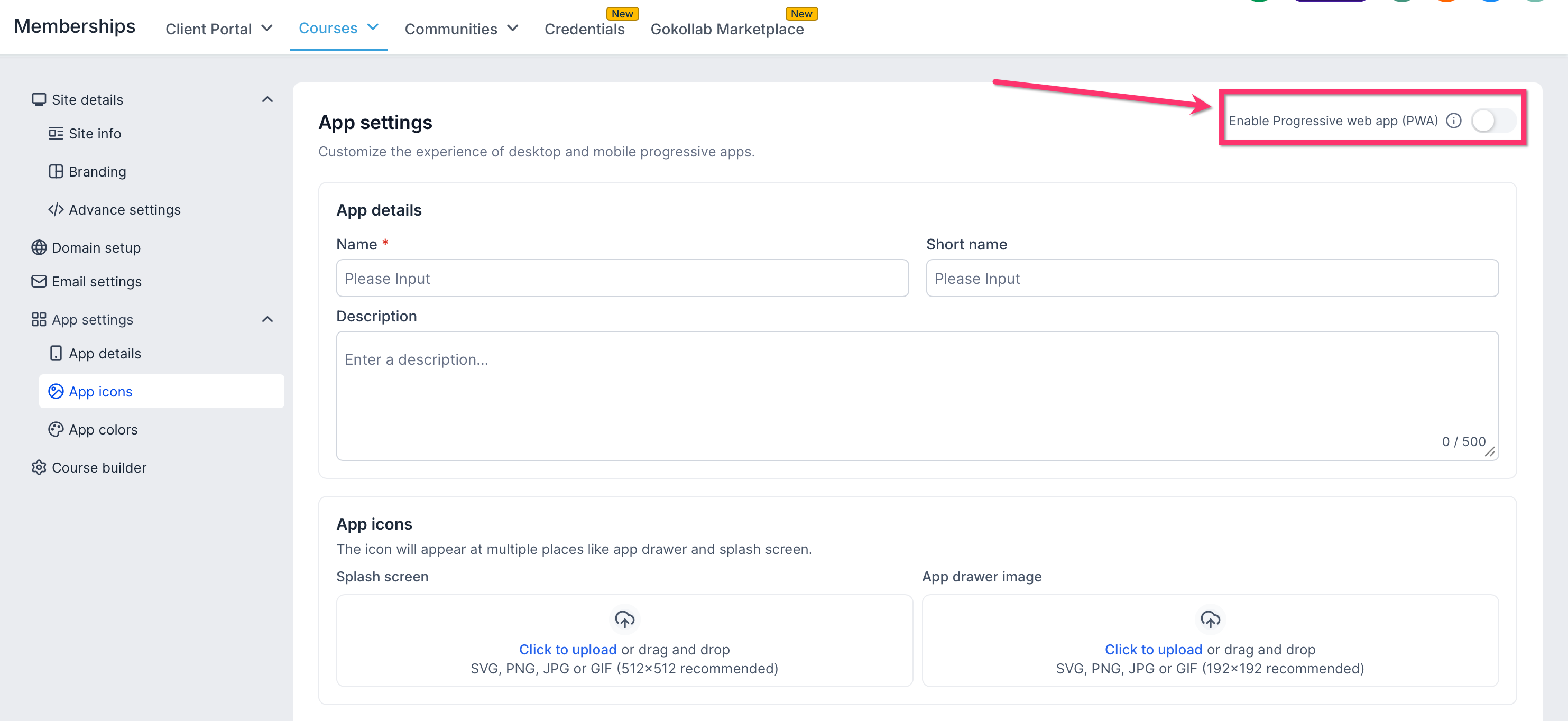
- Toggle the Enable PWA switch to on.
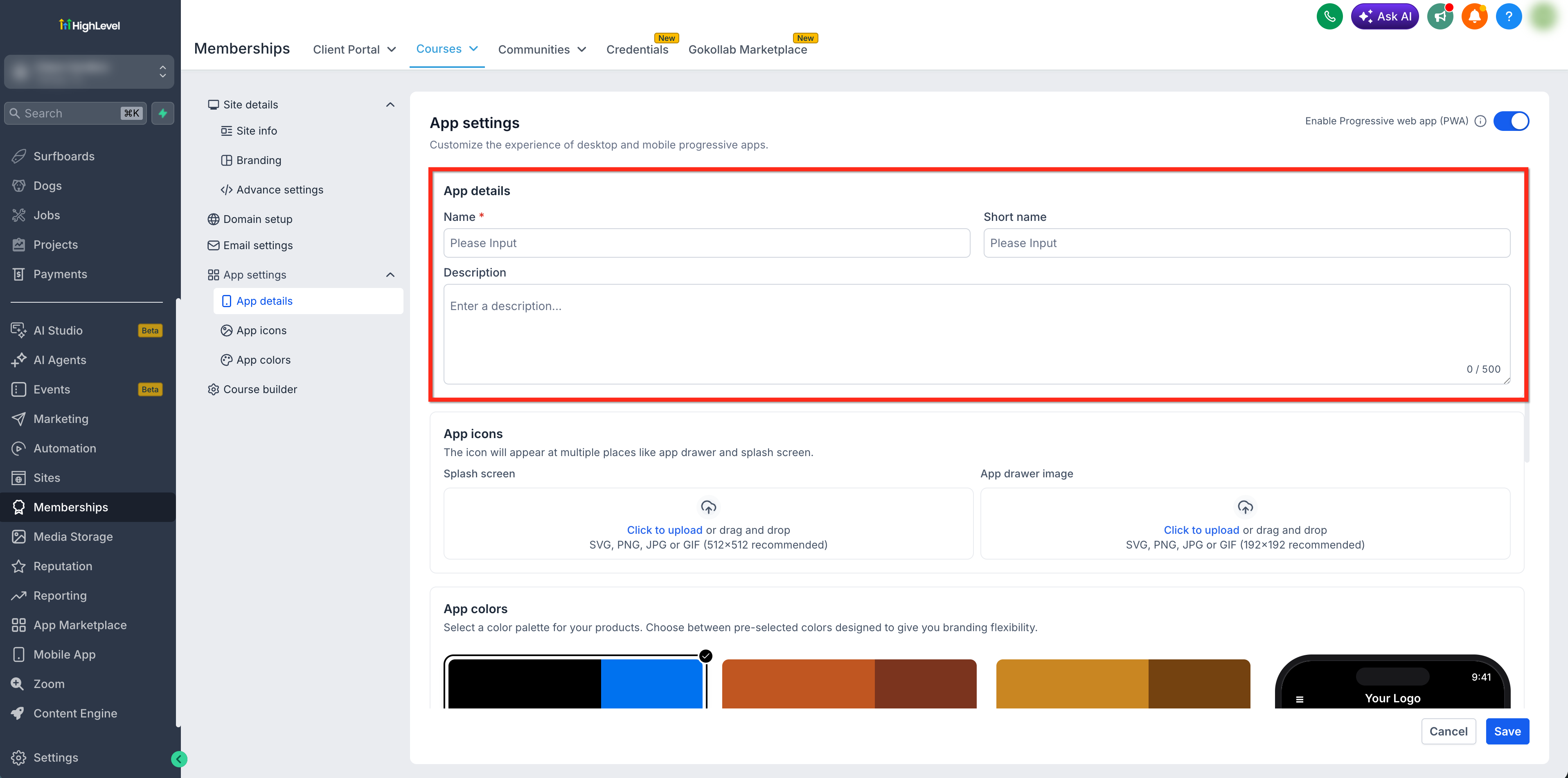
- Enter the full App Name, Short Name, and Description fields.
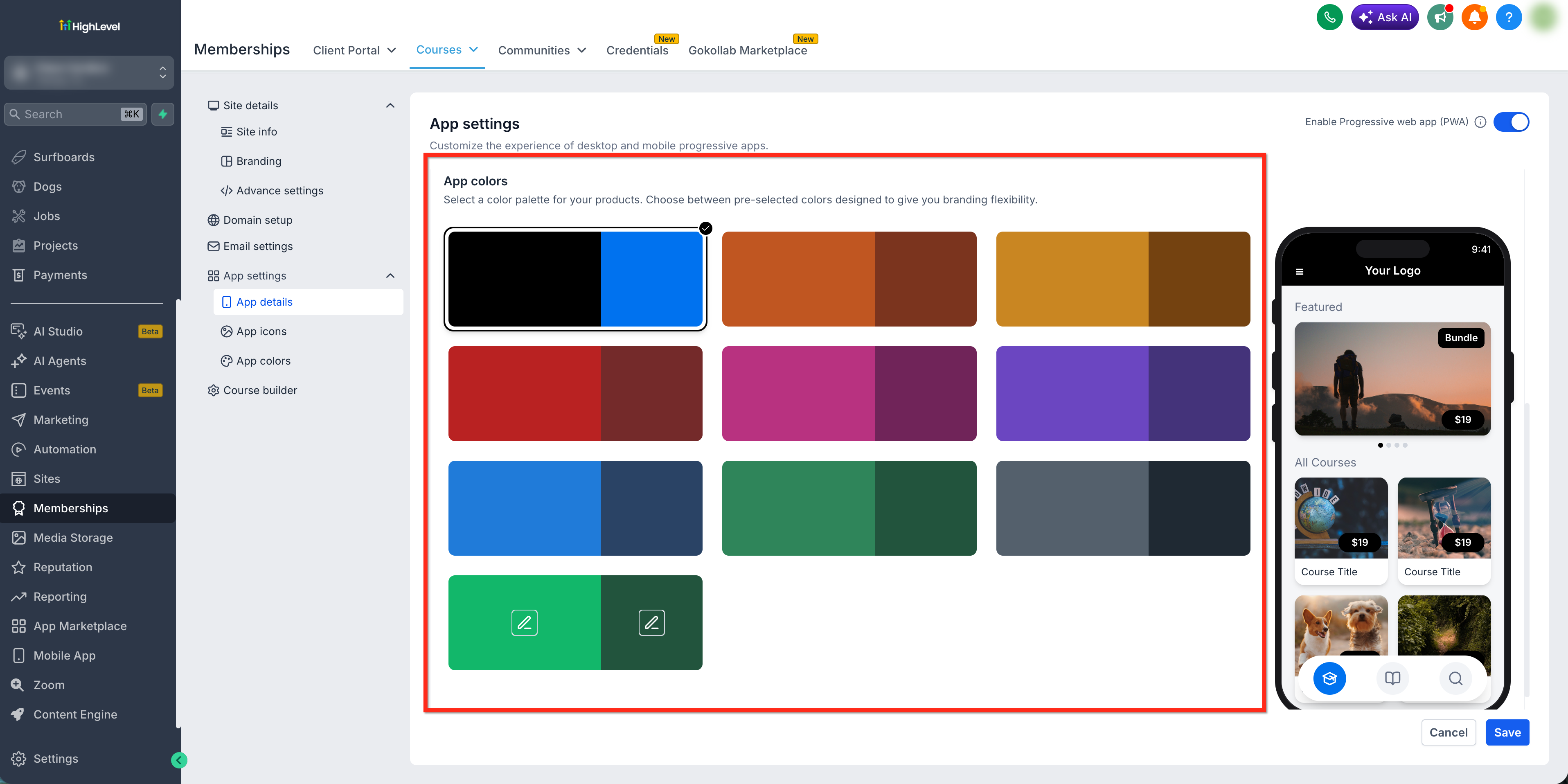
- Upload a 512 × 512 and a 192 × 192 icon, then pick a predefined color palette.
- Press Save in the upper right corner.
Install the PWA on a device
- Open the Membership login portal in a supported browser.
- Log in with the membership credentials.
- Locate the install icon in the browser address bar or open the browser menu.
- Choose the “Install app” or “Add to Home screen” option.
- Confirm the installation when prompted.
- The shortcut appears on the device’s home screen or desktop for future use.
07What it looks like in HighLevel
08Settings that matter
- Enable PWA. Turns on the ability for users to install the Membership portal as a Progressive Web App.
- App Name. Defines the full name shown during installation prompts and in the app title bar.
- Short Name. Provides an abbreviated name that appears on home screens or in compact UI elements.
- Description. A brief sentence displayed in the installation prompt to explain the app’s purpose.
- App Icon. Uploads two images (512 × 512 and 192 × 192) used for splash screens, app drawers, and home screen icons.
- App Colors. Selects a predefined color palette that styles UI elements such as buttons and headers.
09Things to know before you rely on it
- The Membership PWA works only in the Legacy Memberships experience; it is not supported in the Client Portal.
- Push notification availability depends on the device, browser, operating system, and HighLevel support.
- Internet access is generally required; offline content may be temporarily available but full offline use is not guaranteed.
10If something goes wrong
- App Settings is not visible. Confirm the location uses Legacy Memberships; the PWA cannot be configured from the Client Portal.
- Installation option does not appear. Ensure PWA installation is enabled and saved. Open the portal using HTTPS, sign in through a supported browser, and check the menu for Install app or Add to Home screen.
- Updated branding is not appearing. Remove the previously installed PWA, clear the browser cache, reopen the portal, and install the PWA again.
- Users are opening Client Portal instead. Verify which membership experience is active and switch to Legacy Memberships before using the Membership PWA.
11How it connects to the rest of HighLevel
- Learn how to apply themes to your membership site for a consistent look. Membership themes
- Create products and attach them to membership course offers to control access levels. Products and offers
- Review plan options and pricing for access to Legacy Memberships and PWA features. Pricing
Michael's take

Businesses often struggle to give members a native app feel without the cost and hassle of building separate iOS and Android apps. The biggest win comes from getting the branding right first. The logo and colour palette set the tone for every interaction.
If I were rolling out a PWA, I would make sure the app name, short name and icons are spot on before publishing. That way the first impression matches the brand and users feel confident installing the shortcut.