
01Who this is for
- Course creators who need to test learner knowledge and offer feedback within their membership content.
- Coaches who want to set certification benchmarks and allow students to retake quizzes.
- Businesses that sell multiple module training and require measurable progress indicators.
02Membership assessments, explained
Assessments are interactive quizzes that live inside a membership product. They can be added to any lesson or category and include multiple choice or single choice questions. Learners receive immediate feedback, can see correct answers when a passing grade isn’t required, and may attempt the quiz more than once.
The assessment editor lets you define titles, instructions, thumbnails, and optional grading rules. When the quiz includes a passing grade, the platform records pass or fail status and shows a custom message based on the result. All quiz activity is stored in the platform’s analytics module, where you can filter, view, and export the data.
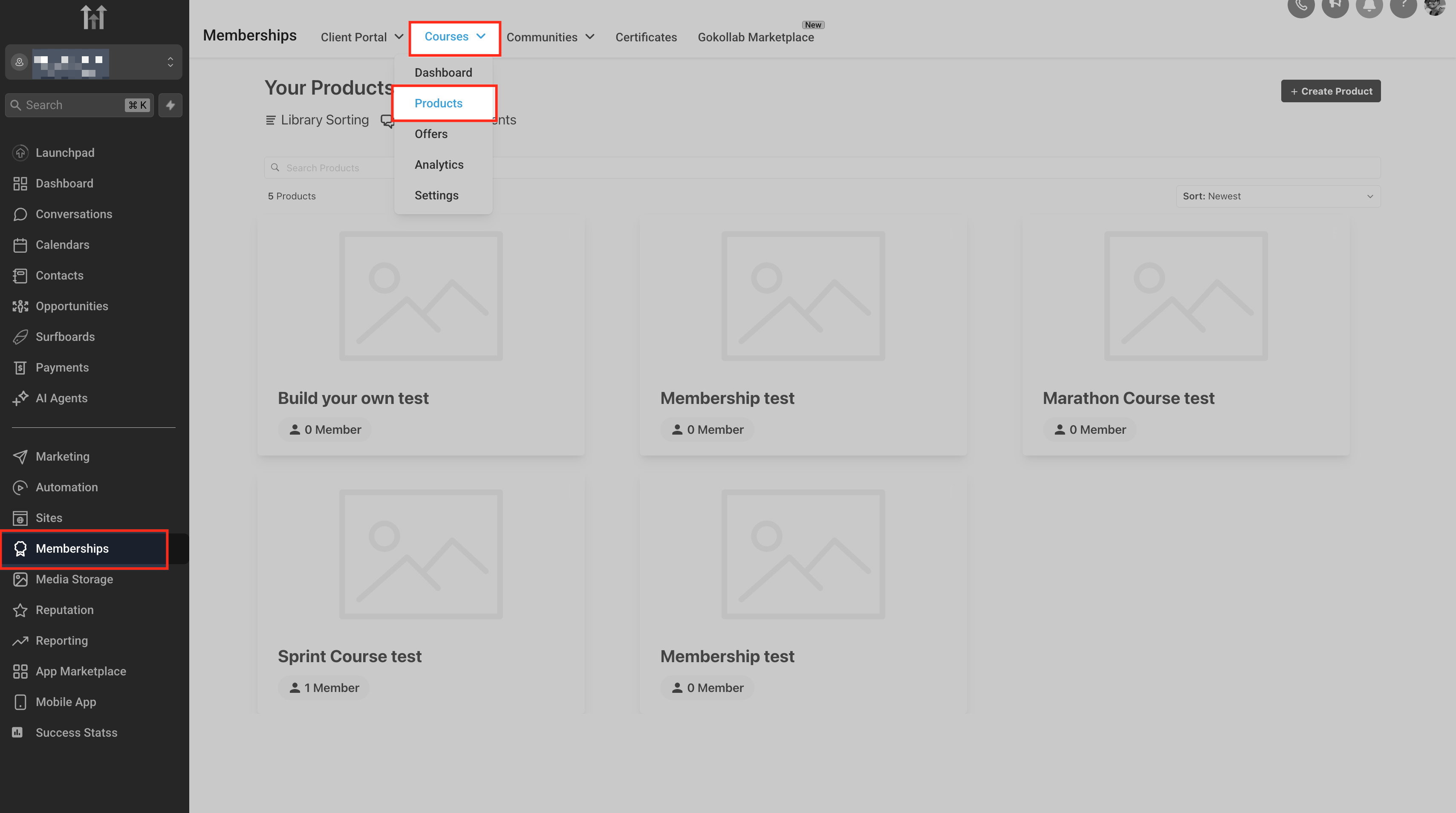
You find the assessment tools under Memberships > Products (selected from the Courses dropdown). From there you edit a course, expand its structure, and add or configure assessments directly in the content list.
03How businesses use membership assessments
- Digital marketing agency. The agency adds a quiz at the end of each training module to confirm client understanding. In HighLevel they open the product, select Add Quiz, set a passing grade, and upload branded thumbnails. Clients retake the quiz until they meet the required score.
- Online yoga studio. The studio creates short assessments after technique lessons. Using the assignment editor they enable the Ungraded Assignment option for practice submissions, attach pose guide PDFs, and set a confirmation message that thanks participants.
- Software certification provider. The provider builds a certification exam as a quiz with a required passing percentage. They configure pass and fail messages, add multiple choice questions, and export the results to analyze pass rates across cohorts.
04The numbers and rules that matter
- CSV export includes submission date, learner email, quiz title, score, pass/fail status, and individual question responses.
- Small data sets (≤ 500 rows) download fast in the browser.
- Large data sets (> 500 rows) trigger an email with a secure 24 hour link.
05Before you start
- An existing membership product must be created in the platform.
- You must have Admin or Instructor role to access the Export button in analytics.
06How to set up and use membership assessments in HighLevel
Create an assessment or quiz
- Open Memberships from the left navigation and pick Products via the Courses dropdown.
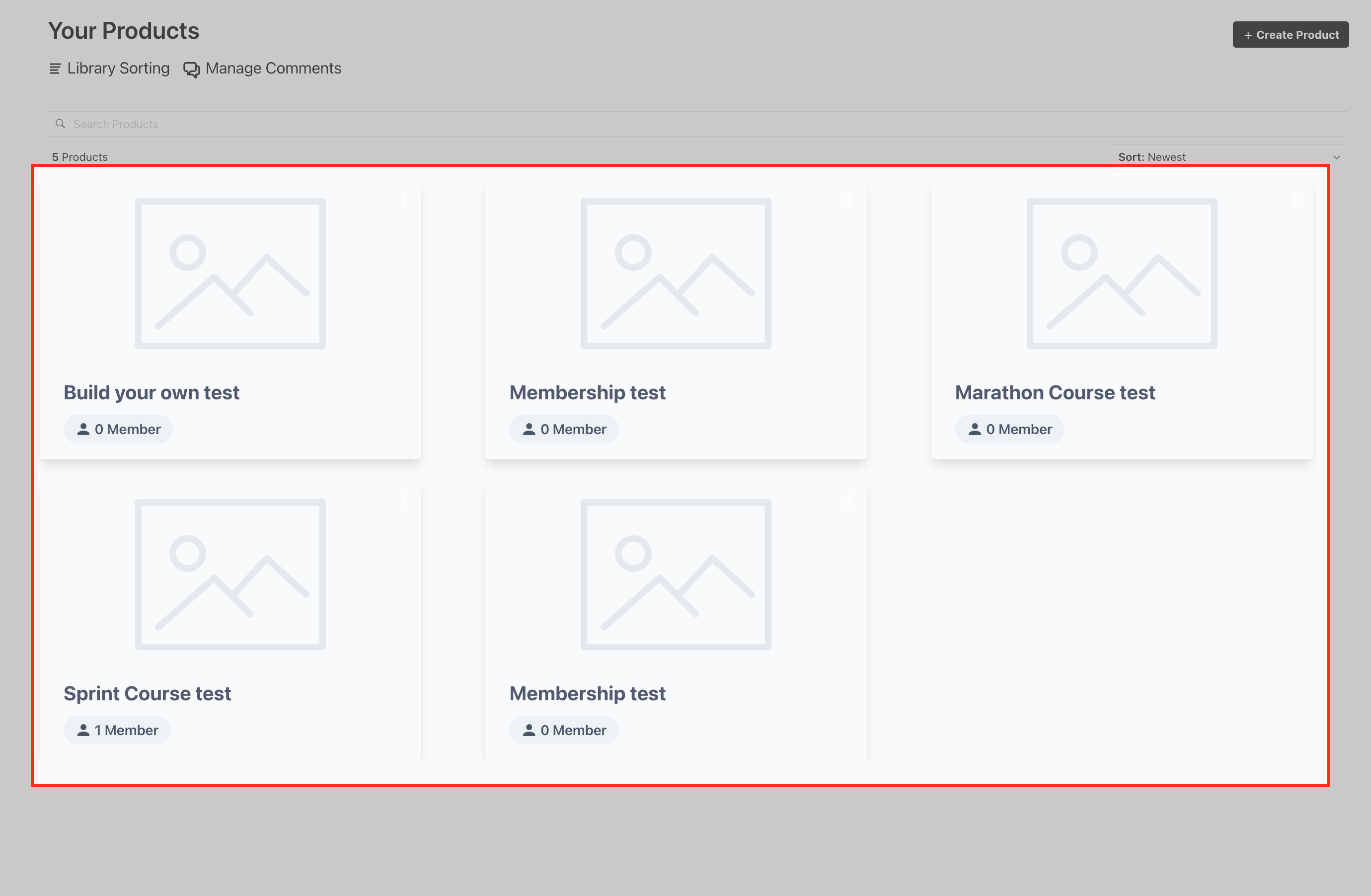
- Find the course you want to edit and click its tile to open the product editor.
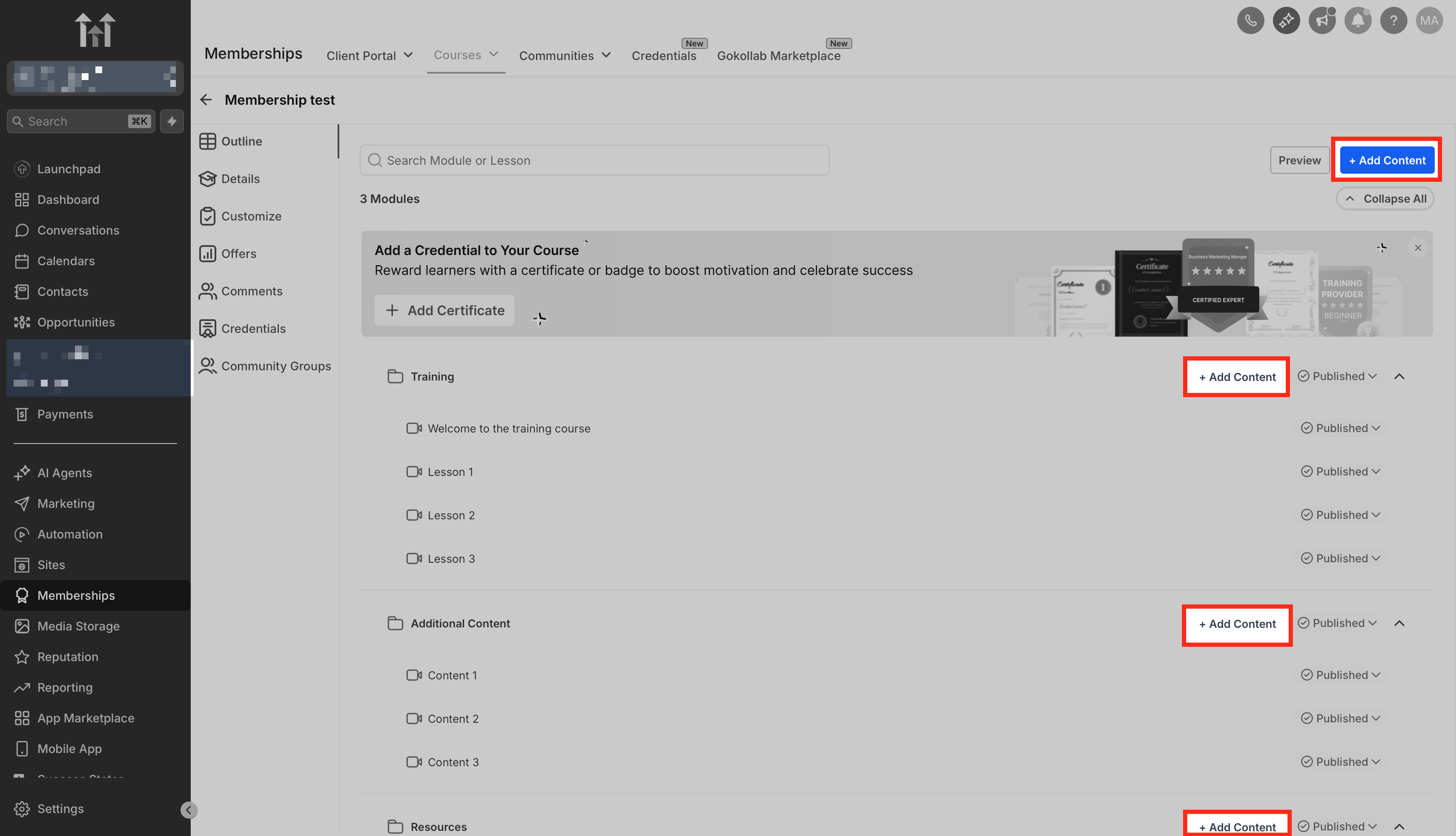
- Expand the category where the new content will belong.
- Press the + Add Content button next to the category or at the top right of the page.
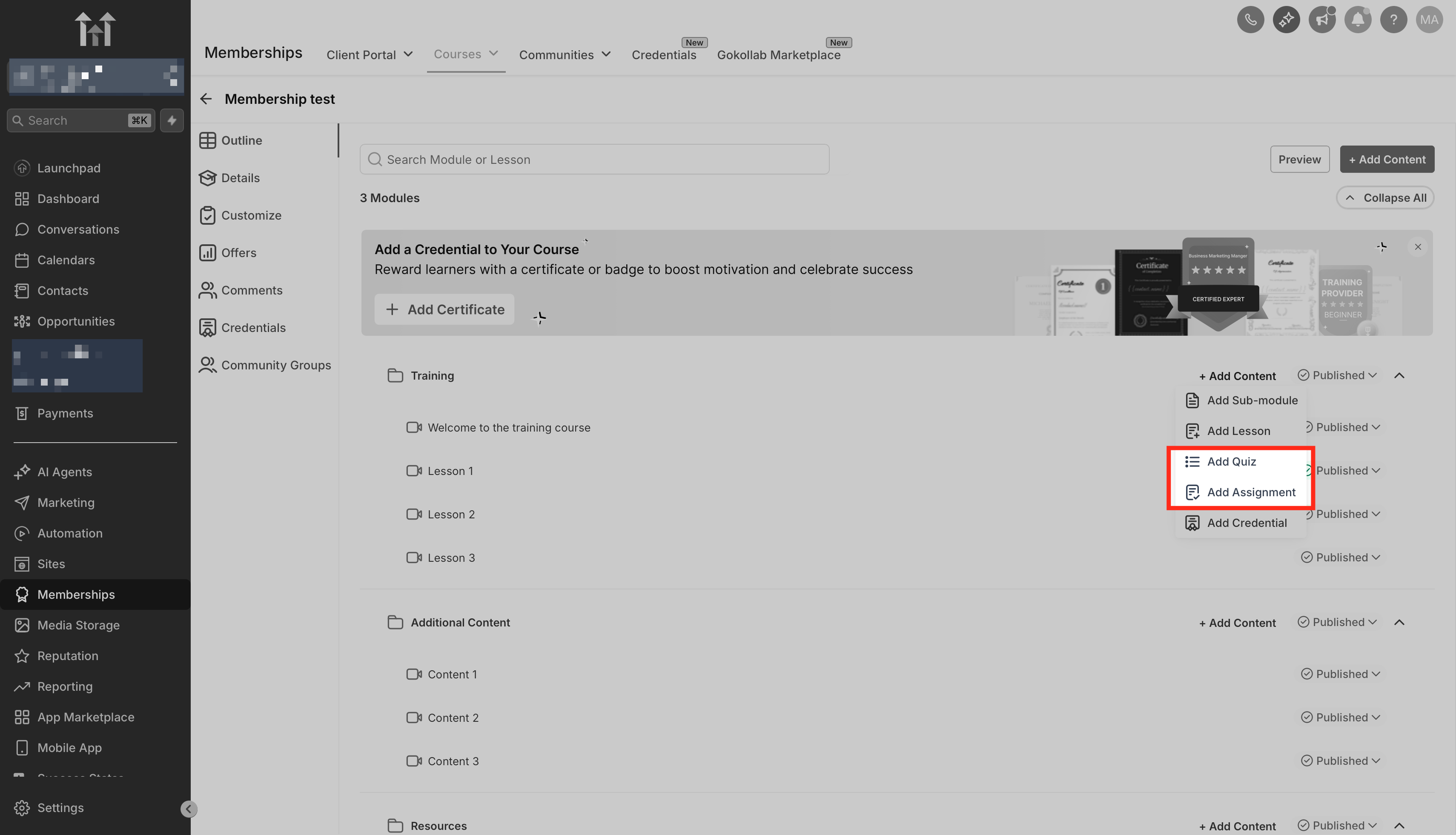
- Select Add Assignment or Add Quiz from the content options that appear.
Configure assessment settings
- Click the pencil edit icon on the newly added assessment.
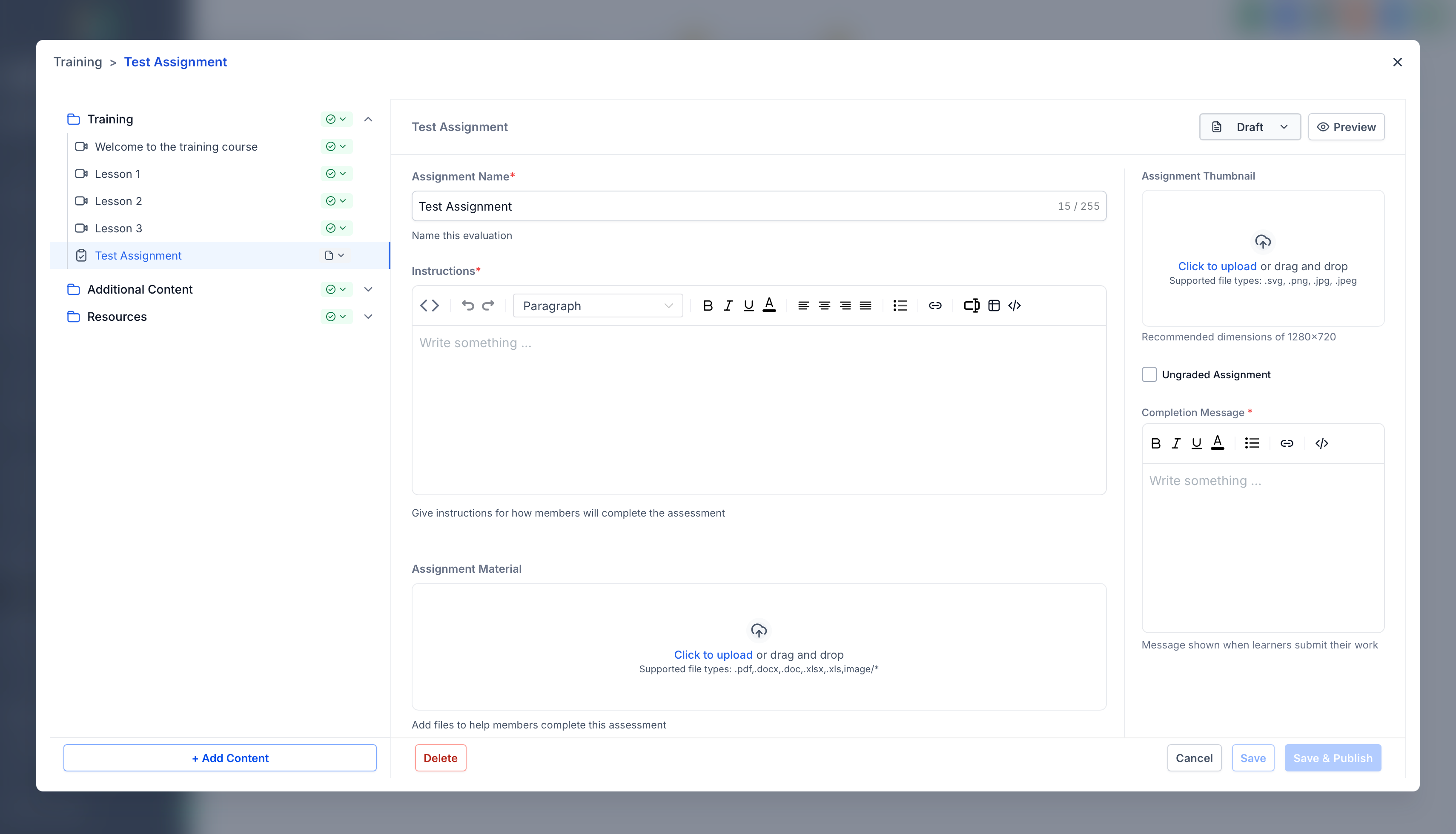
- Enter a clear title that learners will see.
- Check the Ungraded Assignment box if the item does not need grading.
- Upload a thumbnail image to represent the assessment visually.
- Complete the Instructions field, attach any template files, and set a Confirmation Message.
Set up quiz passing criteria
- In the quiz editor, enable the This quiz requires passing grade checkbox.
- Enter the desired passing percentage in the Passing Grade field.
- Optionally, type a Pass Confirmation Message to display after a successful attempt.
Add questions to a quiz
- Click the Add Question button inside the quiz editor.
- Choose a question type such as single choice or multiple choice.
- Specify the correct answer(s) and add any explanation text.
Publish the assessment
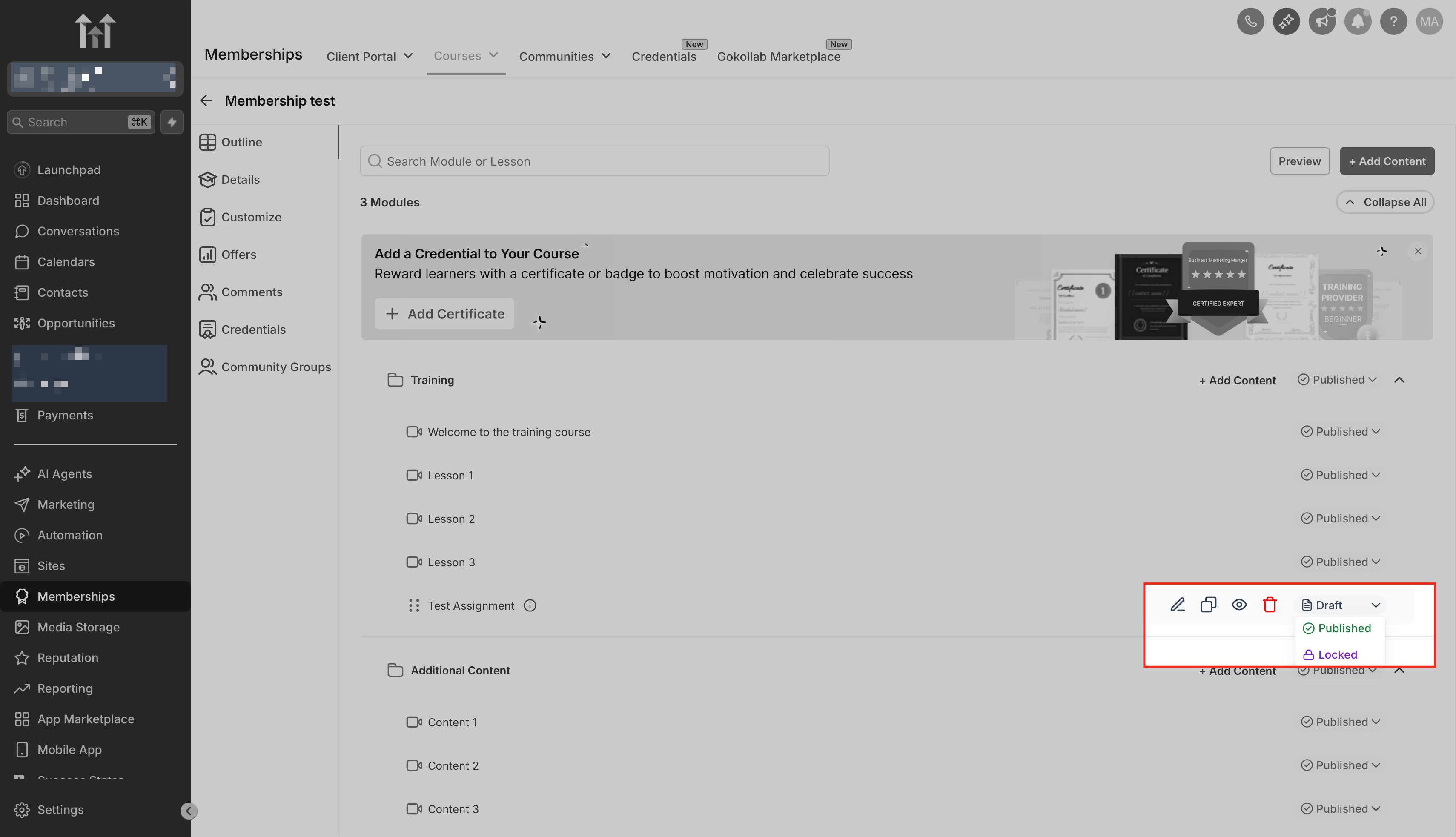
- Select the Published status icon next to the assessment title.
- Press the Save button located at the top right of the editor.
- Close the editor; the assessment is now visible to learners.
Export assessment results
- Choose Memberships from the left menu, then open the Courses dropdown and click Analytics.
- Select the Assessments tab to view quiz data.
- Apply filters for product, date range, or pass or fail status as needed.
- Click the Export button in the upper right corner.
- For data sets larger than 500 rows, wait for the secure email link; smaller sets download right away.
07What it looks like in HighLevel
08Settings that matter
- Ungraded Assignment. When checked, the assessment accepts submissions without grading or a passing grade.
- This quiz requires passing grade. Enables a minimum score that learners must achieve to pass the quiz.
- Passing Grade. Defines the percentage threshold that constitutes a passing result.
- Pass Confirmation Message. Custom text shown to learners after they meet the passing grade.
- Fail Confirmation Message. Custom text displayed when a learner does not reach the passing grade.
- Assessment status. Controls visibility; options include Published, Draft, and Locked.
09Things to know before you rely on it
- Assessments are tied to the specific product and location where they are created; they cannot be reused across different products.
- Only users with Admin or Instructor roles can see and use the Export button in analytics.
- Exported reports for data sets of 500 rows or fewer download right away; larger sets are sent via a secure email link that expires after 24 hours.
10How it connects to the rest of HighLevel
- Use the course builder to organize lessons and assessments before adding quizzes. Course builder
- Generate password free magic links to give learners direct access to courses that contain assessments. Magic links
- Review plan options and pricing to ensure your account includes the Memberships feature. Pricing
Michael's take

Do I really need quizzes for my online course? Absolutely. Quizzes give you a quick pulse on whether members are actually absorbing the material and let you spot gaps before they become bigger problems.
I would set up a simple pass grade quiz for each module, enable retakes and export the results each month. That way you can see who’s progressing and who might need a bit of extra coaching.