
01Who this is for
- Course creators who need a fast way to outline and populate digital training programs, because AI can draft modules and assets.
- Coaches offering bootcamps or challenges, because they can quickly generate daily content and quiz questions.
- Membership site owners who want to add a vault of recorded lessons, since AI can suggest descriptions and PDFs from uploaded videos.
02Course AI, explained
Course AI is a tool inside the HighLevel course builder that accepts text prompts, files, links or voice input and returns a complete course outline. It proposes titles, module structures, lesson names, quizzes and cover images.
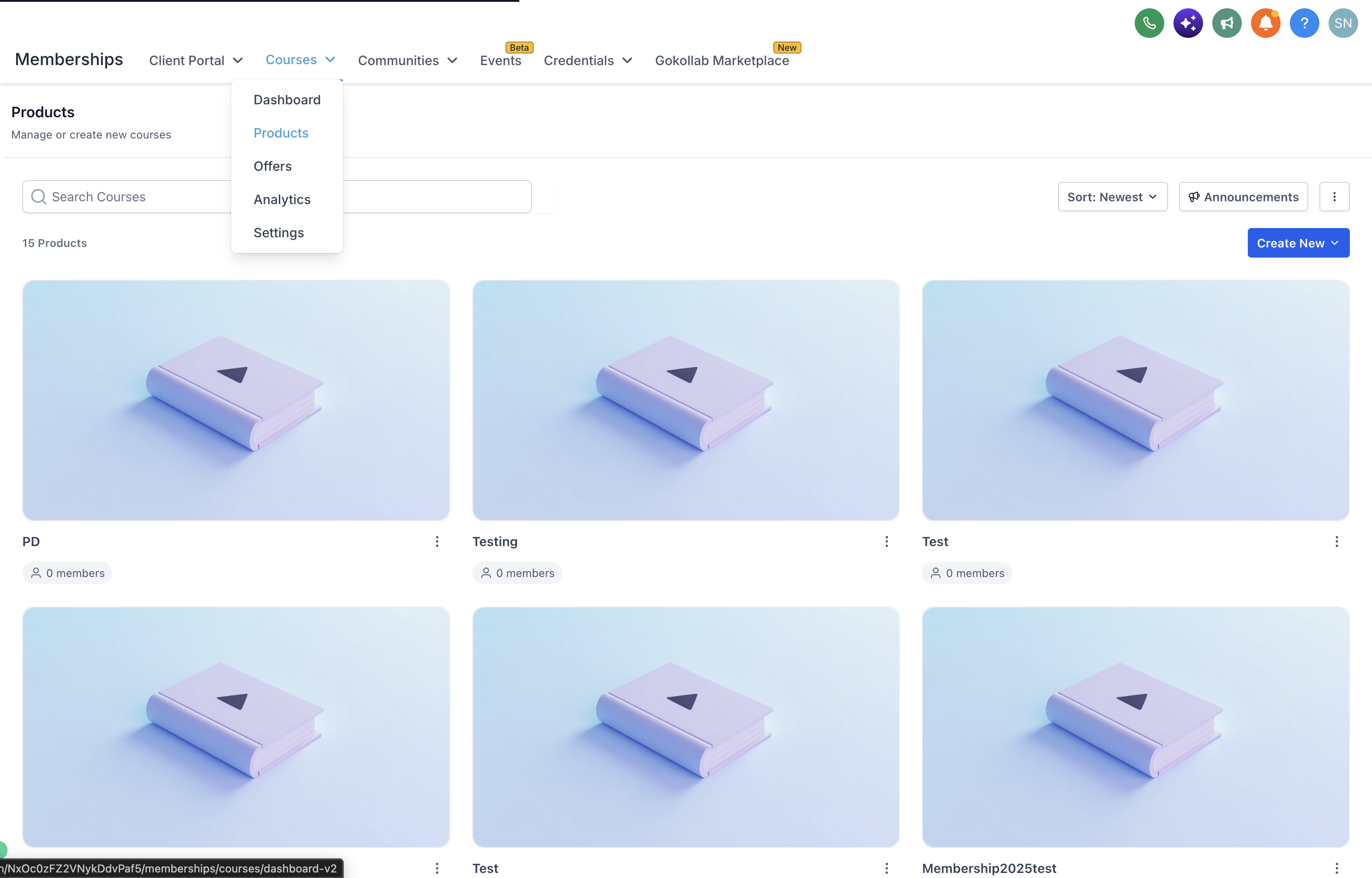
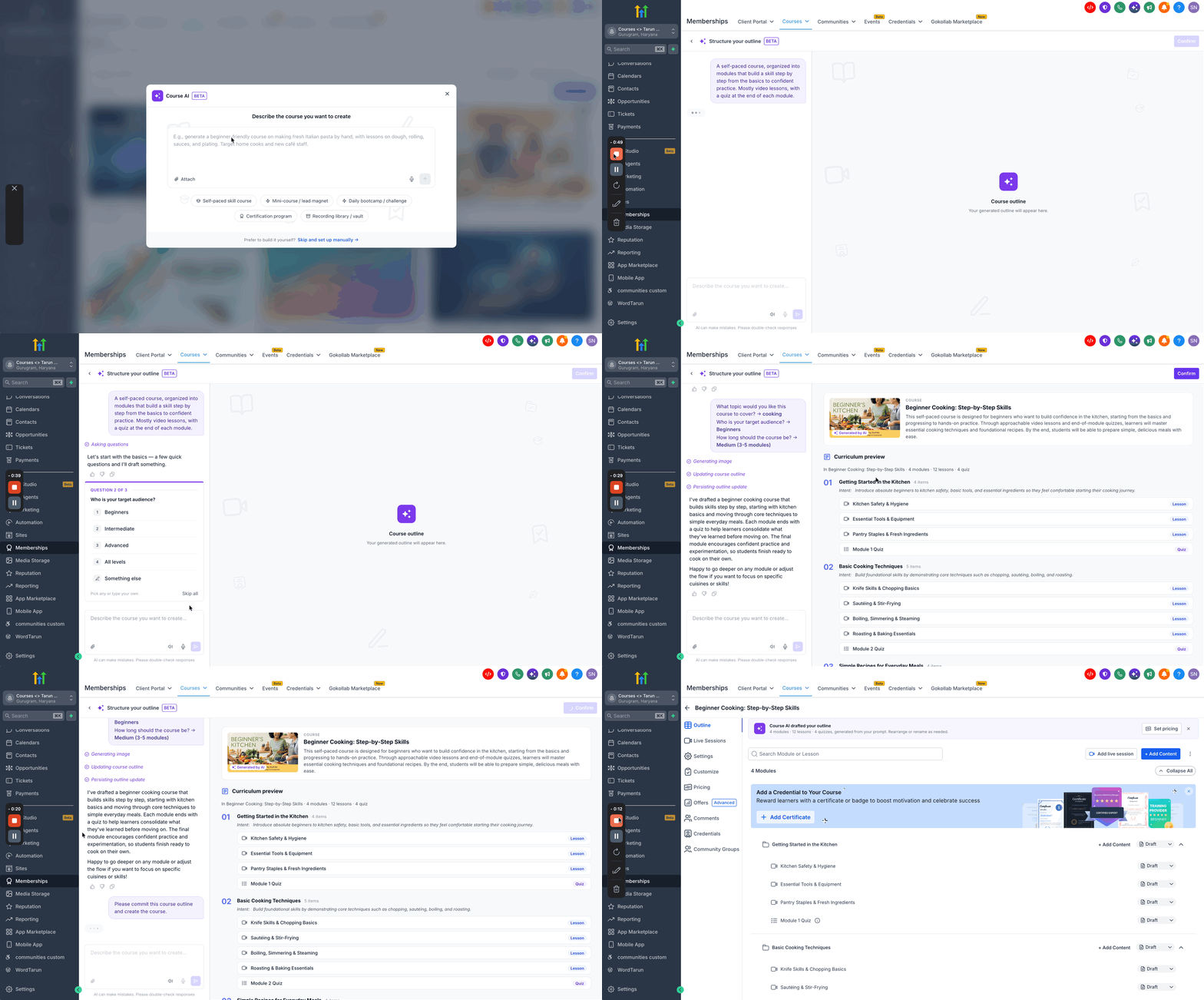
The feature lives under Memberships > Courses > Products and opens a side panel where the conversation appears on the left and the live outline on the right. You can interact with the AI, accept or reject suggestions, and edit any element before confirming.
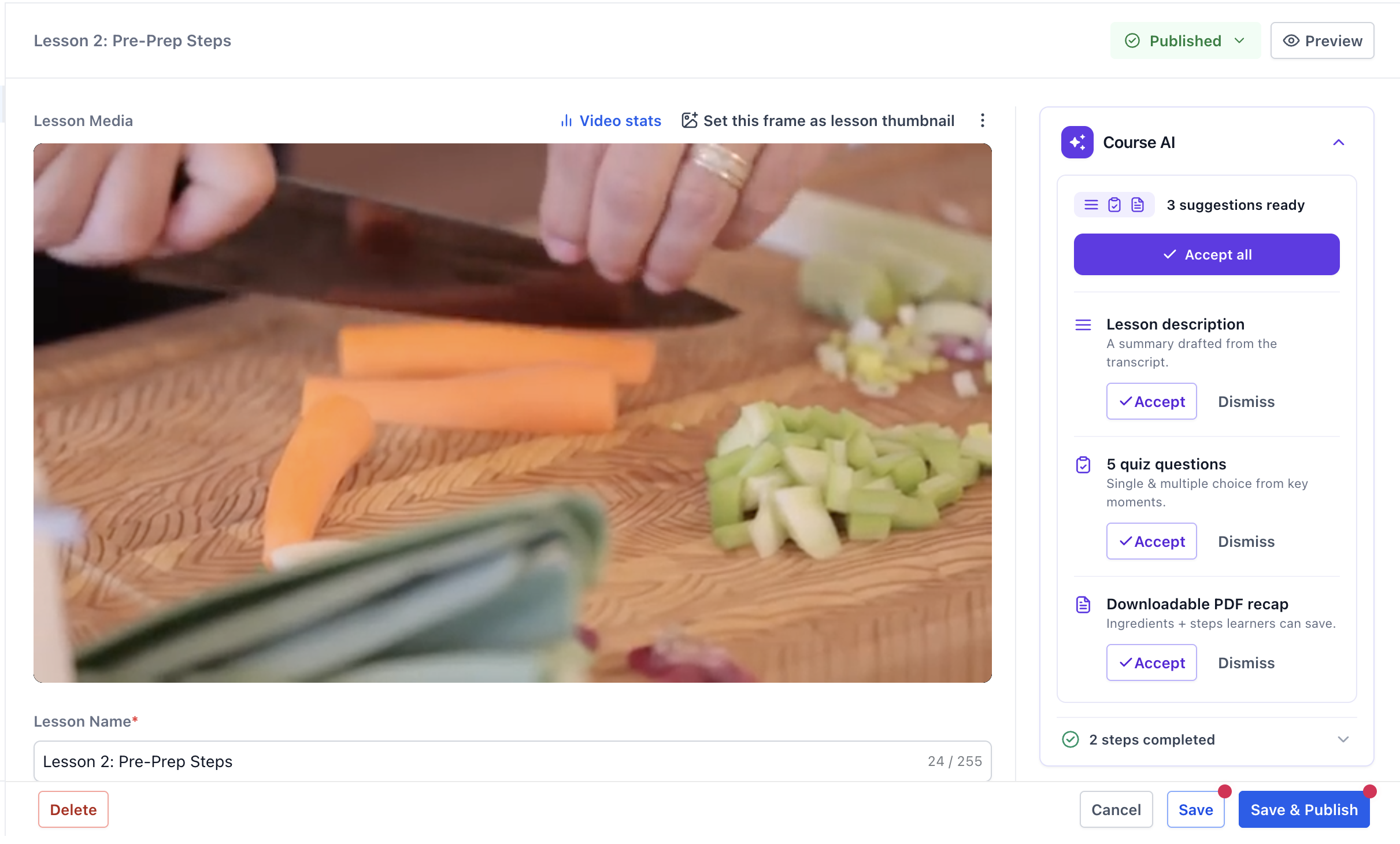
AI also works on individual lessons. It can analyze a newly uploaded video, extract a transcript and suggest a summary, quiz items and a downloadable PDF. Thumbnails for lessons, quizzes or assignments can be generated by describing the desired image and picking a style.
03How businesses use course AI
- Online fitness coaching business. The coach opens Course AI, selects a bootcamp type and prompts the AI to design a 30 day challenge outline. After the outline appears, the coach uploads weekly workout videos, lets AI suggest descriptions and quiz questions, and then generates thumbnail images for each session.
- Software training provider. The provider creates a self paced skill course, uploads recorded tutorial videos, and uses AI to produce lesson summaries, PDF recaps and multiple choice quiz items. The provider refines titles with the Clarify and Rephrase options before publishing.
- Professional association membership site. The association builds a certification program, attaches PDFs and reference links to the AI prompt, and generates a cover image. AI then creates assignment thumbnails and quizzes for each module, which the staff reviews and saves.
04The numbers and rules that matter
- You can attach up to 5 files, with a maximum size of 25 MB per file, when providing materials for course creation.
- Number of quiz questions can be set from 1 to 20.
05How to set up and use course AI in HighLevel
Create a new course using Course AI
- Navigate to Memberships > Courses > Products.
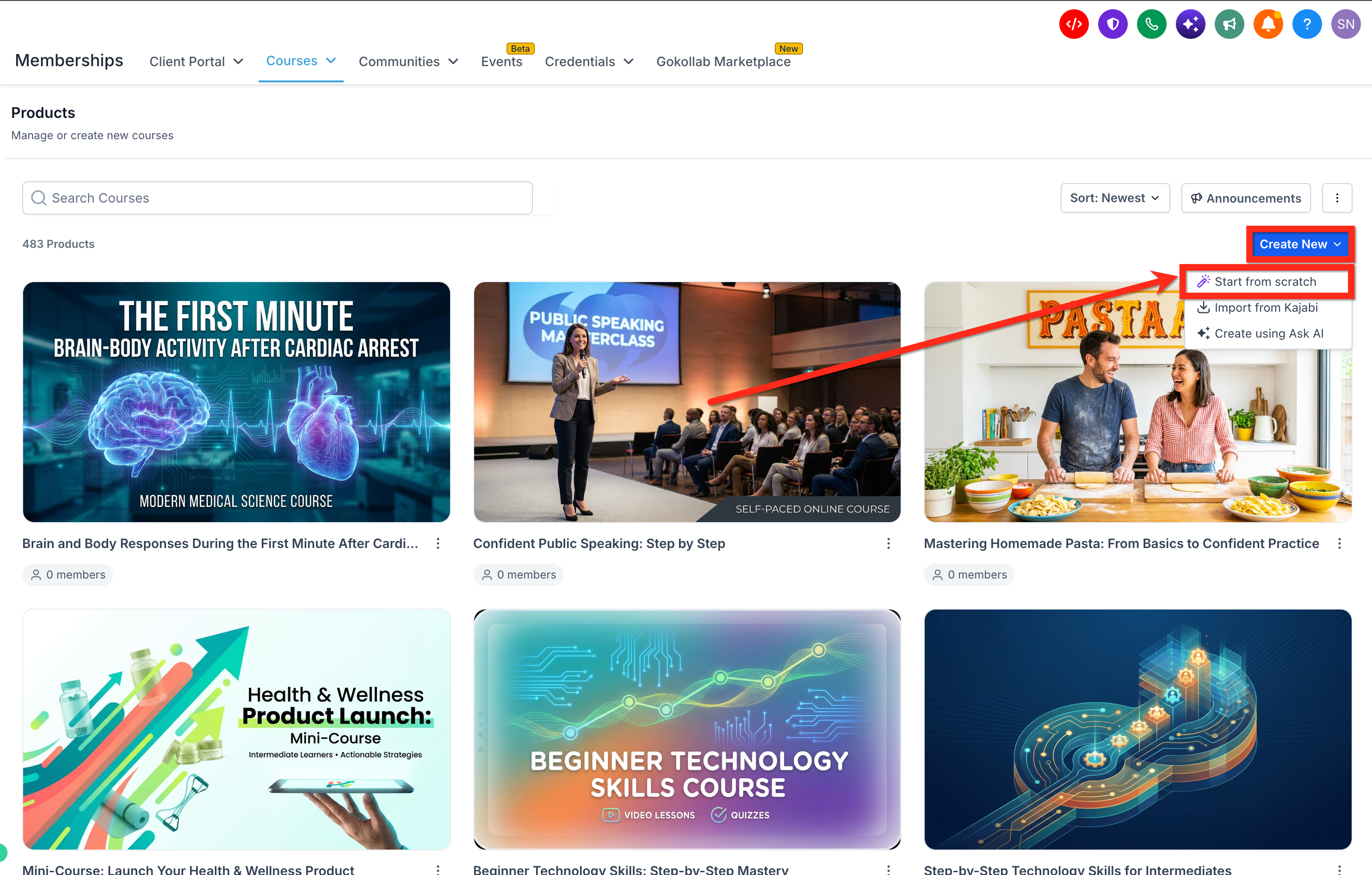
- Click Create New and choose Start from scratch.
- Select the desired course type from the available list.
- Enter a description that covers the topic, target audience and learning goals.
- Optionally attach images, PDFs, reference links, or provide voice input.
- Submit the prompt to generate a course outline.
Customize the generated course outline
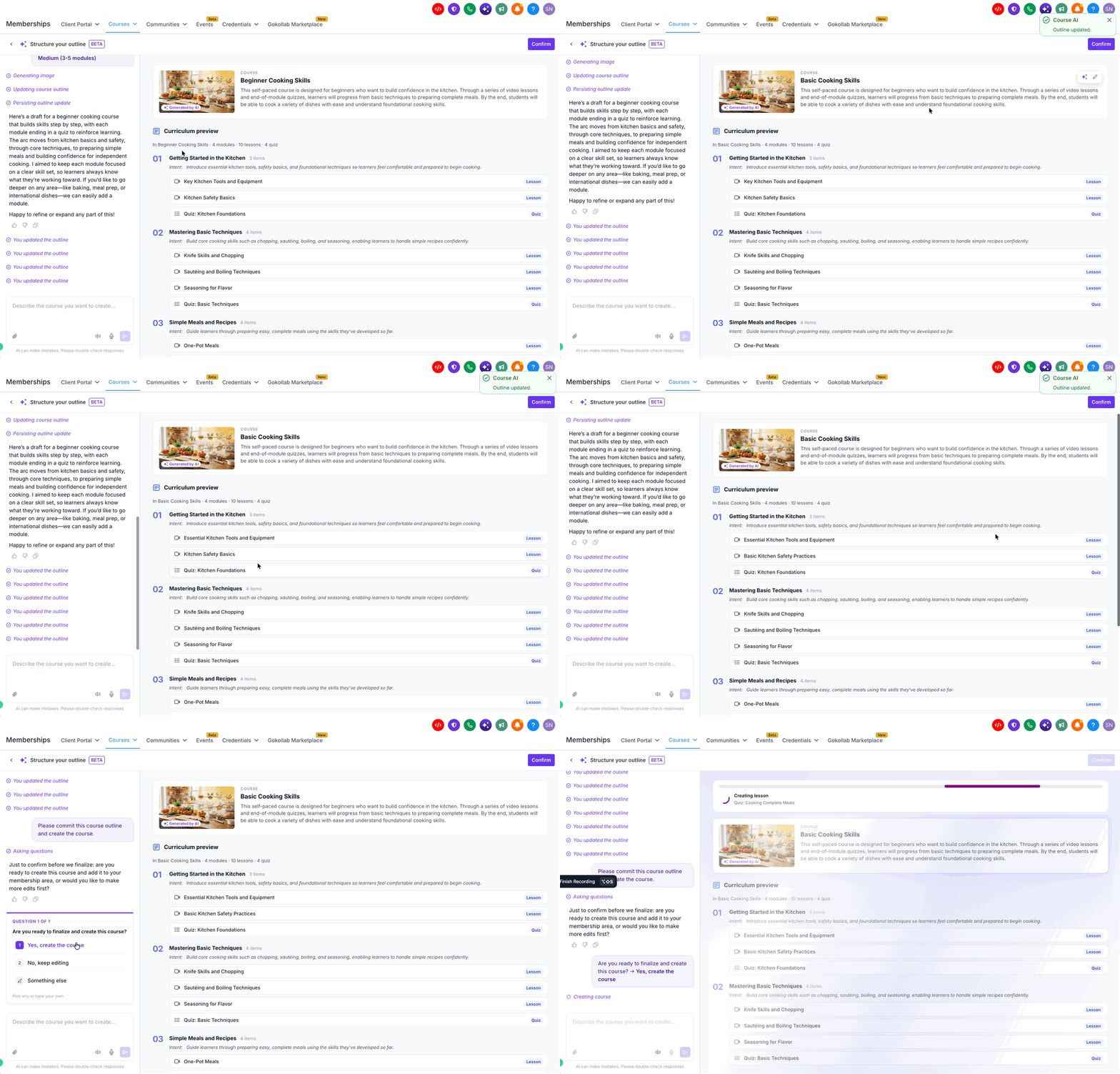
- Review the AI generated title, description, modules, lessons and quizzes on the right side.
- Use the chat panel to ask for changes or pick suggested follow up replies.
- Edit or delete any module or lesson titles that need adjustment.
- Apply AI rewriting options such as Clarify, Rephrase, Make specific or Shorten to improve wording.
- Generate a course cover image with AI or upload your own picture.
- Click Confirm when the outline meets your expectations.
Generate lesson content from a video
- Open the desired course and select the lesson you want to enrich.
- Upload a new lesson video or import it from an existing source.
- Wait for Course AI to process the video and create transcript based suggestions.
- Review the suggested description, quiz questions and PDF recap in the AI panel.
- Accept individual suggestions, Accept all, or Dismiss any you do not need.
- Save or publish the lesson to store the accepted content.
Write or edit lesson descriptions with AI
- Open the lesson inside the Course Builder.
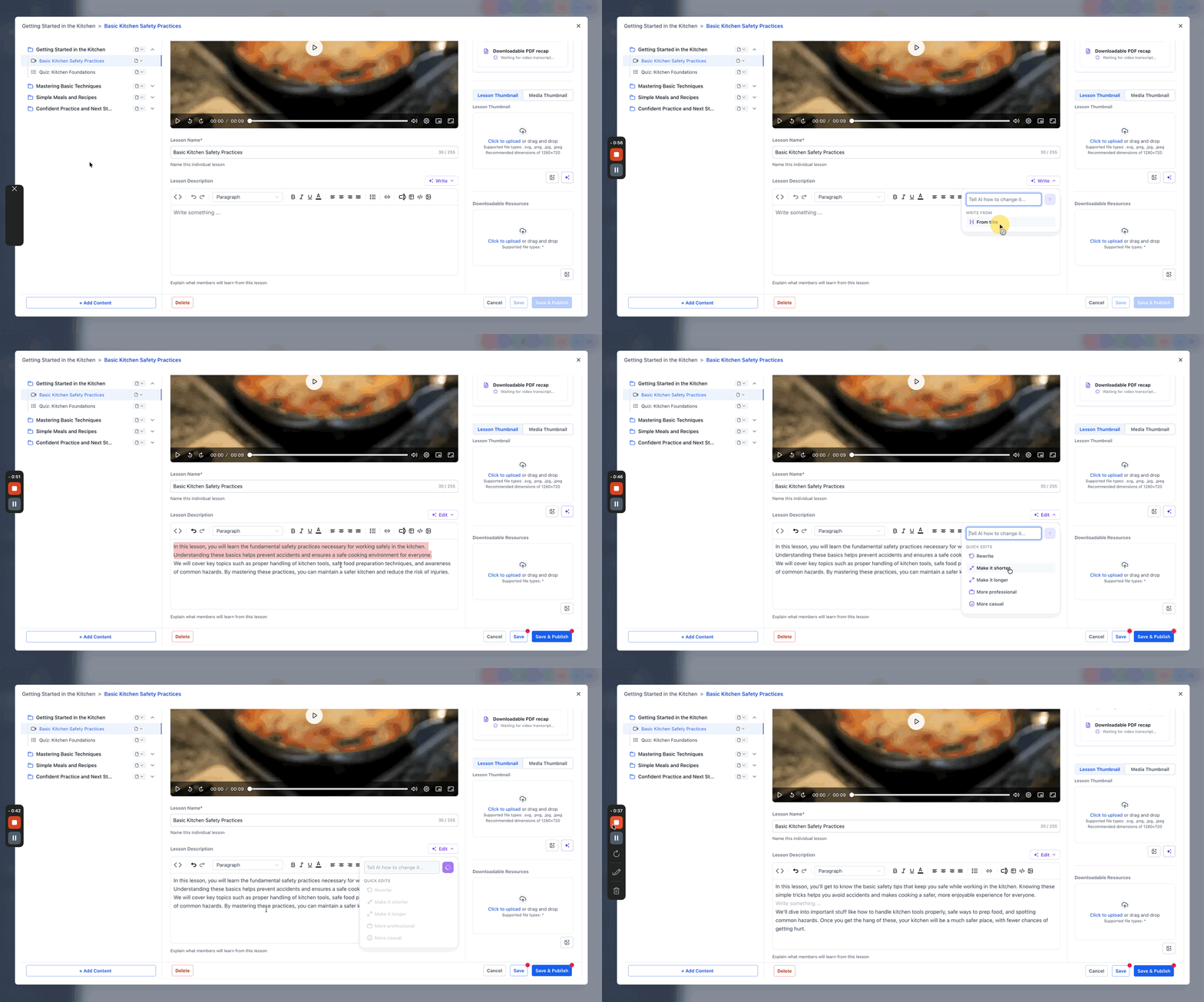
- If the description field is empty, trigger Course AI to generate one from the lesson title or video transcript.
- If text already exists, click the AI Edit option.
- Enter specific editing instructions or choose a quick edit such as Rewrite, Make it shorter, More professional, etc.
- Review the updated description and save the changes.
Generate quiz questions with AI
- Open a quiz within the Course Builder and select Generate quiz questions.
- Choose the source content the AI should use, such as a single lesson, a module or the entire course.
- Pick the question type: Single choice, Multiple choice or Mix.
- Select the difficulty level: Easy, Medium or Hard.
- Set the desired number of questions, between 1 and 20.
- Click Generate, review the generated questions, edit if needed, and save the quiz.
Generate thumbnails with AI
- Open the lesson, quiz or assignment you wish to update.
- Access the AI thumbnail generation option for that item.
- Provide a brief description of the image you want to create.
- Choose a visual style such as Photographic, Illustrated, Bold text overlay or Minimal.
- Click Generate to let AI produce the image.
- Review the thumbnail and save the selected version.
06What it looks like in HighLevel
07Settings that matter
- Course type. Specifies the overall format of the new course, such as self paced, mini course, bootcamp, certification or recording vault.
- Number of questions. Sets how many quiz items AI will create, allowing a range from 1 to 20.
- Question type. Determines whether AI generates single choice, multiple choice, or a mixed set of questions.
- Difficulty. Guides AI to produce questions that are easy, medium or hard in difficulty.
- Style. Controls the visual appearance of AI generated thumbnails, offering photographic, illustrated, bold text overlay or minimal styles.
- File attachment limit. Limits the number of files you can attach to a prompt to five, with each file no larger than 25 MB.
08Things to know before you rely on it
- You can attach up to 5 files, each with a maximum size of 25 MB, when supplying materials for AI generation.
- Reference URLs must be publicly accessible for AI to retrieve content.
- Automatic transcript based suggestions appear only for newly uploaded or imported videos.
- All AI generated outlines, descriptions, quizzes and images can be edited before publishing.
- Choosing Skip lets you build a course manually without using AI.
09How it connects to the rest of HighLevel
- Learn how to build courses in the HighLevel course builder. Course builder guide
- Manage media files that AI can use for course creation. Media storage guide
- Check plan eligibility for Course AI features. Pricing and plans
Michael's take

Course AI can generate outlines, quizzes and thumbnails, allowing you to focus on other aspects of your program.
If your courses need a very specific brand voice or extensive legal compliance, you may still want to edit each generated piece carefully and consider using the AI only for a first draft.