
01Who this is for
- Founders who want to turn website traffic into qualified leads by offering immediate assistance.
- Customer support teams that need a single interface for messages from chat, email, SMS, and social platforms.
- Ecommerce owners looking to reduce cart abandonment by engaging shoppers at critical moments.
02Chat widgets, explained
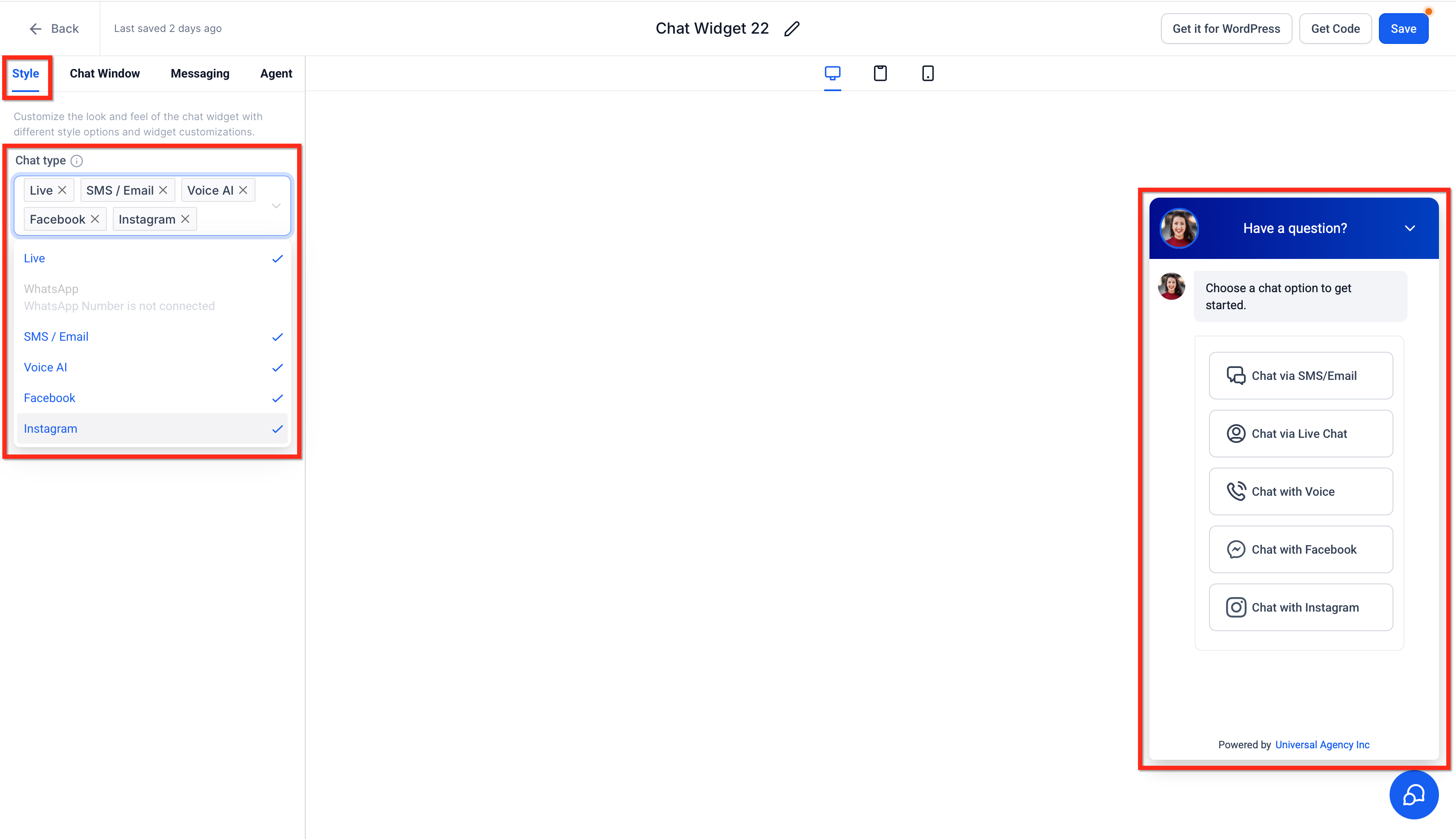
Chat widgets live inside the HighLevel platform and appear on any web page you embed them on. Visitors can choose from several channel options, live web chat, email/SMS, Facebook, Instagram, WhatsApp, or Voice AI, depending on how you configure the widget. Each conversation is routed into the Conversations inbox, where your team can reply.
The widget is created under the Sites section. After selecting a widget type, you customize its look, placement, and behavior through several tabs. When you are satisfied, you copy a snippet of code or use the built in integration picker to add the widget to WordPress, a funnel, a website, or a blog. Once live, the widget can greet visitors, answer common questions with AI, and collect contact information for follow up.
03How businesses use chat widgets
- Ecommerce store. Select the All In One option, enable the live chat channel, and place the widget on product pages. The widget will open a conversation window that routes directly to Conversations, allowing staff to answer product questions or use AI to handle common queries.
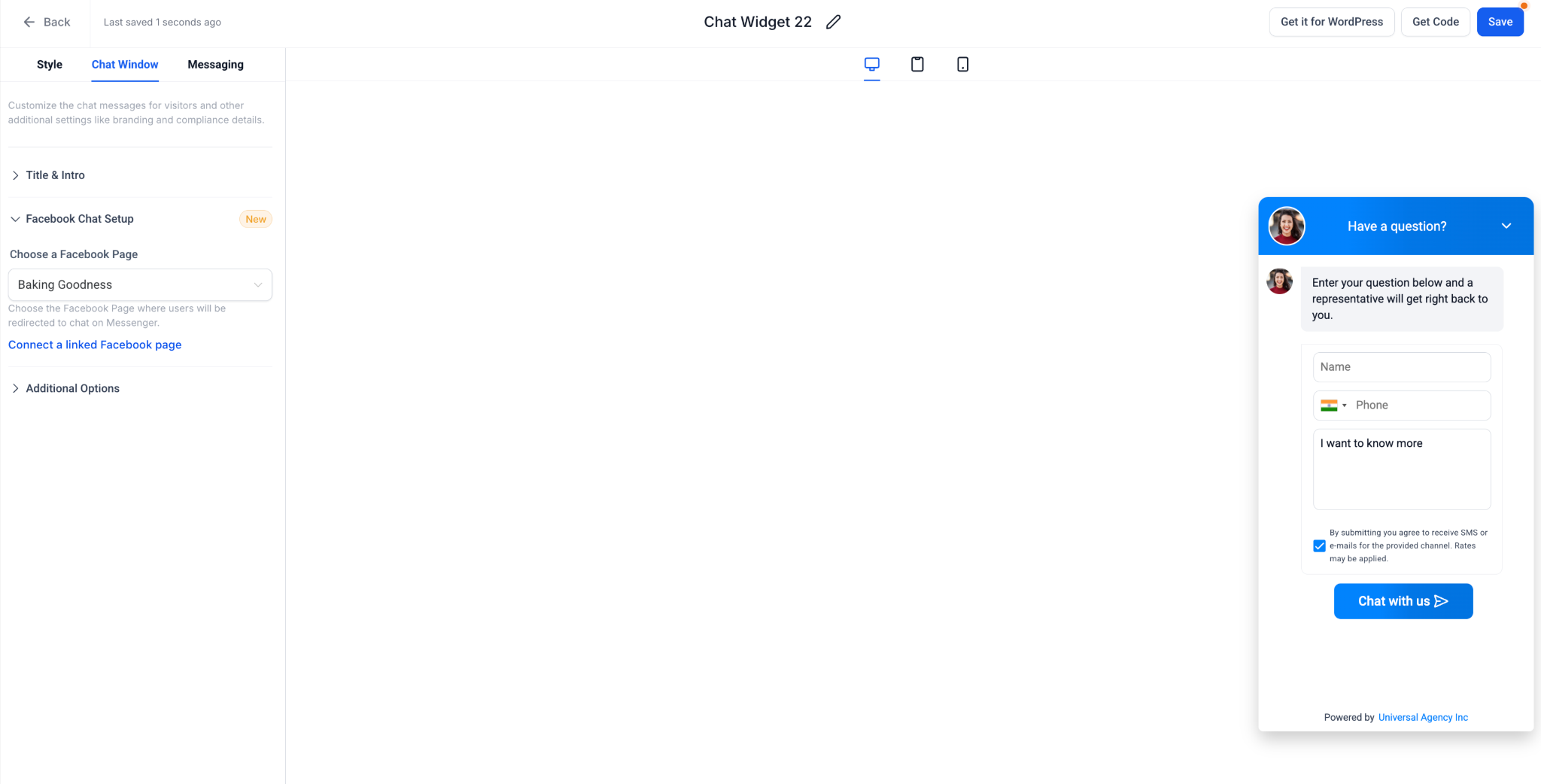
- Real estate agency. Choose Facebook and Instagram chat channels, position the widget on the homepage, and set a welcome message. Prospects can start a Messenger or Instagram DM straight from the site, and the chat will appear in the agency’s inbox for prompt follow up.
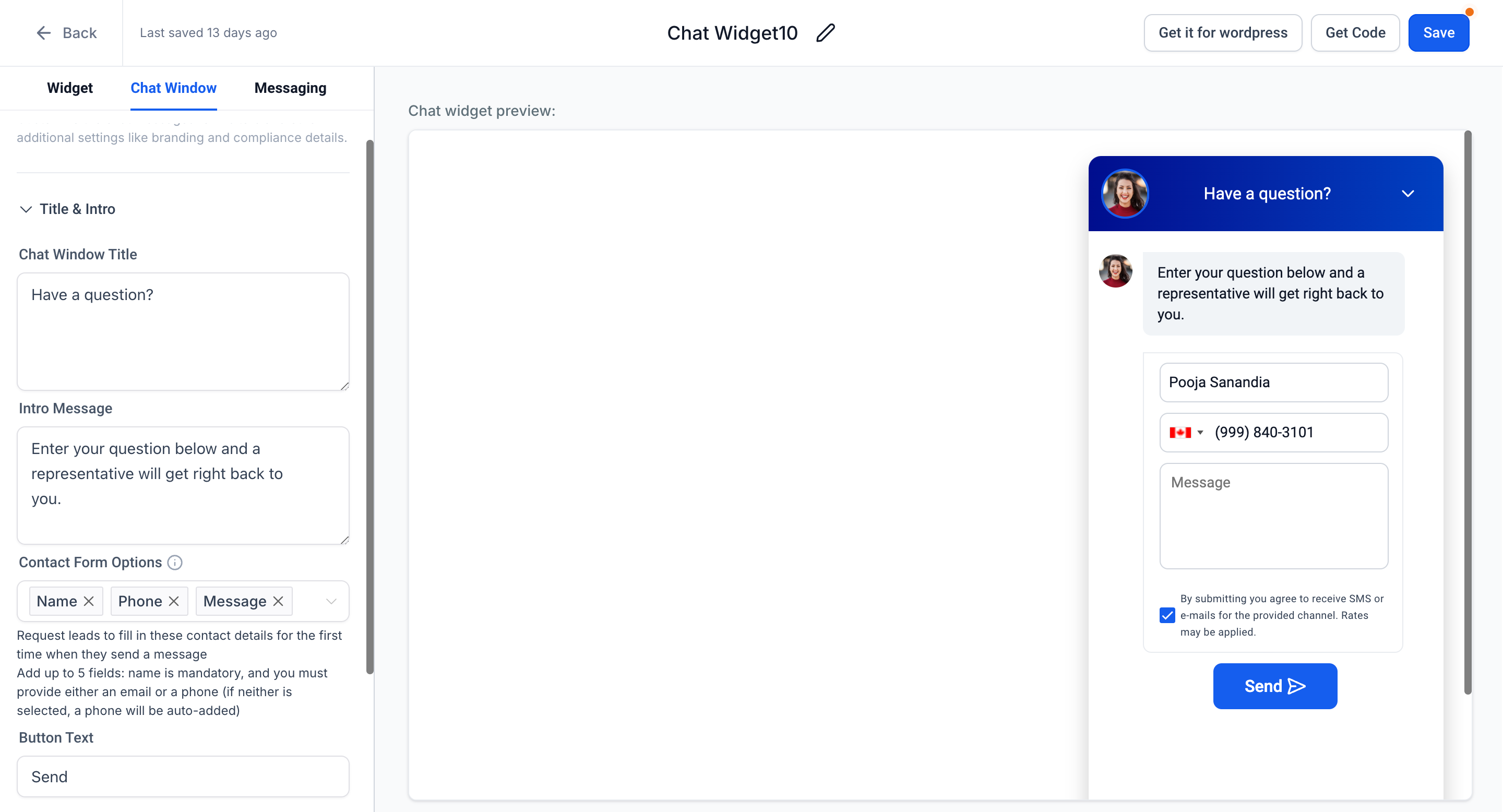
- Dental practice. Pick the Email/SMS chat type, customize the contact form fields for name and phone, and embed the widget on the appointment page. Patients submit their details, which are captured in HighLevel for the office to schedule appointments later.
04The numbers and rules that matter
- Chat widget types include All In One Chat, Email and SMS Chat, Live Chat, Facebook Chat, Instagram Chat, WhatsApp Chat, Voice AI Chat.
- Load on user interaction can be enabled in Chat Window > Additional Options, causing the widget to load after a visitor scrolls, clicks, touches, or after an automatic fallback delay of about 8 seconds.
05How to set up and use chat widgets in HighLevel
Install a chat widget on your website
- Open the Sites menu and select Chat Widget.
- Press the New button to begin creating a widget.
- Choose the desired chat type from the available options.
- Configure the widget’s style, placement, avatars, chat window, messaging, and, if applicable, the AI agent.
- Copy the provided embed code or use the integration picker to add the widget to your site.
- Verify that the widget appears on the page and is visible, especially if a registration flow includes a compliance review step.
06What it looks like in HighLevel
07Settings that matter
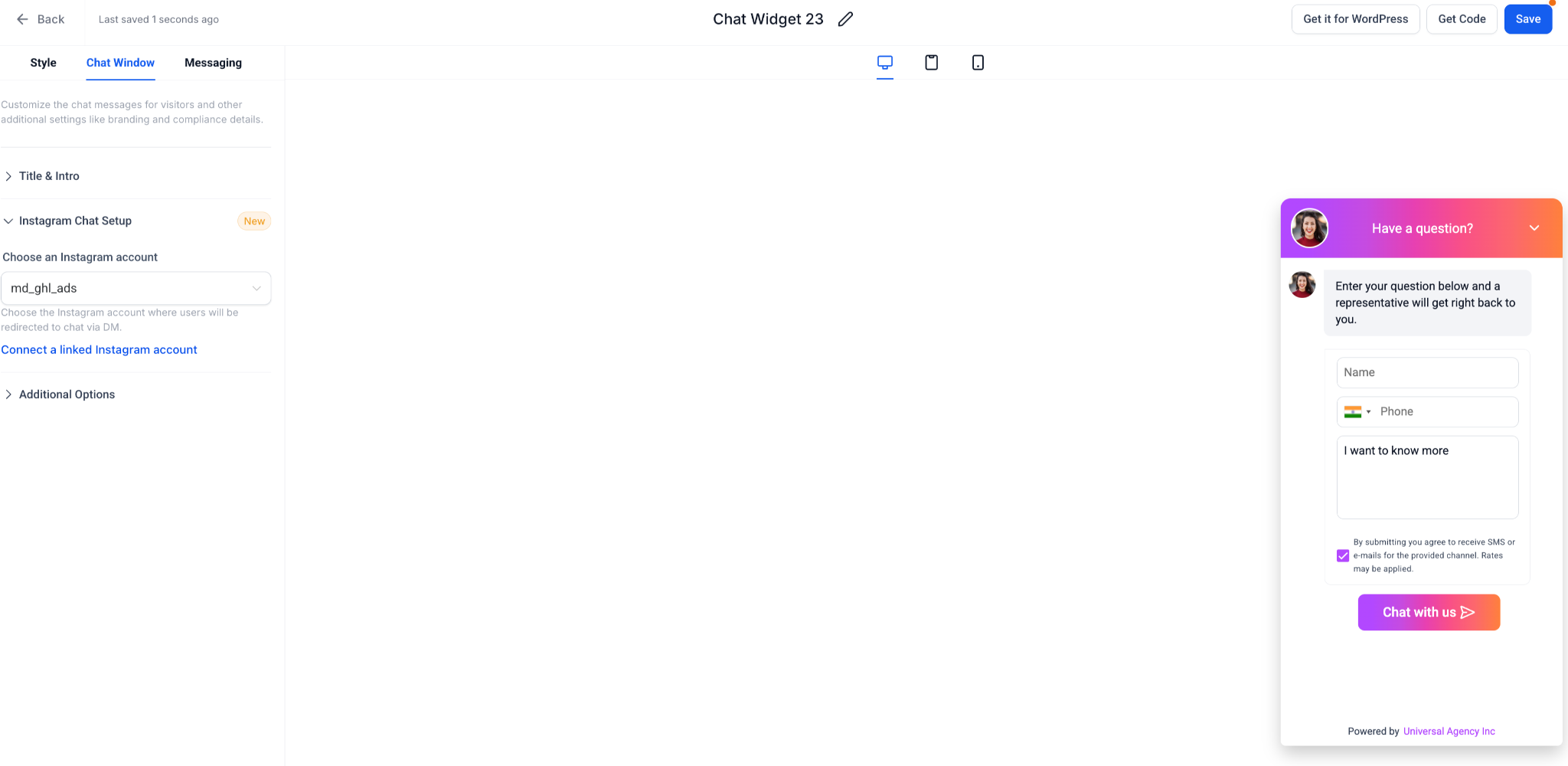
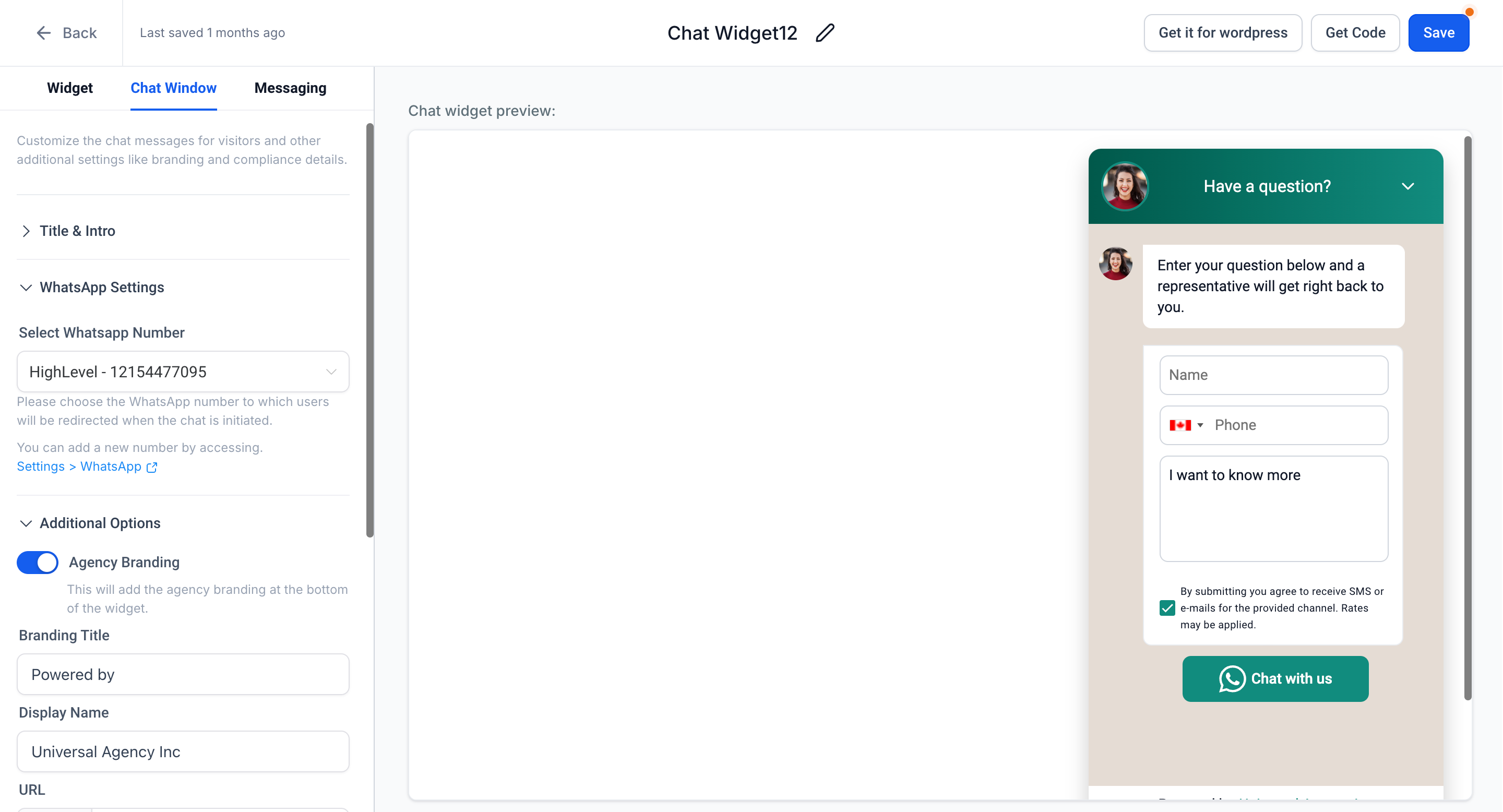
- Chat Type. Determines which communication channels appear in the widget, such as live chat, email/SMS, Facebook, Instagram, WhatsApp, or Voice AI.
- Style. Controls theme colors, icons, welcome text, avatar image, placement option, and size of the widget.
- Widget Placement. Lets you set the widget to stay fixed on the page (Sticky) or appear inline within page content (Embedded/Inline).
- Video Avatar. Adds a looping video greeting next to the launch button, available only when the widget uses Sticky placement.
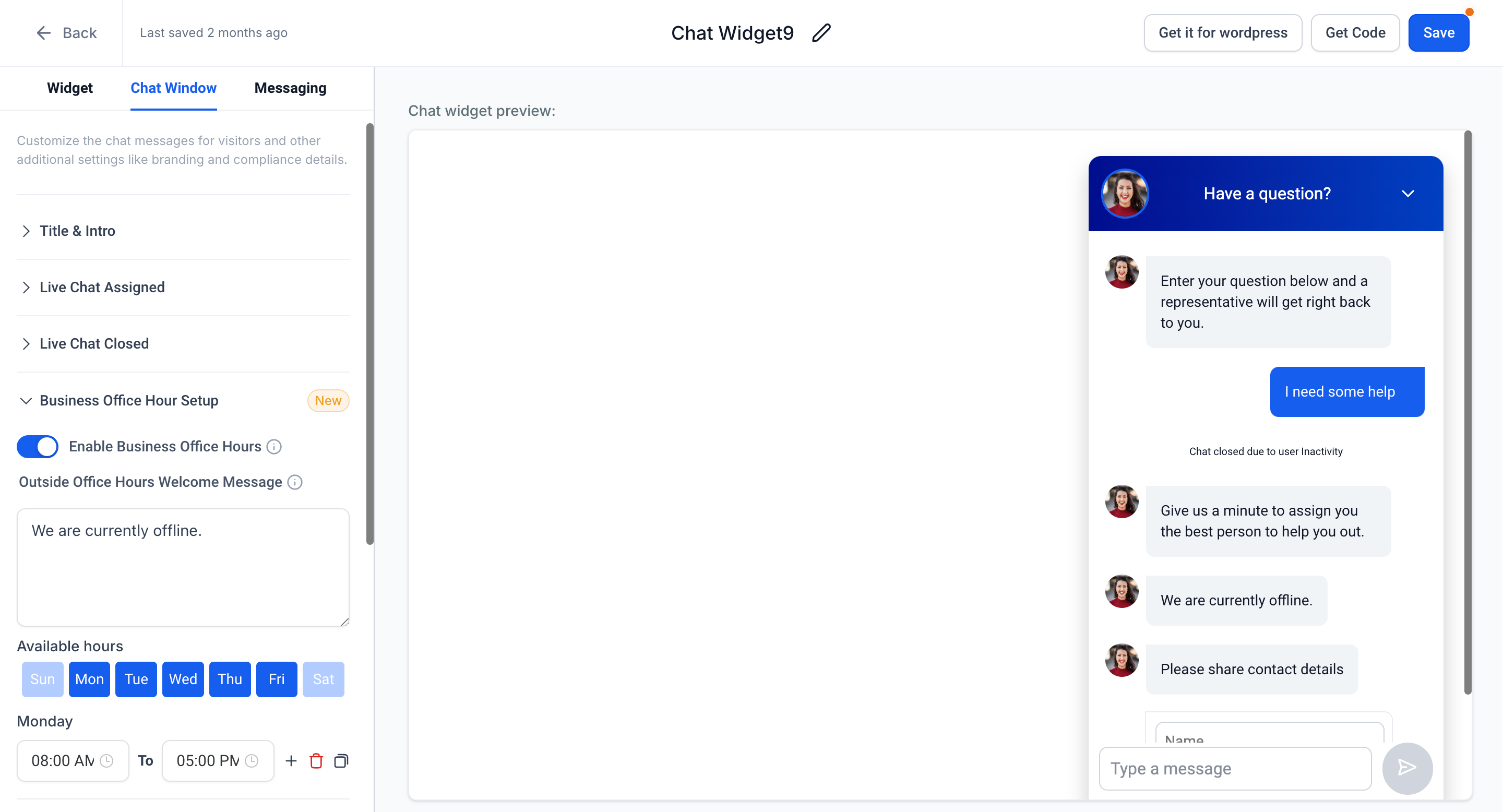
- Chat Window. Allows you to edit the window title, introductory message, contact form fields, branding elements, and add a compliance notice with an optional consent checkbox.
- Load on user interaction. When enabled, the widget script loads after a visitor scrolls, clicks, or touches the page, or after a fallback delay of about eight seconds.
- Messaging. Sets the acknowledgment text and icons shown after a visitor sends a message and selects the display language.
- Agent. Specifies the voice AI agent’s name and description; this setting appears only for chat types that support AI.
08Things to know before you rely on it
- Video Avatar works only with Sticky placement; it cannot be used for Embedded or Inline widgets.
- Dynamic page specific messaging is not supported; the same text appears on every page where the widget is embedded.
- When the chat type is changed, existing conversation records remain unchanged and continue to route as before.
09How it connects to the rest of HighLevel
- Live chat feature overview Live chat
- Customize video avatars and other widget options Chat widget customizations
- HighLevel pricing and plans Pricing
Michael's take

Set the widget placement to Sticky so it stays visible on the page.
Configure a compliance notice and make the consent checkbox required to satisfy privacy requirements.