
01Who this is for
- Marketing agencies that run review management for multiple clients, because they can control each client’s AI response mode from one dashboard.
- Small businesses with a single subaccount that want to enable AI suggested replies without full automation, allowing them to draft personalized responses quickly.
- Ecommerce brands using HighLevel to monitor reviews, as they can set Auto mode to reply right away or turn the feature off when not needed.
02Reviews AI, explained
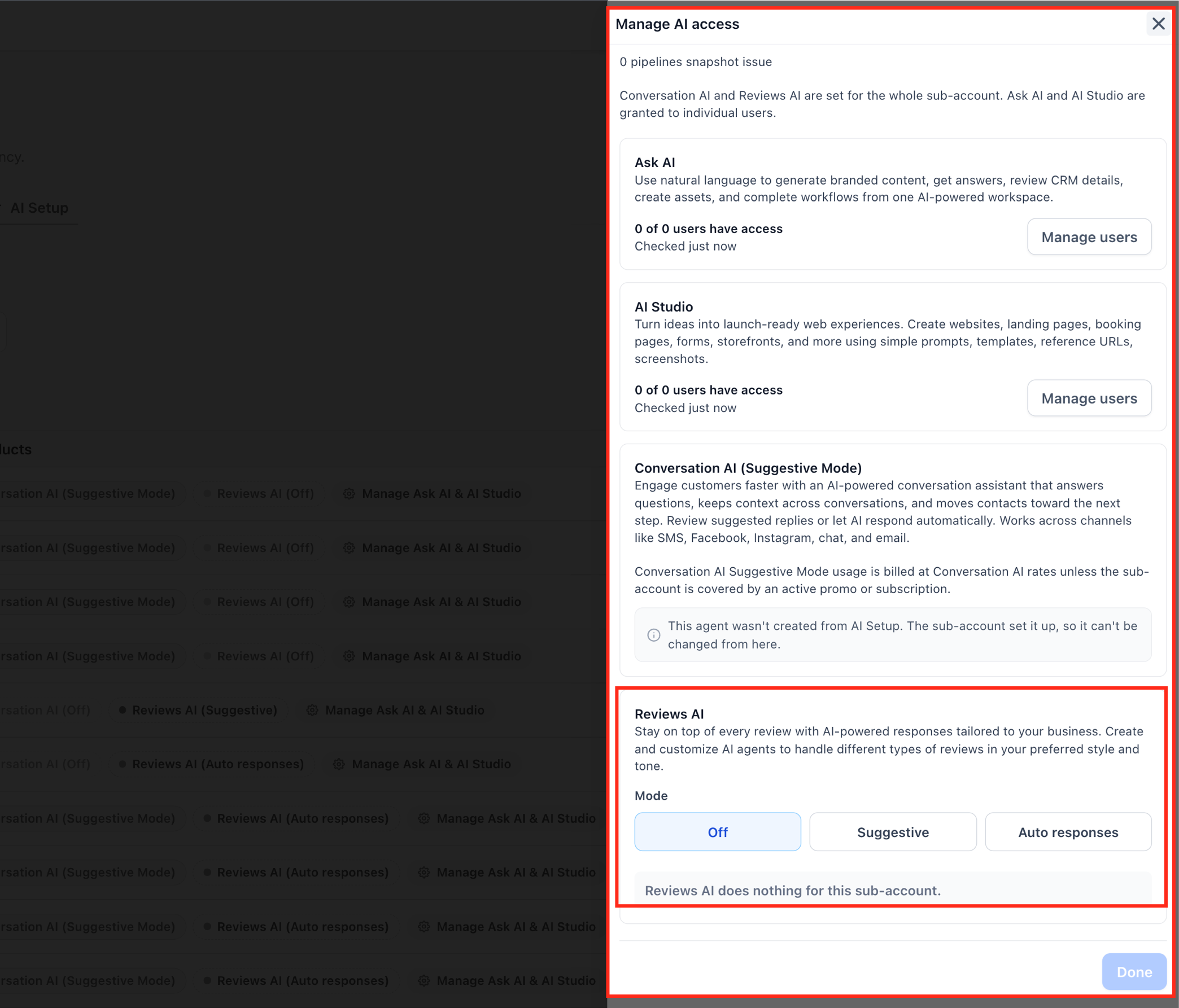
Reviews AI provides AI generated responses to online customer reviews. It can be switched Off, set to Suggestive where the system offers reply drafts, or set to Auto so pre configured agents reply automatically.
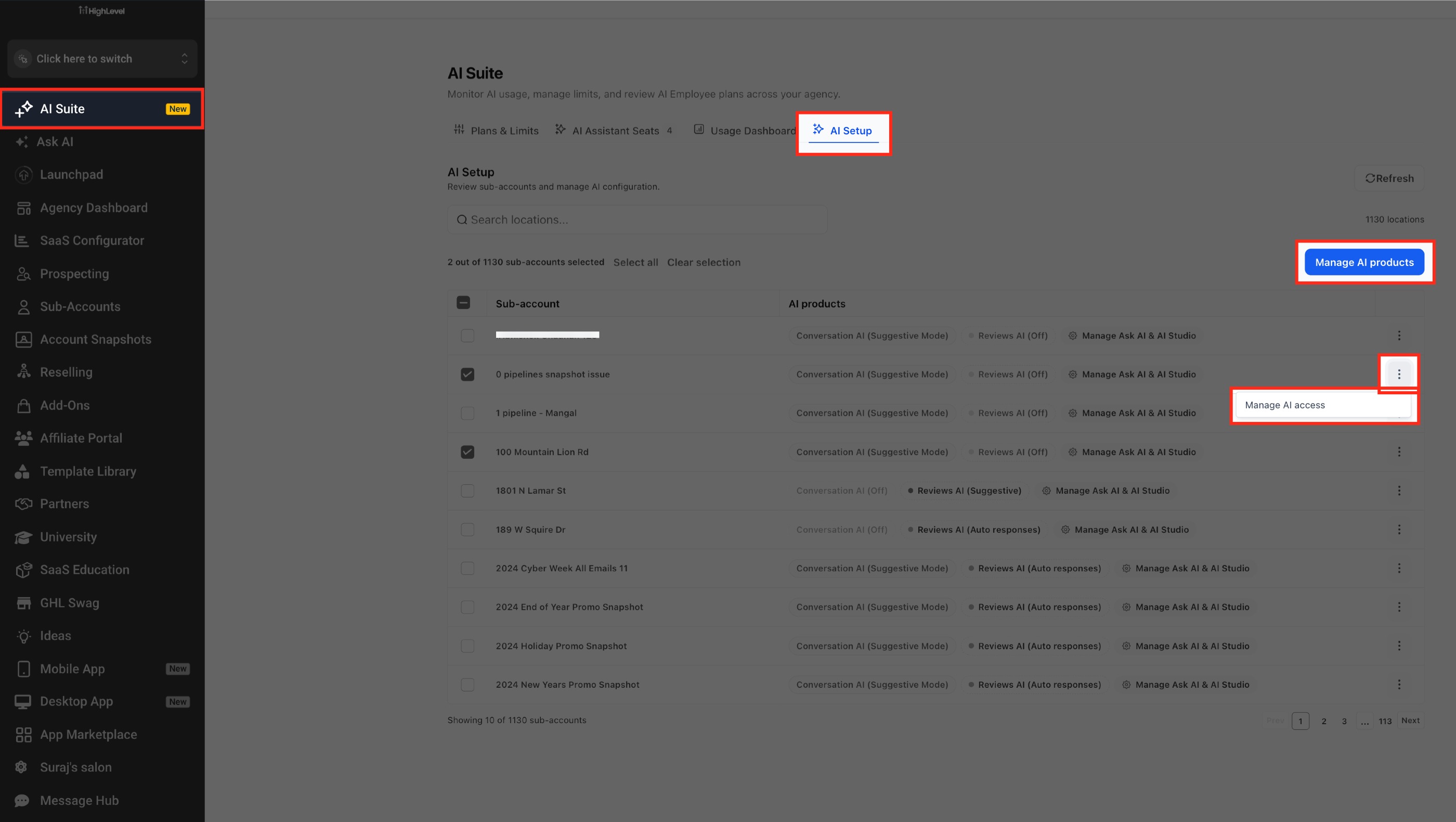
The response mode is managed in two places: the Agency view under AI Suite > AI Setup and the individual subaccount under Reputation > Settings > Reviews AI. Any change in one view is automatically reflected in the other, keeping the settings synchronized.
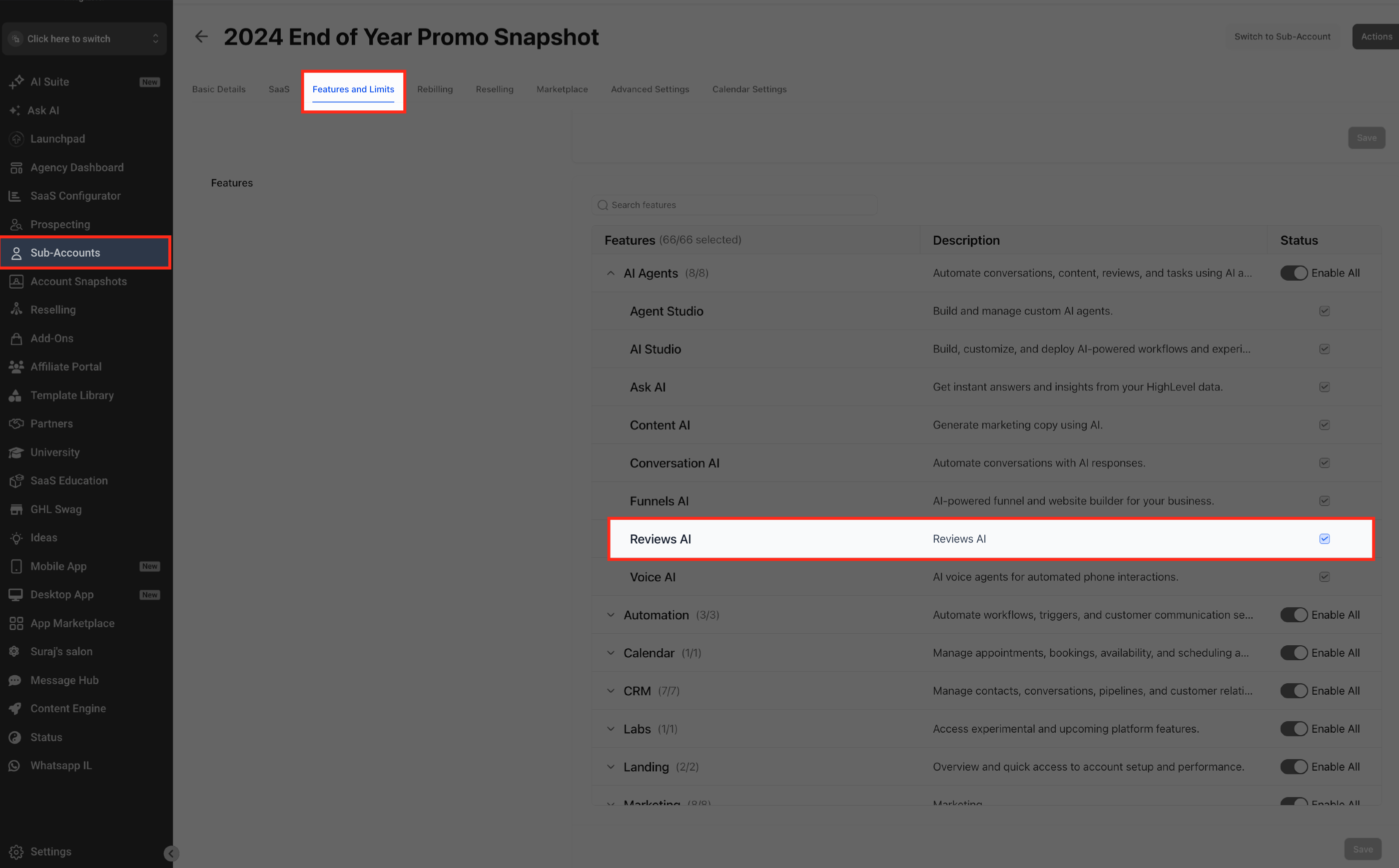
Agencies can also completely disable the feature for a subaccount from Subaccounts > Features & Limits > Reviews AI, which removes all review related AI options from that subaccount.
03How businesses use Reviews AI
- Digital marketing agency. The agency opens AI Suite > AI Setup, selects multiple client subaccounts, and sets each to Suggestive or Auto mode. This lets the agency control how much automation each client receives without logging into each account.
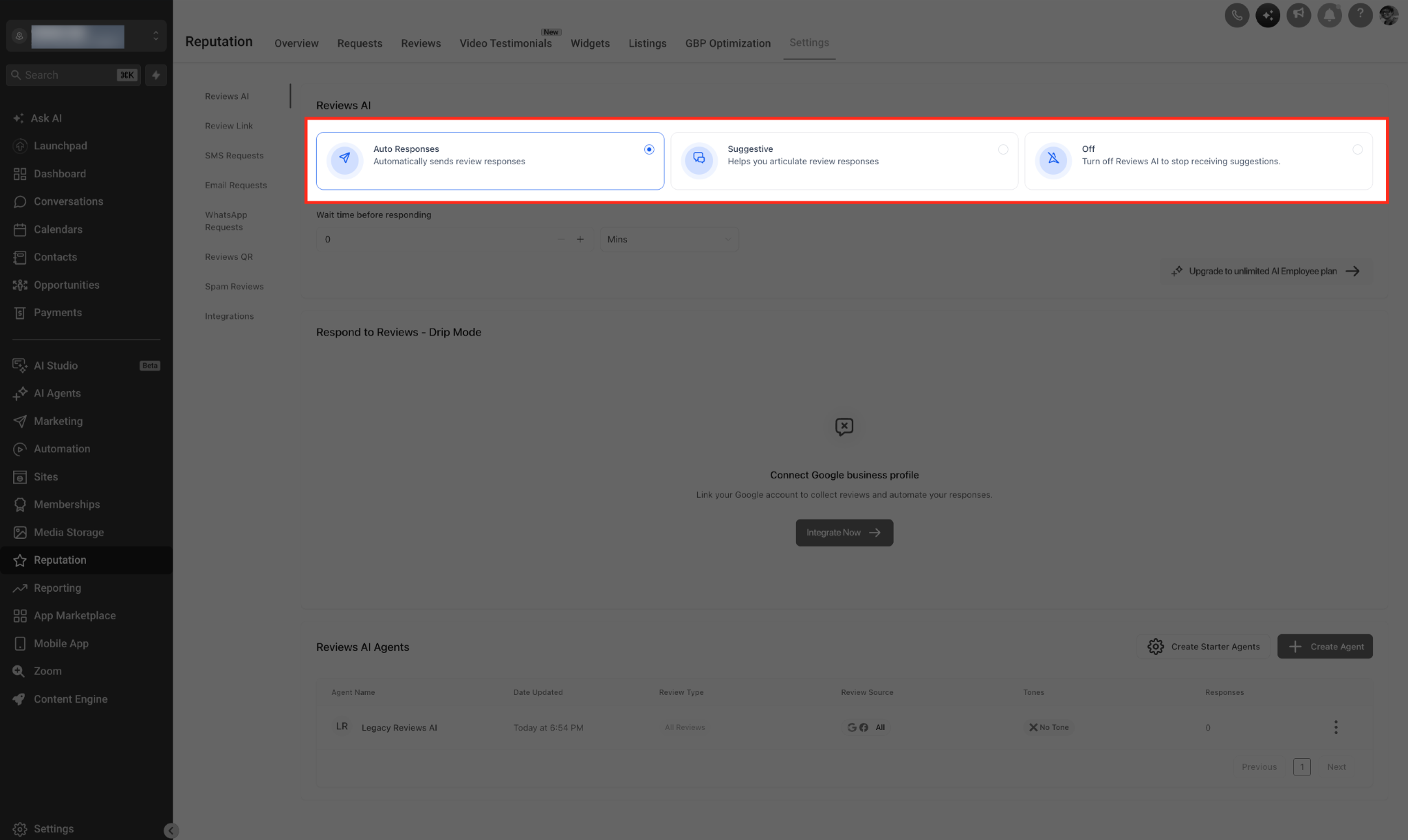
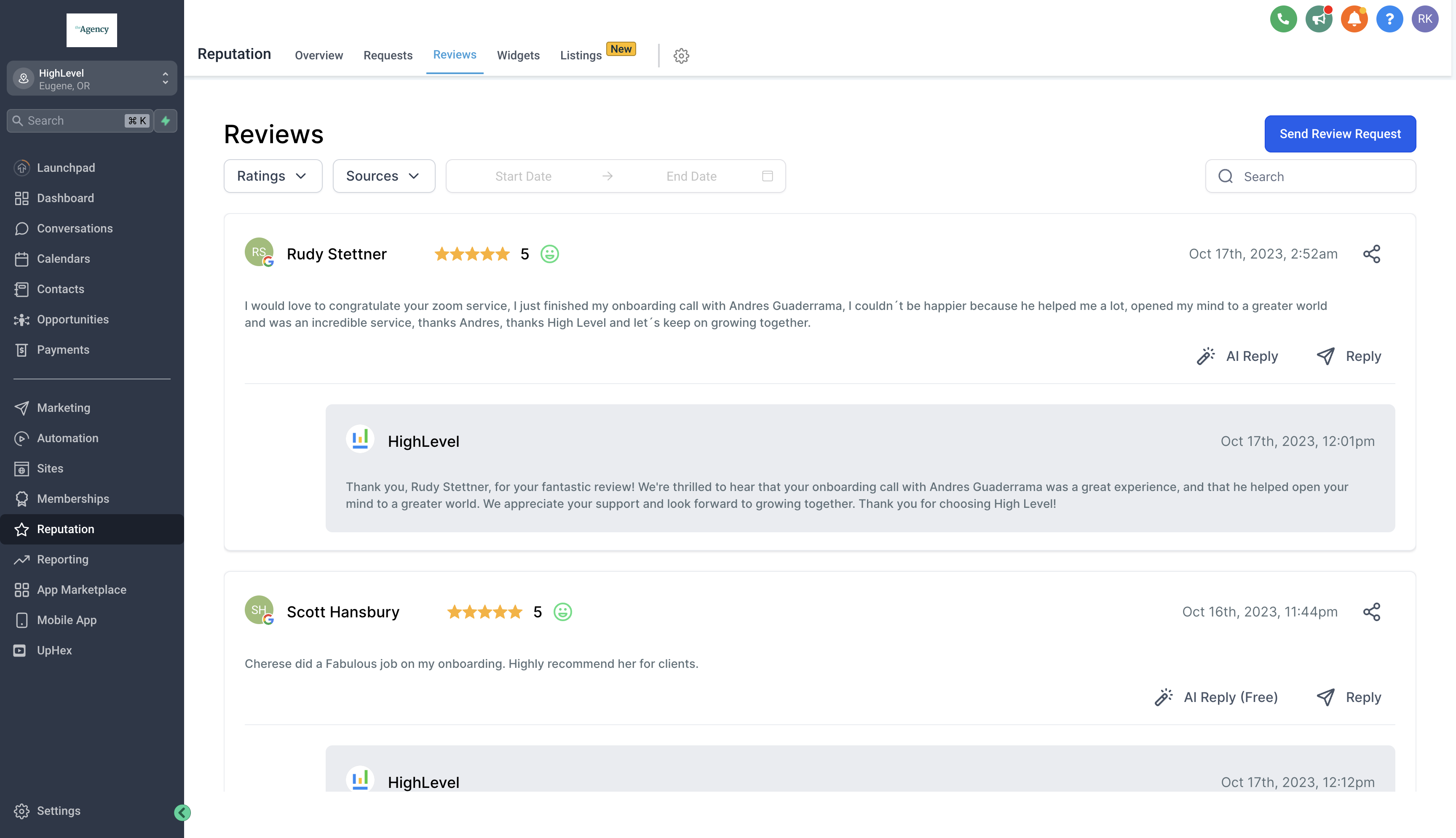
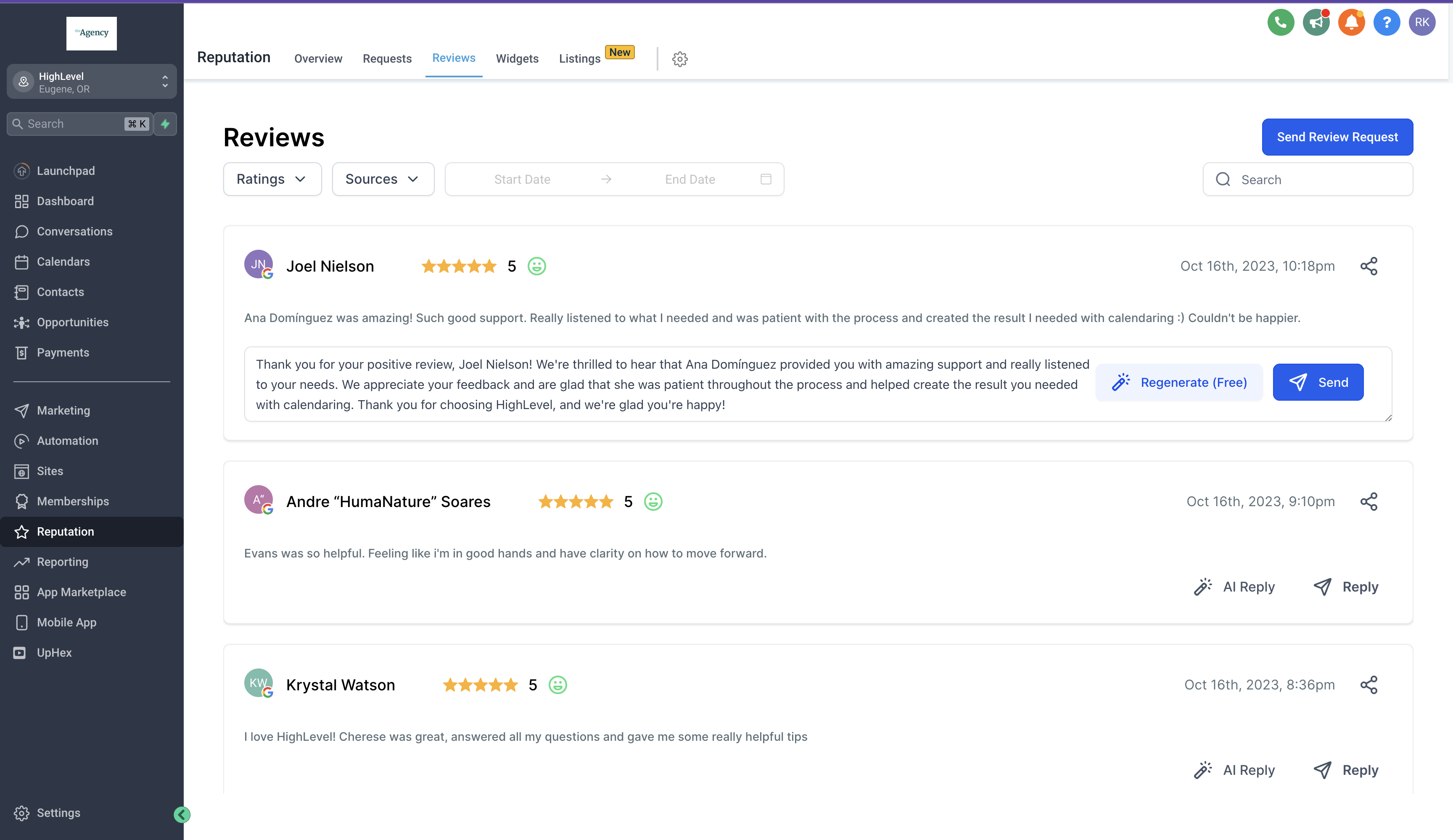
- Restaurant. The restaurant owner accesses Reputation > Settings > Reviews AI in their subaccount and chooses Suggestive mode. When a new review appears, they click the AI Reply button to get up to four draft replies, then edit and send the preferred one.
- SaaS startup. The startup enables Auto Responses in its subaccount settings, configures rating based response templates and a wait time, and lets the system post replies automatically to new Google and Facebook reviews.
04The numbers and rules that matter
- Up to four AI reply suggestions per review are free.
- Autopilot and Drip Mode each charge per AI reply sent.
05How to set up and use Reviews AI in HighLevel
Manage Reviews AI from Agency AI Suite
- Open the Agency view and navigate to AI Suite.
- Select the AI Setup option.
- Find the subaccount you wish to edit.
- Open the three dot menu for that subaccount.
- Choose Manage AI access.
- Pick the desired Reviews AI mode, Off, Suggestive or Auto responses.
- Press Done to save the changes.
Disable Reviews AI for a Subaccount
- In the Agency view, go to Subaccounts.
- Select the target subaccount.
- Open Features & Limits for that subaccount.
- Disable Reviews AI to hide all related options and block AI generated replies.
Change Reviews AI mode from Subaccount
- Open the subaccount and go to Reputation.
- Enter Settings and select Reviews AI.
- Choose one of the three modes: Auto Responses, Suggestive or Off.
06What it looks like in HighLevel
07Settings that matter
- Reviews AI. Selects the response mode, Off, Suggestive, or Auto, for generating or sending AI crafted review replies.
- Reviews AI (Features & Limits). Enables or disables the entire Reviews AI feature for a subaccount, hiding all related options when turned off.
08Things to know before you rely on it
- You can generate up to four AI reply suggestions per review at no charge.
- Each AI assisted reply that is sent is billed once; resending the same reply does not create a new charge (per HighLevel's help center, checked November 2026).
- Disabling Reviews AI from Features & Limits hides the Reviews AI settings, AI Reply, Regenerate button, and blocks manual, auto and drip campaign replies.
09How it connects to the rest of HighLevel
- Review the pricing structure for AI usage. Pricing
- Start a free trial to test Reviews AI. 30 day trial
- Explore other AI Employee capabilities. AI Employee features
Michael's take

I’d start with Suggestive so the team can see the AI suggestions and tweak them to match the brand voice before turning on any automation.
Once the team is comfortable with the tone of the suggestions, I’d enable Auto Responses for the most routine reviews and set clear rules for star rating and source. Making sure the mode is set correctly from the agency dashboard keeps everything in sync.