
01Who this is for
- Marketers who need to qualify leads automatically and route them to the right page.
- Ecommerce owners who sell multiple product options and want to hide irrelevant items based on selections.
02Conditional Logic V2 in Forms, explained
Conditional Logic V2 adds dynamic behavior to HighLevel forms. When a visitor answers a question, the form can immediately hide or reveal fields and product options. It also allows actions at submission time, such as sending the user to a specific URL, displaying a custom thank you message, or marking the lead as disqualified.
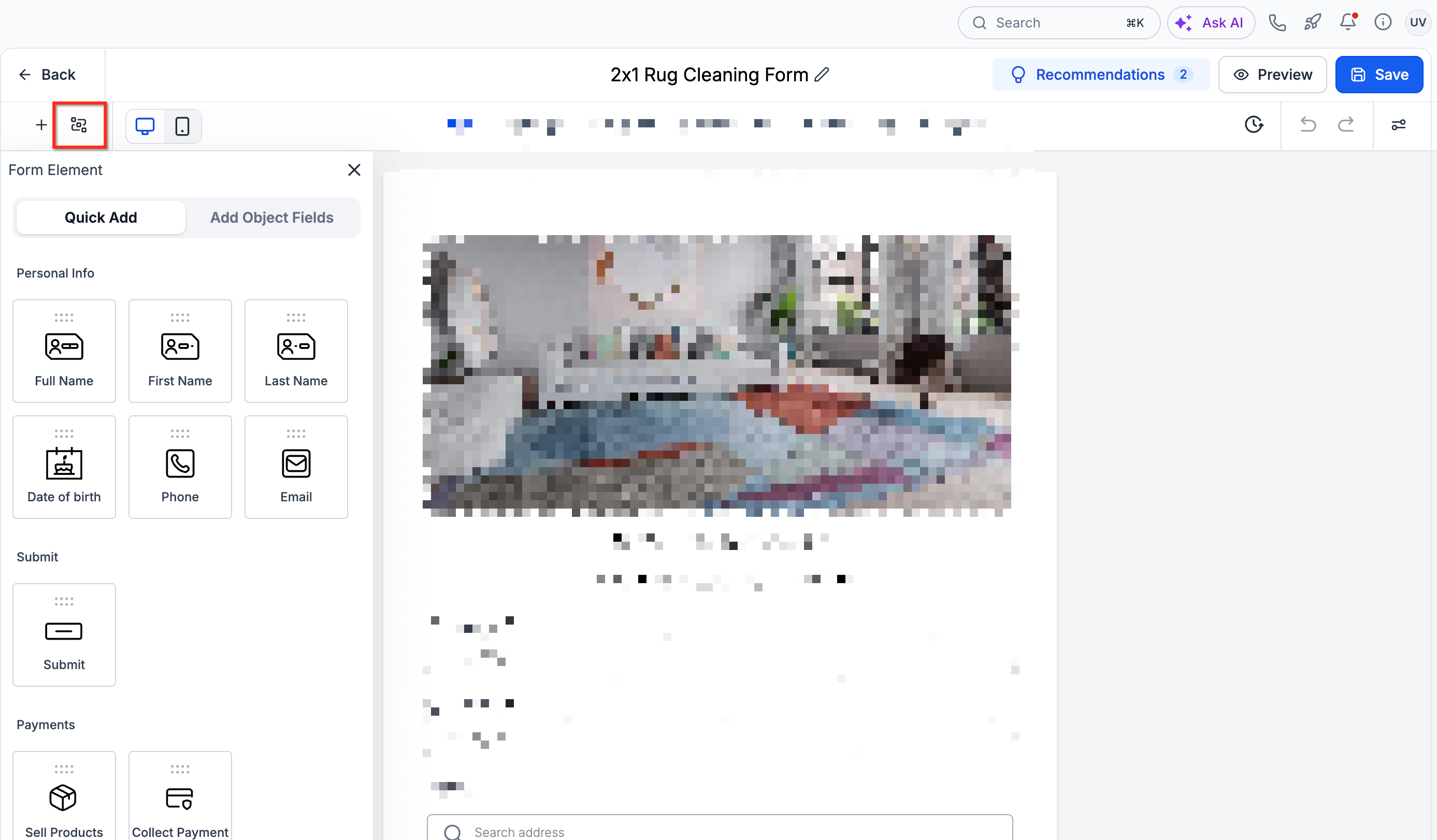
The feature lives inside the form builder. After opening a form under Sites > Forms, you open the Conditional Logic panel and create rules. Each rule has an IF part that checks a field, operator and value, and a THEN part that defines one of four actions: redirect, show a message, disqualify, or show/hide elements. Product Level Conditional Logic lets you treat individual products or their variants as conditions and targets for visibility.
Rules are evaluated in order. Only the first matching redirect, message, or disqualify rule runs. For show/hide rules, later matches can overwrite earlier ones. You can combine multiple conditions with AND or OR, but not both in the same rule.
03How businesses use Conditional Logic V2 in Forms
- Digital marketing agency. The agency creates a lead capture form that hides budget fields unless the prospect selects a high spend service. It also redirects qualified leads to a strategy call scheduling page.
- Online clothing store. The store adds a product selector for shirts and ties a rule that hides size options when a customer chooses a ‘One size fits all’ item, simplifying the buying experience.
- Consulting firm. The firm builds a consultation request form that displays a custom message after submission if the prospect selects the Enterprise package, informing them of next steps.
04The numbers and rules that matter
- Supported field types and operators: Text (Equal to, Not equal to, Contains, Does not contain, Starts with, Ends with, Is empty, Is filled), Number, Monetary, Score (Equal to, Not equal to, Greater than, Less than, Between, Is empty, Is filled), Date (Equal to, Before, After, Between, Is empty, Is filled), Single Dropdown (Is equal to, Is not equal to, Is empty, Is filled), Multi Dropdown, Checkbox (Is equal to, Is not equal to, Is empty, Is filled), Terms & Conditions (Is checked, Is not checked), File Upload, Signature (Is empty, Is filled).
05How to set up and use Conditional Logic V2 in Forms in HighLevel
Set up Conditional Logic V2
- Navigate to Sites > Forms and open or create a form.
- Click Conditional Logic in the Form Builder.
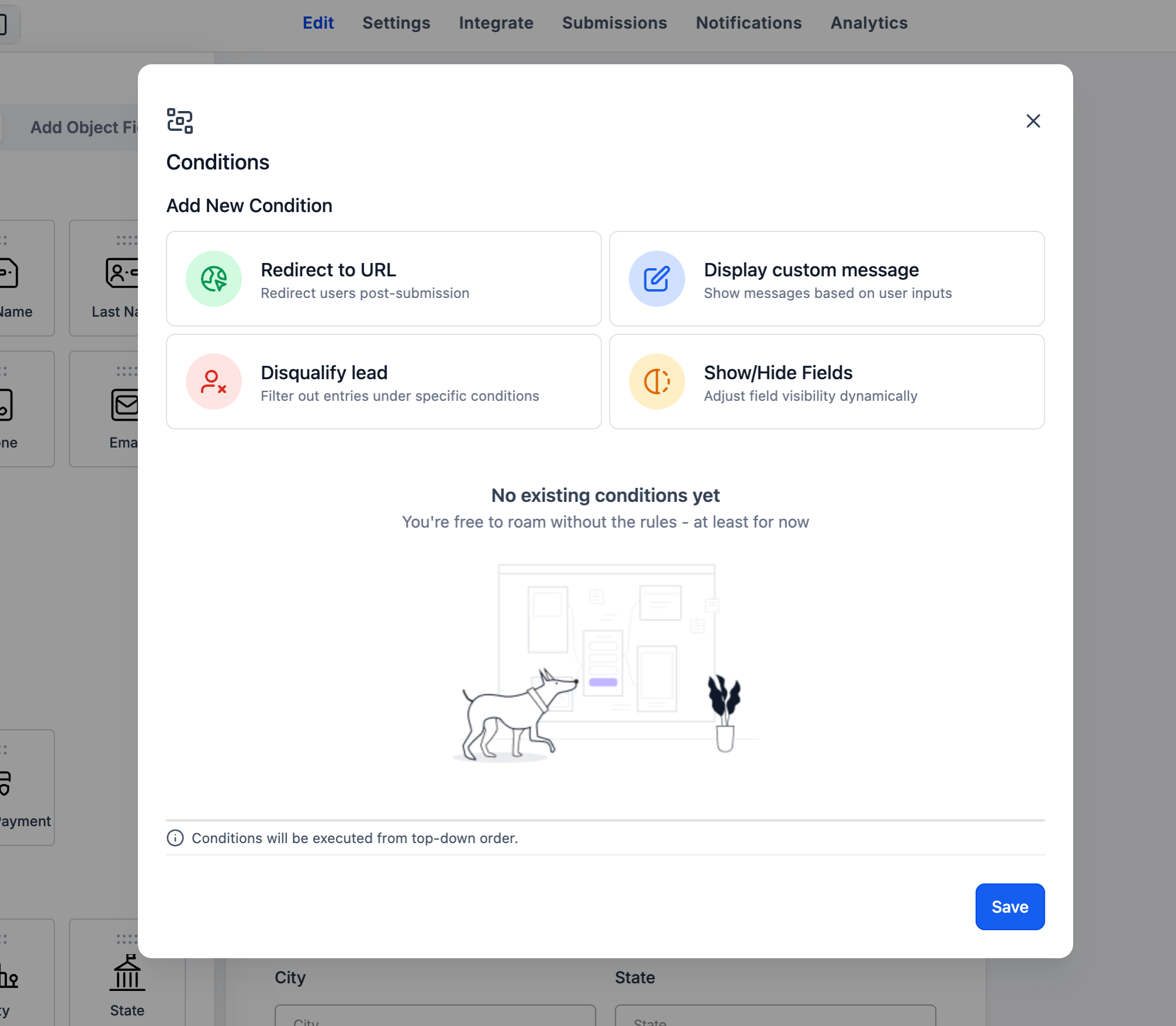
- Select Add New Condition.
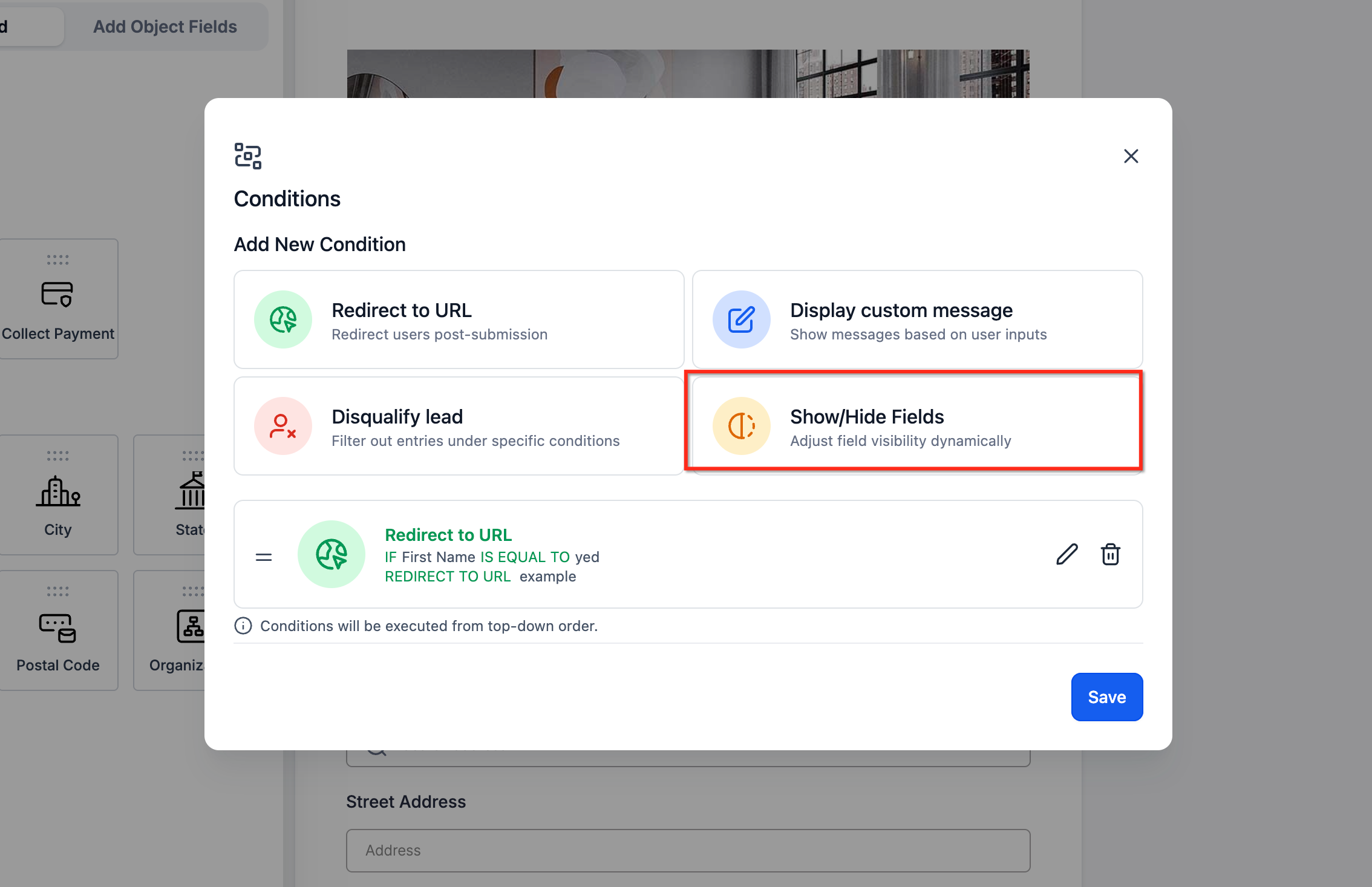
- Choose an action: Redirect to URL, Display Custom Message, Disqualify Lead, or Show/Hide Fields.
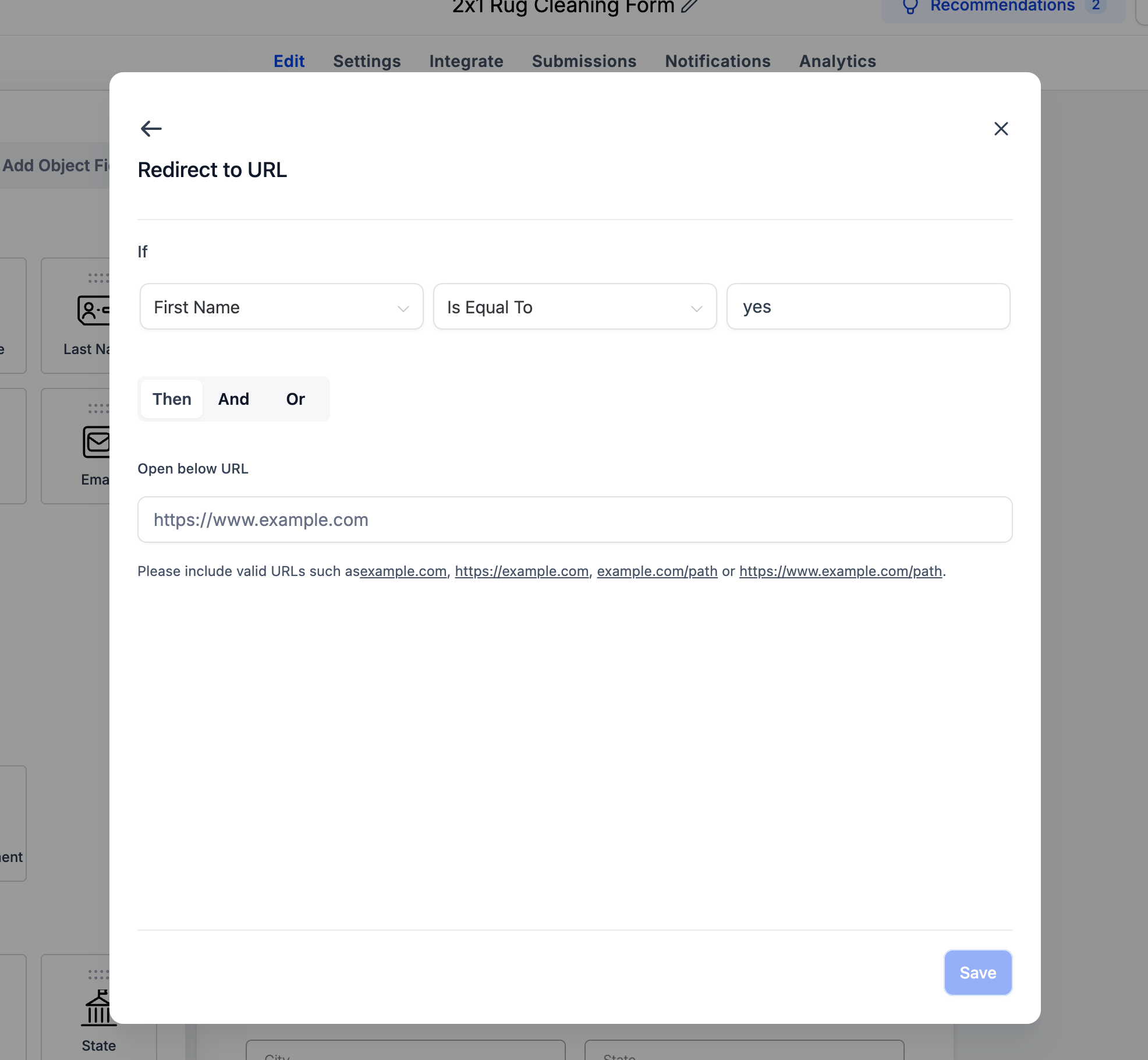
- Configure the IF condition by selecting a field or supported product, an operator, and a value.
- Configure the THEN action, such as displaying fields, hiding products, redirecting users, or showing a message.
- Save the condition and preview the form to test the expected behavior.
Configure product level visibility
- Open Conditional Logic > Add New Condition.
- Select Show/Hide Fields.
- Define the condition using a customer response or product selection.
- Select the entire Sell Products element, an individual product, or a specific variant.
- Configure whether the selected item should appear or disappear.
- Save and test the rule.
06What it looks like in HighLevel
07Settings that matter
- Redirect to URL. Determines the webpage a visitor is sent to after form submission when the condition matches.
- Display Custom Message. Shows a personalized message after submission when the condition matches.
- Disqualify Lead. Marks the lead as disqualified and stops further processing when the condition matches.
- Show/Hide Fields. Controls real time visibility of fields, products or variants as the user interacts with the form.
08Things to know before you rely on it
- Redirect, custom message and disqualify actions fire only on form submission; Show/Hide Fields updates dynamically while the form is being filled.
- Only the first matching redirect, custom message, or disqualify rule runs; later matching Show/Hide rules can override earlier visibility settings.
- A single rule cannot mix AND and OR connectors.
- Product Level Conditional Logic works in both old and new Forms builders.
- The Between operator includes both boundary values.
09If something goes wrong
- Cannot save a conditional rule. Check that all required fields, operators, values, and action settings are configured.
10How it connects to the rest of HighLevel
- Learn how to add a chat widget to your website and customize its behavior. Chat widget guide
- Set up appointment booking in Conversation AI to use custom form rules for redirects and messages. Appointment booking
- Review HighLevel pricing and plans to see which subscription includes Conditional Logic V2. Pricing
Michael's take

Conditional Logic V2 feels like a useful convenience for businesses that rely on forms to qualify leads or sell products. The ability to autohide irrelevant fields and surface the right product options seems helpful.
I would give it a quick run through after set up to be sure the visibility rules fire as expected before sending traffic my way.