
01Who this is for
- Customer support teams, they reduce manual scheduling by letting the bot handle booking requests.
- Service based businesses, they can route appointments to different calendars for consultations, demos or support calls.
- Marketing managers, they keep the booking flow on brand voice while the bot gathers leads automatically.
02Appointment booking in Conversation AI, explained
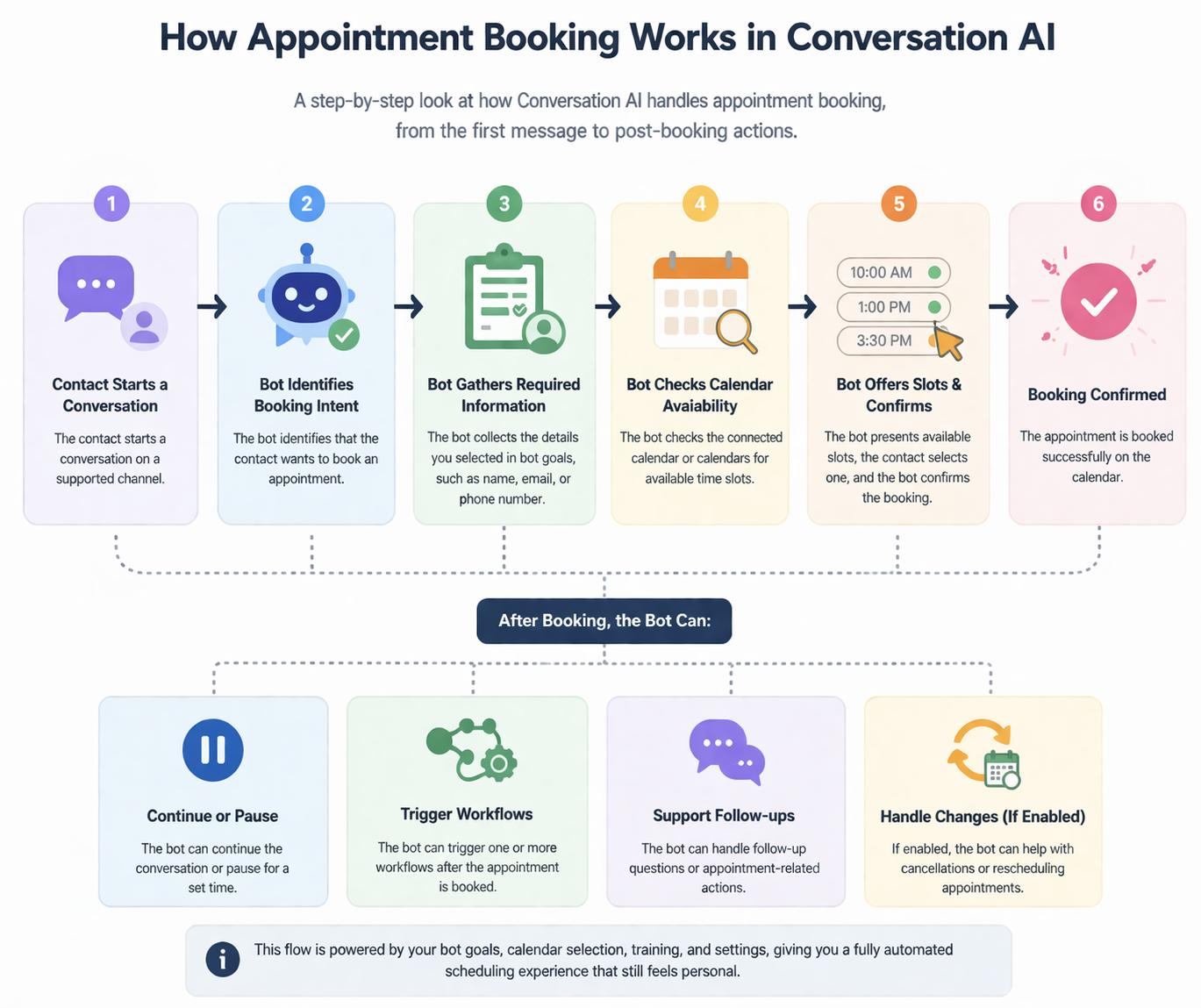
The feature lives inside the Conversation AI section of a HighLevel subaccount. When a contact asks to book, the bot pulls information from the selected booking calendar, presents open time slots, and confirms the appointment inside the chat. It also respects the original timestamp, so date expressions like "today" or "tomorrow" are interpreted from the first message.
You can configure the bot for a single calendar, which sends every request to one schedule, or enable multiple calendars. In the multi calendar mode you add descriptions, keywords and an optional fallback calendar so the bot can match the request to the right service. Services booking (v2) lets the bot show public services, staff and add ons, but private services and online payments are not supported.
After a booking is made you can pause the bot, send a booking link, or trigger any HighLevel workflow. Cancellation and reschedule options are also available when you enable them.
03How businesses use appointment booking in Conversation AI
- Dental practice. Create a Conversation AI bot, enable Appointment Booking, and select the practice’s single calendar. Add prompts that mention office hours and required patient information, then test the flow to ensure new appointments are recorded without manual effort.
- Software SaaS company. Choose Multiple Calendars in the bot settings, add separate calendars for product demos, onboarding calls, and support sessions. Provide distinct keywords for each service so the bot routes a request for a "demo" to the demo calendar and a "support call" to the support calendar.
- Co working space. Activate Services booking, expose public room rental services, and let the bot ask for staff or equipment preferences. The bot will book the appropriate calendar slot and skip any payment step, keeping the reservation process fast.
04The numbers and rules that matter
- Services booking (v2) is only available for prompt based Conversation AI bots.
05Before you start
- A booking calendar must already exist in HighLevel.
- A Conversation AI bot must be created in the subaccount.
- Brand voice or bot training should be set up to reflect the business.
- The channels where the bot will respond need to be selected.
- Decide whether the bot will use a single calendar or route across multiple calendars.
06How to set up and use appointment booking in Conversation AI in HighLevel
Set up appointment booking in Conversation AI
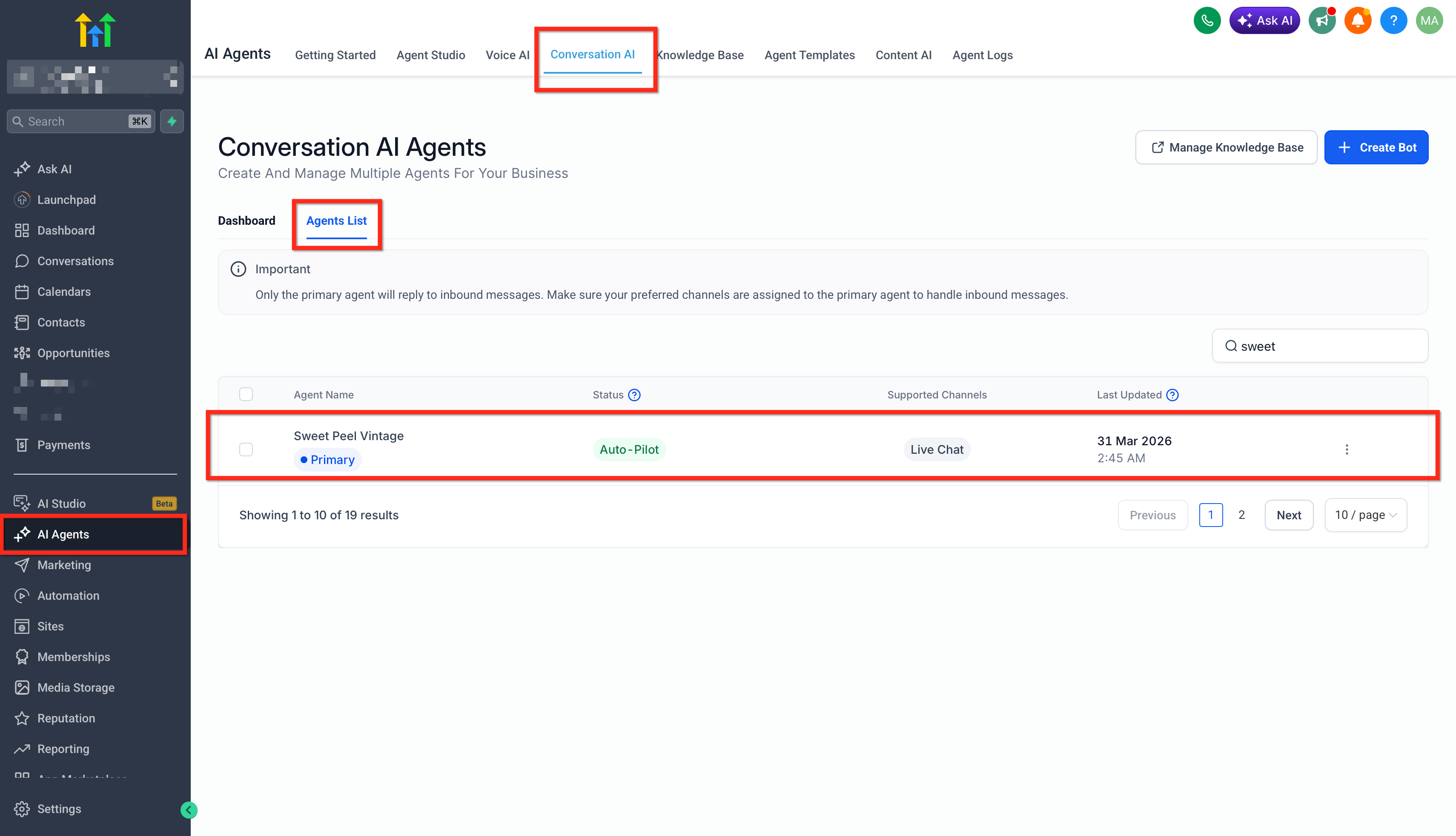
- Open the subaccount, go to AI Agents > Conversation AI and create or edit the desired bot.
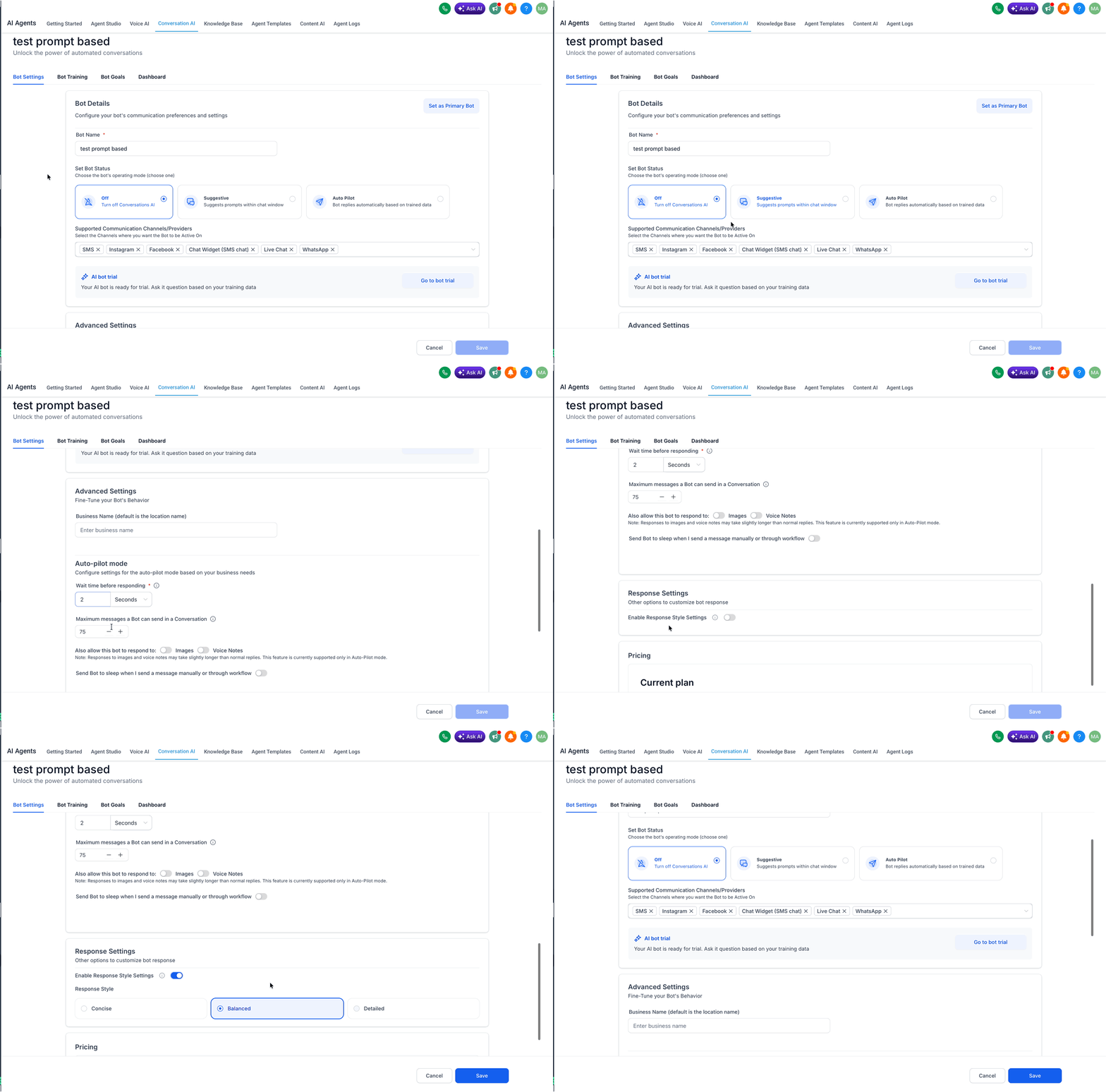
- Enter basic bot details including the name, wait time before responding, and the initial greeting.
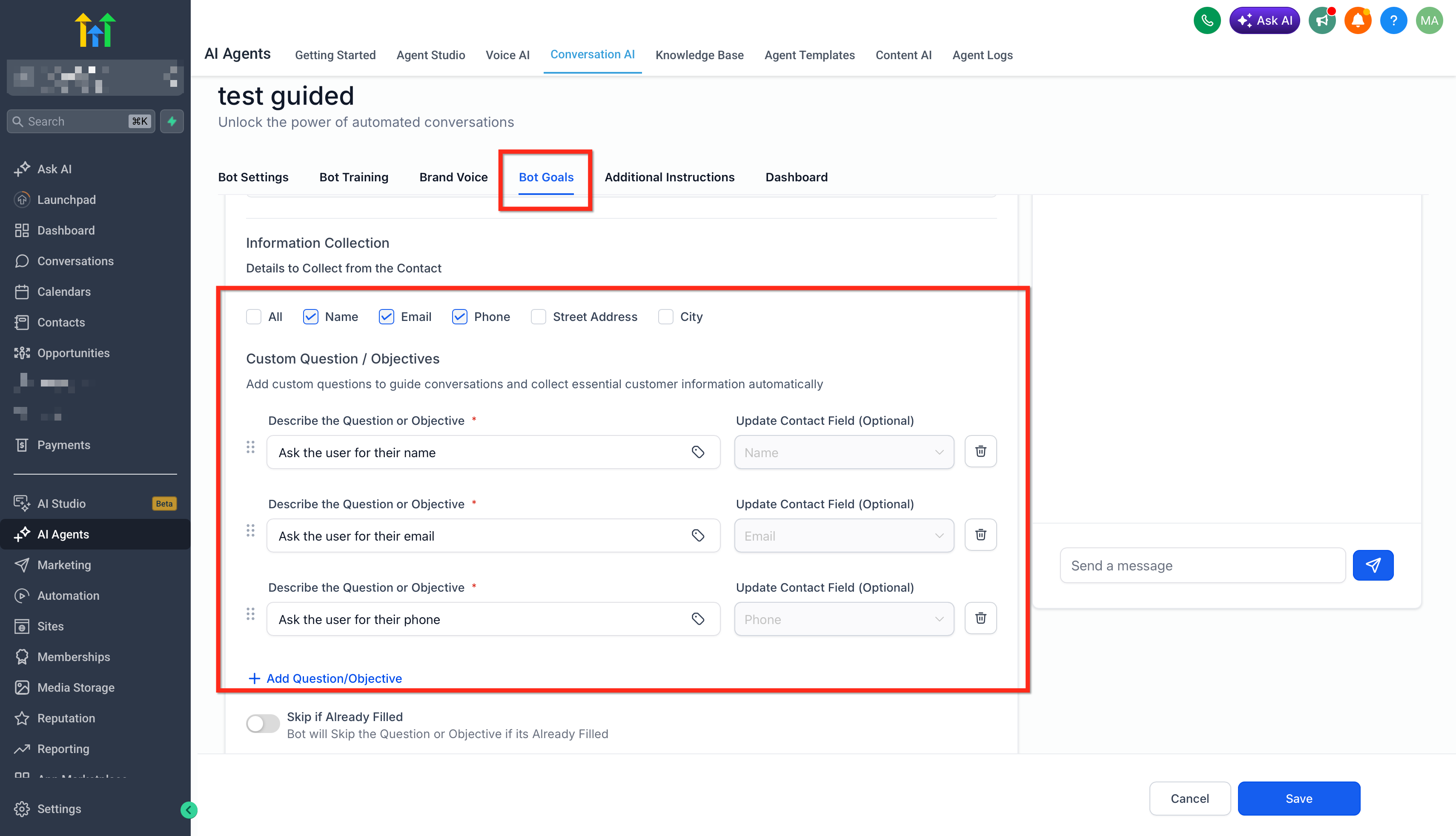
- Open Bot Goals and select the contact fields the bot should collect, such as name, email, or phone.
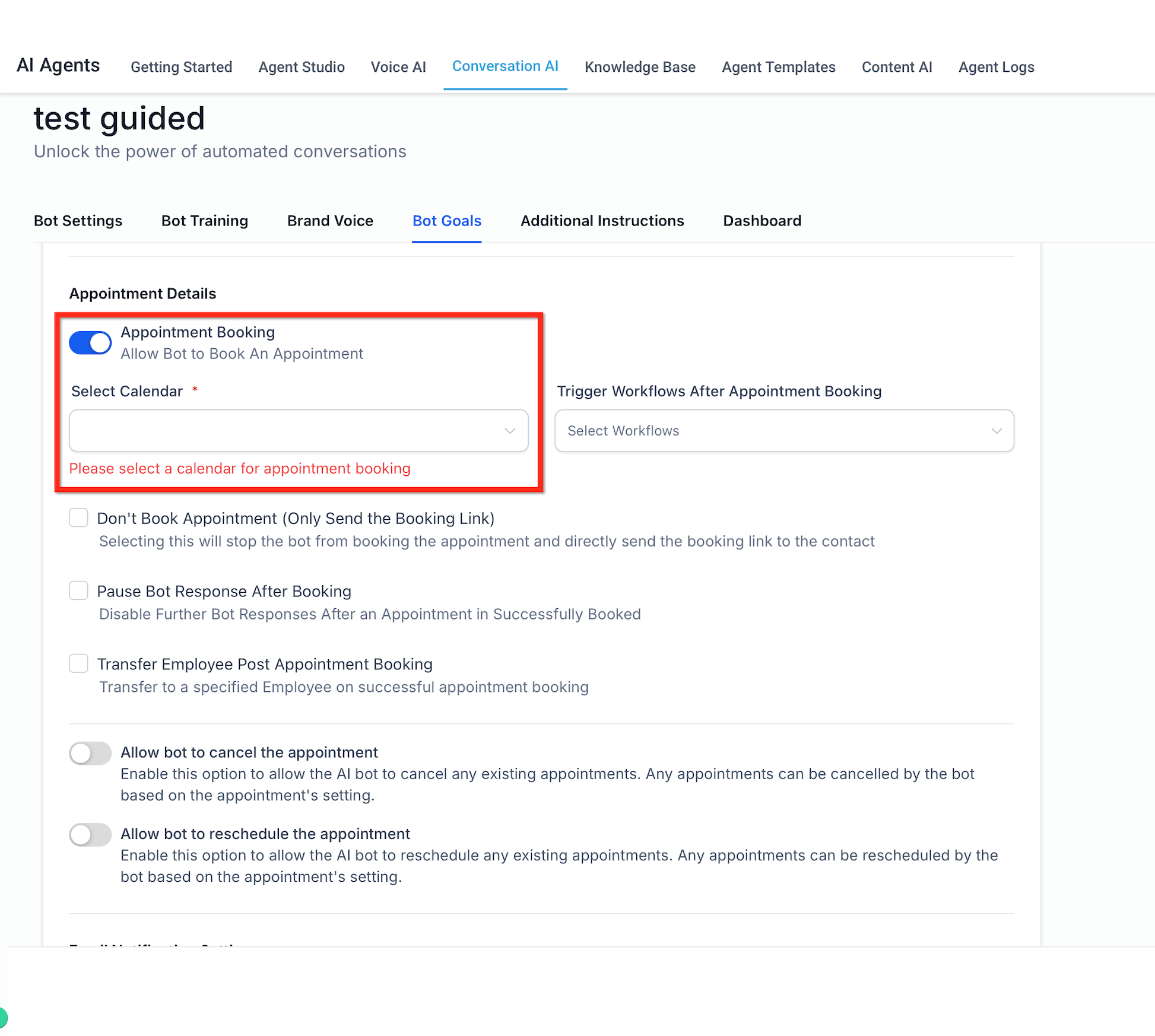
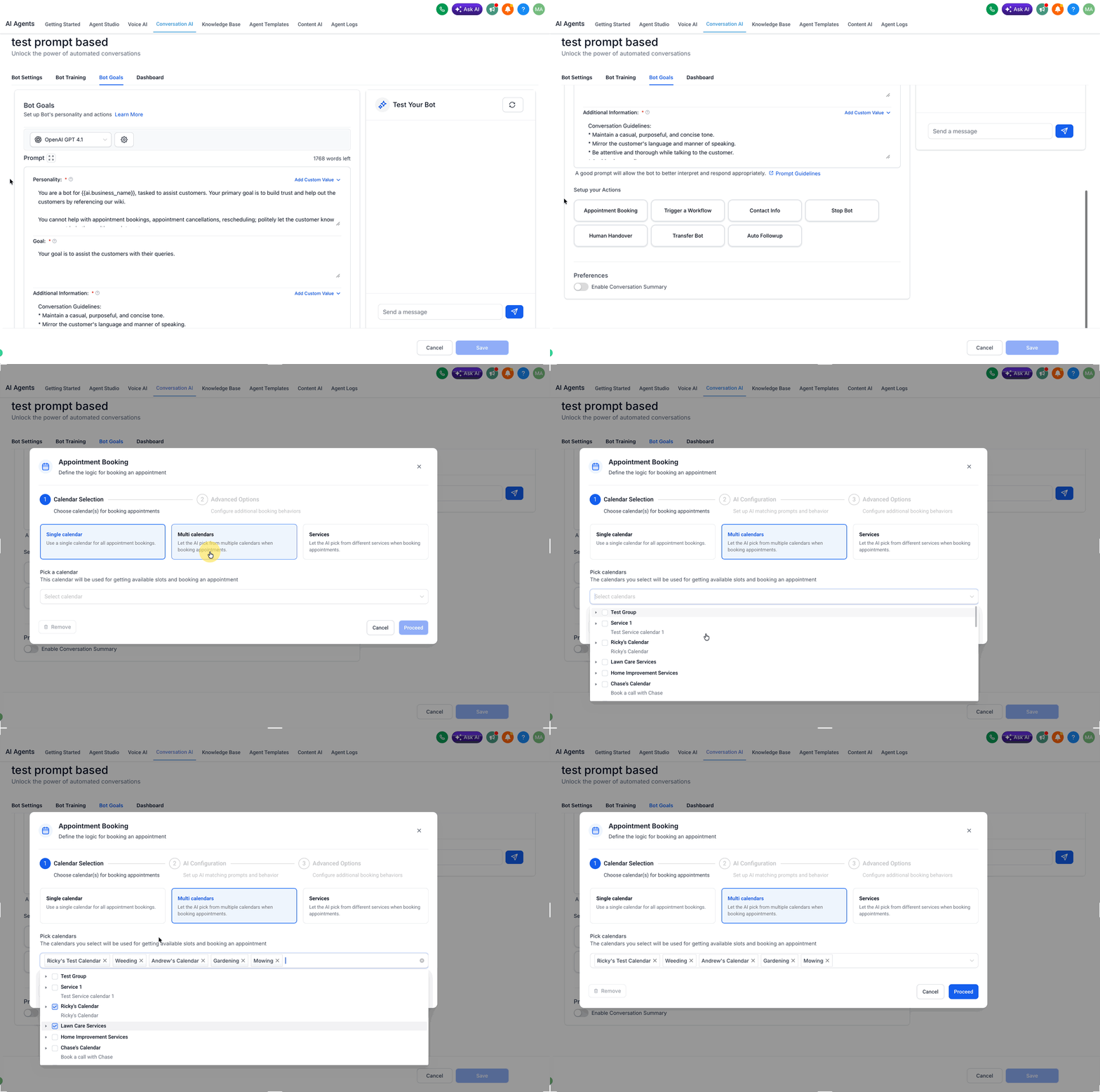
- Enable Appointment Booking and pick the booking calendar to use.
- If service based routing is needed, select Multiple Calendars and fill each calendar’s description, keywords, and optional fallback.
- For service based booking, choose Services, select public services, and note that private services and online payment are not supported.
- Add prompt instructions and training content that explain availability, services, and the booking flow.
- Configure cancellation and reschedule options and any post booking behavior like workflow triggers or bot pause.
- Save the bot and run a live test, focusing on cancellation and reschedule paths.
07What it looks like in HighLevel
08Settings that matter
- Enable Appointment Booking. Turns on the scheduling feature and lets you choose a calendar for the bot to use.
- Single Calendar. Directs all booking requests to one designated calendar.
- Multiple Calendars. Allows the bot to match requests to different calendars based on descriptions and keywords.
- Services. Lets the bot present public services, staff and add ons for booking; private services and payment collection are not supported.
- Bot Goals. Specifies which contact information the bot should ask for during the booking conversation.
09Things to know before you rely on it
- Multiple Calendar booking is currently available only for prompt based Conversation AI bots.
- Services booking is currently available only for prompt based Conversation AI bots.
- Private services cannot be booked through the Services option.
- Online payment is not collected by the bot during a Services booking flow.
- Guided and Flow Builder bots can use only Single Calendar for appointment booking.
10How it connects to the rest of HighLevel
- Add a chat widget to collect bookings on your site Chat widget setup
- Learn how to set response mode for a Conversation AI bot Response mode guide
- Review HighLevel pricing and plans for access to Conversation AI Pricing page
Michael's take

The first thing I would get right is the calendar description, I make sure it clearly states what the calendar is for and includes the keywords the bot will use to match a request.
Once the description is spot on, the bot can route a request to the correct calendar without guessing, and the booking flow feels natural to the contact. I would test the cancellation path early to confirm the bot handles it cleanly before rolling the bot out to all channels.