
01Who this is for
- Founders who need consistent, timely replies without expanding support staff.
- Customer support teams that want AI to draft replies while preserving final human approval.
- Marketing managers looking to automate appointment booking and lead qualification through chat.
02Conversation AI bots, explained
Conversation AI Bot is an AI driven agent inside HighLevel that processes inbound messages and replies according to its configuration. The bot can understand the context of a conversation, use trained information, and act based on goals and instructions you set.
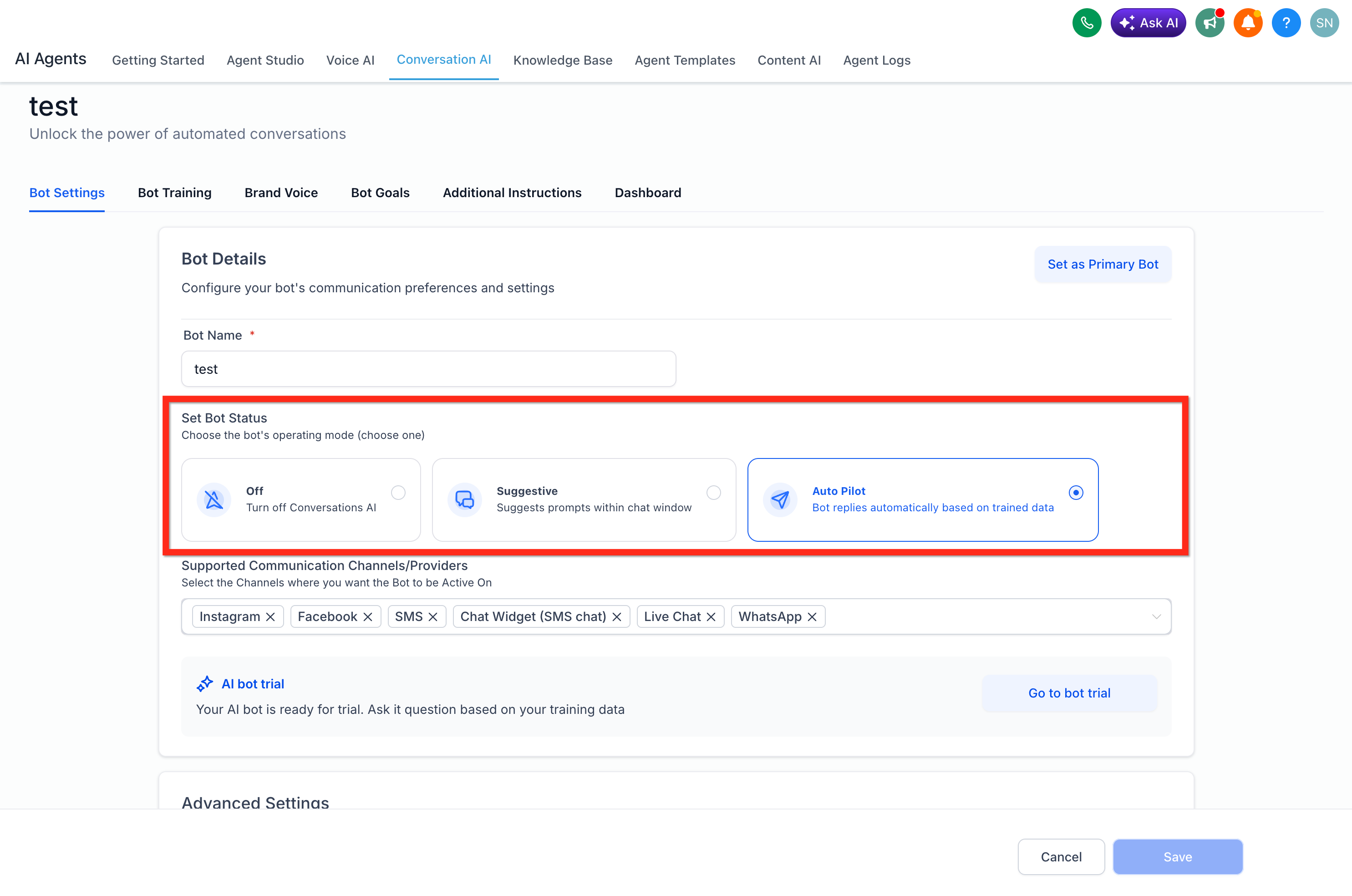
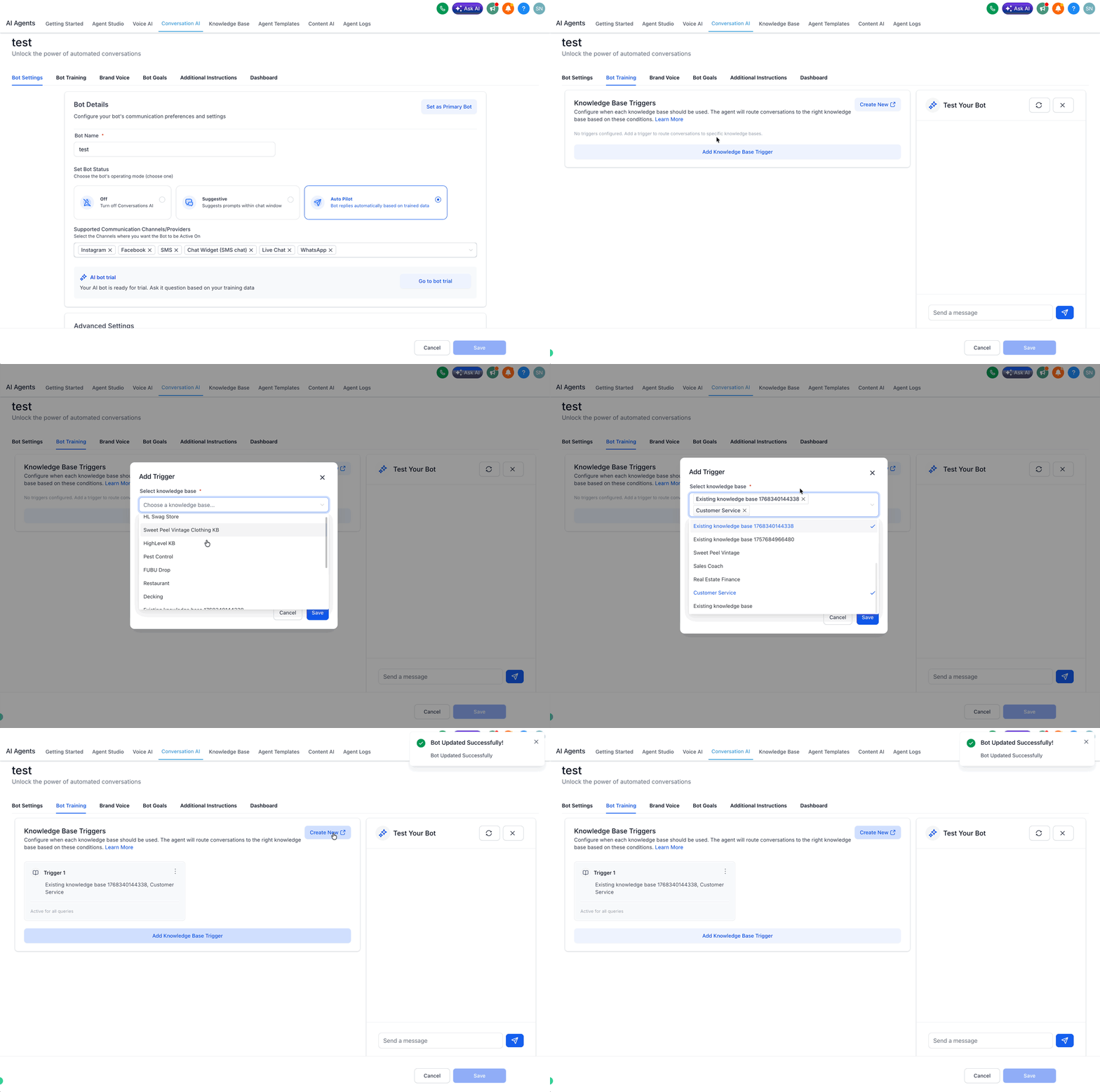
Response mode is the primary switch that defines how the bot behaves. In Off mode the agent does not reply. Suggestive mode creates draft replies that a human must review and send. Autopilot mode lets the bot answer automatically, following its training, goals, and brand voice. You choose the mode in the bot’s settings.
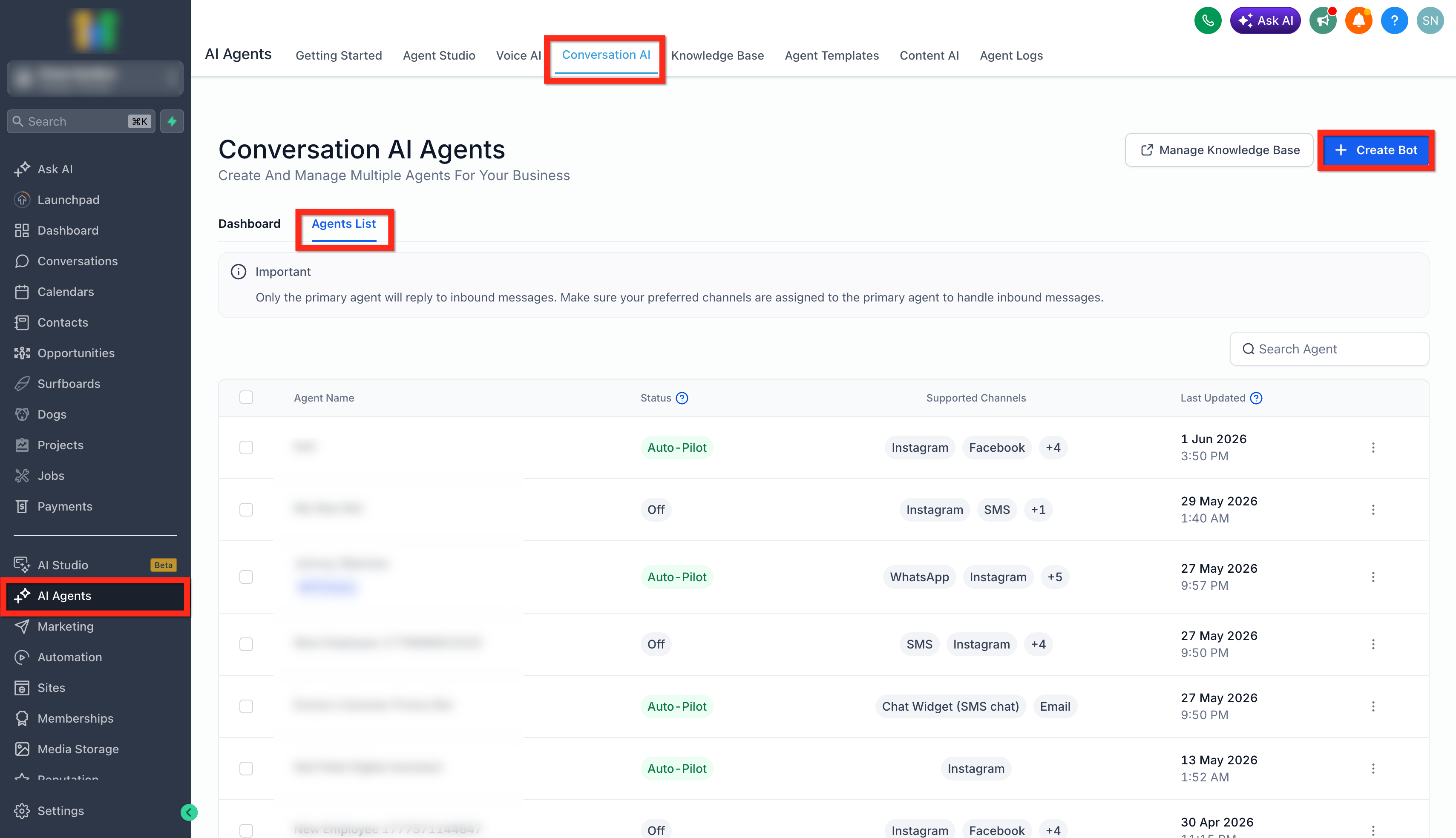
The feature resides in the AI Agents section. From AI Agents > Conversation AI you open a bot, adjust its Bot Settings, and select the desired response mode. The setting applies to all supported channels assigned to that bot.
03How businesses use Conversation AI Bot
- Real estate agency. The agency creates a bot that runs in Suggestive mode on its website chat. Incoming buyer inquiries generate draft replies that agents edit before sending, ensuring accurate property information while keeping a human touch.
- Dental practice. The practice configures the bot in Autopilot mode with a booking goal. When a patient texts to schedule, the bot automatically asks for preferred dates, confirms the appointment, and logs it in the calendar.
- Online coaching service. The service sets the bot to Off mode for channels where coaches want personal interaction, then switches another bot to Suggestive mode inside a workflow to generate coaching tip suggestions that staff review before posting.
04How to set up and use Conversation AI Bot in HighLevel
Set response mode for a Conversation AI Bot
- Open AI Agents > Conversation AI and select the bot you want to edit.
- Navigate to the Bot Settings section and locate the response mode option.
- Choose Off, Suggestive, or Autopilot.
- Save the changes.
- Warning: In Suggestive mode the bot only drafts replies; a human must approve and send each message before the contact receives it.
- Warning: In Autopilot mode all replies are sent automatically, so ensure the bot’s training, goals, and brand voice are correct before enabling.
05What it looks like in HighLevel
06Settings that matter
- Bot status or response mode. Controls whether the bot is disabled, drafts replies for review, or sends replies automatically.
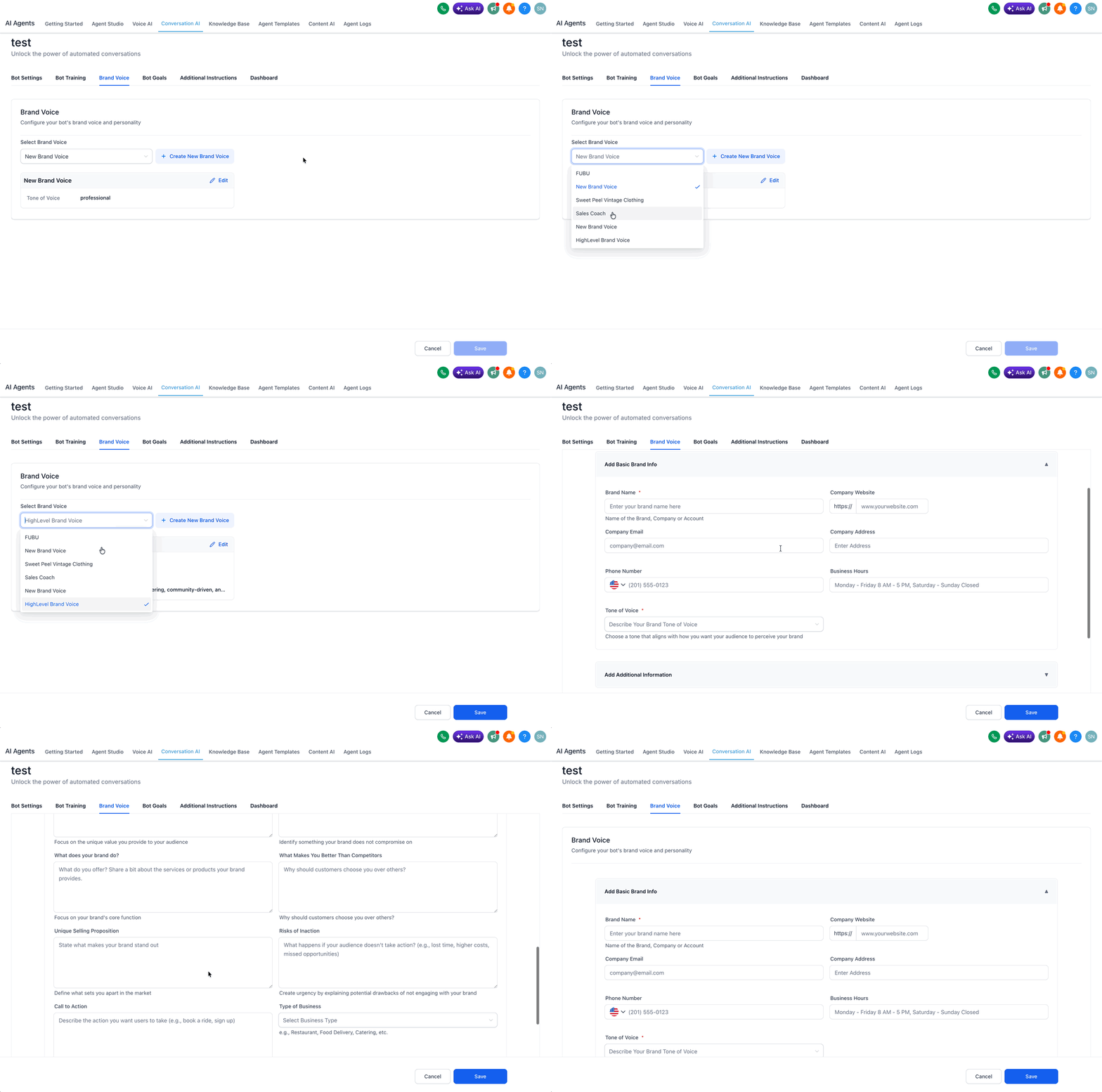
- Response style settings. Determines whether replies are concise, balanced, or detailed.
07Things to know before you rely on it
- Response modes are limited to Off, Suggestive, and Autopilot.
- The bot follows the selected mode for all channels assigned in its settings.
08How it connects to the rest of HighLevel
- Step by step guide to set up a Conversation AI Bot Setup guide
- Overview of advanced settings for Conversation AI Advanced settings
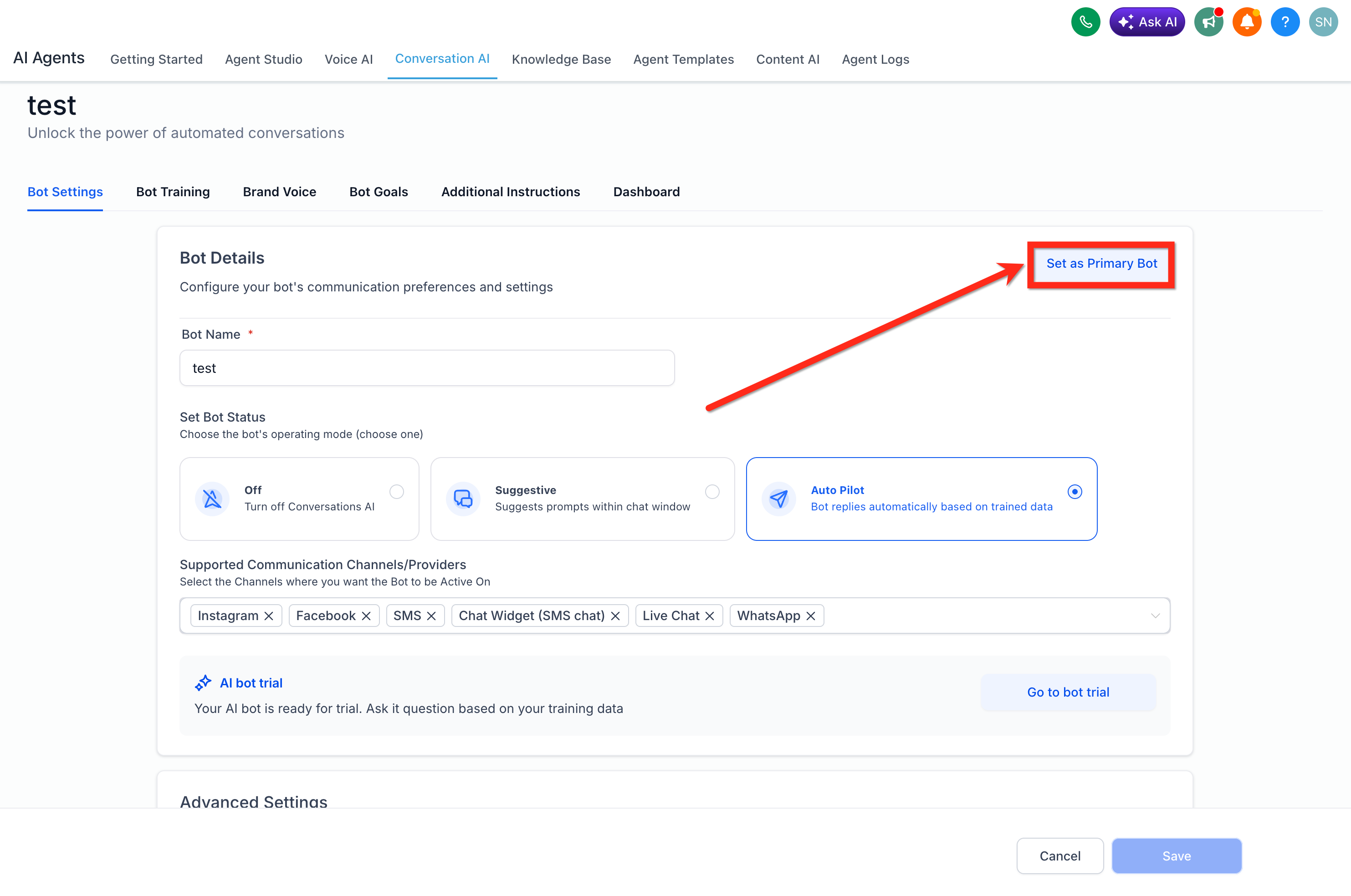
- Explanation of primary versus non primary bots Primary vs non primary
Michael's take

Be wary of relying on the bot for every interaction without a review step. Suggestive mode exists for a reason. It lets you catch tone or content issues before they reach a customer.
If I were setting this up, I’d first focus on a single, high volume use case like appointment booking. That gives a clear metric to judge success and lets you fine tune training and brand voice before expanding to broader support scenarios.