
01Who this is for
- Coaches who want automated lead capture through chat, saving time on manual follow up.
- Medical clinics that let patients book, reschedule, or cancel appointments via messaging.
- Ecommerce stores that need to answer product FAQs and collect order information right away.
02Conversation AI bots, explained
Conversation AI is an AI driven messaging tool inside HighLevel. It watches inbound messages on supported channels and replies according to the prompts or flow you design. The bot can ask for contact details, trigger workflows, or hand the conversation to a human.
The bot lives under the AI Agents > Conversation AI section. You either write detailed prompts or use the Flow Builder to map out branching logic. Once saved, the bot can operate in Suggestive mode, showing reply suggestions, or Auto Pilot, sending replies automatically.
Testing is available directly in the bot editor before you activate the bot. You control its status, model, personality, and actions from the bot settings and advanced options.
03How businesses use Conversation AI bots
- Coaching business. Create a prompt based bot, write prompts that ask for name, email, and coaching goals, and enable auto follow up. The bot collects leads from SMS and Facebook messages, then adds them to your contact list.
- Dental practice. Use the Flow Based Builder to map a multi step conversation that verifies patient information, offers appointment slots, and confirms bookings. Configure the appointment related options so the bot can add appointments to the practice calendar.
- Online retailer. Build a flow that answers common product questions, captures shipping address, and triggers a workflow to send a pricing quote. Enable the stop bot action for complex queries that need human handling.
04The numbers and rules that matter
- Supported channels: SMS, Email, Facebook, Instagram, WhatsApp, Chat Widget/SMS Chat, Live Chat.
- New prompt based bots use GPT 6 Sol as the default model.
05How to set up and use Conversation AI bots in HighLevel
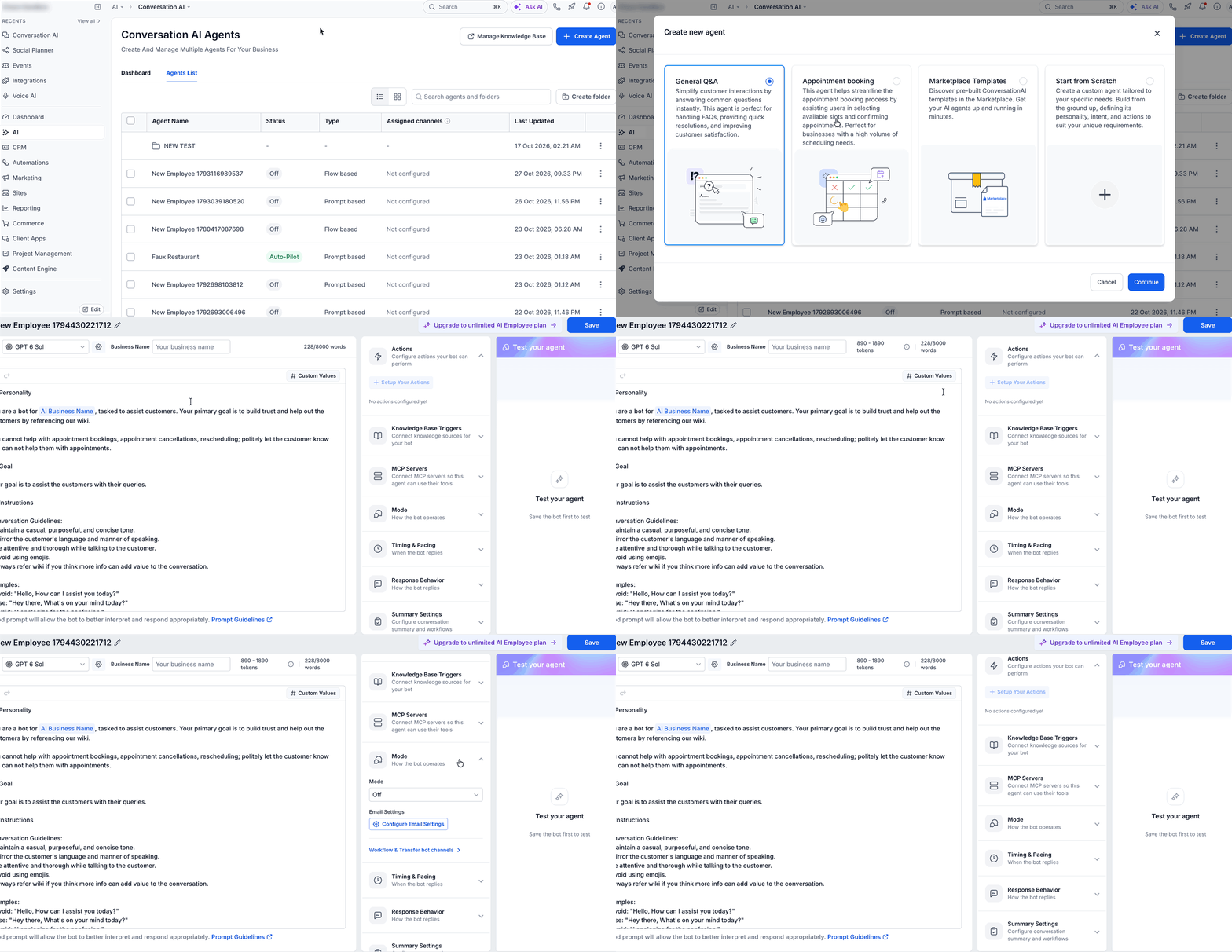
Create a prompt based bot
- Navigate to AI Agents > Conversation AI.
- Open an existing bot or click to create a new one.
- In the editor locate the Model dropdown near the Business Name.
- Click the Model dropdown.
- Select GPT 6 Sol (Recommended).
- Enter prompts, actions, and other configuration details.
- Click Save in the upper right corner.
Create a flow based builder bot
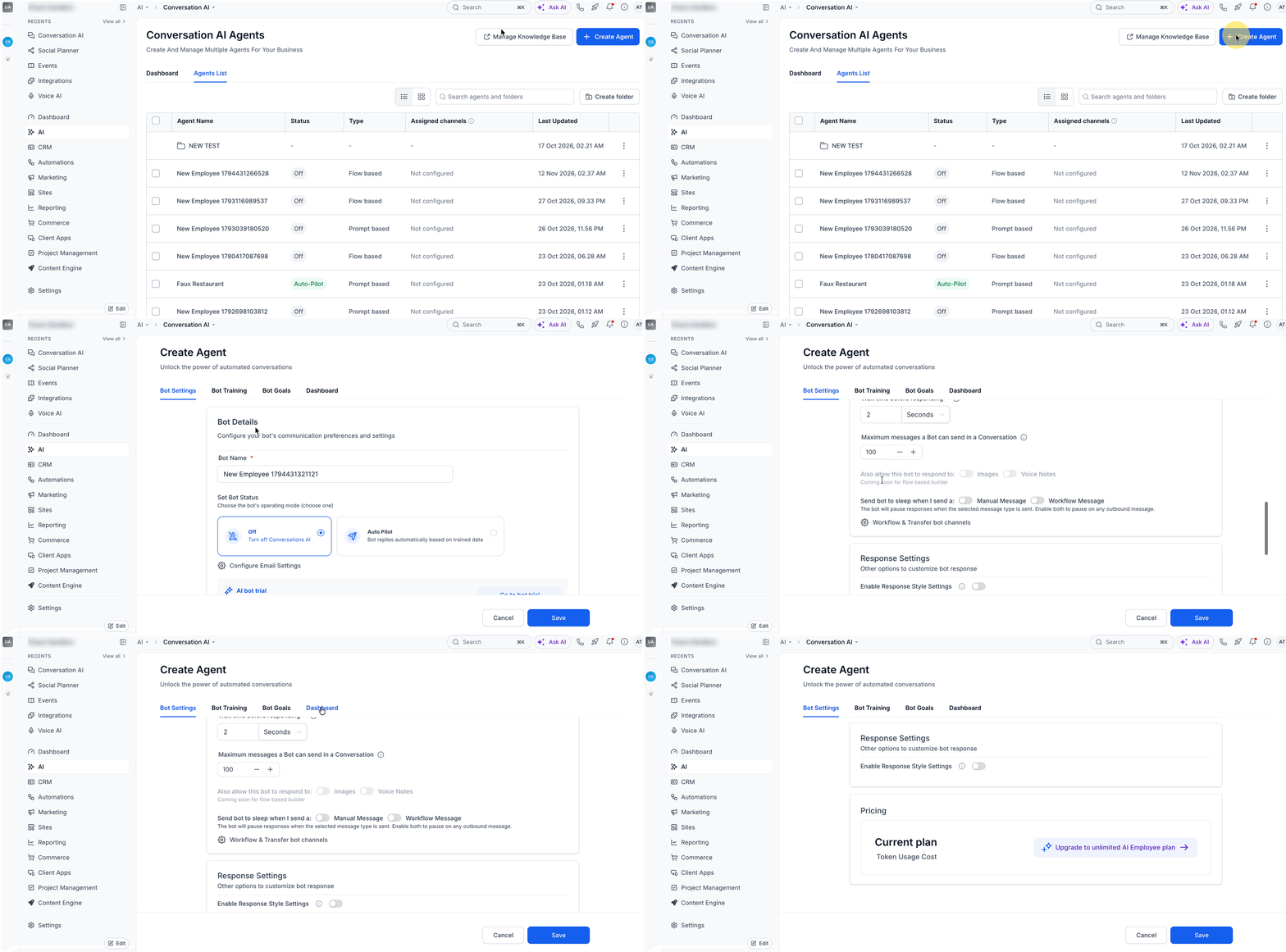
- Go to AI Agents > Conversation AI > + Create Bot.
- Choose Flow Based Builder.
- Press Create New Bot.
- Enter the bot editor.
- Configure Bot Settings.
- Configure Bot Training.
- Open Bot Goals.
- Click Launch Flow Builder to design the visual conversation flow.
- Set global bot behavior such as tone, personality, intent, and business context.
- Add actions (stop bot, human handover, auto follow up) and, if needed, appointment options and conversation summaries.
Test and launch the bot
- Open the bot editor and select Test your agent on the right side.
- Run test interactions covering lead capture, FAQs, appointment booking, and unknown queries.
- Review the bot status and change it from Off to Suggestive or Auto Pilot as appropriate.
- Confirm all settings and activate the bot for live use.
06What it looks like in HighLevel
07Settings that matter
- Model. Choose the large language model that powers the bot, defaulting to GPT 6 Sol.
- Bot Settings. Define overall bot parameters such as name, channel selection, and primary status.
- Bot Training. Provide example interactions that teach the bot how to respond.
- Bot Goals. Specify the objectives the bot should accomplish, like lead capture or appointment booking.
- Global bot behavior. Control tone, personality, style, conversation intent, and business context for consistent responses.
- Available actions. Enable functions such as stop bot, human handover, and auto follow up within conversations.
- Appointment, related options. Allow the bot to schedule, reschedule, or cancel appointments using your calendar settings.
- Conversation summaries. Generate brief summaries of interactions for record keeping or follow up.
08Things to know before you rely on it
- Only one primary bot can be assigned to handle general inbound messages on a set of channels.
- New bots are set to Off by default; they must be switched to Suggestive or Auto Pilot before going live.
- Prompt quality directly influences how well the bot understands and answers contacts.
09How it connects to the rest of HighLevel
- Set the response mode for a Conversation AI bot Response mode guide
- Explore advanced settings for Conversation AI Advanced settings
- Learn the difference between primary and non primary bots Primary vs non primary bots
Michael's take

Most people start by tweaking the bot’s personality and then wonder why it still misses basic questions. The bot’s core is the prompts and actions you give it, so if the prompts are vague it can’t know what to do.
I would write clear, short prompts that spell out exactly what you expect, then run a few test chats to see how it handles the most common inquiries. Once the basics work, I add the appointment booking action and enable Autopilot only after every flow has been verified.