
01Who this is for
- Founders who need to stay responsive while away from their desk can manage AI replies from their phone.
- Customer support teams can pause the bot for specific tickets to handle sensitive issues manually.
02Conversation AI on mobile, explained
Conversation AI brings the AI assistant you set up on the desktop into the HighLevel and LeadConnector mobile apps. When you open a conversation on the phone, the app shows the same bot assignment and lets you see AI generated replies.
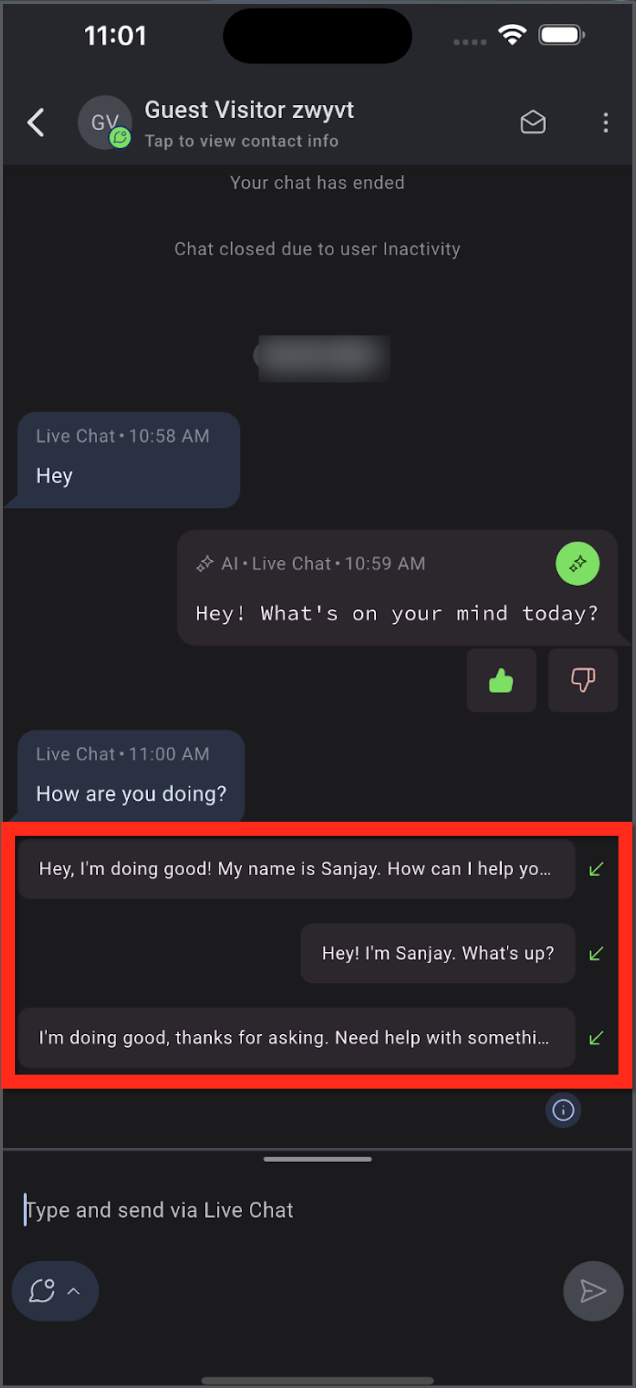
In Autopilot Mode the bot sends replies automatically after the delay you defined on desktop. In Suggestive Mode the app presents reply options that you can edit and send yourself. You can also pause, activate, or schedule a reactivation for the bot on a per conversation basis.
The feature lives inside the Conversations area of the mobile apps and follows the same Channel Management settings you configured on the web platform.
03How businesses use Conversation AI on mobile
- Real estate agency. Agents open the HighLevel mobile app, select a client chat from WhatsApp, and use Suggestive Mode to choose and edit AI generated responses before sending. They pause the bot for high value negotiations to reply manually.
- Dental practice. Staff view incoming Instagram messages in the mobile app, let the bot reply automatically in Autopilot Mode for appointment reminders, and schedule the bot to reactivate after a pause during office hours.
- Ecommerce store. The sales team accesses Facebook Messenger conversations on the phone, taps the ellipsis menu to pause the bot for a specific order issue, and later schedules reactivation once the problem is resolved.
04The numbers and rules that matter
- Supported channels include WhatsApp, Facebook, Instagram and other connected messaging channels.
05Before you start
- Conversation AI is enabled for the location.
- The bot has been configured on desktop.
- The appropriate mode (Autopilot or Suggestive) is selected on desktop.
- Relevant messaging channels are connected.
- The HighLevel or LeadConnector mobile app is updated to a supported version.
06How to set up and use Conversation AI on mobile in HighLevel
Configure Conversation AI on desktop
- Open your HighLevel account on a desktop computer.
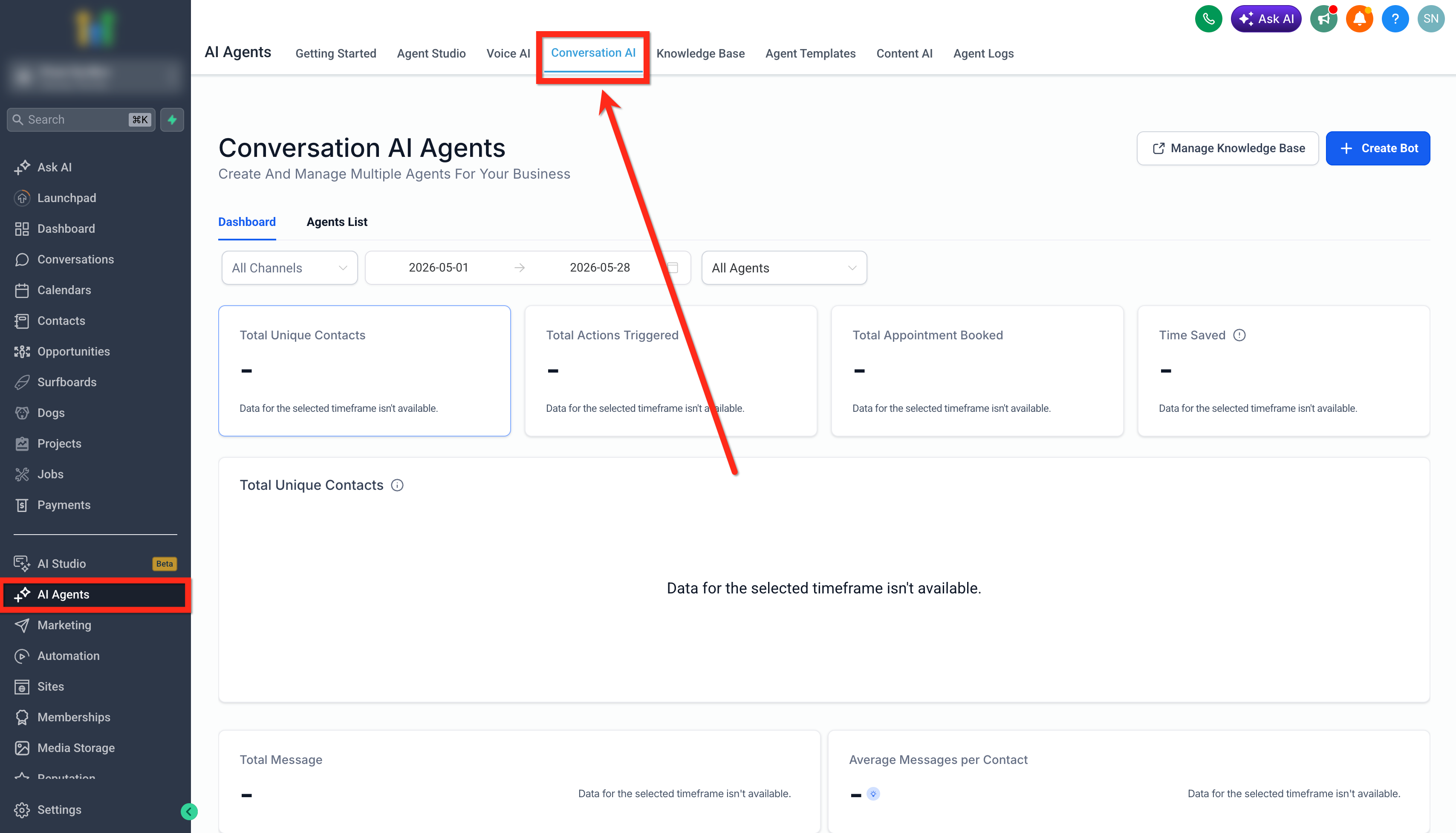
- Navigate to AI Agents > Conversation AI.
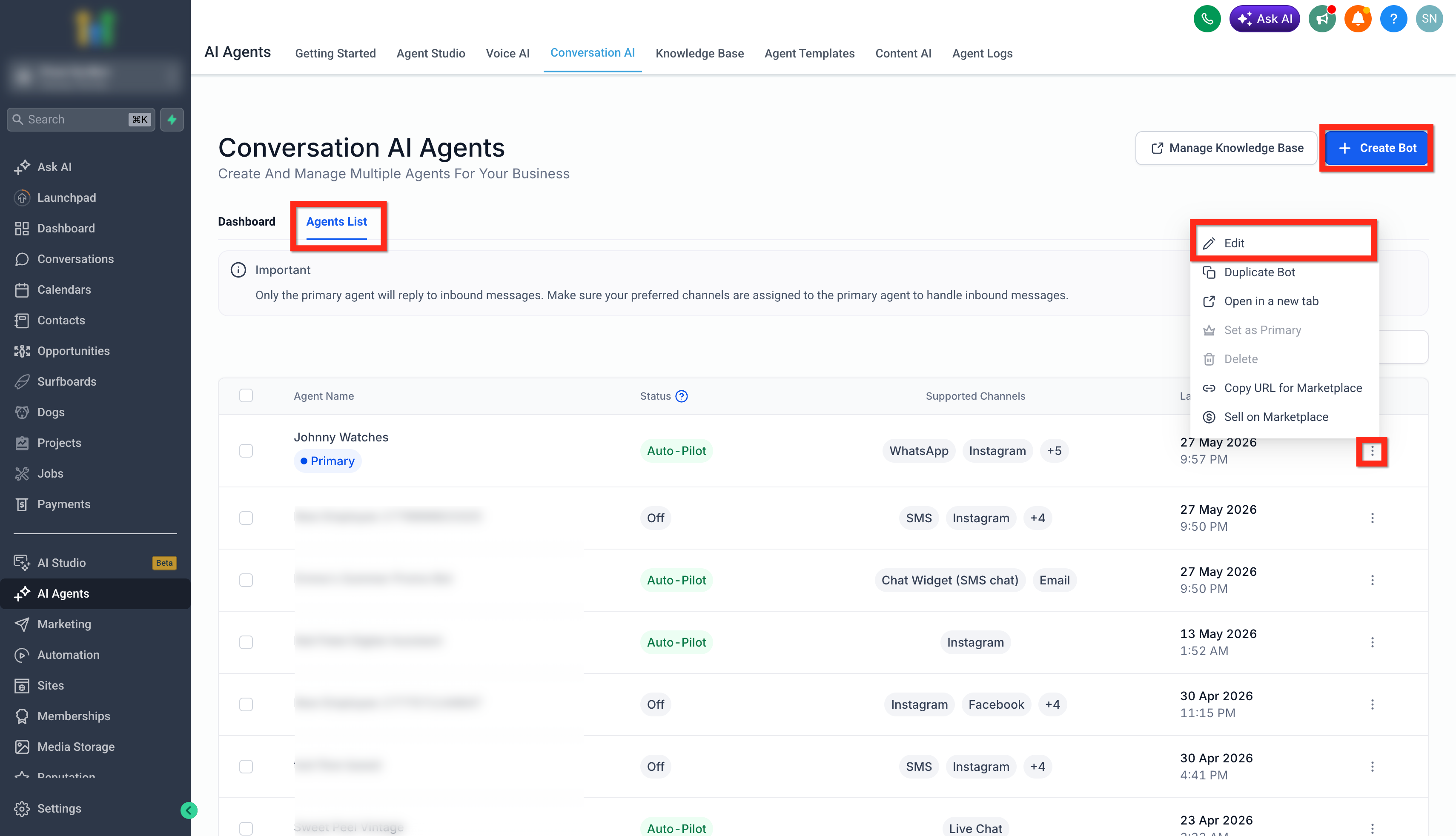
- Create a new bot or select an existing one.
- Complete the bot setup within the Conversation AI section.
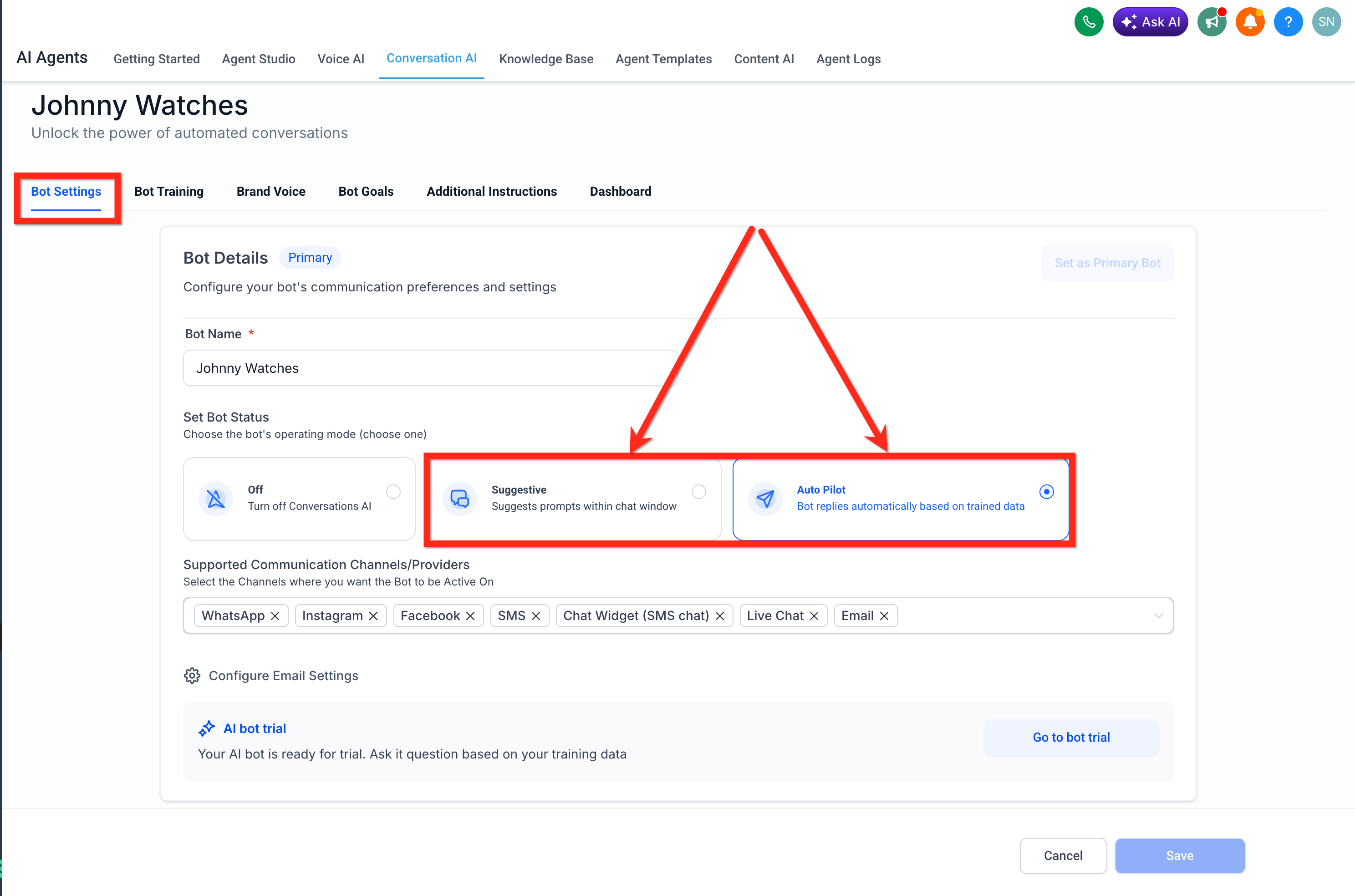
- Choose either Autopilot Mode or Suggestive Mode for the bot.
Open a conversation on Mobile App
- Launch the HighLevel or LeadConnector mobile app.
- Tap the Conversations tab.
- Select a conversation that belongs to a supported messaging channel.
Use Conversation AI in the conversation
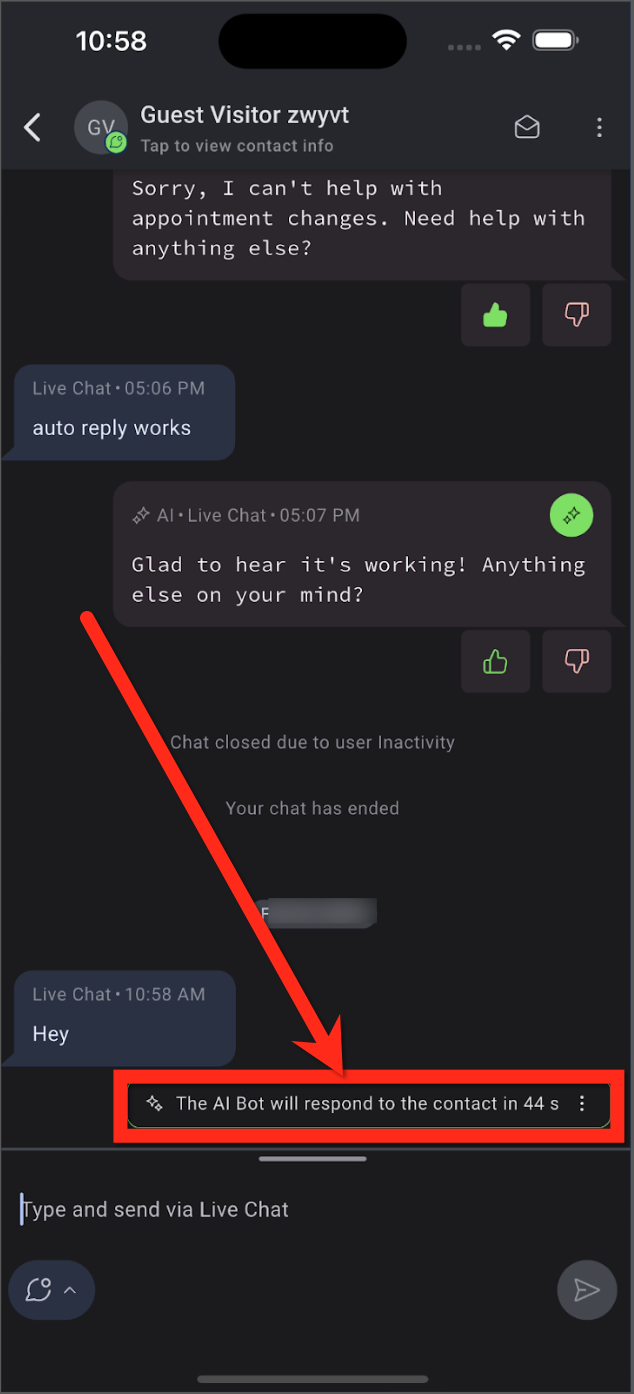
- In Autopilot Mode, the AI replies automatically after the configured delay.
- In Suggestive Mode, tap into the message field to view suggested replies, then choose, edit, and send the response manually.
Manage the bot from mobile when needed
- Tap the ellipsis icon in the top right corner of the conversation screen.
- Choose Edit AI Settings from the menu.
- Activate, pause, or set a schedule for bot reactivation.
- Tap Save to confirm the changes.
- Review the bot assigned to the conversation and the available AI controls.
07What it looks like in HighLevel
08Settings that matter
- Conversation AI Channel Management. Controls which AI bot is assigned to each conversation across both web and mobile platforms.
- Autopilot Mode. Enables the bot to send replies automatically after the configured delay.
- Suggestive Mode. Provides AI generated reply options that a user can edit and send manually.
- Activate Bot. Turns the bot on for the selected conversation.
- Reactivate After. Sets a timeframe after which a paused bot automatically becomes active again.
09If something goes wrong
- AI suggestions do not appear in the mobile conversation.. Verify that Conversation AI is configured on desktop, Suggestive Mode is selected, the conversation uses a supported channel, and the mobile app is updated.
- The AI bot does not respond automatically.. Check that Conversation AI is active, Autopilot Mode is selected, the bot is not paused for that conversation, and the response delay has elapsed.
10How it connects to the rest of HighLevel
- Create and launch a Conversation AI bot Conversation AI bot guide
- Advanced Conversation AI settings overview Advanced settings
- HighLevel pricing and plans Pricing details
Michael's take

How do I keep up with client messages when I’m not at my desk? The bot follows the same settings you built on desktop, so you don’t lose consistency.
If I were rolling this out, I’d first make sure the bot is fully trained and set to the right mode on desktop. Then I’d test a few chats from the phone to confirm the suggestions appear and the pause/reactivate timer works before relying on it for all inbound traffic.