
01Who this is for
- Founders of SaaS businesses who need a branded chat experience to capture leads without extra development.
- Marketing teams at agencies that manage multiple client sites and want each widget to reflect the client’s visual identity.
- Customer support managers who want to add a visual greeting and control compliance notices directly in the widget.
02Chat widget customizations, explained
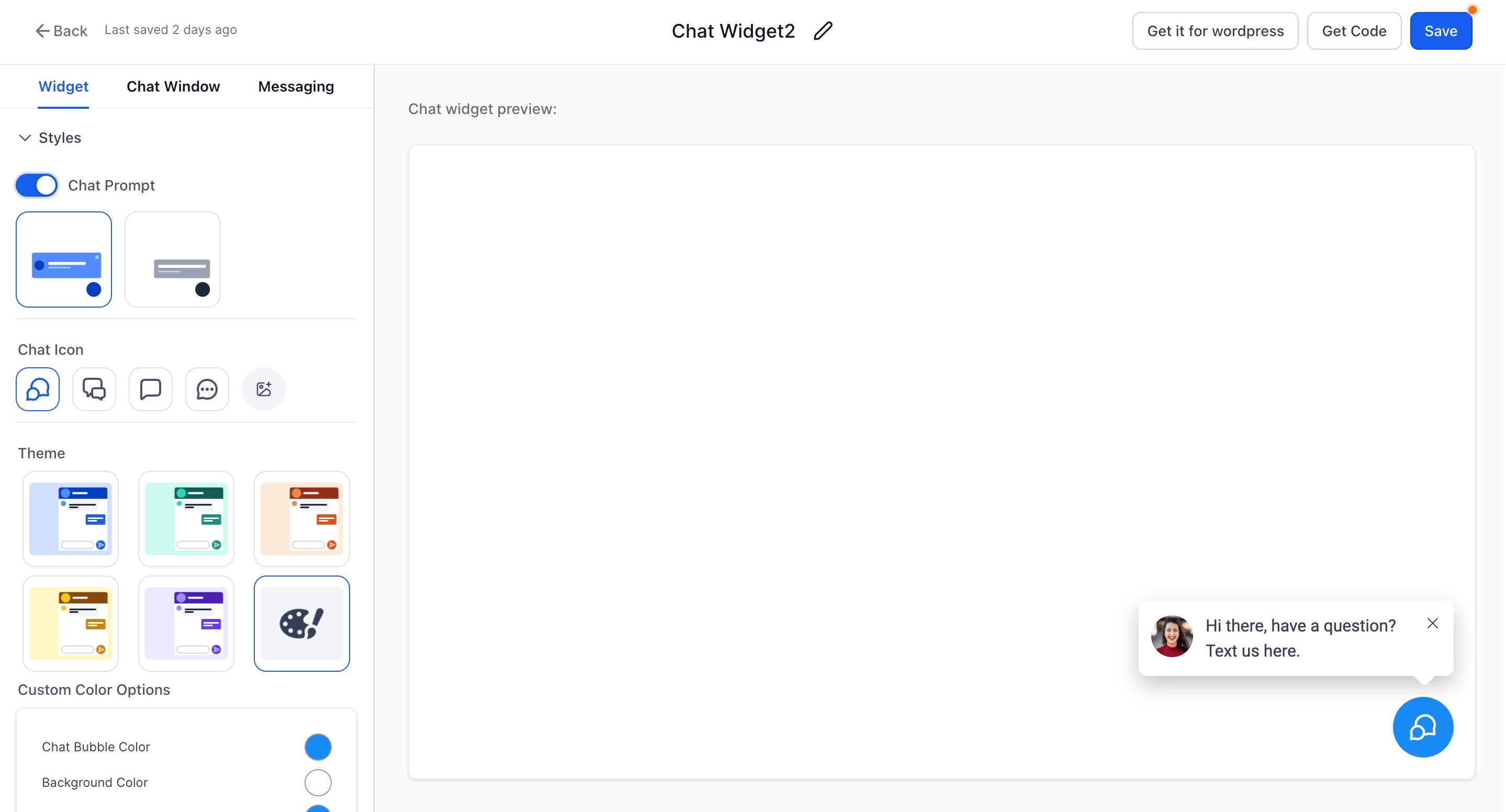
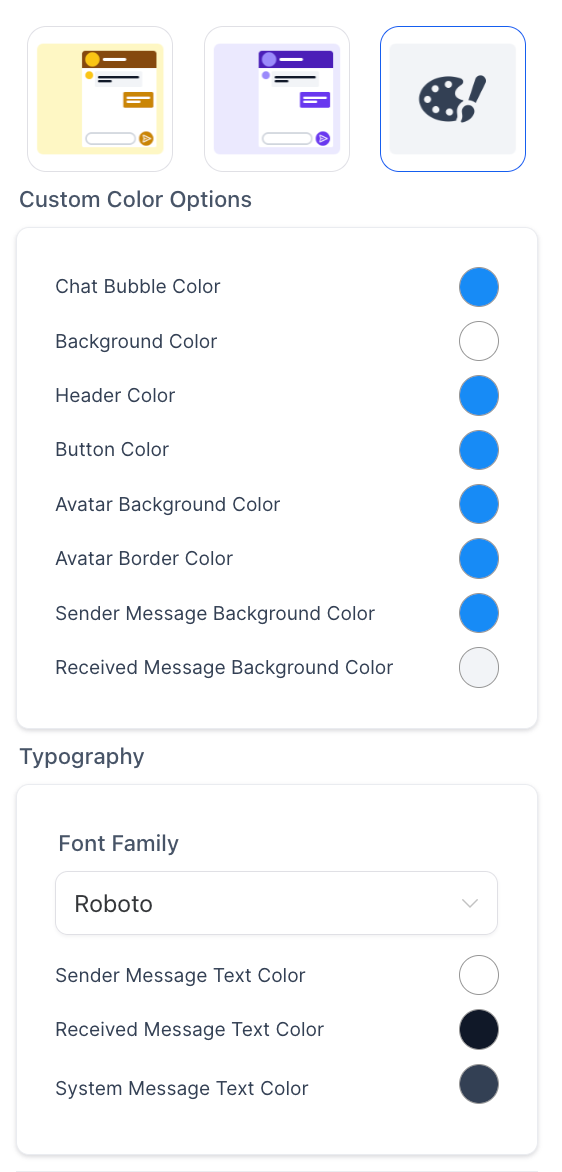
The customization panel controls the widget’s visual style, placement type, launch behavior, compliance notices, and the content shown inside the chat window. Settings differ by widget type, so options appear only for supported types such as Live Chat, SMS/Email, WhatsApp, All in One, Facebook, Instagram, or Voice AI.
Video Avatar is a separate appearance option that replaces the static chat prompt with a muted looping video beside the launcher. It works only with Sticky placement, accepts MP4 or WebM files up to 60 seconds and 25 MB, and offers controls for dismissing and redisplaying the video.
All changes are saved in the widget builder and take effect without needing to replace the embed code on the website.
03How businesses use chat widget customizations
- Dental practice. The practice creates a Sticky chat widget, uploads a short video of the front desk staff greeting patients, and enables the dismiss control. Visitors see the video next to the launcher, then can start a conversation to book appointments.
- Ecommerce store. The store adds a video avatar that shows a product showcase loop. The widget remains Sticky, and the store configures a redirect call to action inside the chat to drive visitors to a sales page.
- Online course provider. The provider sets different first time and returning visitor messages in the widget settings, uploads a welcome video, and enables compliance checkboxes to capture consent before lead capture.
04The numbers and rules that matter
- Video Avatar supported formats: MP4 and WebM.
- Video Avatar maximum duration: 60 seconds.
- Video Avatar maximum file size: 25 MB.
- Video Avatar recommended resolution: Approximately 480p.
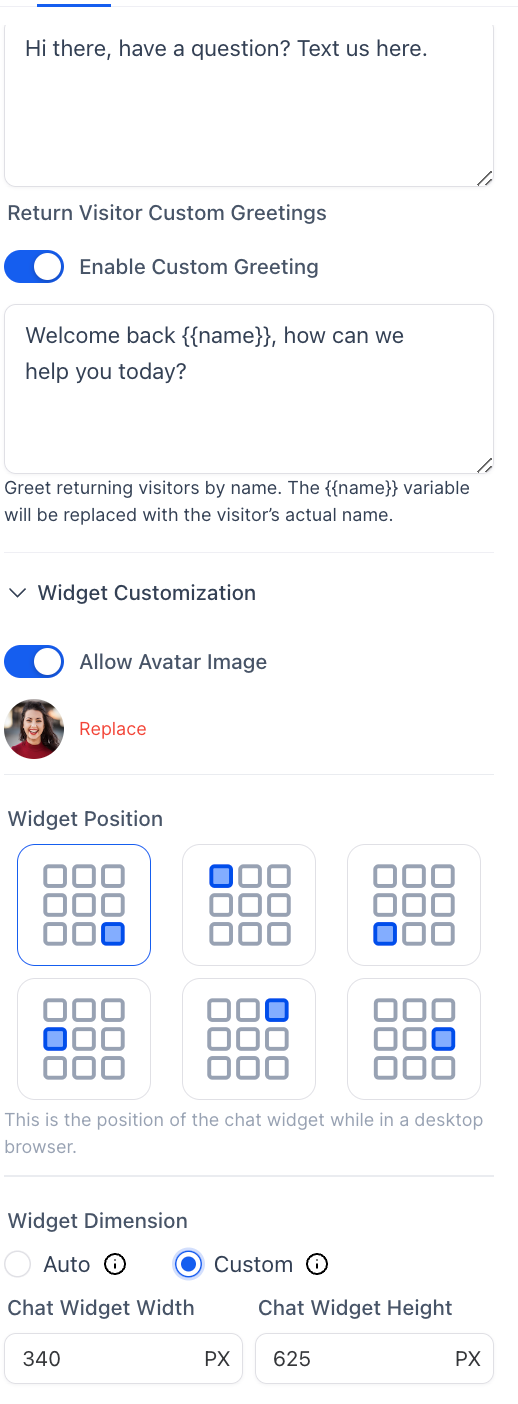
- Custom widget dimensions start from 200px.
- Load on User Interaction enabled loads after interaction or after approximately 8 seconds; disabled loads immediately.
- A2P generated widgets may have locked disclosure language and required consent settings.
05Before you start
- The widget must be set to Sticky placement before turning on Video Avatar.
- The video file must be MP4 or WebM, no longer than 60 seconds and under 25 MB.
06How to set up and use chat widget customizations in HighLevel
Create or open a chat widget
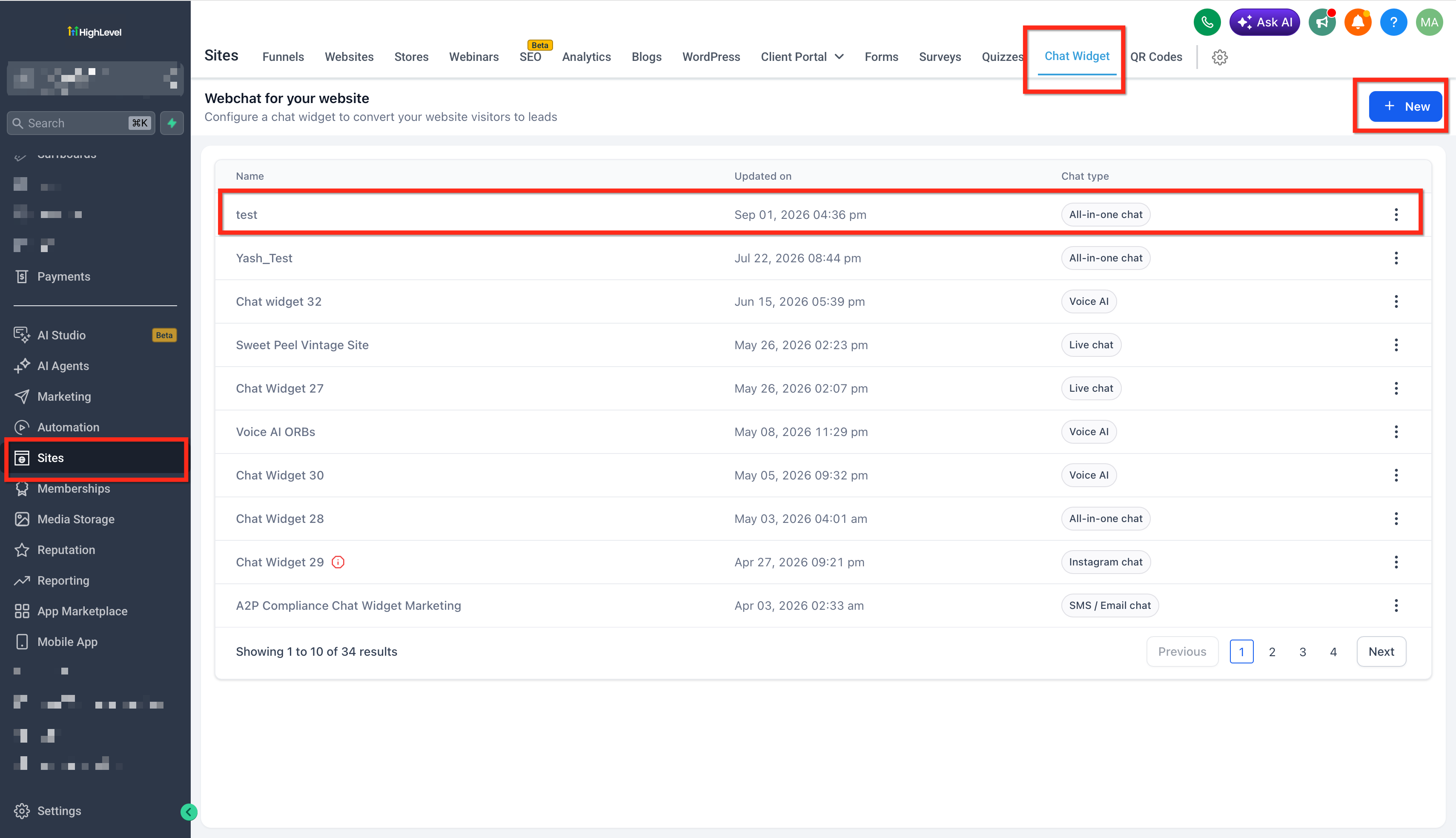
- Navigate to Sites > Chat Widget.
- Click New to start a new widget or select an existing widget to edit.
- Open the widget’s configuration panel.
- If creating a new widget, choose the desired Chat Widget type before customizing.
Enable and configure video avatar
- In Widget Placement, select Sticky.
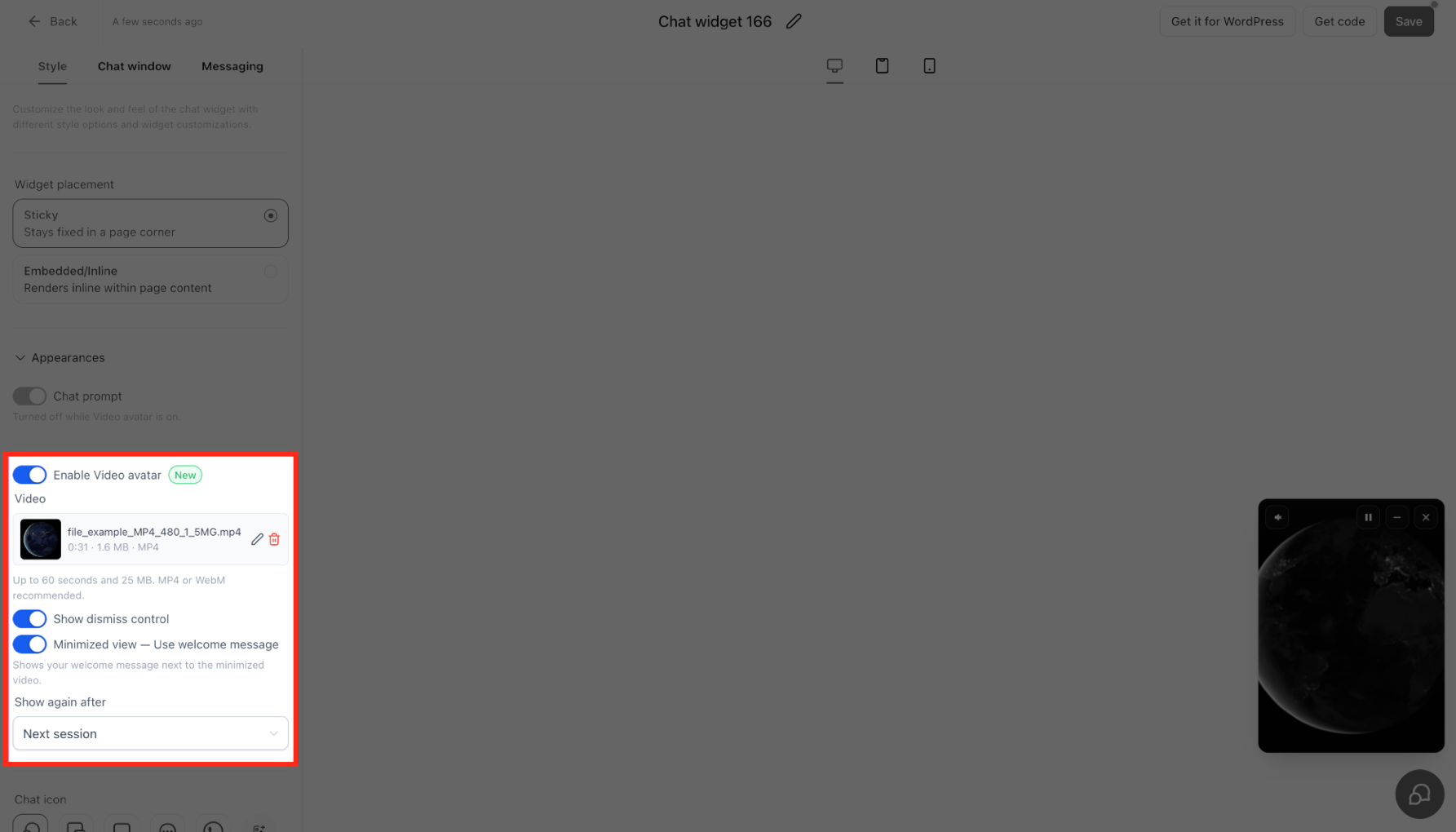
- Under Style > Appearances, toggle Enable Video avatar on (Chat prompt turns off automatically).
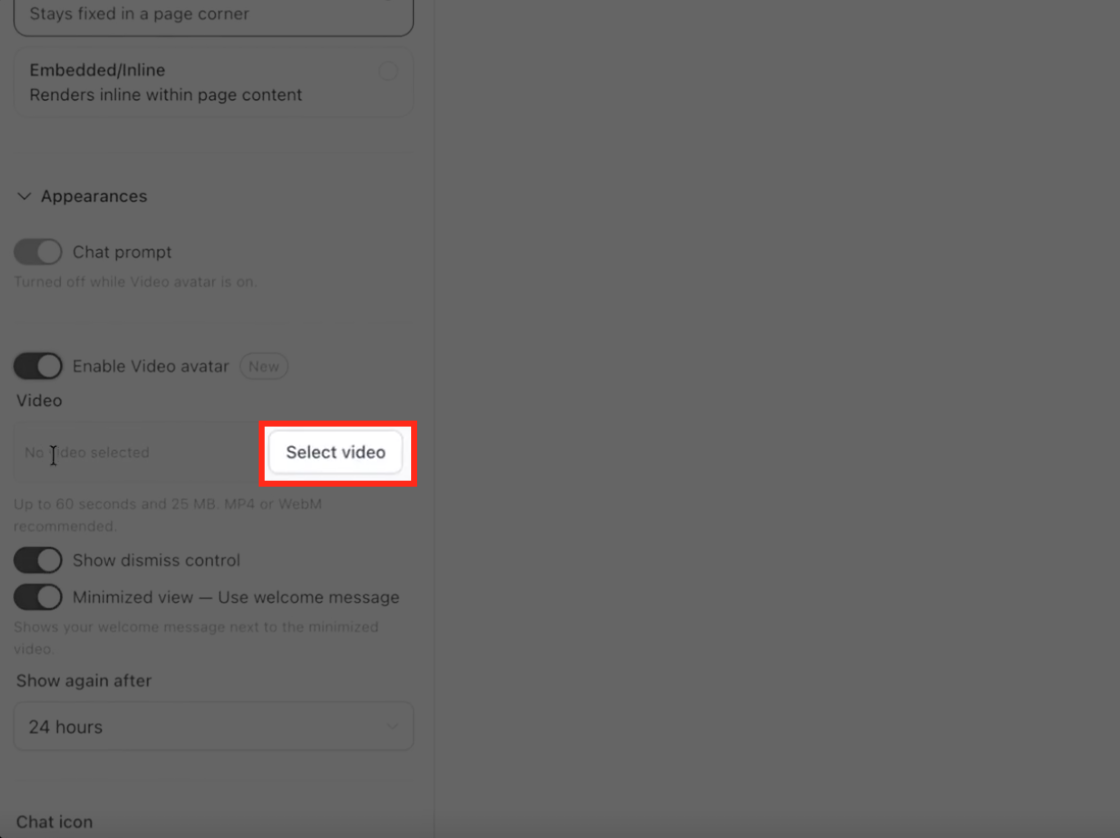
- Click Select video and upload an MP4 or WebM file that meets size and duration limits.
- Check the video’s duration, file size, and format in the preview area.
- Turn on Show dismiss control if visitors should be able to close the avatar.
- In the Minimized view section, enable Use welcome message to show a circular thumbnail beside the welcome text.
- Set Show again after to define how long the avatar waits before reappearing after dismissal.
- Preview the widget and click Save.
07What it looks like in HighLevel
08Settings that matter
- Enable Video avatar. Activates a looping video greeting beside the chat launcher and automatically disables the static chat prompt.
- Chat prompt. The static text or image that invites visitors to start a conversation; turned off when Video Avatar is enabled.
- Show dismiss control. Adds a button that lets visitors close the video avatar after it appears.
- Use welcome message. When the widget is minimized, shows a circular video thumbnail next to the welcome message.
- Show again after. Specifies the time interval before the video avatar can reappear after a visitor dismisses it.
- Widget Placement. Determines whether the widget is Sticky (floating) or Embedded/Inline within page content.
- Chat Launcher. The clickable element that visitors use to open the chat widget; can include a prompt message.
- Chat Window title. The heading displayed at the top of the chat window when it opens.
- Introductory message. A welcome text shown inside the chat window before the visitor begins a conversation.
- Compliance notice. A read only legal disclosure displayed below the contact form; does not require visitor action.
- Add a consent checkbox. Provides a checkbox with custom text for visitors to acknowledge or opt in to data processing.
09Things to know before you rely on it
- Video Avatar works only with Sticky widget placement; it is not supported on Embedded or Inline widgets.
- Accepted video formats are MP4 and WebM.
- Maximum video length is 60 seconds.
- Maximum video file size is 25 MB.
- Recommended video resolution is approximately 480p.
10How it connects to the rest of HighLevel
- Learn how to place a chat widget on your site. Getting started with chat widget
- Explore live chat installation and automatic assignment options. Live chat installation
- Review HighLevel pricing and plan details. Pricing and plans
Michael's take

Video Avatar only works on sticky widgets; trying it on an embedded widget will simply not show.