
01Who this is for
- Customer support teams gain immediate access to visitor inquiries, reducing response lag.
- Marketing managers can capture leads directly through the chat widget within HighLevel.
- Sales representatives receive chats routed automatically, ensuring timely follow up.
02Live chat, explained
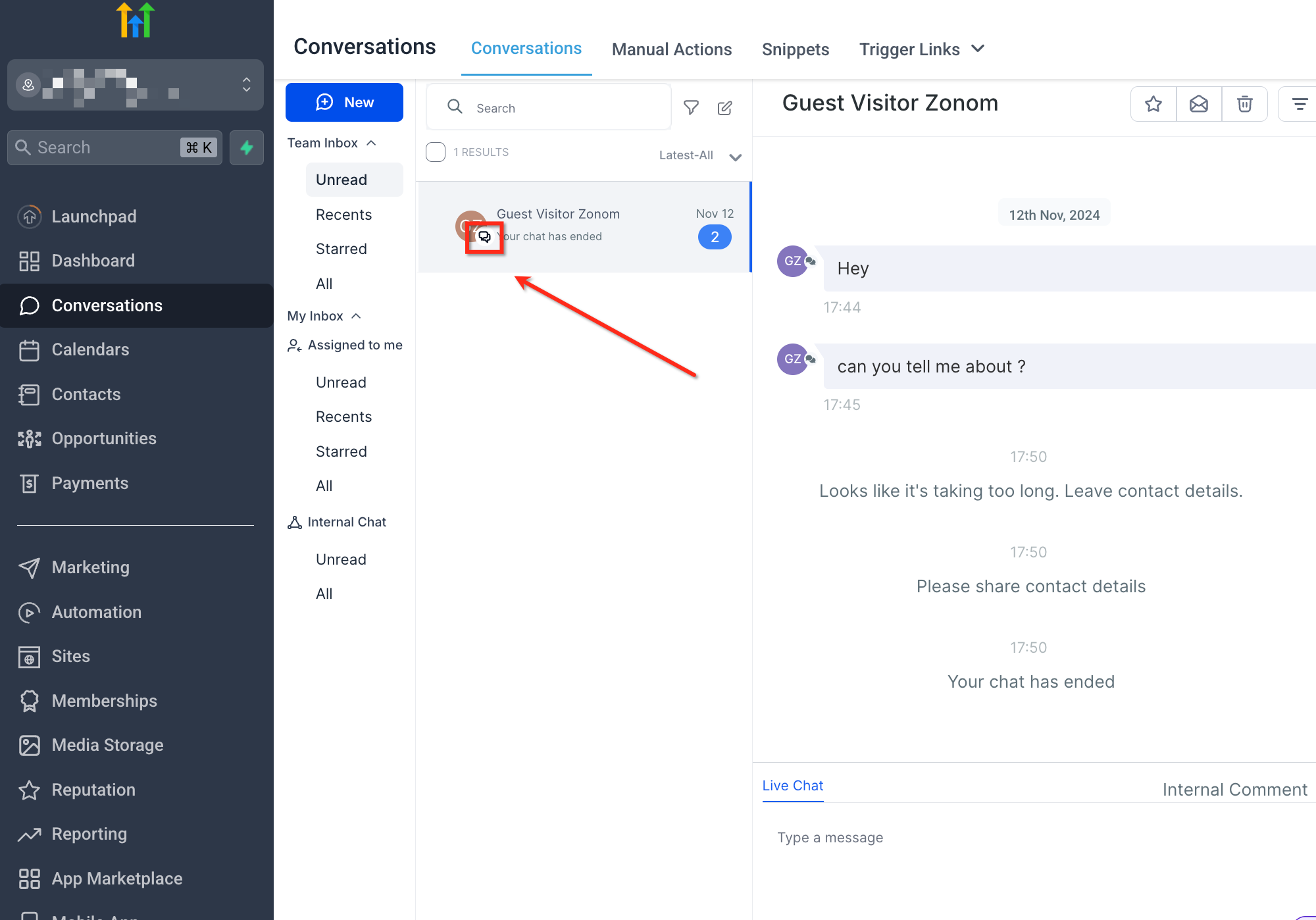
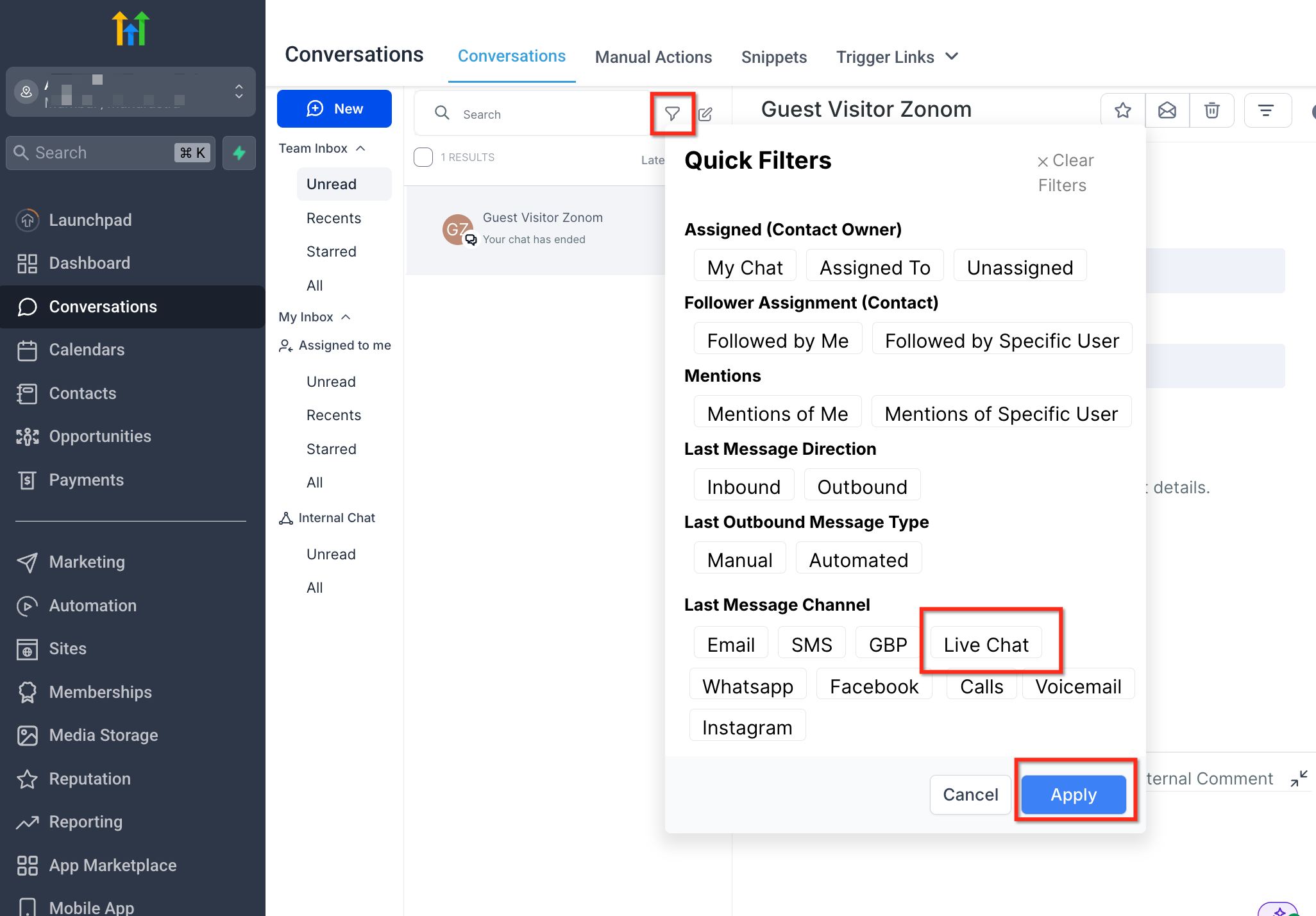
Live Chat is a feature inside the Conversations area that routes messages sent from a website widget straight into the platform’s inbox. Visitors type their questions into the widget and the platform displays each message in real time alongside email and SMS threads.
The widget can be personalized with a greeting, company branding, and fallback messages that trigger when agents are unavailable or when a visitor stops responding. All chats are stored in Conversations, where users can read, reply, assign, and close them.
Live Chat settings are managed under Sites > Chat Widget, while automation for assigning chats lives in Automations > Workflows.
03How businesses use live chat
- Dental practice. The practice creates a chat widget on its appointment page, sets a friendly intro message and fallback to collect patient phone numbers. When a visitor starts a chat, the workflow automatically assigns the conversation to the on call receptionist, who can answer questions about services in real time.
- Ecommerce store. The store adds the widget to product pages, customizes the branding to match its site, and configures an inactivity fallback that asks shoppers for their email. A workflow routes each new chat to the sales team member responsible for that product line, enabling instant assistance.
- SaaS startup. The startup installs the widget on its pricing page, sets a timeout message to close chats after a period of silence, and builds an automation that assigns incoming chats to the lead generation specialist. This centralizes prospect interactions within Conversations.
04Before you start
- The Chat Widget must be created and set to Live Chat before using Live Chat in Conversations.
05How to set up and use live chat in HighLevel
Set up chat widget
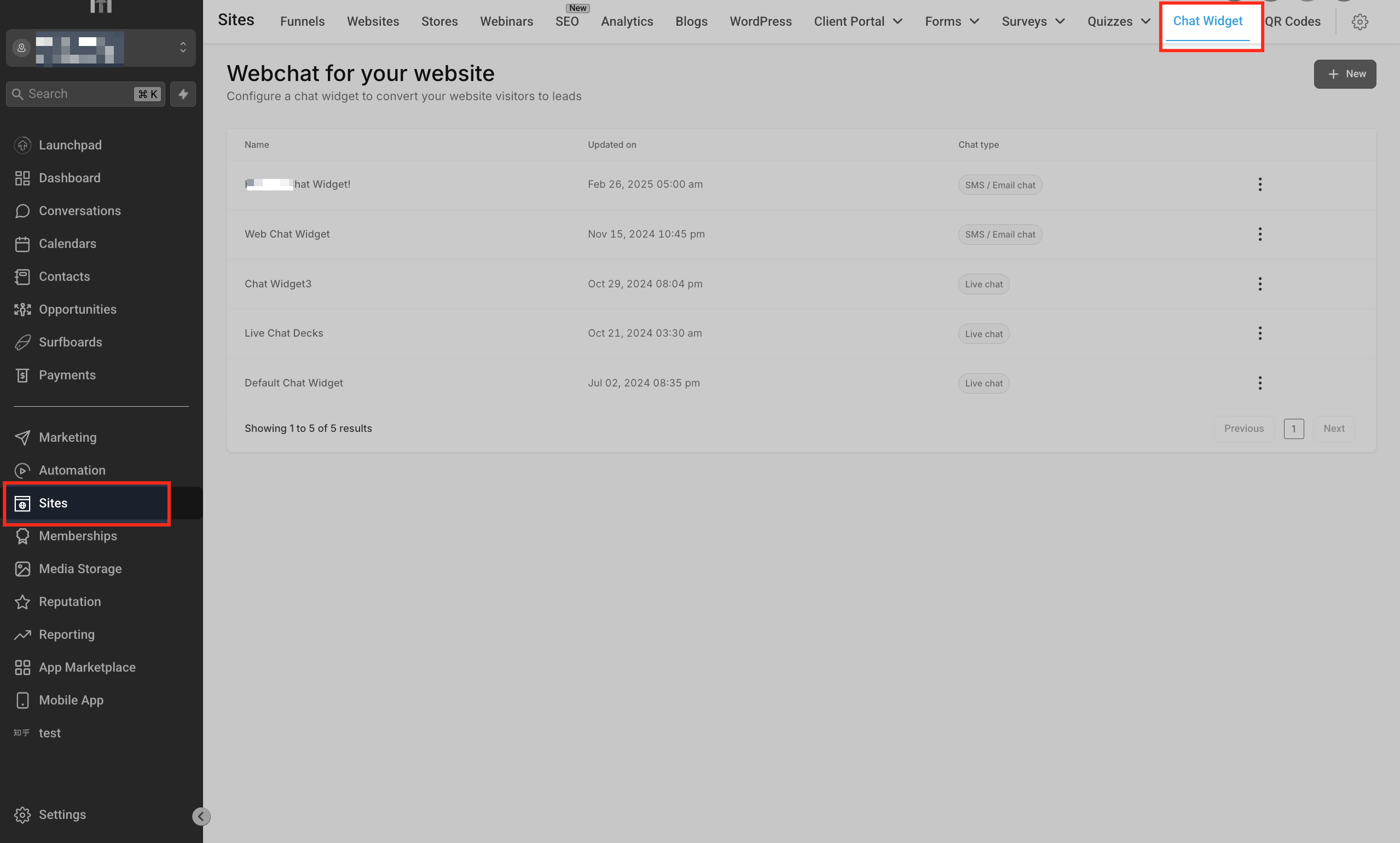
- Open the Sites > Chat Widget menu.
- Click the + New button to start a new widget.
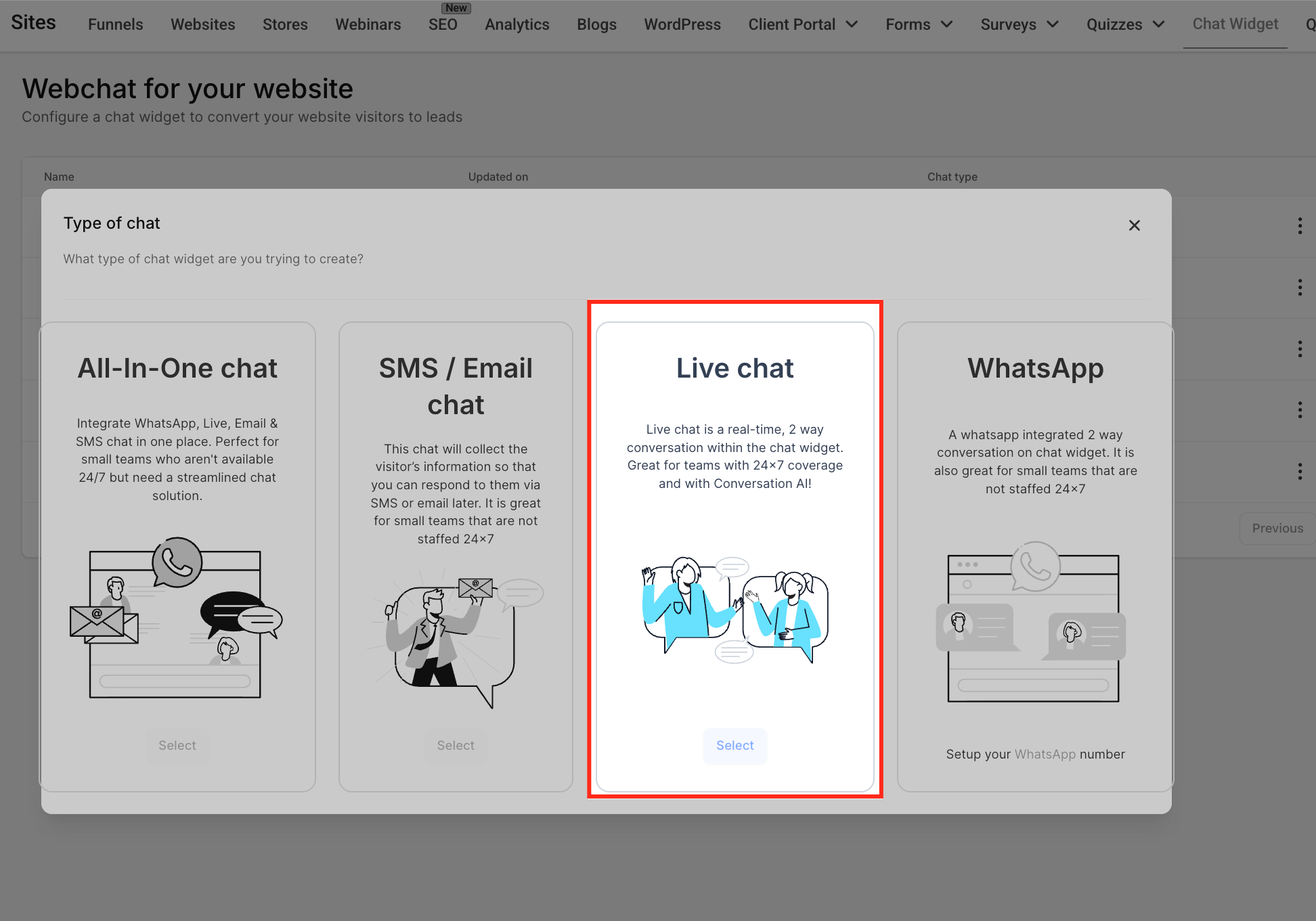
- Select Live Chat as the chat type.
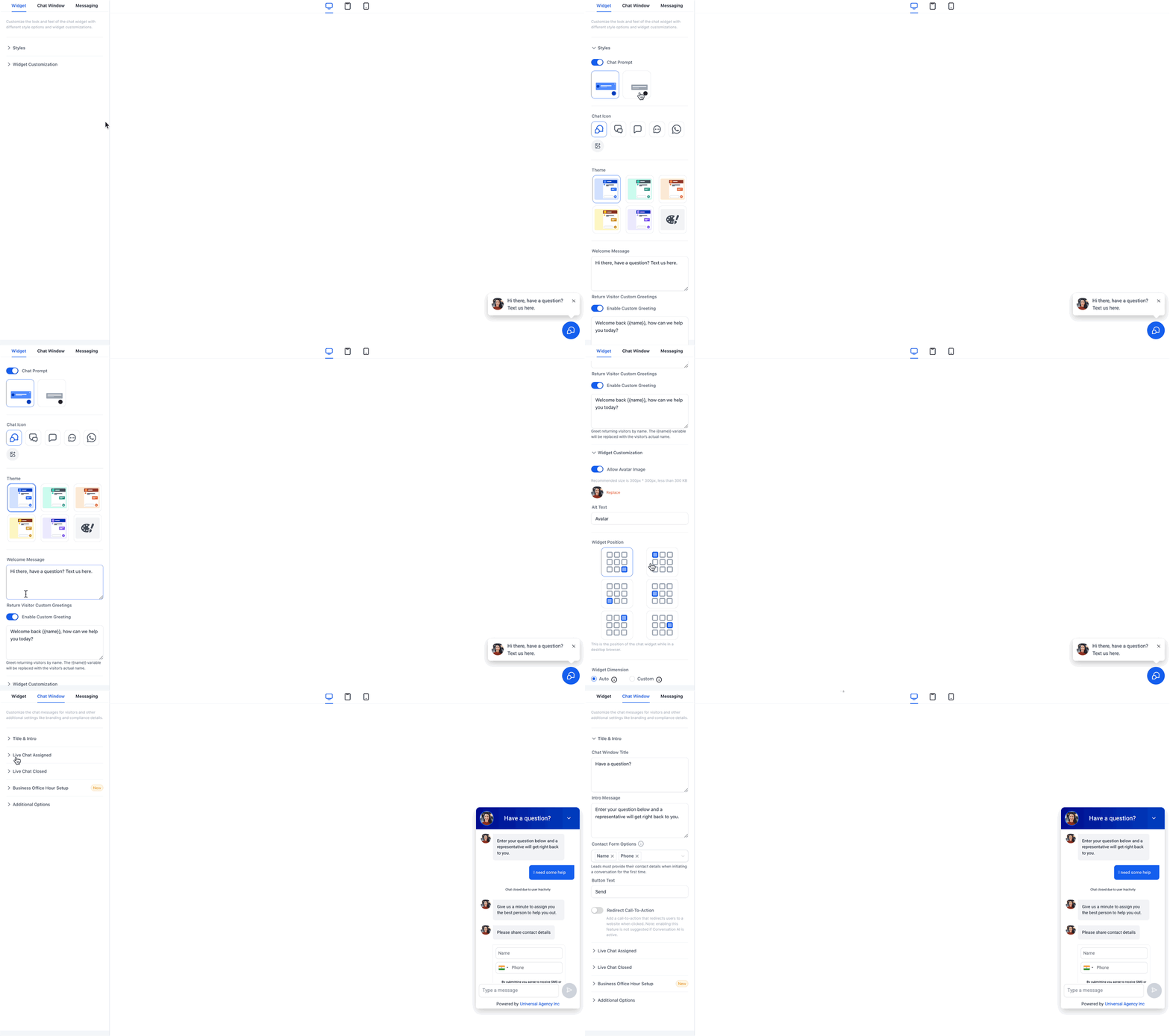
- Enter an intro message for visitors.
- Upload an agent avatar and apply branding.
- Define an inactivity fallback message.
- Set a chat timeout message.
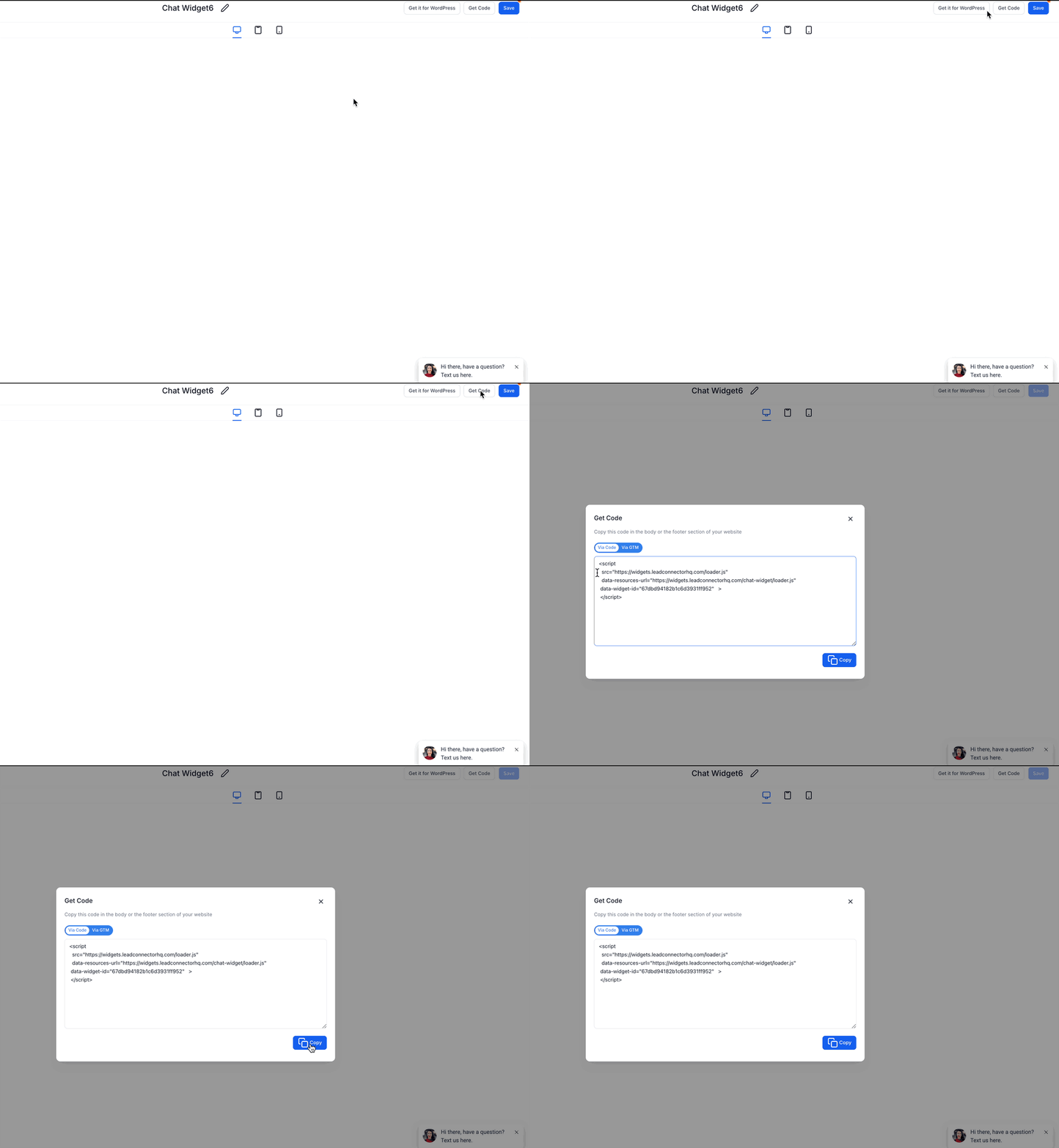
- Copy the widget’s installation code.
- Paste the code into your website’s footer or body section.
- If the site runs WordPress, install the LeadConnector plugin.
Create automatic assignment workflow
- Navigate to Automations > Workflows and click + New Workflow.
- Add a new trigger and choose Customer Replied or New Chat Message.
- Set the trigger filter Channel to Live Chat.
- Add a second filter where Chat Widget is the specific widget.
- Click the plus sign below the trigger and select Assign to User as the action.
- In the action settings, pick the user who should receive the chat.
- Click Save to store the workflow.
- Toggle the workflow status from Draft to Publish.
06What it looks like in HighLevel
07Settings that matter
- Chat Type. Determines whether the widget sends messages as Live Chat or as another channel such as SMS or Email.
- Intro Message. The greeting displayed to visitors before a chat session begins.
- Agent Avatar & Branding. Controls the visual appearance of the chat window to match the business’s brand.
- Inactivity Fallback Message. Automatically sent when no agent replies within the configured time, prompting the visitor to leave contact information.
- Chat Timeout Message. Sent when the visitor stops responding, causing the chat to close and notifying the visitor.
08If something goes wrong
- Live Chat messages do not appear in the Conversations inbox.. Verify that the Chat Widget is installed on the website and that its Chat Type is set to Live Chat under Sites > Chat Widget.
- Chats are not being assigned to the intended team member.. Check the workflow’s trigger filters (Channel = Live Chat and correct widget) and ensure the Assign to User action selects the correct user.
09How it connects to the rest of HighLevel
- Set up the chat widget on your website Chat widget setup
- Explore chat widget customization options Widget customizations
- View all Conversations features for further integration Conversations overview
Michael's take

Live chat provides a direct way to answer visitor questions fast.
The biggest mistake is to forget to set the chat type to Live Chat, which prevents messages from ever reaching the inbox.