
01Who this is for
- Customer support agents benefit because filters let them see only unassigned or mentioned conversations, reducing distractions.
- Sales managers gain visibility by filtering on last outbound message type, helping track human outreach versus automation.
- Marketing teams use tag filters to isolate contacts engaged in specific campaigns, streamlining follow up.
02Conversation filters, explained
Conversation filters are rule based selectors located in the inbox sidebar. When activated, they limit the view to conversations that meet the chosen conditions. The filters work together with existing inbox tabs, sorting tools and bulk actions.
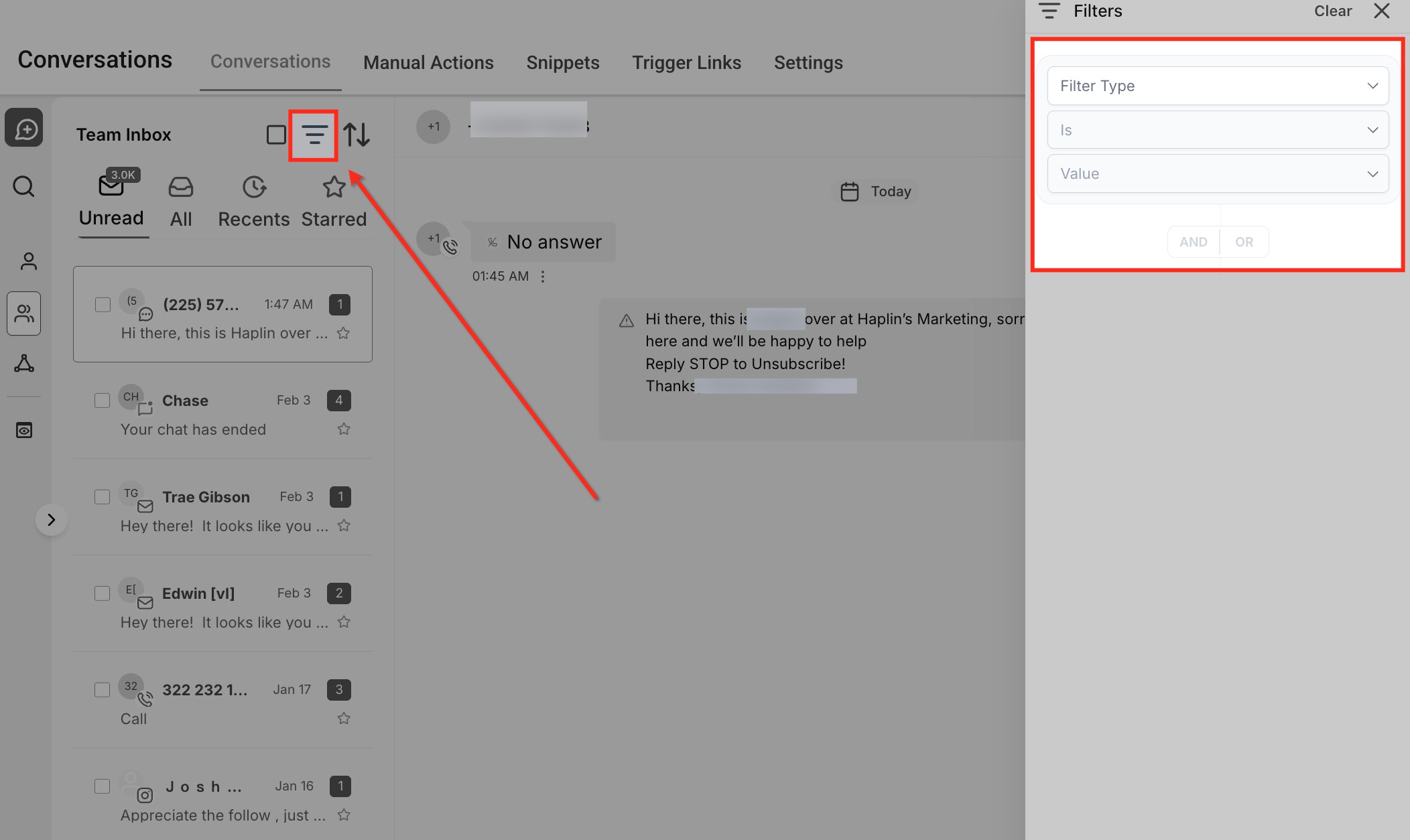
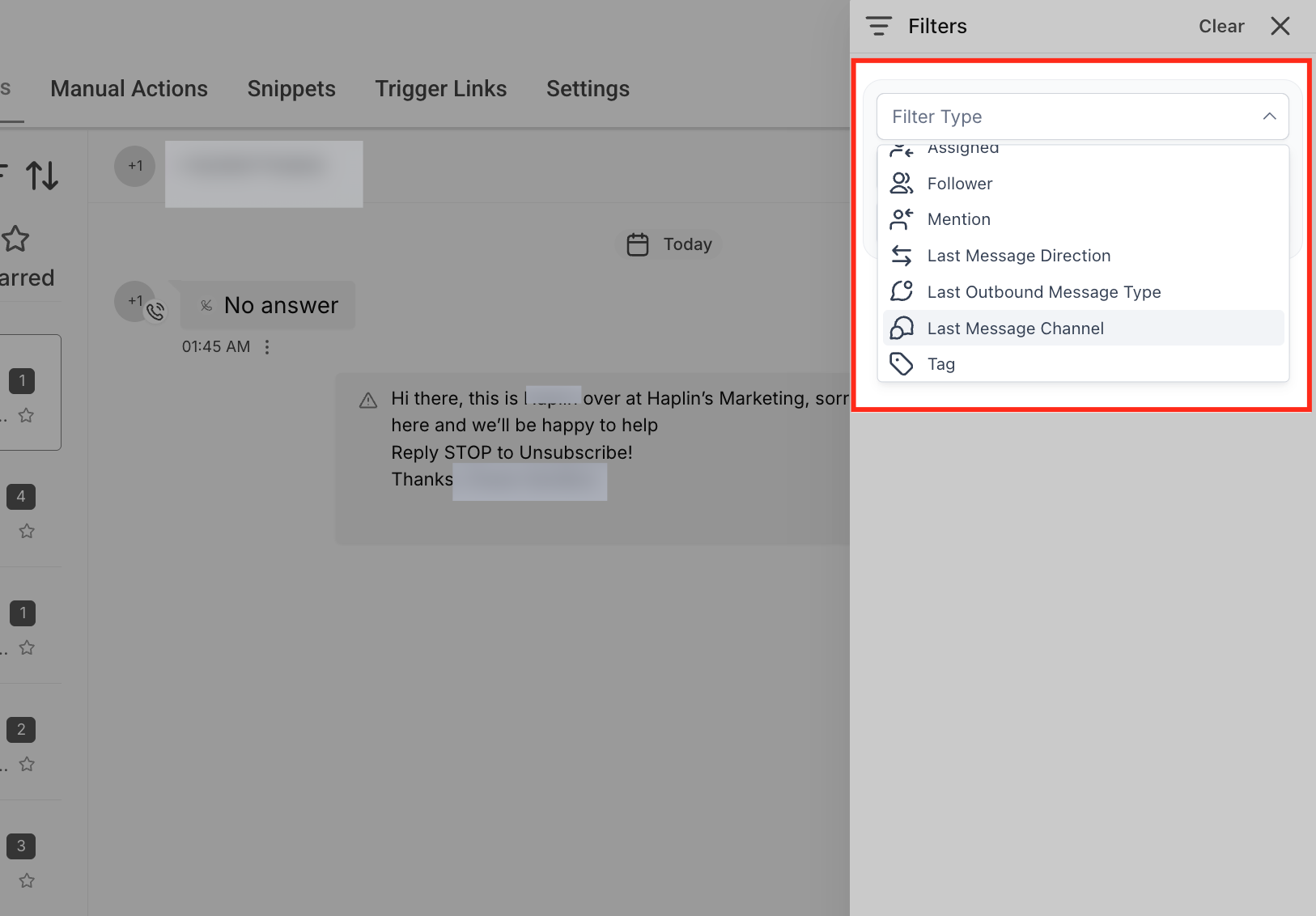
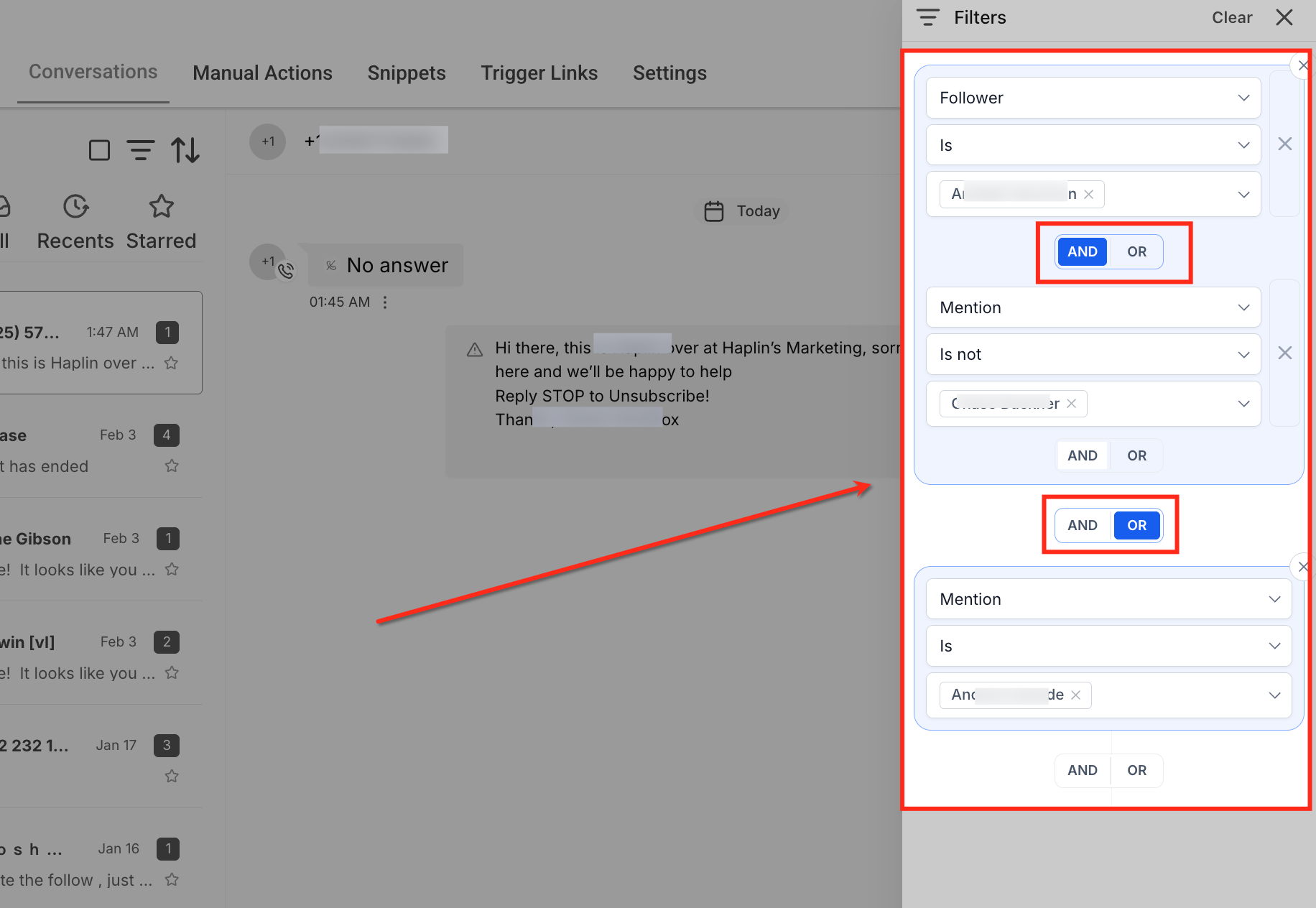
The filter builder appears after clicking the three line Filters icon on the right side of the screen. Within the builder you select a filter type, such as Assigned, Follower, Mention, Last Message Direction, Last Outbound Message Type, Last Message Channel, or Tag, then define a condition (Is or Is not) and choose one or multiple values from a searchable dropdown. Multiple rules can be combined using AND or OR toggles, either inside a single group or between groups, giving precise control over the displayed list.
03How businesses use conversation filters
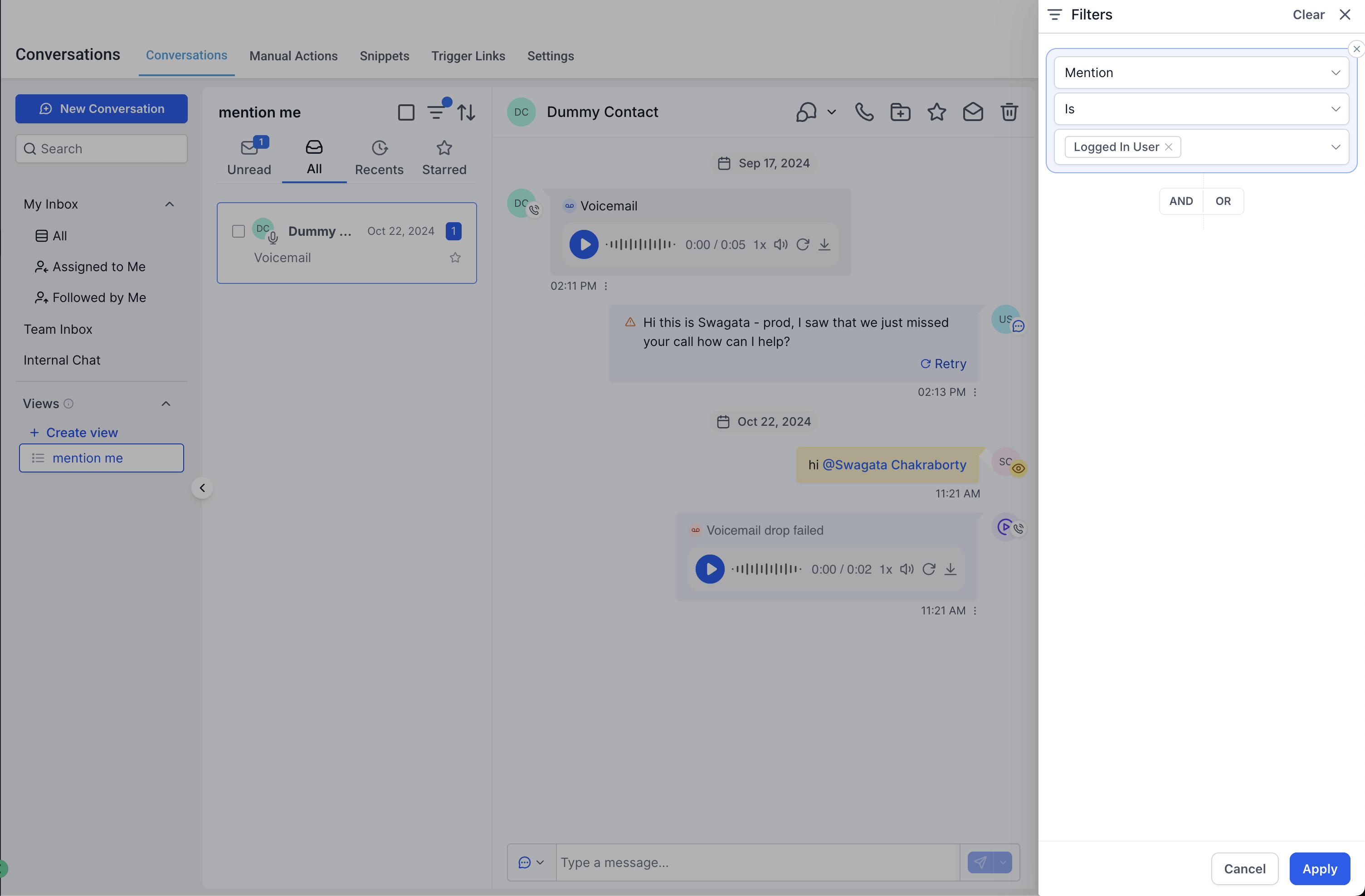
- Real estate brokerage. A broker can open the Filters panel, pick the Assigned filter, set the condition to Is, and select the Logged In User value. This shows only the conversations the broker owns, letting them address client inquiries without sifting through other agents' chats.
- Dental practice. The practice staff filters by Last Message Channel, selecting SMS and Email. The inbox then lists only those messages that arrived via text or email, enabling the team to handle those communication methods promptly.
- Online education platform. An administrator adds a Tag filter for "New Student" and combines it with an OR logic group for Mention. The resulting view displays new student chats and any messages where a team member was specifically called out, ensuring timely onboarding assistance.
04The numbers and rules that matter
- Filter types include Assigned, Follower, Mention, Last Message Direction, Last Outbound Message Type, Last Message Channel, Tag.
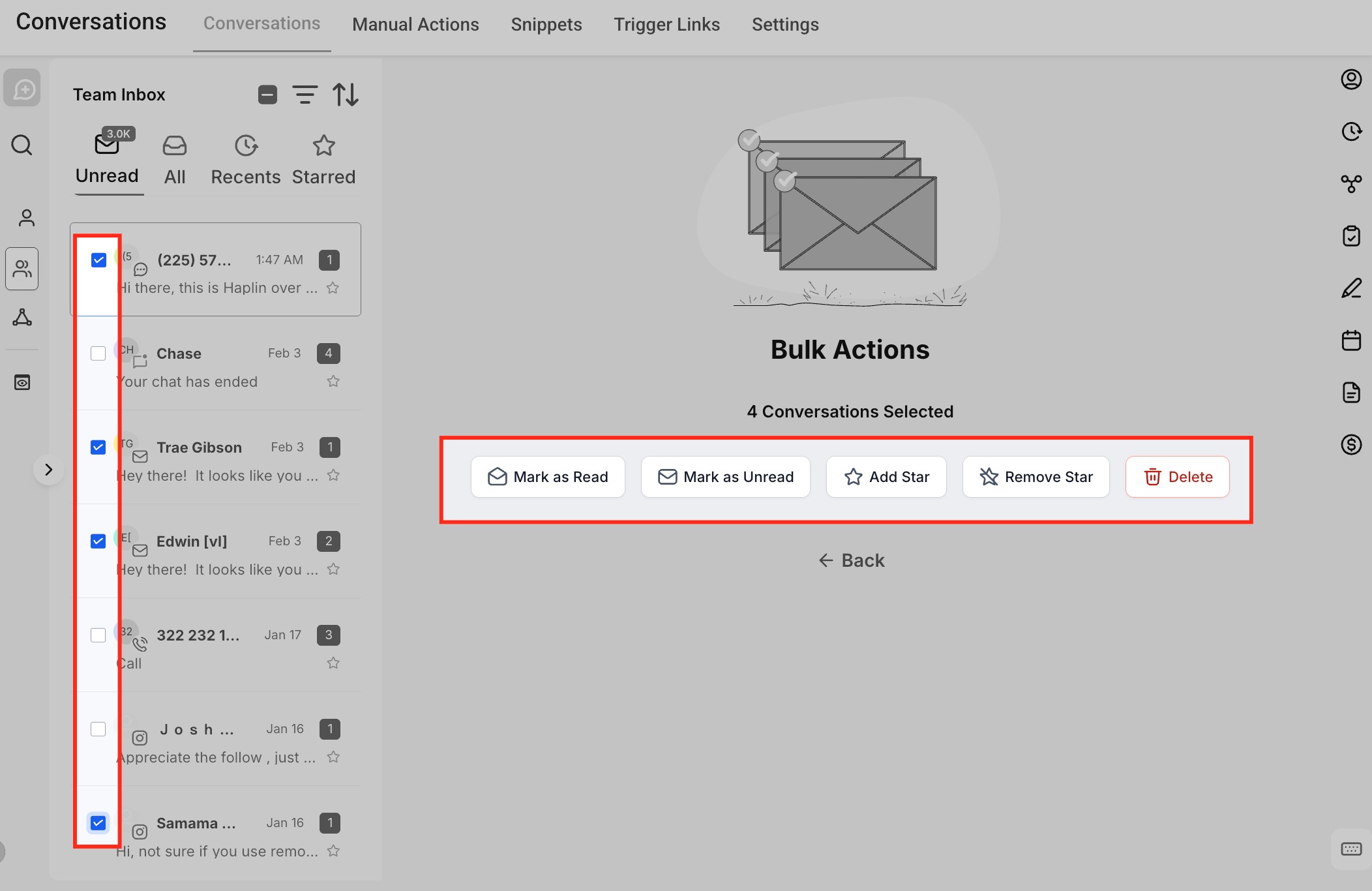
- Bulk actions include Mark as Read, Mark as Unread, Add Star, Remove Star, Delete.
05How to set up and use conversation filters in HighLevel
Build a filter
- Click the Filters icon (three horizontal lines) to open the right hand panel.
- Select the desired filter type from the list, such as Assigned or Tag.
- Choose a condition, Is to include matches or Is not to exclude them.
- Enter the specific value or values for the filter using the dropdown menu.
- Adjust the logical operator (AND or OR) for the rule or for additional rule groups.
- Apply the filter to refresh the inbox with the matching conversations.
06What it looks like in HighLevel
07Settings that matter
- Filter By Assigned. Limits the displayed conversations to those owned by a chosen user or the currently logged in member.
- Filter By Follower. Shows conversations where the selected user is added as a follower, providing collaborative visibility.
- Filter By Mention. Filters to conversations that contain an @mention of the chosen user.
- Filter By Last Message Direction. Selects conversations based on whether the most recent message came from the contact (Inbound) or was sent out (Outbound).
- Filter By Last Outbound Message Type. Distinguishes conversations whose latest outbound message was sent manually or automatically.
- Filter By Last Message Channel. Filters conversations by the channel used for the latest message, such as SMS, Email, or Live Chat.
- Filter By Tag. Shows only conversations that have the specified contact tags attached.
- Filter Condition. Determines whether the rule includes (Is) or excludes (Is not) conversations matching the chosen value.
- AND / OR Logic. Controls how multiple rules or groups are evaluated, AND requires all conditions to be true, OR requires any one.
08Things to know before you rely on it
- Filters are session based; they must be reapplied each time you return to the inbox.
- Deleted conversations are removed permanently and cannot be recovered.
- The Last Message Channel filter can accept several channels at once.
- Inbox updates happen right away when filters change.
09How it connects to the rest of HighLevel
- Mark conversations as read or unread Mark as read
- Reuse common messages with snippets Snippets
- Add files and media to conversations Attachments
Michael's take

Conversation Filters let you narrow the inbox to the chats you need to see. Whether it’s only the messages you own, the ones where you were mentioned, or a specific channel like WhatsApp.
If I were setting up a new support inbox, I’d start by filtering to my own assigned conversations and any where I’m a follower to get a clear view of what I own and what I need to stay in the loop.