
01Who this is for
- Sales reps can send contracts and product brochures directly in messages, keeping prospects informed.
- Support agents can share screenshots or instruction videos to resolve issues faster.
- Marketing managers can attach promotional PDFs and video assets to nurture campaigns.
02Attachments, explained
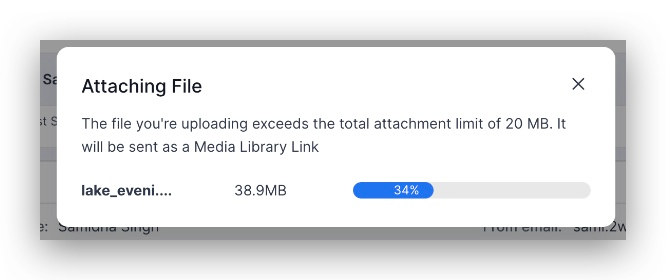
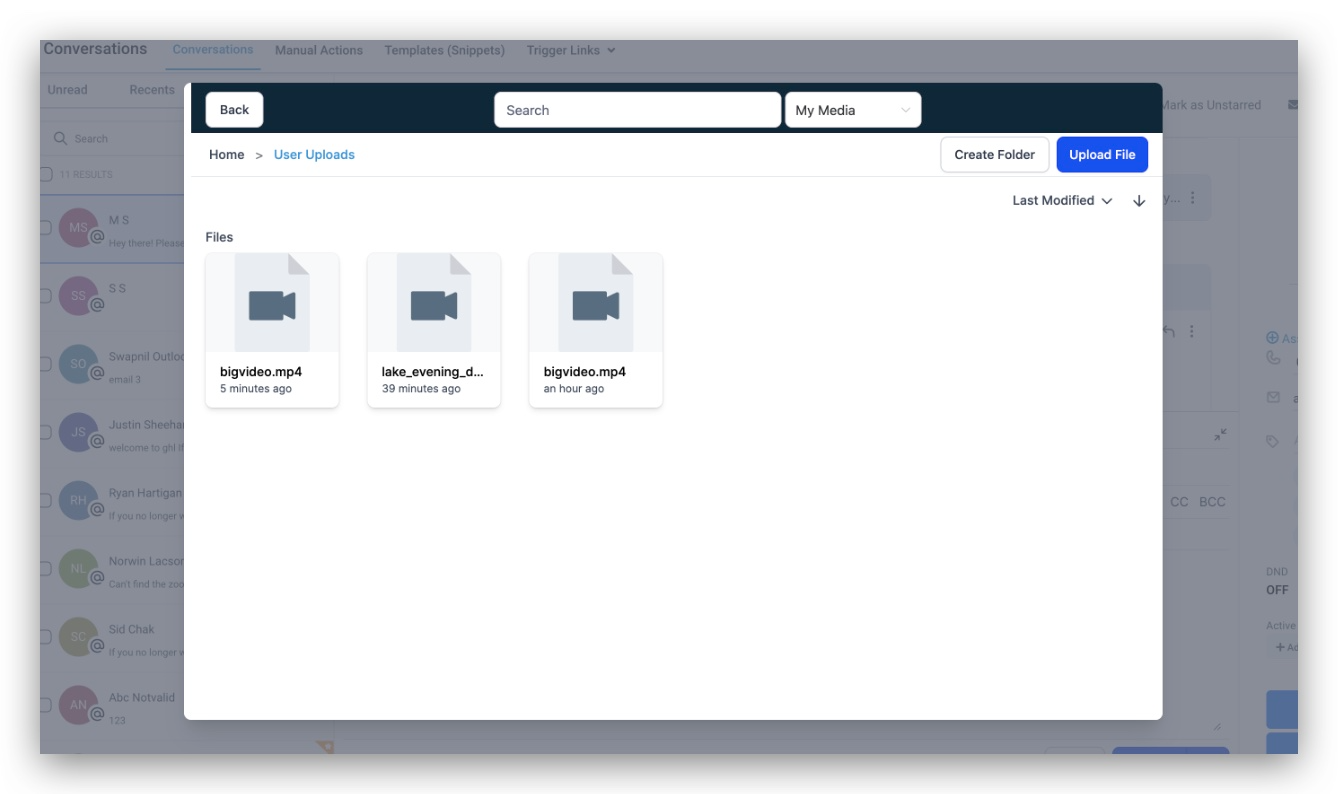
In the Conversations area, users can add files to email and SMS messages using a paperclip icon or by pasting from the clipboard. The platform accepts images, documents, PDFs and videos. When a file exceeds the 20 MB email limit or is sent via SMS, HighLevel moves it to the media library and inserts a link. Videos stored in the media library generate GIF thumbnail previews, making email content more visual. All uploaded assets are saved in the media library for future reuse, eliminating the need to re upload the same file.
03How businesses use attachments
- Real estate agency. An agent uploads a property PDF or pastes a floor plan image into a client conversation. The file appears as an attachment or a library link if it exceeds size limits, letting the client review details without leaving HighLevel.
- Dental practice. The office staff selects a treatment plan PDF from the media library and attaches it to a patient’s message. If the file is large, the system automatically shares a link, ensuring the patient receives the document.
- Online education platform. A course creator copies a video thumbnail from their computer and pastes it into a student’s message. HighLevel adds the video as an attachment and generates a GIF preview for engaging email communication.
04The numbers and rules that matter
- Email attachment size limit is 20 MB.
- Files larger than 20 MB are automatically uploaded to the media library.
- Supported file types: Images, documents, PDFs, videos.
05Before you start
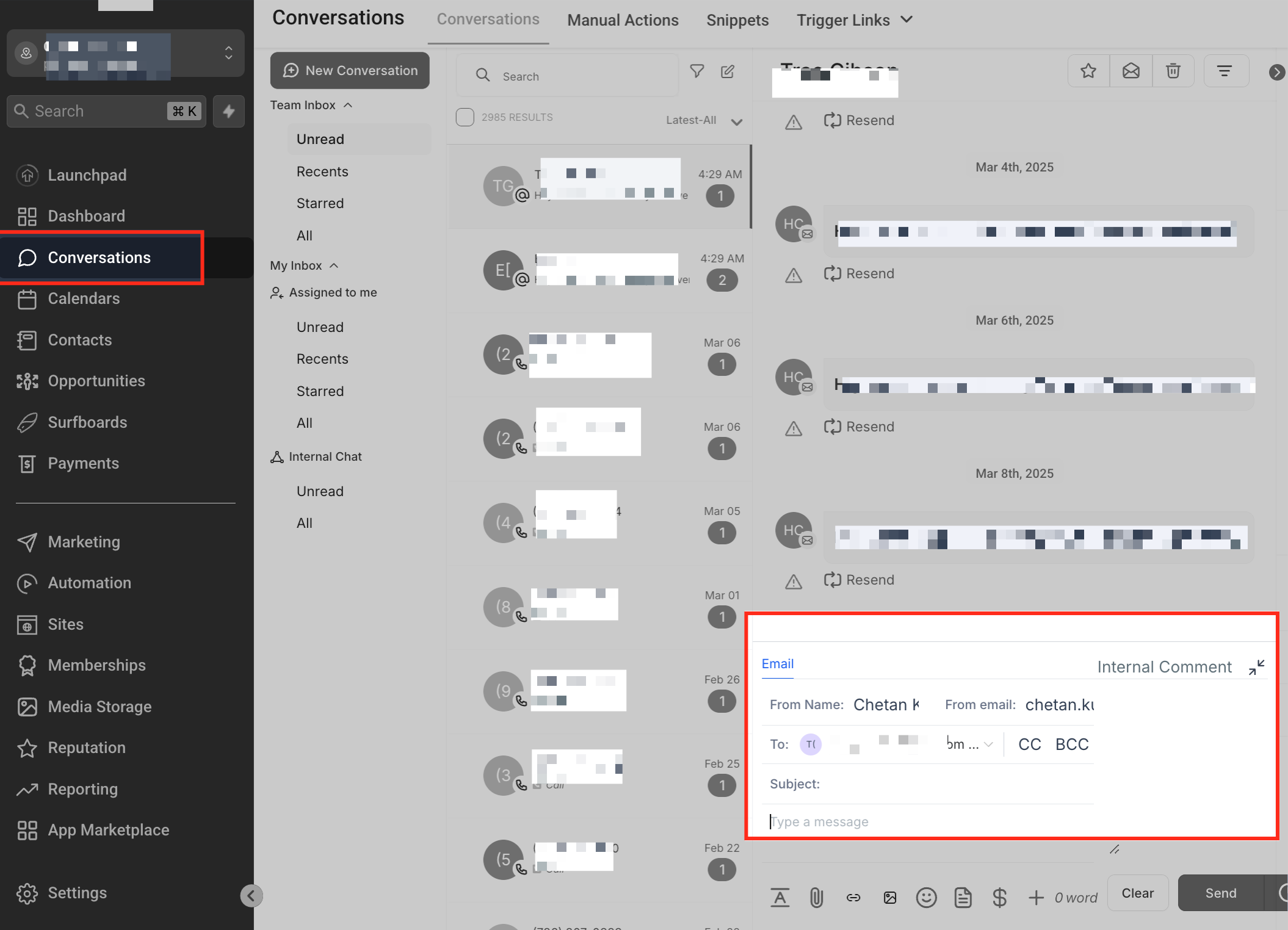
- Open the Conversations tab in HighLevel and select or start a conversation with a contact.
06How to set up and use attachments in HighLevel
Attach a file to a message
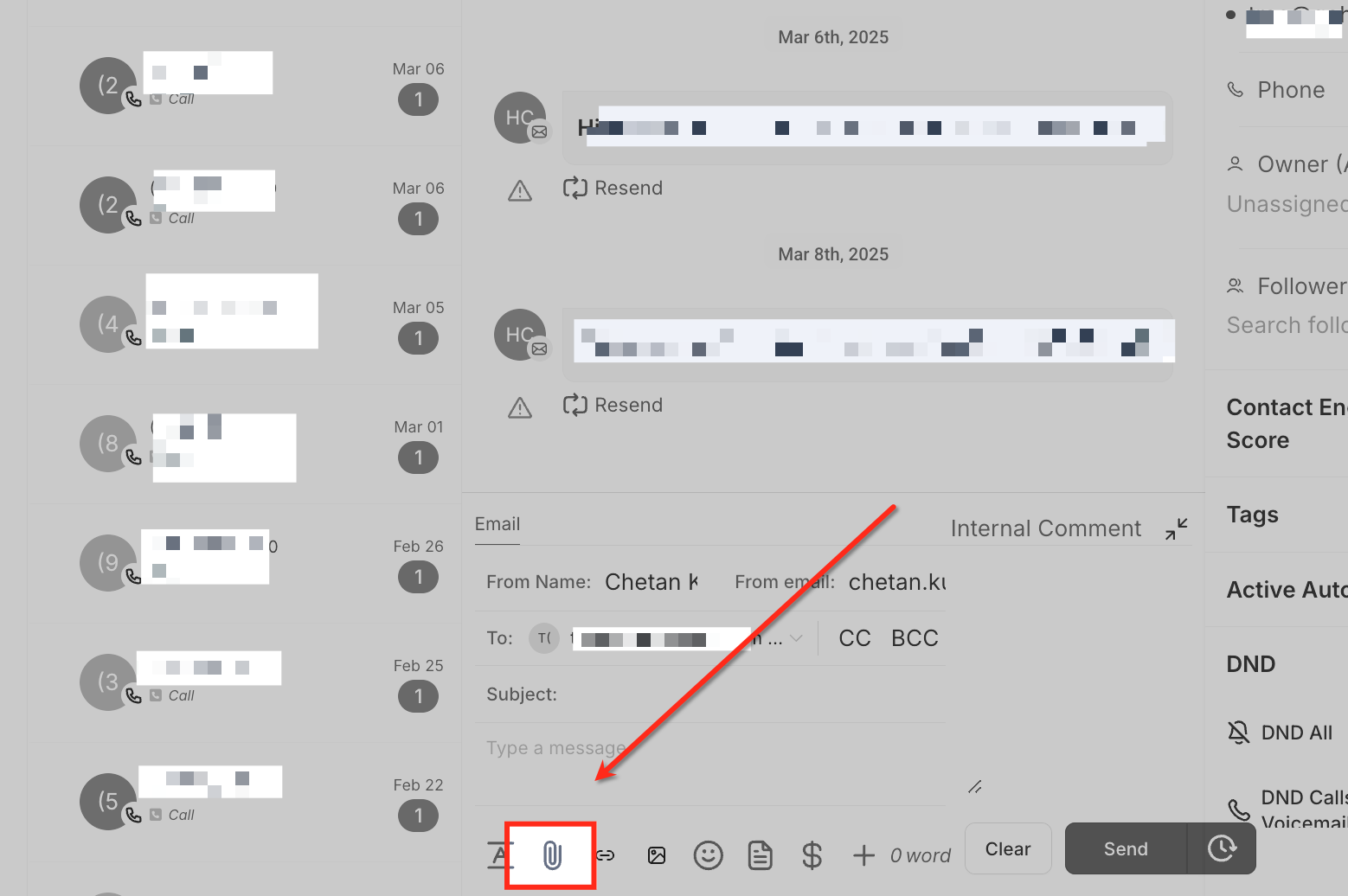
- Click the paperclip icon inside the SMS or email composer.
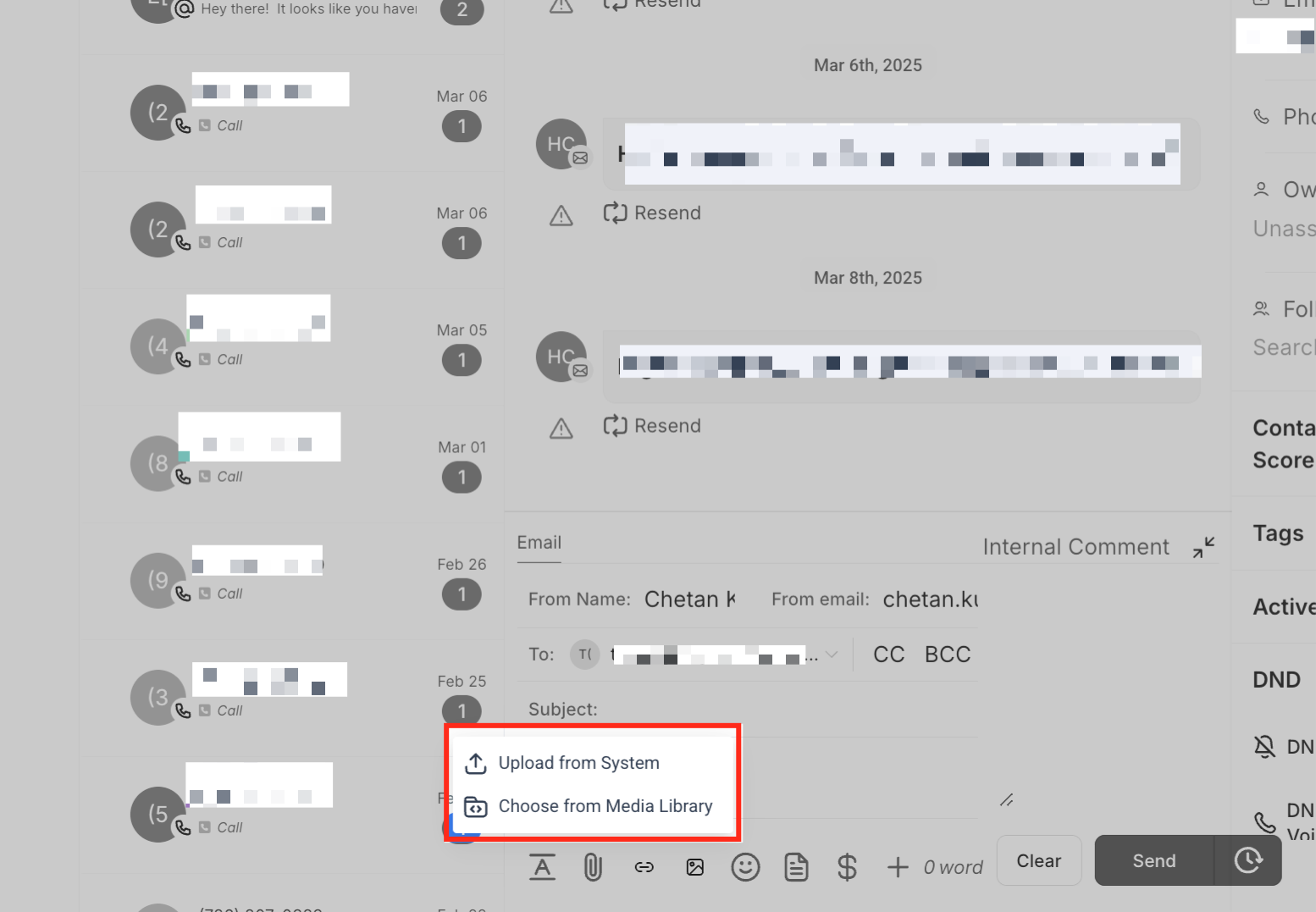
- Choose a file from your device or pick one from the media library.
- The file is attached and ready to send.
Paste attachments from clipboard
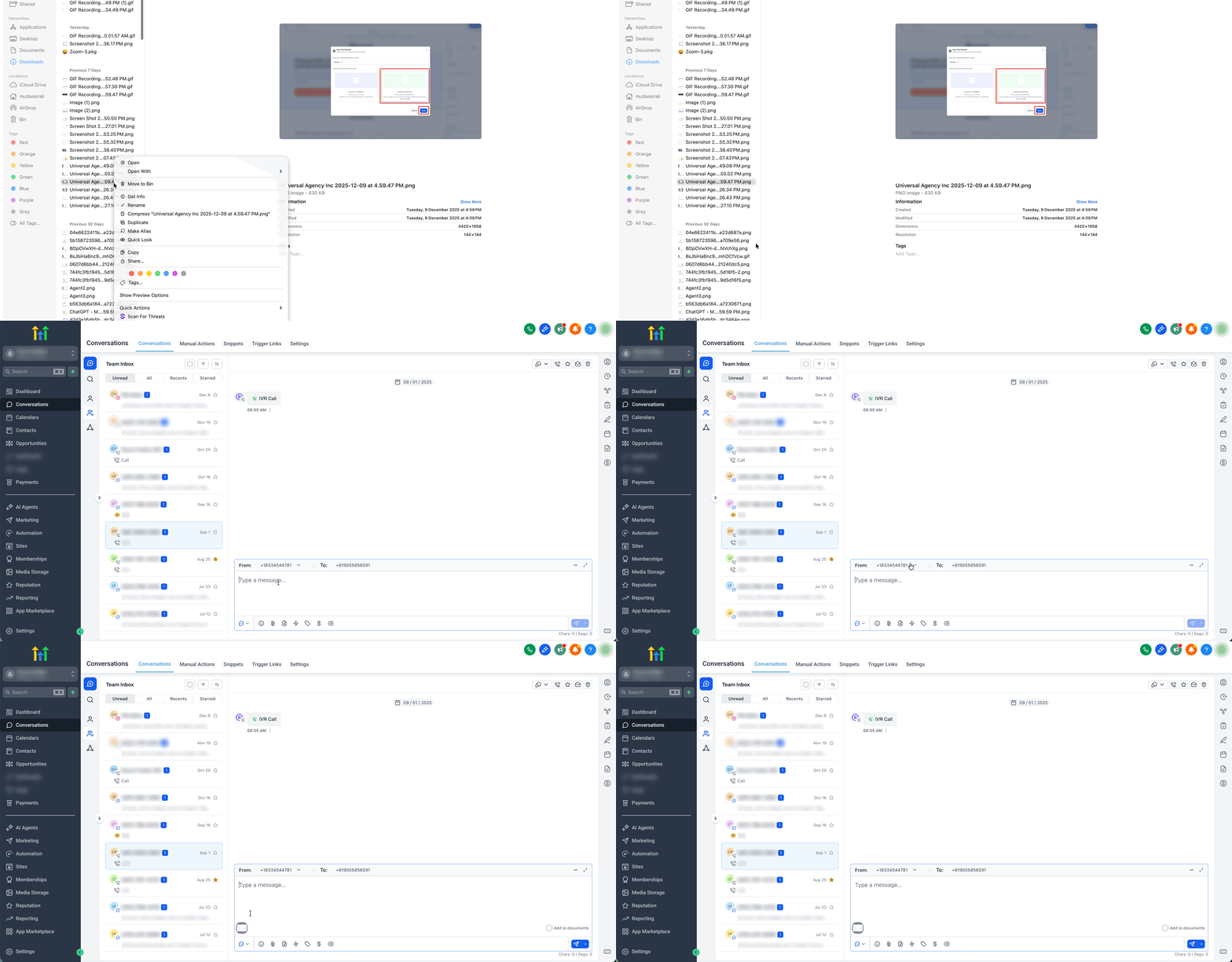
- Copy a supported file or image on your computer.
- Click inside the message composer for the desired channel.
- Press Ctrl + V (Windows) or Cmd + V (Mac).
- The file appears as an attachment automatically.
Automatic handling of large files
- If an email attachment exceeds 20 MB or an SMS attachment is too large, the file is automatically moved to the media library.
- A link to the media library file is inserted into the message so it can be sent without size restrictions.
07What it looks like in HighLevel
08Things to know before you rely on it
- Email attachments are limited to 20 MB; larger files are uploaded to the media library and shared as links.
- SMS attachments are automatically converted to media library links because of size constraints.
- Supported file types include images, documents, PDFs and videos.
- Clipboard pasted files follow the same size and type restrictions as other attachments.
09How it connects to the rest of HighLevel
- Explore all conversation capabilities All Conversations features
- Set up a chat widget to capture leads on your website Chat widget setup
- Learn about CC and BCC options when sending emails CC/BCC in email composer
Michael's take

I find the automatic move of large files to the media library useful for avoiding delivery issues, and the GIF thumbnails add visual interest to emails.
If most of your communication stays within short text messages or you rarely share files larger than a few megabytes, the feature may add little value for you.