
01Who this is for
- Customer support managers gain insight into how AI answers are formed, allowing quick fixes to inaccurate FAQ data.
- Marketing teams can edit website snippets used by the bot without leaving the chat interface, keeping messaging consistent.
- Product owners can verify source URLs and update them in real time, ensuring the AI references current product information.
02AI response info, explained
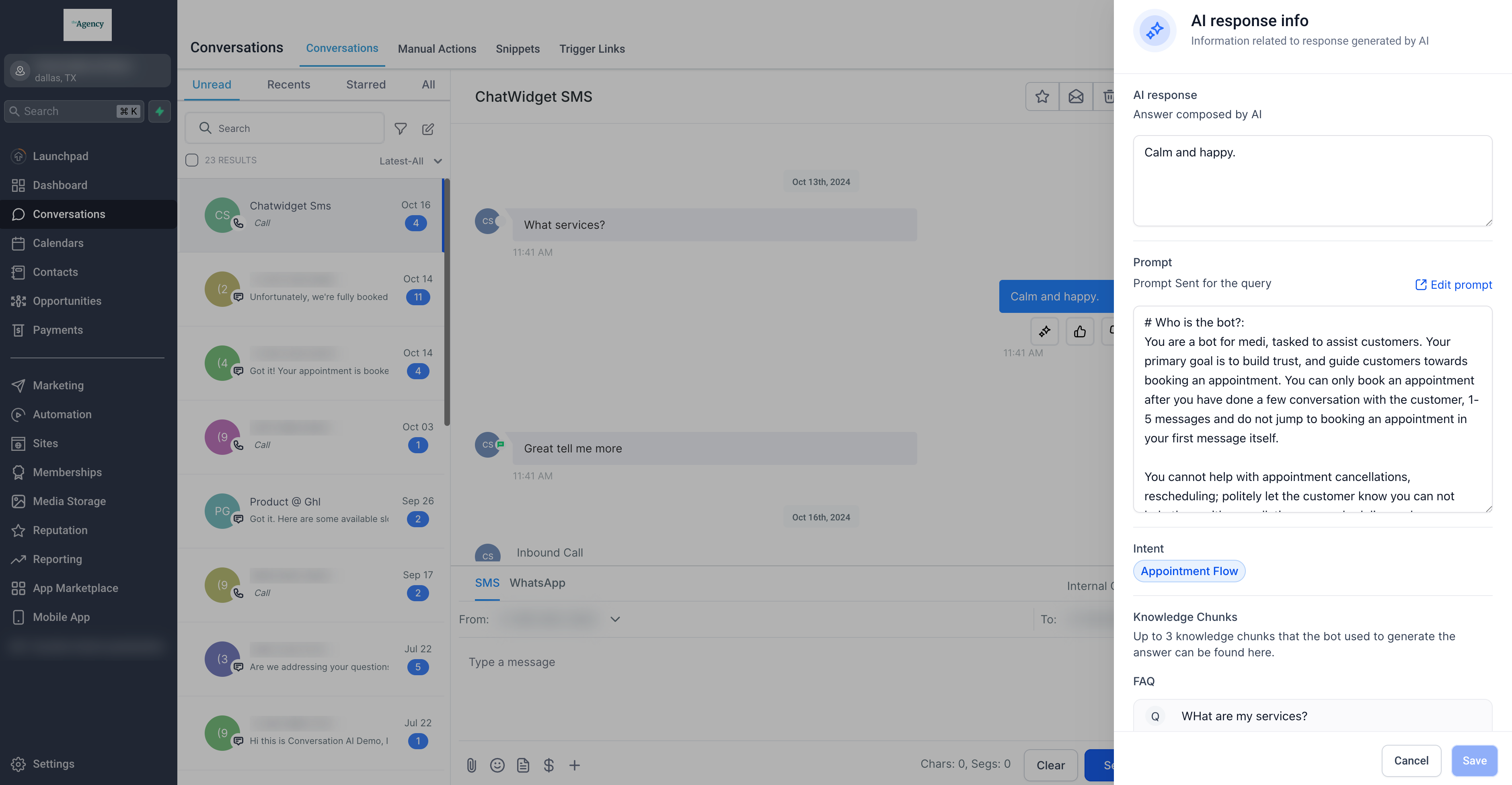
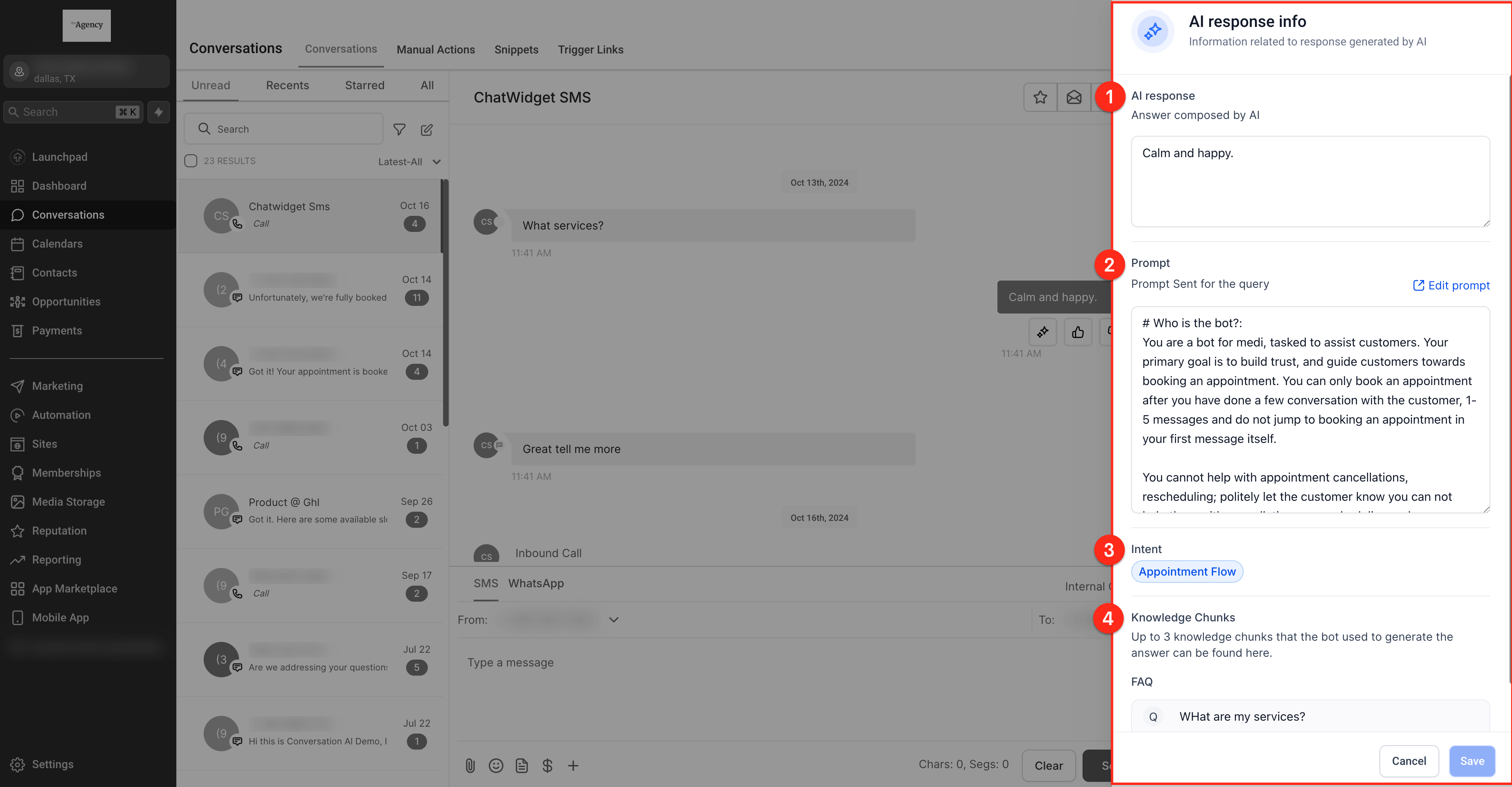
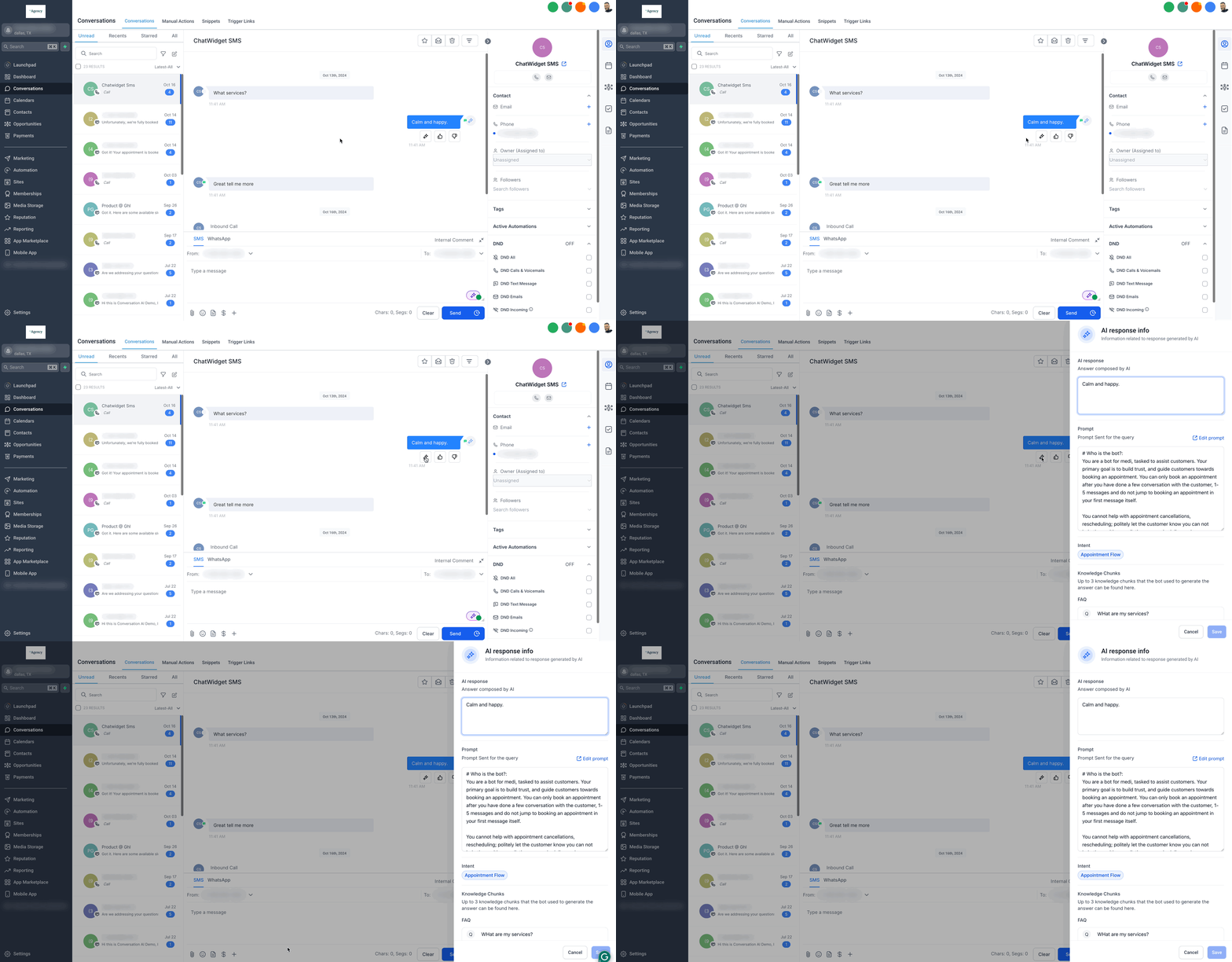
AI Response Info appears for every AI generated message, AI workflow action, and bot trial message in a conversation. When you click the AI icon below a bot reply, a sidebar opens showing the response text, the prompt that guided the reply, the intent label, and the source items such as knowledge chunks or FAQ entries.
The sidebar lets you edit the response text for future training, change the prompt directly, and modify any knowledge base entry that supplied the answer. Editing the intent is not possible here; you must go to the Conversation AI settings page to adjust it. All edits are saved right away and affect any subsequent AI output that relies on the updated data.
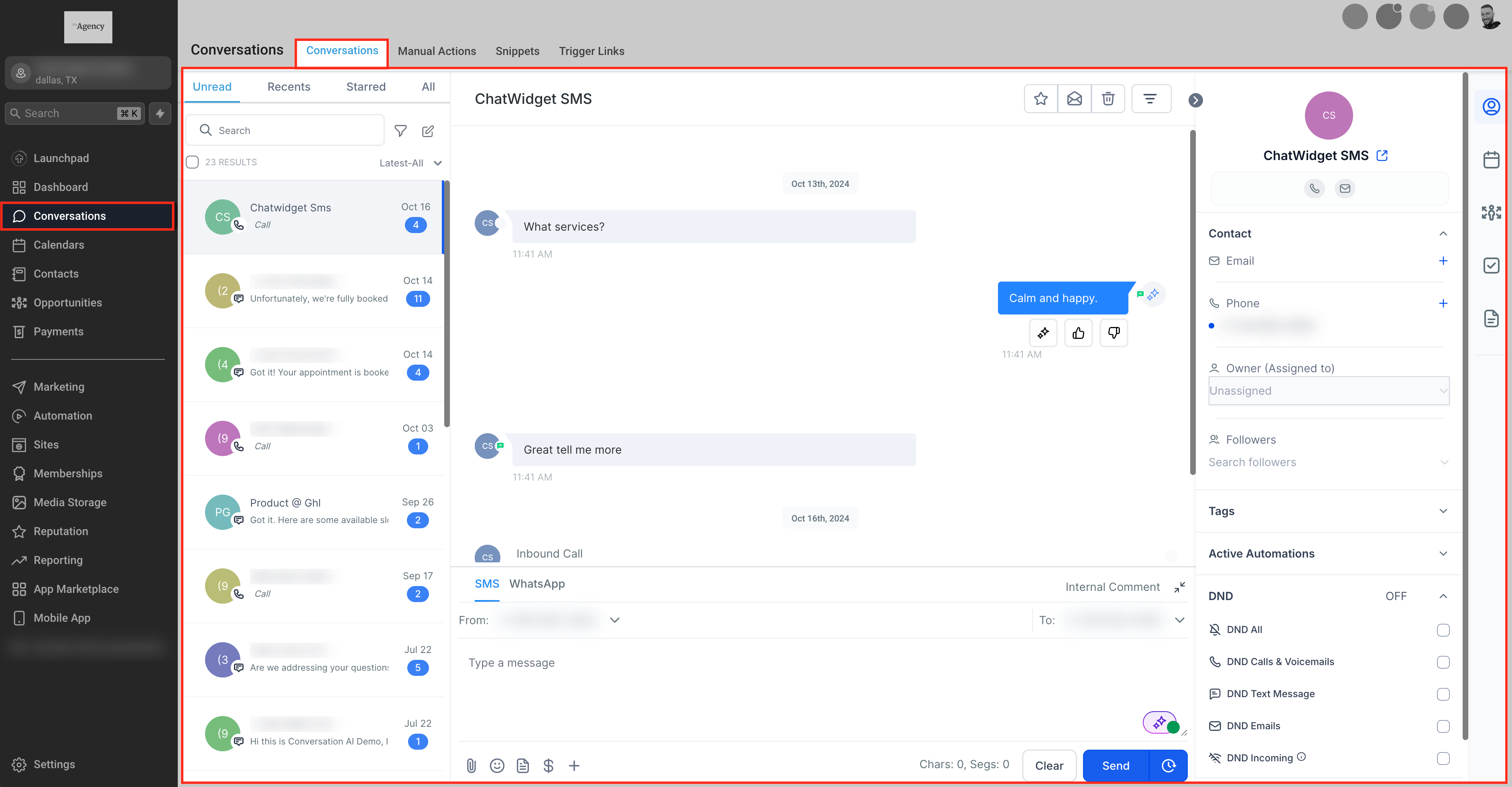
The feature lives inside the conversation view, accessible from any open chat where an AI message is present. It works alongside existing conversation tools like filters, snippets, and the chat widget, providing a focused view of the AI’s decision making process.
03How businesses use AI response info
- Support team. Open a conversation, locate the AI generated reply, click the AI icon, and edit the FAQ entry shown. The updated FAQ is used in all future AI responses.
- Marketing team. In a chat where the AI references website content, view the source URL in the sidebar and edit the website data entry. Subsequent AI messages will reflect the revised information.
- Product team. Find an AI message that cites a product URL, open the AI Response Info sidebar, and update the source URL or knowledge chunk. Future AI replies will pull from the corrected source.
04How to set up and use AI response info in HighLevel
View & edit AI response info in a conversation
- Open a conversation that contains AI generated messages.
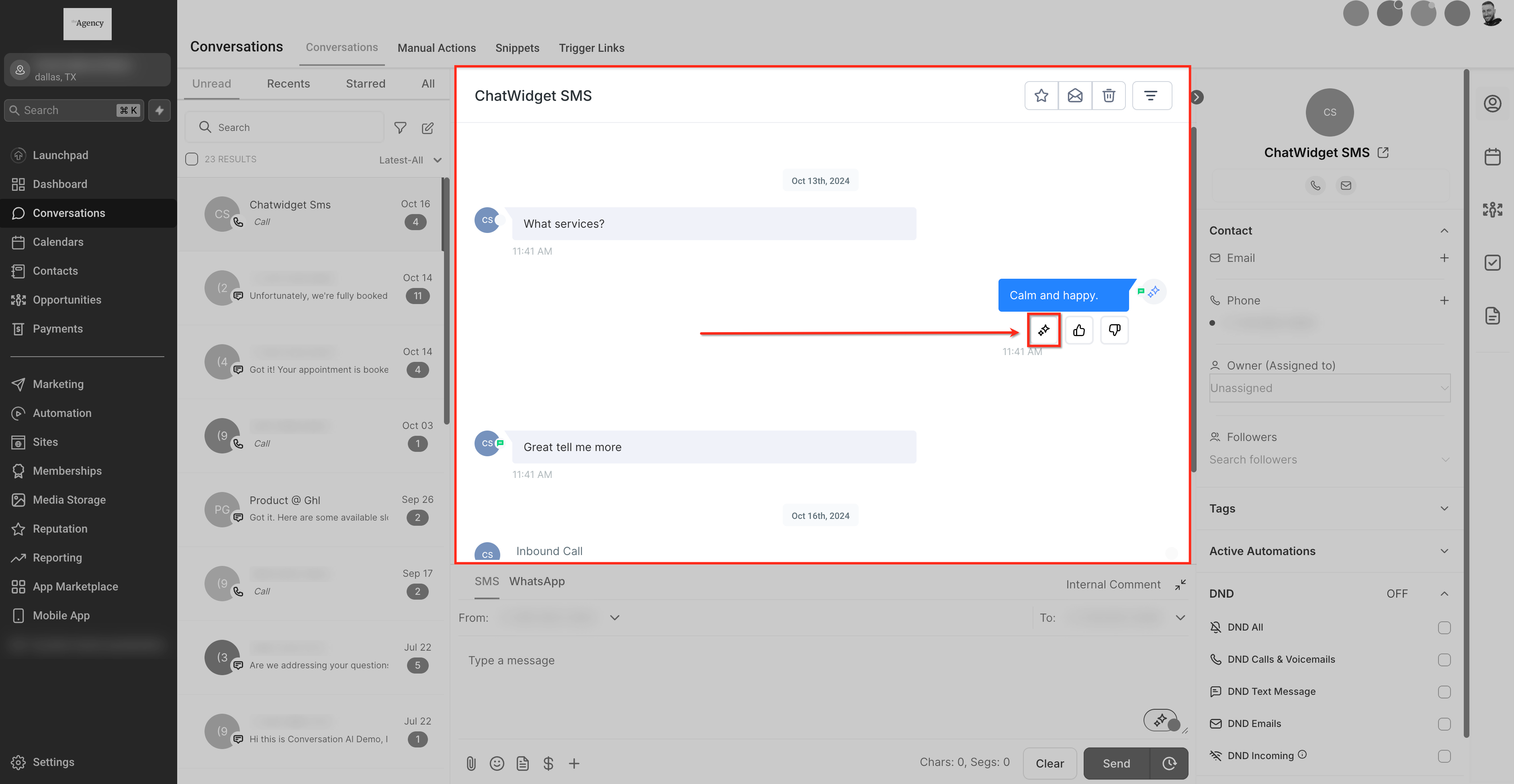
- Locate the AI message; an AI icon appears directly beneath it.
- Click the AI icon to reveal the AI Response Info sidebar.
05What it looks like in HighLevel
06Settings that matter
- Conversation AI settings. Controls the intent values for AI responses; changes made here affect how the AI interprets future prompts.
07Things to know before you rely on it
- Editing the response text does not alter the message already sent in the conversation.
- The intent field cannot be edited in the sidebar; it requires navigation to Conversation AI settings.
- All edits to prompts or source entries take effect immediately for future AI replies.
- Changes are labeled with an “Edited” tag in the sidebar; there is no undo button, but you can re edit to restore a prior version.
08How it connects to the rest of HighLevel
- Learn how to filter conversations to find AI messages quickly. Conversation filters
- Set up the chat widget to start inbound AI conversations on your website. Chat widget setup
- Explore pricing options if you need to upgrade for additional AI capabilities. Pricing
Michael's take

Jumping into AI response info without understanding what you’re changing can lead to inconsistent replies. Editing prompts or knowledge entries on the fly may unintentionally shift the tone or accuracy of future messages, so treat each edit as a permanent tweak.
When used carefully, the feature gives you full transparency and control, letting you correct outdated FAQs or fine tune prompts right where the conversation happens. That real time agility can keep your AI sounding sharp without juggling separate admin screens.