
01Who this is for
- Support agents benefit by inserting standard replies, saving time on common inquiries.
- Sales representatives use snippets for appointment reminders and lead follow up messages.
- Marketing staff keep consistent email copy for campaigns by saving Email Snippets.
02Snippets, explained
Snippets let users store reusable messaging for text and email channels. Each snippet can contain static text together with supported placeholders such as Custom Values or Trigger Links, enabling personalization at send time. The feature lives inside the Conversations workspace of a subaccount and is automatically enabled under the HiRise Snippets interface.
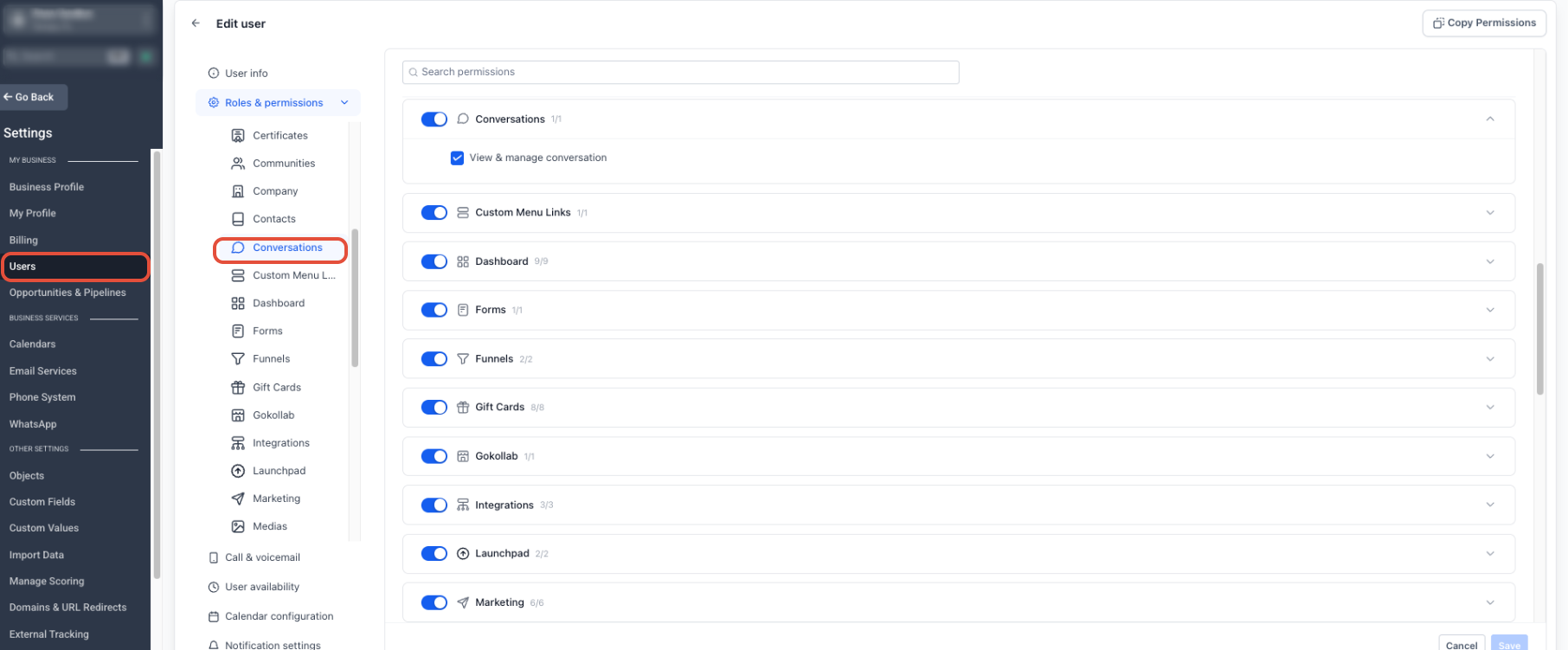
Users with the Conversations > View & manage conversation permission can create new snippets, arrange them into folders, search or filter the library, and insert a chosen snippet into any open conversation. The inserted content appears in the composer where it can be edited before sending.
03How businesses use snippets
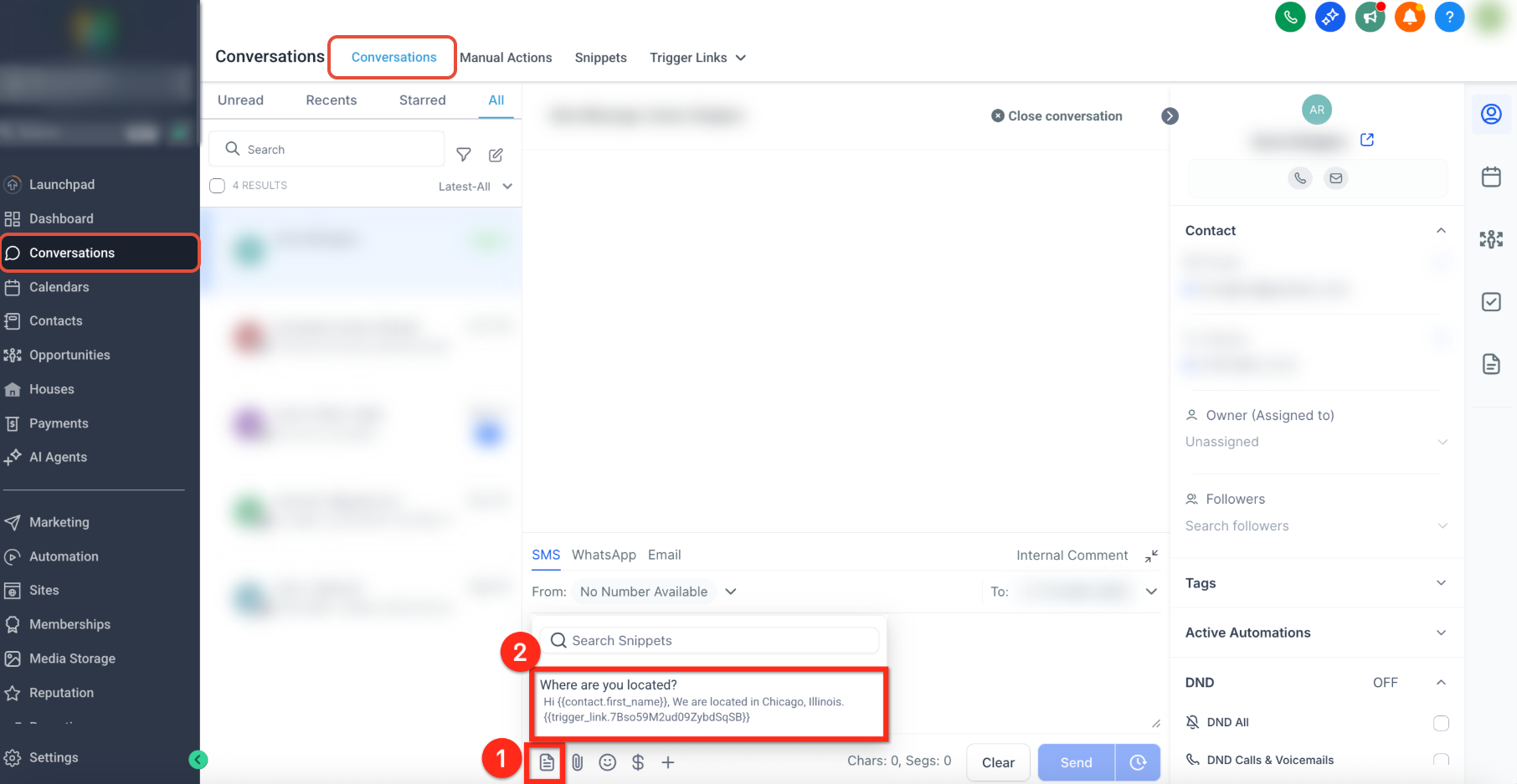
- Customer support center. Support agents open a contact's conversation, click the Snippets icon, locate the appropriate FAQ response, insert it, adjust any placeholder values, and send the reply.
- Sales team. Sales reps create a Text Snippet for appointment confirmations, add a Custom Value for the date, then pull the snippet into SMS conversations to confirm meetings with each lead.
- Marketing department. Marketers build an Email Snippet containing a newsletter intro, include a Trigger Link for a special offer, and paste the snippet into the email composer when reaching out to prospects.
04The numbers and rules that matter
- No fixed Snippet limit is documented.
05Before you start
- User must have the Conversations > View & manage conversation permission.
- Snippets are managed within the relevant subaccount.
06How to set up and use snippets in HighLevel
Create a snippet
- From the subaccount view, select Conversations.
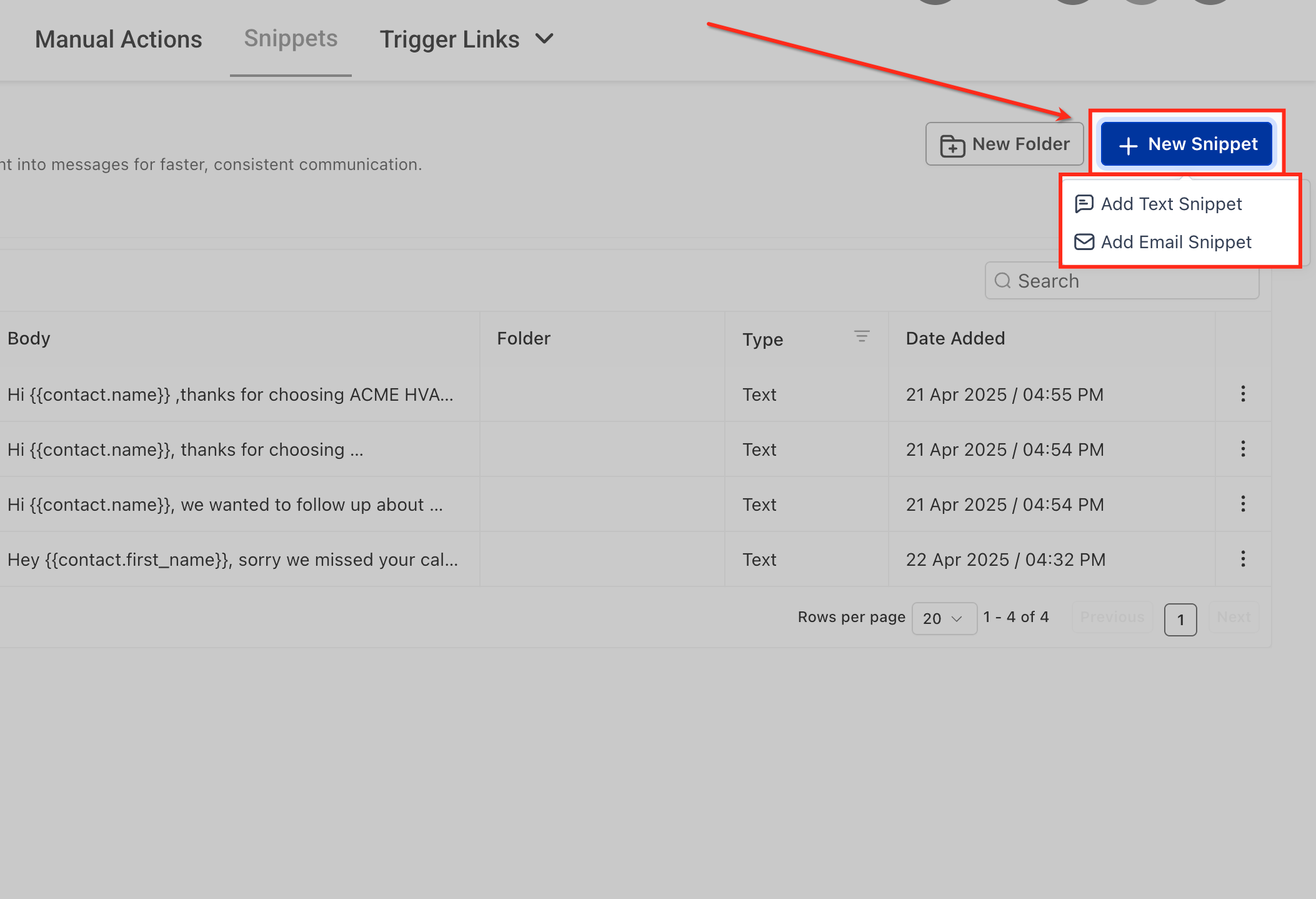
- Choose Snippets from the top navigation.
- Press the + New Snippet button.
- Pick Add Text Snippet or Add Email Snippet.
- Enter a descriptive name for the snippet.
- Type the message content into the editor.
- Insert any required Custom Values or a Trigger Link.
- Use the preview or test option to verify the snippet.
- Click Save to store the new snippet.
Organize and manage snippets
- Navigate to Conversations > Snippets.
- Enter a keyword in the Search field to locate a snippet.
- Apply the type filter to show only Text or Email snippets.
- Click New Folder to create a folder and move snippets into it.
- Use the three dot menu (⋮) to move, edit, duplicate, or delete a snippet.
Use a snippet in conversations
- Open the Conversations area.
- Select the contact whose conversation you want to reply to.
- Choose the messaging channel (SMS, email, etc.).
- Click the Snippets icon in the message composer.
- Browse folders or type a name in the search box.
- Click the desired snippet to insert it.
- Review the inserted text and any dynamic placeholders.
- Edit the content if needed before sending.
- Press Send to deliver the message.
07What it looks like in HighLevel
08Settings that matter
- Conversations → View & manage conversation. Controls whether a user can open the Conversations workspace and use the Snippets tools.
- HiRise Snippets interface. Is automatically enabled for all subaccounts; no manual activation is required.
09Things to know before you rely on it
- HighLevel does not publish a fixed limit on the number of snippets a user can create.
- The classic Snippets layout has been retired; only the HiRise Snippets interface is available.
10If something goes wrong
- Snippets tab or icon is missing in Conversations. Verify that the user has the Conversations > View & manage conversation permission.
11How it connects to the rest of HighLevel
- Learn how to install a live chat widget and automate chat assignments Live chat widget
- Explore conversation filters to narrow down snippet searches Conversation filters
- Set up contact engagement scoring to prioritize messages Engagement scoring
Michael's take

Snippets reduce the need to type the same wording repeatedly and help keep every team member’s language on brand and consistent.