
01Who this is for
- Customer support teams can identify pending messages and avoid overlooking leads.
- Sales reps can ensure every inquiry receives a reply before it is considered completed.
- Marketing managers can monitor team responsiveness by watching unread counts.
02Conversation read status, explained
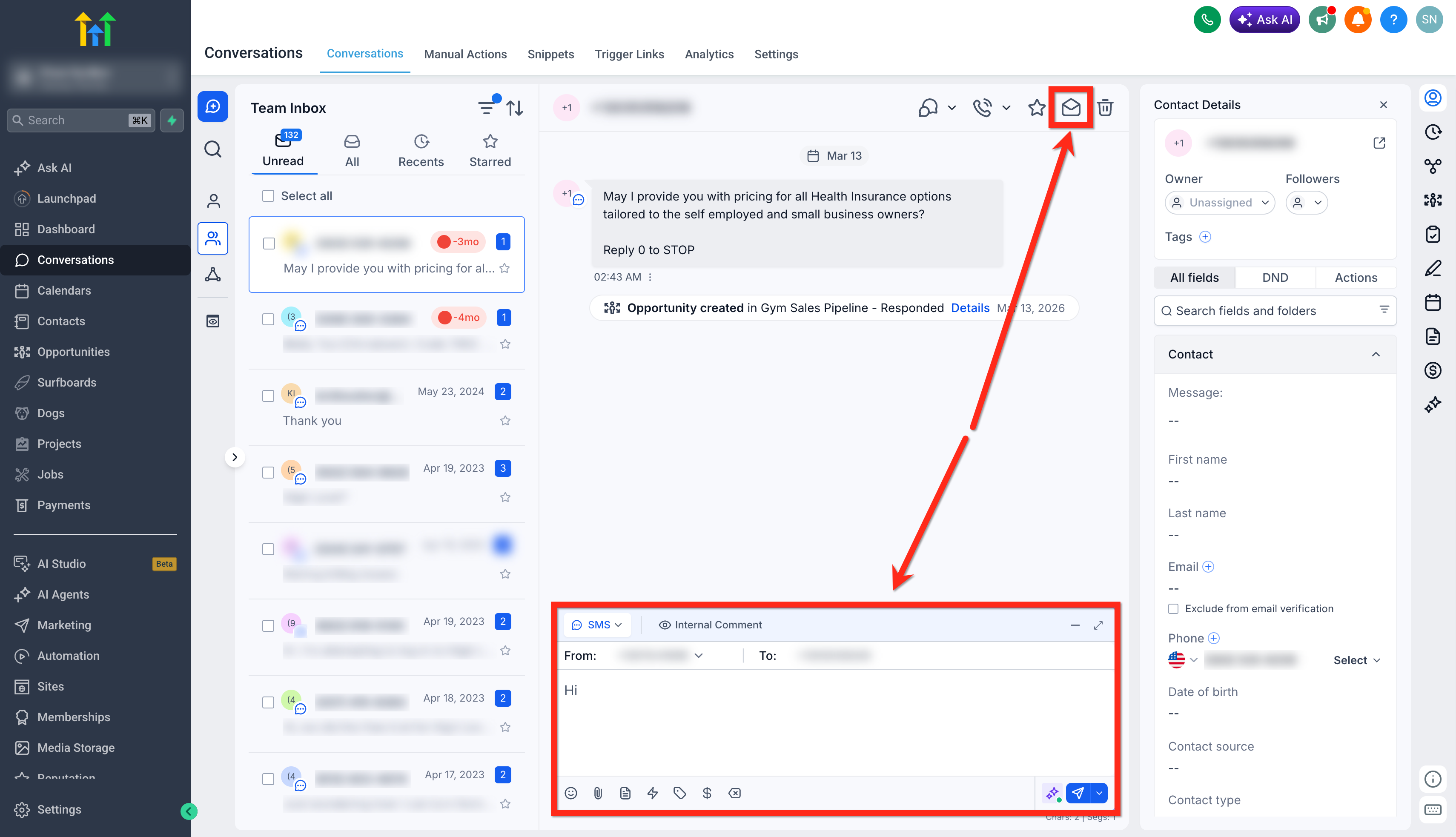
The read status indicates whether a chat has been addressed. Opening a conversation does not change the status, so nothing is marked as handled until a deliberate action occurs. The status switches to read when a reply is sent, the read icon is pressed, or a workflow runs an edit conversation step.
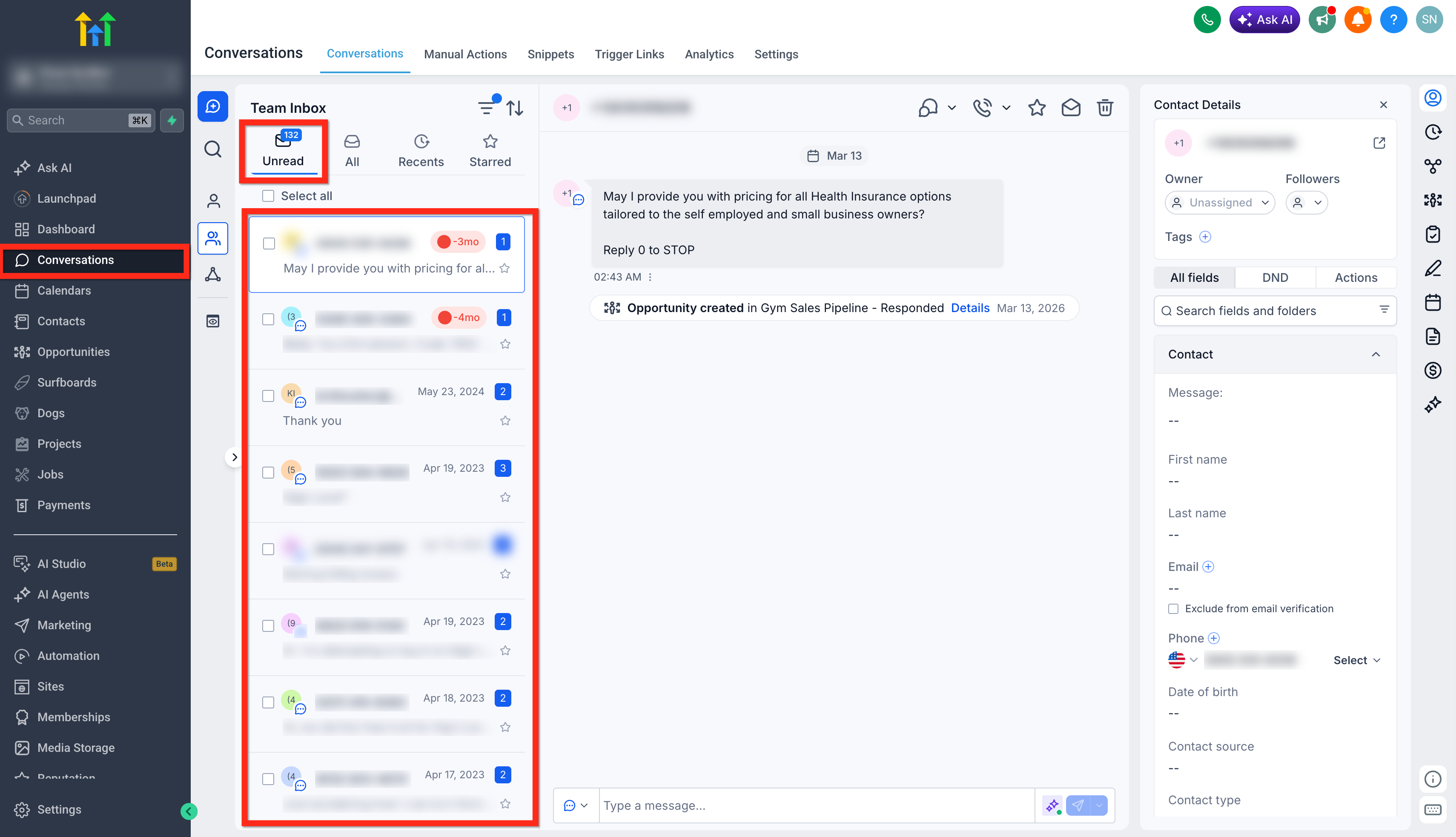
The feature is located in the Conversations tab under the Team Inbox. Each conversation shows an unread badge until one of the actions above updates it. This helps keep the inbox tidy and highlights items that still need work.
03How businesses use conversation read status
- Dental practice. Staff open the Team Inbox, locate patient messages that are still unread, and click the Mark as Read icon after confirming the issue is resolved. This keeps the list of pending patient inquiries accurate.
- Real estate agency. Agents reply to incoming leads through the conversation view; the platform automatically flags those chats as read, removing them from the unread queue without extra steps.
- SaaS startup. The onboarding workflow includes an Edit Conversation action that marks welcome messages as read once the automated email sequence finishes, preventing the support team from seeing them as new tickets.
04How to set up and use conversation read status in HighLevel
Manually marking a conversation as read
- Select the Conversations area from the main navigation.
- Open the Team Inbox screen.
- Click on an unread conversation to view its contents.
- Either send a reply or press the Mark as Read icon at the top right corner of the window.
- Confirm that the conversation disappears from the unread list.
05What it looks like in HighLevel
06How it connects to the rest of HighLevel
- Explore all features available in the Conversations module. All Conversations features
- Learn how to create filters that surface specific unread messages. Conversation filters guide
- Review plan options and trial details if you need more inbox capacity. Pricing and plans
Michael's take

Teams often lose track of messages that sit in the inbox without any clear sign they’ve been handled. The simplest way to keep things tidy is to make sure every conversation gets a read status at the right moment. Either when you reply or by clicking the Mark as Read button.
If I were setting this up, I’d first verify that the Mark as Read icon is visible in the conversation view and train the team to use it after each reply. A quick test on a dummy lead confirms the status changes as expected before relying on it for daily work.