
01Who this is for
- Community admins benefit because they can automate personalized greetings and reduce manual outreach.
- Membership site owners gain a structured way to introduce new members and encourage early engagement.
- Digital coaches can set onboarding tasks such as profile completion or video watching to ensure clients start with essential steps.
02Welcome DMs and onboarding steps, explained
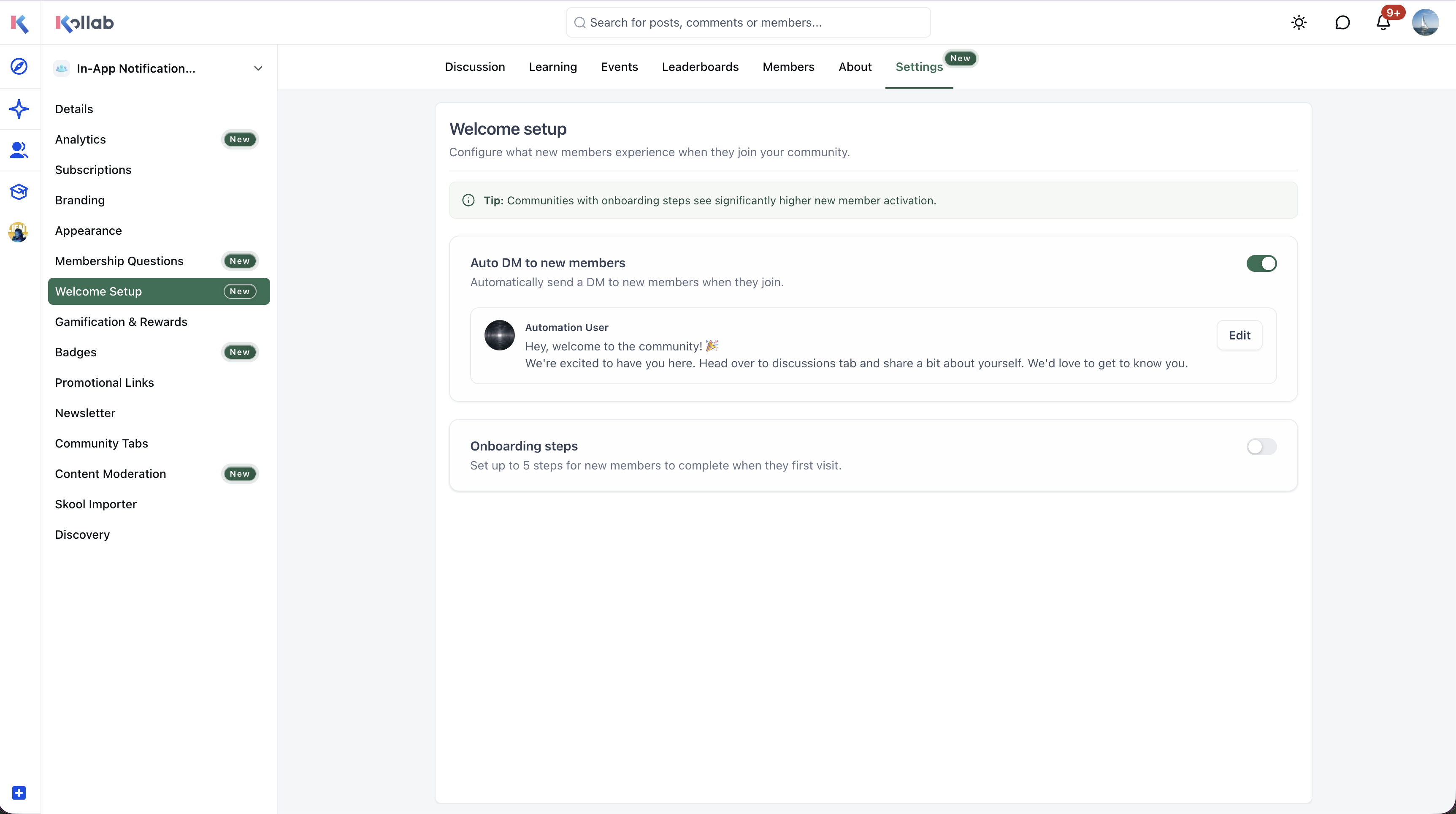
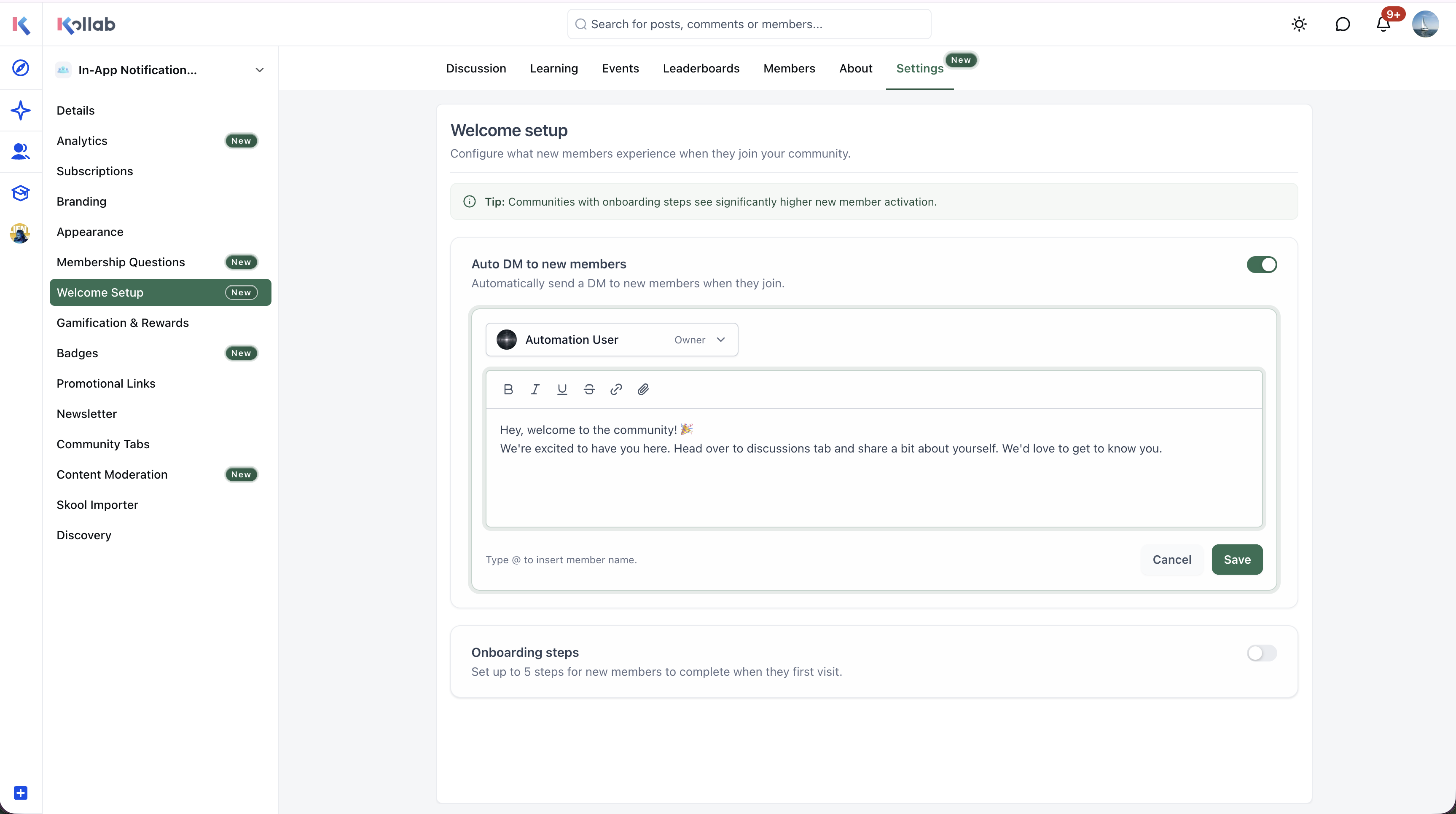
The feature sends a direct message to a member the moment they join a community. The message can include formatted text, links, member name tokens, mentions, and media, and an admin or owner can be chosen as the sender. In the same setup area, you can define up to five onboarding activities. Each activity may prompt the member to update a profile, engage with posts, RSVP to events, watch an introductory video, or follow a custom link. The steps appear in a Get Started checklist on the community home, letting members see, complete, and track their progress. All settings live under Settings > Welcome Setup within a specific community, which you reach from Memberships > Communities > Groups.
03How businesses use welcome DMs and onboarding steps
- Fitness coaching community. The coach creates a welcome DM that links to a new member guide, selects herself as the sender, and adds onboarding steps for profile completion, posting an introduction, and watching a workout video. New members see these tasks in the checklist and can dismiss it after finishing.
- Online education platform. The admin sets a welcome message that includes a token for the member's name and attaches a syllabus PDF. Onboarding steps are configured for updating the learner profile, joining a discussion thread, and viewing a course intro video. Learners follow the checklist from the community feed.
- Local business networking group. The group owner enables a welcome DM sent by a designated admin and adds onboarding activities such as RSVPing to the next meetup event and posting an introduction. Members receive the DM automatically and can complete the steps shown in the Get Started checklist.
04The numbers and rules that matter
- Up to five onboarding steps can be configured.
- Automated welcome DMs can include text formatting, links, mentions, member name tokens, and media attachments.
05Before you start
- Log in to your HighLevel subaccount.
- Navigate to Memberships > Communities > Groups.
06How to set up and use welcome DMs and onboarding steps in HighLevel
Set up welcome DMs and onboarding steps
- Log in to your HighLevel subaccount.
- Navigate to Memberships > Communities > Groups.
- Select the community you wish to edit.
- Open Settings > Welcome Setup.
- Locate the automated welcome DM settings and enable the welcome message.
- Enter and customize your message using formatting, links, tokens, mentions, or media.
- Select the admin or owner who will send the DM.
- Save the welcome DM configuration.
- Open the onboarding steps section within Welcome Setup.
- Add an onboarding activity or create a custom step and include an optional link if needed.
- Add up to five steps and arrange them in the preferred order.
- Save the onboarding steps configuration.
- Verify eligibility rules and completion behavior in the current interface before publishing.
07What it looks like in HighLevel
08Settings that matter
- automated welcome DM. Turns on or off the automatic direct message that is sent when a member joins the community.
- welcome message. Defines the text, formatting, links, member name tokens, mentions, and media that appear in the automated DM.
- sender selection. Specifies which community admin or owner sends the automated welcome DM.
- onboarding steps. Controls the list of up to five activities displayed in the Get Started checklist, including any custom steps and optional links.
09Things to know before you rely on it
- You can configure a maximum of five onboarding steps per community.
- Only newly eligible members see the Get Started checklist on the community home/feed.
- Custom onboarding steps may include an optional link but no other advanced actions.
10How it connects to the rest of HighLevel
- How to create and manage a HighLevel community Community setup guide
- Managing members inside groups in HighLevel Group member management
- All Memberships & Communities features Feature overview
Michael's take

Jumping into any automated system without testing can leave new members feeling ignored if the messages don’t land correctly. Make sure the tokens and links work before you rely on the flow for a large influx of newcomers.
When it works, the combination of a warm DM and a clear checklist provides a roadmap members can follow at their own pace.