
01Who this is for
- Course creators who need a consistent way for members to locate relevant learning material.
- Community managers who want members to browse large course libraries without changing access permissions.
02Course filters, explained
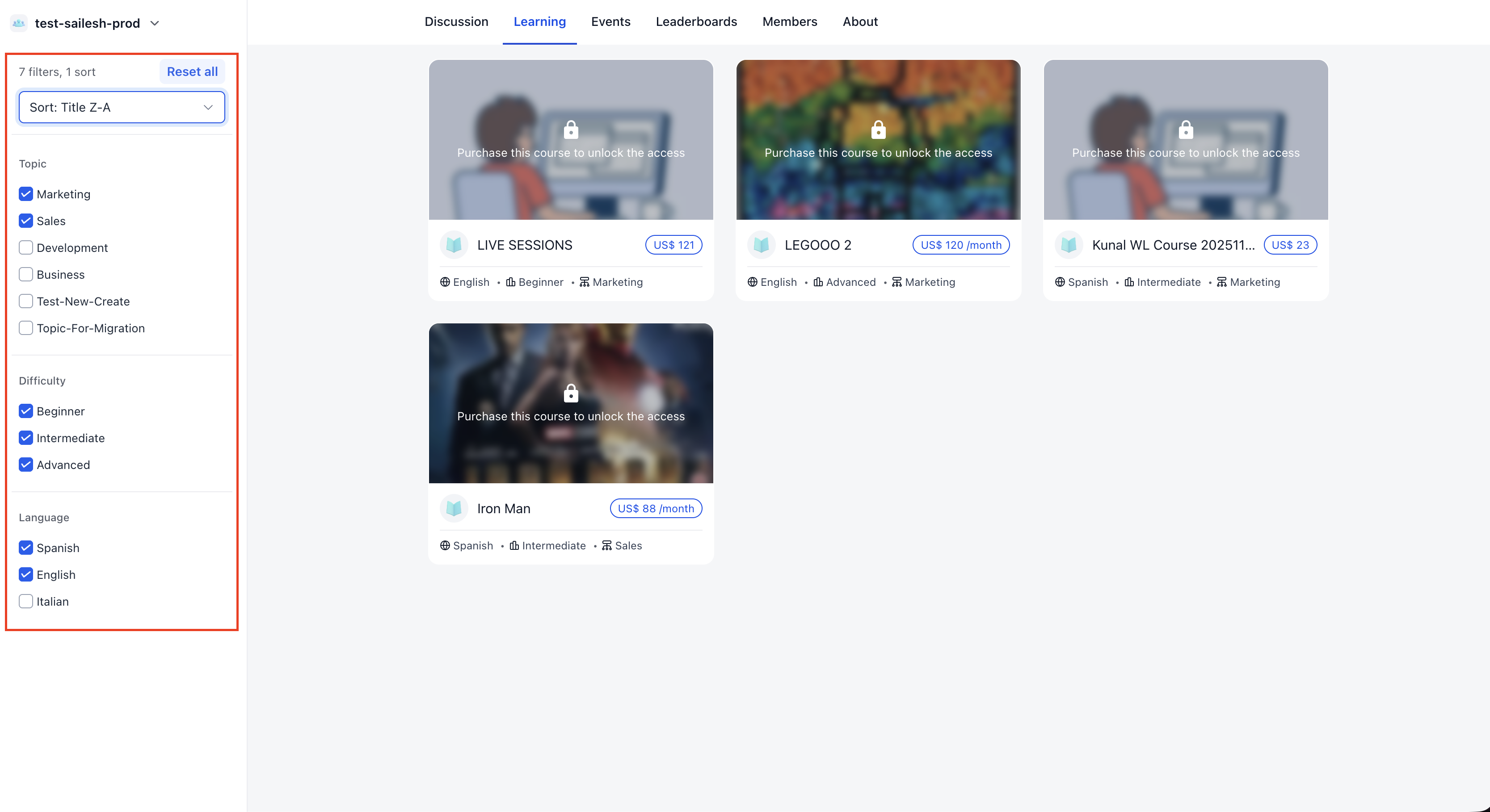
Course filters are metadata fields attached to each course. The three fields, Language, Difficulty, and Topic, describe the primary language, skill level, and subject of the course. When a member opens a Community’s Learning tab, the platform reads these values and presents drop down filters.
Members can select any combination of the three filters to limit the displayed courses. After filtering, they may sort the remaining list by Title, Newest, or Oldest. A Reset all button clears any active filters and returns the full list.
The filter options are defined in the course builder, not in the Community settings. Therefore, filters only affect how already visible courses are presented; they do not modify enrollment or visibility rules.
03How businesses use course filters
- Online language school. The school adds English, Spanish, and French values to each course in the Settings area. Learners then choose their preferred language on the Community Learning tab, seeing only courses taught in that language.
- Fitness coaching platform. Coaches set Difficulty values such as Beginner, Intermediate, and Advanced for each workout course. Clients filter by Difficulty to locate programs suited to their fitness level.
- Software training community. Administrators assign Topic tags like Marketing, Development, and Design. Members select a Topic filter to focus on courses that match their professional interest.
04Before you start
- A course must exist in Memberships > Courses.
- Language, Difficulty, and Topic values need to be set in the course Settings before members can filter.
05How to set up and use course filters in HighLevel
Set up course filters
- Navigate to Memberships > Courses and open the desired course.
- Click the Settings tab for that course.
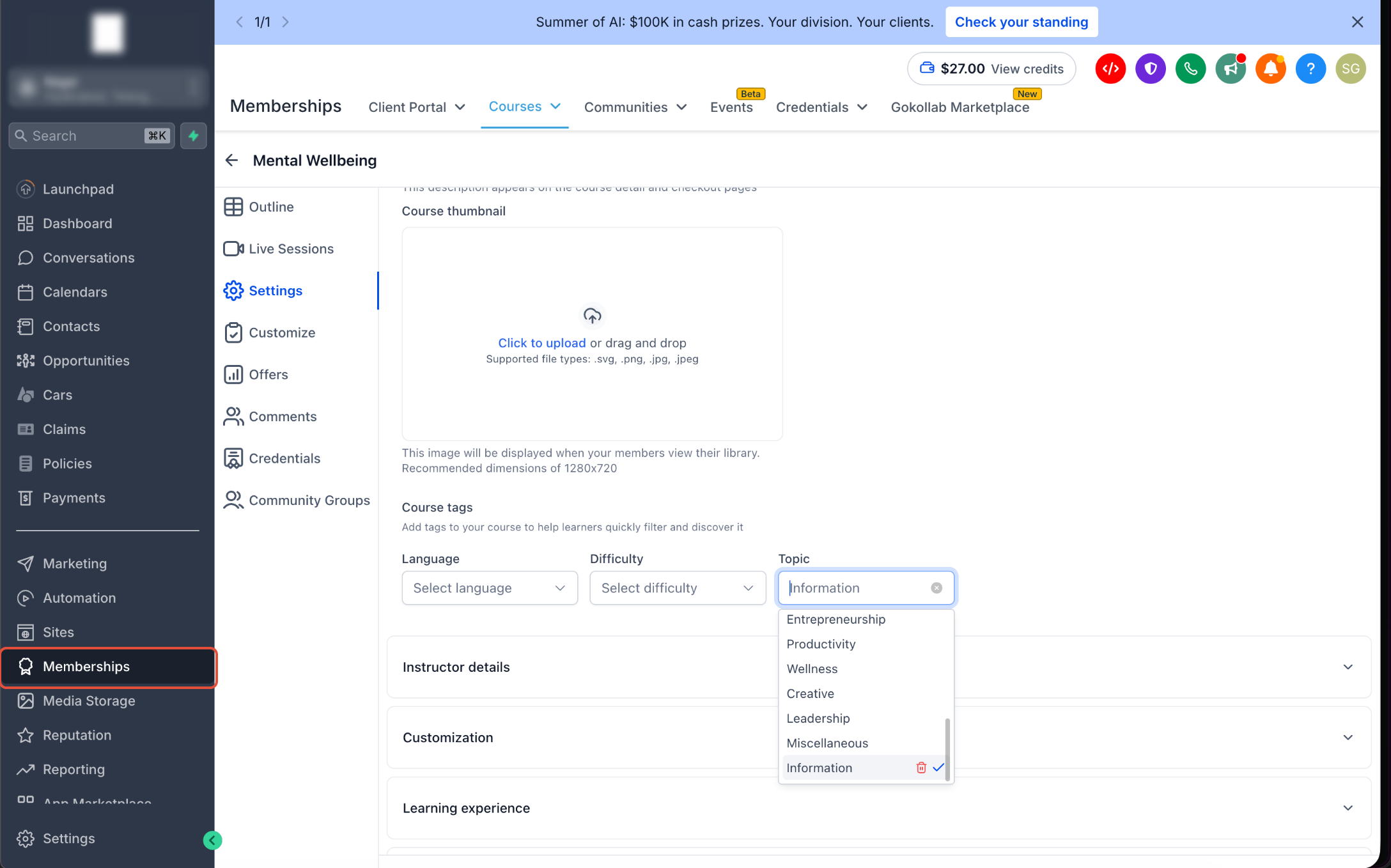
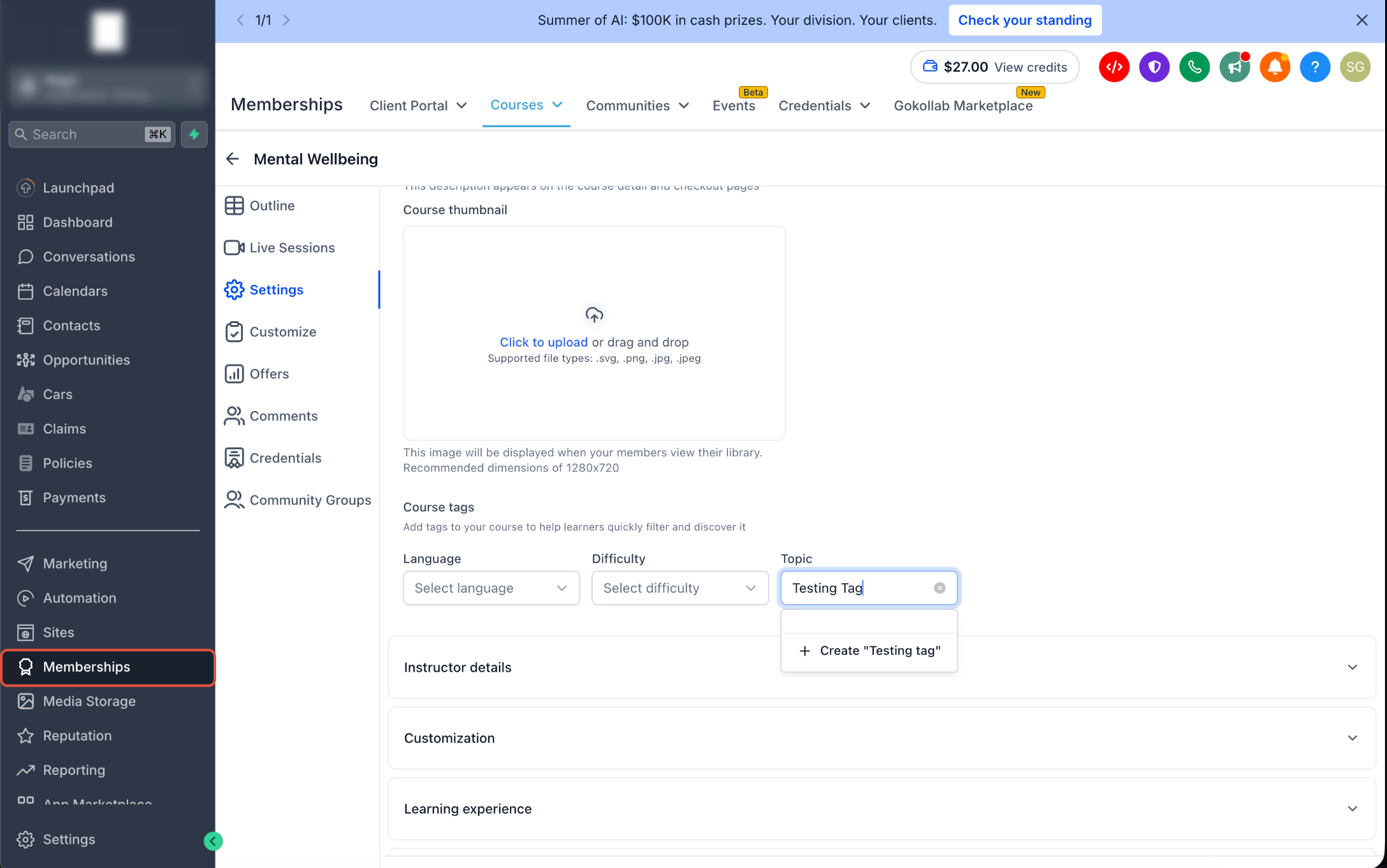
- Locate the Course tags section that lists Language, Difficulty, and Topic.
- Select the appropriate Language value for the course.
- Select the appropriate Difficulty value for the course.
- Select the appropriate Topic value for the course.
- Save the changes to apply the metadata.
- Open the Community where the course is available, go to Learning, and verify the course appears under the selected filters.
Filter courses as a community member
- Open the Community you belong to.
- Click the Learning tab.
- Choose one or more values for Topic, Difficulty, or Language.
- Review the list of courses that match the selected criteria.
- Use the Sort dropdown to arrange results by Title, Newest, or Oldest.
- Select Reset all to clear any active filters.
06What it looks like in HighLevel
07Settings that matter
- Language. Specifies the primary language used in the course, enabling members to filter by language.
- Difficulty. Indicates the intended learner experience level, allowing members to filter by skill level.
- Topic. Describes the main subject area of the course, used for topic based filtering.
08Things to know before you rely on it
- Filters do not grant access to courses that a member is not already permitted to see.
- Accurate metadata is required; missing values may cause a course to be excluded from filtered results.
- Combining several filter criteria can dramatically reduce the number of displayed courses.
- Filters are driven by values set in the Course Settings, not by Community configuration.
09If something goes wrong
- A filter does not show the expected course. Open the course Settings and confirm the correct Language, Difficulty, or Topic value is assigned and saved.
- The member cannot see the course at all. Check the course's Community visibility and access configuration; filters do not override access restrictions.
- Too few courses are displayed. Review all active filters; using multiple criteria can narrow results substantially.
- The course appears under the wrong filter. Verify the metadata assigned to the course and correct any inaccurate values.
- The member wants to see all courses again. Select Reset all to remove the active filters.
- A newly configured value is not reflected. Save the course, refresh the Community Learning page, and confirm you are testing the correct course and Community.
10How it connects to the rest of HighLevel
- Build courses and assign metadata in the course builder Course builder
- Create and manage Communities where members browse courses Manage Communities
- Set up membership products to attach to course offers Product setup
Michael's take

Jumping into course filters without solid metadata can backfire; a mistagged course either disappears from view or shows up in the wrong place, confusing learners. Take the time to audit your Language, Difficulty and Topic labels before you rely on the filters to drive engagement.
When the tags line up, members zip straight to the content they need, and creators keep their libraries tidy. A clean filter set turns a sprawling course catalog into a searchable, organized resource that feels intentional.