
01Who this is for
- Marketing managers can keep AI context across campaigns, ensuring messages stay consistent with earlier interactions.
- Customer support teams can retain sentiment analysis for each contact, improving follow up quality.
- Ecommerce owners can use past purchase conversations to craft tailored product recommendations.
02GPT histories, explained
The GPT History option is part of the "GPT Powered by OpenAI" action inside a HighLevel workflow. When enabled, the platform saves prior prompts and responses according to the selected history type. The saved data is then supplied to subsequent GPT actions in the same scope.
History can be scoped to the entire subaccount, a single workflow, a single execution, an individual step, or a custom type defined by the user. System instructions can be added to guide the AI, and toggles let you exclude those instructions or the AI responses from the stored history. The setting lives under the action’s configuration panel.
Enabling history automatically selects GPT 4 models. The stored context is isolated per contact, so each user’s conversation remains separate.
03How businesses use GPT history
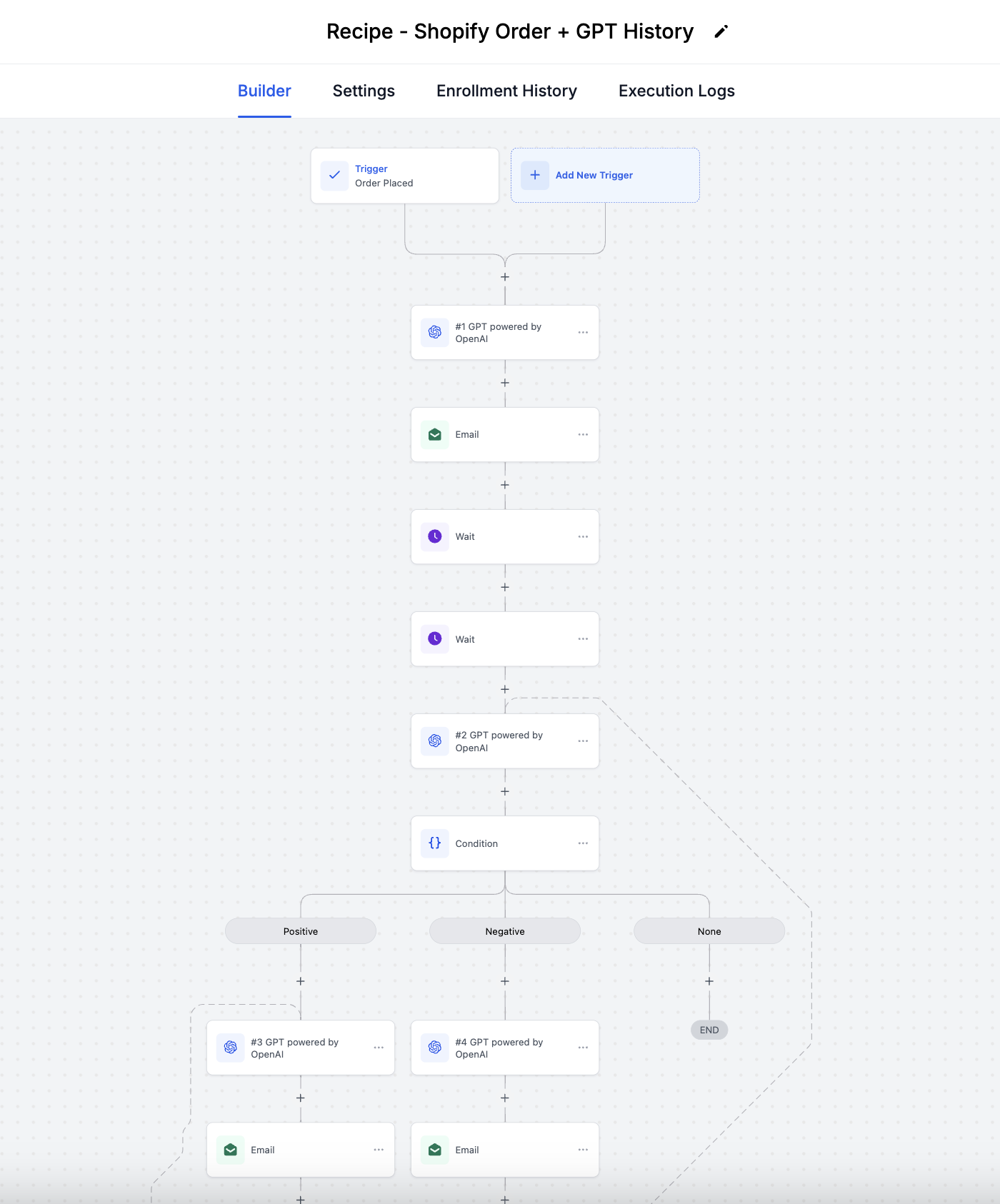
- Ecommerce store. Add a GPT action after an order placed trigger. Enable history with "This Subaccount" scope so the AI remembers each buyer’s past purchases. Include system instructions to focus recommendations on product categories.
- Coaching business. Create a workflow that follows up with clients after a session. Turn on history for "This Workflow" to keep the AI aware of previous coaching notes. Use the exclude responses toggle when only sentiment scores are needed.
- Real estate agency. Set up a lead nurture workflow that uses GPT to draft property suggestions. Enable history at the "Custom" level to share context across multiple workflows that handle buyer preferences. Add system instructions to enforce branding language.
04The numbers and rules that matter
- If Enable History is switched on then by default GPT 4 models will be selected.
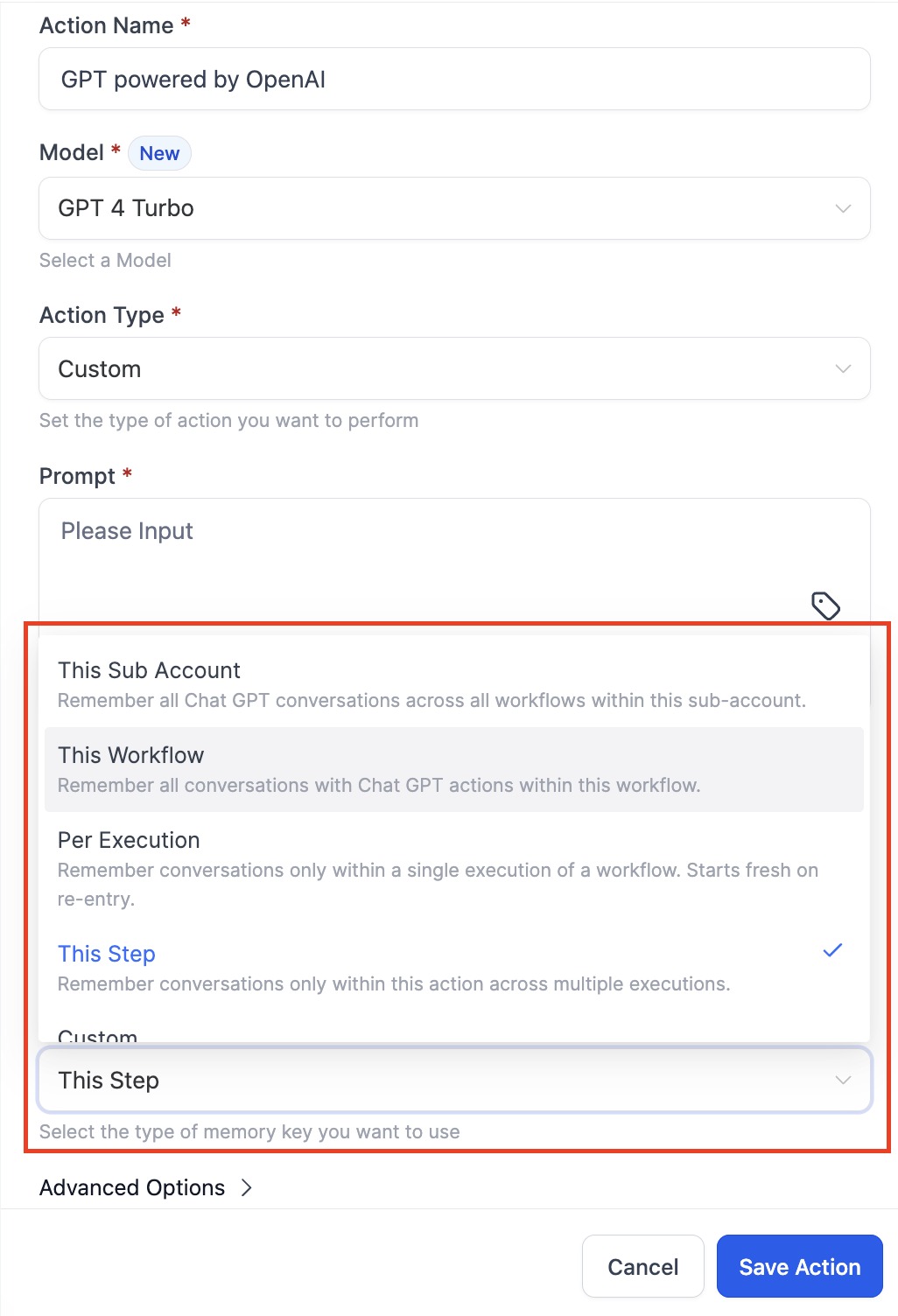
- There are 5 types of History that can be stored: This subaccount, This Workflow, Per Execution, This Step, Custom.
05Before you start
- The Labs option for GPT must be enabled in the account settings.
06How to set up and use GPT history in HighLevel
Enable and configure GPT history for a workflow action
- Open the Labs section and turn on the GPT option.
- In the workflow editor, choose the "GPT Powered by OpenAI" action.
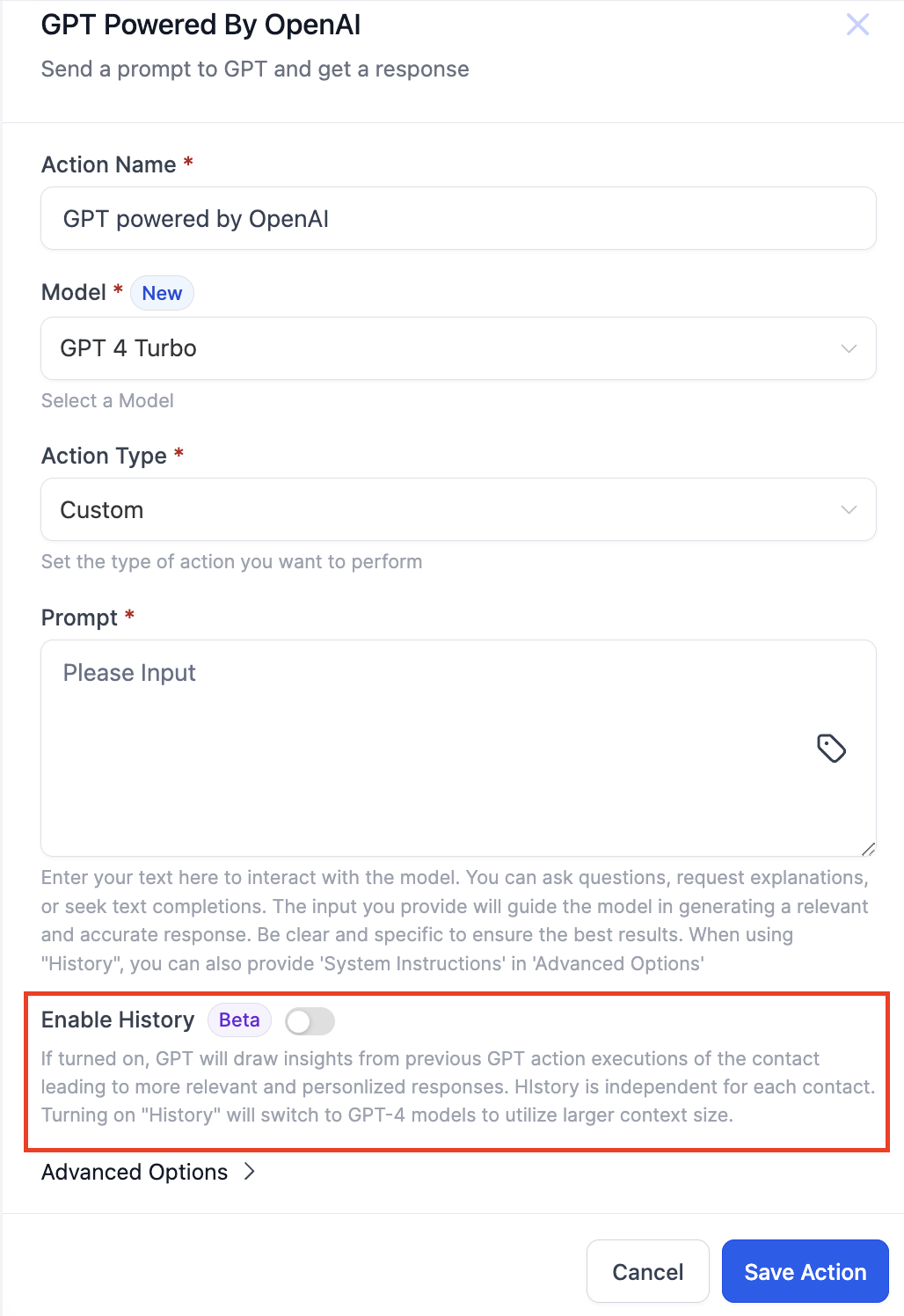
- Activate the "Enable history" toggle within the action settings.
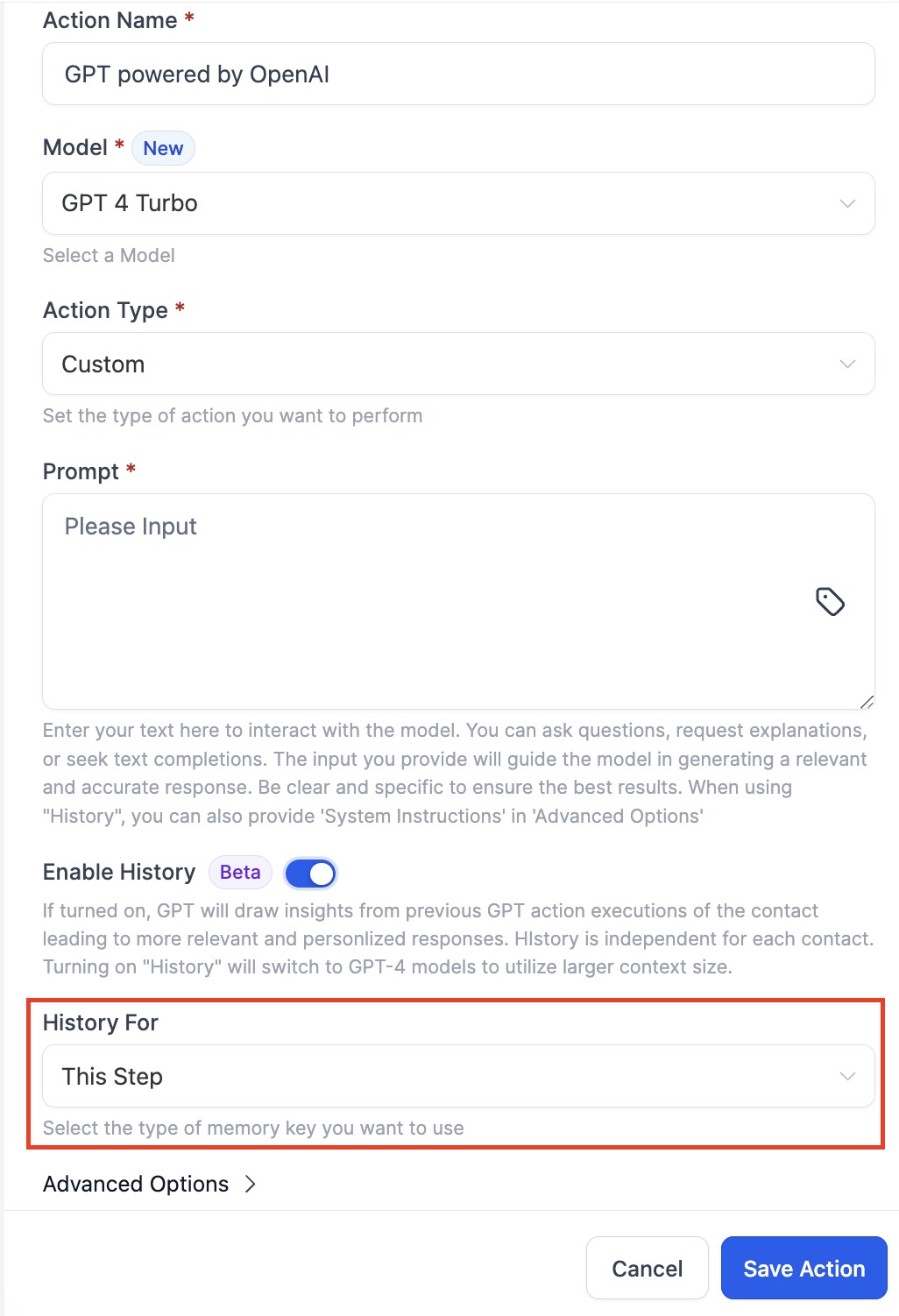
- From the "History for" dropdown, pick the desired history type.
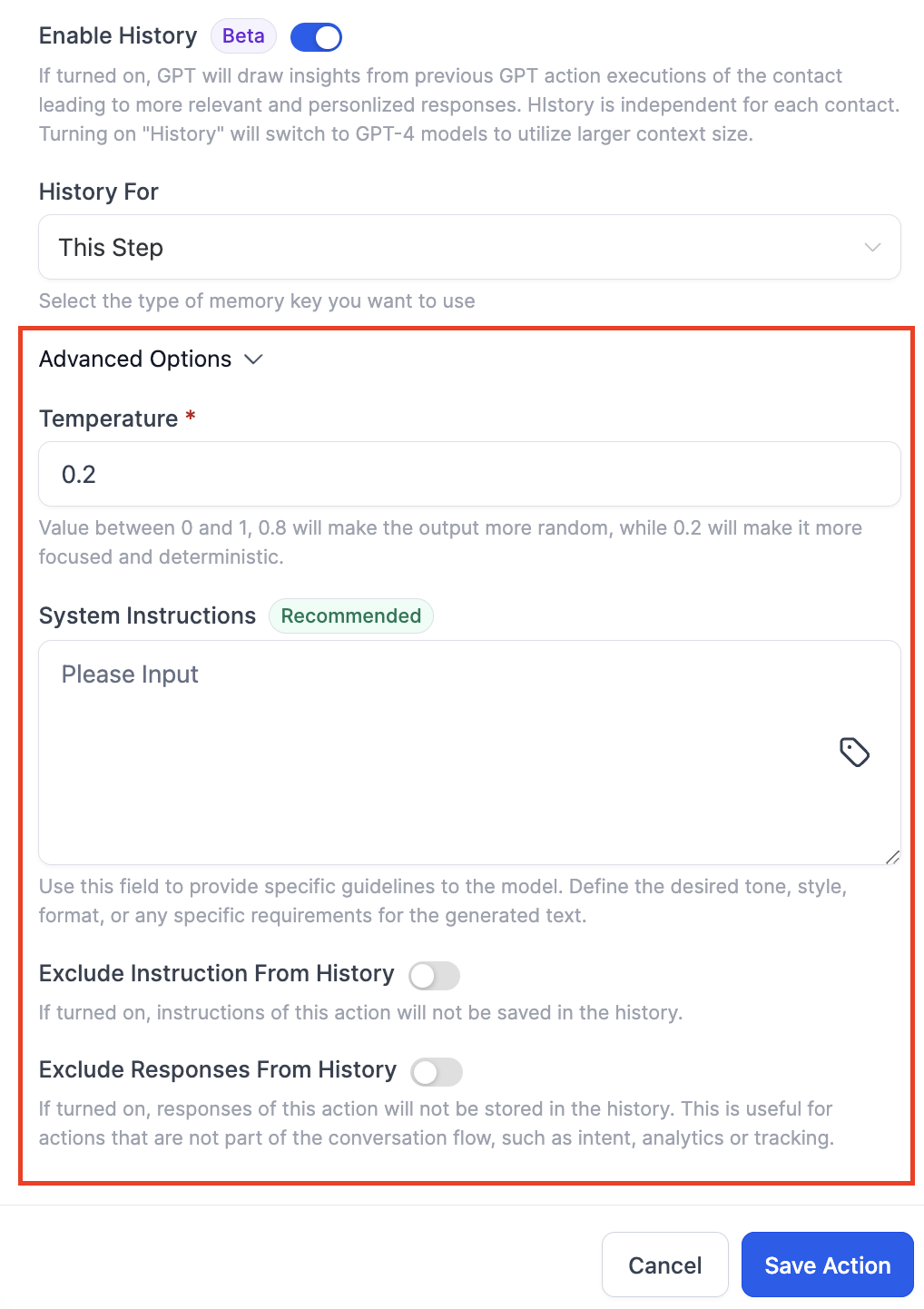
- Enter any system instructions you want the AI to follow.
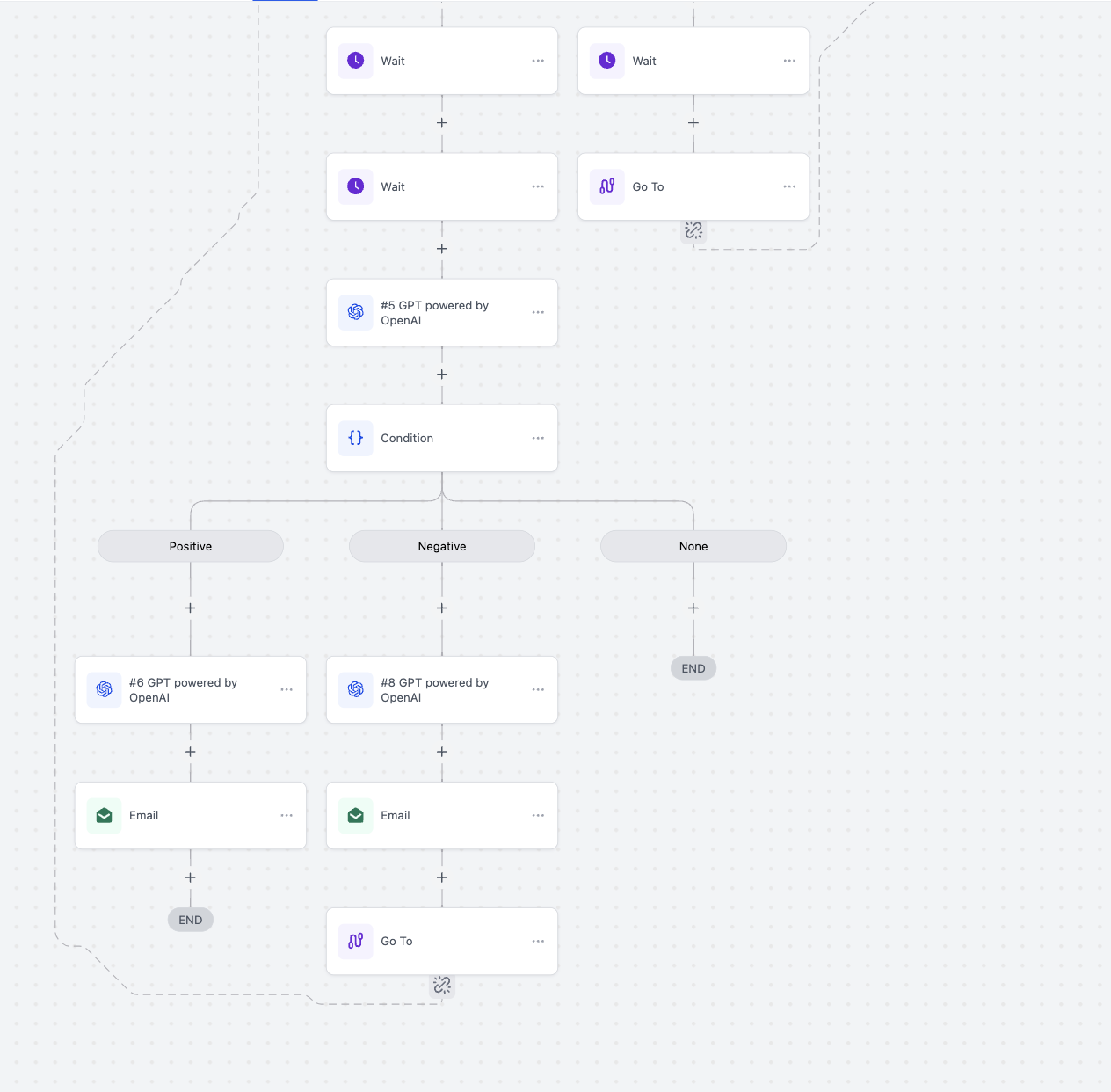
07What it looks like in HighLevel
08Settings that matter
- Enable history. Turns on storage of GPT prompts and replies for the selected scope.
- History for. Determines where the saved conversation data is applied, such as subaccount, workflow, execution, step, or a custom type.
- System Instructions. Provides static guidance to the AI that is applied to all GPT actions using the history.
- Exclude instructions from history. Prevents the system instructions from being saved alongside the conversation data.
- Exclude responses from history. Stops the AI’s output from being added to the saved history, useful for sentiment or analytics data.
09Things to know before you rely on it
- When history is enabled, GPT 4 models are selected by default.
- History works only for actions using the "Custom" type.
- Each contact has an independent history store.
10How it connects to the rest of HighLevel
- Learn the basics of building workflows and adding actions. Workflow basics
- Explore how to create, edit, and manage workflow triggers and filters. Workflow creation guide
- Check the pricing tiers for workflow automation features. Pricing tiers
Michael's take

People often think turning on history will automatically give perfect context across every workflow. In reality the history scope you pick. Like This Step or This Workflow. Determines how far that context stretches, and the default GPT 4 model kicks in as soon as you enable it.
If I were setting this up, I’d start with a single workflow, enable history, and choose the "This Workflow" option so I can see how the model builds on earlier prompts. I’d add clear system instructions and leave responses out of history when I only need sentiment data.