
Show your customers the familiar "typing..." bubble while your workflow or AI agent prepares a reply. Instead of silence after they message you, customers see straight away that their message landed and an answer is on the way, so automated WhatsApp conversations feel personal and fewer customers gi
Michael's take
I think this is a modest but practical tweak. It doesn’t add new capabilities, it just fills a gap that makes the chat feel less empty.
If you already have workflows that reply to incoming WhatsApp messages, you can now insert a typing bubble right before the reply is sent, so the customer sees something happening instead of silence.
I would walk through a few workflows and verify that the indicator shows up, clears after the reply, and that it marks the inbound message as read only where I intend it to.
In a typical use case, a potential client asks about pricing and your AI agent is pulling the data. The typing bubble appears while the lookup runs, keeping the prospect from sending a follow up or dropping the chat.
Automation should feel like a conversation, not a robotic dead air. Small touches like this generally keep people engaged better than big banners.
It’s worth checking out if you rely on HighLevel’s WhatsApp automation for lead capture or customer service.
Show your customers the familiar "typing..." bubble while your workflow or AI agent prepares a reply. Instead of silence after they message you, customers see straight away that their message landed and an answer is on the way, so automated WhatsApp conversations feel personal and fewer customers give up before you respond.
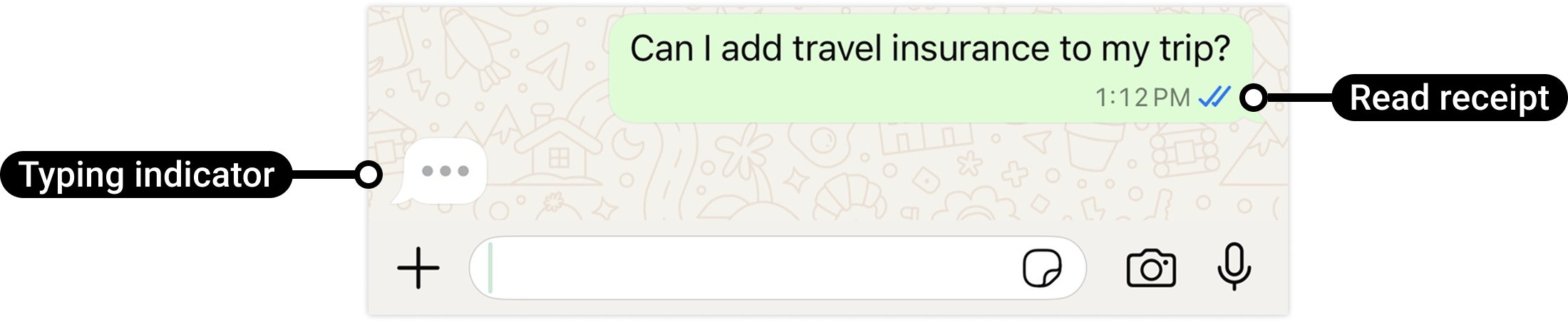
> Silence after a message reads as "nobody's there." A typing bubble tells your customer you're already on it.
What changed
A new typing indicator action in workflows
- Instant reassurance:Add the action to any workflow that replies to an incoming WhatsApp message. Your customer sees "typing..." in their chat, exactly as they would from a person.
- Built for automated replies:Place it just before an AI agent's reply, a lookup, or a wait step, so the moments where your automation is working are no longer dead air.
- Clears itself:The indicator disappears as soon as your reply arrives, or after 25 seconds, whichever comes first.
You decide where it fires
- Full control over placement:The indicator only appears where you add it, so it shows up in conversations you are about to answer and nowhere else.
- Read receipts on your terms:Showing the typing indicator also marks the customer's message as read (blue ticks). Because it's an action you place, that's a deliberate choice rather than something that happens automatically.
How this helps in real life
- AI agents answering questions:A customer asks about pricing. They see "typing..." right away while your Conversation AI agent prepares the answer, instead of wondering whether anyone is there.
- Booking and order lookups:A customer asks about an appointment or delivery. The indicator holds their attention while your workflow fetches the details.
- After hours enquiries:Even when your team is offline, your automation still feels attentive and responsive.
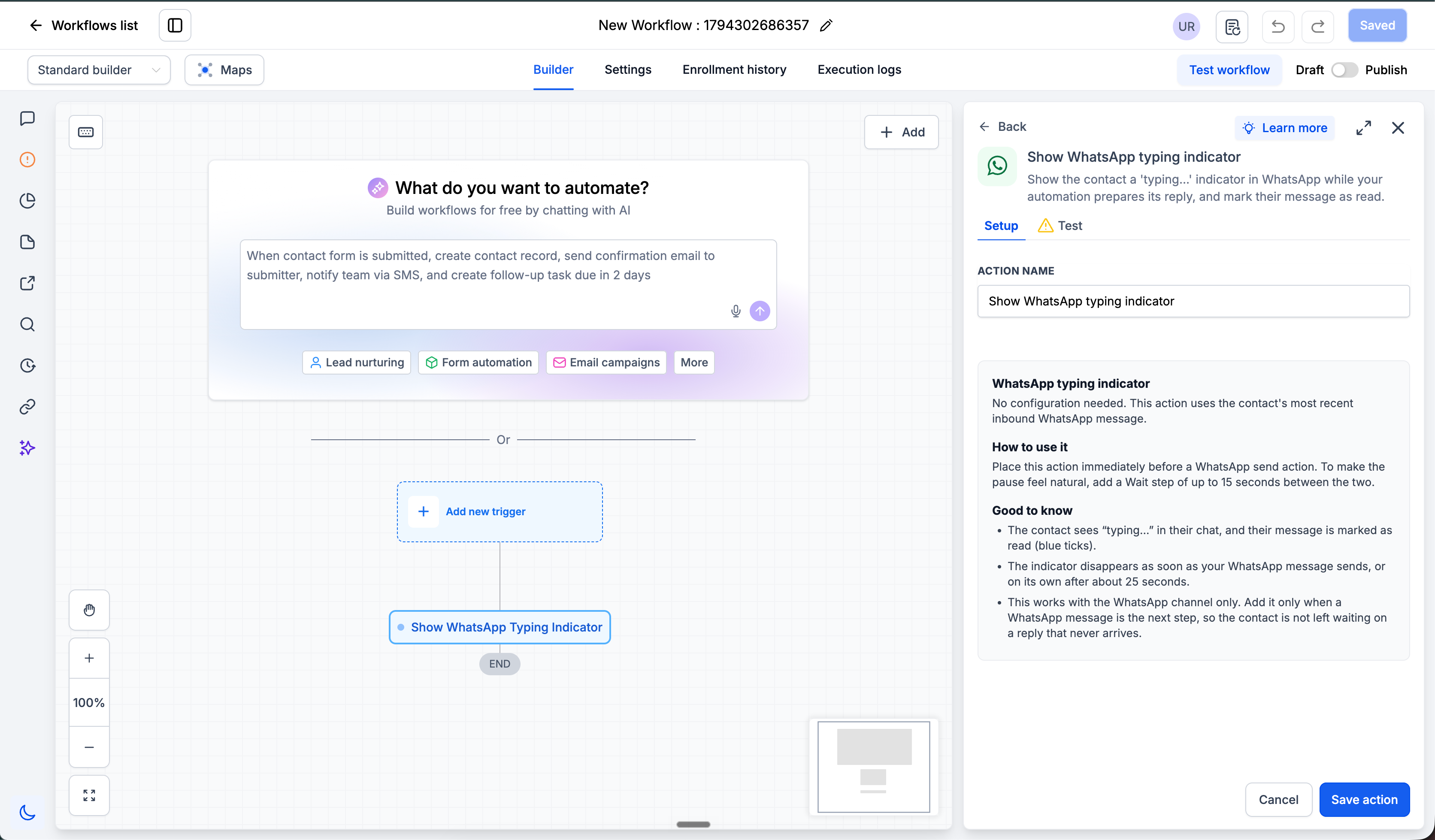
How to turn it on
- Go toAutomation > Workflowsand open a workflow triggered by an incoming WhatsApp message.
- Click+to add an action and search fortyping indicator.
- Place it right before the step that sends your reply.
- Save and publish your workflow.
Tip:Only add the indicator where your workflow will actually send a reply. Showing "typing..." and then sending nothing is a worse experience than showing nothing at all.
Why it matters for Founders
Why this matters for your business
More and more WhatsApp conversations are now handled by automation and AI agents, and customers judge them by how human they feel. A conversation that goes quiet after the first message looks broken, and customers who think nobody is there send the same message again or leave. The typing indicator is the simplest way to show them someone is on it.
- Keep more leads in the conversationby showing straight away that a reply is coming
- Make automation feel human,so AI led conversations build trust instead of eroding it
- Cut down on repeat messagesfrom customers unsure whether they were heard
- Stay in controlof when messages are marked as read
Open your busiest WhatsApp reply workflow and add the typing indicator before your reply.
Questions Founders ask
What did HighLevel release in "WhatsApp typing indicator action for workflows"?
Show your customers the familiar "typing..." bubble while your workflow or AI agent prepares a reply. Instead of silence after they message you, customers see straight away that their message landed and an answer is on the way, so automated WhatsApp conversations feel personal and fewer customers gi
What should a Founder do with WhatsApp typing indicator action for workflows?
Open your busiest WhatsApp reply workflow and add the typing indicator before the reply step. Founders and agency owners who automate WhatsApp conversations in HighLevel.
How do I turn on WhatsApp typing indicator action for workflows in HighLevel?
In HighLevel: Go to Automation > Workflows and open a workflow triggered by an incoming WhatsApp message. Then Click + to add an action and search for typing indicator. Then Place it right before the step that sends your reply. Then Save and publish your workflow.
Why does WhatsApp typing indicator action for workflows matter?
More and more WhatsApp conversations are now handled by automation and AI agents, and customers judge them by how human they feel. A conversation that goes quiet after the first message looks broken, and customers who think nobody is there send the same message again or leave. The typing indicator is the simplest way to show them someone is on it. Keep more leads in the conversation by showing straight away that a re
How do I get this feature with setup help?
Start a free HighLevel trial through Michael Reimer's link and the CRM Pros team helps with setup in your first 7 days, with an onboarding call, three live calls every week and the affiliate community included.
Get More InformationOpens in a new tab Published November 10, 2026. Screenshots belong to HighLevel.