
01Who this is for
- Marketing managers can locate existing leads by email or custom IDs to continue nurturing within a funnel.
- Support teams can match inbound webhook data to a contact record, enabling ticket creation without manual lookup.
02Find Contact workflow actions, explained
The Find Contact action looks up a contact in the platform’s database based on values you provide. You can match standard fields like Email or Phone, custom fields you have defined, or external identifiers stored in a custom field. The action works especially well when a workflow starts without a contact attached, such as with an Inbound Webhook trigger.
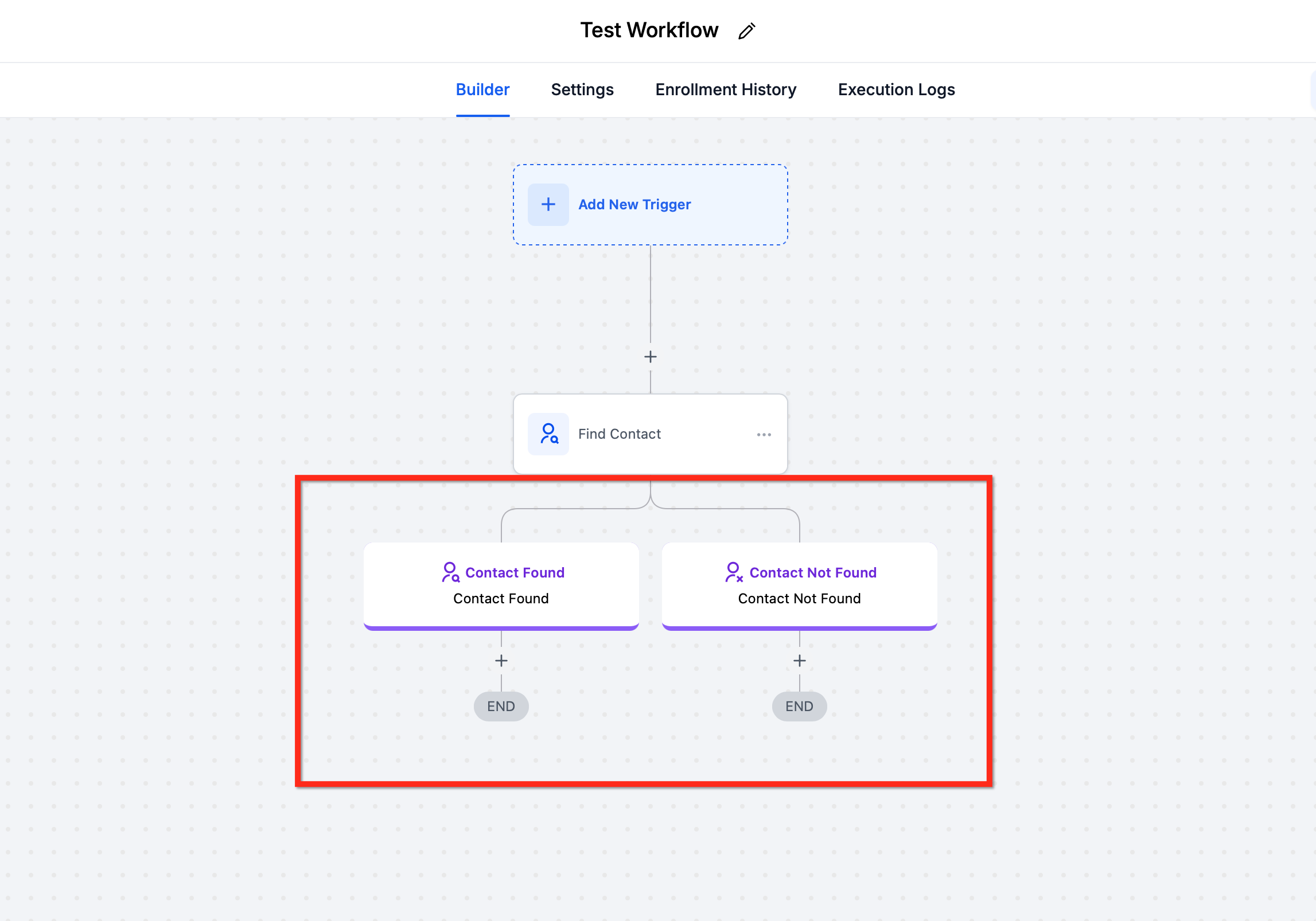
When the action runs, it evaluates the supplied fields using AND logic, every selected field must match for a contact to be returned. The action then exposes two paths: one for a successful match (Contact Found) and another when no contact meets the criteria (Contact Not Found). You can attach any downstream actions to either branch.
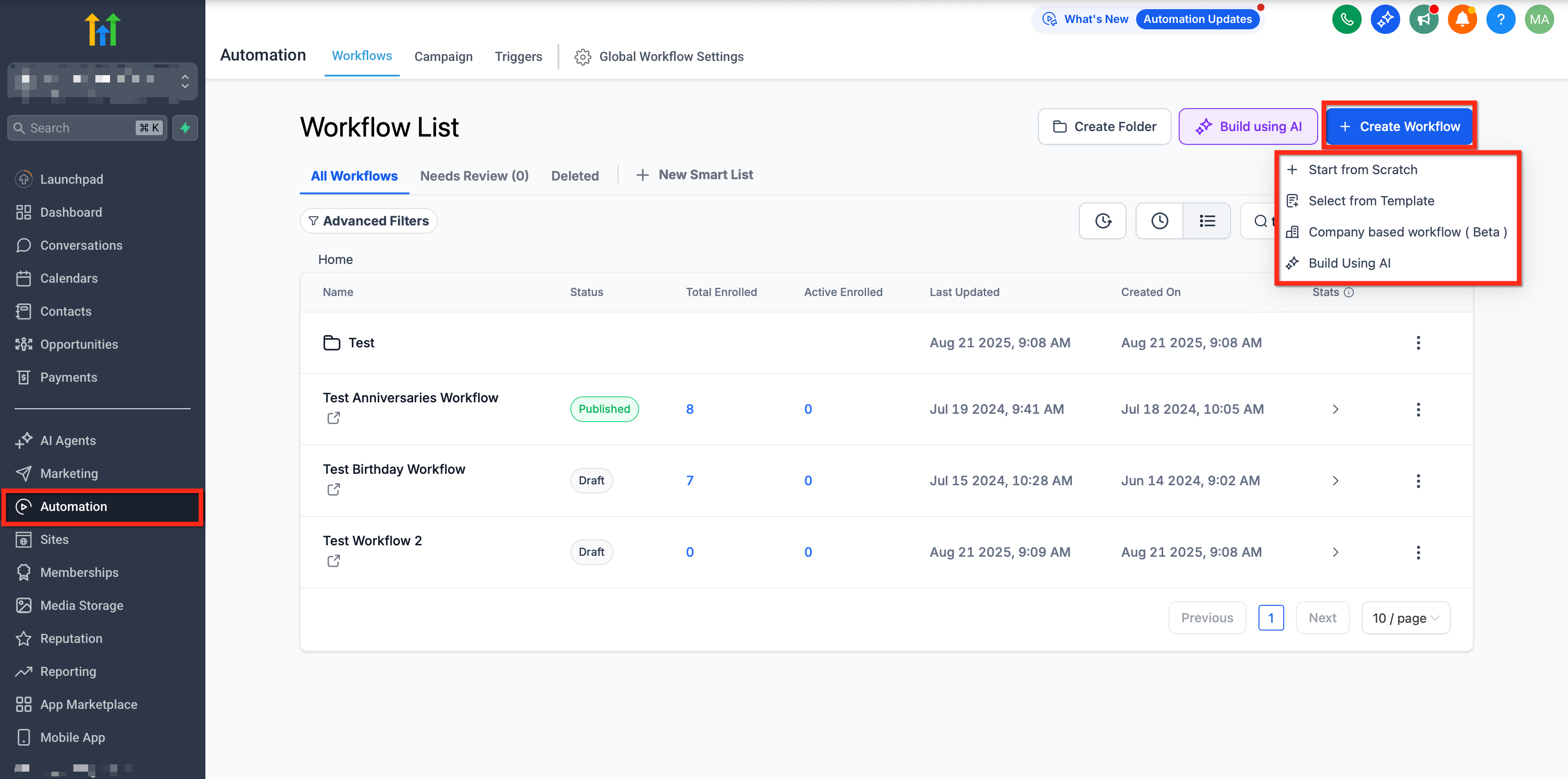
The action is configured inside the workflow builder under Automation. After adding it, you choose the match fields, optional extra email/phone inclusion, and connect it to a trigger that supplies the data. Once saved and published, the workflow will automatically locate contacts or follow the not found branch.
03How businesses use Find Contact workflow action
- Digital marketing agency. The agency receives lead emails via a webhook from an ad platform. It adds a Find Contact action that matches the incoming email to an existing lead. If the lead exists, the workflow tags and emails the prospect; if not, it creates a new contact and starts the onboarding sequence.
- Online subscription service. When a payment gateway sends a customer ID, the service uses Find Contact with a custom field that stores that ID. A matching contact is updated with the new subscription status; otherwise, the workflow creates the contact and records the ID for future reference.
- Appointment scheduling business. A scheduling tool posts booking details containing an email address. The business adds a Find Contact step to locate the client record. If found, the workflow attaches the appointment and sends a confirmation; if not, it creates the contact and notifies the staff.
04The numbers and rules that matter
- Supported match fields: Standard fields (Email, Phone, First Name, Last Name, etc.), Custom Fields (e.g., Customer ID, Subscription Tier), External references (e.g., Stripe Customer ID).
05Before you start
- Any custom field you plan to match on must already exist in the platform.
06How to set up and use Find Contact workflow action in HighLevel
Configure Find Contact action
- Open the workflow builder inside Automation and start a new workflow or edit an existing one.
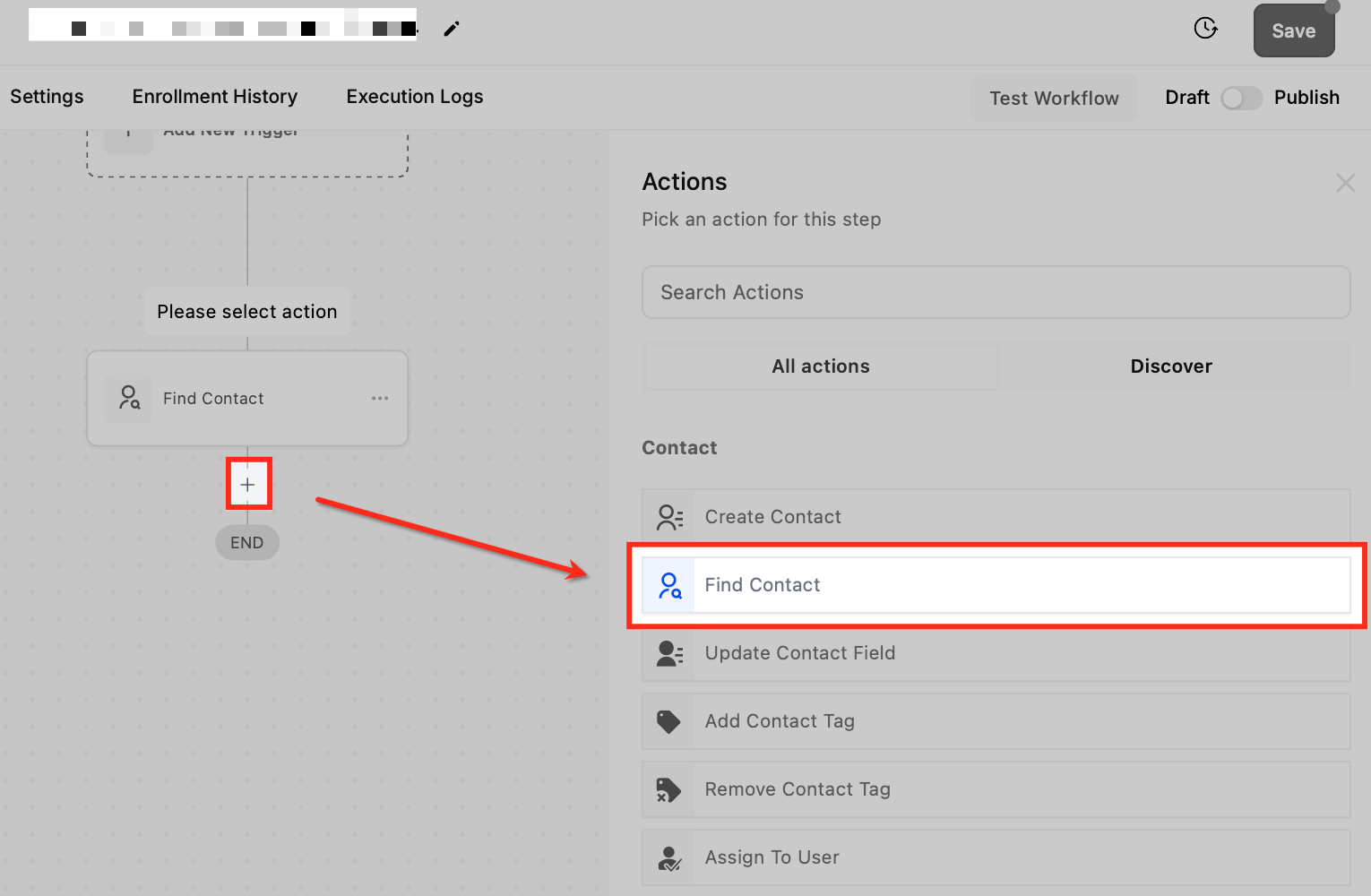
- Click the plus icon and select the Find Contact action from the dropdown list.
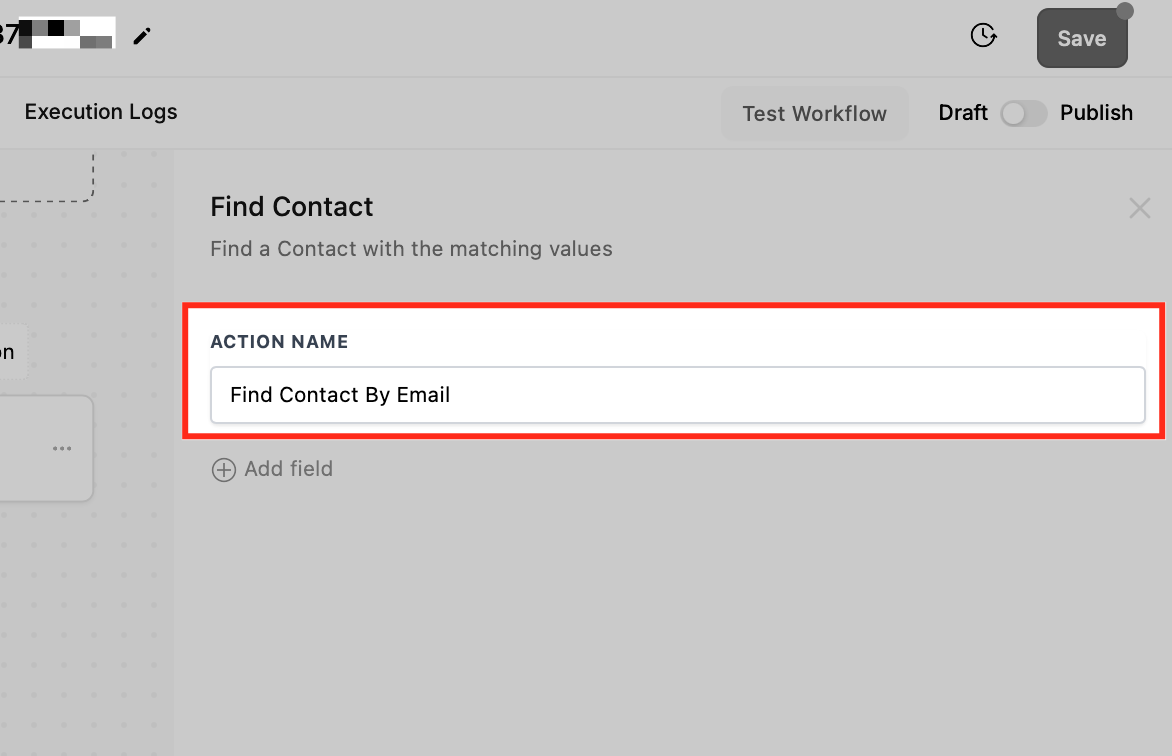
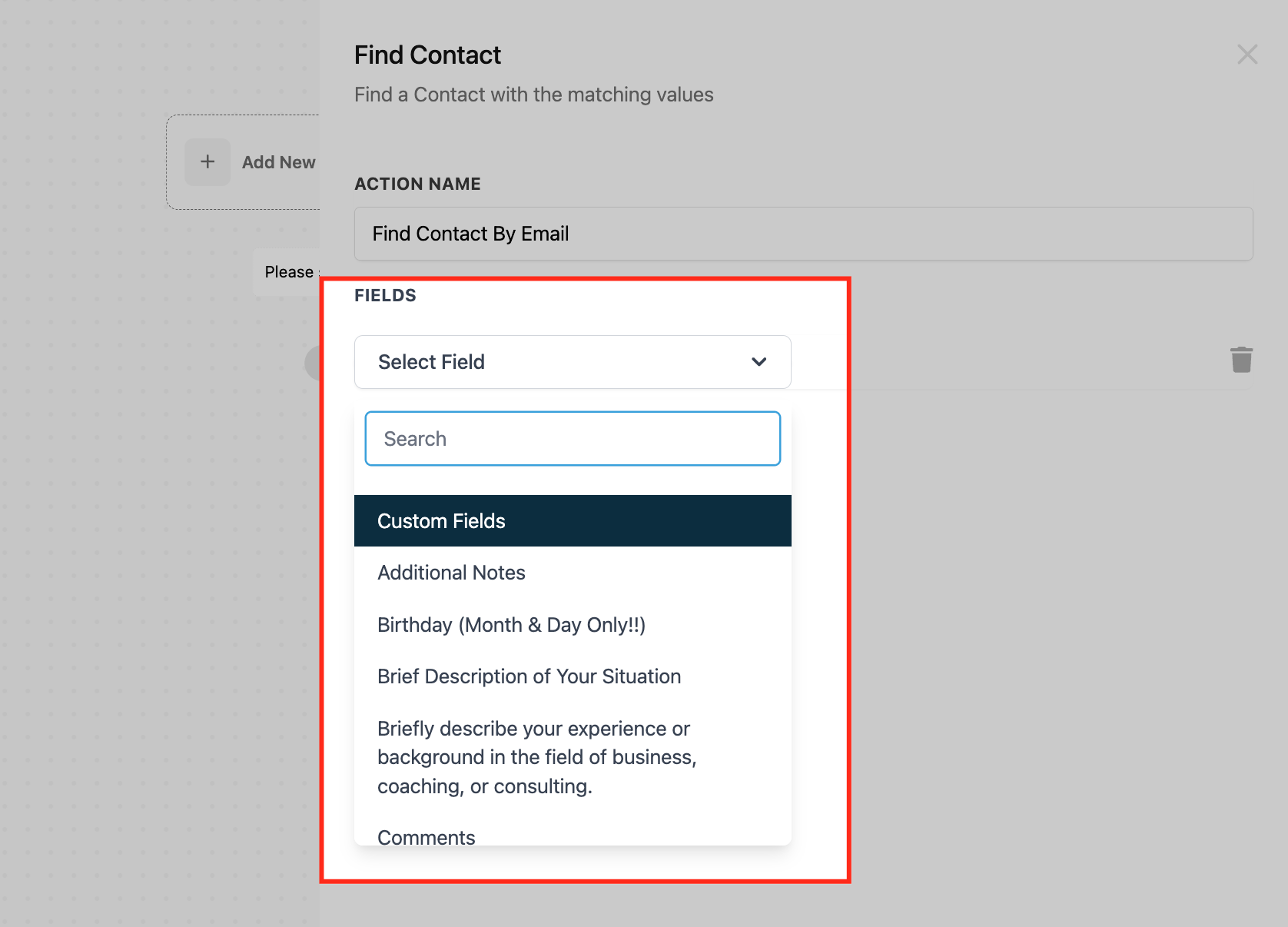
- Enter a descriptive name for the action, such as Find Contact by Email.
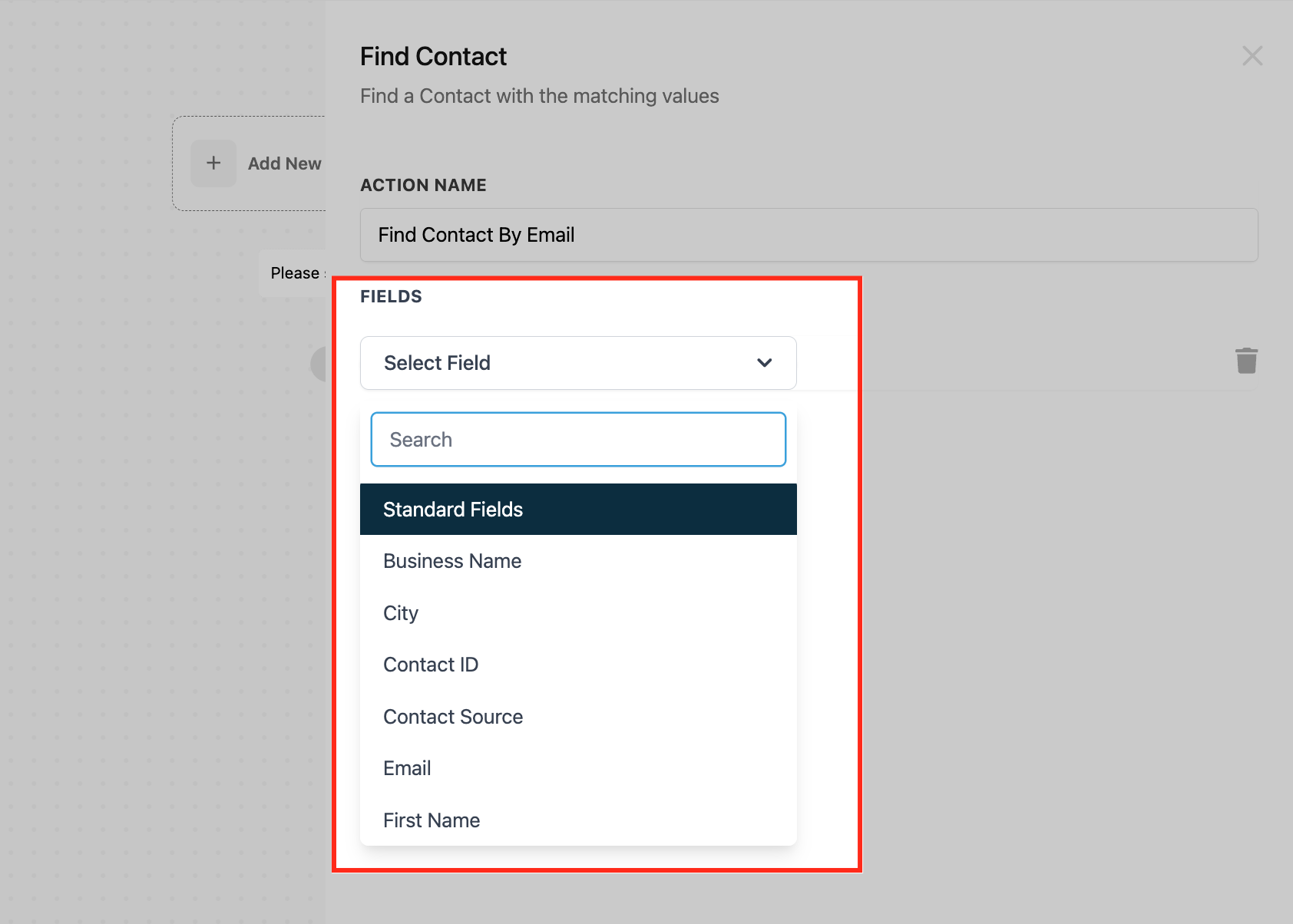
- Choose one or more standard fields (Email, Phone, First Name, Last Name, etc.) to use for matching.
- Optionally add custom fields, create them first if they do not exist, then select the appropriate field.
- Link the action to a trigger that supplies the matching values, for example an Inbound Webhook trigger.
- Create steps under the Contact Found branch and under the Contact Not Found branch to define follow up actions.
- Run a test with sample data to verify that the search works, then save the action.
- Publish the workflow to enable the automated contact search.
- If you need to match secondary emails or phone numbers, select the field and enable the checkbox for additional values.
- Review the matching logic to ensure all chosen fields use AND logic for a successful match.
07What it looks like in HighLevel
08Settings that matter
- Standard Fields. Selects built in fields such as Email or Phone that the action will compare against incoming data.
- Custom Fields. Chooses user defined fields, like Customer ID, to use as additional match criteria.
- External References. Maps an external identifier (e.g., Stripe Customer ID) stored in a custom field to enable matching on that value.
- Include additional emails/phone numbers. When enabled, the action also searches any secondary email addresses or phone numbers stored on the contact.
09Things to know before you rely on it
- By default, the action only matches the primary Email or Phone field.
- Matching requires all selected fields to be equal; using multiple fields applies AND logic.
- If more than one contact satisfies the criteria, the result may be ambiguous; tighten criteria with more specific fields.
- The action creates two branches, Contact Found and Contact Not Found, for downstream handling.
10How it connects to the rest of HighLevel
- Add a tag after a contact is found Add Contact Tag
- Create a new contact when no match is found Create Contact
- Update fields on a matched contact Update Contact Field
- Learn how inbound webhook triggers supply data Inbound Webhook Trigger
- Explore pricing and plan options for workflow features Pricing
Michael's take

The Find Contact workflow action feels like a small convenience that removes a manual lookup step. It’s handy when you’re pulling data from a form, payment system, or scheduling app and you need to connect that data to an existing person without first knowing their HighLevel ID.
If I were building a lead capture flow for a real estate team that receives email addresses from a Facebook lead ad, I’d drop a Find Contact step right after the webhook trigger, match on Email, and then either tag the existing prospect or create a fresh contact. Running a quick test with a couple of sample emails confirms the branches fire as expected before I let the automation run live.