
01Who this is for
- Founders of service based businesses who need to log appointment details for each client.
- Marketing teams that want to capture lead preferences directly on contact records.
- Support managers who require a quick reference of prior interactions inside the contact profile.
02Add to notes, explained
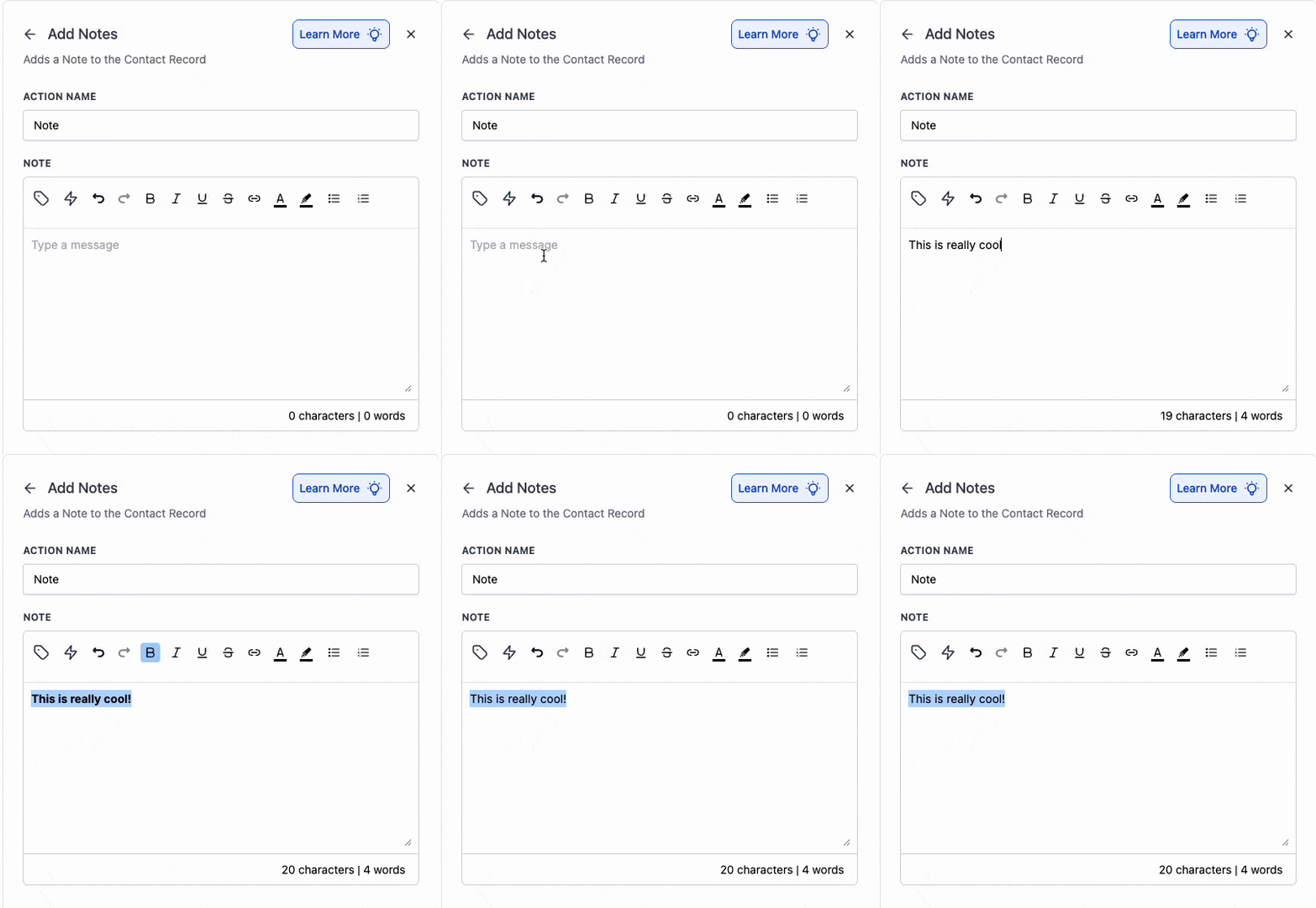
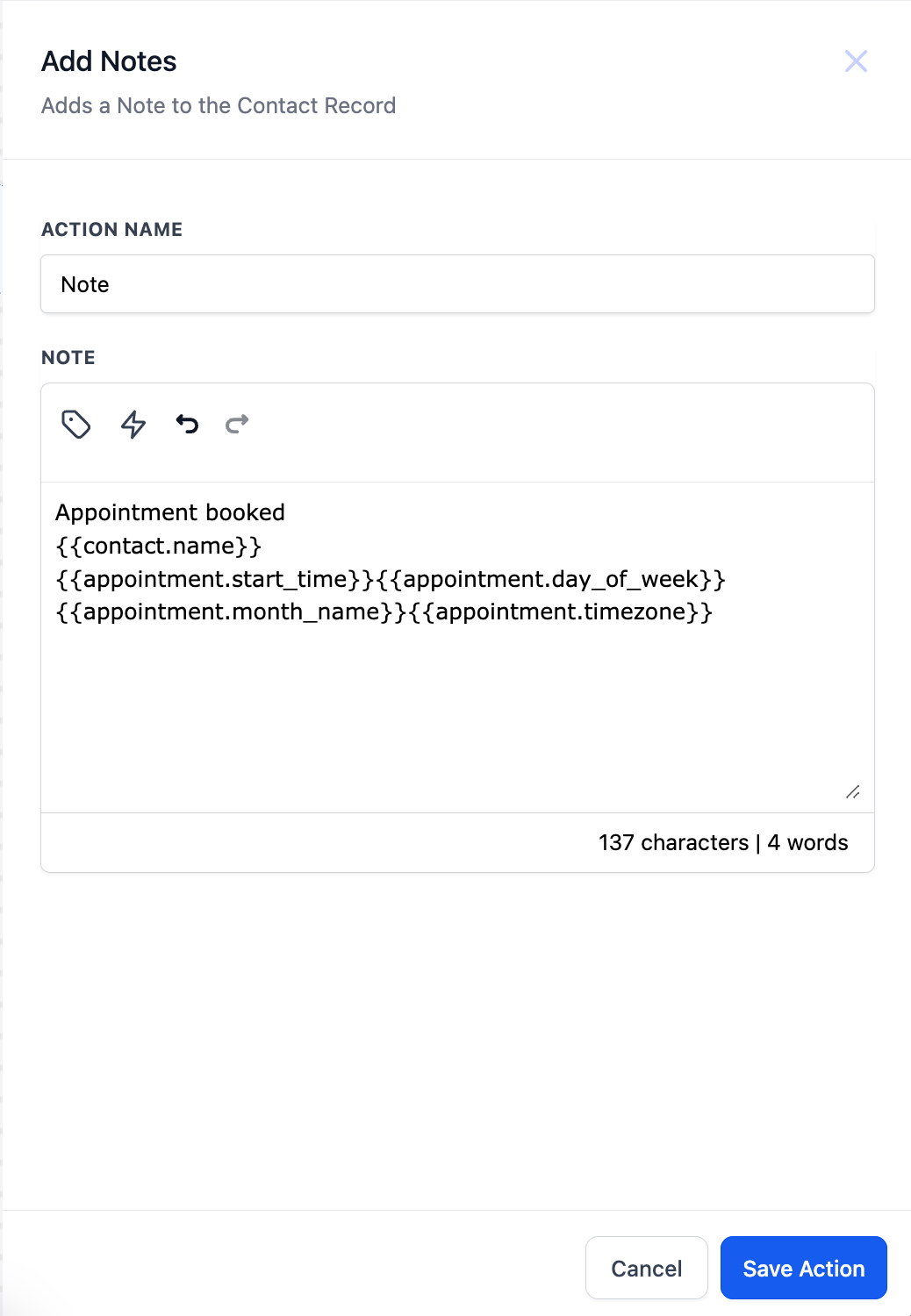
Add to Notes is an action available within HighLevel’s workflow builder. When a workflow triggers, this action creates a note attached to the record that entered the workflow, either a contact or a custom object. The note appears in the record’s Notes field and supports the platform’s rich text editor, allowing bold, italics, lists and hyperlinks.
The action includes an optional title field and an optional color picker for contacts. These extra fields are not required, so existing workflows that used Add to Notes continue to run unchanged. In custom object workflows, the title and color options are presently unavailable.
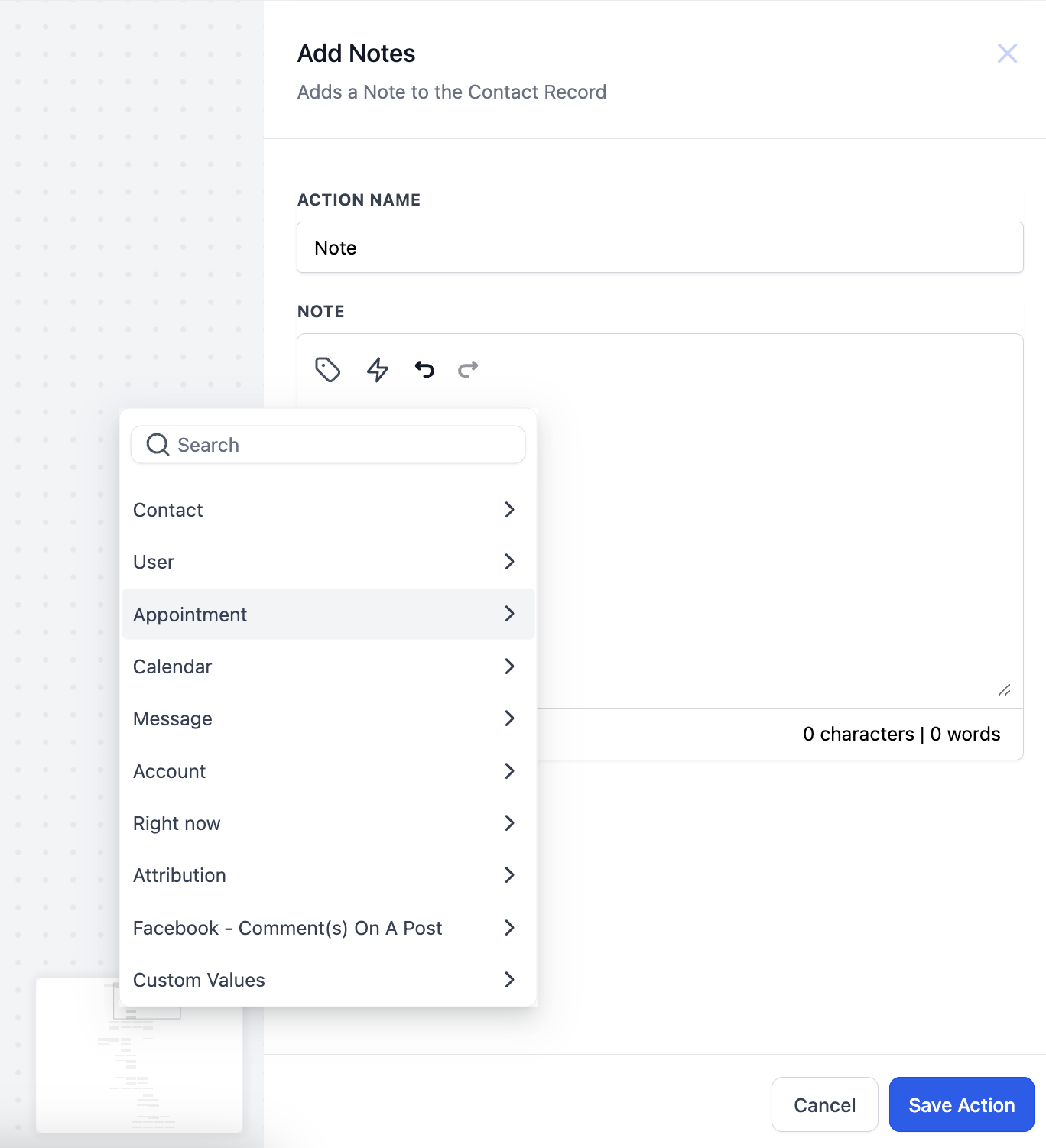
Custom values can be inserted through the custom value picker, and trigger links can be added via the dedicated icon, enabling dynamic content that reflects the workflow’s data at run time.
03How businesses use add to notes
- Dental practice. When a patient books an appointment, the practice adds a note containing the appointment date, procedure type and any special requests using custom values. The note appears on the patient’s contact record for staff to reference during the visit.
- Real estate agency. An agent creates a workflow that runs when a lead submits a property inquiry. The workflow adds a note with the property address, price range and the lead’s preferred communication method, using custom values and optional formatting.
- Fitness studio. Upon a member’s check in, a workflow adds a note that logs the class attended and any trainer notes. The studio includes a trigger link so staff can quickly open the member’s schedule from the note.
04How to set up and use add to notes in HighLevel
Add a note via workflow
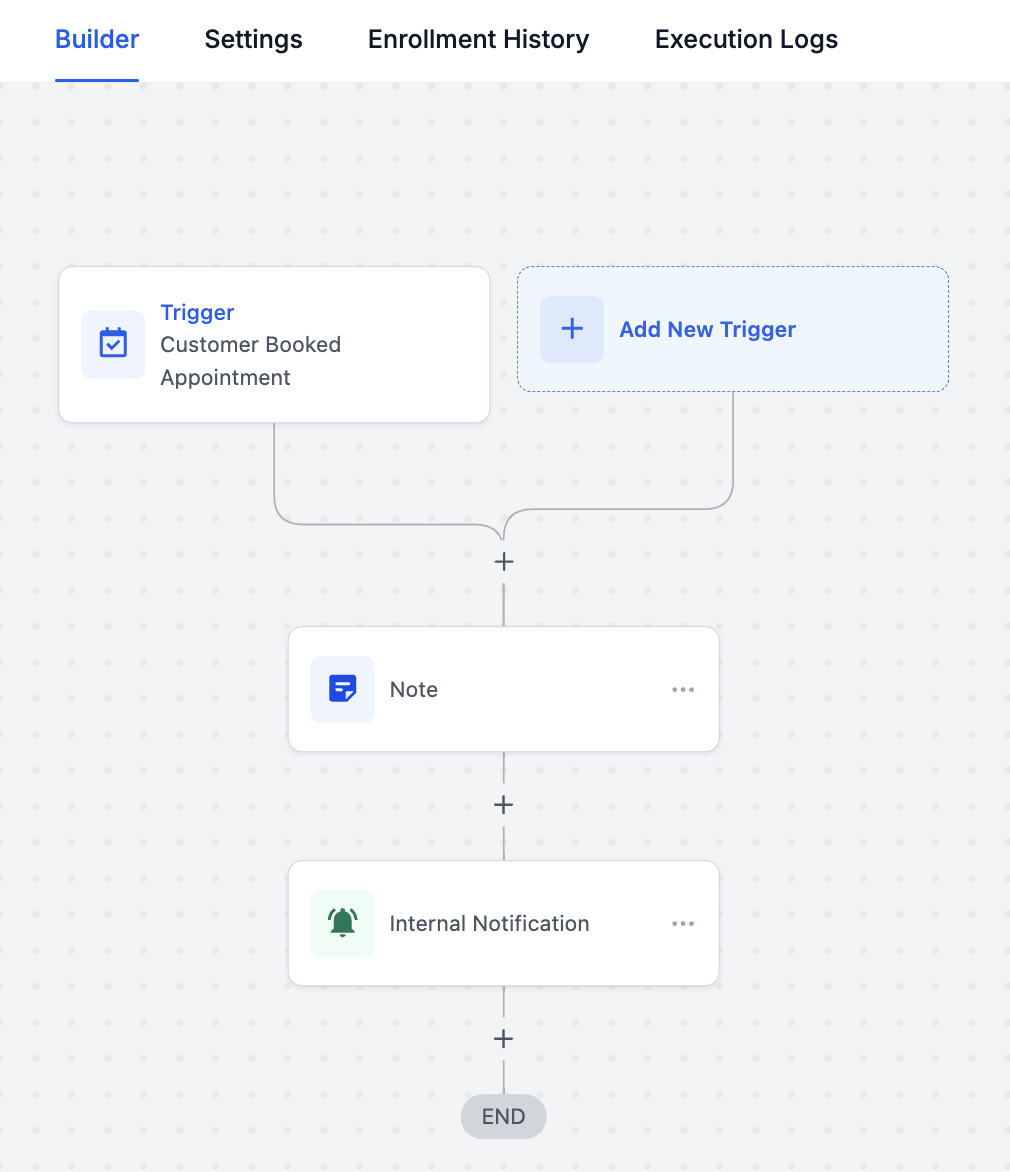
- Select the Add to Notes action from the list of available workflow actions.
- Enter a descriptive name for the action, such as Add Notes.
- Type the desired note content into the rich text editor that appears.
- Insert any needed custom values by opening the custom value picker.
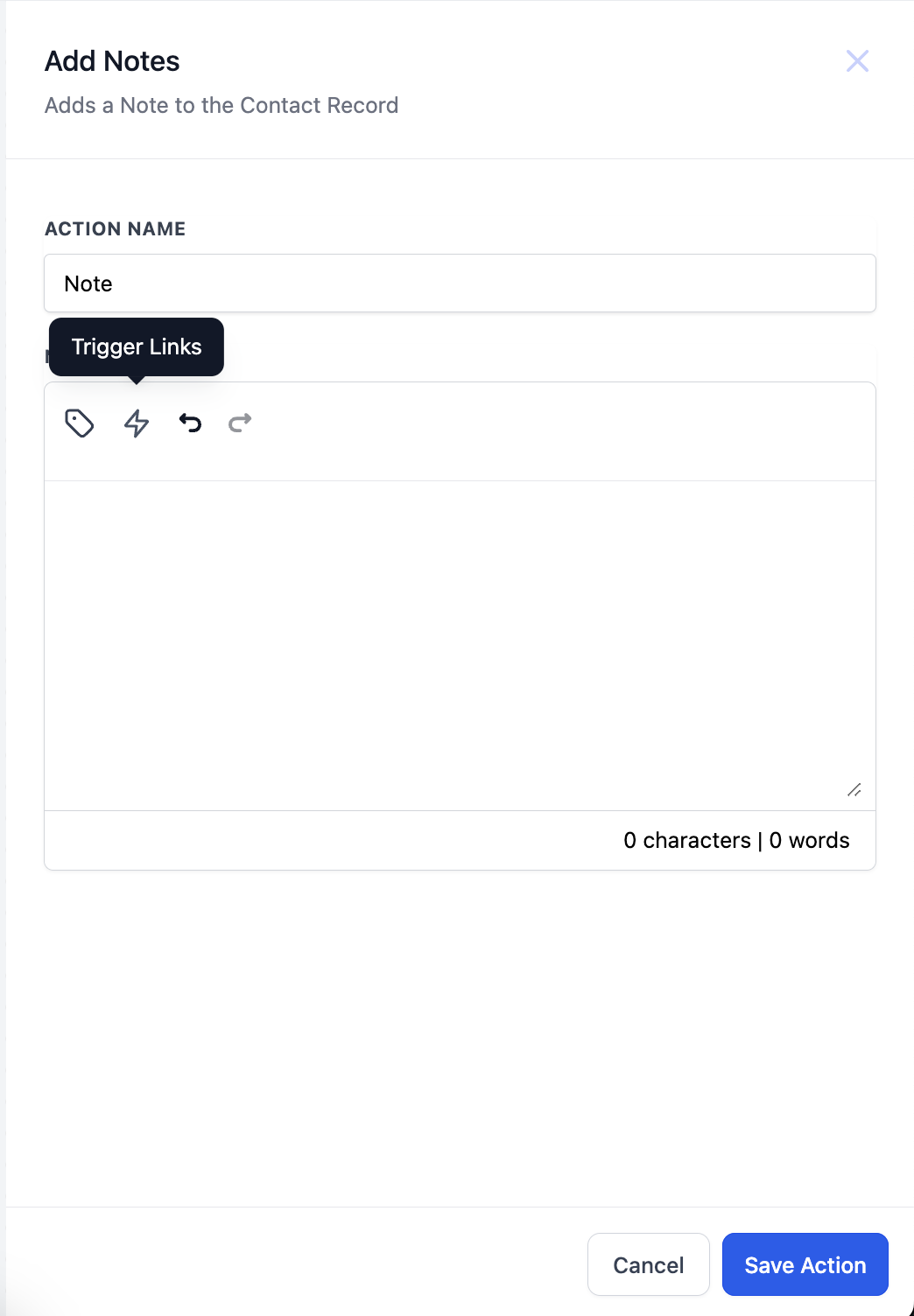
- Add trigger links by clicking the Trigger Links icon inside the editor.
- Optionally set a note title and choose a note color; leave these blank if they are not required.
05What it looks like in HighLevel
06Settings that matter
- Note title. Allows an optional heading to appear above the note content for contact records.
- Note color. Enables selection of a background color that highlights the note on contact records.
07Things to know before you rely on it
- Note title and note color are not supported for notes added in custom object workflows.
- The action adds a note only to the record that enrolled in the workflow; it does not affect any other records.
08How it connects to the rest of HighLevel
- Add a contact tag after creating a note to flag the contact for follow up. Add Contact Tag
- Update a contact field with the note’s creation date for reporting purposes. Update Contact Field
- Assign the contact to a team member once the note is added to ensure responsibility. Assign to User
- Review HighLevel’s workflow basics before building the Add to Notes action. Workflow basics
- Check the pricing tiers for the Workflow Pro plan if advanced automation is needed. Workflow Pro pricing
Michael's take

Skipping the optional title and color means the note will not have those visual cues.
When you need a quick reference to a client’s request or an appointment detail, the Add to Notes action slots that info right where you already look. Under the Notes tab. It’s a straightforward way to keep the record complete without extra manual steps.