
01Who this is for
- Marketers who run automated campaigns and need contact information to stay current without manual edits.
- Support staff who maintain client records and want to reduce time spent correcting contact details.
02Update contact field actions, explained
The Update Contact Field action modifies a contact's stored information when a workflow runs. It can set a fixed value, use a dynamic value, update several fields at once, add selections to supported multi select fields, or clear a field entirely. The action appears in the workflow editor under Automation > Workflows.
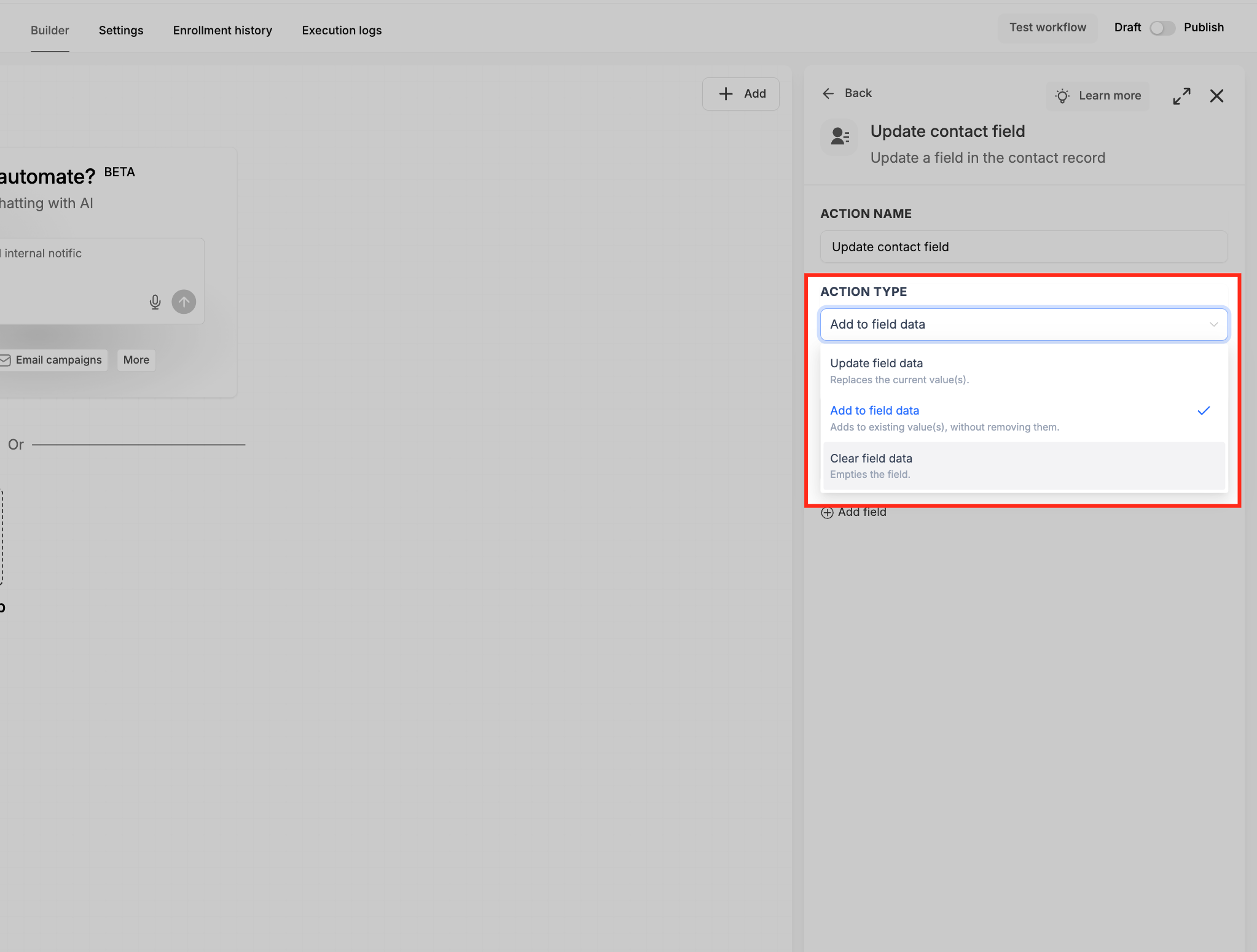
When you add the action, you choose an Action Type that determines how the new data is applied. "Update field data" overwrites the existing value, "Add to field data" appends selections for multi select fields, and "Clear field data" removes the current content. Each added field value row is independent, and you can add multiple rows within a single action.
All changes made by the action are recorded in the workflow execution logs, allowing you to verify that the update occurred as expected.
03How businesses use the Update Contact Field action
- Updating location information. A workflow can change the City field from an old value to a new one, ensuring the contact’s address is current.
- Appending service interests. Using Add to field data, a workflow adds a new service to a multi checkbox field without removing the existing selections.
- Clearing a status field. When a contact’s pending status is no longer needed, the Clear field data option removes the value so the contact is not mistakenly targeted.
04How to set up and use the Update Contact Field action in HighLevel
Configure Update Contact Field action
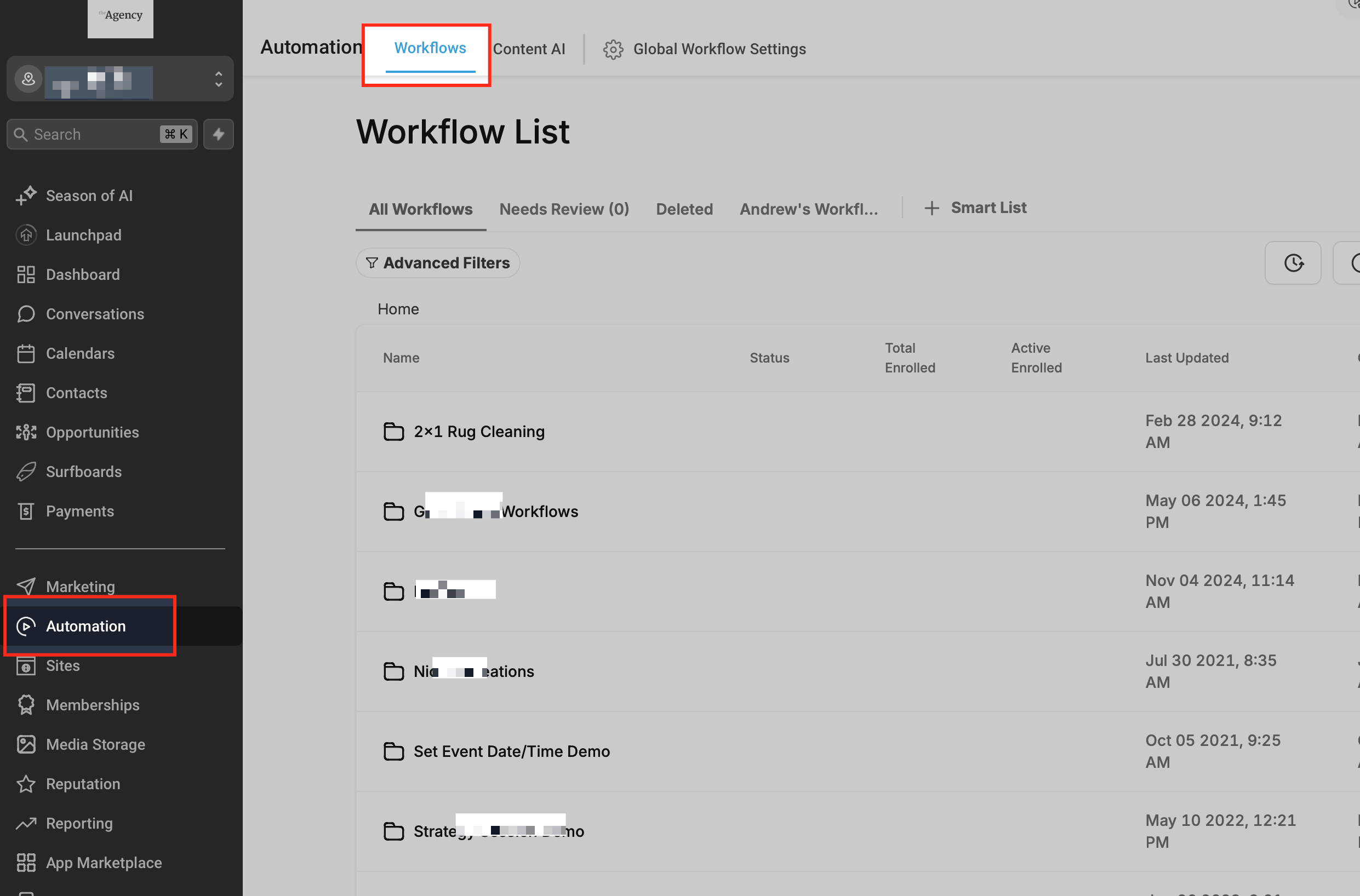
- Open the Automation section and click the Workflows menu at the top.
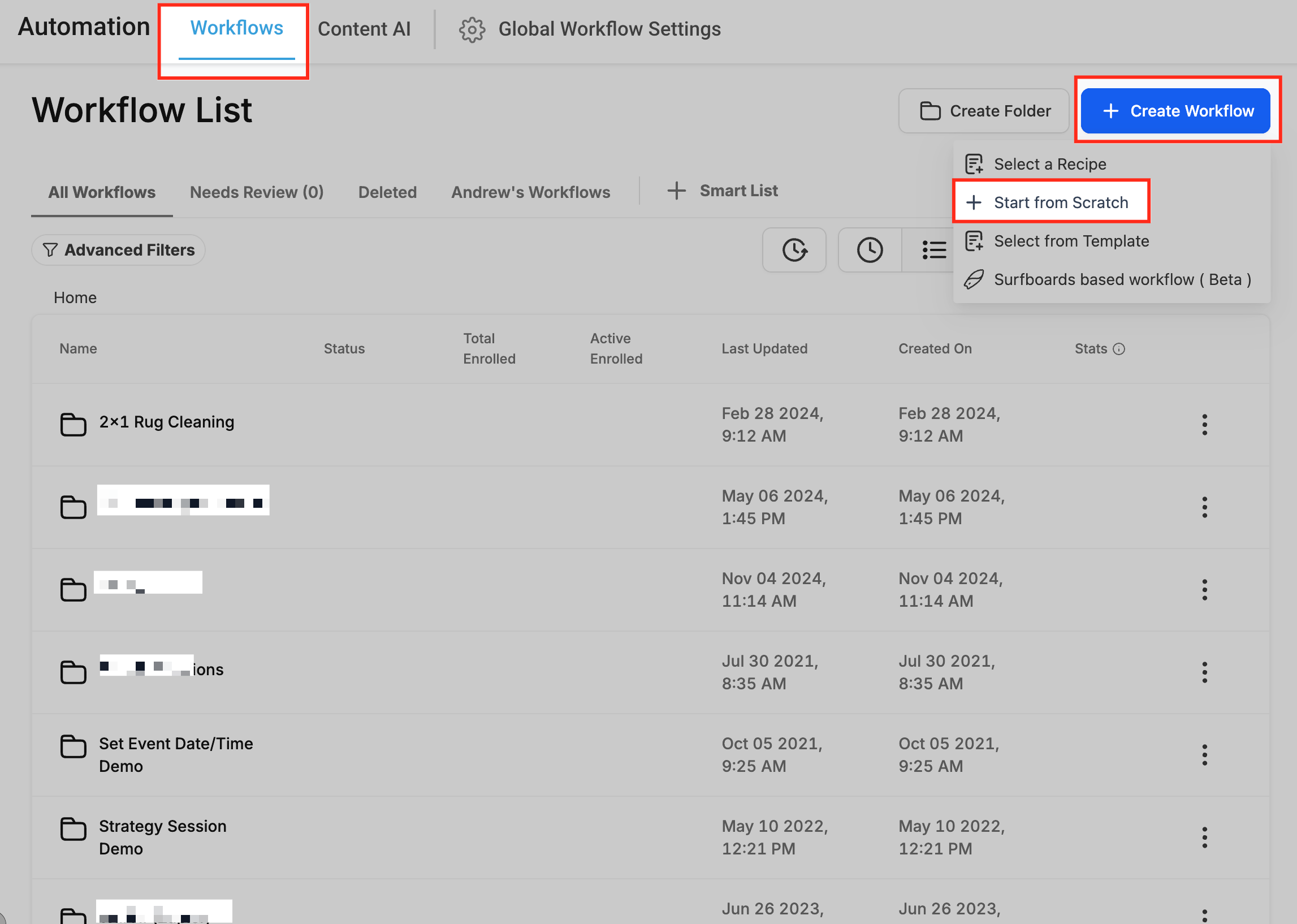
- Select an existing workflow or click + Create Workflow and choose + Start from scratch to begin a new one.
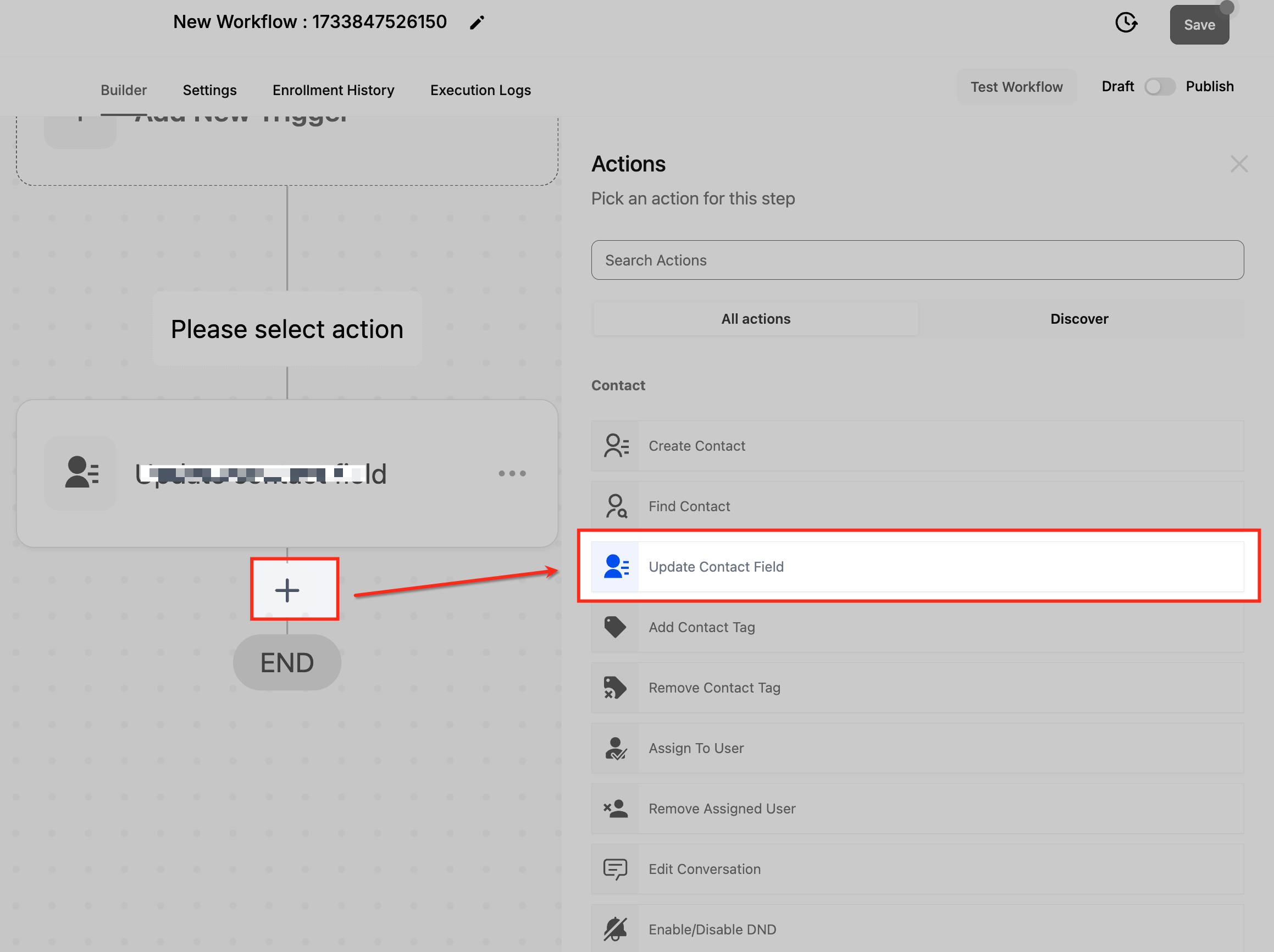
- Press the + icon inside the workflow editor and pick Update Contact Field from the actions list.
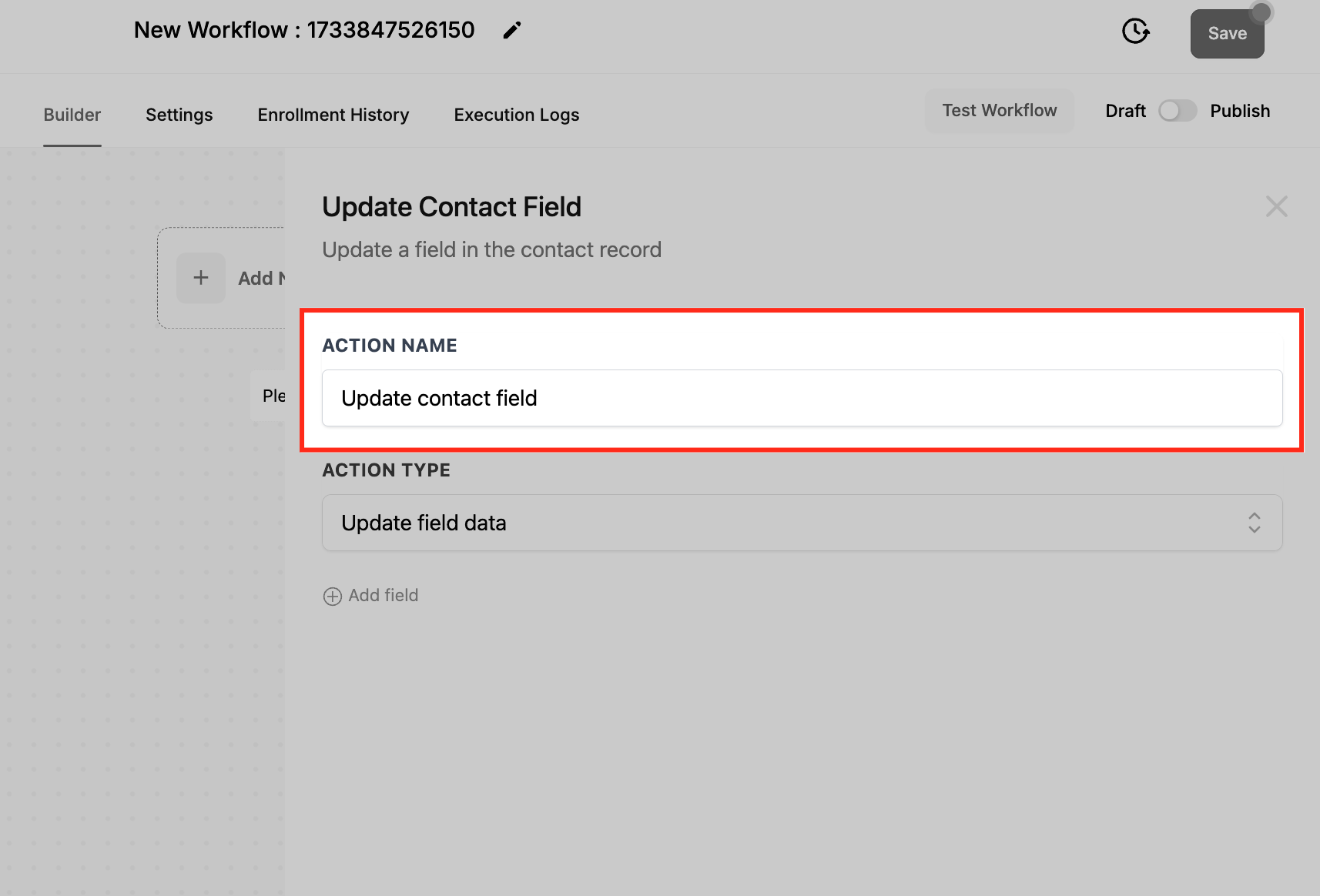
- Enter a descriptive name for the action, such as Update Contact Address.
- Under Action Type, pick Update field data, Add to field data, or Clear field data depending on the needed outcome.
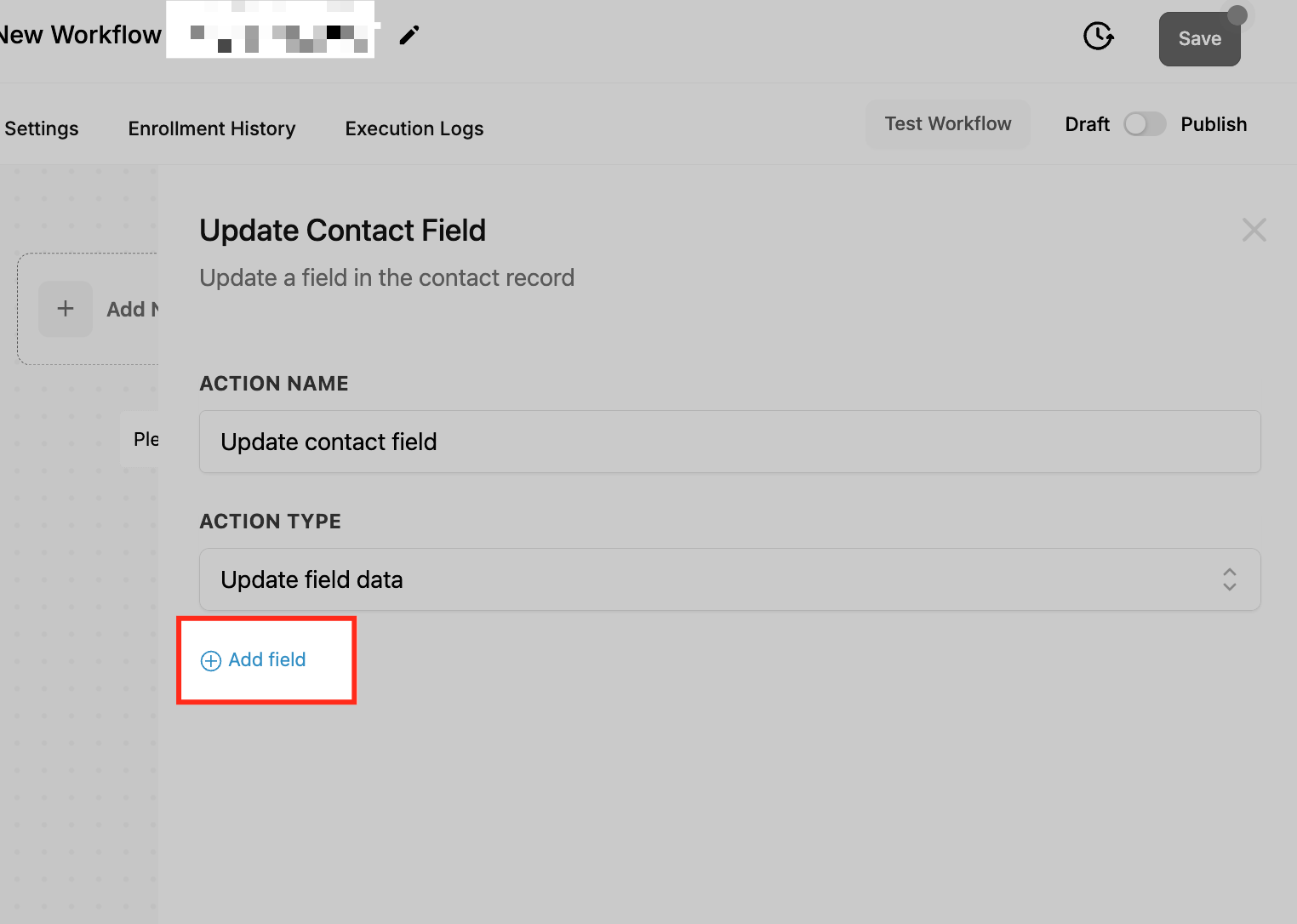
- Click the Add field button to create additional field value rows.
- Select each field you want to modify, including standard or custom fields, and specify the desired values.
- Save the action once all fields are configured.
- Test the workflow with a sample contact to verify that the fields update correctly.
- Turn the workflow toggle to Publish to activate the automation.
05What it looks like in HighLevel
06Settings that matter
- Action Type. Determines whether the selected field’s current value is replaced, appended to (for supported multi select fields), or cleared.
07Things to know before you rely on it
- Add to field data works only with supported multi select fields such as multi dropdown and multiple checkbox fields.
- Updating a field replaces the existing value; for multi select fields, all prior selections are removed unless Add to field data is chosen.
08How it connects to the rest of HighLevel
- Add a tag to a contact as part of the same workflow. Add Contact Tag
- Locate a contact record before updating its fields. Find Contact
- Learn the basics of building workflows in HighLevel. Workflow basics
Michael's take

The Update Contact Field action is a solid way to keep contact records fresh without manual edits. Teams that only need to change a single contact manually can skip it.