
01Who this is for
- Agency owners who need consistent contact segmentation across many client accounts.
- Marketers looking to automate audience grouping for targeted campaigns.
- Sales managers who want to flag leads at different stages of the funnel.
02Add contact tag workflow action, explained
The Add Contact Tag action lives inside the workflow builder under the Contact actions group. When a contact arrives at this step, the system attaches the chosen tag(s) to their record. Tags can be existing ones, newly created on the spot, or applied in a dynamic fashion based on workflow data. The action does not delete tags from a contact; removal requires a separate Remove Contact Tag action.
In the action’s configuration panel you can pick one or multiple tags, create new ones, and decide between Standard and Dynamic tagging modes via a three dot menu. The selected tags are stored on the contact and can be used in smart lists, campaign filters, or as triggers for other workflows.
03How businesses use add contact tag workflow action
- Dental practice. Create a workflow that runs after a new patient books an appointment. Add the Add Contact Tag action, select the "NewPatient" tag, and save. The tag automatically groups the patient for follow up reminder campaigns.
- Real estate agency. Set up a workflow triggered when a lead’s status changes to "OfferSubmitted". Within the workflow, add the Add Contact Tag action, create a tag named "OfferSubmitted", and apply it. The tag can then filter contacts for targeted listing updates.
- Online course provider. Build a workflow that fires when a student completes a module. Insert the Add Contact Tag action, choose the "Module3Completed" tag, or type a new tag name and add it. This tags the student for segmenting advanced content emails.
04Before you start
- User must have permission to create tags within the HighLevel account.
05How to set up and use add contact tag workflow action in HighLevel
Set up add contact tag action
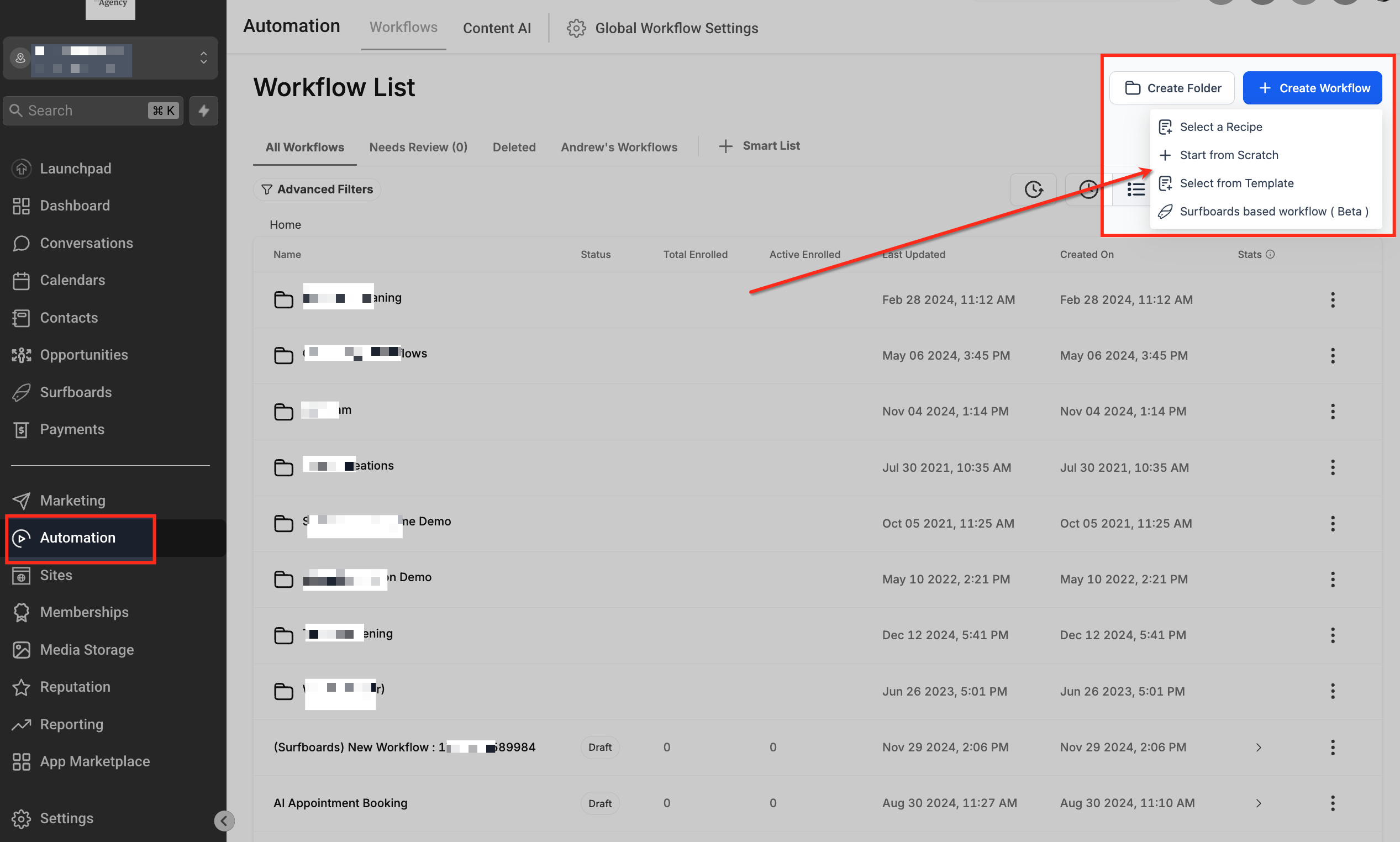
- Open the Automation tab in the left hand menu.
- Press Create Workflow and select the desired creation method.
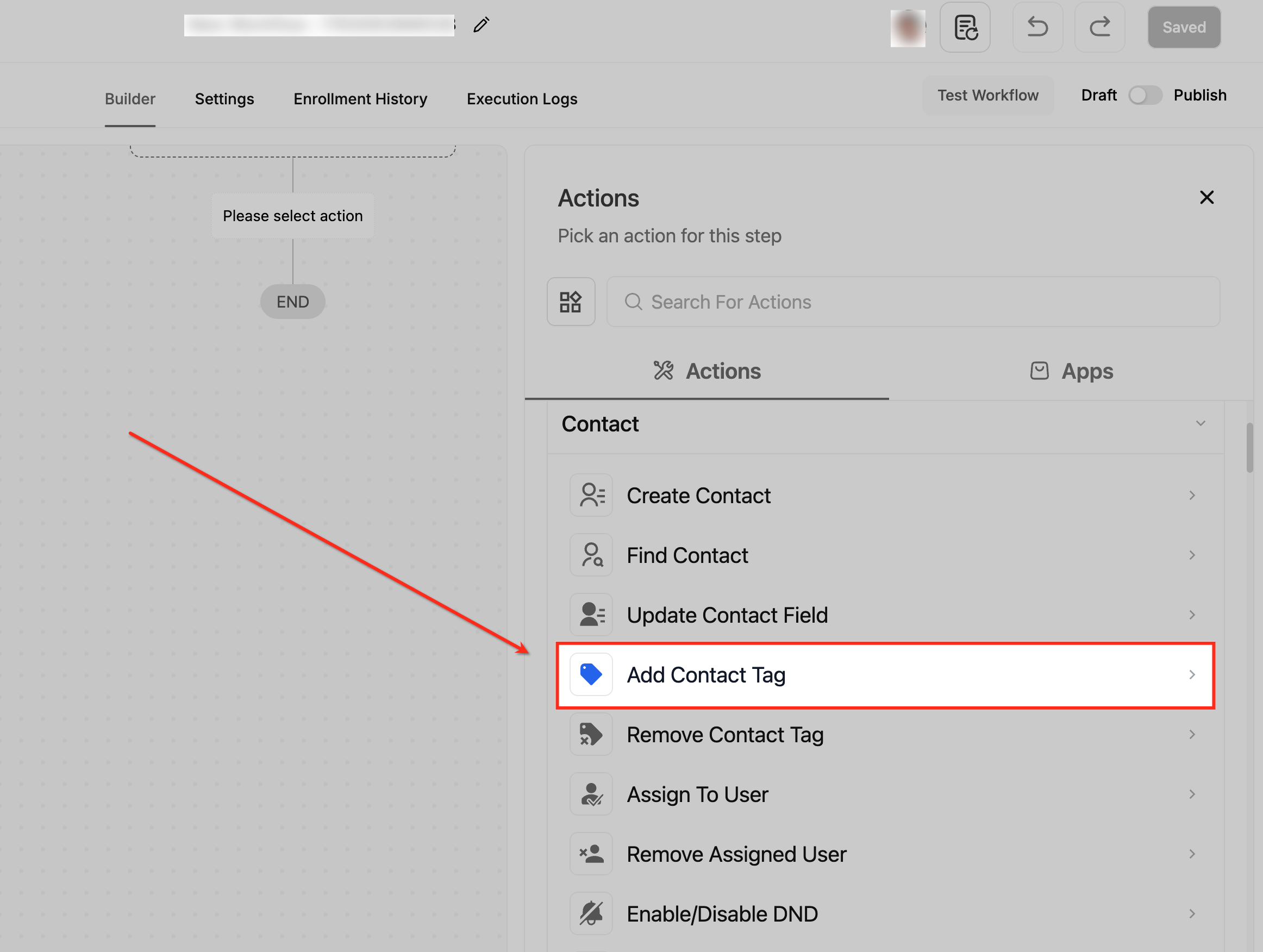
- In the workflow canvas, open the Actions panel and scroll to the Contact section to locate Add Contact Tag.
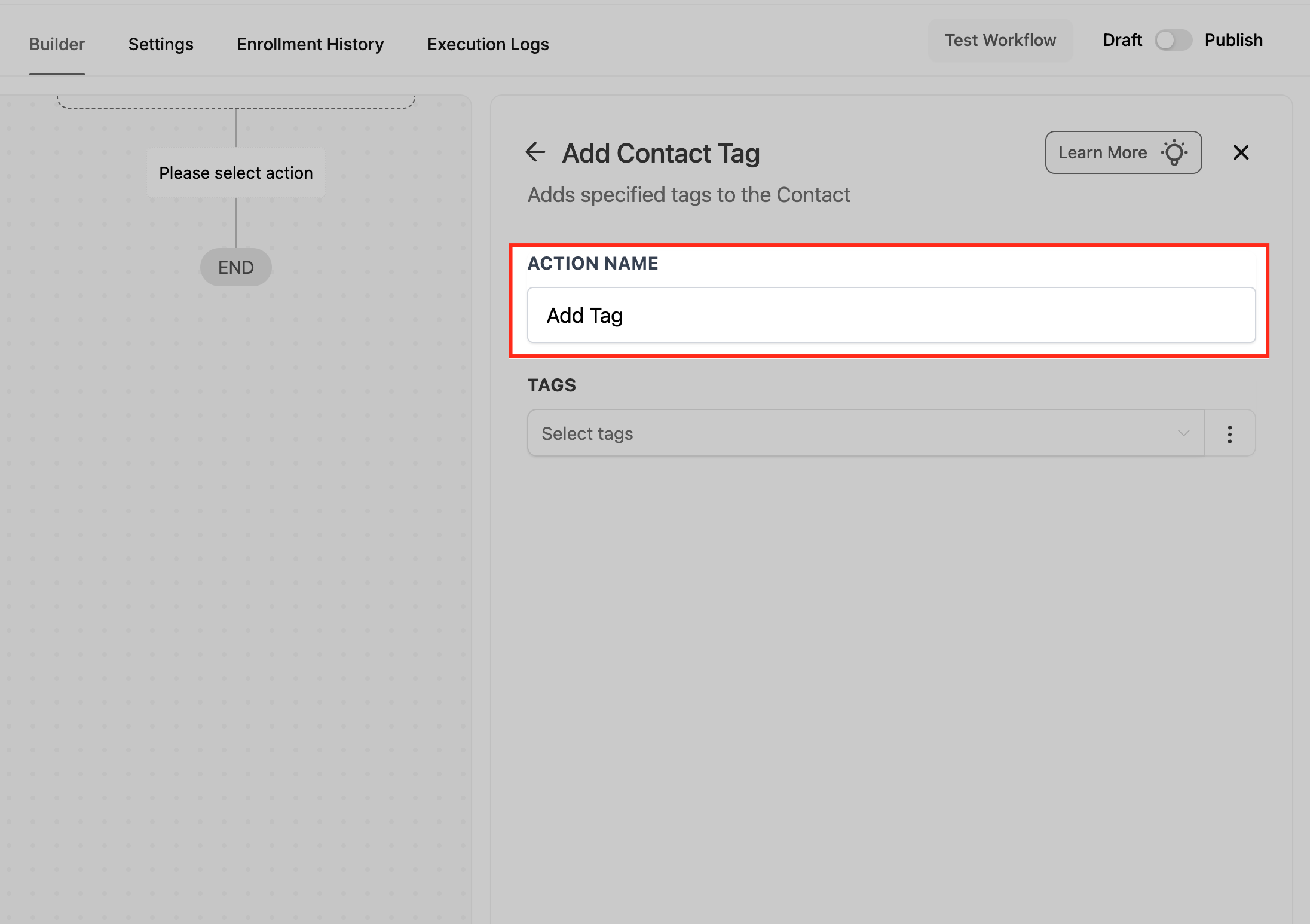
- Enter a clear and descriptive label in the Action Name field.
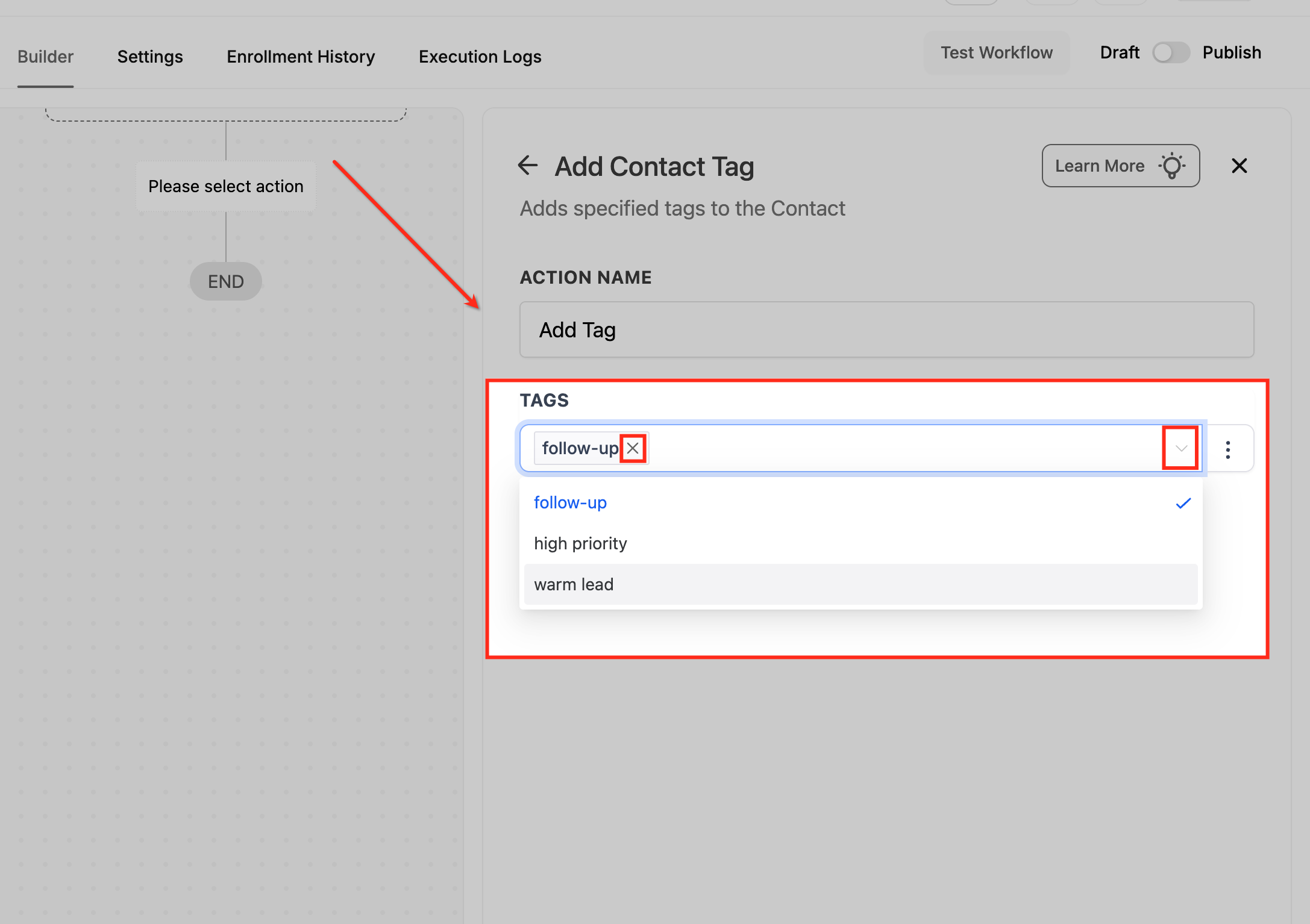
- Pick one or more existing tags from the dropdown, removing any by clicking the X beside them.
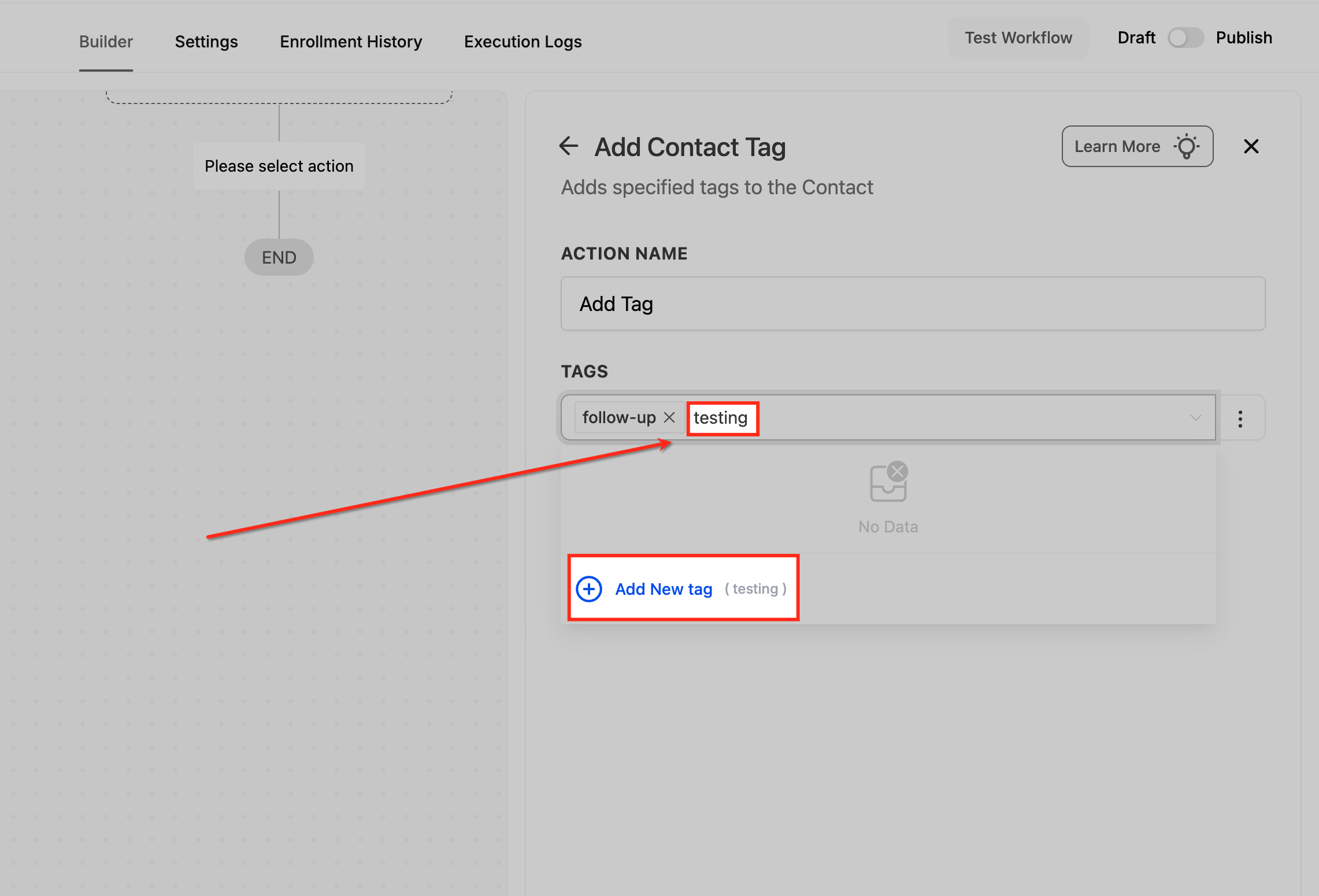
- If the needed tag does not exist, type its name and click Add New Tag to create it.
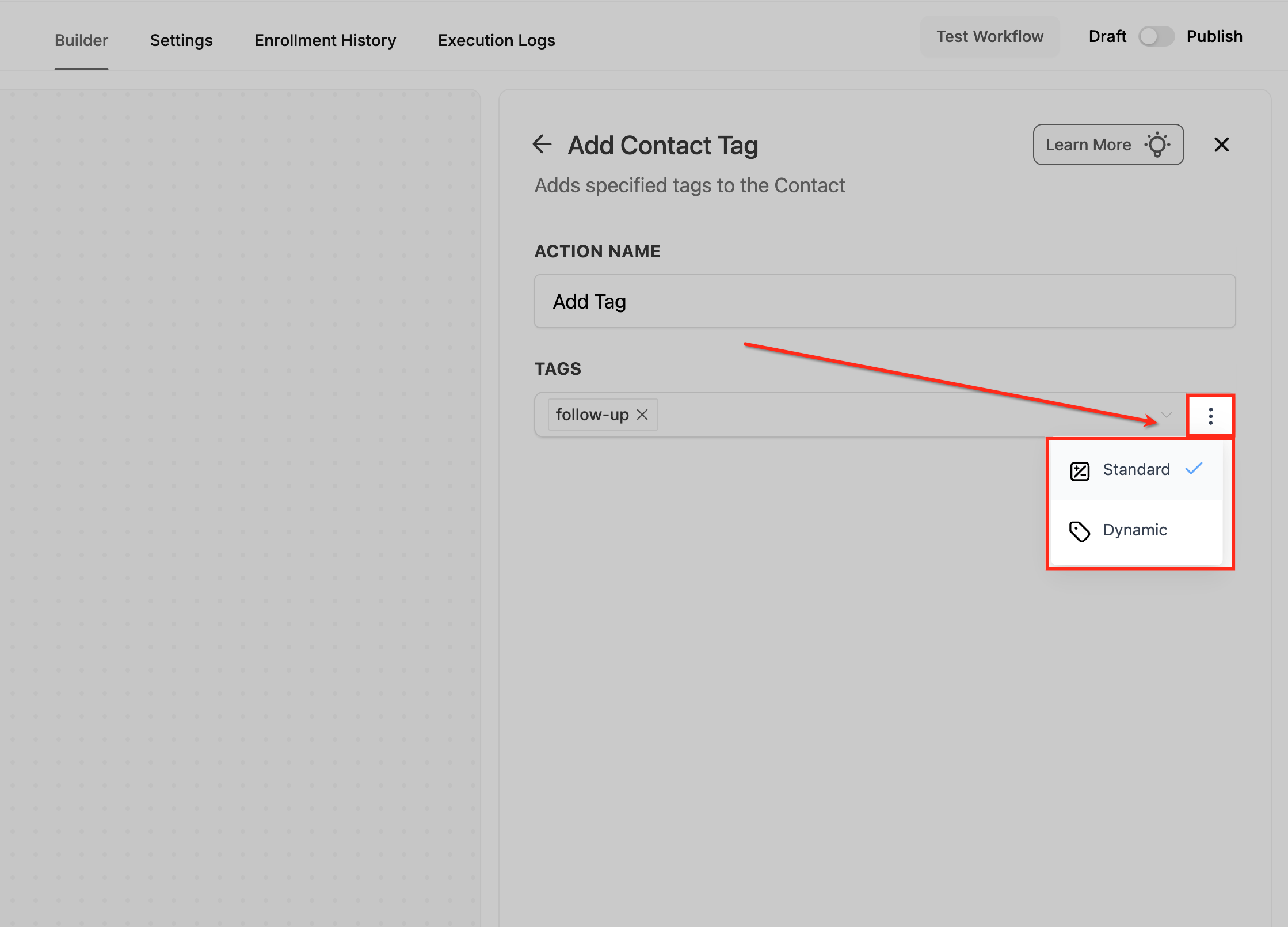
- Click the three dot icon next to the Tags field and switch between Standard and Dynamic mode.
- Select Save Action to store the configuration.
06What it looks like in HighLevel
07Settings that matter
- Select Tags. Determines which existing tags will be attached to the contact when the action runs.
- Add New Tag. Creates a fresh tag during setup and adds it to the selection for immediate use.
- Choose Tag Mode. Sets whether tags are applied exactly as chosen (Standard) or generated based on workflow data (Dynamic).
08Things to know before you rely on it
- Tags are case sensitive; "Facebook" and "facebook" are treated as different tags.
- Clicking the X removes a tag only from the action setup, not from the contact’s record.
- This action cannot delete tags from a contact; use the Remove Contact Tag action for that purpose.
09How it connects to the rest of HighLevel
- Remove contact tag action in HighLevel workflows Remove Contact Tag
- Using the Find Contact workflow action in HighLevel Find Contact Action
- HighLevel workflow automation: basics and set up guide Workflow Basics
Michael's take

Be careful that tags are case sensitive and that anyone who can create tags needs the right permissions; a stray capital letter can split your audience unexpectedly. Also remember that this action only adds tags. You’ll need the separate Remove Contact Tag action if you ever need to clean them up.
When you get it right, the Add Contact Tag action becomes a fast way to keep your list tidy and your automations firing on cue. I’d use it to flag contacts the moment they hit a key milestone, then let that tag drive the next steps without manual effort.