
01Who this is for
- Marketing agencies can automate lead follow up emails and SMS to ensure timely communication.
- Health clinics can use appointment booked triggers to notify staff and send patient confirmations automatically.
- Online coaches can streamline onboarding by sending welcome materials and assigning tasks without manual effort.
02Workflows, explained
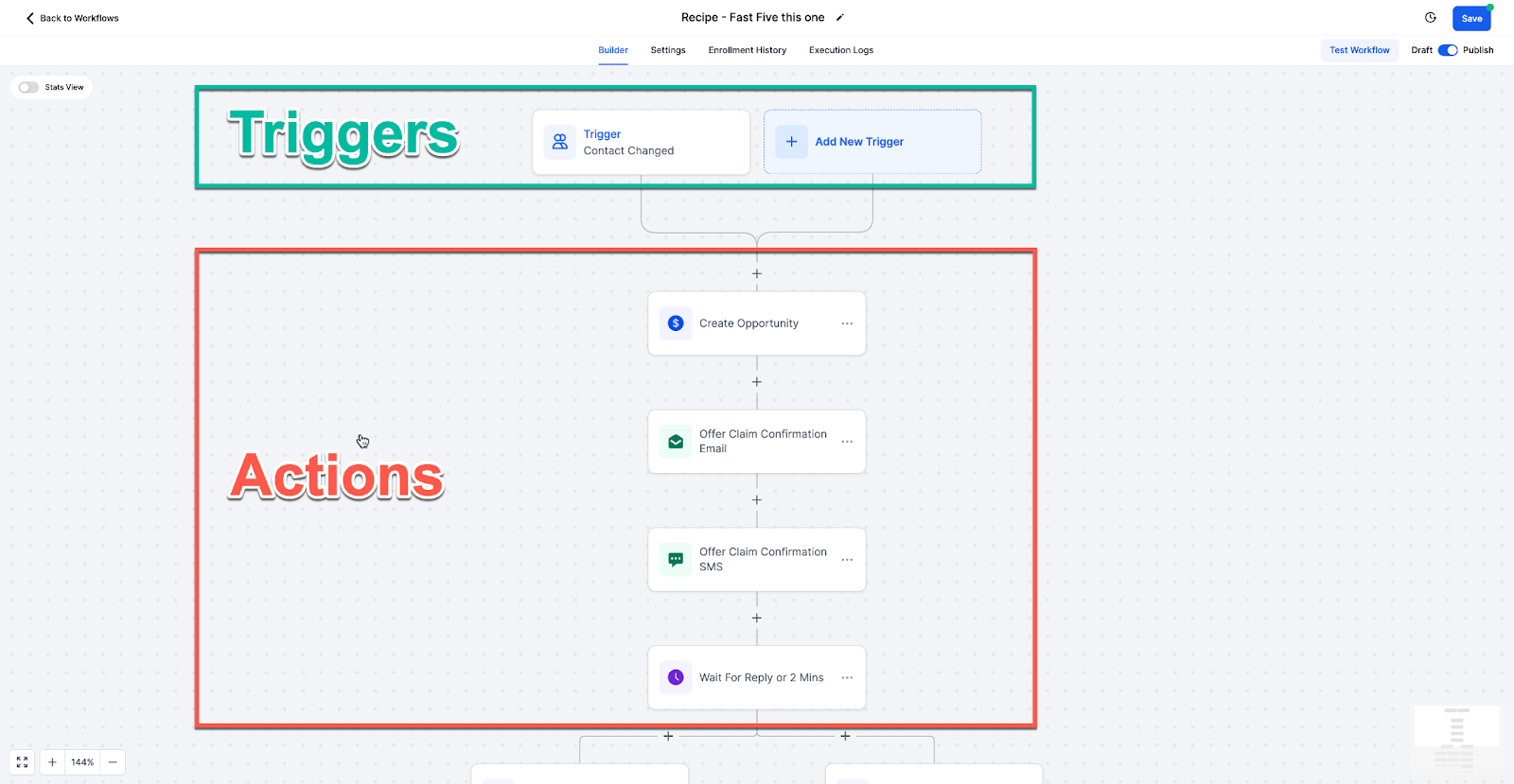
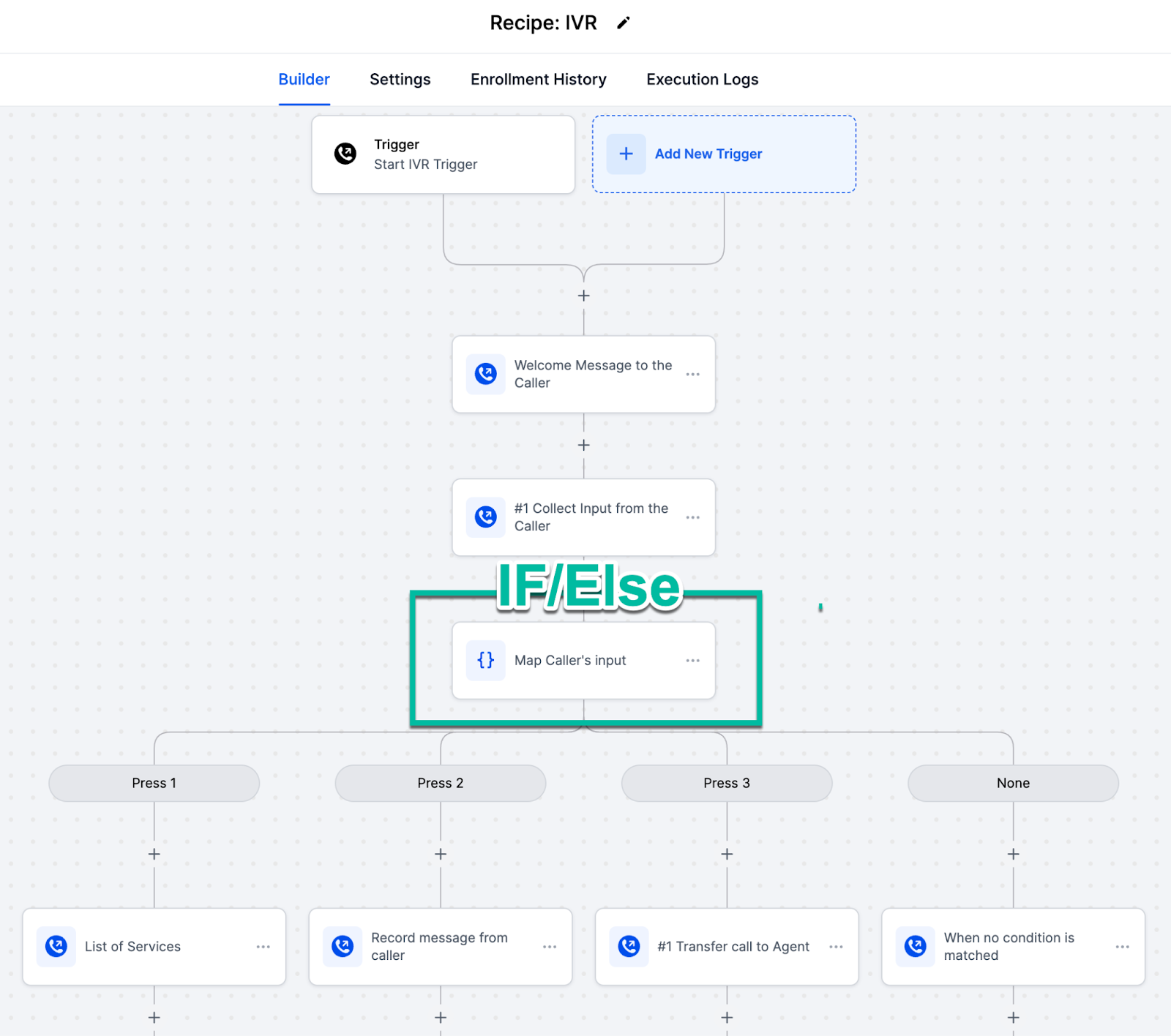
A workflow is an automated series of steps that starts when a defined event occurs. The event, called a trigger, can be a form submission, an appointment booking, or a payment receipt. After the trigger fires, the workflow runs the actions you have selected, such as sending an email, creating a contact, or assigning a task.
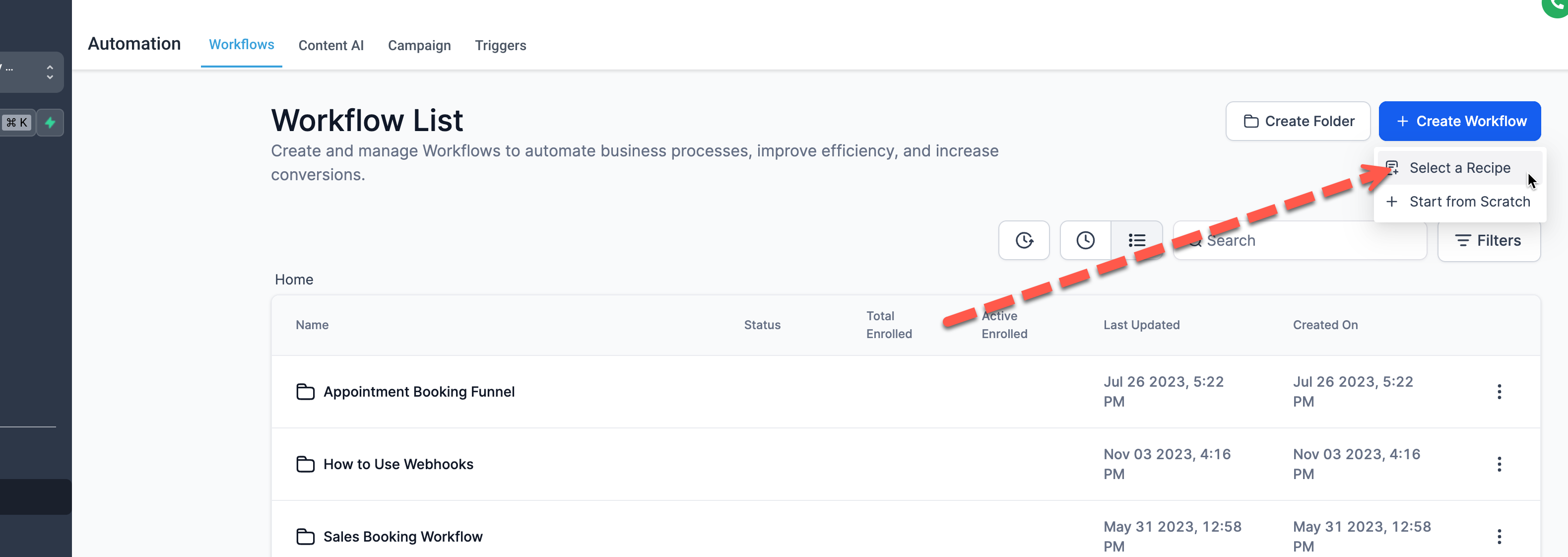
Workflows are managed from the Workflows landing page in HighLevel. The updated experience presents three entry points: Build using AI, Browse Templates, or Create Workflow from scratch. Once you create a workflow, you publish it and it runs automatically whenever the trigger conditions are met.
03How businesses use workflows
- Dental practice. Create a workflow that uses the form submit trigger when a new patient fills out an intake form. Add an action to send a confirmation email and an SMS reminder. This automates the initial contact without manual steps.
- Fitness studio. Set up an appointment booked trigger for class reservations. Apply a filter so the workflow runs only for the Monday yoga class. Add an action that assigns a follow up task to the instructor, keeping class management consistent.
- Ecommerce store. Use the payment received trigger to start a workflow when an order is completed. Add actions to create or update the customer contact and send a thank you email. This ensures every purchase generates the same post sale communications.
04How to set up and use workflows in HighLevel
Create a workflow from scratch
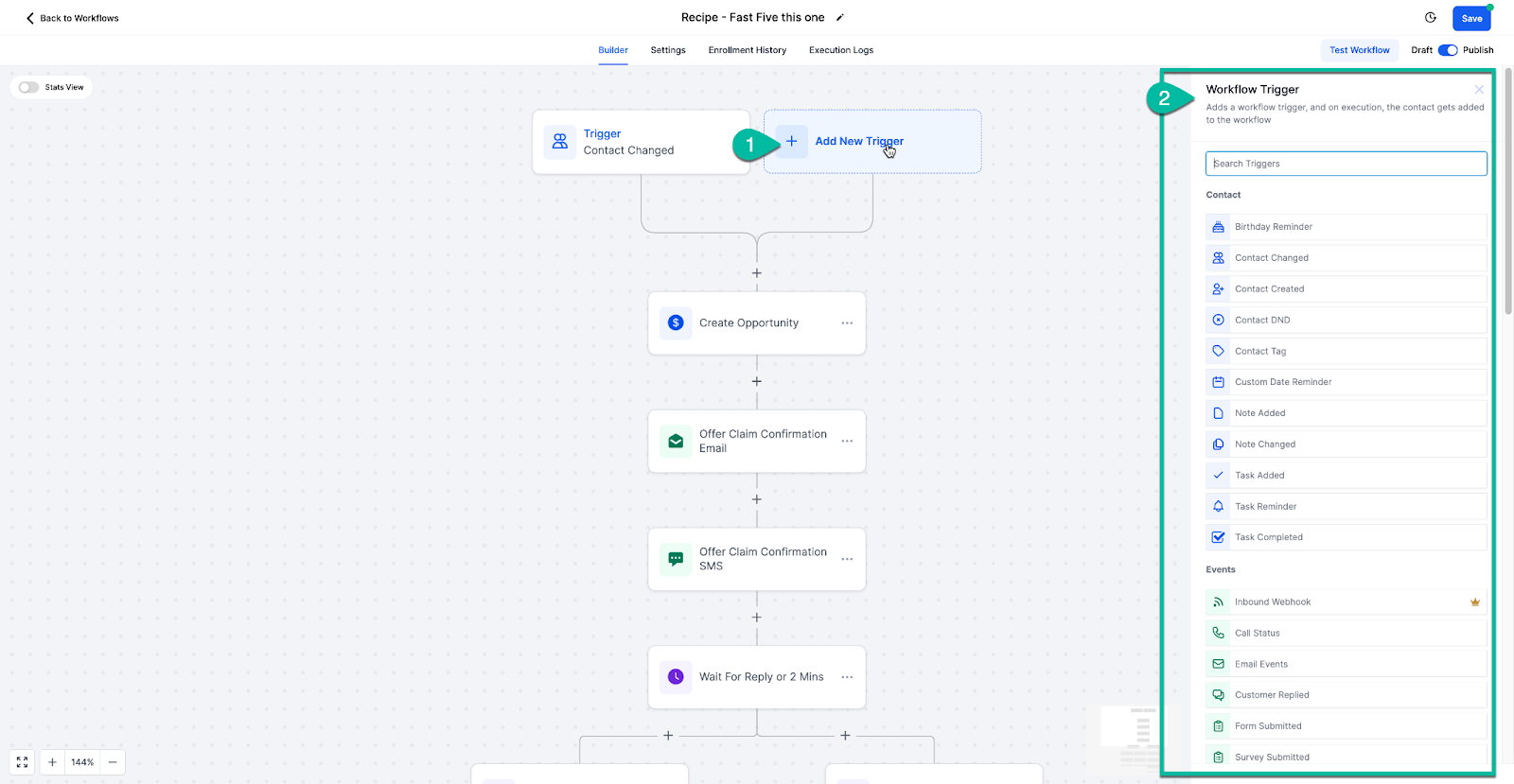
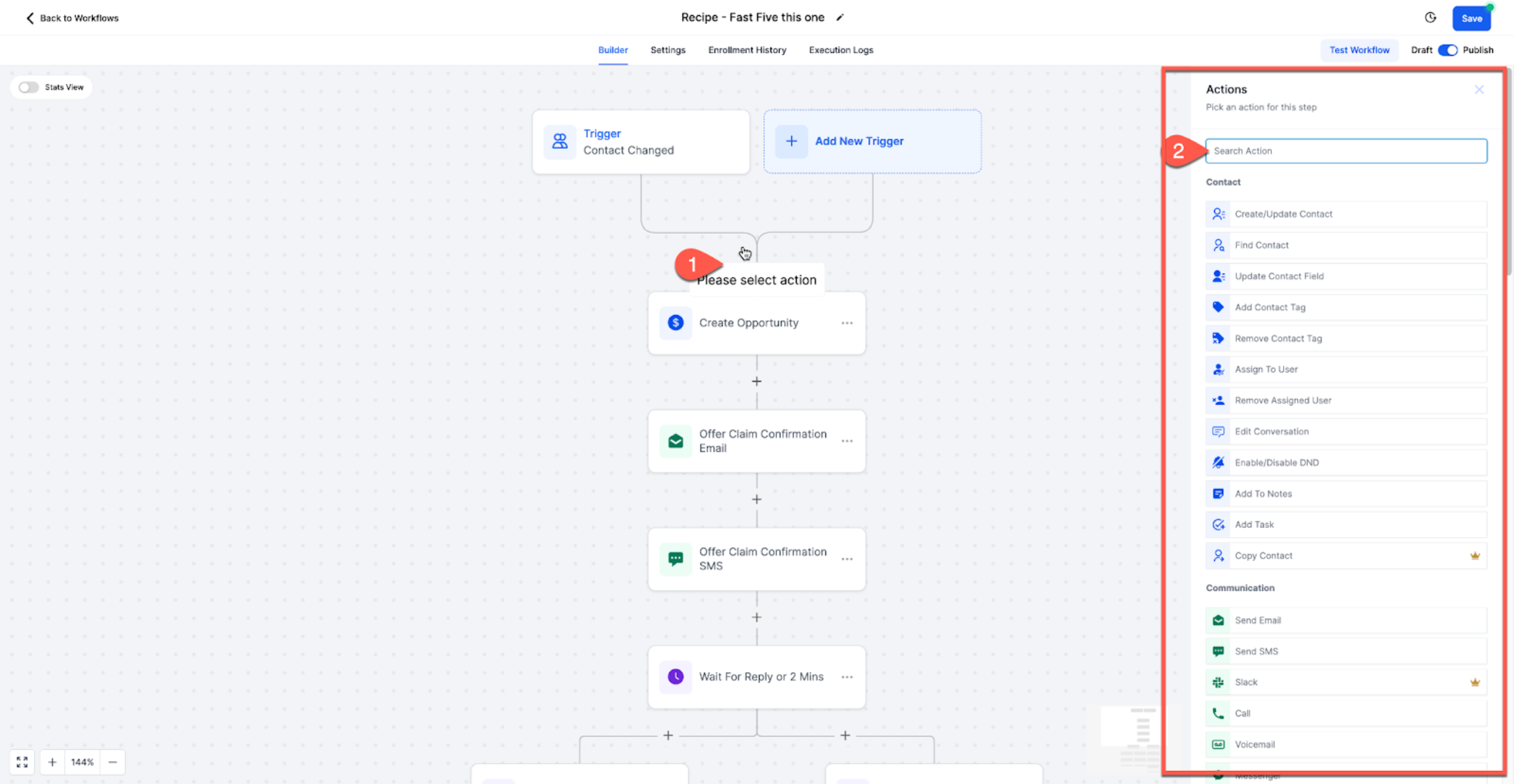
- Click Add New Trigger to open the trigger selector.
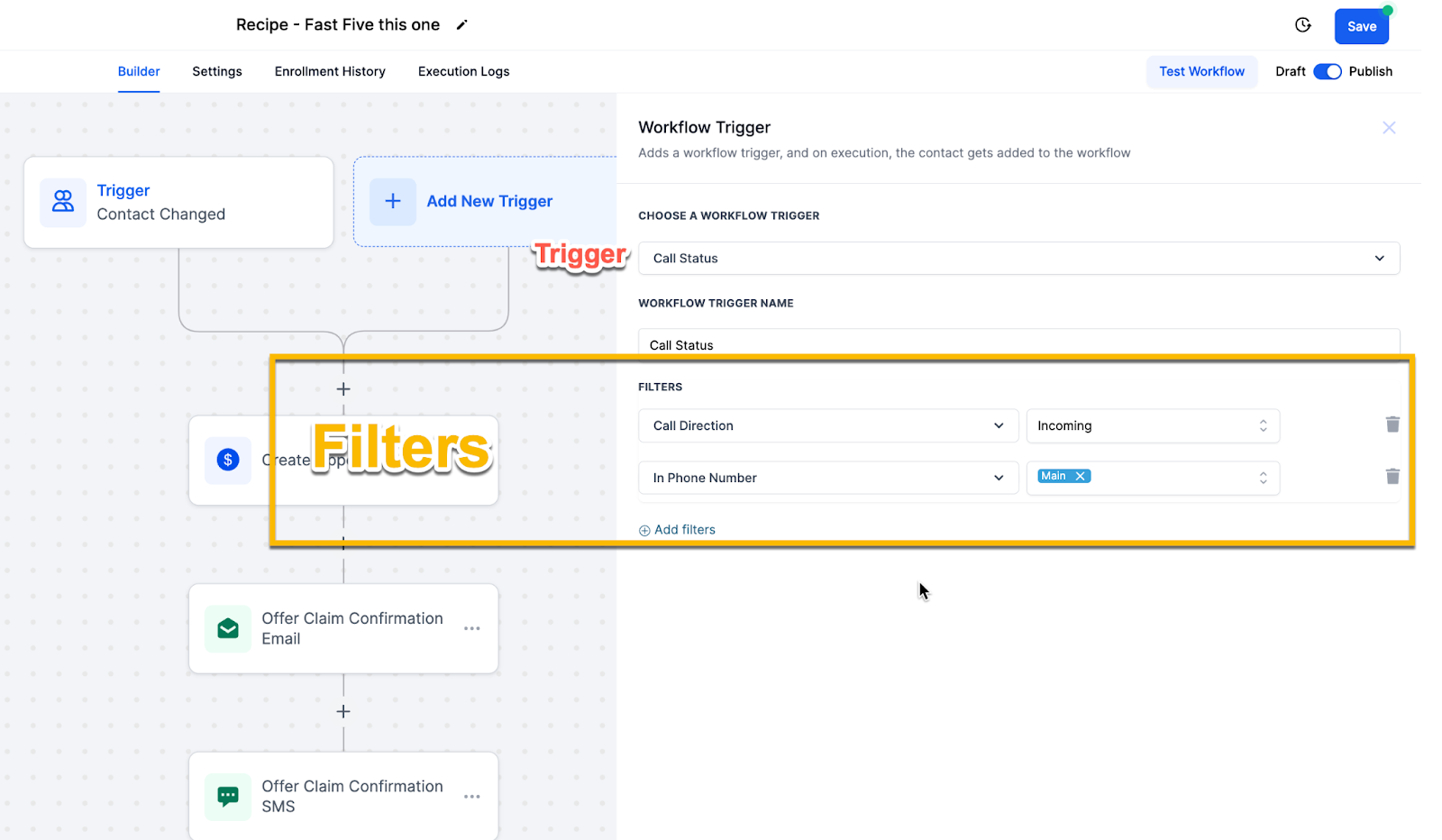
- Apply optional trigger filters to narrow the conditions for workflow enrollment.
- Add an action by selecting the desired task from the action list.
- Publish the workflow so it runs automatically when the trigger conditions are met.
05What it looks like in HighLevel
06Settings that matter
- Trigger Filters. Controls which contacts meet the trigger criteria before entering the workflow.
- Re entry settings. Determines whether a contact can enroll in the same workflow more than once.
- AI Builder. Enables the AI generated workflow option on the landing page; if disabled in Labs, the older interface appears.
07Things to know before you rely on it
- Trigger filters are optional but recommended to keep workflows scoped to specific situations.
- If AI Builder is turned off in Labs, the AI workflow generation feature will not be available.
- Workflows run automatically only after they are published and the trigger conditions are satisfied.
08If something goes wrong
- Workflow does not fire for a contact. Test with a fresh contact that has never entered the workflow to eliminate prior enrollment restrictions.
- Contact fails to meet trigger conditions. Review the trigger filters and ensure the contact satisfies every condition required for entry.
- Contact should re enter but does not. Check the re entry settings to confirm the workflow permits multiple enrollments for the same contact.
- Workflow works in test mode but not live. Compare the live trigger event and enrollment conditions with those used in test mode and adjust as needed.
- Steps are being skipped or actions fail. Examine the workflow execution and error logs for messages indicating why steps were skipped or actions did not complete.
09How it connects to the rest of HighLevel
- Control contacts and timing with workflow settings Workflow settings overview
- Use inbound webhook triggers for external system integration Inbound webhook trigger guide
- Automate Facebook and Instagram comment responses Social comment automation
Michael's take

Workflows let HighLevel handle the repetitive stuff for you.
If you’re not ready to automate or only have a few manual tasks, you can skip it.