
01Who this is for
- Sales managers, can automatically assign new leads to team members and update contact fields.
- Marketing teams, can send emails, SMS or social messages as part of a campaign workflow.
- Customer support supervisors, can create tasks, add notes, or route conversations for follow up.
02Workflow actions, explained
Workflow actions are the tasks that a workflow performs after a trigger fires. Each action runs in the order you place it, giving you precise control over how contacts move through the automation. Actions cover many areas such as contact management, communication, data transfer, internal logic, AI responses, appointments, payments, marketing, affiliates, courses, IVR, and community access.
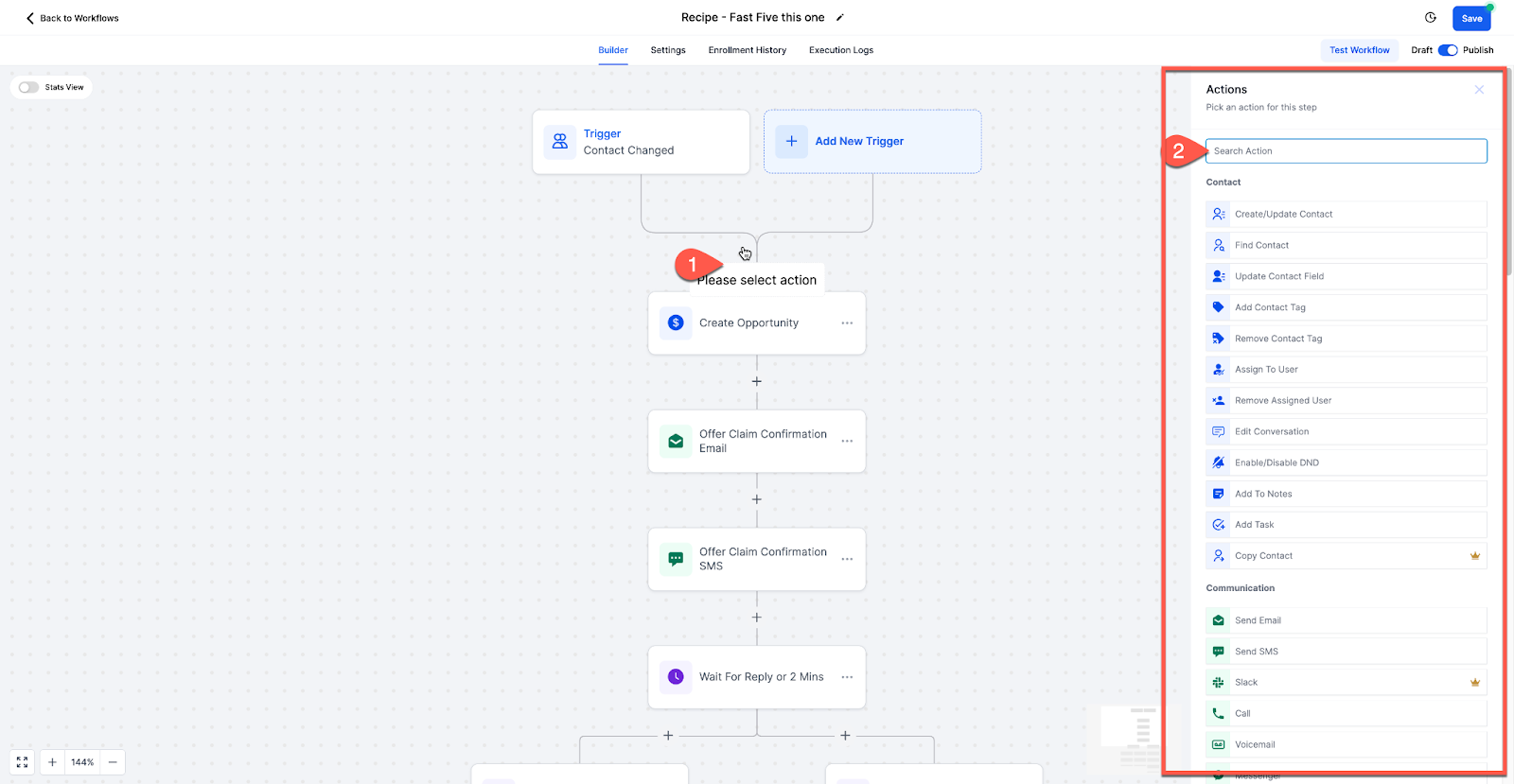
You add actions from the Workflow Builder. Inside a workflow, click the Add Action button to open a list of categories. Choose the appropriate category, pick the specific action, fill any required fields, and save. The platform then executes each action sequentially for every contact that meets the trigger conditions.
The actions live inside the workflow you create under the Workflows section of HighLevel. They are managed alongside triggers, filters, and other workflow settings, forming a complete automation that runs in real time as contacts engage with your business.
03How businesses use workflow actions
- Real estate agency. The agency uses Contact Actions to create a new lead contact when a form is submitted, then adds a tag to segment the lead for follow up. It also assigns the contact to a specific agent using the Assign to User action.
- Ecommerce store. After an order trigger, the store adds a Send Email action to deliver the order confirmation and a Send SMS action for a shipping update. Both actions pull data from the contact record to personalize the messages.
- SaaS startup. The startup adds an If Else internal tool action to check a subscription status field, then uses a Wait Step to delay the onboarding email series. This creates a tailored path for paid versus trial users.
04How to set up and use workflow actions in HighLevel
Add a workflow action
- Open the target workflow in the Workflow Builder.
- Click the Add Action button on the workflow canvas.
- Browse the displayed action categories and select the desired action.
- Enter any required information for the action and save to insert it into the workflow.
05What it looks like in HighLevel
06How it connects to the rest of HighLevel
- Workflow actions follow the triggers you set when creating a workflow. Workflow creation guide
- You can control overall automation behavior from the workflow settings page. Workflow settings overview
- Use a custom webhook action to send data from a workflow to external applications. Inbound webhook guide
Michael's take

Workflow actions feel like a small convenience that can become a real shift for any business that wants to move repetitive tasks out of a human’s to do list.
A coaching business, for example, can automatically create a contact when a new student signs up, add them to a course audience, schedule their first session with a one time booking link, and send a reminder SMS. All without a person touching a keyboard.