
01Who this is for
- Marketers who need to log lead details into a master spreadsheet automatically, ensuring data stays consistent.
- Operations teams that must pull existing spreadsheet records to decide whether to update or create new entries during a workflow.
- Developers building inbound webhook integrations that receive arrays of records and want to write them to Google Sheets in a single step.
02Google sheets premium workflow actions, explained
The Google Sheets Premium Workflow Action lives inside the Workflow Builder. After adding an action, you choose a specific Google Sheets operation such as Create Spreadsheet Row or Lookup Spreadsheet Row. The action uses the connected Google account, drive, spreadsheet, and worksheet you select, then maps workflow data to the columns defined in the sheet's header row.
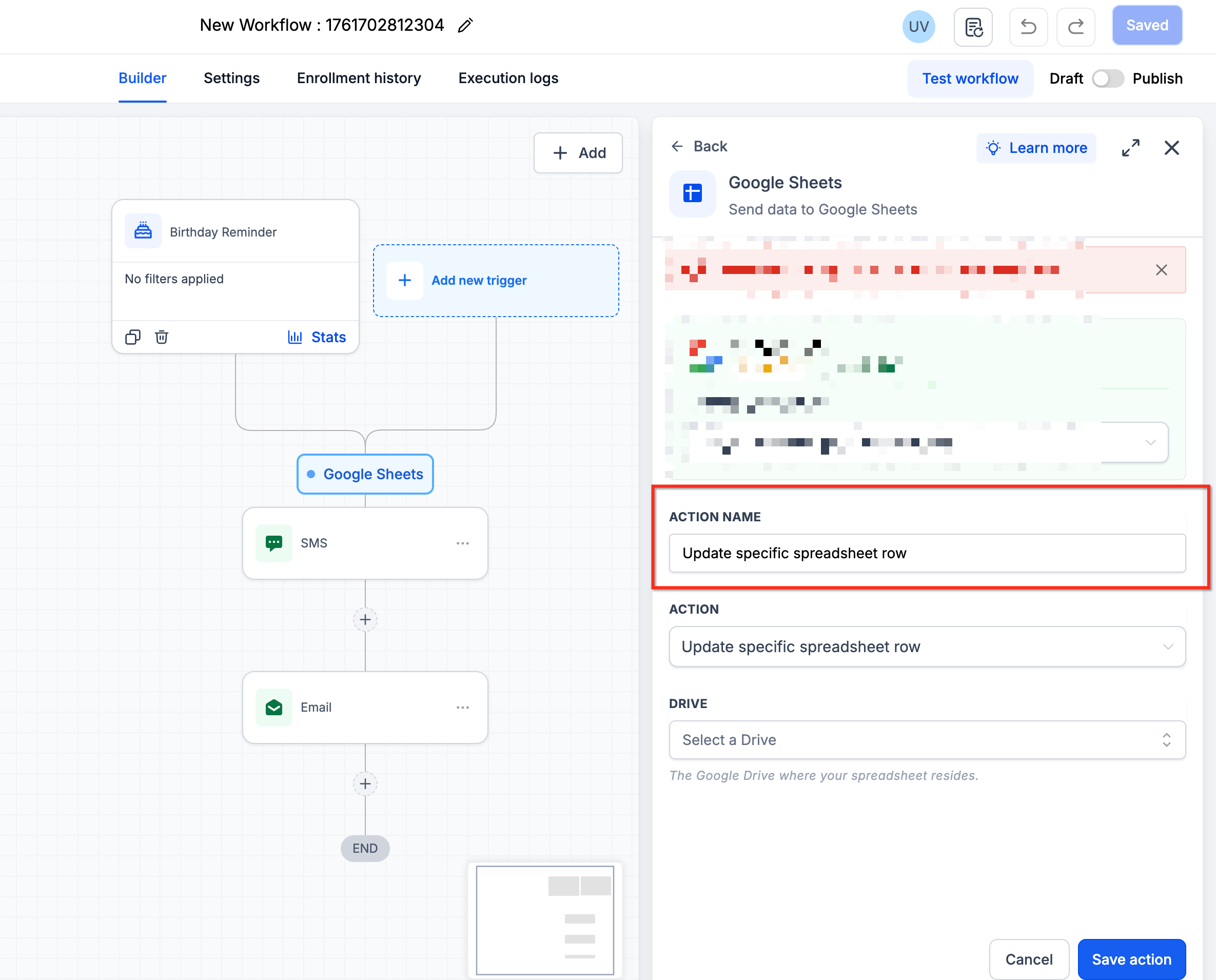
Each action works on either a single row or, when the workflow supplies an array, multiple rows. Create actions add new rows, Lookup actions search for matching rows based on column values, and Update or Delete actions modify or clear data in rows that have been identified. Results from a Lookup become custom variables that later steps or if/else conditions can reference.
The feature is part of HighLevel’s Premium Workflow suite. Eligible subaccounts receive a set of free premium executions; additional runs follow the standard premium execution pricing (per HighLevel's help center, checked November 2026). Delete actions only clear cell values and do not remove the physical row from the sheet.
03How businesses use Google sheets premium workflow actions
- Real estate agency. When a new property lead enters a workflow, the agency maps lead fields to a Google Sheet row using the Create Spreadsheet Row action. The sheet then serves as a live lead log for the sales team.
- Ecommerce store. The store uses Lookup Spreadsheet Row to find a customer’s order record by email. If the row exists, the workflow updates order status; if not, it creates a new row with the order details.
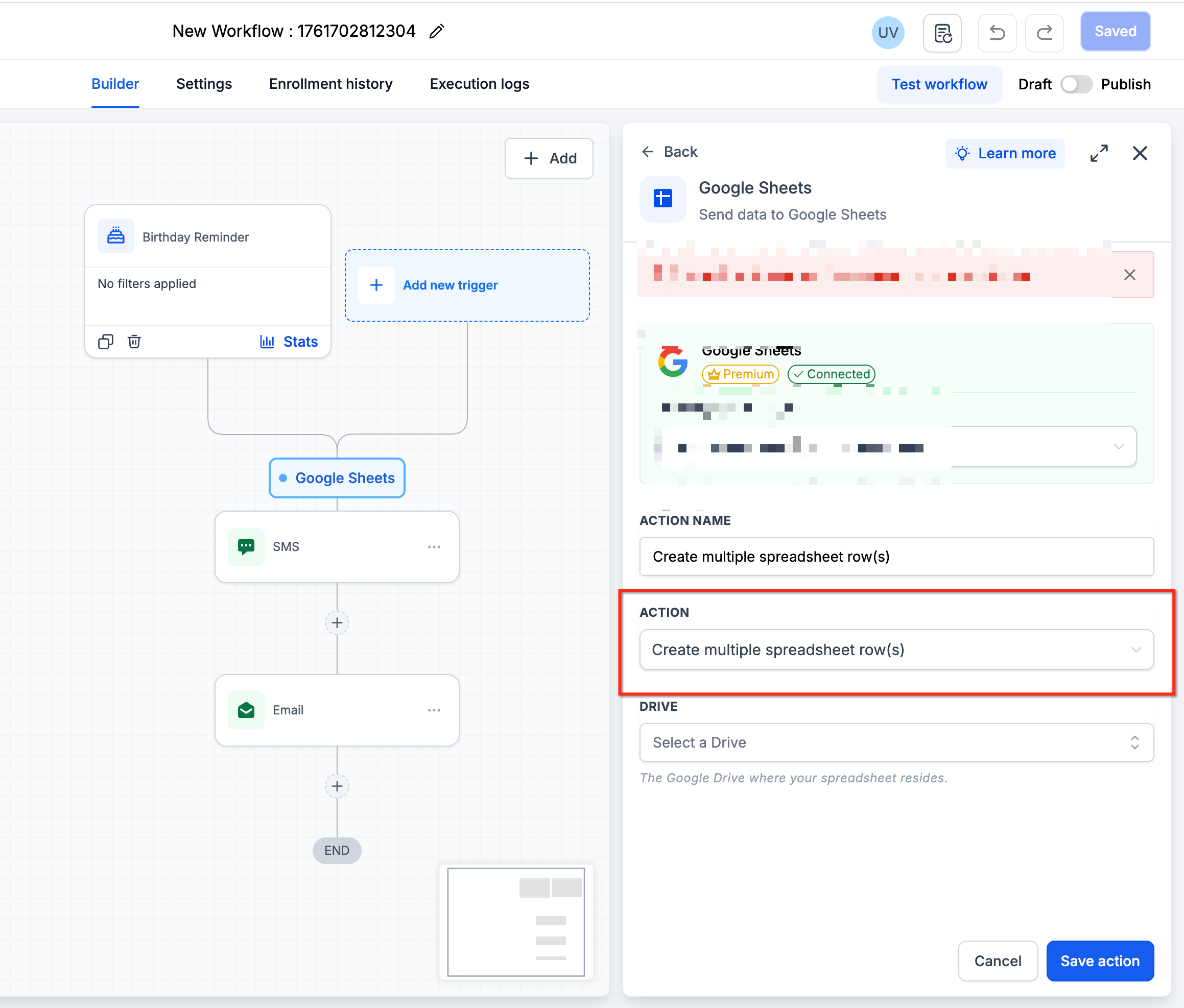
- Consulting firm. During an inbound webhook call that sends an array of project tasks, the firm adds a Google Sheets action set to Create Multiple Spreadsheet Row(s) to write each task as its own row in a project tracker sheet.
04The numbers and rules that matter
- Eligible subaccounts receive 100 free lifetime premium executions.
05Before you start
- Connect a Google account to the subaccount and grant Drive access.
- Ensure the target spreadsheet has a header row with clear column names.
- Verify the correct worksheet tab exists in the spreadsheet.
- Enable Workflow Premium Features for the subaccount.
06How to set up and use Google sheets premium workflow actions in HighLevel
Add a Google Sheets action
- Navigate to Automation > Workflows.
- Open an existing workflow or create a new one.
- Click the + icon to add an action.
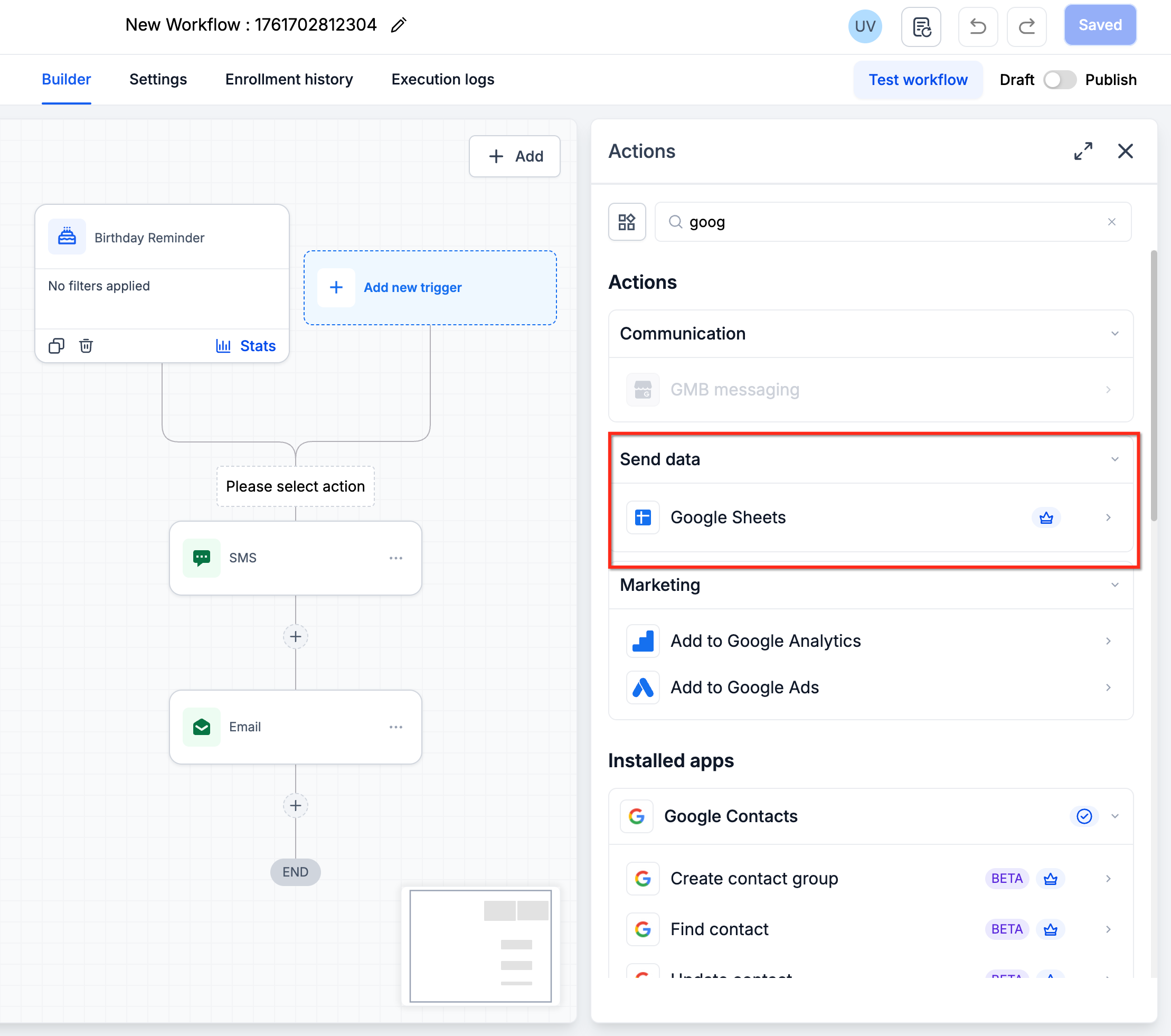
- Search for Google Sheets and select it.
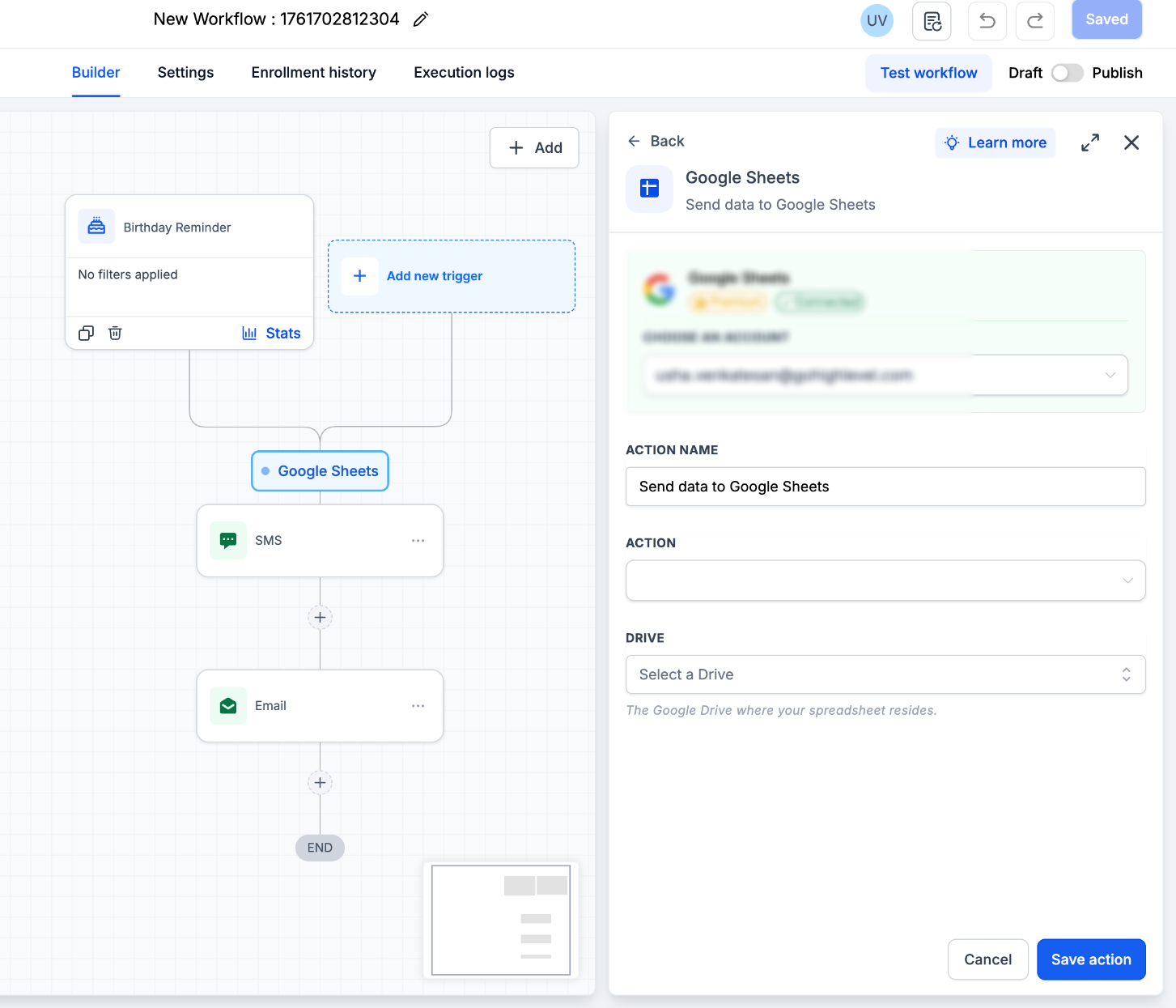
- Choose the specific Google Sheets action you want to perform.
Configure Create Spreadsheet Row action
- Add a Google Sheets action to the workflow.
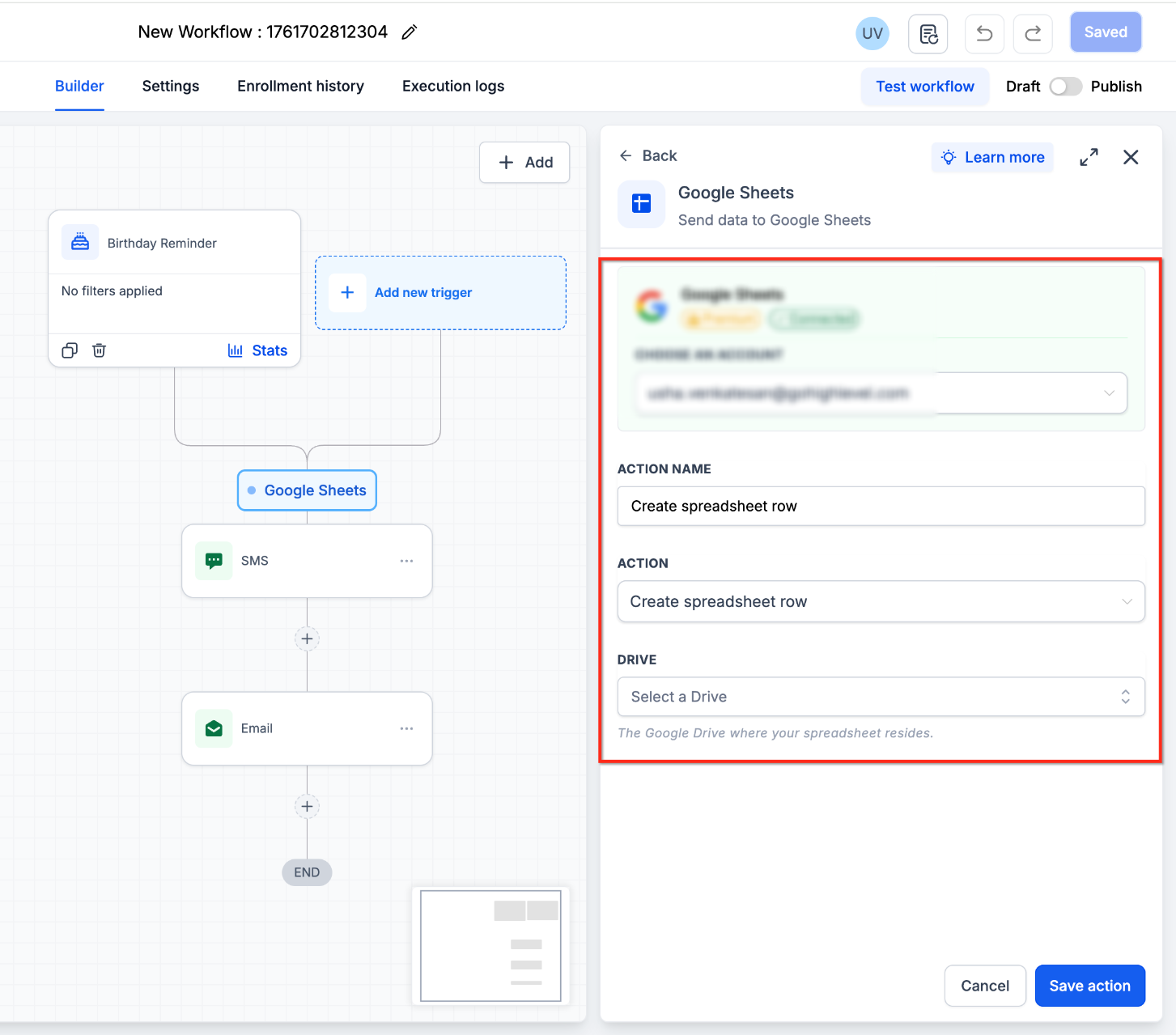
- Select Create Spreadsheet Row.
- Select the Google Account.
- Select the Drive containing the sheet.
- Select the Spreadsheet.
- Select the Worksheet.
- Click Refresh Headers if the worksheet structure has changed.
- Select the Starting Column and Ending Column.
- Map workflow values to the appropriate spreadsheet columns.
- Click Save Action.
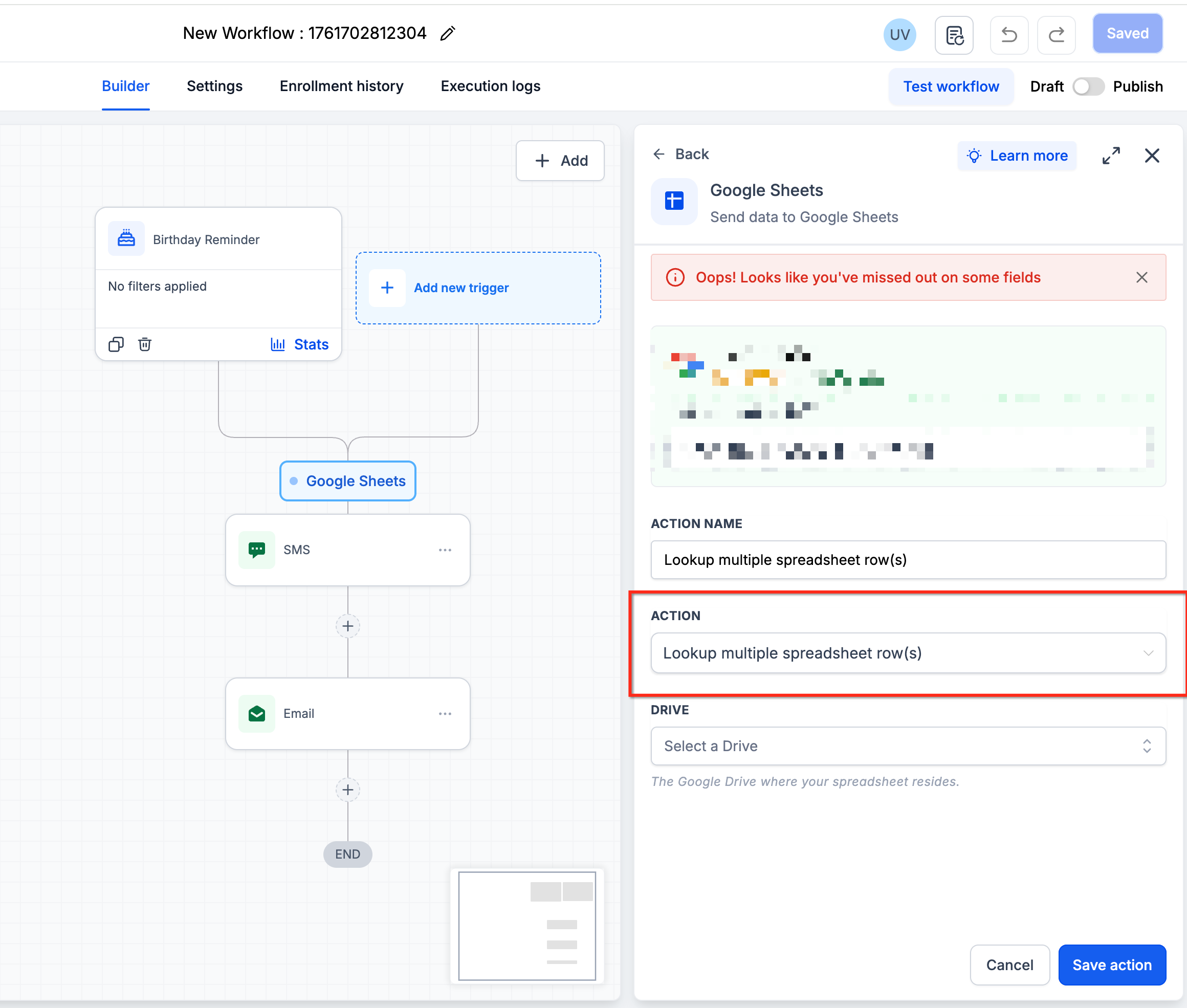
Configure Lookup Spreadsheet Row action
- Select the Worksheet that holds the data.
- Choose the Search Order (top to bottom or bottom to top).
- Select a Column and provide the Lookup Value.
- Click Refresh Headers if the column headers are outdated.
- Add an Additional Lookup Column if a second condition is required.
07What it looks like in HighLevel
08Settings that matter
- Google Account. Specifies which connected Google account the action will use.
- Drive. Identifies the Google Drive that contains the spreadsheet.
- Spreadsheet. Selects the particular Google Spreadsheet to read from or write to.
- Worksheet. Chooses the tab within the spreadsheet where the action operates.
- Refresh Headers. Updates the list of column headers after changes to the sheet.
- Starting Column and Ending Column. Defines the range of columns that will be available for field mapping.
- Search Order. Sets whether the lookup scans from the top or bottom of the sheet.
- Column. The column that will be searched for the lookup value.
- Lookup Value. The value to match in the selected column.
- Additional Lookup Column. Allows a second column/value pair to refine the lookup criteria.
09Things to know before you rely on it
- Eligible subaccounts receive 100 free lifetime premium executions; additional runs follow standard premium pricing (per HighLevel's help center, checked November 2026).
- Delete Spreadsheet Row actions clear cell contents only; they do not remove the row from the sheet.
- Only one prior Lookup action can be selected for Update Spreadsheet Row Using Lookup or Delete Spreadsheet Row Using Lookup.
- Create Multiple Spreadsheet Row(s) works only when the workflow receives an array of row objects; individual contacts are processed separately.
10If something goes wrong
- Spreadsheet or Worksheet is not appearing. Confirm the correct Google account is connected, has Drive access, the proper Drive is chosen, and the worksheet exists in the selected spreadsheet. Reconnect or re authorize if needed.
- Spreadsheet headers are missing or outdated. Click Refresh Headers in the Google Sheets action after any column changes, then review mappings before saving.
- Column mapping is incorrect. Ensure the first sheet row contains the expected headers, verify Starting and Ending Columns, refresh headers after changes, and map workflow values to the correct columns.
- Lookup does not return a row. Check the selected lookup column, the lookup value, search order, any additional criteria, and the actual data in the sheet.
- Update or Delete Using Lookup is being skipped. Review the preceding Lookup action; if it did not return a matching row, dependent actions are skipped. Use execution logs to confirm.
- Create Multiple Spreadsheet Row(s) creates only one row. Verify the workflow passes an array of row objects. A single record will result in only one row; contacts are not automatically batched.
- A new spreadsheet column is not available. Click Refresh Headers after modifying the worksheet structure, then update column mappings before saving.
11How it connects to the rest of HighLevel
- Learn how to build a workflow with triggers, filters, and actions Workflow basics
- Set up an inbound webhook trigger to pass arrays into Google Sheets Inbound webhook guide
- Adjust workflow settings to control contact timing and execution limits Workflow settings
- Review pricing and execution limits for Premium Workflow actions Premium pricing
Michael's take

The convenience of pulling a Google Sheet straight into a workflow feels like a small shift that can stop a lot of copy paste work. When a contact moves through a pipeline, the row can appear automatically, stay in sync, or be cleared without opening the sheet.
Think of a local service business that logs each job request in a sheet for the office manager. By adding a Lookup then an Update Using Lookup, the manager can see if the request already exists and either bump the status or add a fresh entry. If I were setting this up, I’d test the lookup with a known email first, then watch the execution log to confirm the correct row number is returned before enabling any updates.