
01Who this is for
- Digital marketing agencies benefit because they can handle large volumes of social interactions without manual effort.
- Ecommerce brands gain consistency by right away replying to product related questions posted on social channels.
02Facebook & Instagram comment automation, explained
The feature adds new triggers that fire when a user leaves a comment on a Facebook or Instagram post. After the trigger runs, the comment author becomes a contact in HighLevel, storing their name details.
Within the workflow you can add actions: Reply In Comments writes a public reply, Interactive Messenger sends a DM, and the GPT action creates AI generated text that can be inserted into either reply.
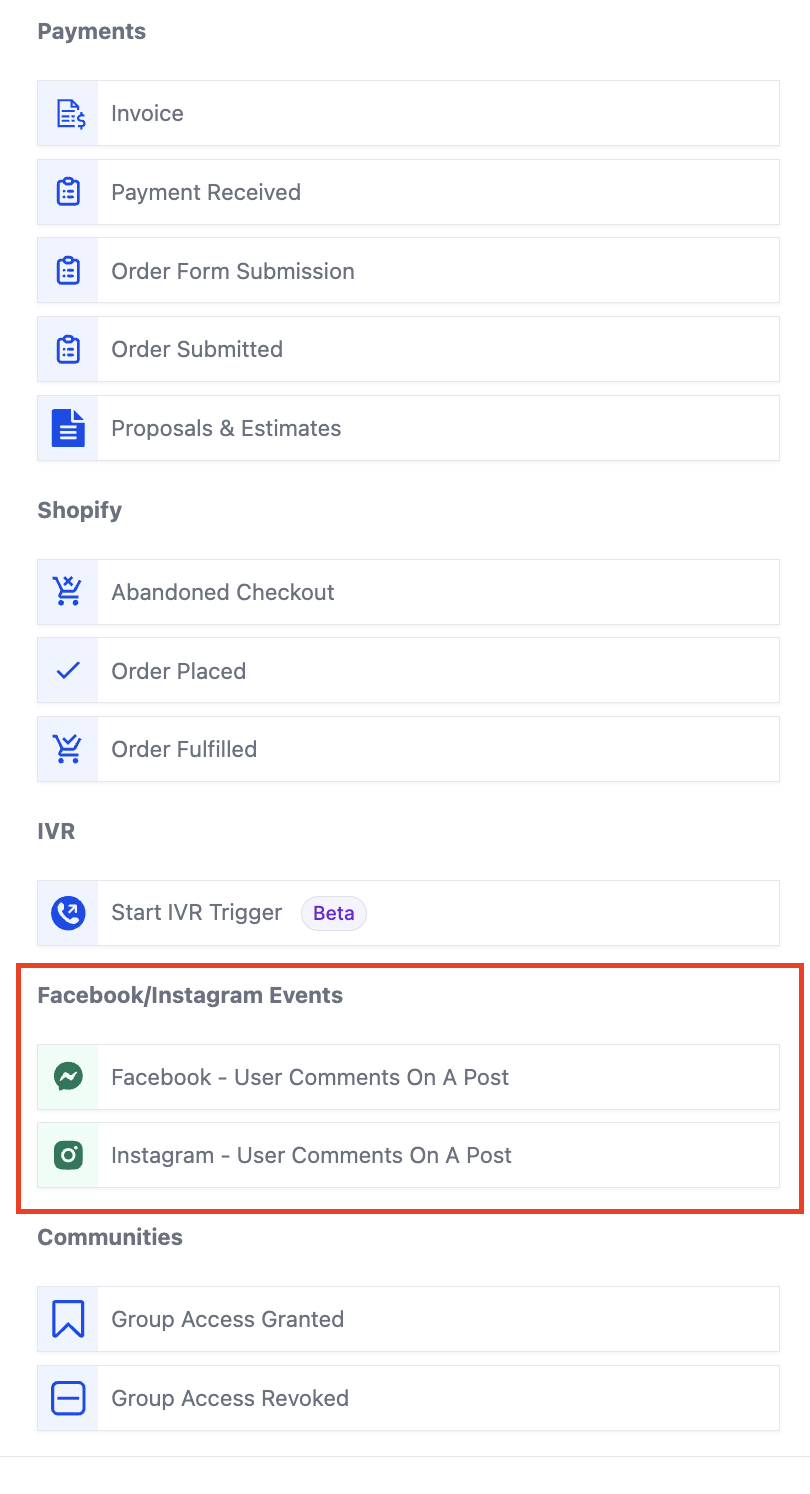
All components live in the workflow builder under the "Facebook/Instagram events" trigger category and the "Communications" actions category.
03How businesses use Facebook & Instagram comment automation
- Real estate agency. The agency creates a trigger for new comments on property listings, then adds a Reply In Comments action to answer common buyer questions. If a prospect asks for more details, the Interactive Messenger action sends a personalized DM that includes a link to the property page.
- Fitness studio. The studio sets up a trigger for Instagram comments on class promos, uses the GPT action to generate a friendly reply, and follows with an Interactive Messenger DM that contains a signup link and a button to call the studio.
- Online course provider. The provider configures a comment trigger on Facebook posts announcing new courses, adds a Reply In Comments action with multiple answer options, and attaches a PDF guide via the attachment field in the Interactive Messenger DM.
04The numbers and rules that matter
- Up to 3 buttons can be added in the Interactive Messenger action.
- Default wait time is 1 minute and editable.
- Reply to comment via DM must be sent within 7 days or delivery fails.
- If Reply to DM is selected, the system checks for a conversation in the last 24 hrs.
05Before you start
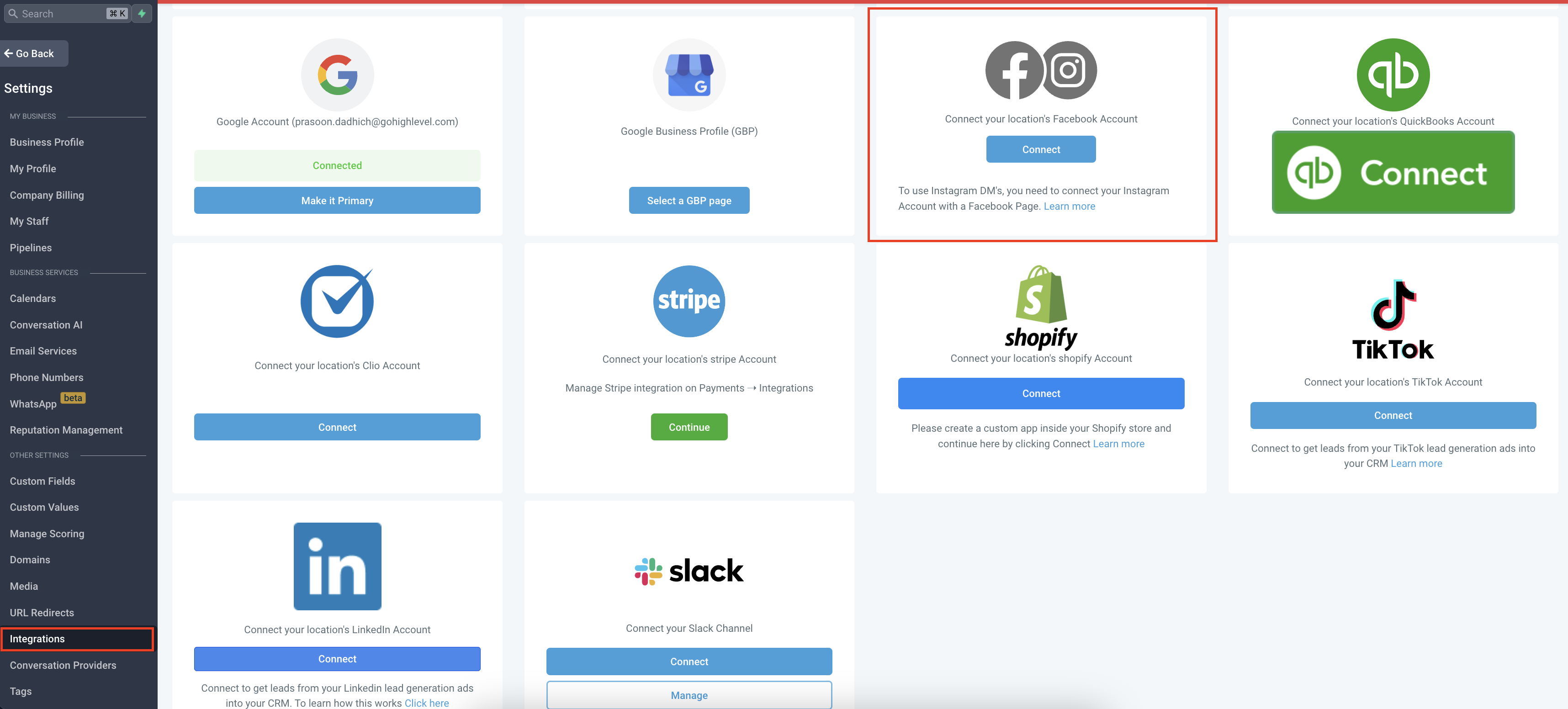
- Connect your Facebook and/or Instagram accounts to the HighLevel subaccount via Subaccount > Settings > Integrations > Facebook & Instagram.
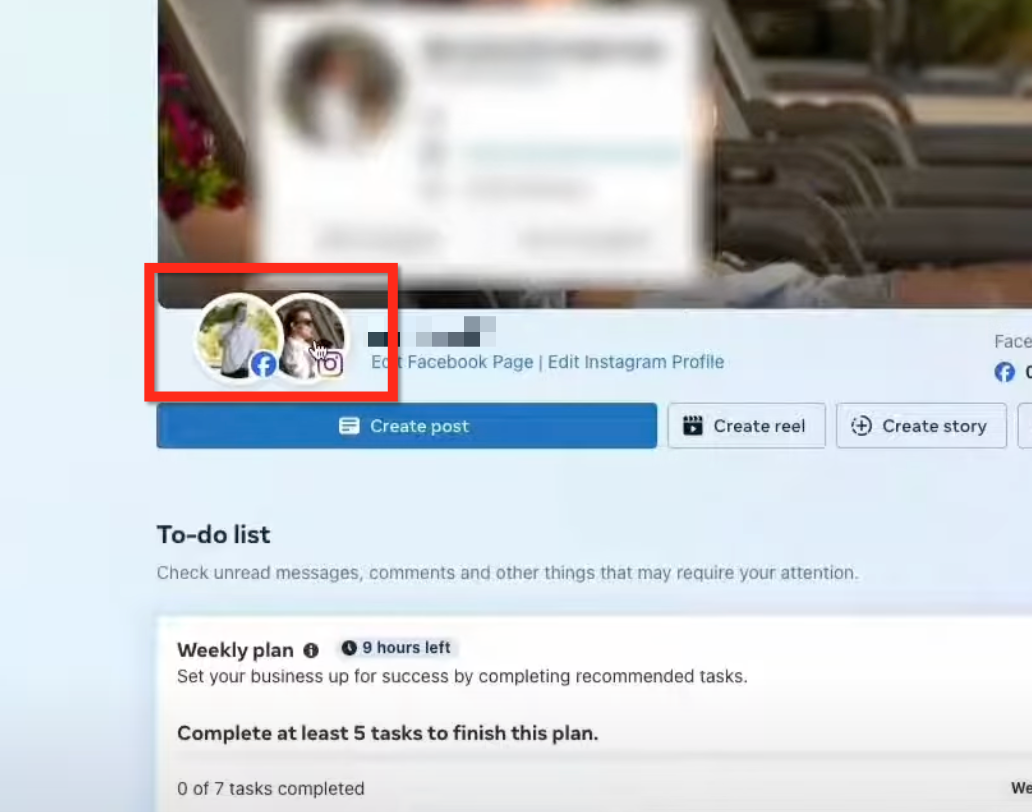
- Link the Instagram profile to its Facebook Business page so the platforms can share data.
06How to set up and use Facebook & Instagram comment automation in HighLevel
Create comment trigger
- Open a workflow and click Add Trigger.
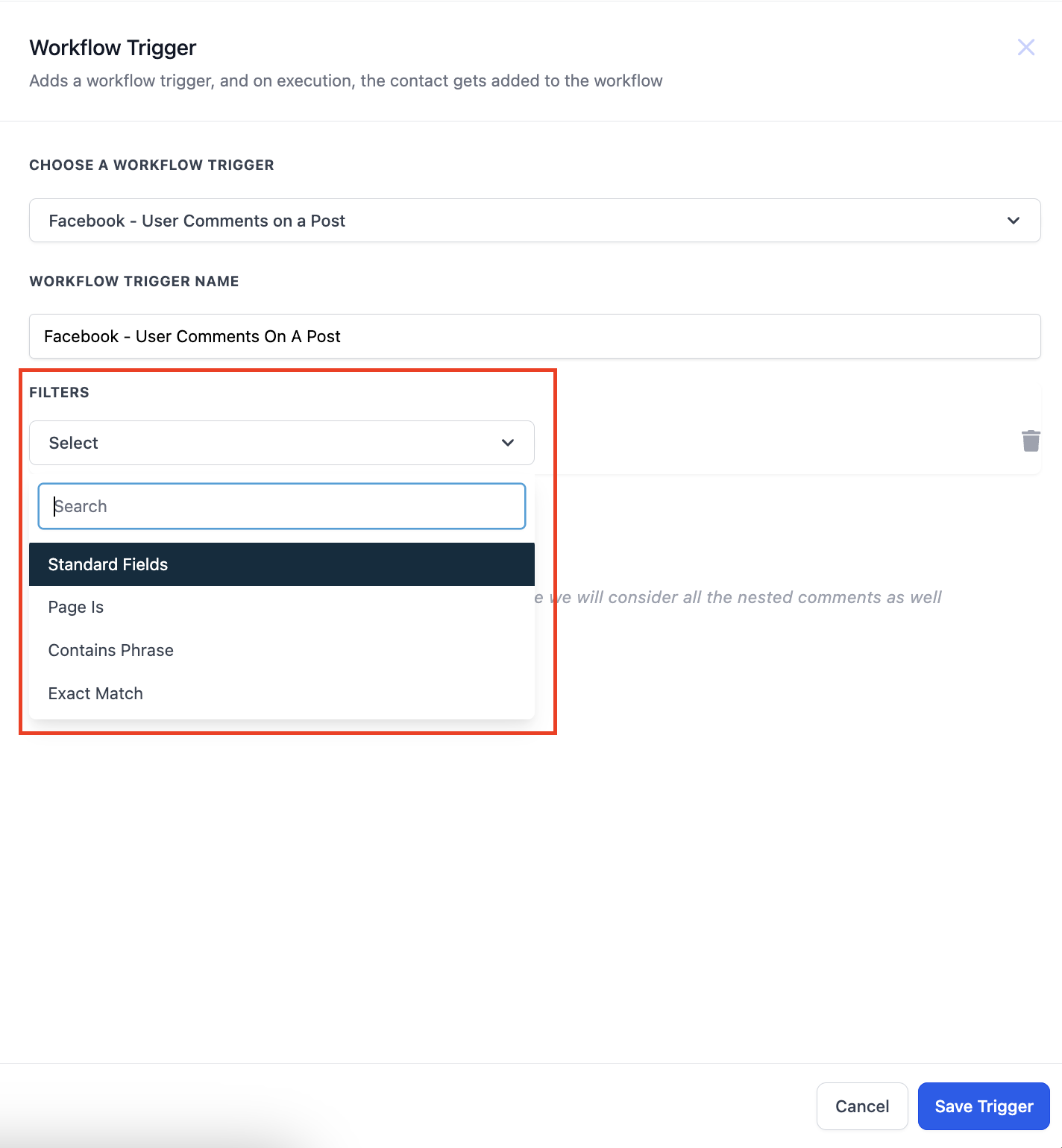
- Select the appropriate trigger from the Facebook/Instagram events category (Facebook - User comments on a post or Instagram - User comments on a post).
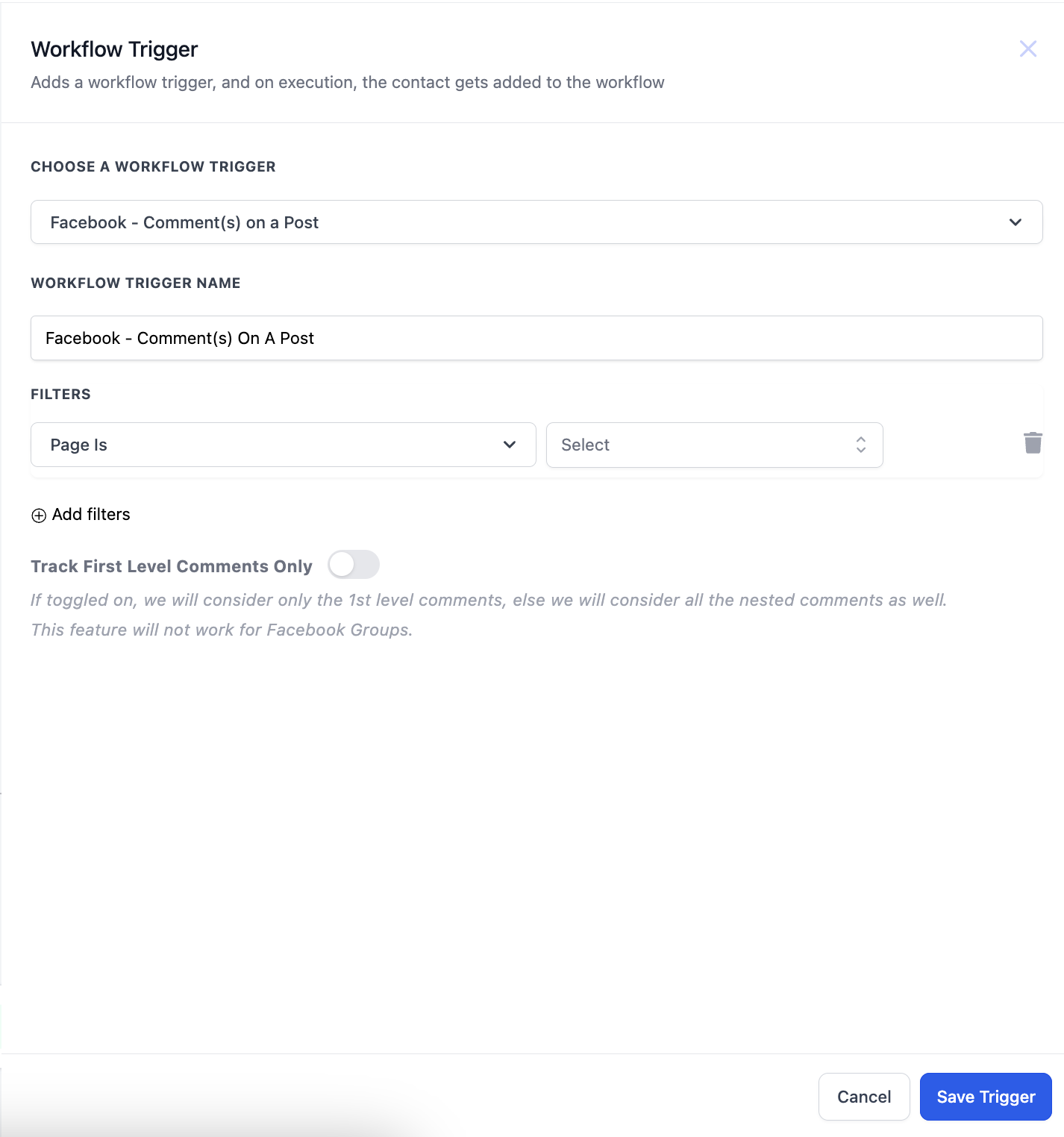
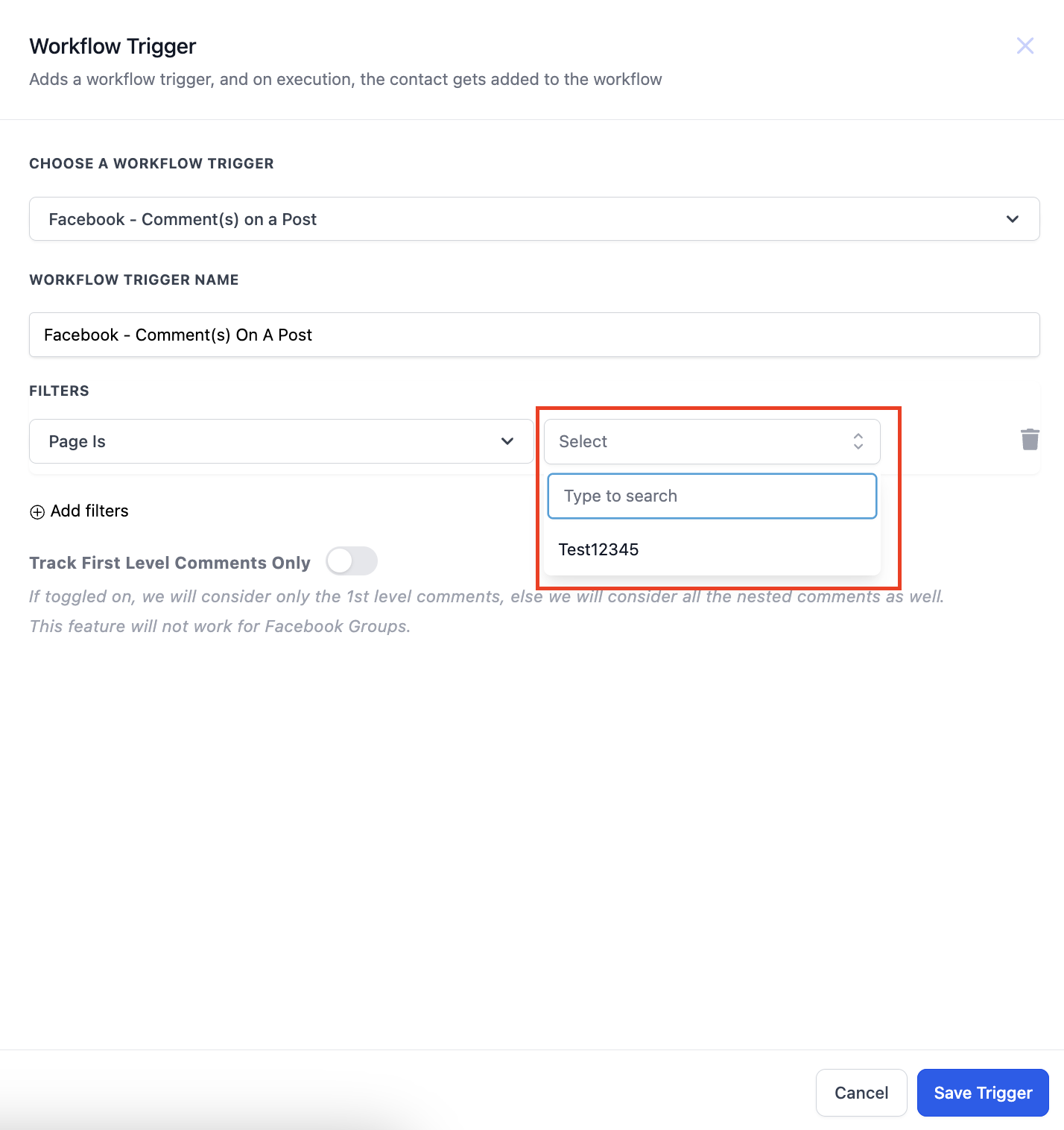
- The first filter to set is "Page is"; all other filters depend on this selection.
- Choose the Facebook Page that owns the post.
- Set the Post Type filter to Published or Custom.
- If Published, pick a post from the Published Posts list; if Custom, paste the post URL or ID into the Post is field.
- Define the comment matching rule by choosing Contains Phrase or Exact Match and entering the desired text.
- Optionally enable the toggle to track only first level comments.
Configure interactive messenger action
- Add the Facebook Interactive Messenger or Instagram Interactive Messenger action; the sidebar opens.
- Select the Reply Type (Reply to DM or Reply to comment via DM).
- Compose the message or choose a template for the outbound DM.
- Click Add attachment to include a file from your drive or a URL.
- Click Add Button to insert up to three buttons into the message.
- Set the Default Wait Time (default 1 minute, editable) for the action.
Set up reply in comments action
- Add the Reply In Comments action; the sidebar appears.
- Enter one or more reply texts; the system will pick one at random when responding.
- Turn on the toggle to also like the original comment.
07What it looks like in HighLevel
08Settings that matter
- Reply Type. Determines whether the DM is sent in response to a direct message or to a comment.
- Add attachment. Allows a file or URL to be attached to the outbound DM.
- Add Button. Adds interactive buttons (Open website, Call Number, Perform Actions) to the DM.
- Default Wait Time. Sets how long the system pauses before moving the contact to the Default Branch.
- Default Branch. The path the contact follows if no reply is received or a Call button is pressed.
- Toggle for tracking first level comments. When enabled, only top level comments trigger the workflow.
- Contains Phrase. Filters comments that include the specified phrase.
- Exact Match. Filters comments that exactly match the specified text.
09Things to know before you rely on it
- You can add up to three buttons in an Interactive Messenger action.
- No further actions can be added after a Call Number button; the contact moves directly to the Default Branch.
- A default wait of one minute is added automatically but may be edited.
- When using Reply to comment via DM, the DM must be sent within seven days or the delivery fails.
- If no button is selected, contact goes to the Default Timeout branch.
10How it connects to the rest of HighLevel
- Create a workflow in HighLevel Workflow creation guide
- Full list of workflow actions Workflow actions
- Overview of available triggers Workflow triggers overview
Michael's take

When you have a steady stream of comments and need to keep the conversation moving without a person at a keyboard, this automation can handle the replies and push a DM with a file or AI crafted answer.
If your comment volume is low or you prefer personal, handcrafted replies, the extra setup might feel unnecessary, and the wait times and button limits can feel restrictive for more flexible dialogues.