
01Who this is for
- Customer support teams, receive instant Slack notifications when users DM the support bot, reducing manual monitoring.
- HR managers, automatically welcome new members joining onboarding channels, easing onboarding communication.
- Marketing groups, track emoji reactions on campaign posts to trigger follow up actions.
02Slack workflow triggers, explained
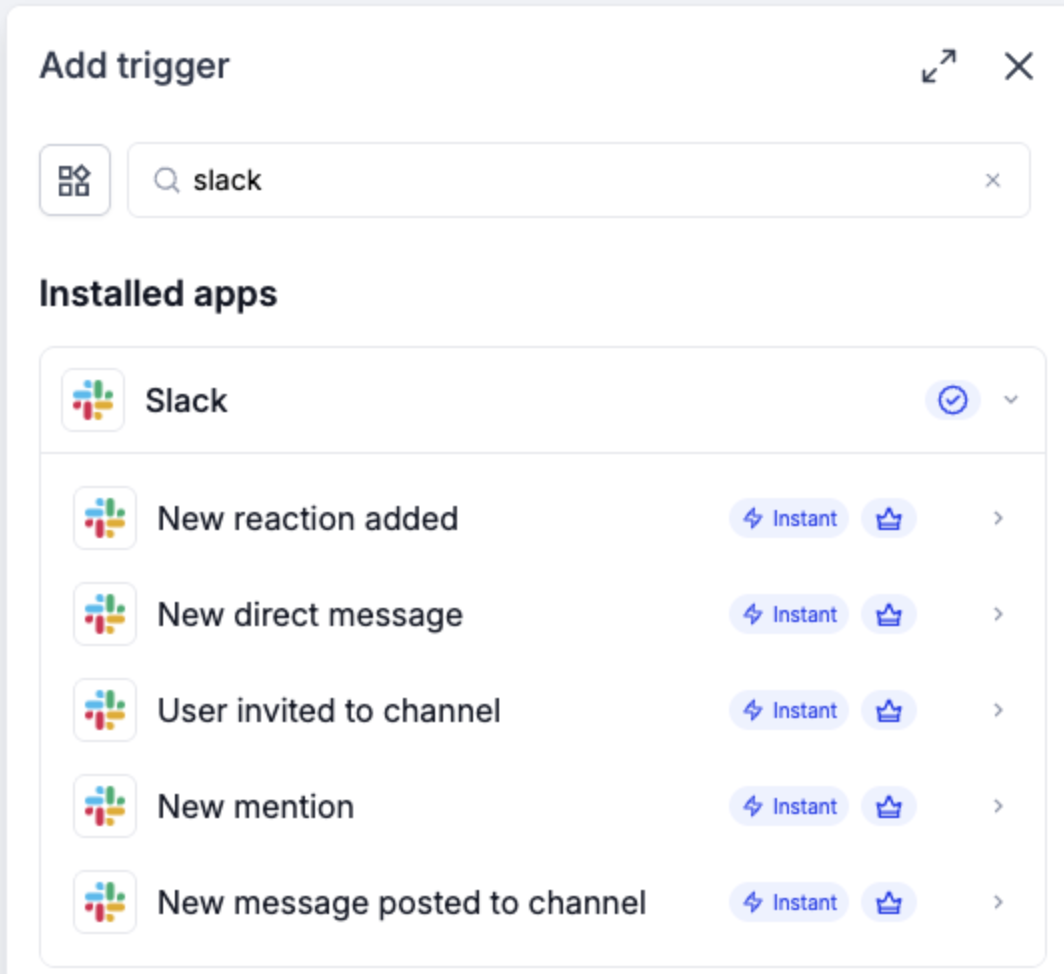
Slack workflow triggers are instant events that launch a HighLevel workflow as soon as a matching activity happens in a linked Slack workspace. The five available triggers cover new emoji reactions, direct messages to the bot, user invitations to a channel, at mentions of the bot, and new messages posted in a channel.
Each trigger is added from the Workflow Builder and marked as a Premium feature. When the trigger fires, any mapped Slack event details become custom values that later actions can use, such as sending a notification to another Slack channel or creating a task in HighLevel.
03How businesses use Slack workflow triggers
- Software development agency. Set up a New Mention trigger on the #dev requests channel. When a developer mentions the bot, map the mention data and use a Slack Message action to alert the #triage channel with the request details.
- Ecommerce store. Create a New Direct Message trigger for the bot. Add a text filter for the phrase "order issue". Map the incoming DM and send a Slack Message to #support to start the order issue workflow.
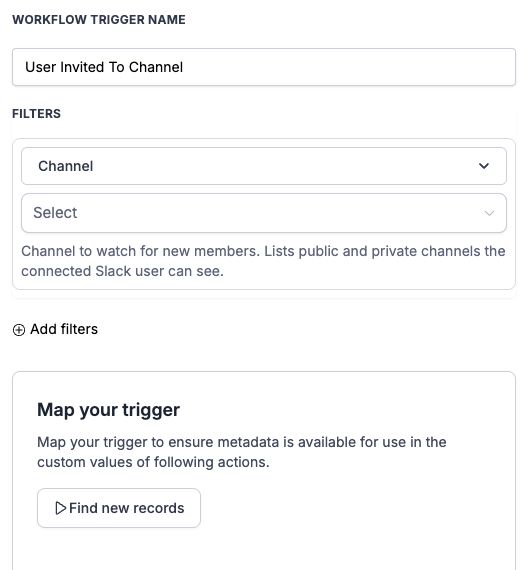
- Consulting firm. Configure a User Invited to Channel trigger for the #new consultants channel. When a new consultant joins, map the event and post a welcome message with onboarding links in the same channel.
04Before you start
- A Slack workspace must be connected to HighLevel via a Connected account.
- Access to Premium workflow features is required.
05How to set up and use Slack workflow triggers in HighLevel
Configure a Slack trigger
- Open Automation > Workflows and select the workflow to edit.
- Press Add trigger, type Slack in the search box, and pick the desired Slack event.
- Choose the appropriate Connected account for the Slack workspace; if none is linked, run the Slack connection flow first.
- Leave the default trigger name or enter a clear descriptive name.
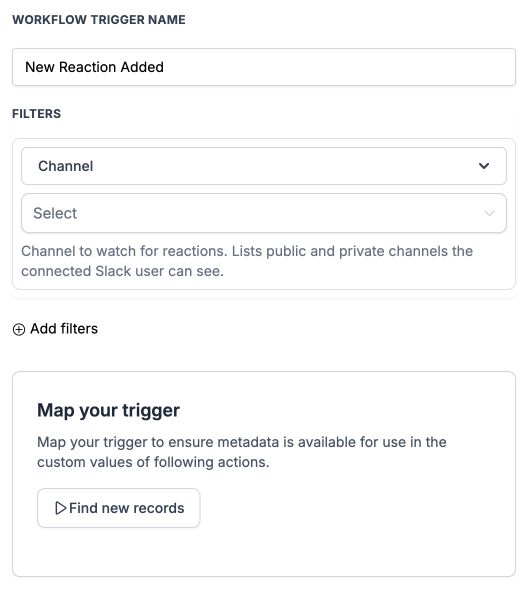
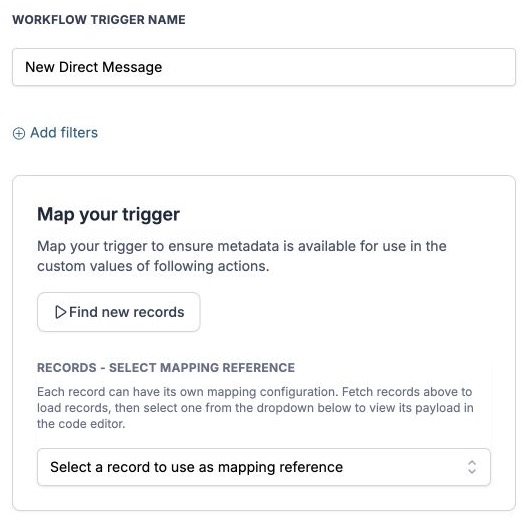
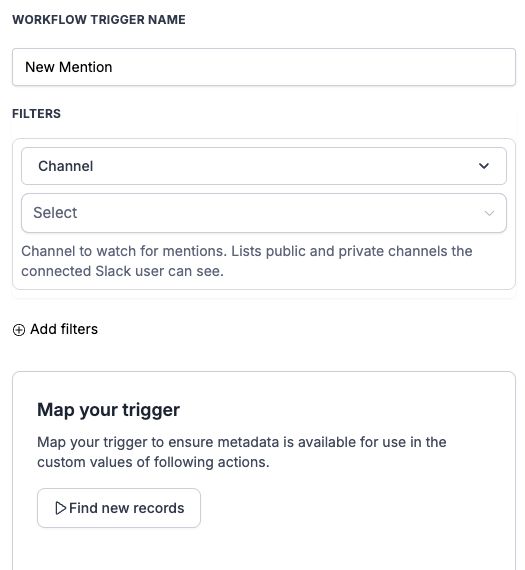
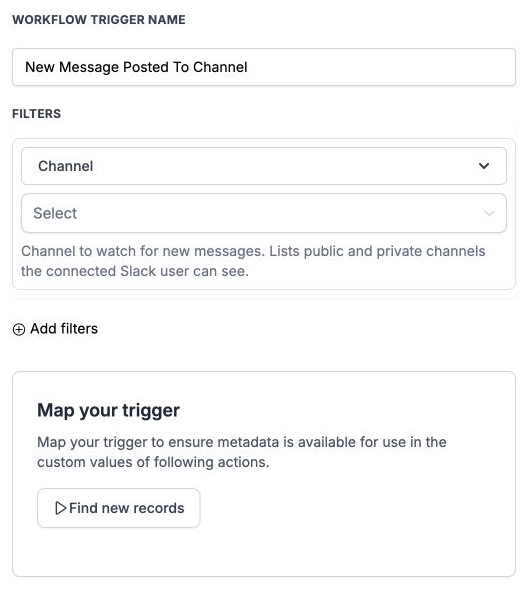
- Set the channel or apply filters: select the channel for channel based triggers, or add optional text and sender filters for New Direct Message.
- If later actions need Slack data, plan to map the trigger as described in the next procedure.
- Save the trigger and then add the needed workflow actions.
Map event data and test the workflow
- Generate a Slack event that matches the configured trigger and any applied filters.
- In the Map your trigger section, click Find new records.
- Choose a returned record to serve as the mapping reference and use the exposed trigger values in subsequent actions.
- Review the trigger and all actions, then publish the workflow, create another matching Slack event, and inspect the Execution logs for correct execution.
- If no records appear, verify the Connected account, chosen channel, and filter settings, create a different matching event, and click Find new records again.
06What it looks like in HighLevel
07Settings that matter
- Connected account. Selects which Slack workspace HighLevel will monitor for the trigger.
- Channel. Specifies the Slack channel whose activity should activate the trigger.
- Text filter. Limits a New Direct Message trigger to messages that contain the entered phrase.
- Sender filter. Restricts a New Direct Message trigger to messages sent by a particular Slack user.
- Workflow trigger name. Provides a label for the trigger inside the workflow; it can be left as the default or customized.
08Things to know before you rely on it
- All five Slack triggers are marked Premium in the workflow builder.
- Premium executions may generate usage charges depending on the account’s configuration and allowances.
- To prevent a notification loop with the New Message Posted to Channel trigger, send workflow generated Slack messages to a different channel than the one being monitored.
09If something goes wrong
- Channel is missing from the list. Confirm the selected Connected account can access the channel and that the channel is public or a private channel visible to that user.
- Direct message does not start the workflow. Remember the New Direct Message trigger listens only for messages sent to the Slack app (bot), not between two users.
- Mention does not start the workflow. Ensure the bot has been added to the channel and that the message includes an at mention of the bot itself, then verify the workflow is enabled for live events.
- No sample records appear when mapping. Create a new Slack event that meets the trigger and filter criteria, then click Find new records again.
10How it connects to the rest of HighLevel
- Introduction to HighLevel workflows and automations Workflow basics
- Getting started with HighLevel workflow creation Create a workflow
- Understanding HighLevel Workflow Pro Plan pricing tiers Premium pricing
- Start a 30 day HighLevel trial Free trial
Michael's take

Slack workflow triggers let you automate alerts and onboarding steps without writing code.
Avoid setting the notification channel to the same one you’re monitoring, as that can create a notification loop.