
01Who this is for
- Founders who oversee many automations can quickly understand and modify workflows without navigating each item.
- Operations managers can locate specific automations or assets using conversational queries, saving time on manual searches.
02AI Assistant in Workflow Maps, explained
The AI Assistant lives inside the Workflow Maps view of the platform. It reads the map and workflow context and answers natural language prompts about what a workflow does, which assets are linked, or how a folder is organized. Users can also ask it to create new workflows, add steps, rename items, or move items between folders.
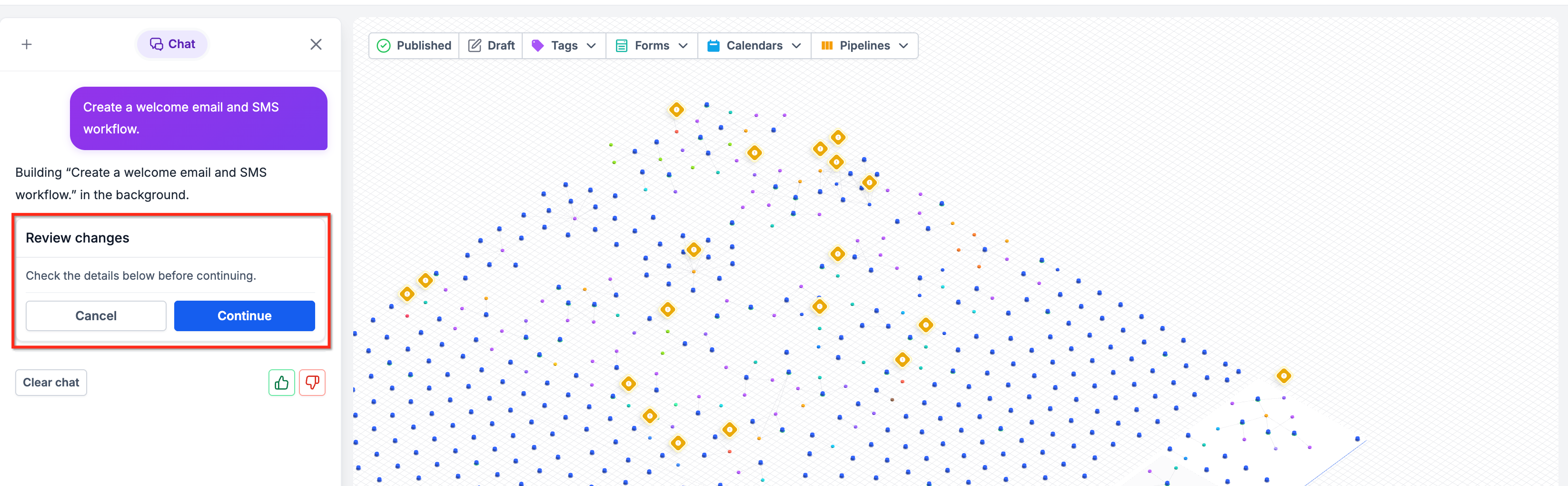
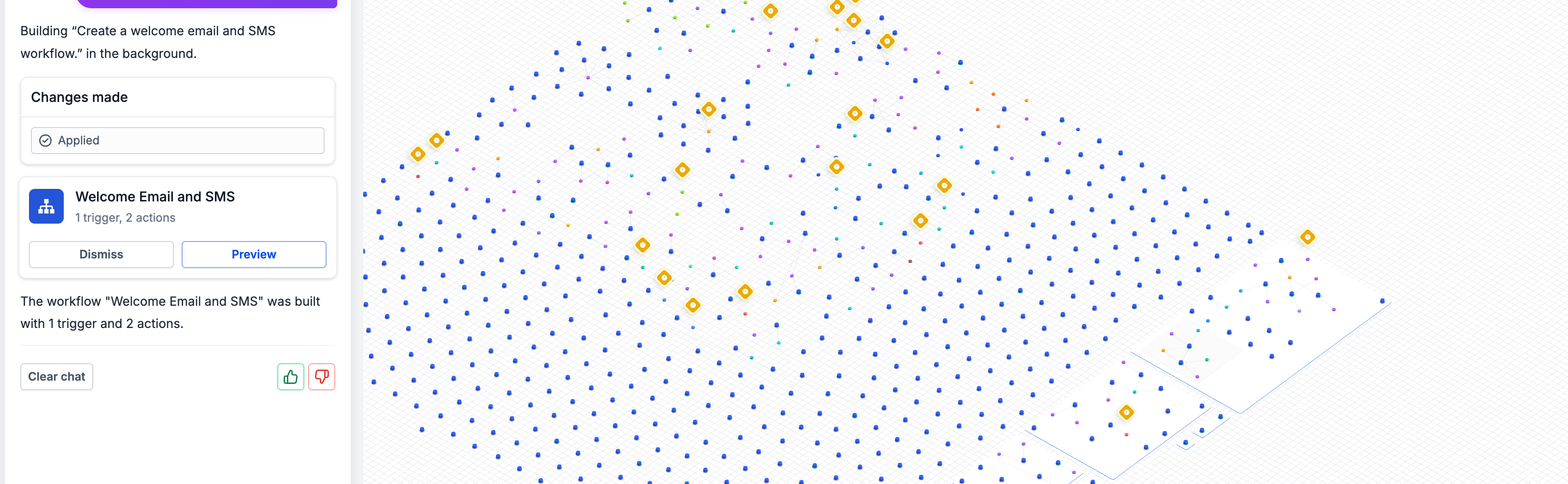
When a request involves a change, the assistant builds a proposal and presents it for review. Some actions, such as deletions or moving the entire map, always need manual confirmation. Approved changes run as background jobs, after which the updated automation appears in the map.
The feature respects the permissions of the current subaccount, so only actions allowed for the user can be performed. It does not automatically resolve errors; it merely helps investigate and suggest edits.
03How businesses use the AI Assistant in Workflow Maps
- Digital marketing agency. The agency can ask the assistant to list all workflows in a client’s Campaign folder, then request a new lead follow up workflow with email and SMS steps. The assistant proposes the build, the manager approves, and the automation appears for client reporting.
- Ecommerce store. The store owner can command the assistant to locate the abandoned cart workflow, rename it for clarity, and add a note describing its purpose. After reviewing the suggestions, the owner approves the rename and note, keeping the map organized.
- Dental practice. Staff can ask the assistant to create a folder called "New Patient Onboarding" and move existing welcome email workflows into it. The assistant proposes the move, the practice manager confirms, and the workflows are neatly grouped for future edits.
04How to set up and use the AI Assistant in Workflow Maps in HighLevel
Use the AI Assistant within Workflow Maps
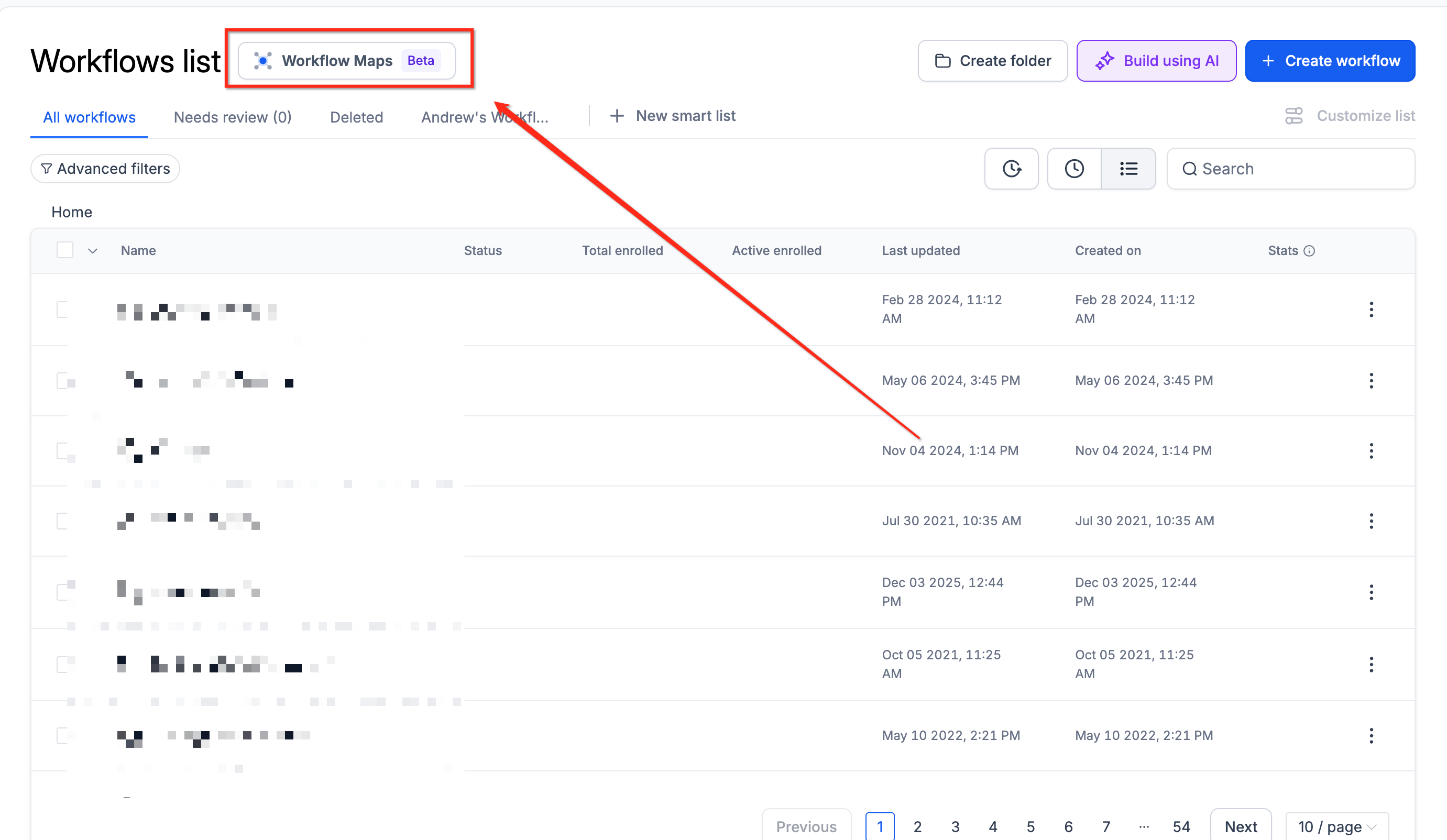
- Open Workflow Maps by selecting Automation > Workflows > Workflow Maps.
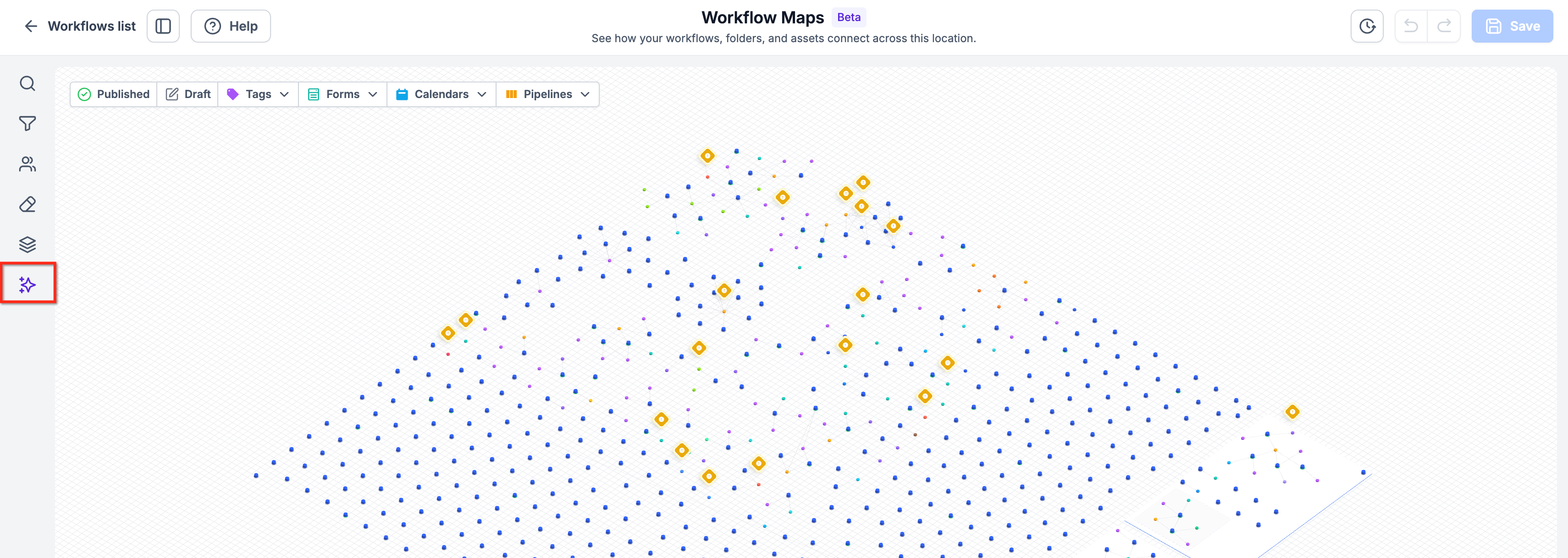
- Click the Assistant button that appears inside the map view.
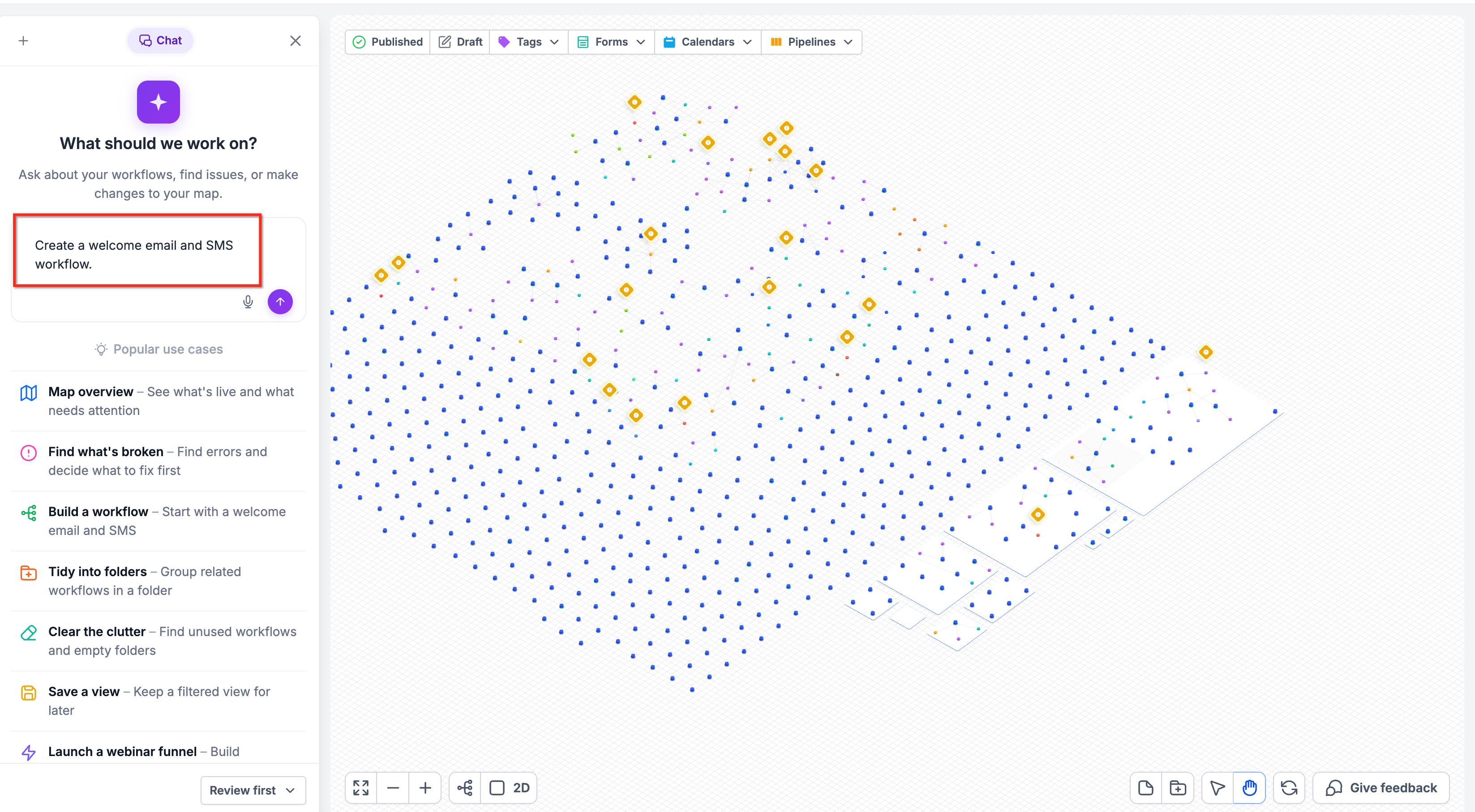
- Type a natural language request, such as a question about a workflow or a command to create one.
- Read the assistant’s reply, which may include an explanation, a filtered view, or a proposed change.
- If the response includes an action, review the suggested changes and approve them using the provided controls.
- After approval, examine the workflow or map to ensure it reflects the requested update.
05What it looks like in HighLevel
06Things to know before you rely on it
- Automatic approval does not apply to deletions or to rearranging the entire workflow map; those always need confirmation.
- Supported builds and edits are processed as background jobs, so the change appears only after the job finishes.
- The assistant may not support every possible workflow modification; available actions are limited to its current capabilities.
- Saved views keep filter settings but do not retain the map’s zoom level, position, or layout.
07How it connects to the rest of HighLevel
- Learn the basics of building workflows with triggers, filters, and actions. Workflow basics
- Explore how to use Inbound Webhook triggers in workflows. Inbound webhook trigger
- Review the pricing tiers for the Workflow Pro plan. Workflow Pro pricing
Michael's take

Be aware that the AI Assistant only suggests changes; it never applies deletions or full map rearrangements without your explicit go ahead. That safety net can feel restrictive if you’re eager to move fast.
When it works, the assistant cuts down the time you’d spend clicking through menus. I’d let it draft a simple welcome email workflow and then double check the output before you rely on it.