
01Who this is for
- Course creators who need automatic alerts for quiz and assignment activity to reduce manual follow up.
- Instructors who want instant notifications when a learner submits work or receives a grade.
- Membership site owners who require brand consistent communication for all learner interactions.
02Course assessment emails, explained
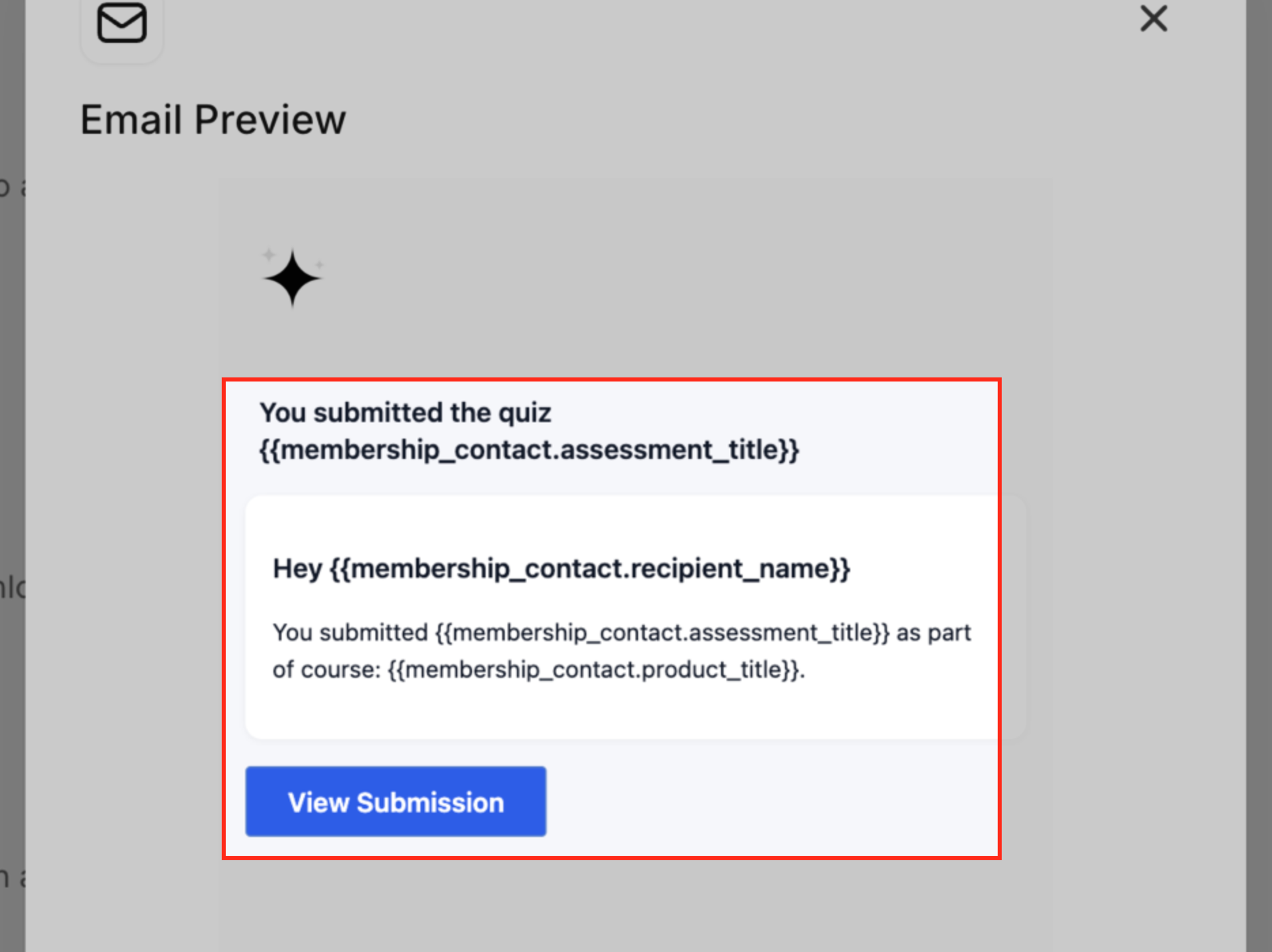
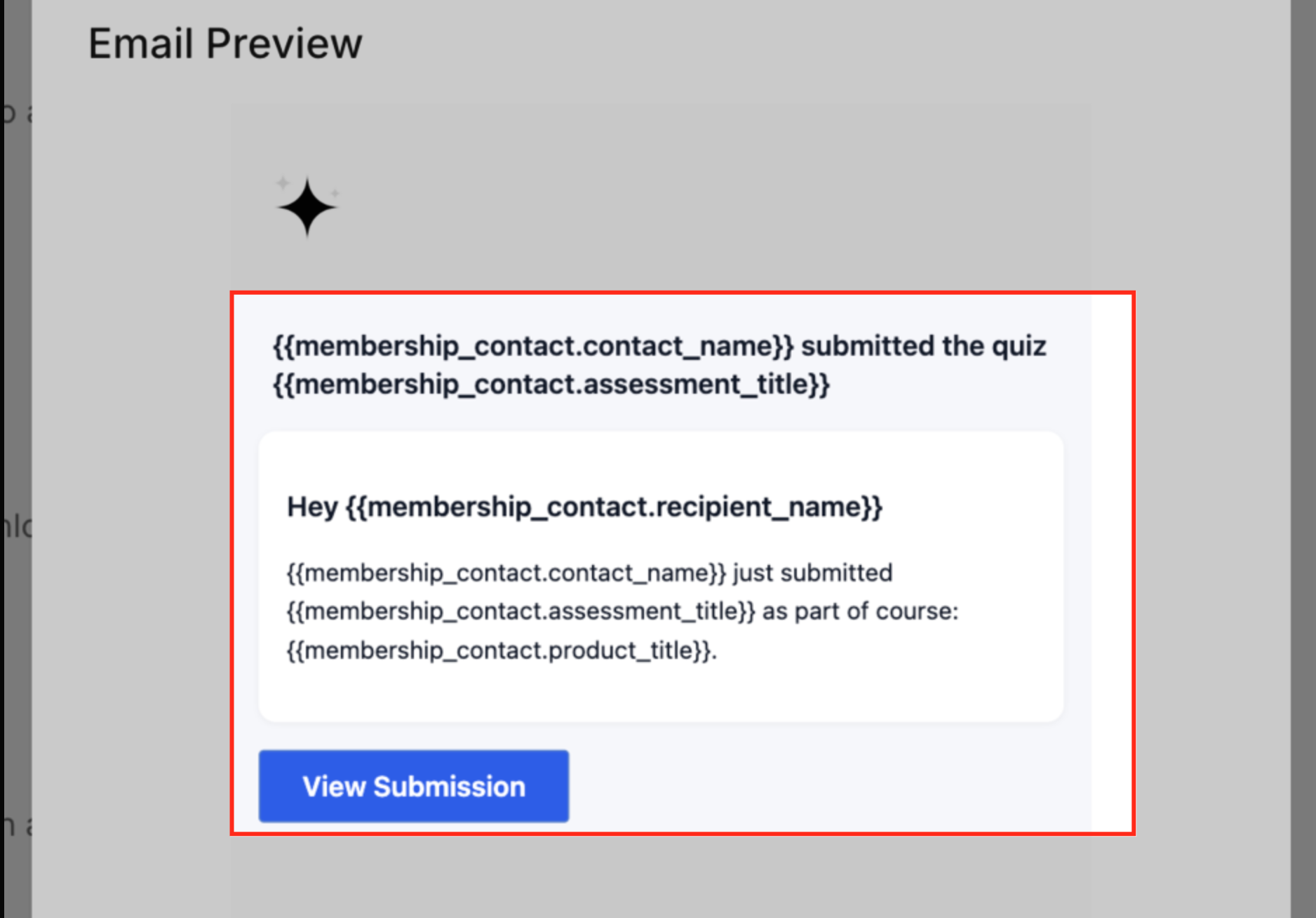
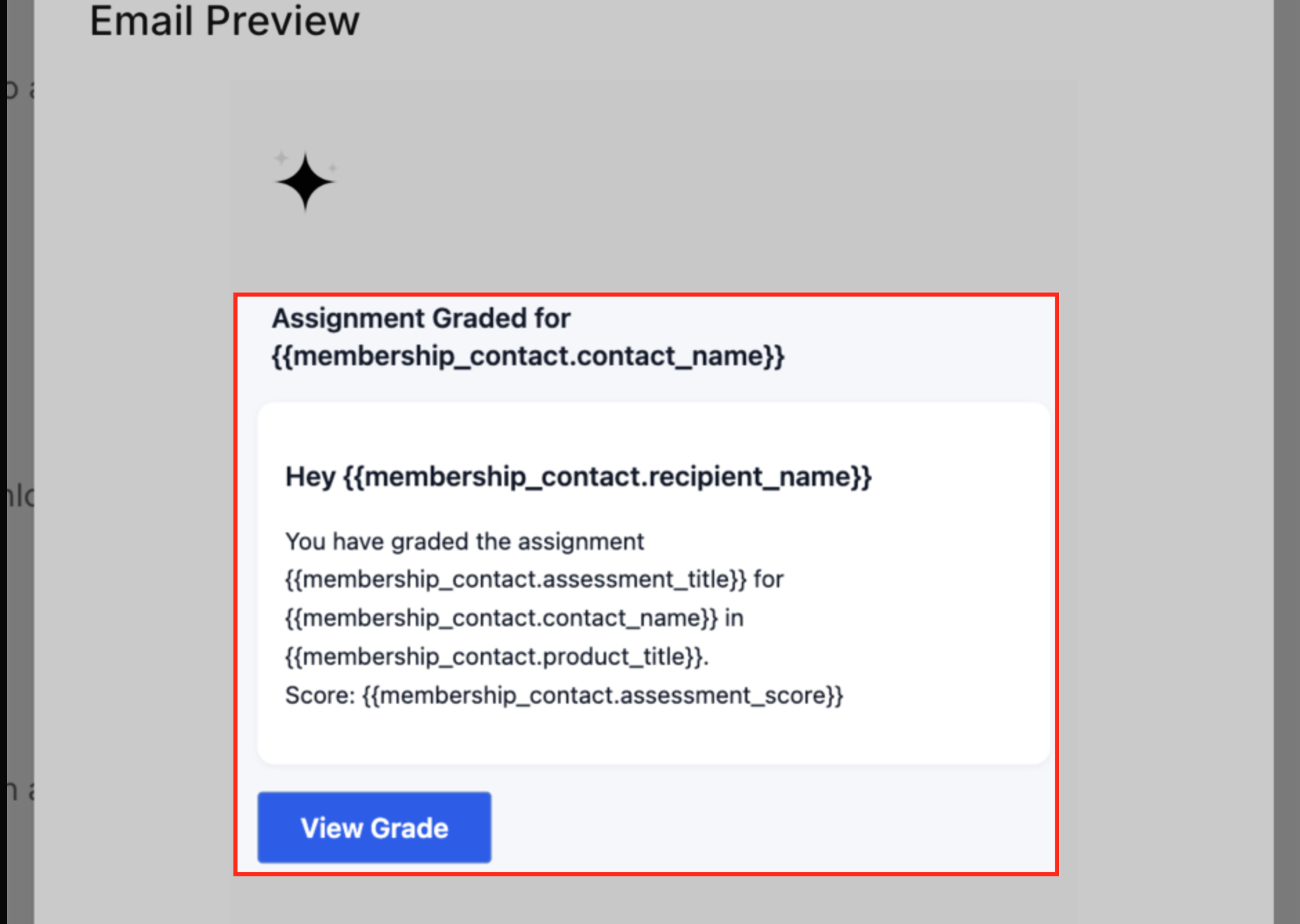
Course Assessment Emails are system generated notifications sent whenever a learner submits a quiz, uploads an assignment, receives a grade, or posts a comment. The emails contain details such as the course name, assessment title, and grading status, keeping both learners and instructors aware of activity in real time.
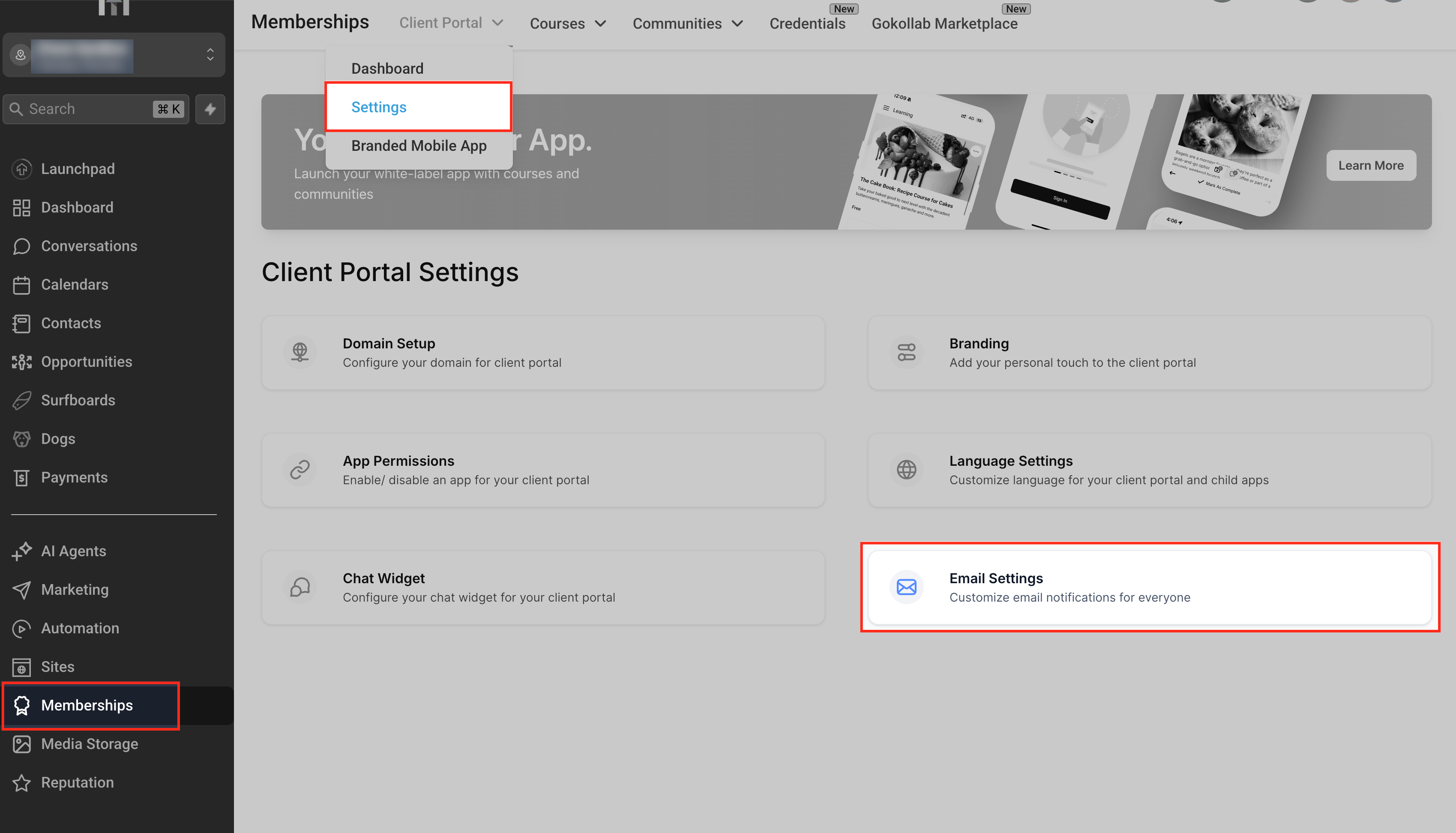
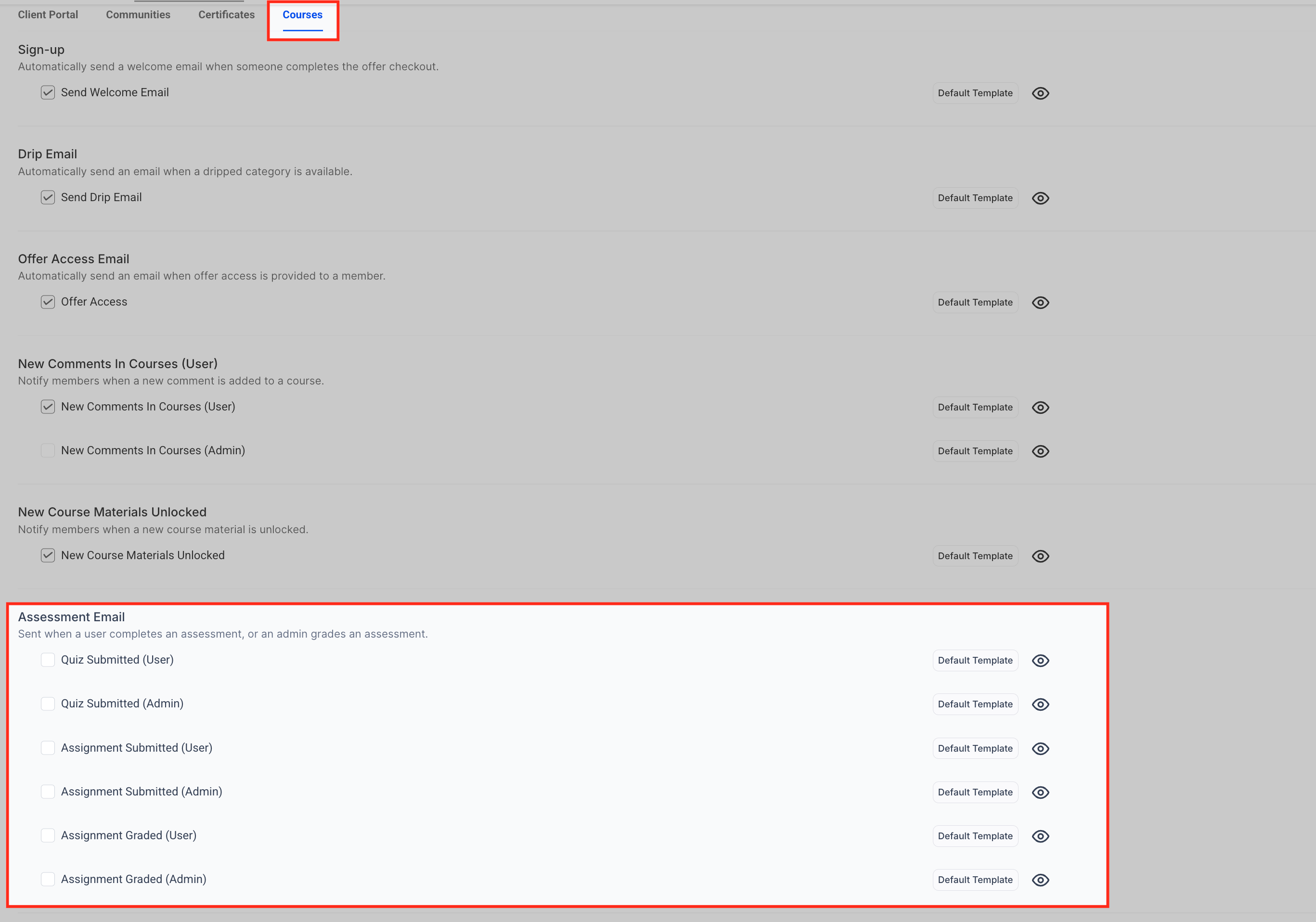
The feature lives within the client portal settings under Email Settings > Courses. Each notification type has its own toggle, and the email content can be edited through the platform’s Email Builder. Changes apply only to the course where they are configured, allowing precise control over what messages are sent.
All assessment emails are treated as transactional messages, consume standard email credits, and support full customization, including branding, colors, and translated text.
03How businesses use course assessment emails
- Online coding bootcamp. The bootcamp enables quiz submission emails so students receive immediate confirmation and instructors are alerted to start grading. The template is edited to feature the bootcamp logo and a link to the grading dashboard.
- Yoga studio certification program. The studio customizes assignment submitted emails with its visual brand, sending learners a confirmation after they upload video assignments while notifying the studio instructor via the admin version of the email.
- Corporate professional development platform. For compliance courses the platform disables assignment graded emails to avoid clutter, but keeps quiz submitted notifications active so trainers can monitor progress without excess messaging.
04The numbers and rules that matter
- Templates support UTF 8 for translation.
05How to set up and use course assessment emails in HighLevel
Enable or disable assessment emails for a course
- Navigate to Memberships > Client Portal > Settings.
- Select Email Settings from the Settings page.
- Click the Courses tab in the Email Settings area.
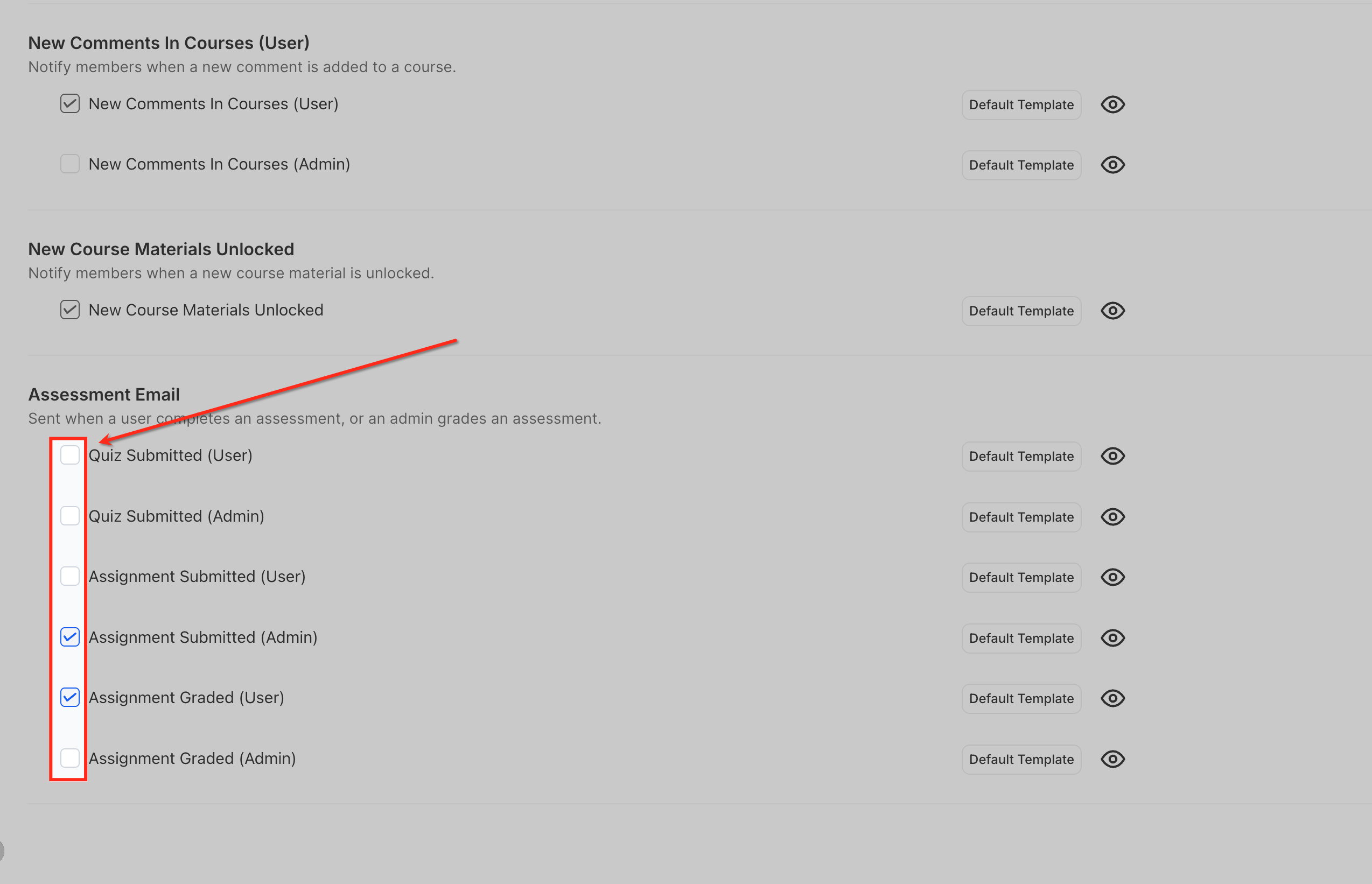
- Scroll down to the Assessment Email section and locate the desired notification.
- Toggle the checkbox to turn the email on or off for that course.
- Click the eye icon to preview the current email template.
Customize an assessment email template
- In the Assessment Email list, click the Default Template button next to the email and choose Edit.
- On the confirmation screen, click Proceed to generate an editable copy of the template.
- The Email Builder opens with the default layout ready for changes.
- Update the text, colors, branding, and any custom merge fields as needed.
- Click Save & Publish to apply the edited template to future emails.
06What it looks like in HighLevel
07Settings that matter
- Email Settings. Provides access to all system generated email options for the client portal, including course notifications.
- Courses tab. Shows every course related email type, such as sign up, drip, comments, and assessment notifications.
- Default Template button. Opens the template editor for a selected assessment email, allowing you to create a customized version.
08Things to know before you rely on it
- Assessment emails count as transactional messages and use the platform’s standard email credits.
- If both assessment emails and a workflow send the same notification, learners could receive duplicate emails unless one trigger is disabled.
- Templates support UTF 8 characters, enabling full translation of the email content.
09How it connects to the rest of HighLevel
- Build and launch your membership courses Course builder
- Create and manage quizzes for your courses Quiz management
- Set up products for membership course offers Product setup
Michael's take

Course assessment emails send a quick confirmation to the student and an instant alert to the teacher, keeping everyone on the same page without manual messages.
The first setting I’d lock in is the toggle for each email type at the course level. Turn on the notifications you need, turn off the noise you don’t, then give the template a quick brand tweak in the Email Builder so the tone matches your school’s voice.