
01Who this is for
- Course creators who maintain large libraries, because tags give each course a consistent description for easy navigation.
- Learners seeking content in a specific language, skill level, or subject, as filters let them locate relevant courses quickly.
02Course tags, explained
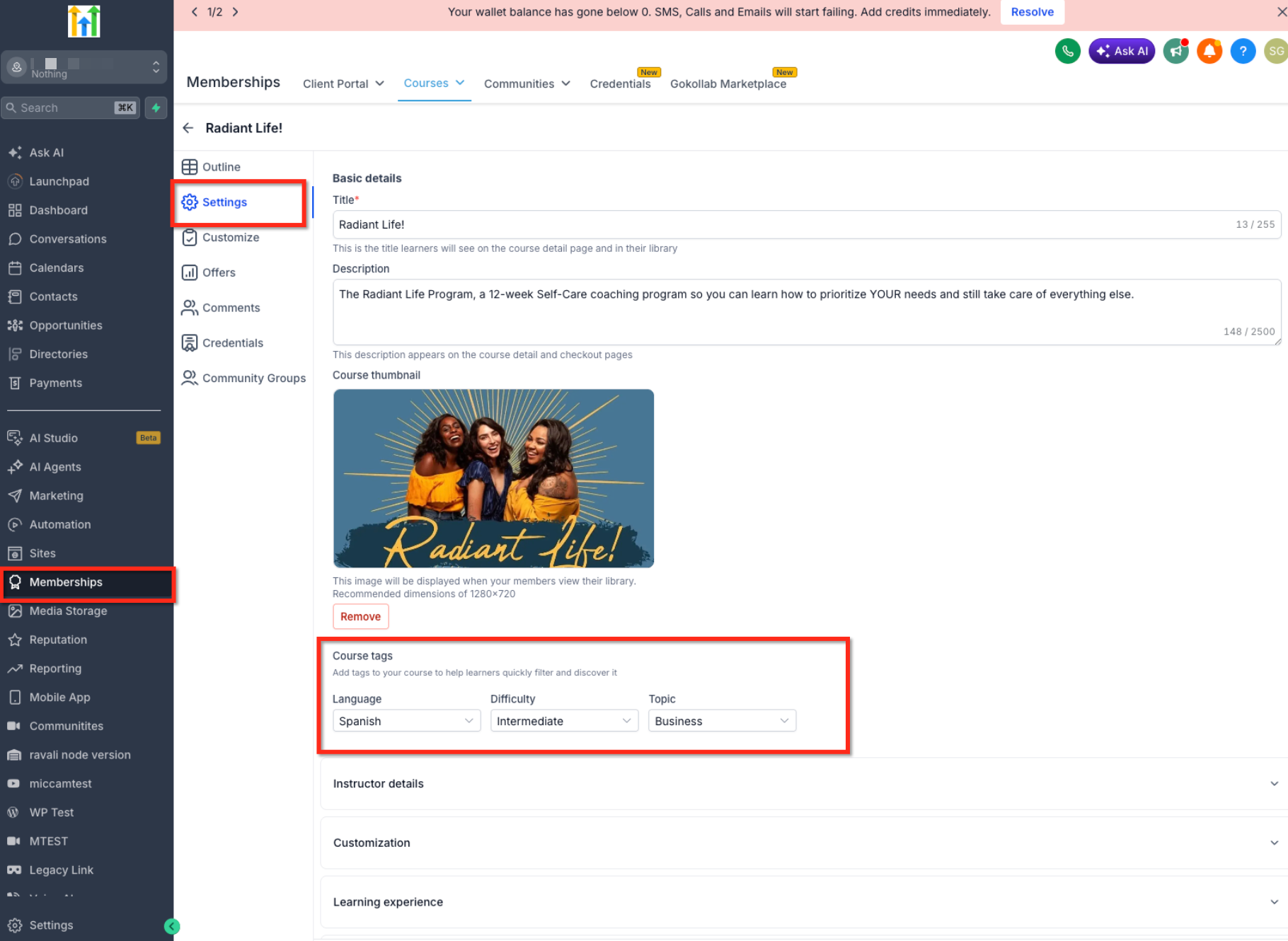
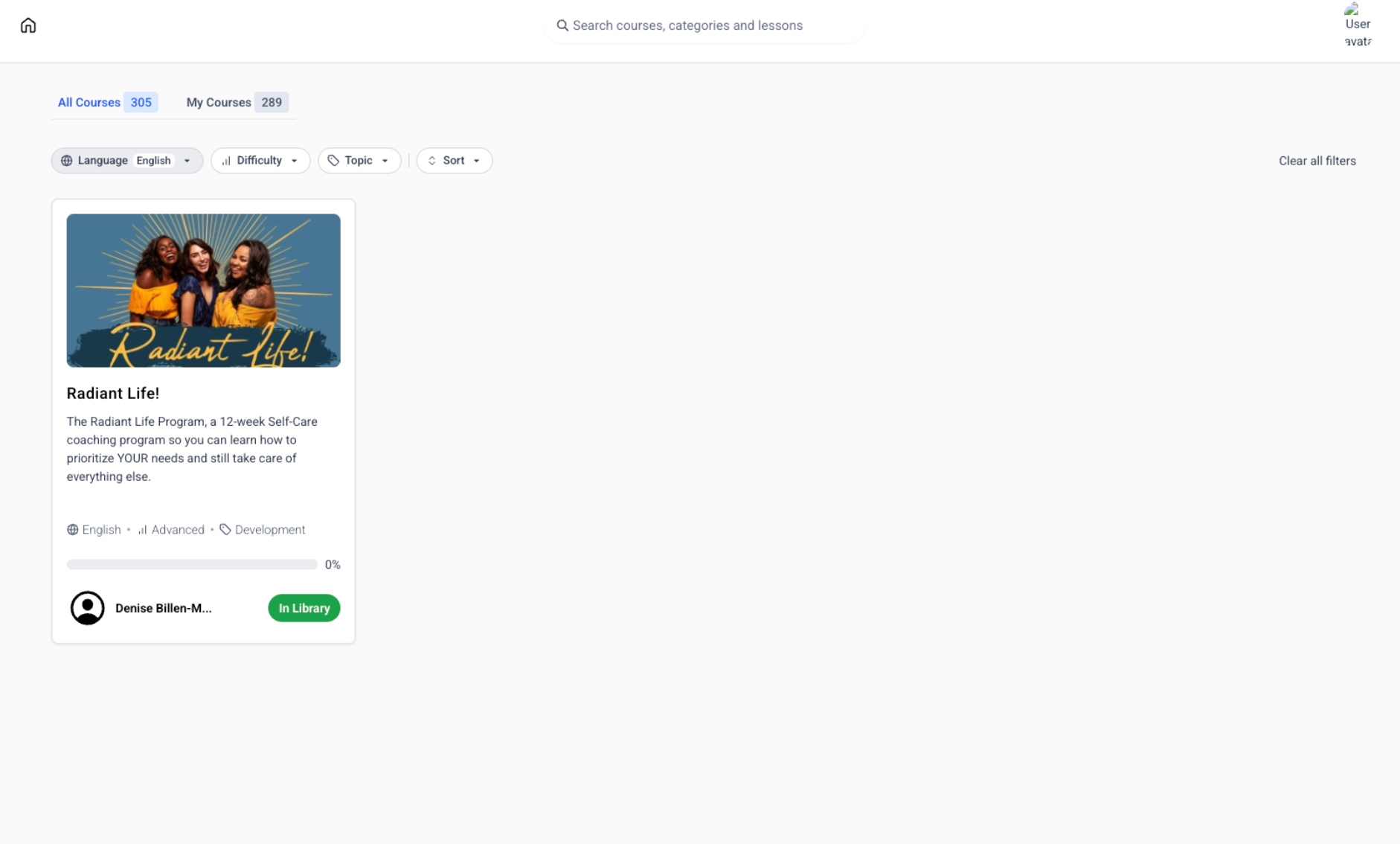
Course Tags let creators label a course with a Language, Difficulty, and Topic value from predefined lists. After saving, those labels display on the course card in the learner library. Learners can then apply the same three filters to reduce the catalog view in both All Courses and My Courses. Tags are managed from the course Settings page within Memberships > Courses > Products.
The tags serve only for categorization and discovery; they do not affect enrollment, offers, or access permissions. Changes sync automatically to the learner library, updating the visible tags on course cards and filter options.
03How businesses use course tags
- Online fitness coaching business. The coach assigns English as the Language, Beginner as the Difficulty, and Nutrition as the Topic to new workout programs. Prospective members can filter the program library to see beginner level nutrition courses in English before enrolling.
- Software training provider. The trainer selects Spanish for language, Advanced for difficulty, and Cloud Computing for topic on each technical course. Learners browsing the portal can filter to view only advanced cloud courses offered in Spanish.
- Creative arts school. The school tags painting courses with French language, Intermediate difficulty, and Fine Arts topic. Students can narrow the course list to intermediate fine arts classes taught in French, streamlining their selection process.
04How to set up and use course tags in HighLevel
Set up course tags
- Navigate to Memberships from the left navigation menu.
- Select Courses and then open Products.
- Open the specific course you want to categorize.
- Choose Settings from the course menu.
- Scroll down to the Course tags area.
- Pick a value from the Language dropdown.
- Pick a value from the Difficulty dropdown.
- Pick a value from the Topic dropdown.
- Review the chosen values for accuracy.
- Click Save.
Filter courses
- Open the course library in the Client Portal.
- Select either All Courses or My Courses.
- Choose one of the available filters: Language, Difficulty, or Topic.
- Select the specific filter value you want.
- Review the courses displayed after filtering.
- Select Clear all filters to return to the full library.
05What it looks like in HighLevel
06Settings that matter
- Language. Determines the language in which the course content is delivered.
- Difficulty. Indicates the skill or experience level required for the course.
- Topic. Classifies the primary subject area of the course.
07Things to know before you rely on it
- Tag values are predefined; the article does not confirm that they can be edited or expanded.
- It is unclear whether multiple values can be selected within a single tag type.
- Filters work in All Courses and My Courses, but support in the Communities Learning tab is not confirmed.
- The behavior of untagged courses when filters are applied is not defined.
- Tag changes sync to the learner library after the course is saved; no synchronization timing is specified.
08How it connects to the rest of HighLevel
- Build and organize courses using the HighLevel course builder. Course builder
- Generate password free access links for learners with magic links. Magic links
- Create a product and attach it to a membership course offer. Product setup
Michael's take

Michael ReimerFounder of CRM Pros, HighLevel Commander and Certified Admin
Course tags are a tidy way to label and filter courses in HighLevel.
Get More InformationOpens on HighLevelPublished November 3, 2026 · Updated November 17, 2026