
01Who this is for
- Community managers can embed relevant courses in discussions, keeping learning resources handy.
- Course creators can guide learners to specific lessons without leaving the conversation thread.
- Support agents can point members to training material directly from help topics.
02Tagging courses, explained
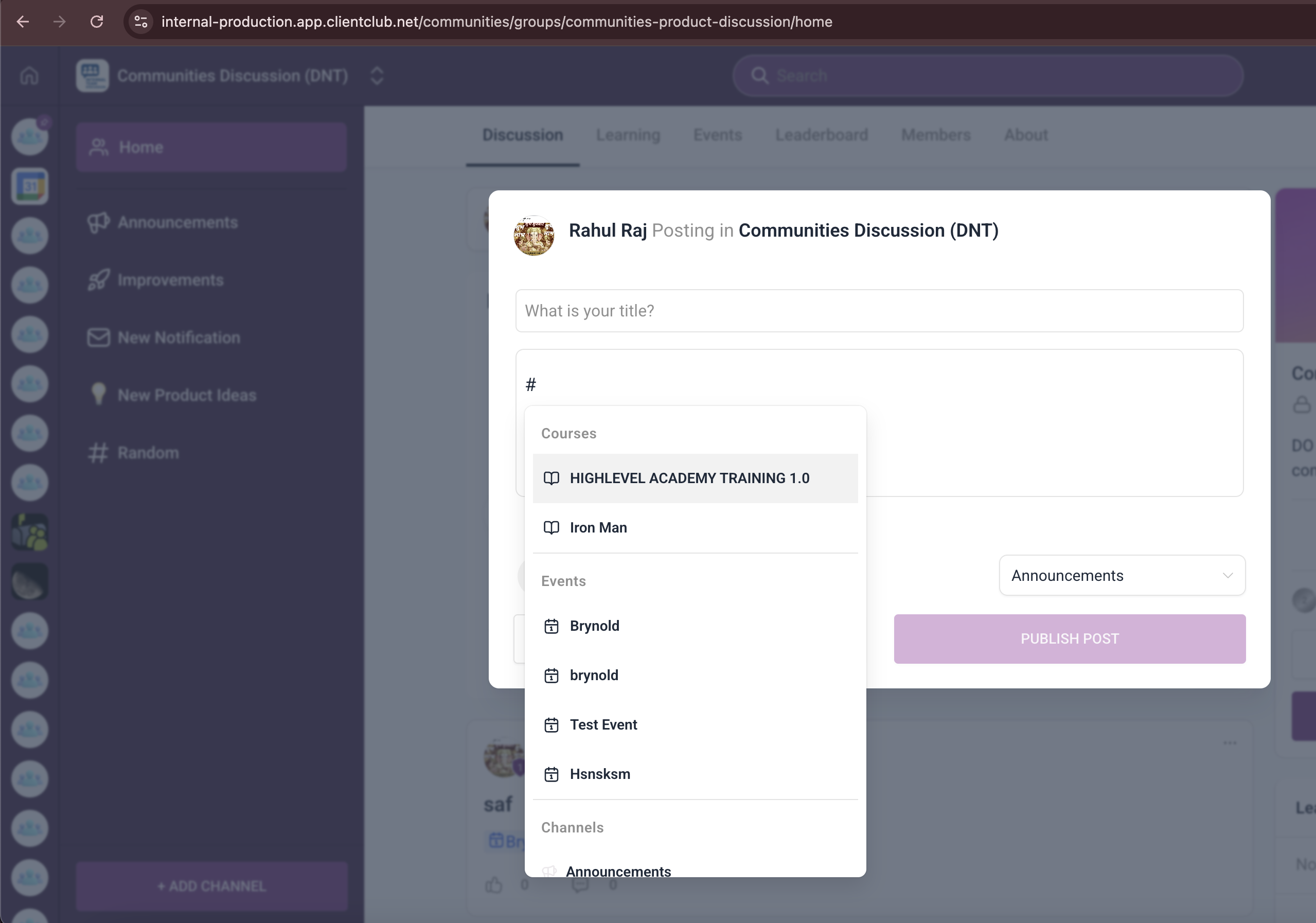
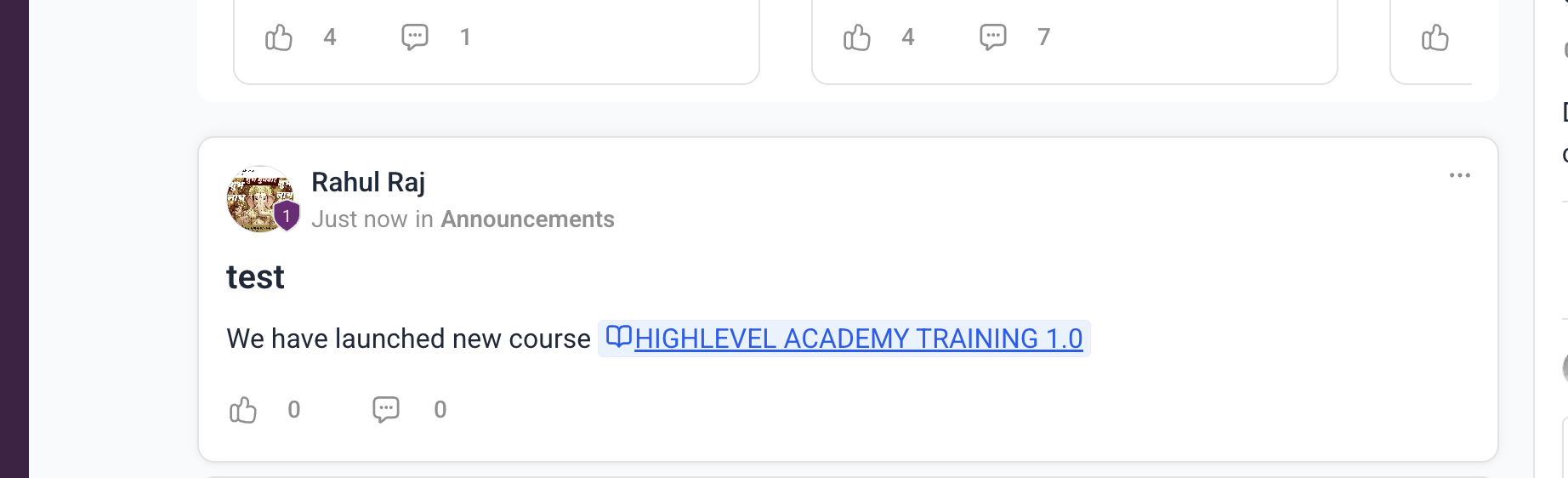
Tagging Courses adds a searchable "#" picker to the post and comment editors within Communities. When a user types #, a list of courses the member can see appears, and selecting one inserts a clickable tag with a course icon. The tag replaces long URLs, making posts cleaner and allowing instant navigation.
The feature lives inside the Communities area of a Subaccount. It works wherever the editor supports the "#" picker, including on mobile devices. Clicking a tag opens the corresponding course page; access depends on the course’s configuration, such as free, paid, or restricted.
Multiple tags can be added to a single post or comment, and the same process applies to new posts and replies.
03How businesses use tagging courses
- Online fitness studio. When answering a member’s question about nutrition, the trainer writes a reply and types # to insert the "Healthy Eating" course tag. The member clicks the tag and goes straight to the course page for enrollment.
- Software onboarding community. The onboarding specialist creates a new post about setting up integrations and adds a # tag for the "Integration Basics" course. Readers can jump directly to that course from the discussion.
- Language learning group. A native speaker replies to a learner’s request for practice material, types #, selects the "Advanced Conversation" course, and posts the comment. The learner clicks the tag to access the lesson.
04Before you start
- Be logged into a Subaccount that has access to the desired community group.
- Have permission to create posts or comments in that group.
05How to set up and use tagging courses in HighLevel
Add a course tag while creating a post
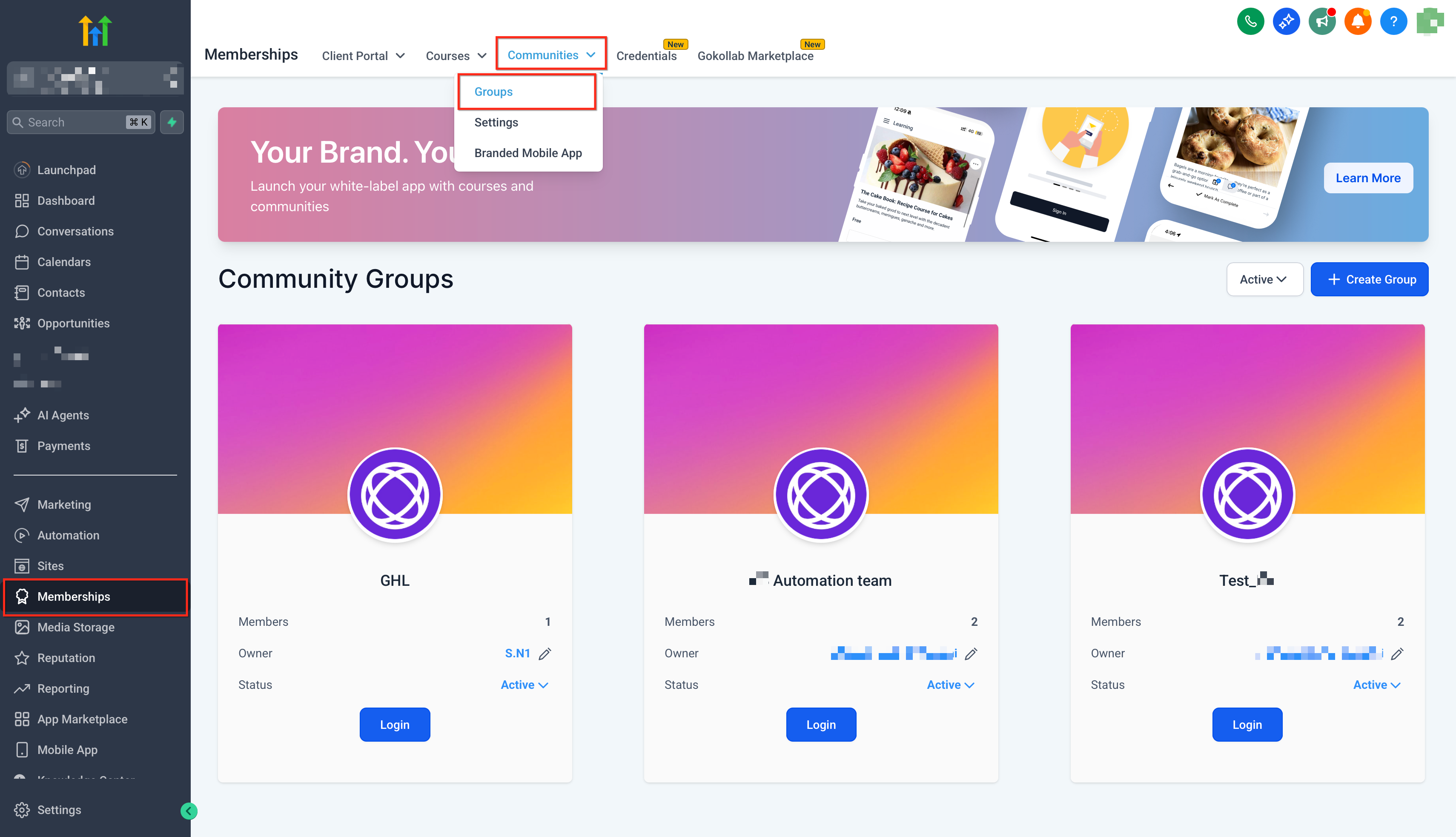
- From your Subaccount, go to Memberships > Communities and log in to the target group.
- Click New Post to open the editor.
- Type # to launch the object picker.
- Search for or scroll to the desired Course and click it to insert the tag.
- Complete the post content and click Post.
Add a course tag in a comment
- Open the post you want to reply to and select Reply.
- Type # to open the picker and select the Course.
- Add any additional message and click Post.
06What it looks like in HighLevel
07Things to know before you rely on it
- You can tag more than one course in a single post or comment.
- Tagging works wherever the Communities post/comment editor supports the "#" picker, including on mobile devices.
08How it connects to the rest of HighLevel
- Learn how to set up and manage your HighLevel community. Community management
- Build and organize courses that can be tagged in discussions. Course builder
- View pricing and plan options for using Communities features. Pricing
Michael's take

Tagging courses feels like a modest convenience that can quickly become a real shift in how a learning community moves. It drops a clickable link right into the conversation, so members don’t have to hunt for the right curriculum after a discussion sparks.
A coaching business that runs weekly Q&A sessions in a community could use course tags to point members to a lesson that answers a question.