
01Who this is for
- Teams can quickly share meeting recordings within their Communities to keep members informed.
- Community managers can distribute recordings to appropriate groups without extra steps.
02Share as post for recordings, explained
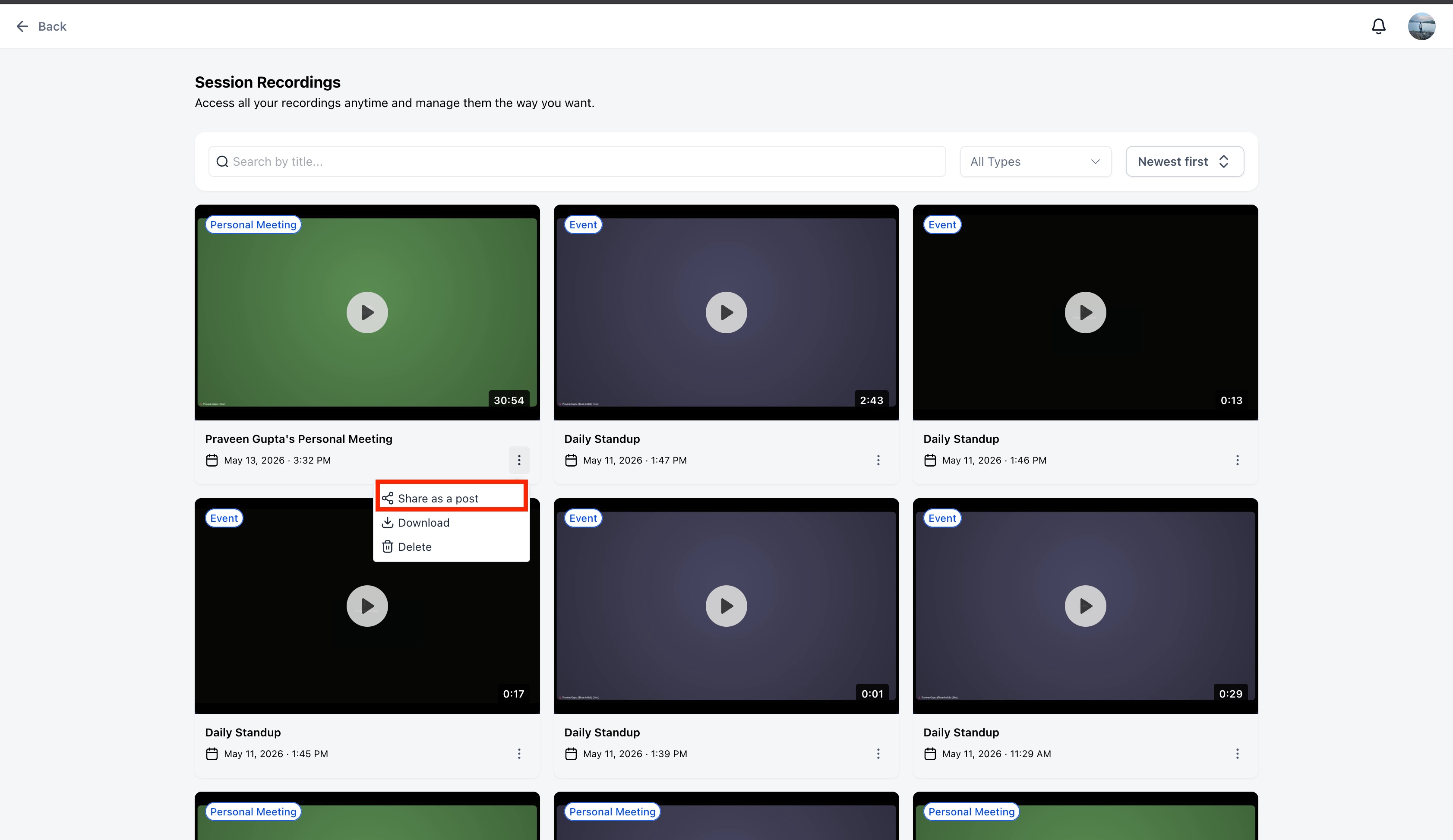
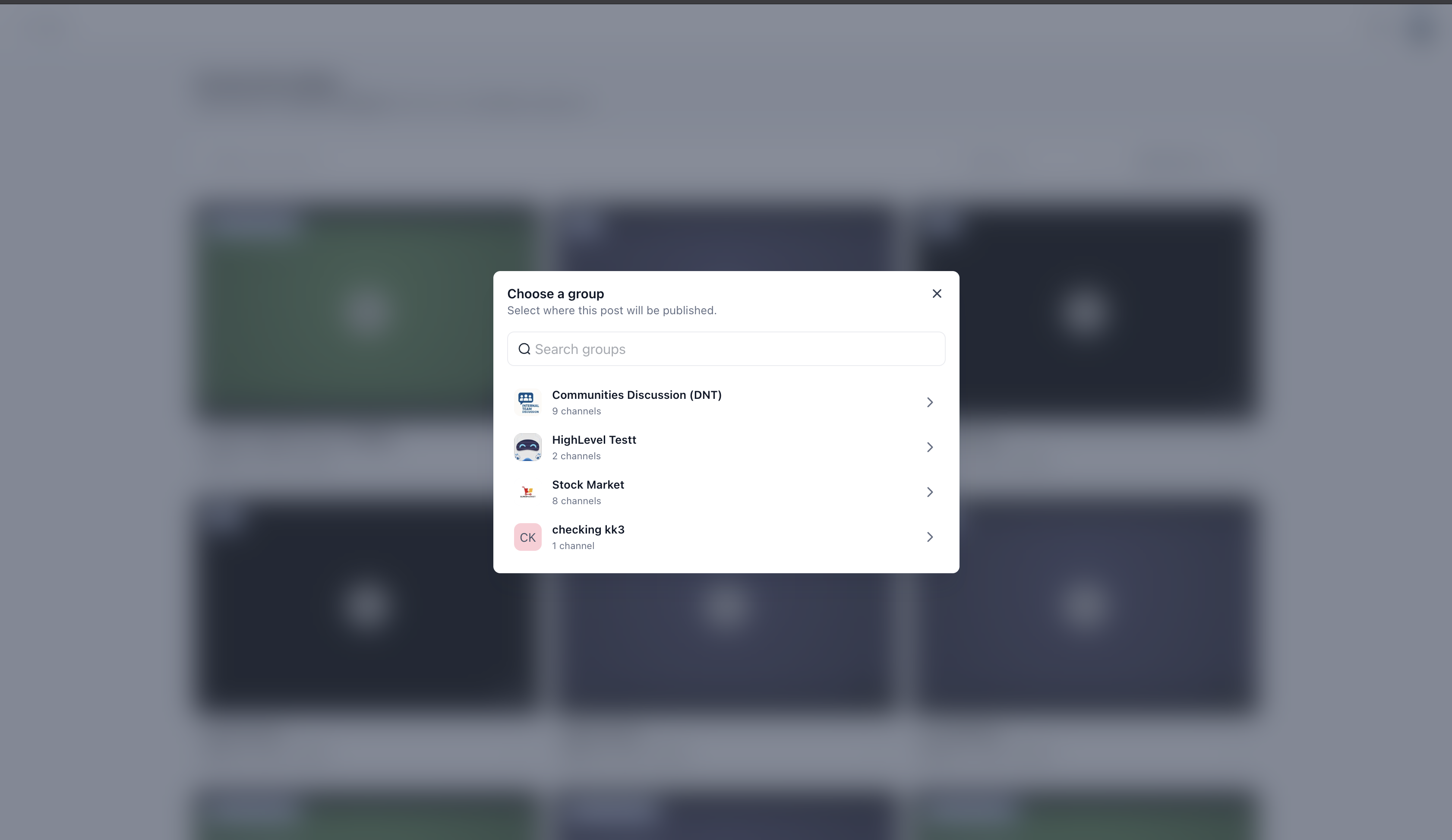
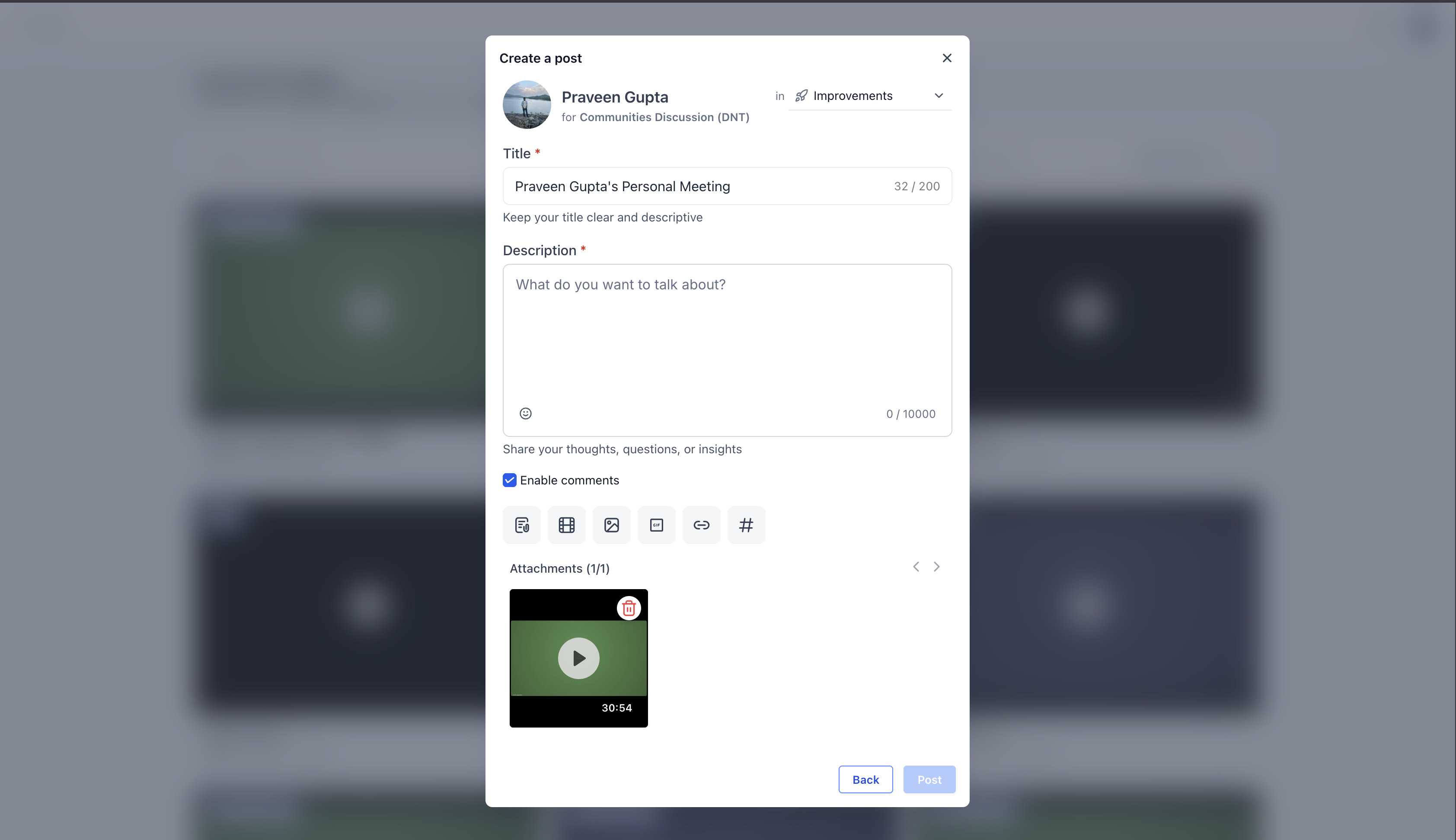
Share as Post is an option inside the recording view that moves a video straight into a Community post. When you select the feature, a modal appears where you can pick the destination Community. The post composer opens with the recording title already filled in and the video attached. You may change the Community, add extra notes, and then publish.
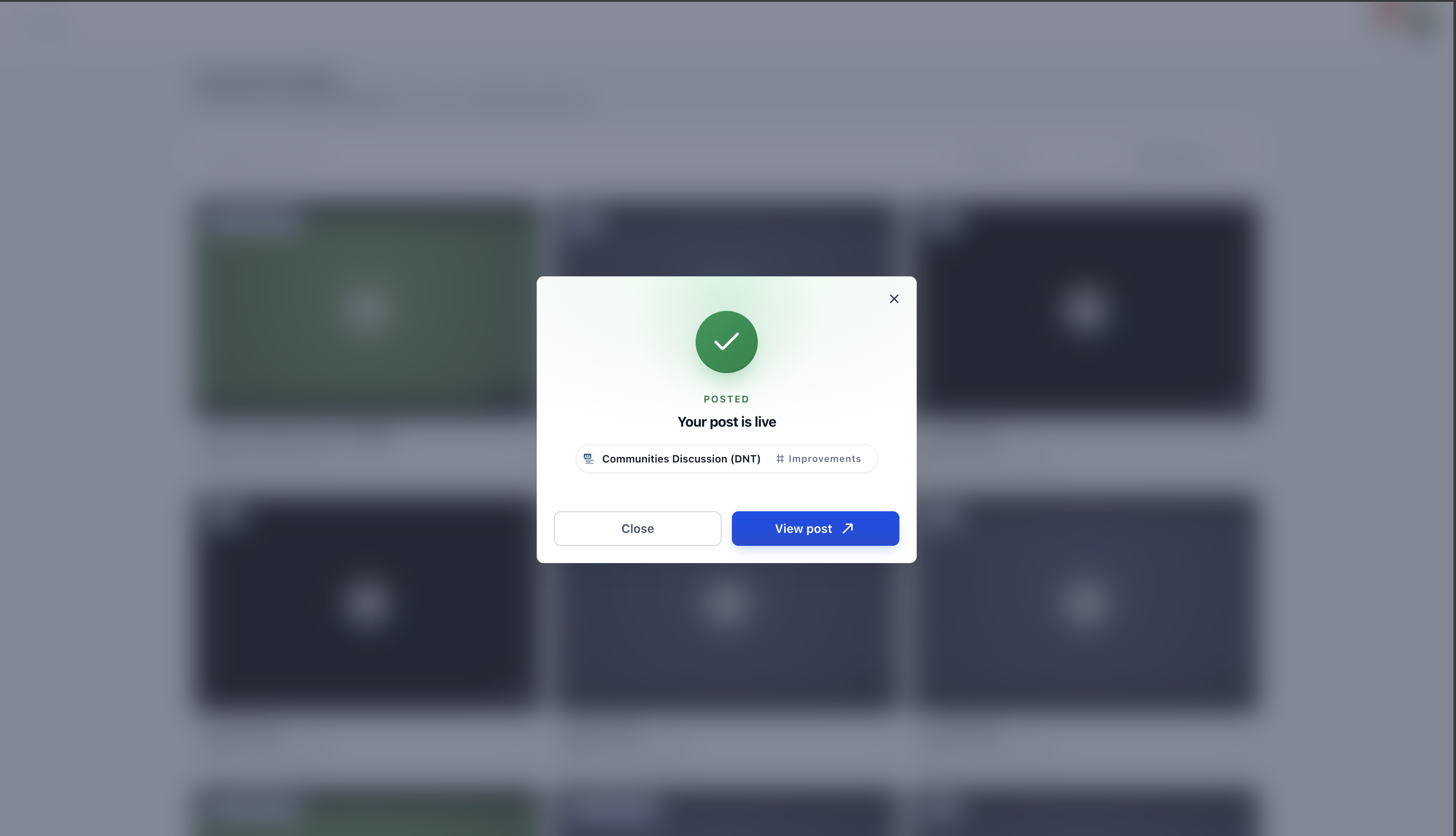
The workflow lives in the recordings section of HighLevel. It eliminates the need to download the file to a local device and then upload it again as a separate post. After publishing, a confirmation modal shows, offering to close the flow or open the new post.
03How businesses use share as post for recordings
- Coaching practice. A coach selects a recorded client session, clicks Share as Post, chooses the members' Community, adds a brief prompt, and publishes. The video appears in the Community feed for clients to watch and comment.
- Software development agency. After a sprint planning meeting, a project manager opens the recording, uses Share as Post, switches to the project’s Community, adds a summary of action items, and publishes so developers can reference the discussion.
- Fitness studio. The studio manager opens a recorded class, clicks Share as Post, selects the class Community, inserts a welcome note, and publishes. Members can replay the class and start a conversation about technique.
04Before you start
- Meeting recordings must be stored inside HighLevel.
- You need access rights to the Community where the post will appear.
05How to set up and use share as post for recordings in HighLevel
Share recording as a Community post
- Open the desired meeting recording in HighLevel.
- Click the Share as Post button.
- Search for and select the target Community.
- Review the pre filled post composer that includes the recording title and video.
- Add any optional context or discussion prompts.
- Publish the post to the Community.
06What it looks like in HighLevel
07Settings that matter
- Share as Post. launches the process that publishes a meeting recording directly into a Community post
08How it connects to the rest of HighLevel
- How to create and manage a HighLevel community Create community
- Managing content inside Communities Manage content
- Paid groups configuration in HighLevel Paid groups
Michael's take

Turning a meeting video into a Community post feels like a small convenience that can become a real shift for any group that relies on after hours dialogue. It cuts out the extra steps of pulling a file, opening a new post, and dragging the video back in.
A coaching firm that runs weekly client webinars can use Share as Post to drop each session into their members Community right after it ends. The coach adds a quick question, and the recording sits where clients already chat, making follow up easy and keeping the content searchable for future reference.