
01Who this is for
- Online course creators who want to suggest bonus modules immediately after a student enrolls.
- Digital product sellers who aim to offer complementary items without requiring another checkout.
- Membership site owners seeking to promote higher tier access as soon as a member purchases a basic plan.
02One click upsells, explained
One click upsell is a post purchase offer that appears directly after a customer completes a sale. The customer can add the additional offer with a single click, and the platform automatically charges the same payment method. This feature lives inside the Memberships area and is attached to an existing offer.
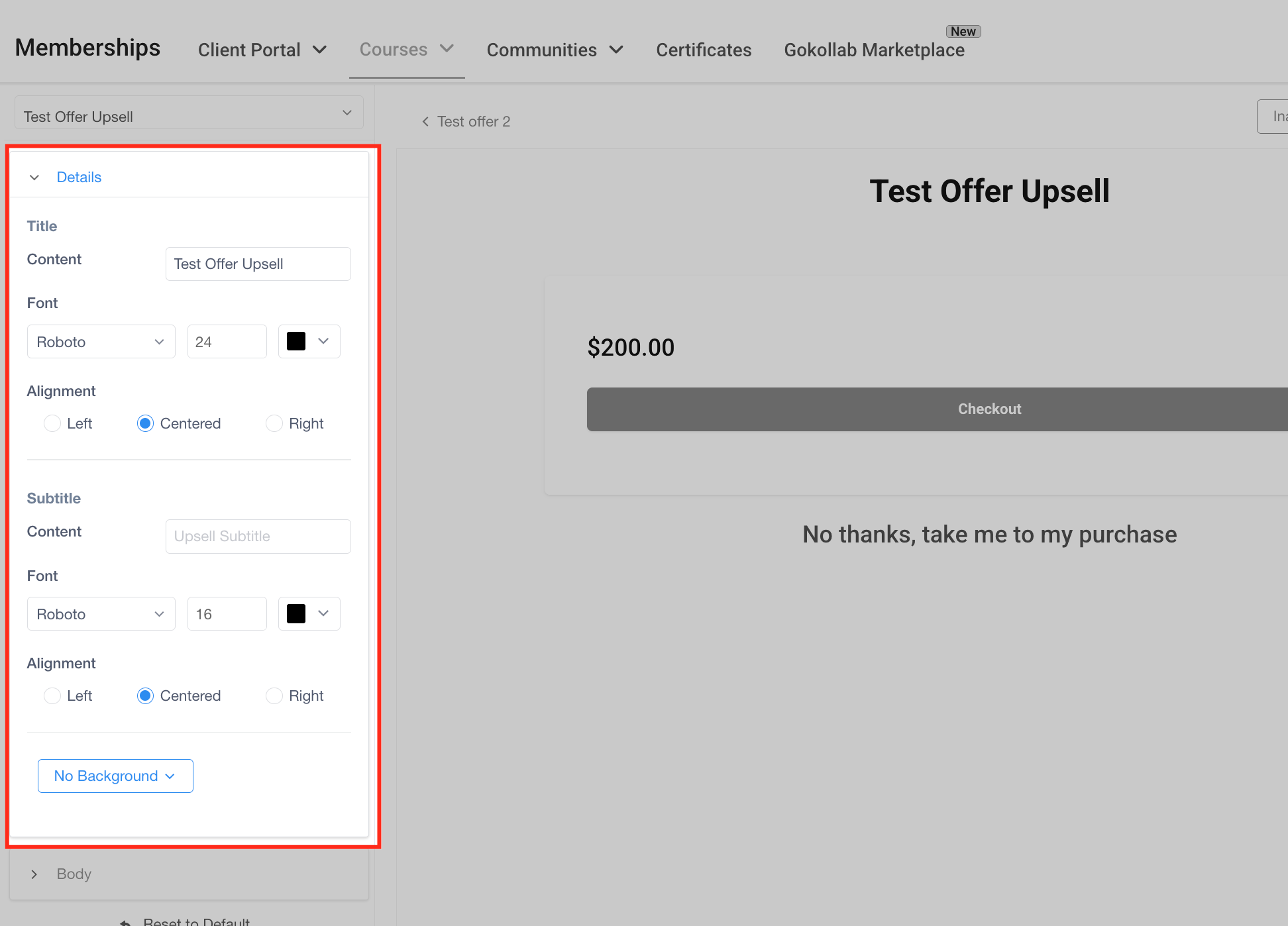
The upsell page can be fully customized. Three tabs, Details, Body, and Checkout, let you set headlines, add videos or images, and style the purchase and cancel buttons. After saving, you toggle the upsell status to Active so it becomes live during the checkout flow.
Analytics for the upsell are available in the Offer analytics section, showing views, clicks, and conversions. The feature works with Stripe and PayPal and appears based on the plan you are subscribed to.
03How businesses use one click upsells
- Online course platform. After a student buys a core course, the business selects a related bonus course as the upsell offer, customizes the upsell page with a promotional video, and activates it. The student can add the bonus with one click, using the same payment details.
- Digital ebook seller. When a buyer purchases an ebook, the seller adds a companion workbook as a one click upsell, edits the headline to highlight extra value, and sets the purchase button label. The buyer sees the offer right away and can add the workbook without re entering payment info.
- Membership community manager. Following a new member’s sign up for a basic plan, the manager attaches a premium content package as a one click upsell, adjusts the background style to match the brand, and activates the offer. The member can upgrade with a single click during the checkout flow.
04How to set up and use one click upsells in HighLevel
Set up a one click upsell for a membership offer
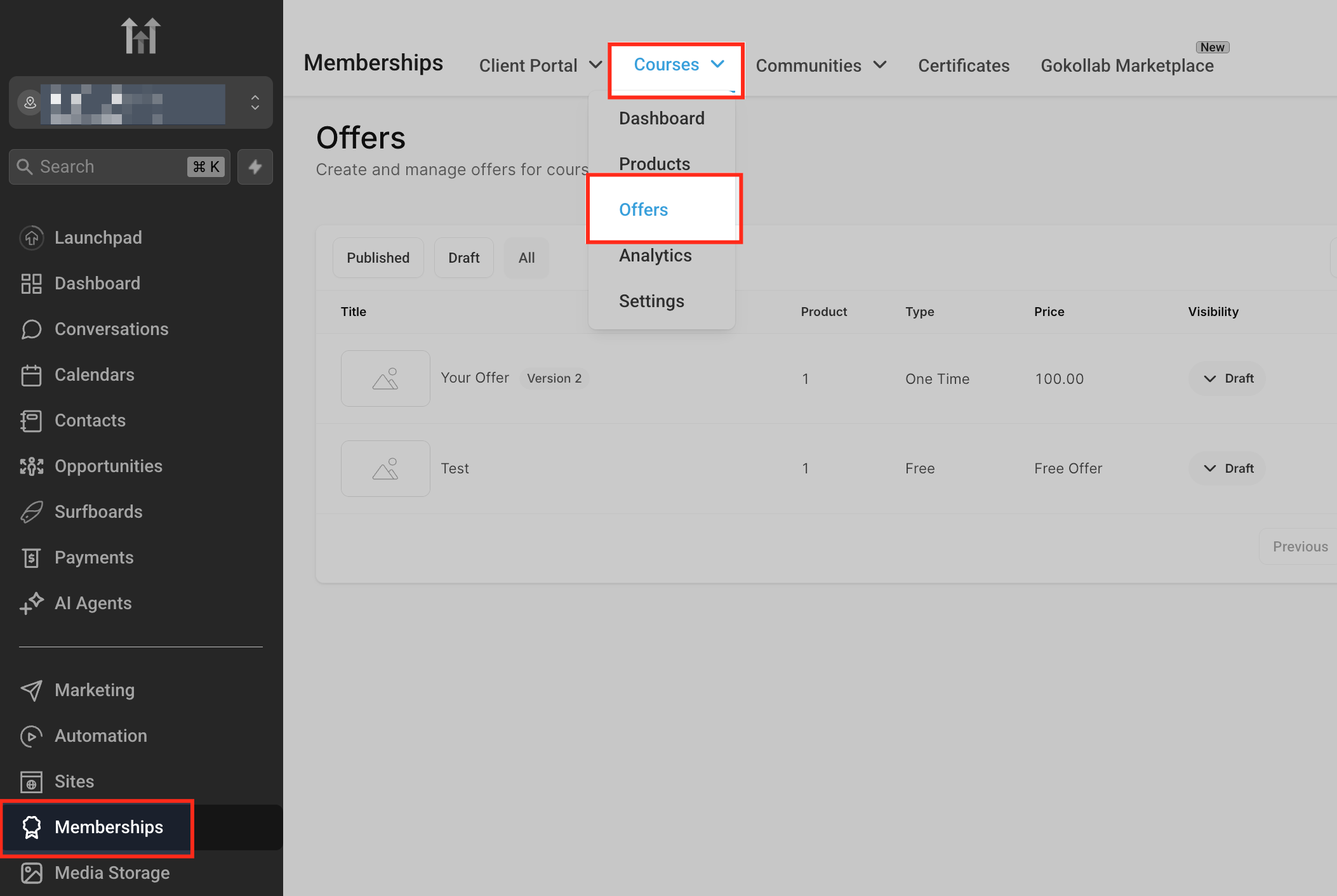
- Open the Memberships tab, click the Courses dropdown at the top, and choose Offers.
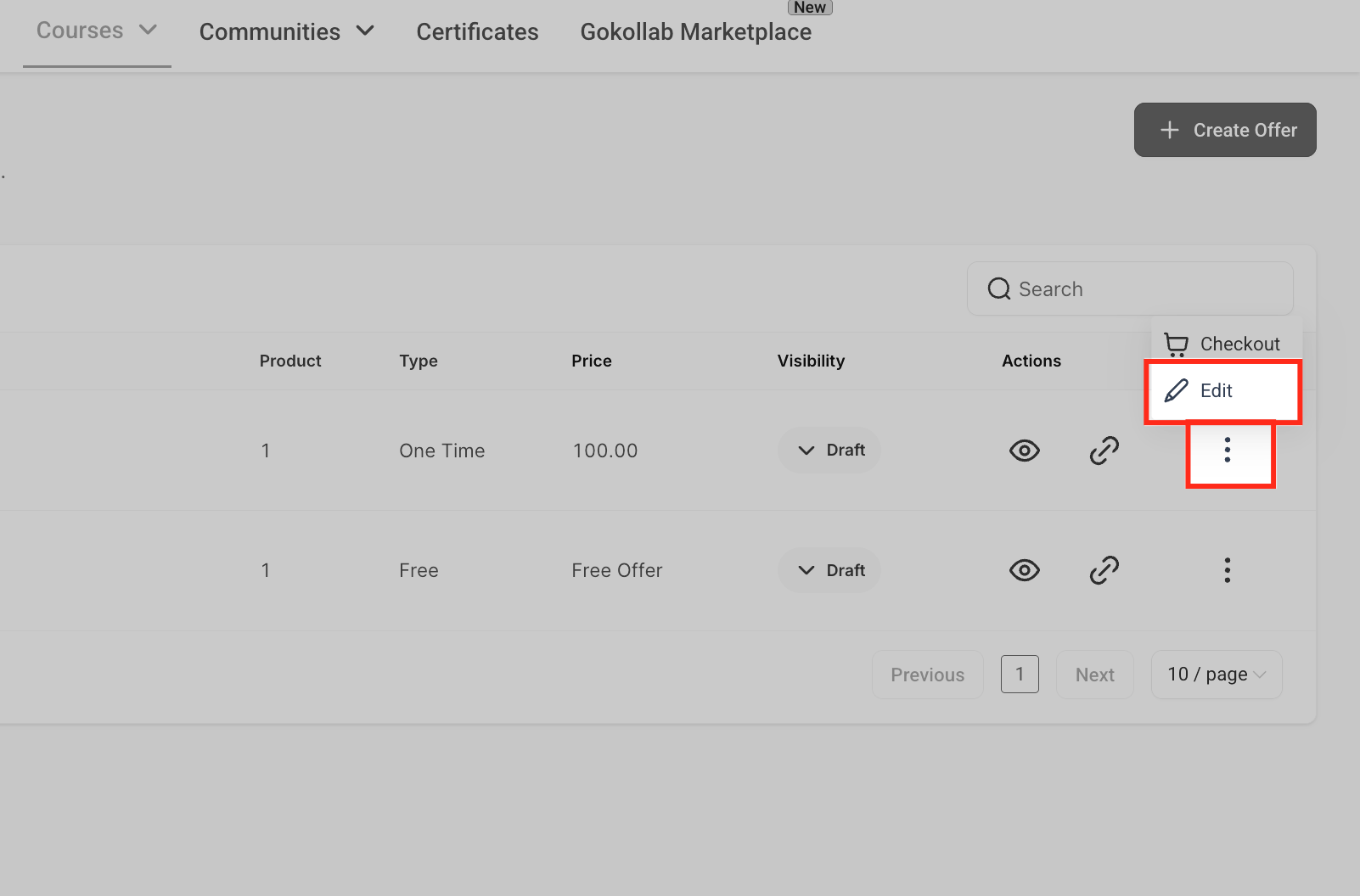
- Find the target offer, click the three dot menu next to it, and pick Edit.
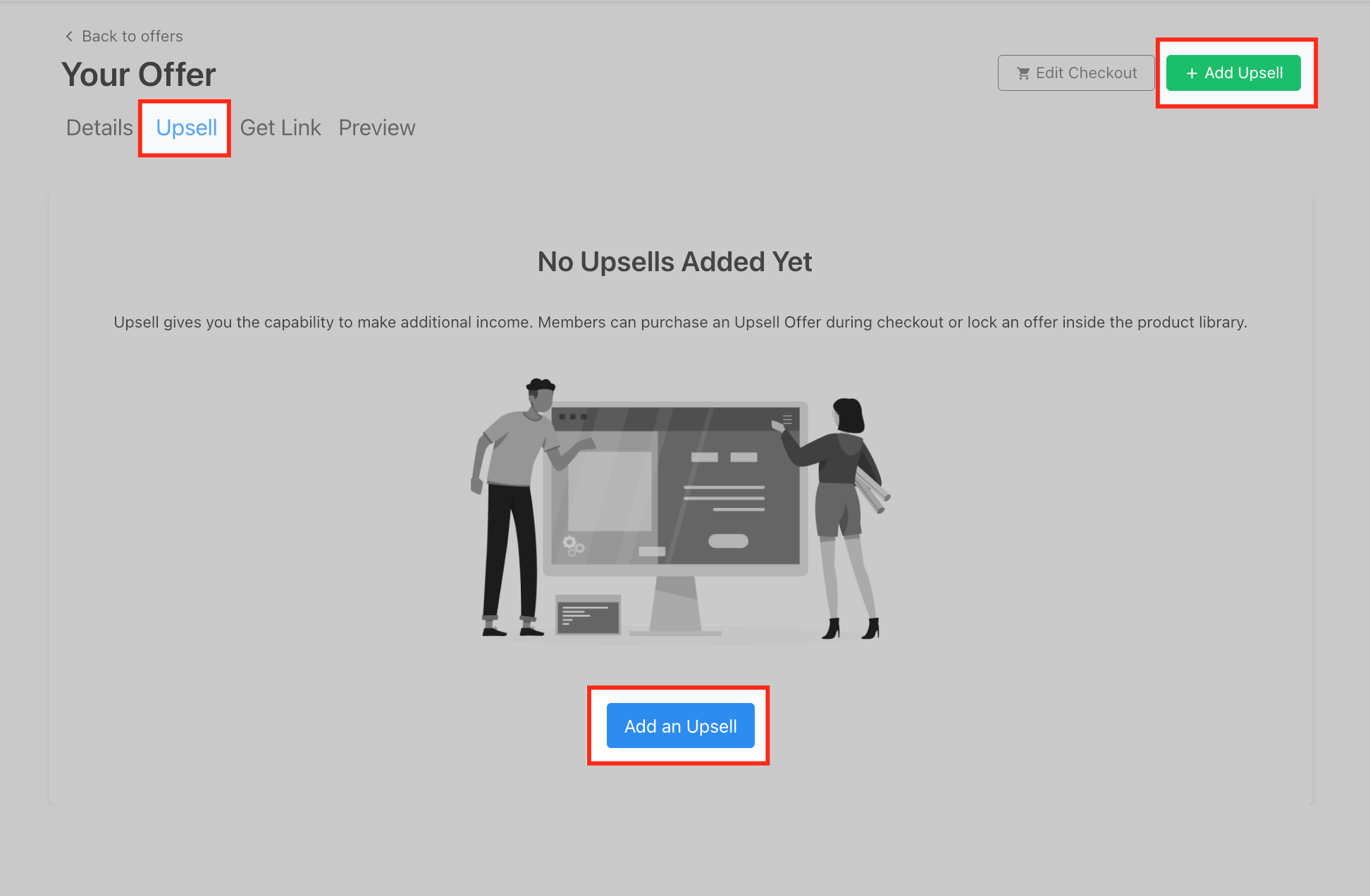
- Select the Upsell tab inside the offer editor.
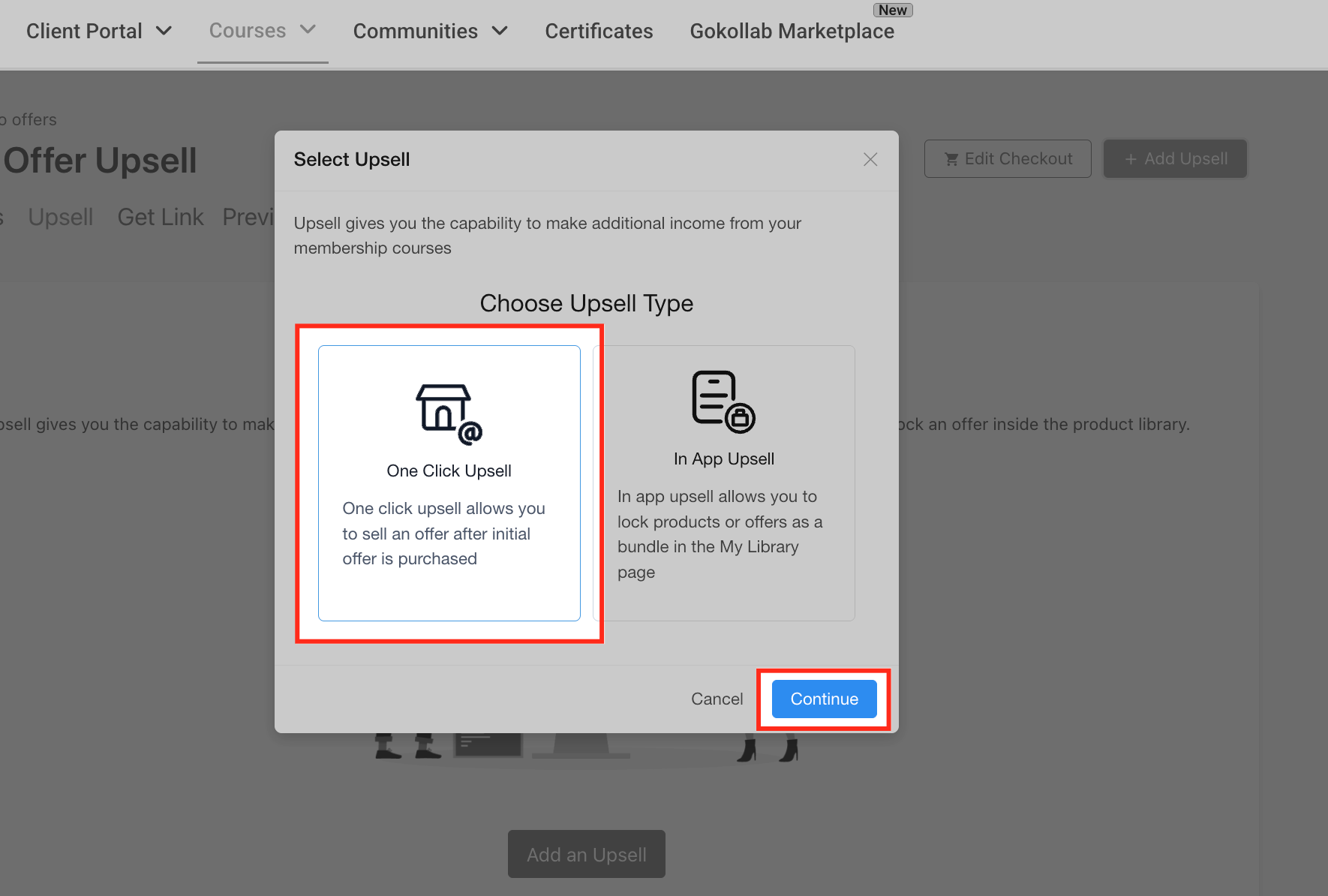
- In the upsell type modal, choose One Click Upsell and click Continue.
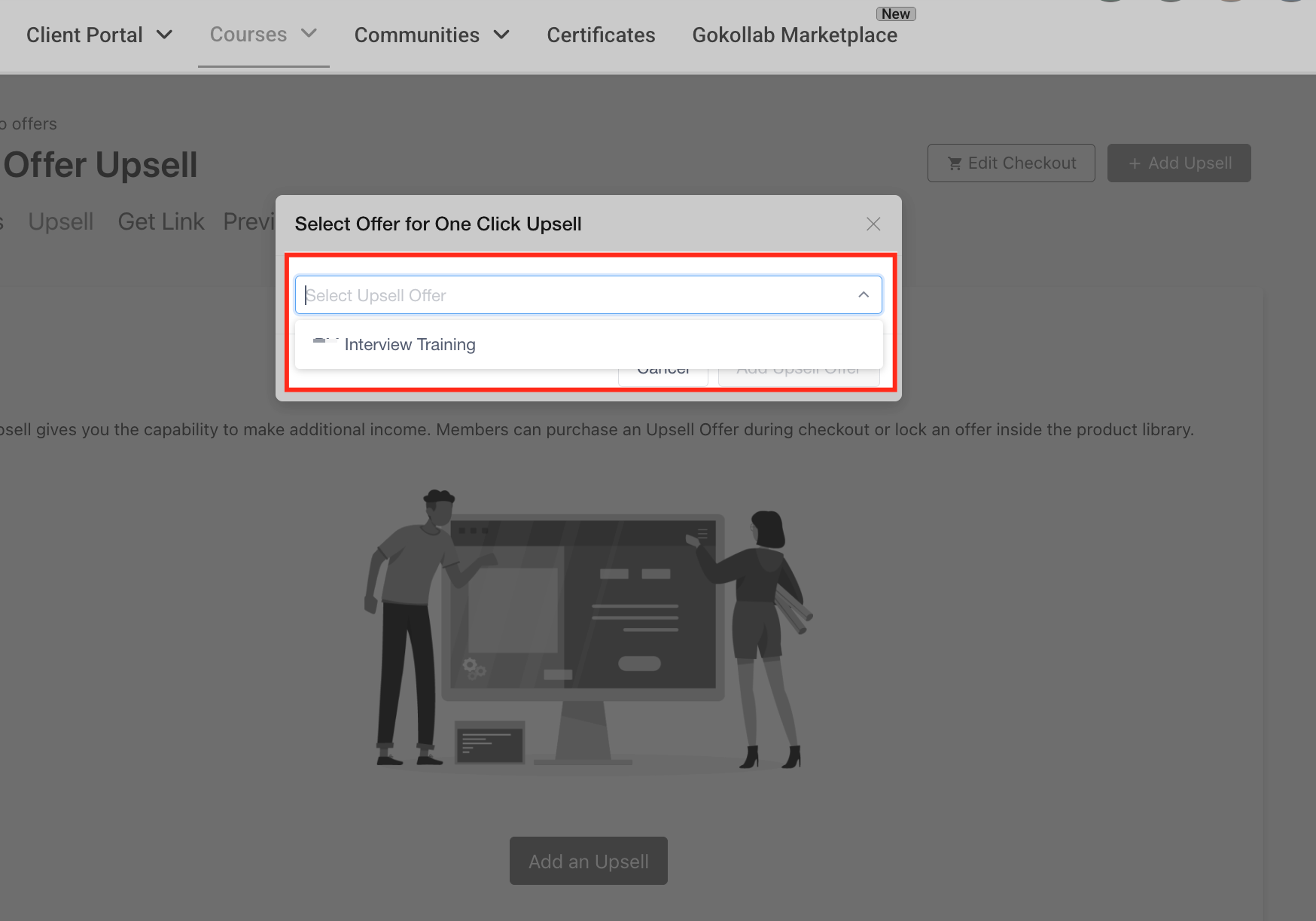
- From the dropdown, pick the existing offer you want to promote and click Add Upsell Offer.
- Edit the upsell page using the Details, Body, and Checkout tabs to set headlines, add a video or image, and style the buttons.
- Click Save, use Preview to review the page, and switch the status toggle to Active.
- To change or remove the upsell later, return to the Upsell tab, click the three dot menu next to the upsell, and select Delete or edit the details.
05What it looks like in HighLevel
06Settings that matter
- Title Content. Defines the main headline text on the upsell page.
- Font & Size. Sets the font family and size for the title.
- Text Color. Specifies the color of the title text.
- Alignment. Controls whether the title is left, center, or right aligned.
- Subtitle Content. Provides supporting text displayed below the main headline.
- Subtitle Font & Size. Sets the font style and size for the subtitle.
- Background Style. Selects a background option such as a solid color for the top section.
- Add Video. Allows uploading or embedding a promotional video on the upsell page.
- Poster Image. Sets a static image that appears before the video plays.
- Reset to Default. Reverts the body section back to its original layout and visuals.
- Purchase Button Content. Changes the label on the primary call to action button.
- Background Color. Sets a custom background color for the purchase button.
07Things to know before you rely on it
- Only Stripe and PayPal payment methods can process one click upsell transactions.
- The feature appears only for accounts that have the required plan; if it is not visible, contact support.
08How it connects to the rest of HighLevel
- Learn how to create a product and attach it to a membership course offer. Product setup for membership offers
- Explore customization options for membership themes to keep upsell pages on brand. Membership product themes
- Review plan options and pricing to ensure your account includes the upsell feature. HighLevel pricing and plans
Michael's take

One click upsells can increase order value by turning a single purchase into a bundle without extra friction for the buyer.