
01Who this is for
- Course creators who need timed access for launch cohorts.
- Membership site owners who want automatic expiration of content.
02Offer durations, explained
The Offer Duration feature adds two checkboxes to the Offer Access section of an offer. One checkbox restricts access to a set number of days, and the other sets a specific calendar date for when access begins. By entering a day count, you create a fixed access window that starts on the member’s sign up date. By selecting a start date, you can delay access until a predetermined launch day.
When the defined period ends, the platform automatically revokes the member’s permission to view course content. If a start date is set and a user registers early, they are taken to the course overview page but cannot access lessons until the date arrives. Both options can be used together, giving full control over when access opens and closes.
These settings are located inside the Offer Setup workflow. After adjusting either option, you must save and publish the offer for the changes to take effect.
03How businesses use offer durations
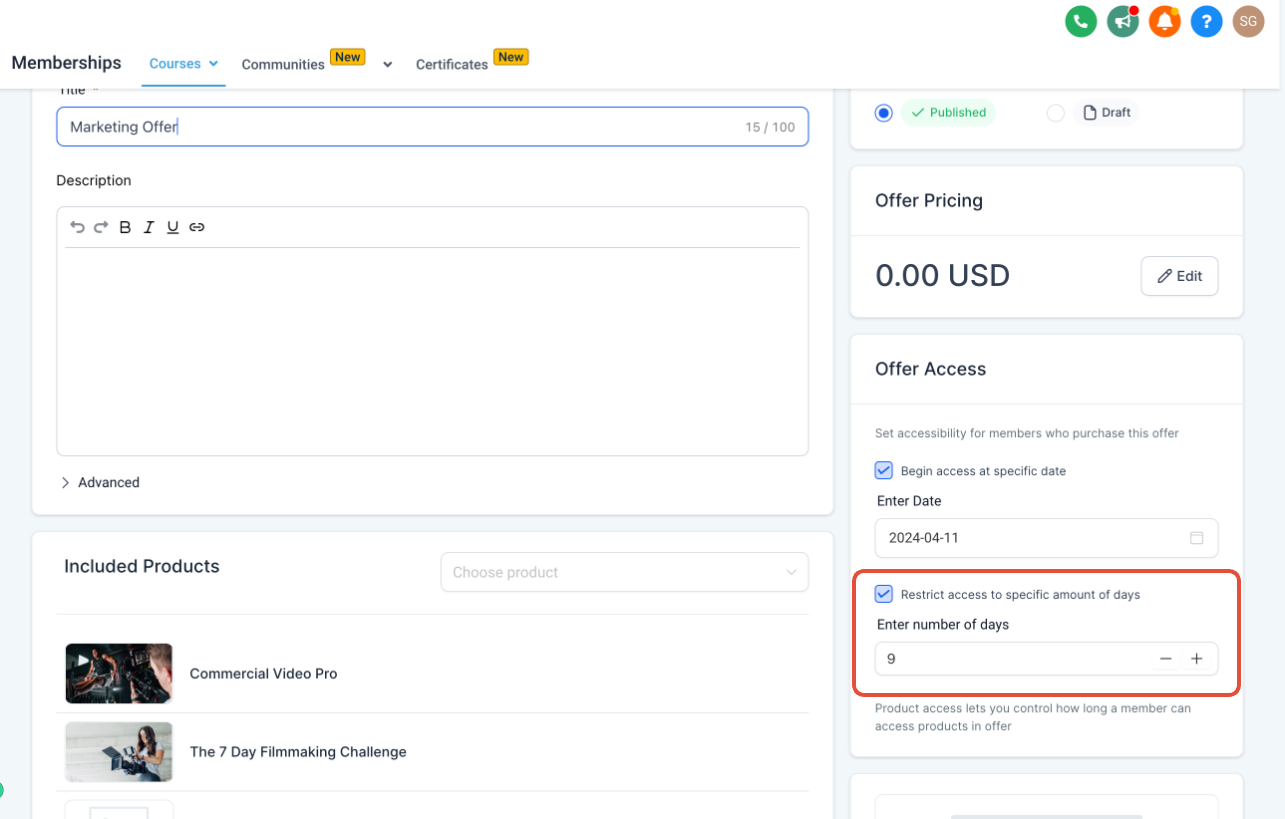
- Online fitness coaching business. The coach checks the "Restrict access to specific amount of days" box and enters 30 to give clients a month of program access. The system then removes content automatically after 30 days, eliminating manual deactivation.
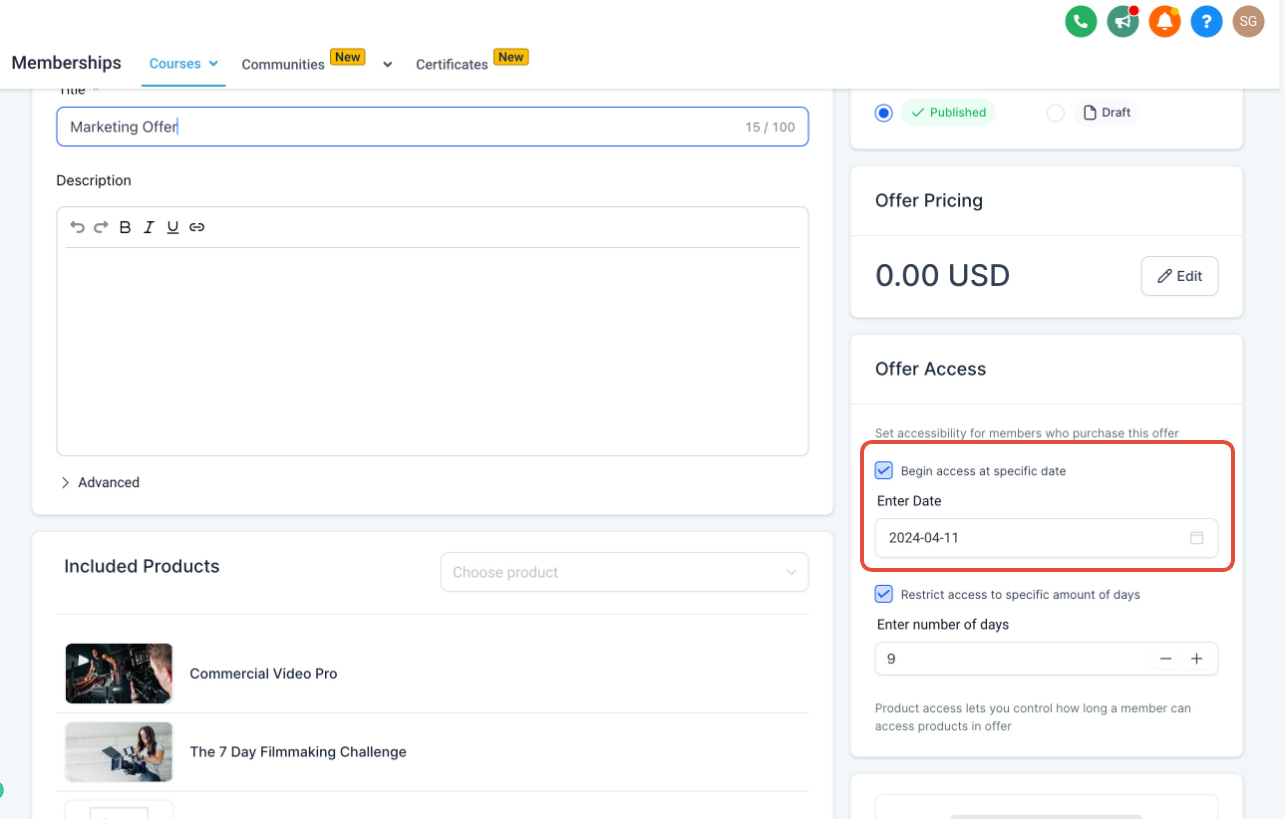
- Educational website selling certification courses. The site admin selects "Begin access at specific date" and picks the launch day for a new cohort. Users who enroll early see only the course overview until the start date, ensuring a synchronized start for all participants.
- Membership community for premium webinars. The owner enables both checkboxes, entering a start date that matches the webinar series kickoff and a 60 day duration. Members gain access on the kickoff date and lose it automatically after two months, matching the series schedule.
04The numbers and rules that matter
- Enter 180 for 6 month access, 60 for 2 month access, 7 for 1 week access, 1 for 1 day access.
05How to set up and use offer durations in HighLevel
Set offer expiry duration
- Open the Offer Setup and choose the offer you want to edit or create a new one.
- In the offer details, find the "Offer Access" section and tick the box labeled "Restrict access to specific amount of days".
- Enter the number of days that should define the member’s access period.
- Review the entered value to confirm it matches the intended duration.
- Save the changes and publish the offer.
Set offer start date
- Open the Offer Setup and select the target offer or create a new one.
- Within the "Offer Access" area, tick the checkbox called "Begin access at specific date".
- Pick the calendar date on which the offer should become active.
- Save the changes and publish the offer.
06What it looks like in HighLevel
07Settings that matter
- Restrict access to specific amount of days. Controls how many days a member can view the course after signing up.
- Begin access at specific date. Sets a future calendar date when a member’s access to the course starts.
08Things to know before you rely on it
- You may choose either start date, expiry date, or both together.
- The day count for months uses a 30 day month approximation.
09How it connects to the rest of HighLevel
- Create a product and attach it to a membership course offer Product setup
- Build and launch a membership course Course builder
- View HighLevel pricing and plans Pricing
Michael's take

Wondering if you really need to lock members out after a set time? It’s handy when you run a cohort or a limited time challenge and want the content to disappear after the program ends. Just set the days or a launch date and let HighLevel handle the rest.
If I were launching a new course, I’d use the start date option to build hype before the official kickoff. I’d also test a short term offer first to see how the automatic revocation works before scaling it up.