
01Who this is for
- Community managers can prevent off topic replies, keeping channels focused.
- Course creators can publish policy updates as read only announcements.
- Small businesses running membership sites can reduce moderation effort by disabling comments on resource posts.
02Manage commenting on your posts, explained
The Manage Commenting feature gives control over member replies on any post inside HighLevel Communities. Authors, channel managers, and workspace admins can turn the comment bar on or off while creating a post or at any point after it is published. The setting works for updates, discussions, resources, and posts in announcement channels.
When comments are turned off, the comment input disappears and members see a clear notice that commenting is disabled. Existing replies remain hidden and are restored automatically if comments are turned back on. The toggle appears in the post editor and also in the three dot menu on published posts.
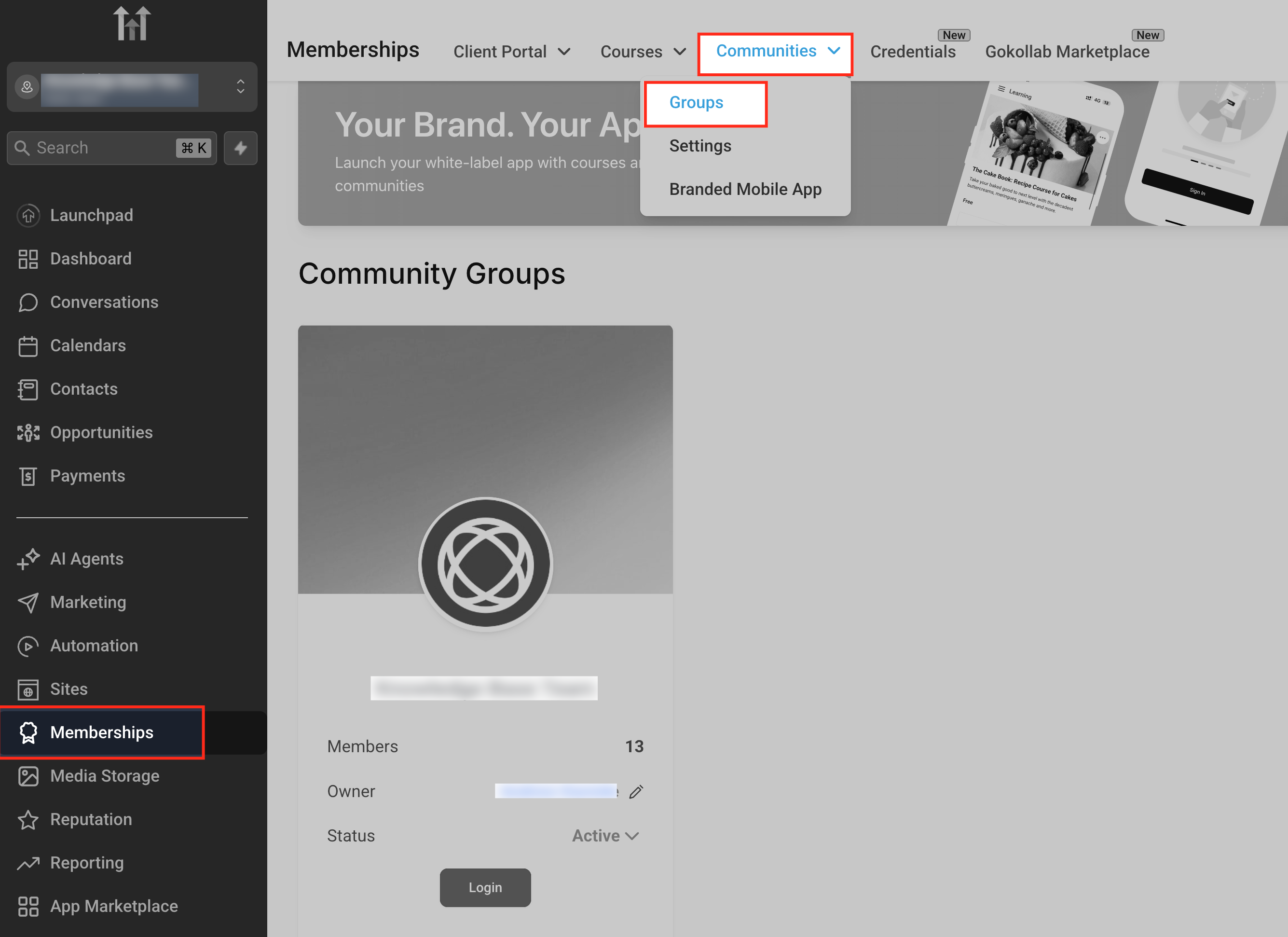
The controls are found in the Communities area. Navigate through Memberships > Communities > Groups, enter the desired community, open the Discussion tab, and use the comment toggle when creating or editing a post.
03How businesses use manage commenting on your posts
- Fitness studio. When posting schedule changes, the studio can disable comments to avoid unnecessary questions. If members later need to discuss the update, the manager re enables comments on the same post, restoring any hidden replies.
- Online coaching program. Coaches share new training modules as resources and turn comments off to keep the content pure. After a week, they enable comments to collect feedback, which appears without recreating the post.
- SaaS product community. Product managers announce feature releases in an announcement channel, leaving comments on by default. For critical security notices, they switch the toggle off so members read the notice without replying.
04Before you start
- You must have access to the Communities area within HighLevel.
- You must be logged in as the post author, a channel manager, or a workspace admin.
05How to set up and use manage commenting on your posts in HighLevel
Turn off comments while creating a post
- Open Memberships > Communities > Groups in the left sidebar.
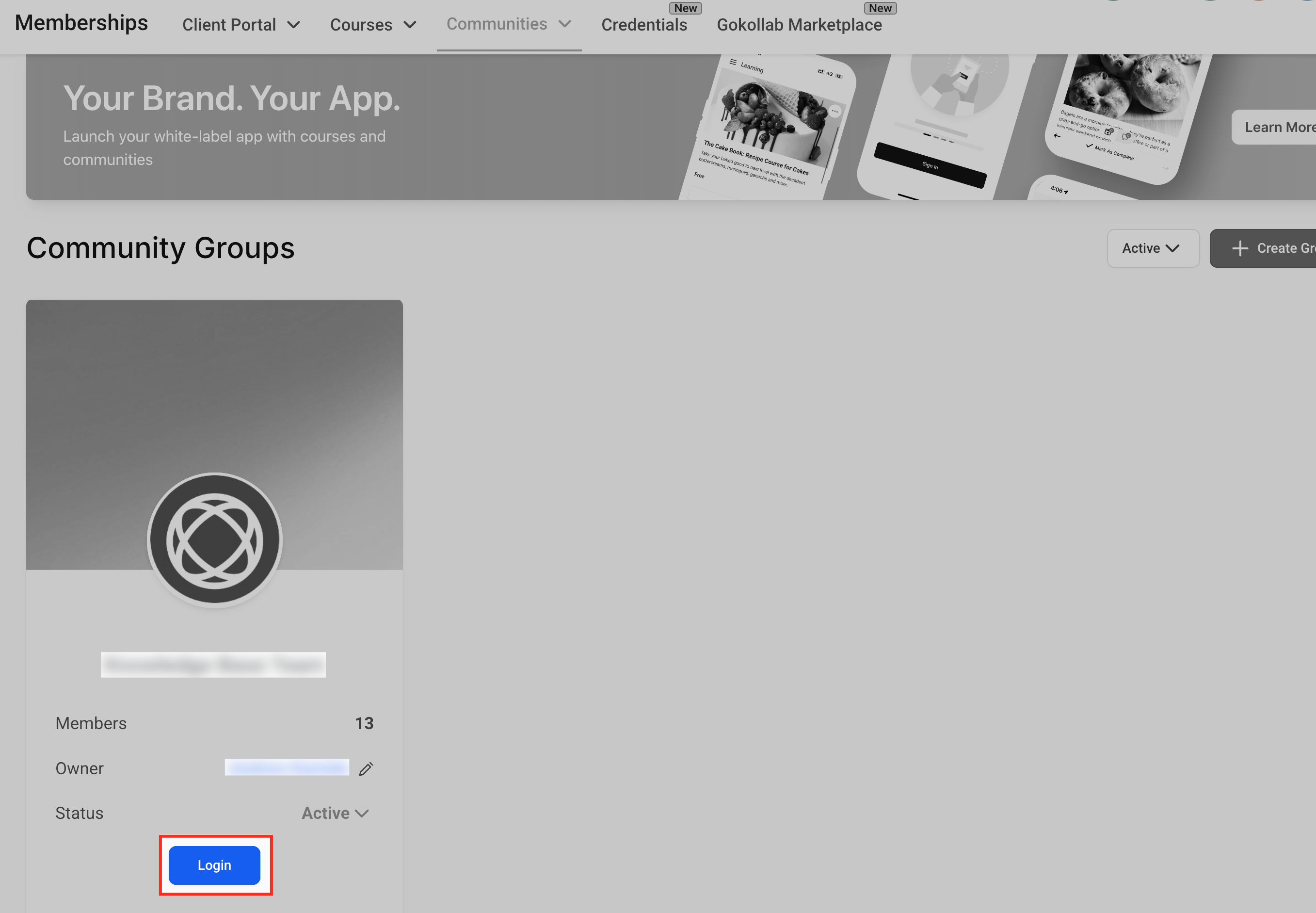
- Select the desired community and click the Login button.
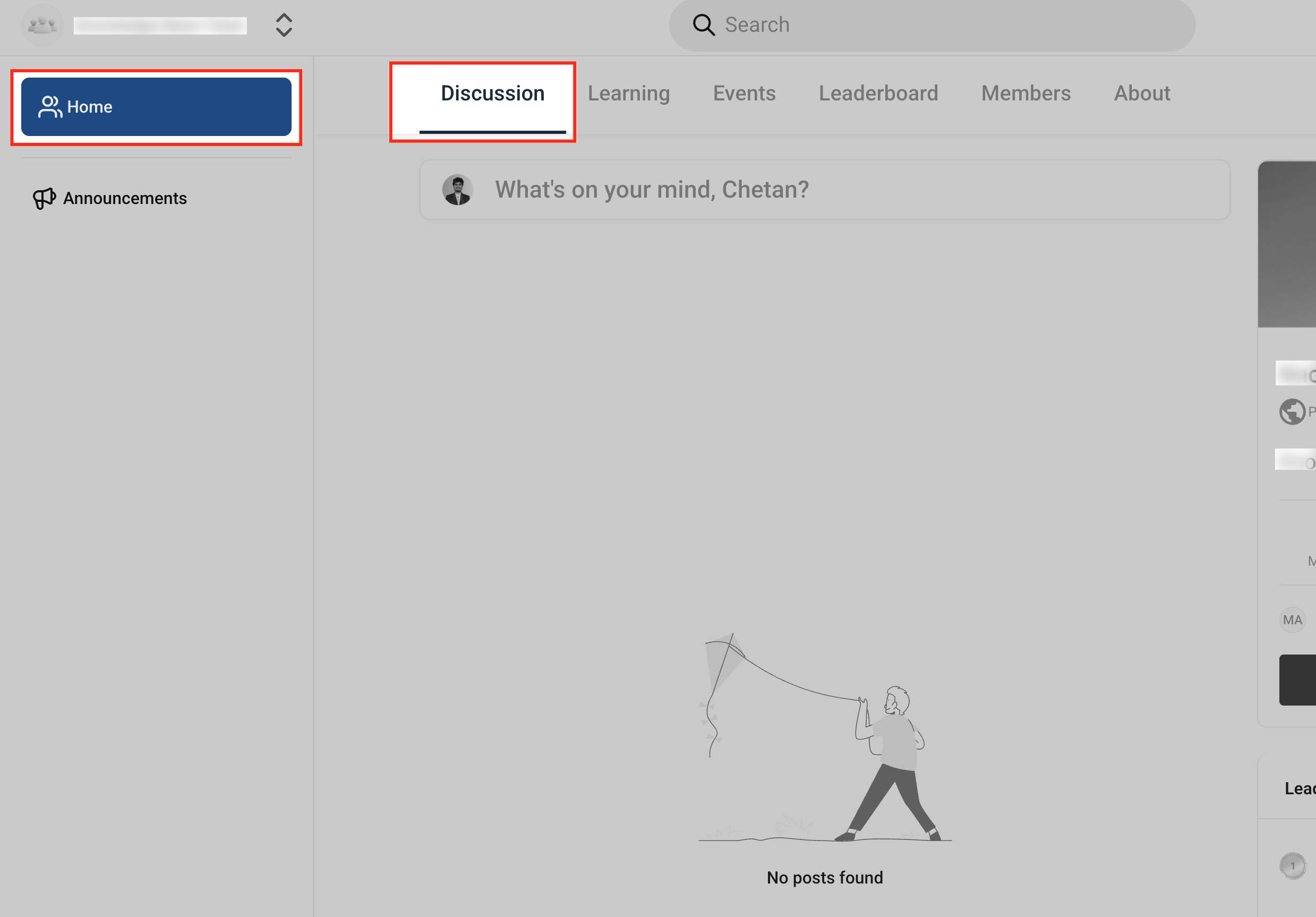
- Choose the Discussion tab from the top navigation.
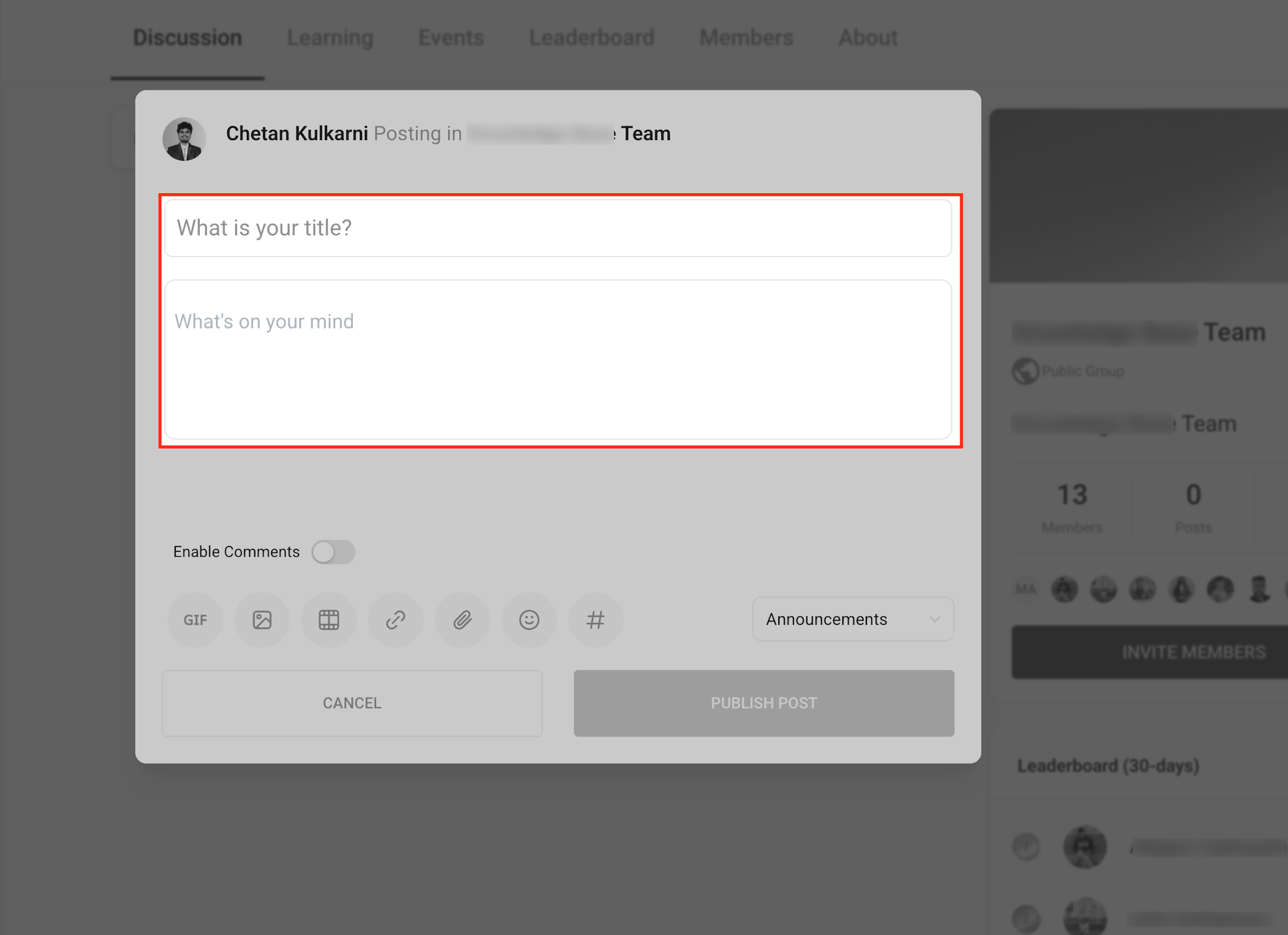
- Click into the post creation box and enter a title and content.
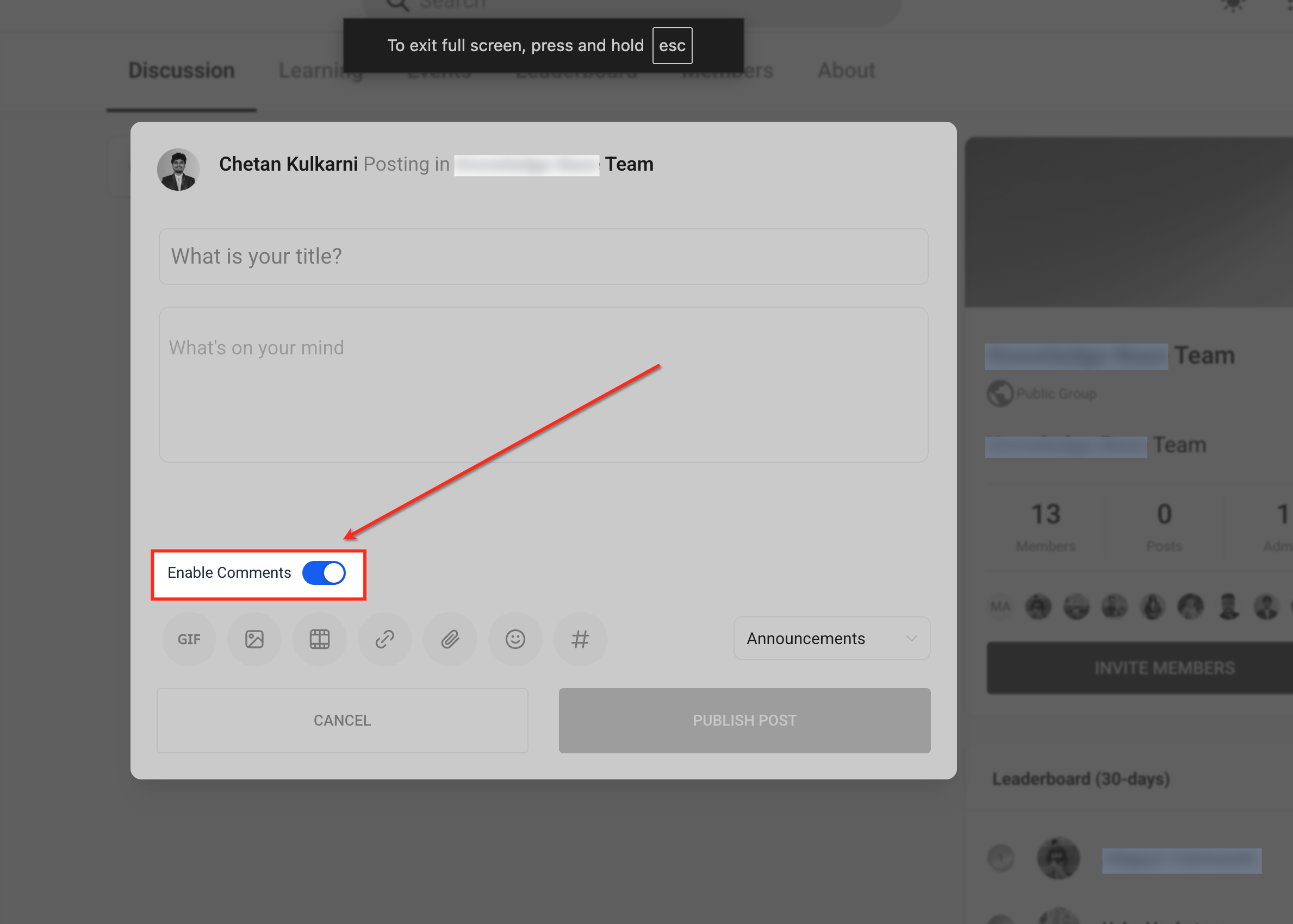
- Locate the Enable Comments toggle and switch it off.
- Publish the post; members will see it as read only without a comment bar.
Adjust comment settings after publishing
- Find the published post in the Discussion feed.
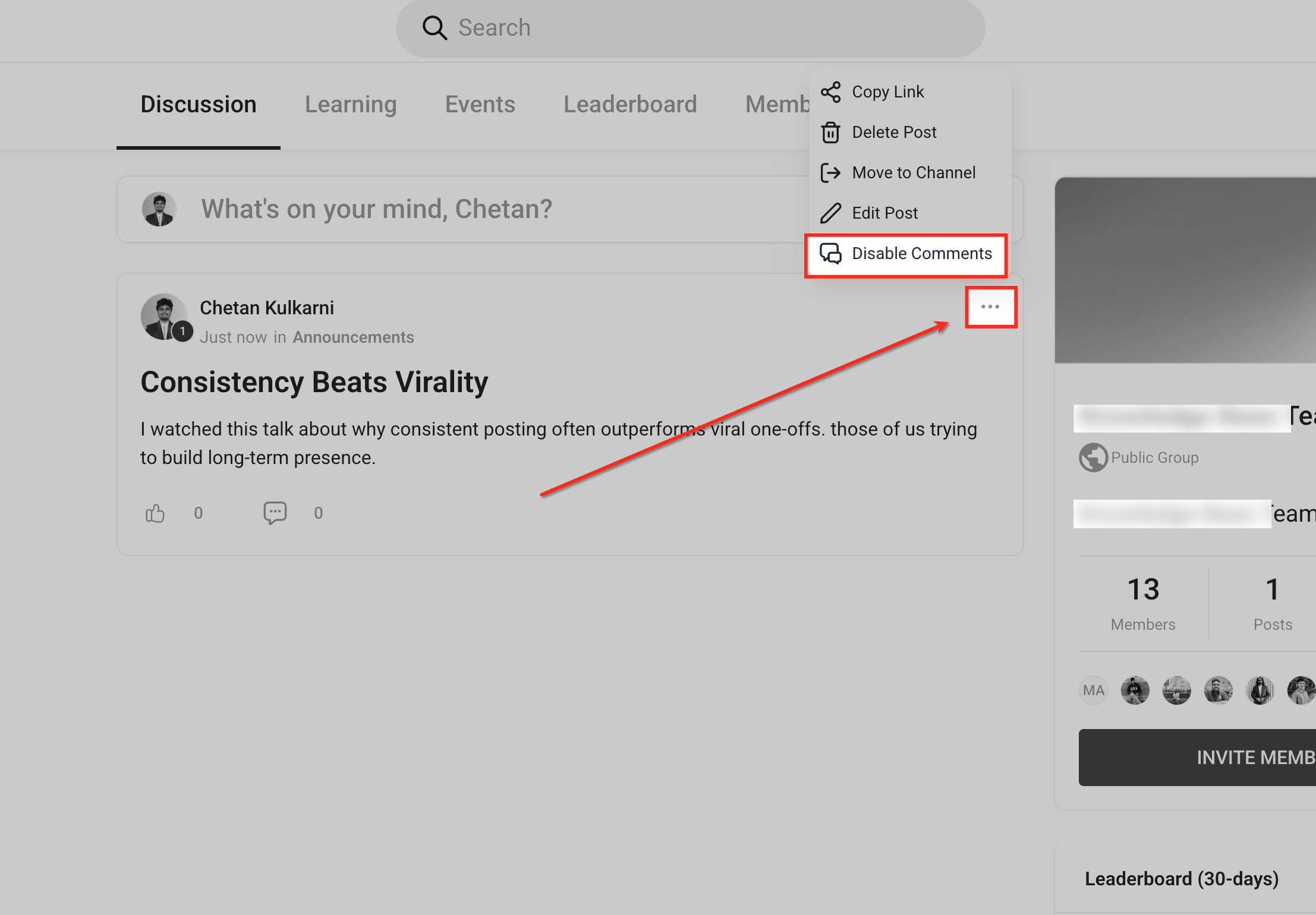
- Click the three dot (ellipsis) menu on the post.
- Select Disable Comments to hide the comment box, or Enable Comments to show it again.
- Observe that hidden comments reappear when enabled, or disappear when disabled.
Manage comments in announcement channels
- Open an announcement channel inside the community.
- Review each existing post to decide if comments should be enabled.
- For a post, use the three dot menu to choose Enable Comments when needed.
- When creating a new announcement post, set the Enable Comments toggle to allow or block replies.
06What it looks like in HighLevel
07Settings that matter
- Enable Comments toggle. Controls whether members can reply to a post; turning it on shows the comment box, turning it off publishes the post as read only.
- Turn off commenting toggle. A switch in the post editor that, when activated, publishes the post without a comment bar and displays a disabled comments message.
08Things to know before you rely on it
- Posts made before this feature was added have comments disabled by default in announcement channels.
- Disabling comments only hides existing replies; they are not deleted.
- Re enabling comments automatically restores all previously hidden replies.
- Members do not receive a notification when comments are turned on or off.
- The comment control applies only to posts inside Communities, not to posts published via Social Planner.
09How it connects to the rest of HighLevel
- Manage members inside groups Group member management
- HighLevel pricing and plans Pricing information
Michael's take

Turning comments on or off is a small convenience that can make a community feel more organized or more lively, depending on what you need. For a membership site that delivers weekly policy updates, keeping those posts read only stops endless chatter and saves the moderators time.
If I were running a professional coaching group, I’d publish a new framework as a read only post, then open comments after a few days to collect feedback. I’d test the toggle on a test post first, just to see the “Comments are disabled” message and verify that hidden replies reappear when I turn comments back on.