
01Who this is for
- Course creators who want to present extra modules to existing students, increasing the value of each login.
- Fitness coaches running a membership portal who need to sell advanced workout plans alongside the core library.
- Professional associations offering continuing education credits that can be added as optional packages.
02In App Upsells, explained
In app upsell is a feature inside the membership product that places a locked offer directly on the My Library page. Learners see the upsell as a banner they can click to purchase, keeping the checkout flow inside the same window.
The upsell appears only for members who have not already bought the offer. Once purchased, the item disappears from the locked list. All payment methods configured in your checkout settings are available for the transaction.
03How businesses use In App Upsell
- Online education business. Create a new upsell for a premium certification course. Use the visual editor to match the branding of the existing library, then activate it. Members who completed the basic series will see the upsell banner and can buy the certification without leaving the portal.
- Fitness membership platform. Add an upsell for a monthly nutrition plan inside the workout video library. Customize the instructor tab with the diet coach’s bio, then set the upsell status to active. Subscribers can unlock the plan directly from the library view.
- Professional association. Attach an upsell for a specialty webinar series to the member’s resource library. Adjust the details tab to show the webinar title and price, preview the page, and activate. Members who need the extra credit can purchase the series with a single click.
04How to set up and use In App Upsell in HighLevel
Set up in app upsell for a membership offer
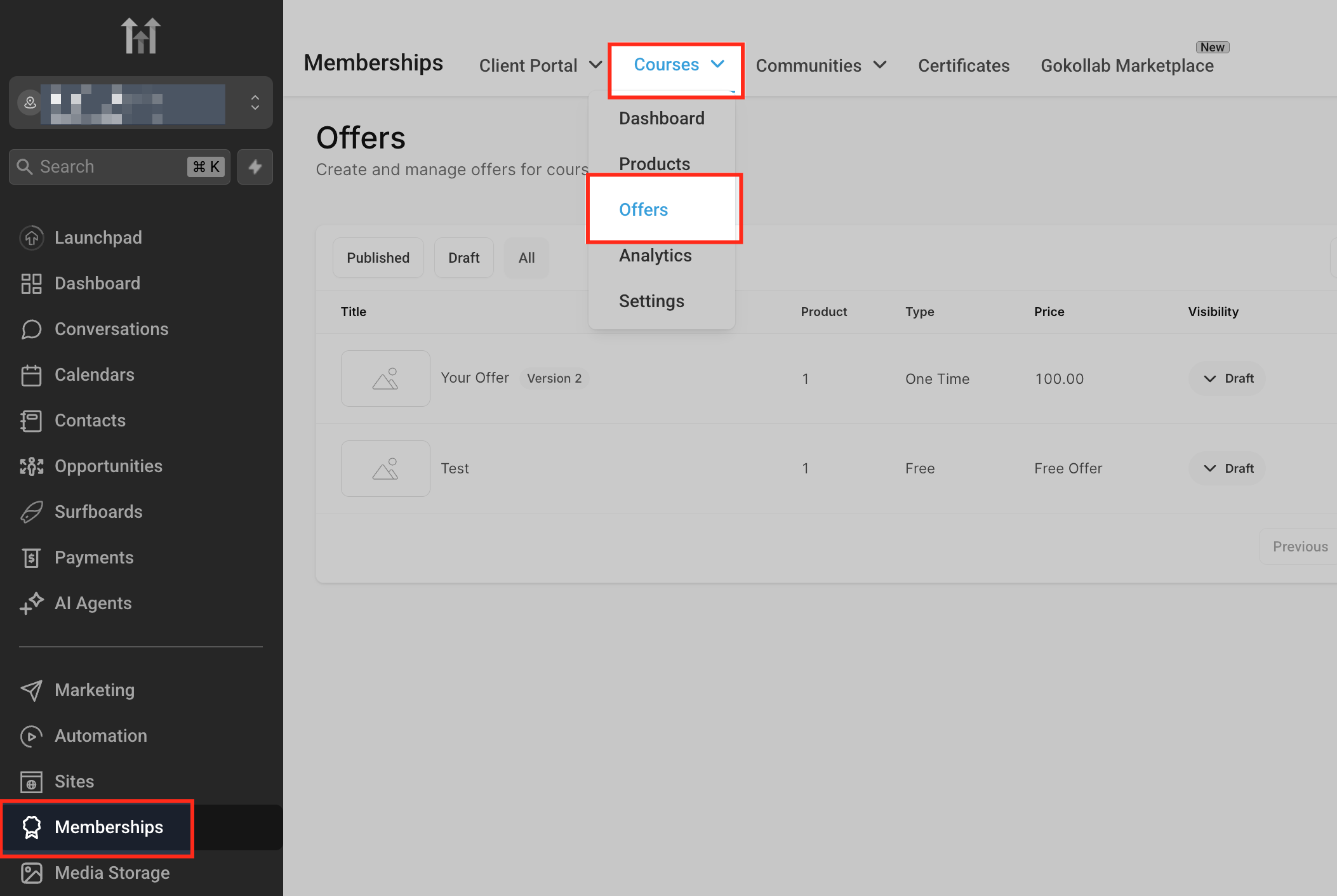
- Open the left navigation and select Memberships.
- From the top bar choose Courses then Offers.
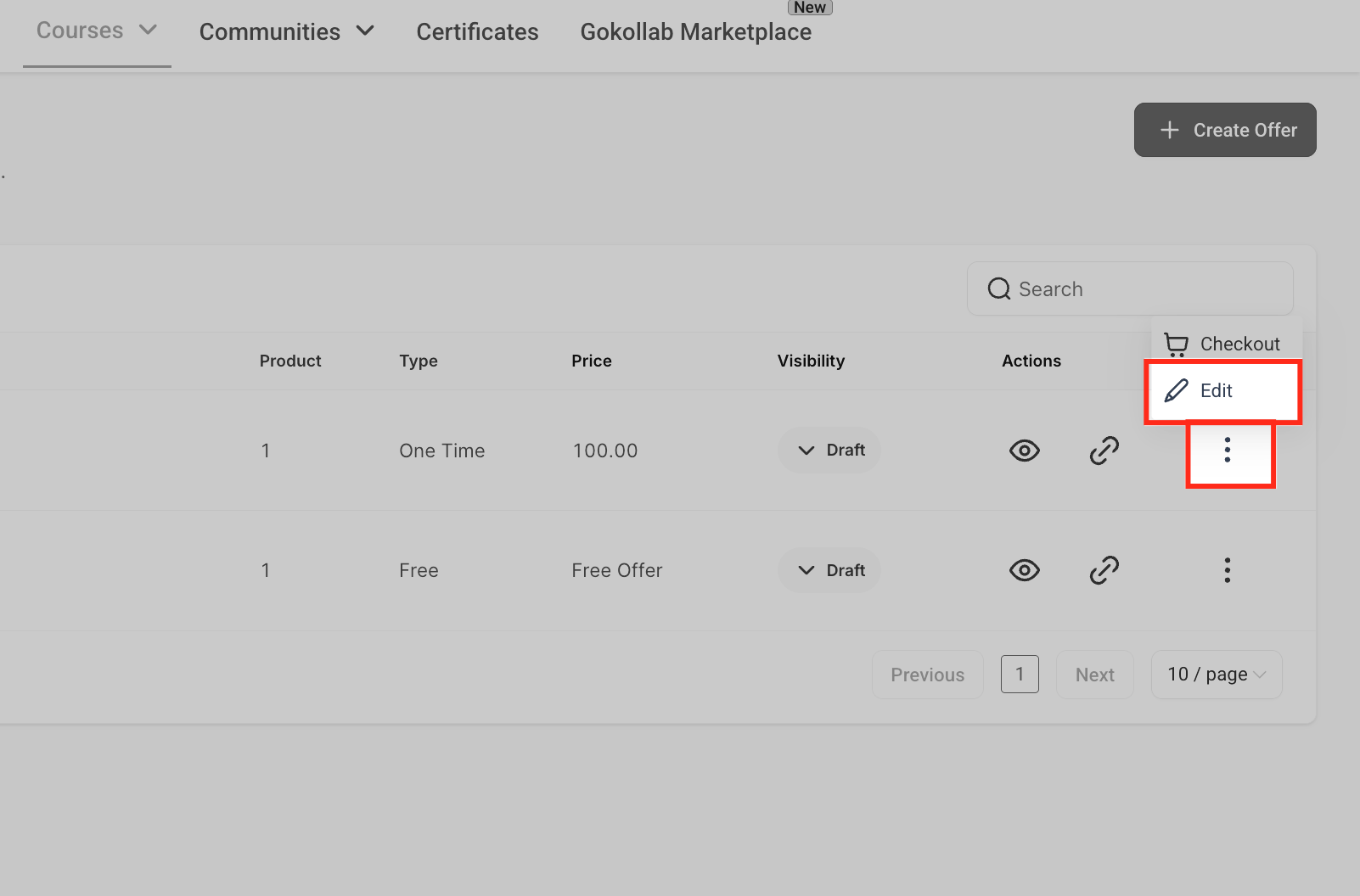
- Find the offer you want to associate an upsell with.
- Click the three dot menu on that offer and pick Edit.
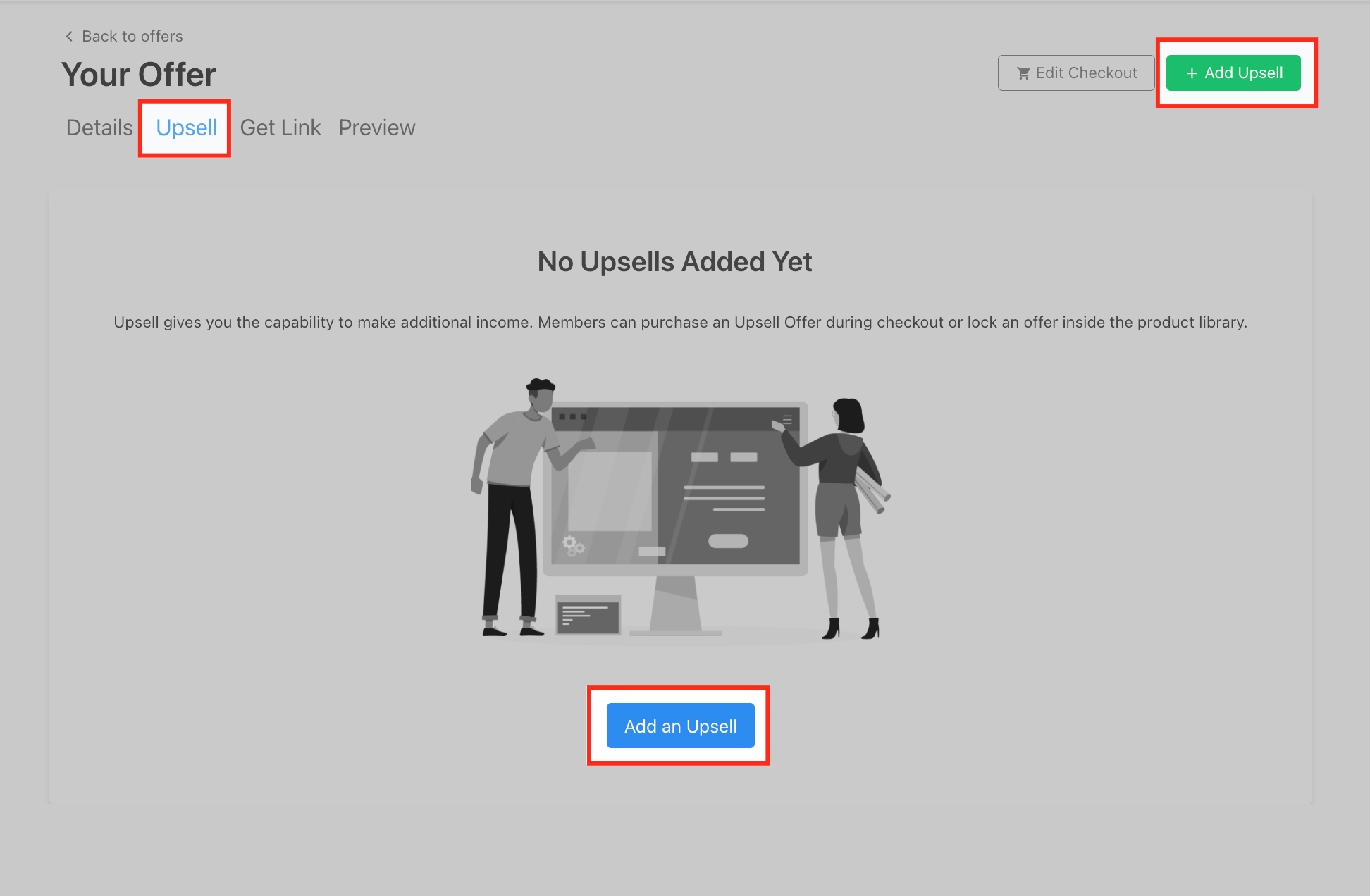
- Inside the offer editor, click the Upsell tab.
- Press the + Add Upsell button to start a new upsell.
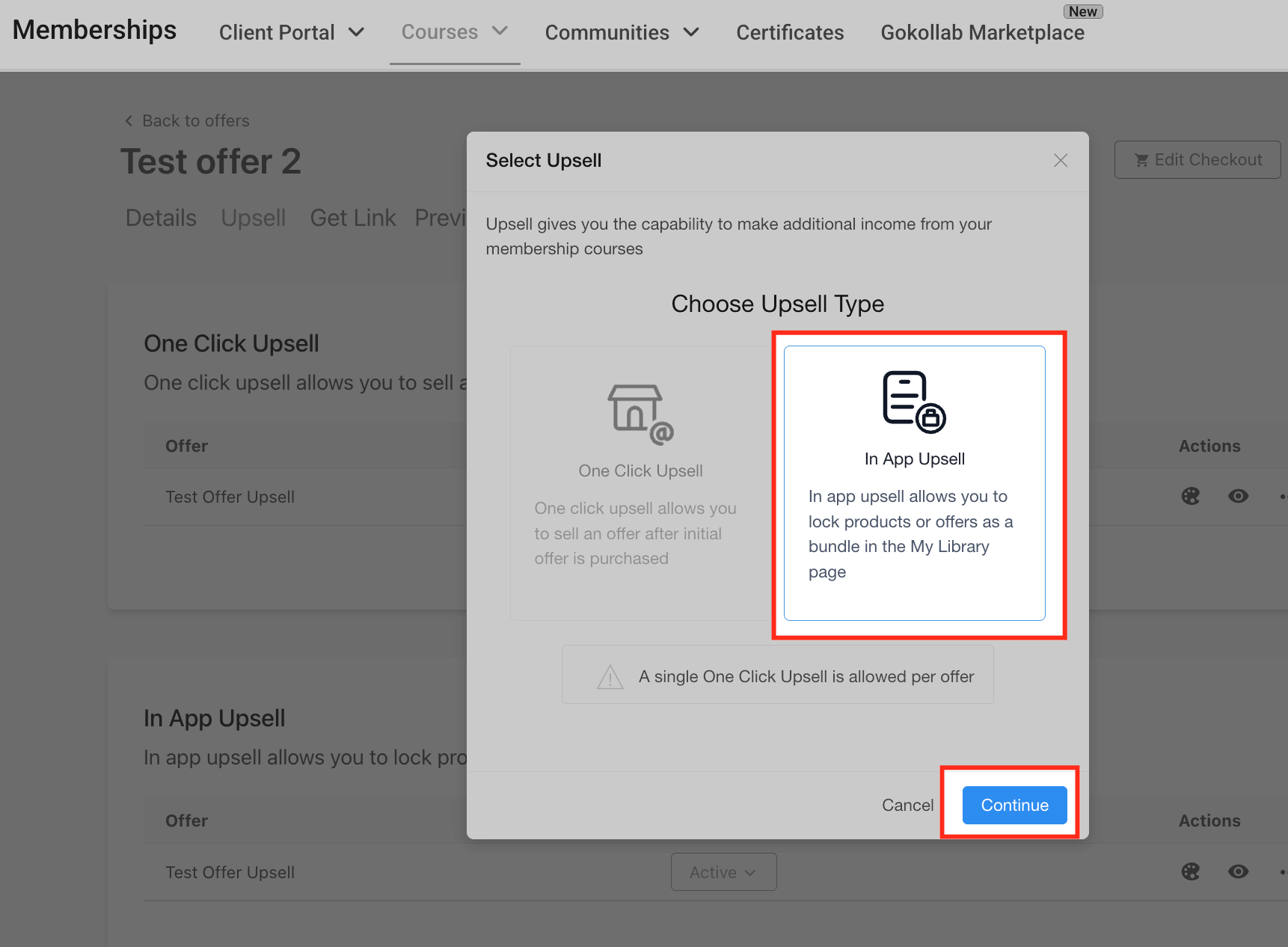
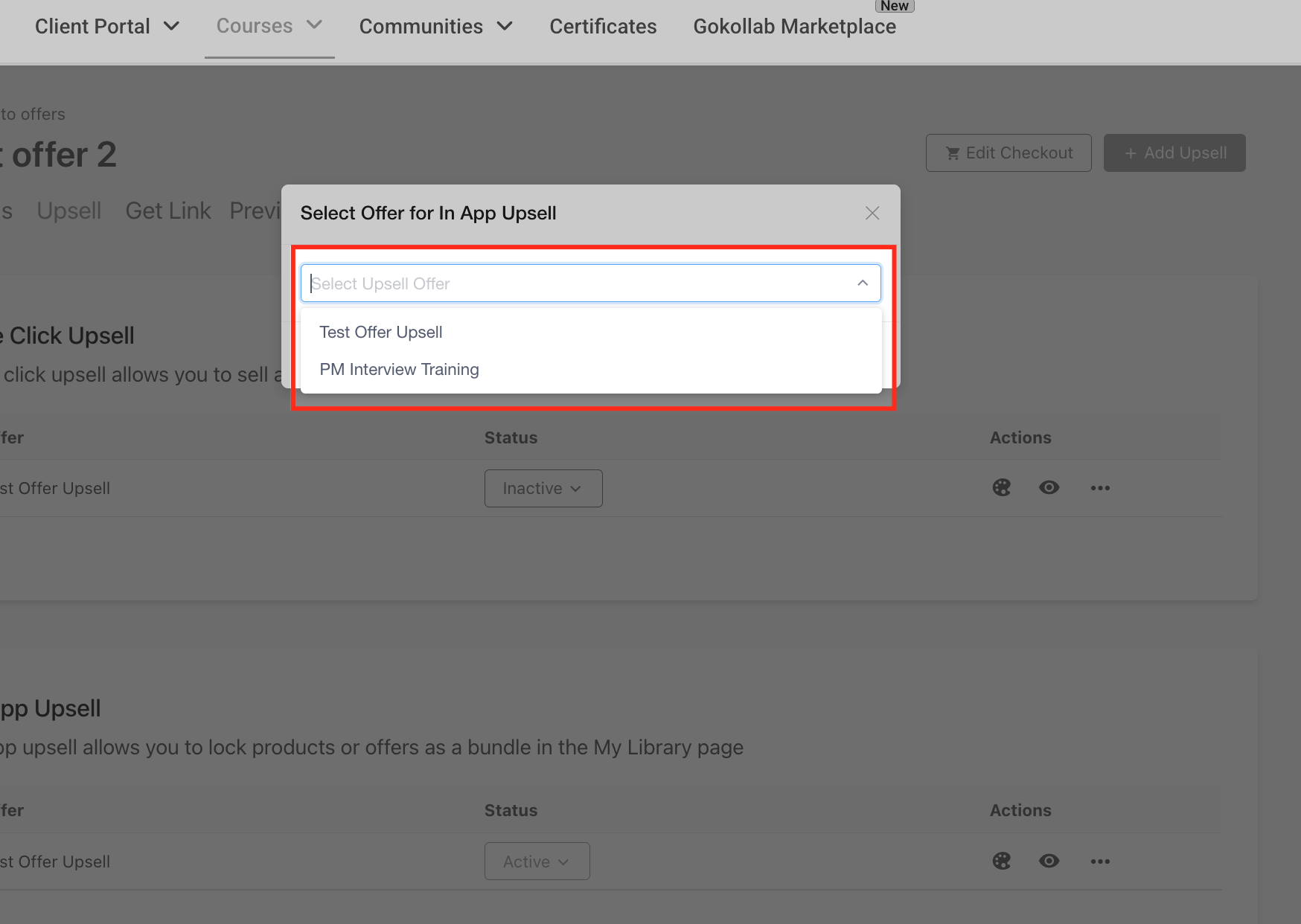
- Choose In App Upsell from the type list and continue.
- Pick the offer you wish to present inside the library dropdown.
- Click Add Upsell Offer to link it.
- Open the visual editor by selecting the palette icon under Actions.
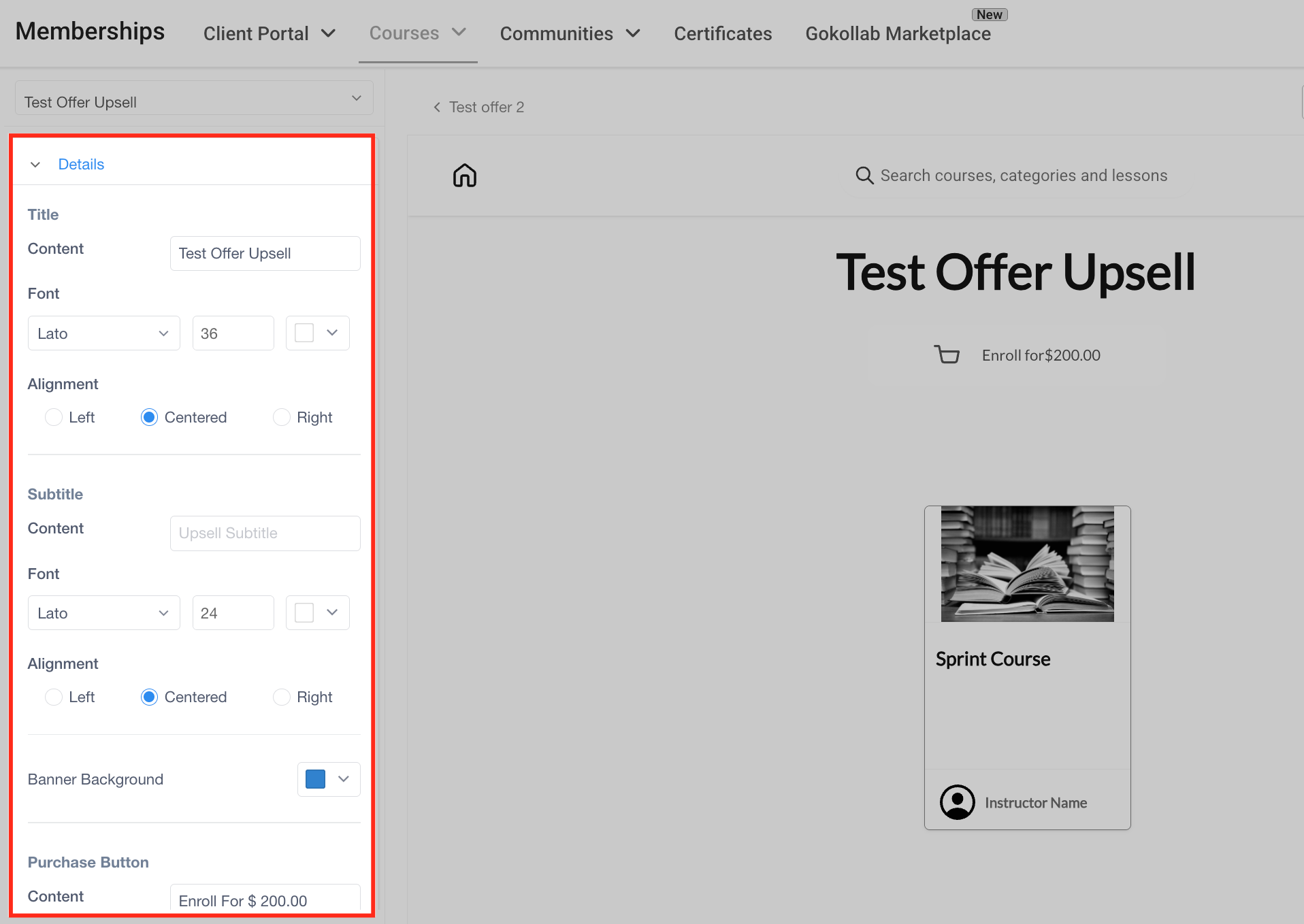
- In the Details tab, modify titles, subtitle, alignment, fonts, background and purchase button style.
- Switch to the Course Body tab and edit description title, main description, curriculum title and fonts.
- Open the Instructor tab and set fonts, background colors, and text for name, title, bio and heading.
- Use the Preview button at the top right to see how the upsell will appear to learners.
- Change the status to Active via the dropdown next to it and click Save.
05What it looks like in HighLevel
06Settings that matter
- Upsell tab. Opens the section where you can add and manage upsell offers for the selected membership.
- + Add Upsell button. Starts the creation of a new upsell record.
- In, App Upsell. Specifies that the upsell will appear inside the My Library page rather than on a separate sales page.
- Details tab. Controls the banner title, subtitle, alignment, font, background, and the purchase button appearance.
- Course Body tab. Lets you edit the description title, full description, curriculum title and related font styles.
- Instructor tab. Sets the visual style for the instructor’s name, title, bio and the section heading.
- Status dropdown. Determines whether the upsell is inactive or Active; Active makes the upsell visible to learners.
07How it connects to the rest of HighLevel
- Learn how to build courses that can be used in upsells. Course builder
- Set up the product that you will attach as an upsell. Product setup
- Review subscription options and plan eligibility for using memberships. Pricing and plans
Michael's take

In App Upsells can feel like a distraction if you overload the library with too many offers. Members might see the page as cluttered and lose focus on their core learning path.
When used sparingly, the feature can help increase revenue by presenting the right next course or bundle at the moment a learner is engaged, without pulling them away from the experience.