
01Who this is for
- Course creators who need to reuse onboarding modules across several trainings, saving time on rebuilding content.
- Membership site owners who want to keep curriculum consistent when launching new programs that share core lessons.
02Import content from another course, explained
The feature copies selected course elements, such as lesson titles, media, quizzes, and assignments, from one existing course into another. The imported items are added alongside any content already in the destination course and can be edited there. This tool resides inside the HighLevel Courses area, accessed through the Course Builder interface.
To use it, you open the target course, choose Add Content, and pick Import from another course. After selecting the source course and the items you wish to copy, HighLevel creates a duplicate of those elements inside the destination course. The process runs in the background, allowing you to continue working while the import finishes.
03How businesses use import content from another course
- Online coaching business. A coach selects a proven onboarding module from a previous program, imports it into a new coaching course, and then customizes the lessons for the new client cohort. All actions happen inside the Course Builder.
- Corporate training department. The training team copies a set of compliance videos and associated quizzes from an existing course into a new compliance rollout, then reviews and updates any wording specific to the new department.
- Fitness membership site. A fitness brand imports a series of nutrition lesson modules from an older program into a fresh member portal, then edits the descriptions to match the latest diet guidelines.
04Before you start
- The destination course must already be created in HighLevel.
- Identify the source course that contains the content you wish to reuse.
05How to set up and use import content from another course in HighLevel
Import content from another course
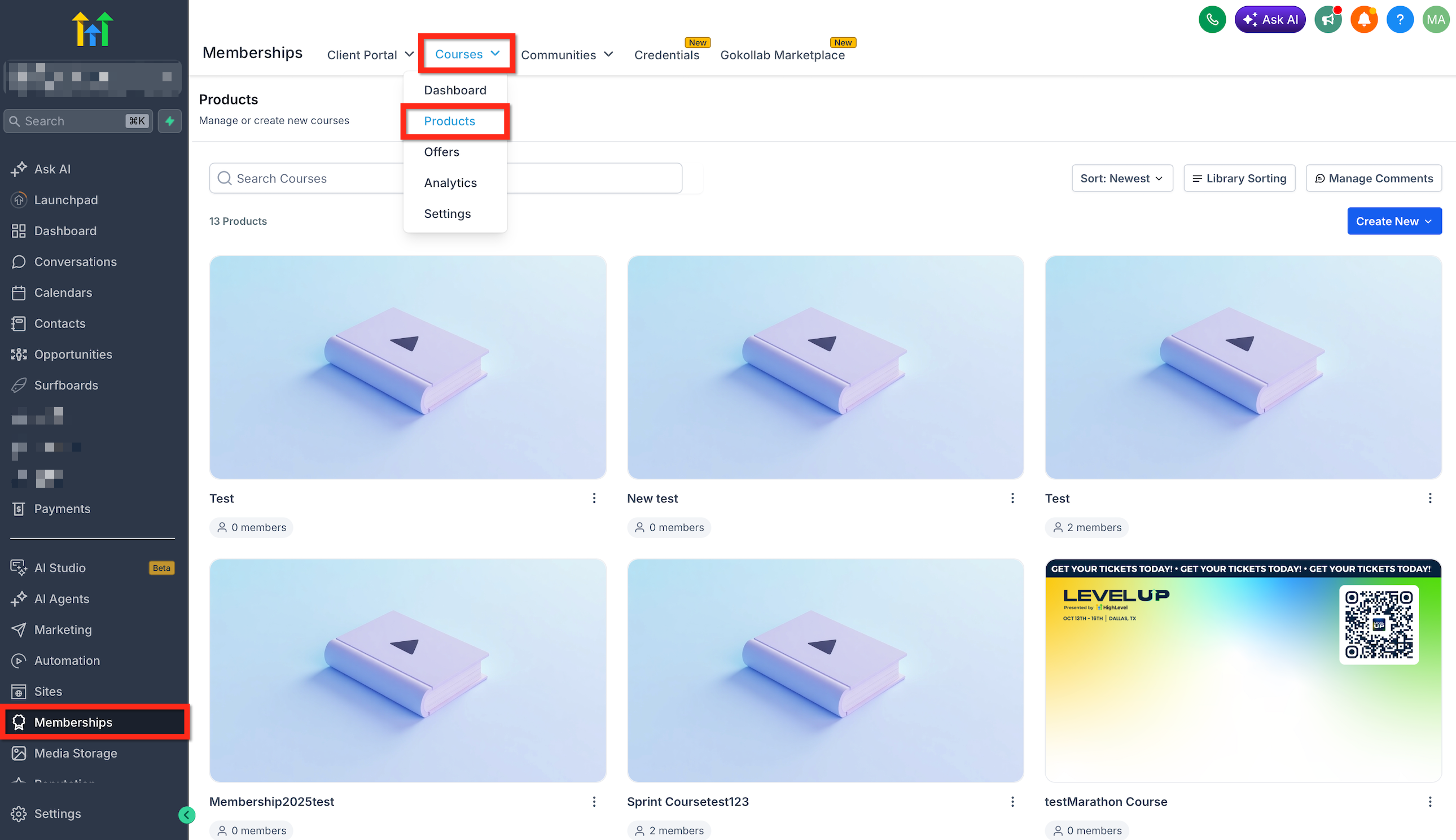
- Navigate to Memberships > Courses > Products and open the target course.
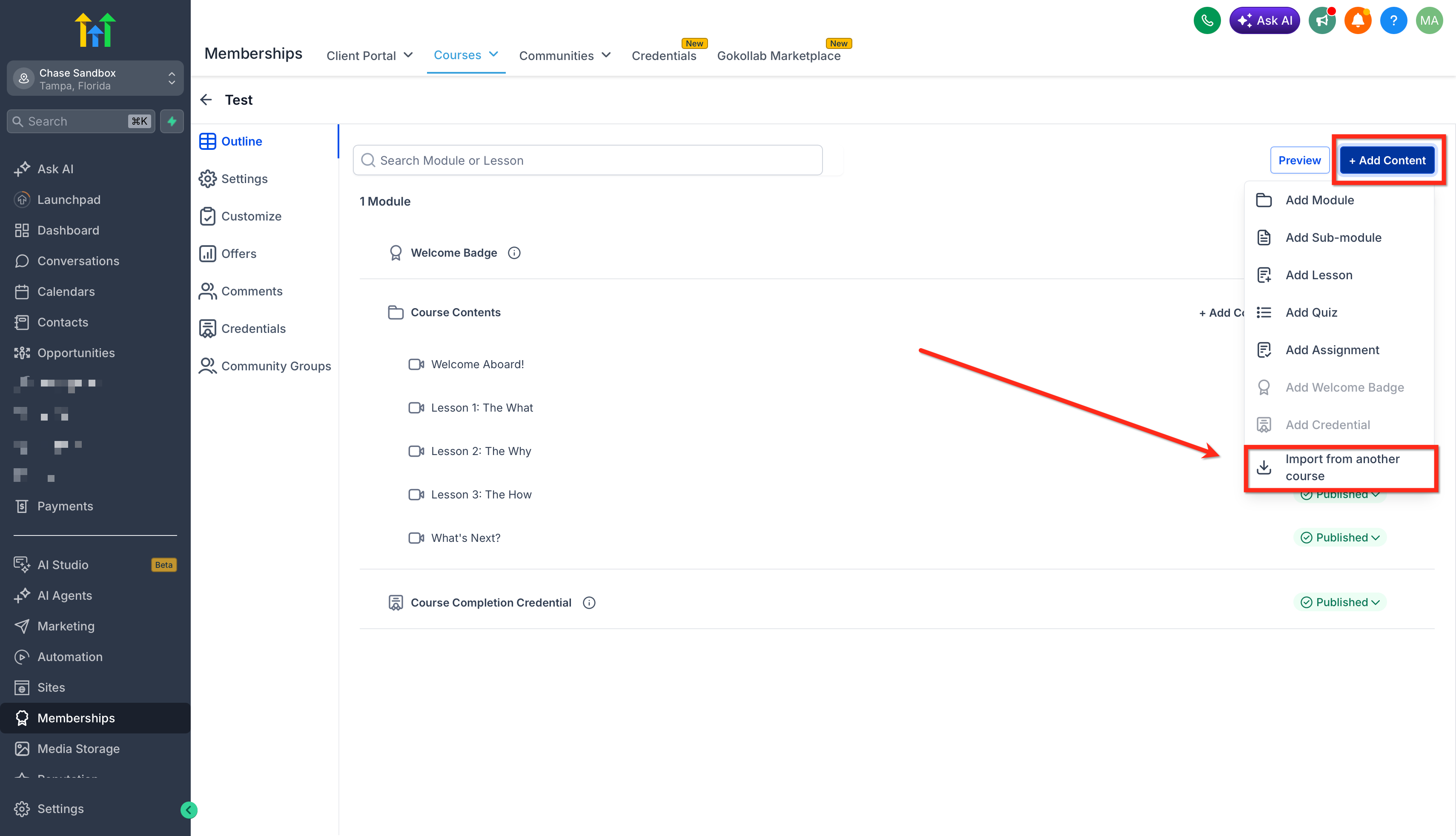
- In the Course Builder, click + Add Content and choose Import from another course from the menu.
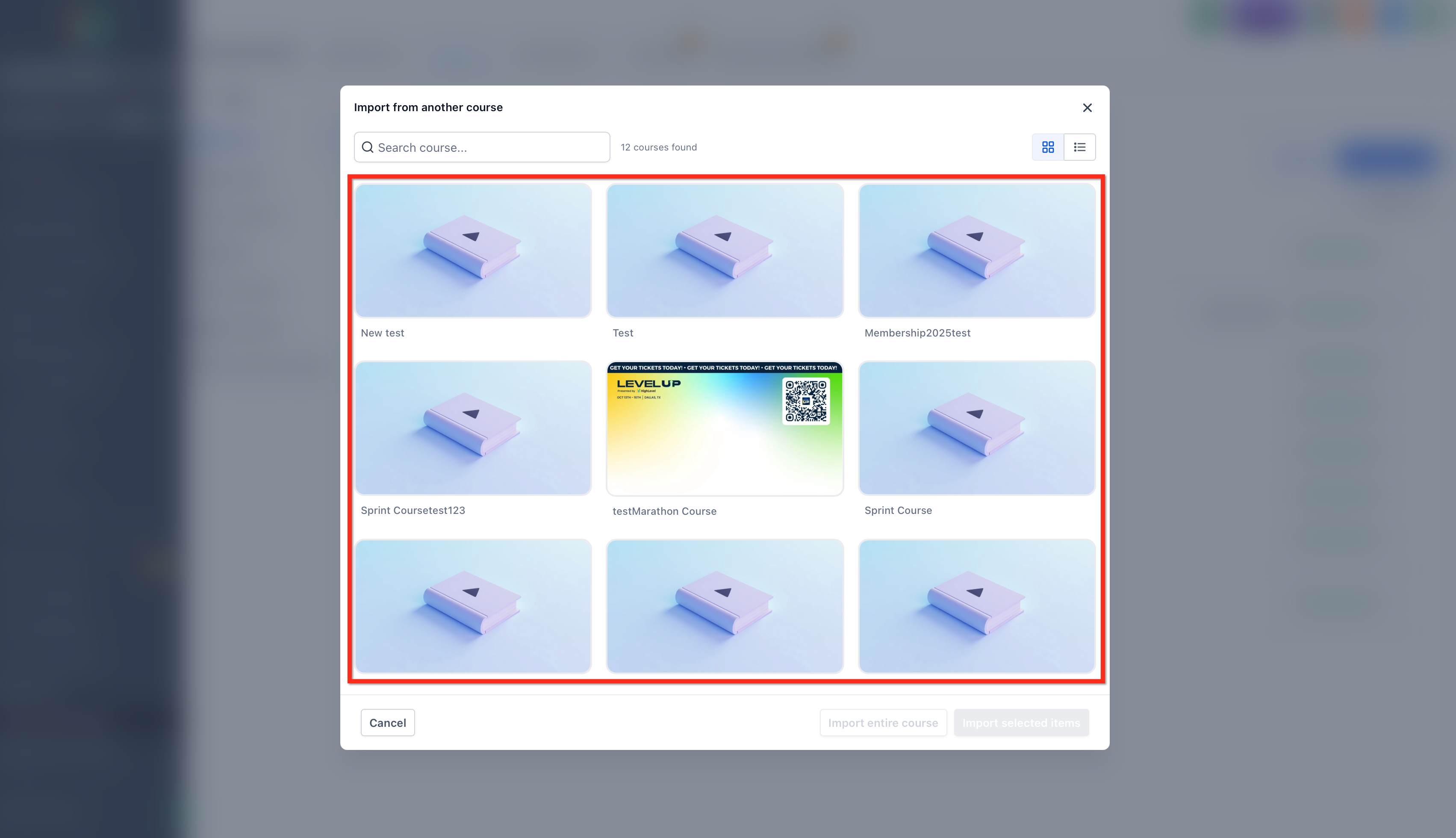
- In the dialog, search for or browse the source course and press Select.
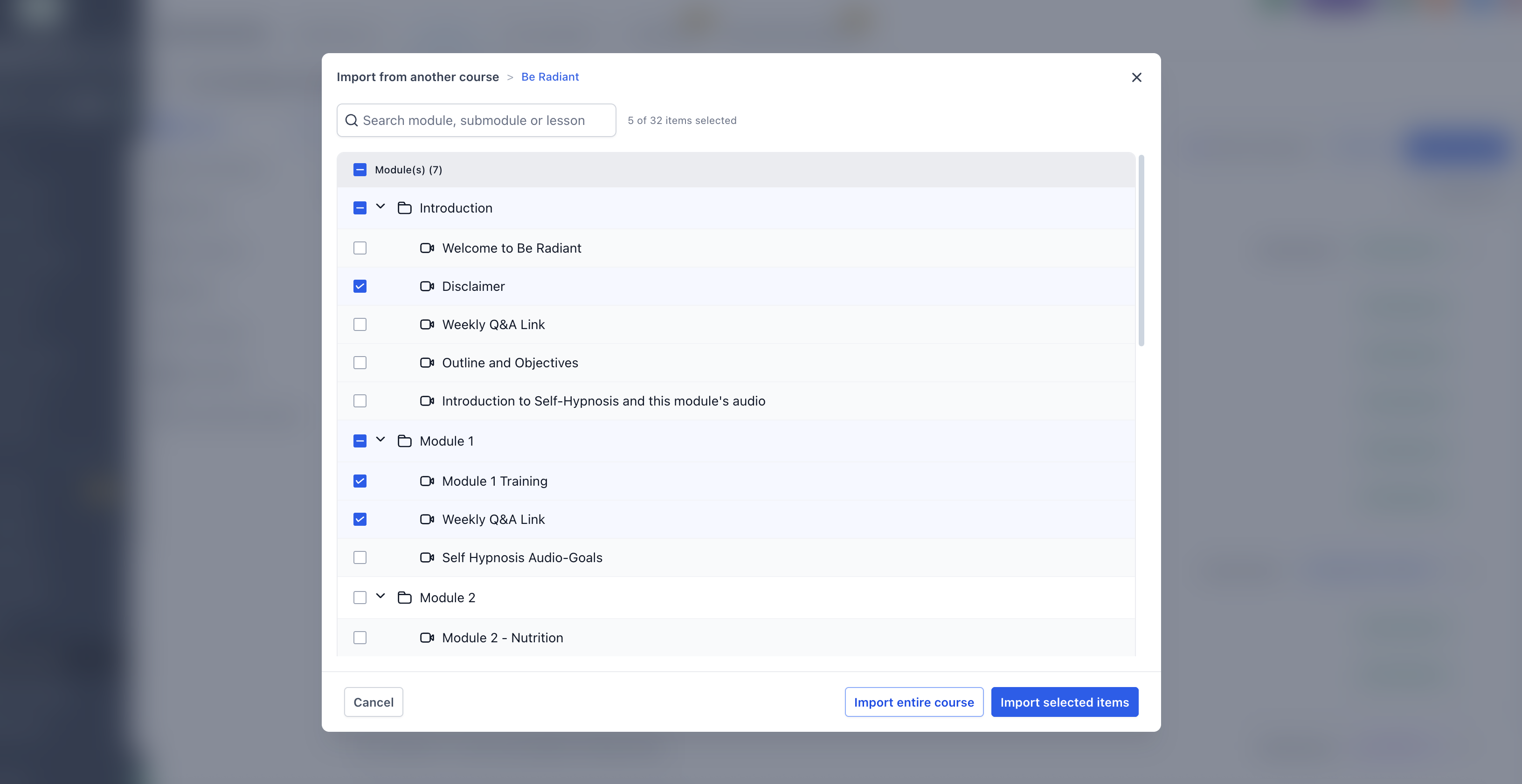
- Pick the items you need, individual lessons, modules, submodules, or the whole course hierarchy.
- Press Import selected items or Import entire course according to your choice.
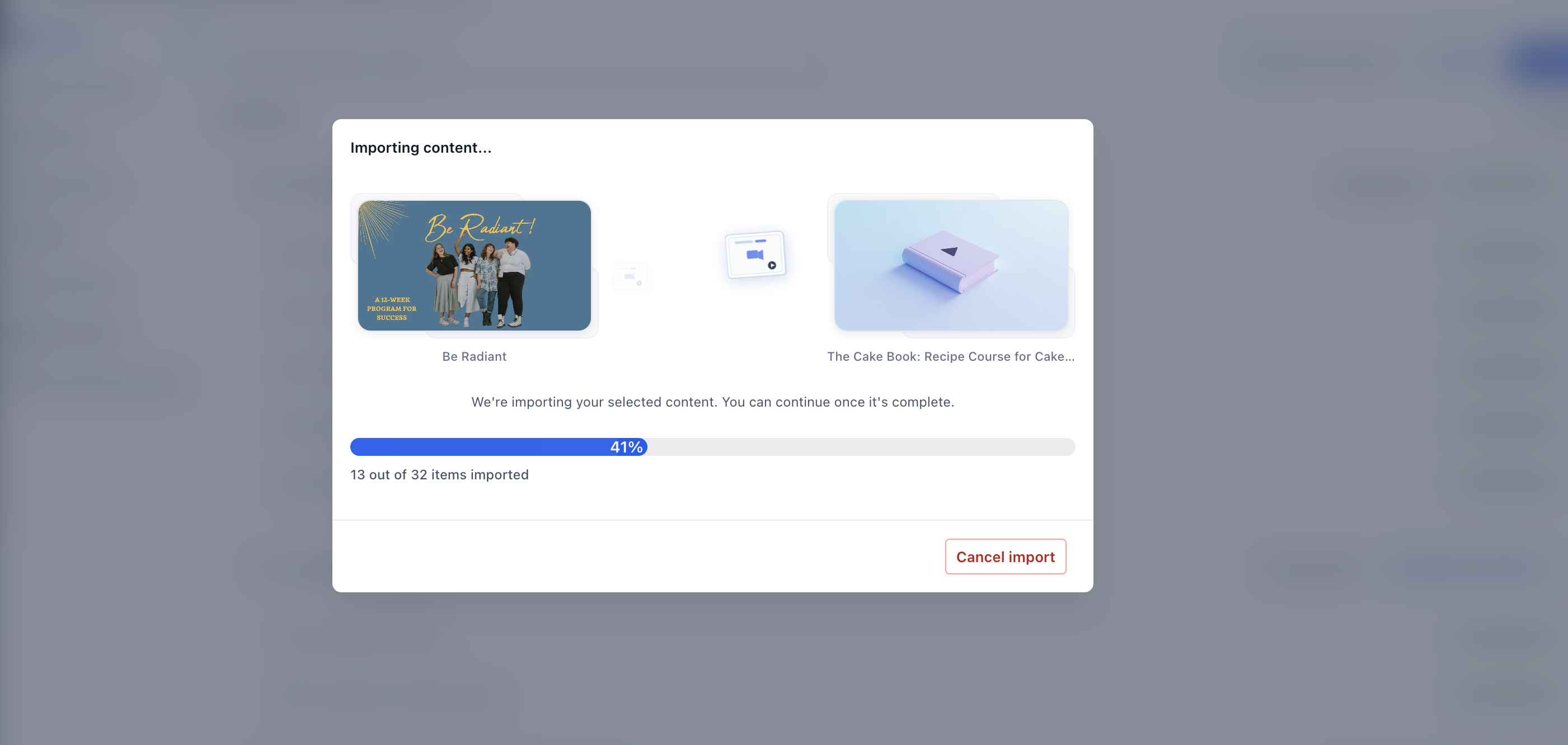
- Watch the progress modal while the system copies the content; the operation runs in the background.
- When the copy finishes, open the destination course to view the newly added items.
- Check that all imported modules, lessons, videos, thumbnails, descriptions, quizzes, assignments, and resources appear as intended.
- Review the imported content before publishing or making it available to learners.
06What it looks like in HighLevel
07Things to know before you rely on it
- Imported items are duplicated, not linked; later changes to the original course do not affect the copy.
- Existing content in the destination course is left unchanged; imports are added beside current material.
- You can import single lessons, selected modules, or an entire course, but the feature does not merge or overwrite.
08How it connects to the rest of HighLevel
- Course builder overview HighLevel course builder
- Create a product and attach it to a membership course offer Product setup
- View HighLevel pricing and plan options Pricing
Michael's take

Import content from another course is handy when you already have solid material and need to spin up a new offering fast.
Skip it if you rarely reuse lessons or if each course is completely unique.