
01Who this is for
- Founders of ecommerce stores who sell products through a membership checkout can see which items drive the most sales.
- Founders of SaaS businesses offering one time software licenses can identify the most profitable offers across funnels.
- Founders of health and wellness programs can compare revenue from different course offers to choose where to focus marketing.
02Memberships revenue analytics, explained
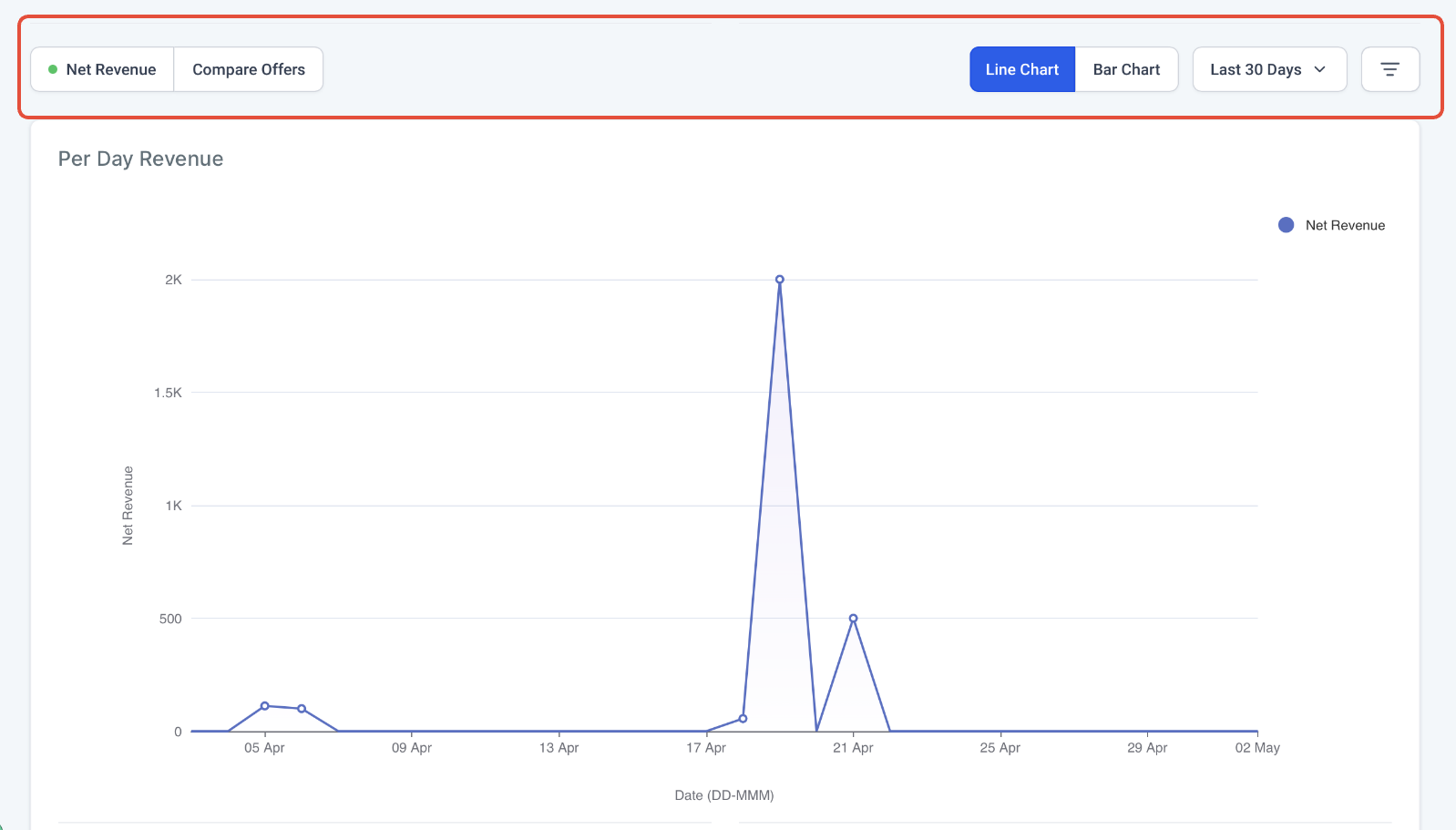
Revenue Analytics is a reporting view inside the Memberships area. It displays revenue generated from one time purchases only. The view offers two tabs, Net Revenue and Compare Offers, each with its own set of figures.
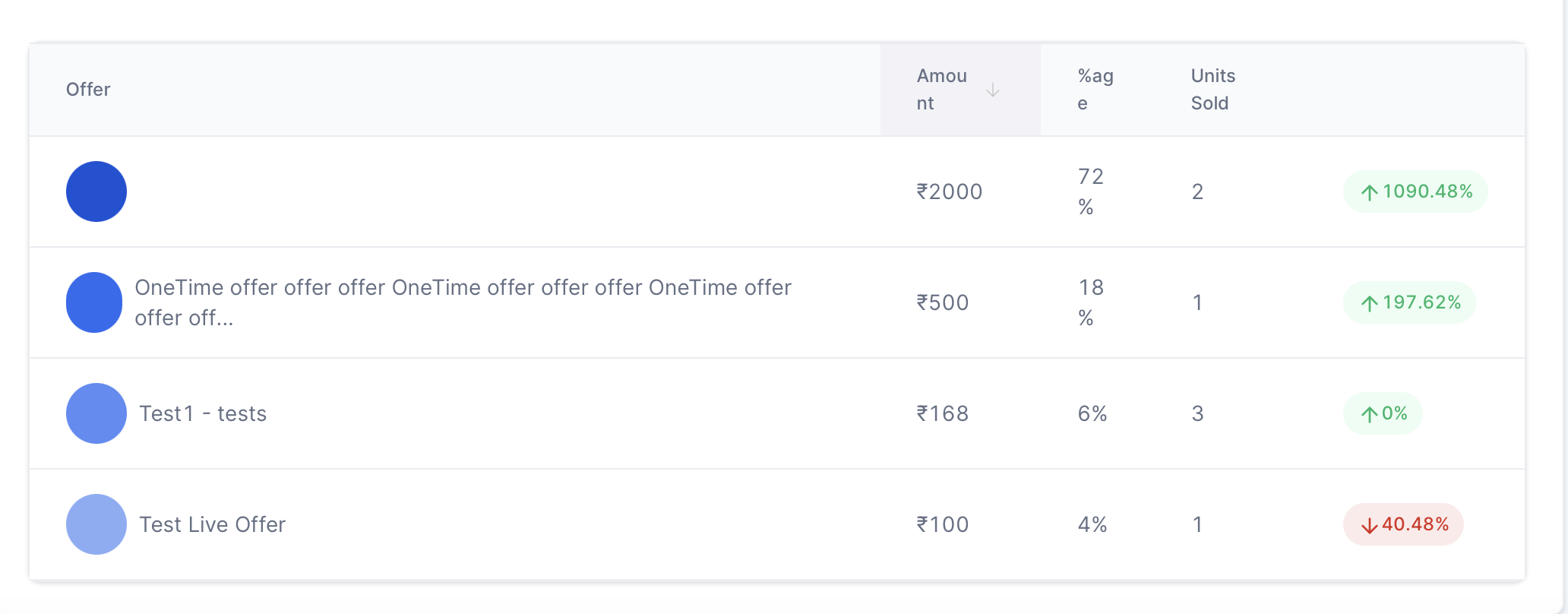
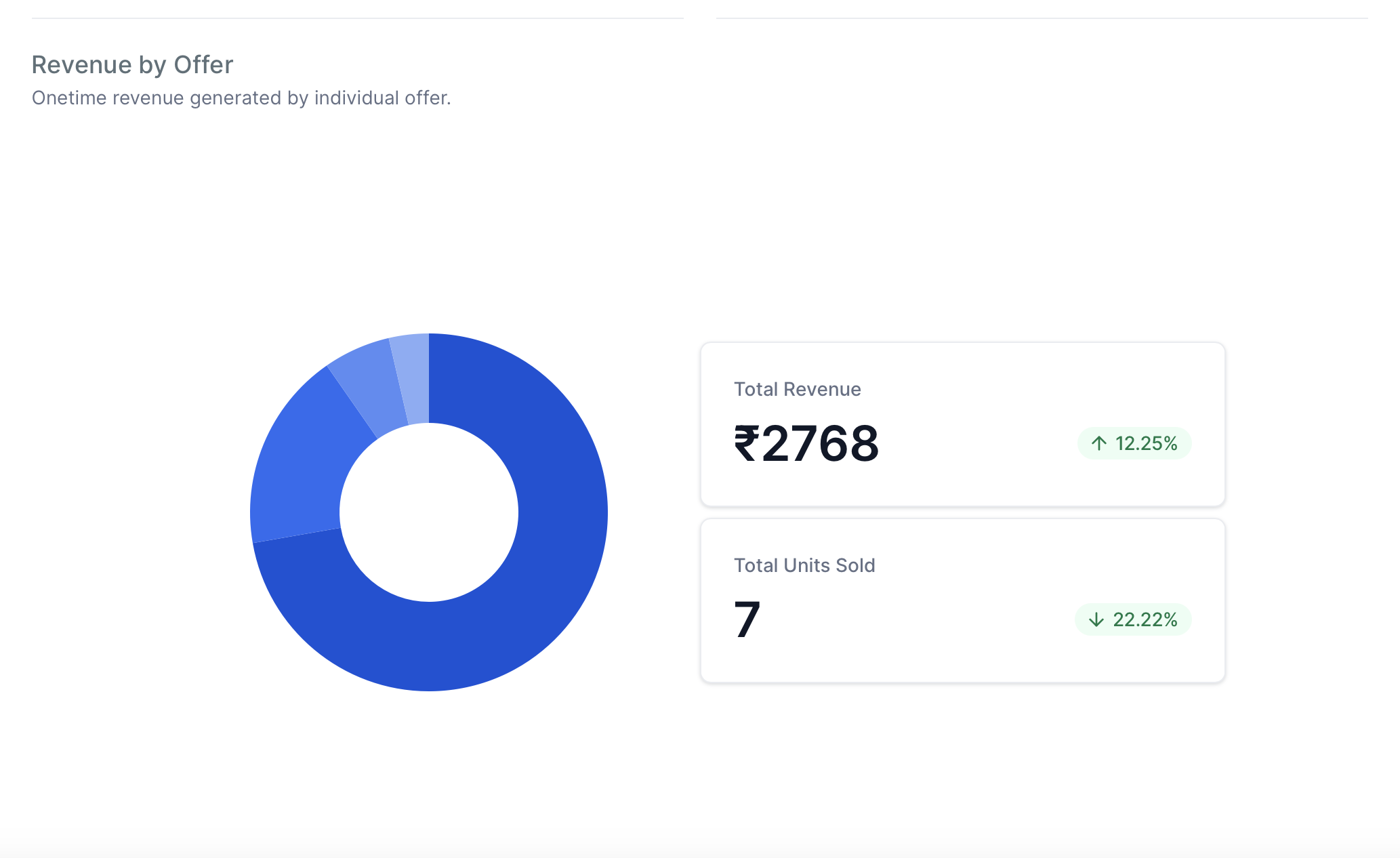
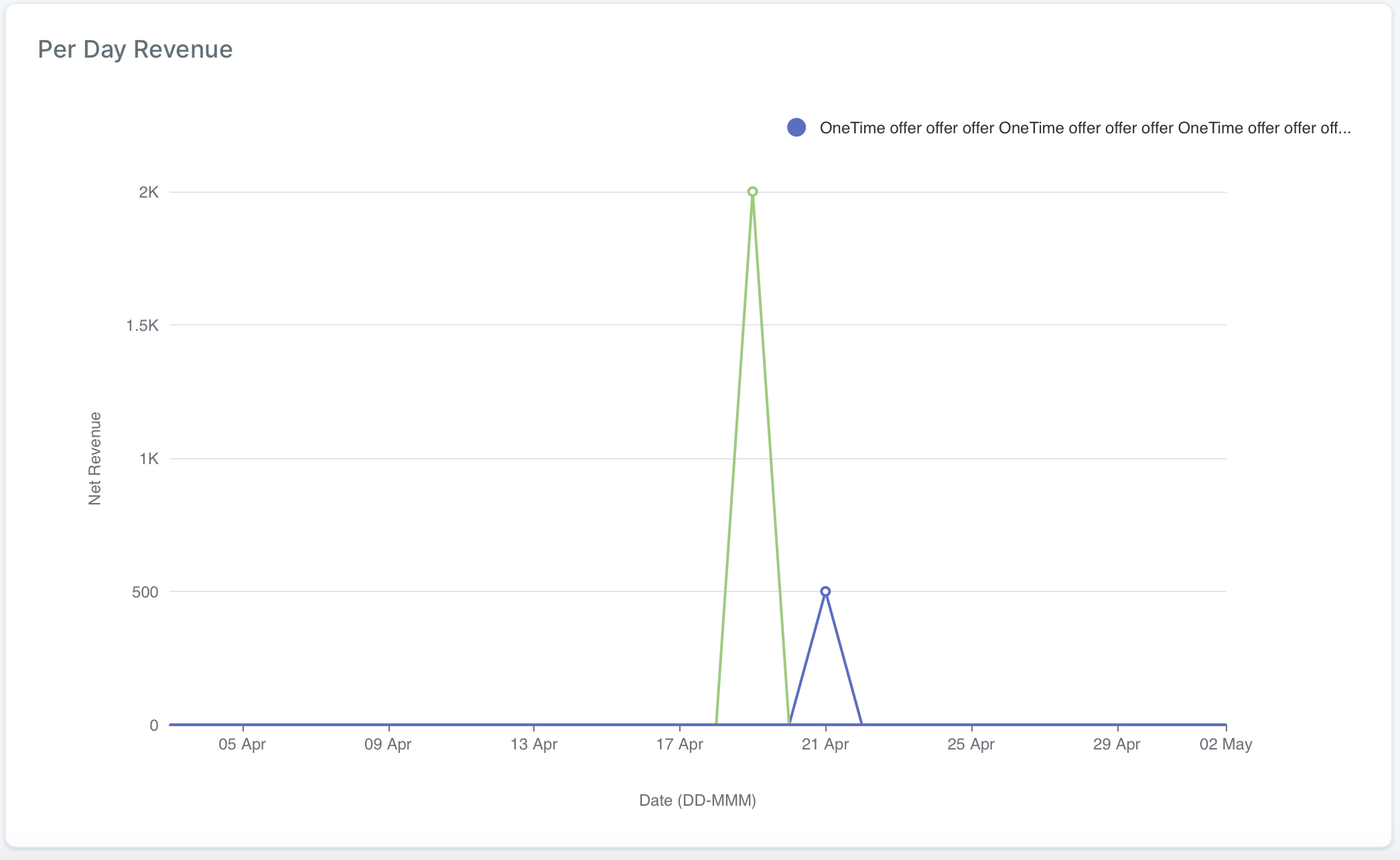
The Net Revenue tab shows total units sold, total revenue, and the percentage contribution of the top four offers for the selected date range and purchase channel. Users can narrow the data by picking a custom date range and by choosing a channel such as Membership checkout, Funnel, or Upsell checkout.
The Compare Offers tab lets users select up to four specific offers and view each offer’s units sold and revenue. The same date and channel filters apply, and the offer filter lets the user pick which offers to compare side by side.
03How businesses use memberships revenue analytics
- Ecommerce store. The owner opens the Net Revenue tab, selects the last month as the date range, and filters to the Membership checkout channel. The dashboard shows total sales and which four products contributed most, helping the owner see online store performance.
- Software license provider. Using the Compare Offers tab, the Founder chooses four software packages, sets the date range to the past year, and filters to the Funnel channel. The view displays units sold and revenue per package, allowing direct comparison of product performance.
- Health and wellness studio. The manager selects the Compare Offers tab, picks two class series and two coaching packages, applies a six month date filter, and chooses the Upsell checkout channel. The resulting chart shows which offers generated the most revenue from upsells.
04The numbers and rules that matter
- Can compare up to four offers simultaneously.
05How to set up and use memberships revenue analytics in HighLevel
Open the Revenue Analytics view
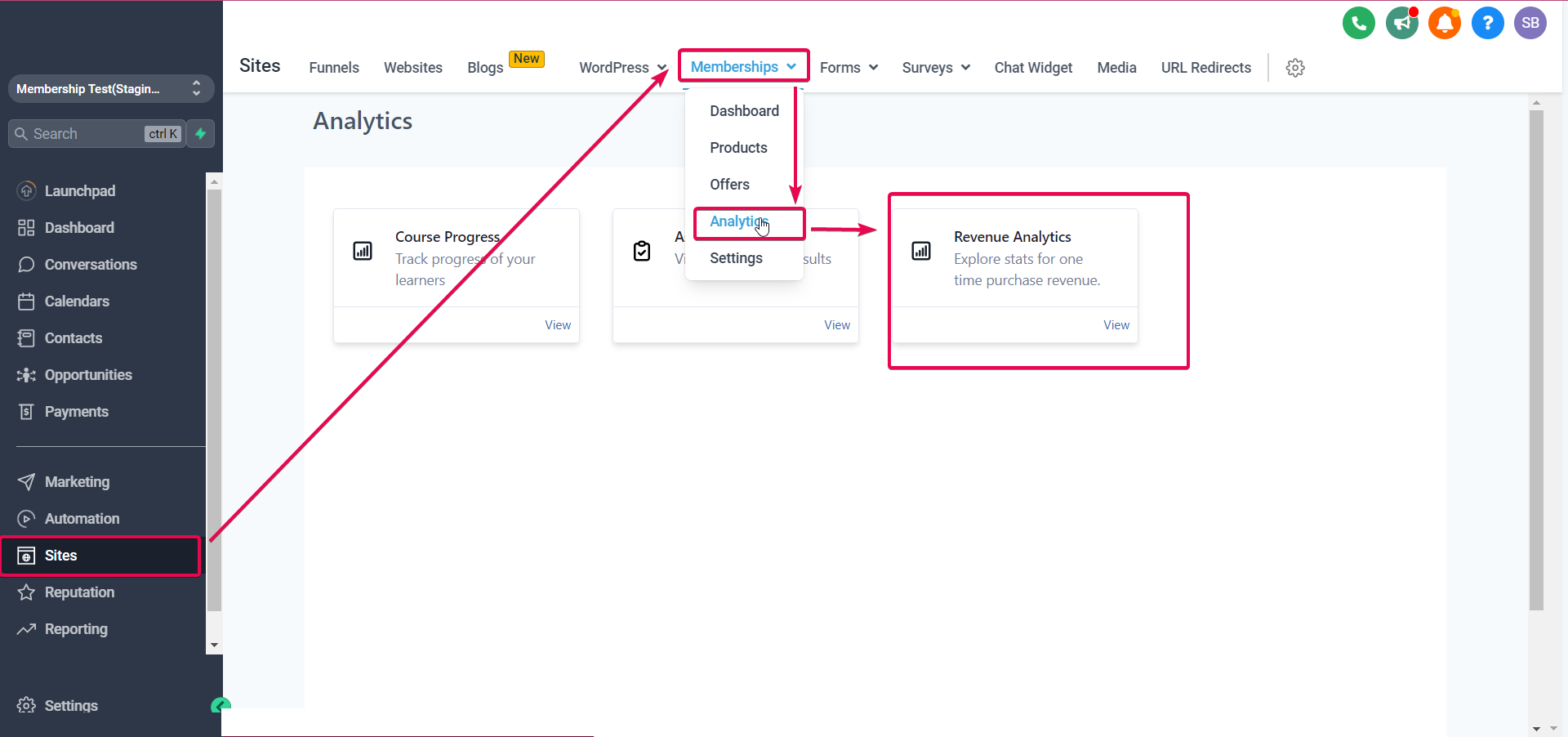
- Navigate to Sites > Memberships > Analytics > Revenue Analytics.
View Net Revenue data
- Select the Net Revenue tab.
- Choose a date range with the date filter.
- Select a purchase channel (Membership checkout, Funnel, or Upsell checkout).
- Review total units sold, total revenue, and the distribution of the top four offers.
Compare offers
- Select the Compare Offers tab.
- Choose up to four offers with the offer filter.
- Set the desired date range.
- Select a purchase channel.
- Examine units sold and revenue for each chosen offer.
06What it looks like in HighLevel
07Settings that matter
- Date filter. Lets the user define a specific date range for the data displayed in either tab.
- Purchase channel filter. Allows selection of one of up to four sources such as Membership checkout, Funnel, or Upsell checkout.
- Offer filter. In the Compare Offers tab, lets the user choose up to four offers to display side by side.
08Things to know before you rely on it
- Data shown is limited to one time purchases only; recurring subscription revenue is not included.
- The purchase channel filter offers up to four predefined options.
- The top four offers distribution appears only in the Net Revenue tab.
- The Compare Offers tab can display a maximum of four offers at one time.
09How it connects to the rest of HighLevel
- Set up a membership product before using revenue reports. Product setup
- Review all Memberships & Communities capabilities to understand related tools. All features
- Start a trial to explore Revenue Analytics alongside other HighLevel tools. 30 day trial
Michael's take

Memberships revenue analytics feels like a small convenience that can become a real shift for businesses that sell courses or memberships. It gives you a clear picture of which offers pull the most dollars and where those sales happen.
A yoga studio that runs both a monthly membership and occasional workshops can use the Compare Offers tab to see which class type brings in more revenue and whether the website checkout or a funnel drives the sales. That insight lets the studio push the winning offer in the right channel.