
01Who this is for
- Online educators who sell courses and need tax compliant checkout experiences.
- Membership site owners who offer recurring training and must display tax breakdowns.
- Coaches and consultants selling digital products who require regional tax compliance.
02Taxes for course offers, explained
Tax support for Courses offers connects checkout pages to the Payments tax engine. When a learner purchases a course, the platform looks up the buyer’s billing address, matches it with your defined nexus locations and the product’s tax category, and then calculates the appropriate tax amount.
The calculation follows the same rules used in funnels and payment links: automatic taxes work when enabled, manual rates can be attached as a fallback, and you can set prices to be tax inclusive or tax exclusive globally or per product. Taxes appear as a separate line item before payment, giving a clear subtotal, tax amount and total.
All of these settings live in the Payments section of HighLevel. The tax configuration page controls inclusion behavior, automatic tax toggle, default tax category and nexus addresses. Individual product pages hold the tax code and any manual rates, while the Course Offer linking ties the product to the specific course checkout.
03How businesses use taxes for course offers
- Online tutoring platform. The platform enables automatic tax calculation on course checkout by setting up nexus addresses and turning on International Automatic Taxes. Tutors can then sell lessons without manually adding tax amounts, and learners see a transparent tax line before payment.
- Digital fitness membership. A fitness brand configures manual tax rates for states where automatic taxes are unavailable, attaches those rates to each membership product, and chooses tax exclusive pricing. Subscribers see tax added on top of the listed price at checkout.
- Software training academy. The academy sets the global Include tax in prices option to Yes for EU courses, overrides a specific US course to be tax exclusive, and links each product to its Course Offer. Learners in the EU see VAT included, while US learners see tax added separately.
04Before you start
- Payments must be connected to a provider such as Stripe.
- Course products must exist in Payments before linking to offers.
05How to set up and use taxes for course offers in HighLevel
Set up tax support in course offers
- Connect your Stripe (or other) account in Payments.
- Verify you can create products and accept payments for course offers.
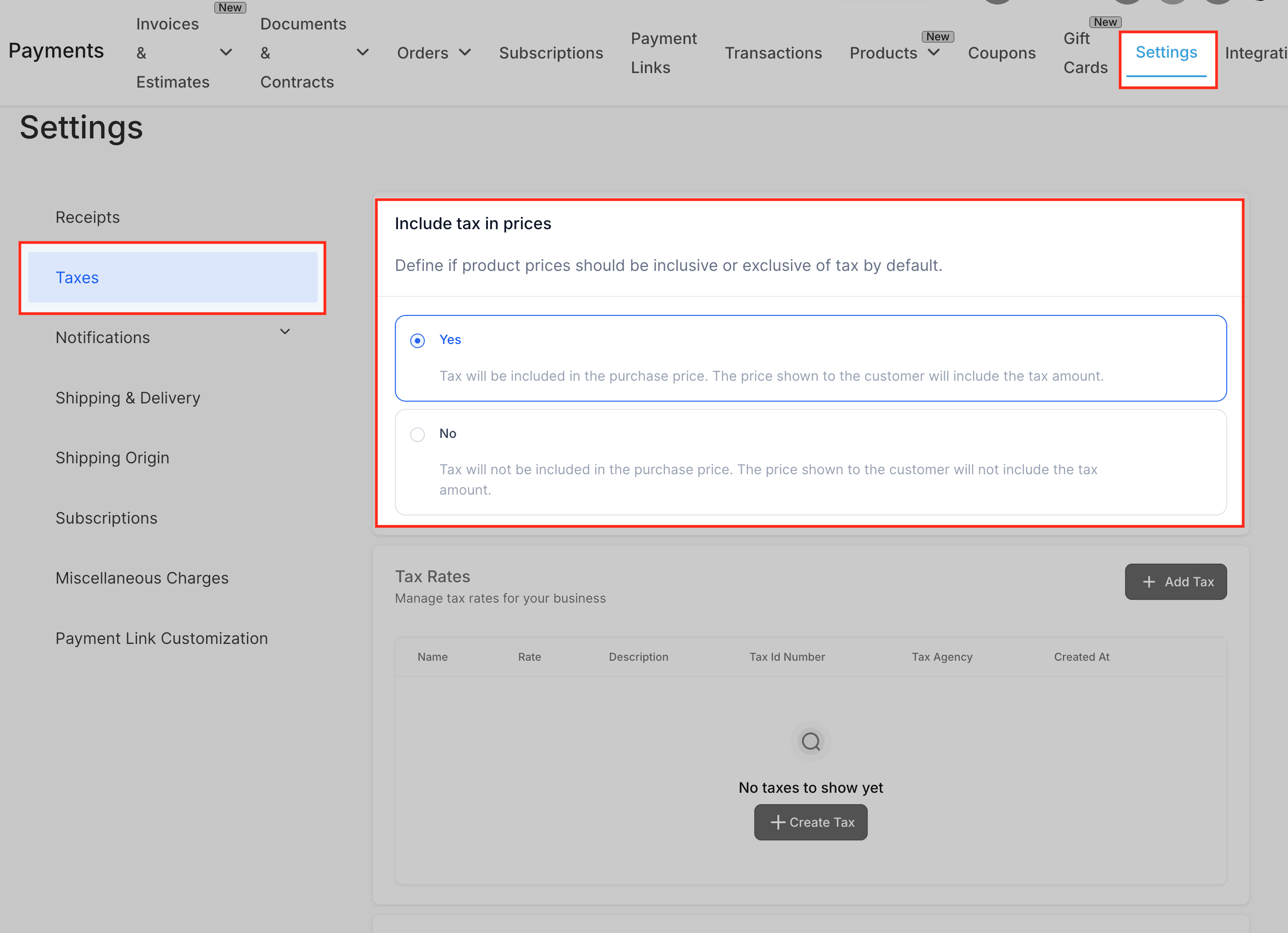
- Open Payments > Settings > Taxes.
- Choose tax inclusive or tax exclusive pricing with the Include tax in prices toggle.
- (Optional) Add manual tax rates needed for unsupported regions.
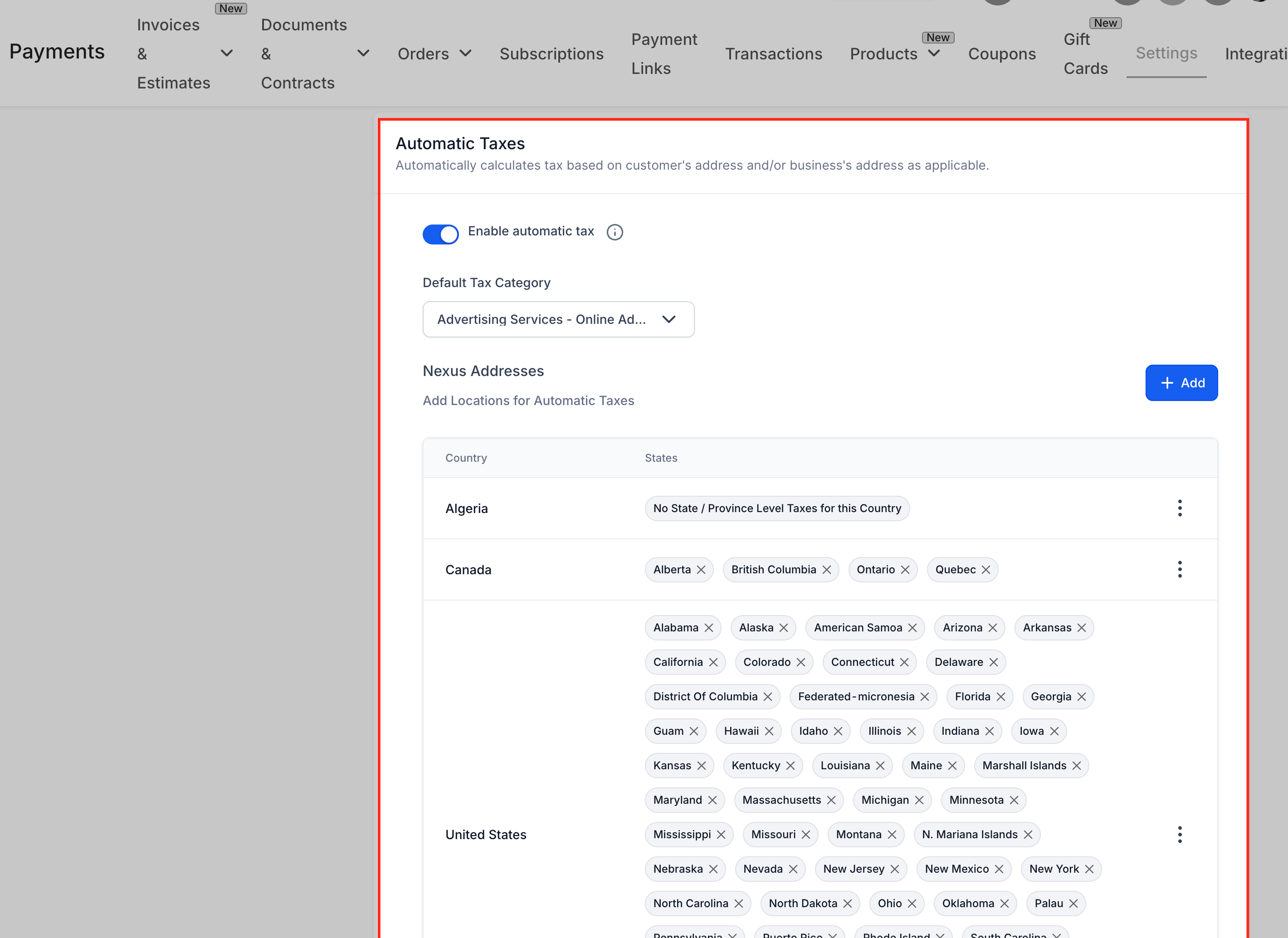
- Scroll to the Automatic Taxes section in Payments > Settings > Taxes.
- Turn on automatic tax by toggling Enable automatic tax to ON.
- Select a default tax category that matches your typical course product.
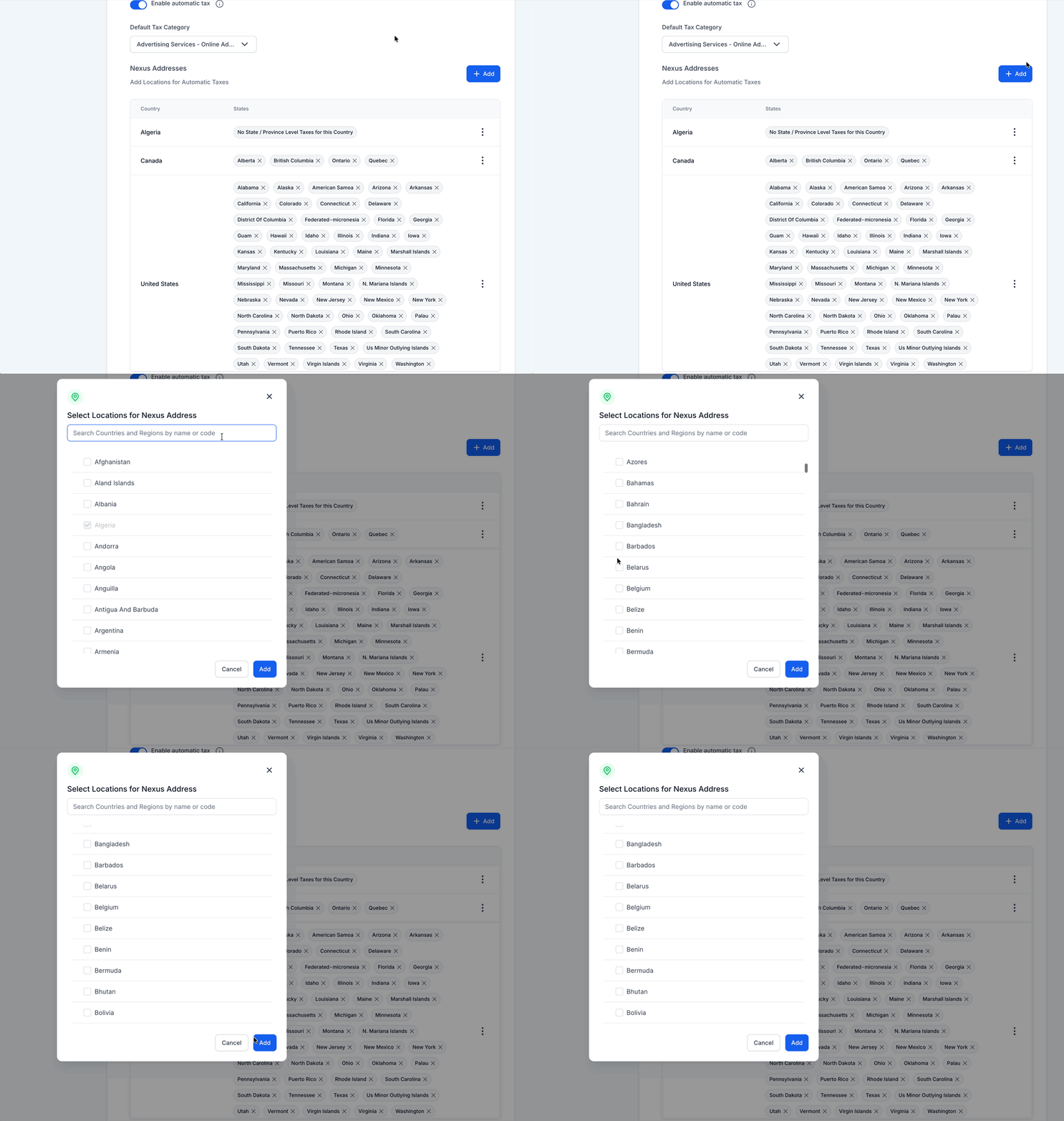
- Click Add Nexus Address under Taxes and enter each country (and state/province) where you collect tax.
- (Optional) Enter a tax ID for each nexus address you added.
- Save all tax configuration changes.
- Confirm the business address in your account or Payments settings is up to date.
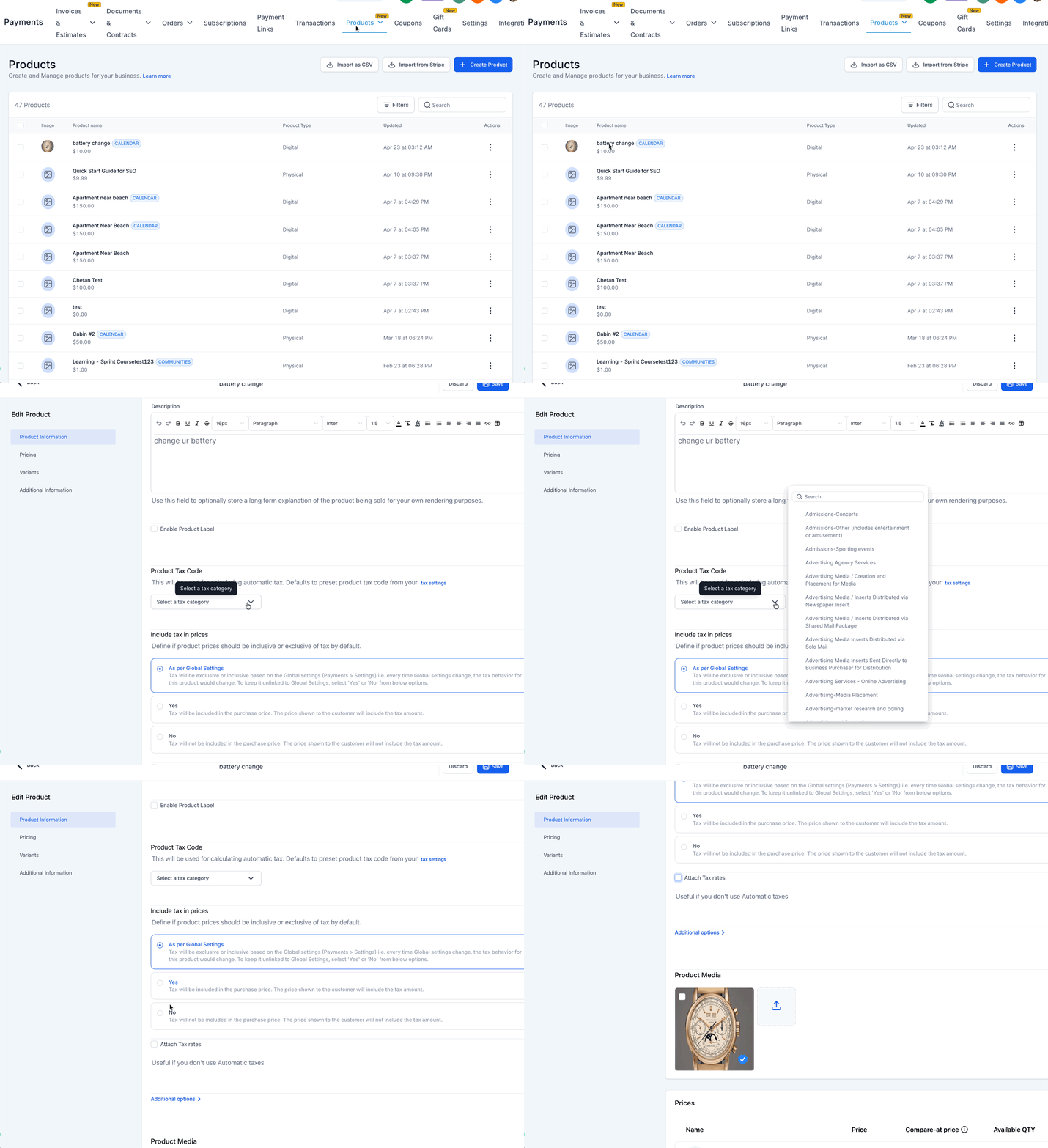
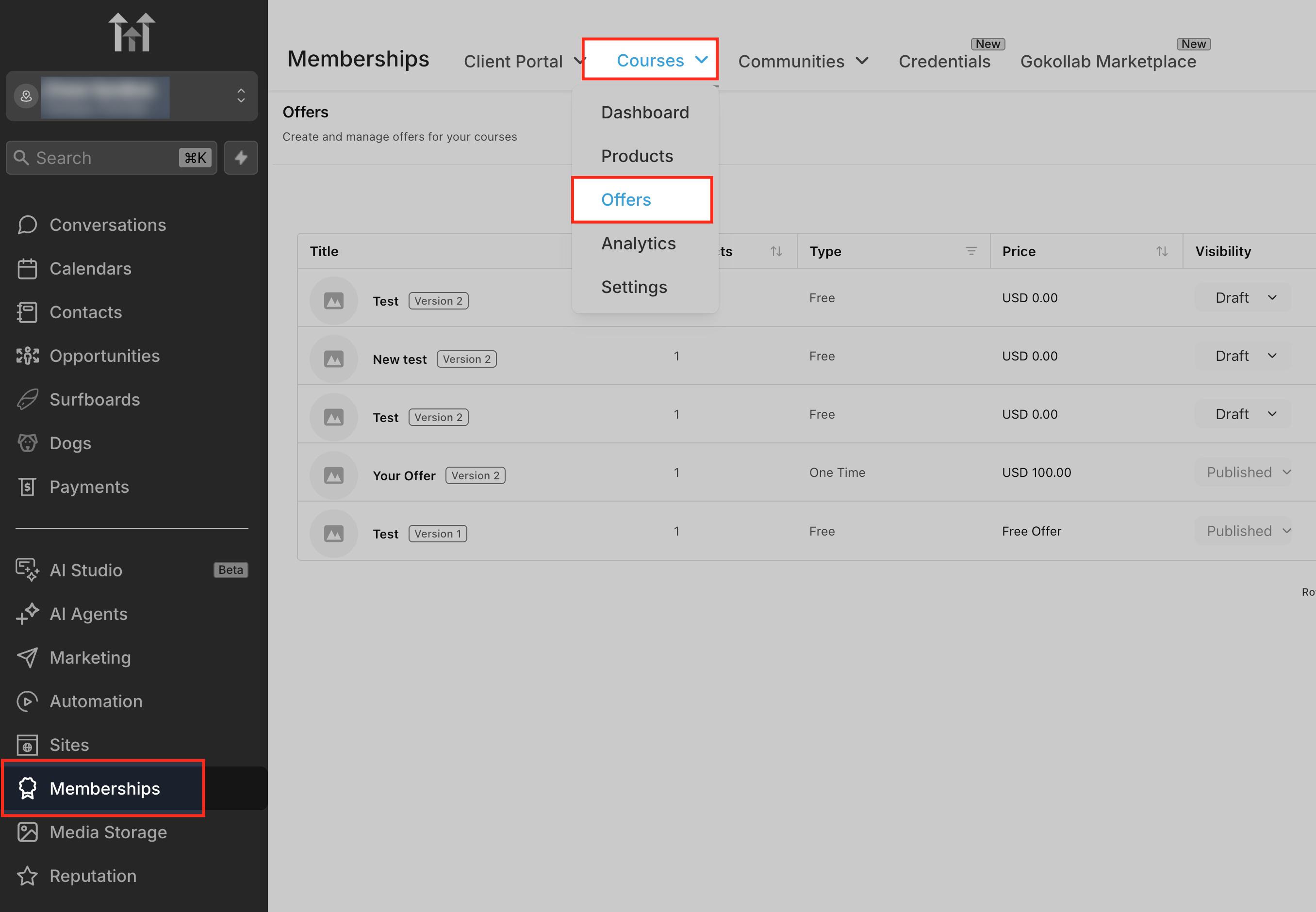
- Configure each course product in Payments > Products: set its tax code, choose inclusive or exclusive pricing, and attach any manual tax rates; then link the product to its Course Offer and test the checkout to verify tax calculations.
06What it looks like in HighLevel
07Settings that matter
- Include tax in prices. Controls whether product prices are shown with tax already factored in (tax inclusive) or without tax (tax exclusive).
- Enable automatic tax. Activates International Automatic Taxes so the system can calculate tax based on buyer address and nexus locations.
- Default Tax Category. Sets the default tax code applied to products when no specific product tax code is assigned.
- Product Tax Code (Tax Category). Assigns a tax classification to an individual course product, guiding how automatic tax rules apply.
- Attach Tax Rates. Allows manual tax rates to be linked to a product for regions not covered by automatic taxes.
- Add Nexus Address. Defines a country (and optional state/province) where your business must collect tax.
08Things to know before you rely on it
- Automatic taxes apply only in regions listed as nexus addresses.
- If the checkout does not capture a complete billing address, automatic tax may not be applied and will fall back to any manual rates attached to the product.
- International Automatic Taxes does not support every country; unsupported regions require manual tax rates or tax inclusive pricing.
- Manual tax rates can be attached to a product as multiple rates (e.g., state and local), but only those rates will be used where automatic tax is unavailable.
09If something goes wrong
- Automatic tax is not applied at checkout.. Make sure the checkout captures the buyer’s full billing address; otherwise the system will revert to manual tax rates if they are attached.
- No tax appears for a region where tax should be collected.. Add the region as a nexus address in Payments > Settings > Taxes.
10How it connects to the rest of HighLevel
- Create a product and attach it to a membership course offer Product setup
- Build and launch membership courses Course builder
- View HighLevel pricing and plans Pricing
Michael's take

People often forget that tax calculations need a full billing address before they even think about toggling automatic tax. Without that address the engine can’t decide which jurisdiction applies, so you end up with missing or wrong tax lines.
I would first verify my Payments tax settings, add the right nexus addresses and then run a quick test checkout with a known address. Seeing the tax line appear as expected gives confidence before you launch the course to your audience.