
01Who this is for
- Community managers who need a way to acknowledge member milestones and boost participation.
- Founders of membership sites that want visible recognition to encourage ongoing engagement.
- Small business owners running branded forums and looking for easy insight into active contributors.
02Badges in communities, explained
Badges act as visual awards that the platform grants automatically when members satisfy configured conditions. Triggers link a qualifying rule, such as a number of posts or days of activity, to a specific badge image. Once a trigger fires, the badge is added to the member’s profile and can be shown next to their name.
The badge system lives inside a Community group under Settings > Badges. Trigger activation, thresholds, and badge assignment are managed there. Badge artwork is created separately in the Credentials area where administrators design or select a template.
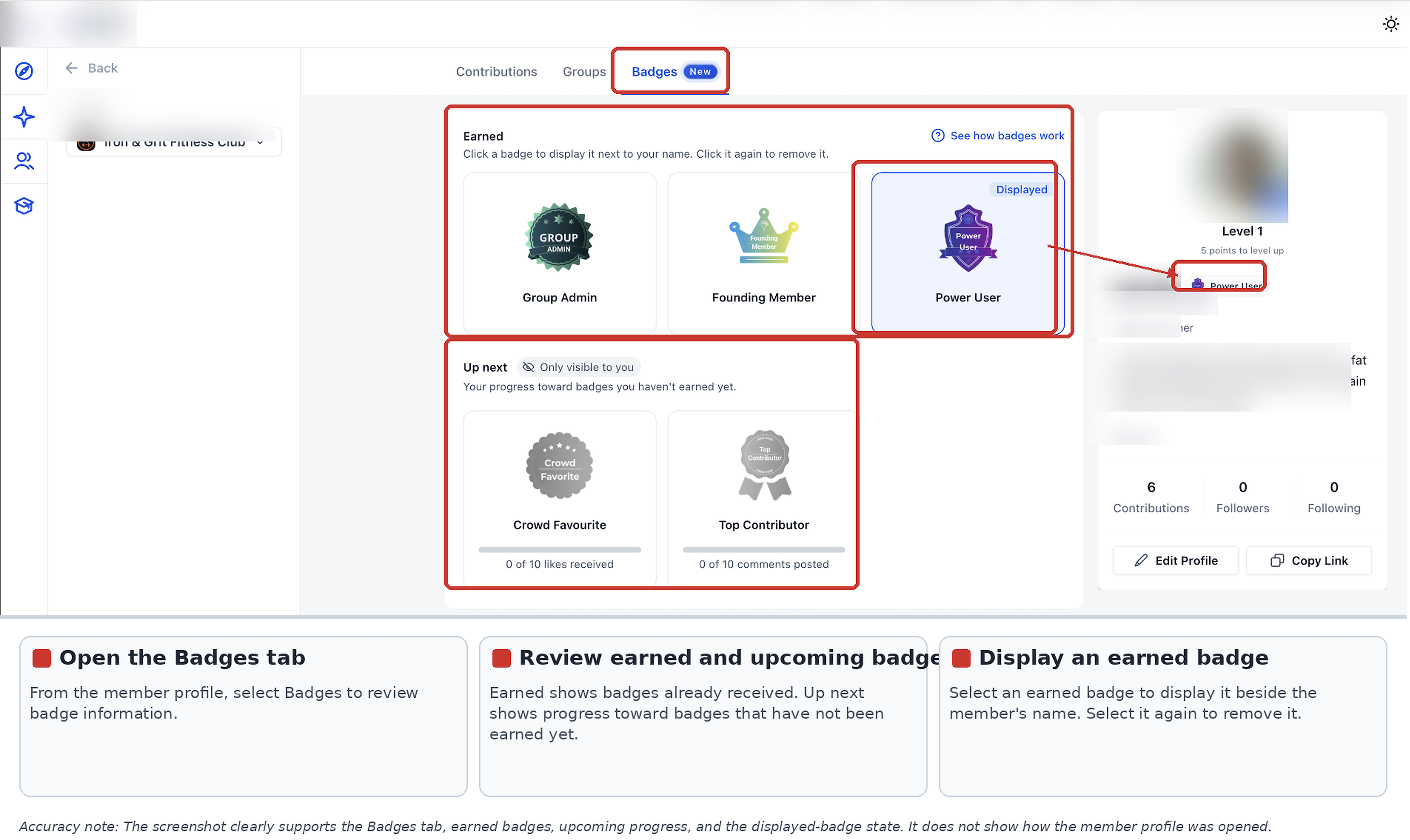
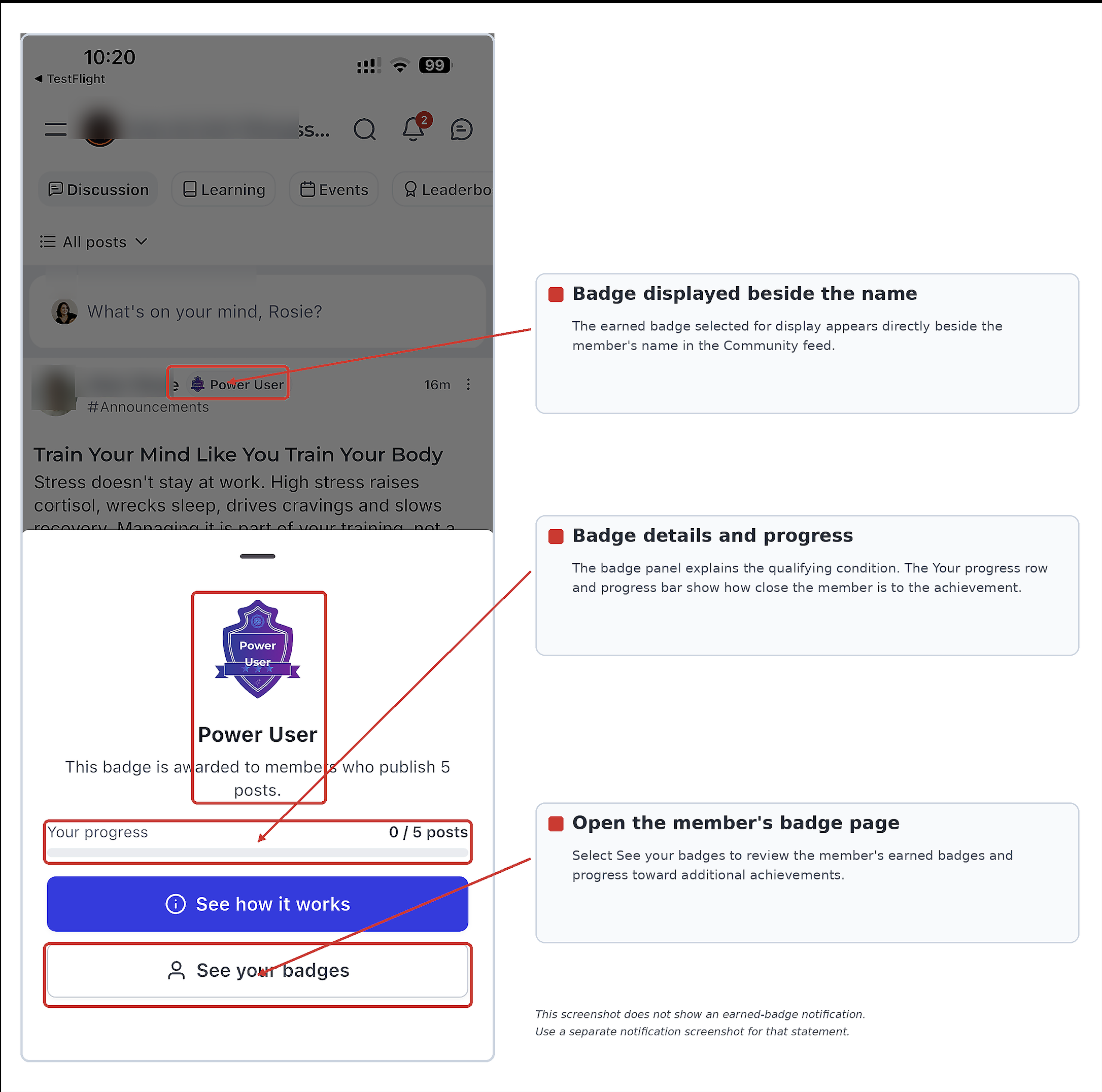
Members view their collection from the Badges tab on their profile, see progress toward future badges, and pick one earned badge to display across the community feed, members list, and comments.
03How businesses use badges in communities
- Online fitness community. The admin creates a "Top Contributor" badge for members who post a set number of workout tips. When the trigger is enabled, the platform awards the badge automatically, and members can showcase it on their profiles.
- Educational membership site. Course creators design a "Newbie" badge in Credentials and attach it to the join milestone trigger. New members receive the badge right away and can select it to appear beside their name in discussion boards.
- Local business networking group. The group leader enables a quarterly "Always On" engagement badge that refreshes each quarter. Members who comment daily for the required period earn the badge, which they can display to signal consistent participation.
04Before you start
- You must have access to the HighLevel subaccount that contains the Community group.
- You need permission to manage Community settings and badge triggers.
05How to set up and use badges in communities in HighLevel
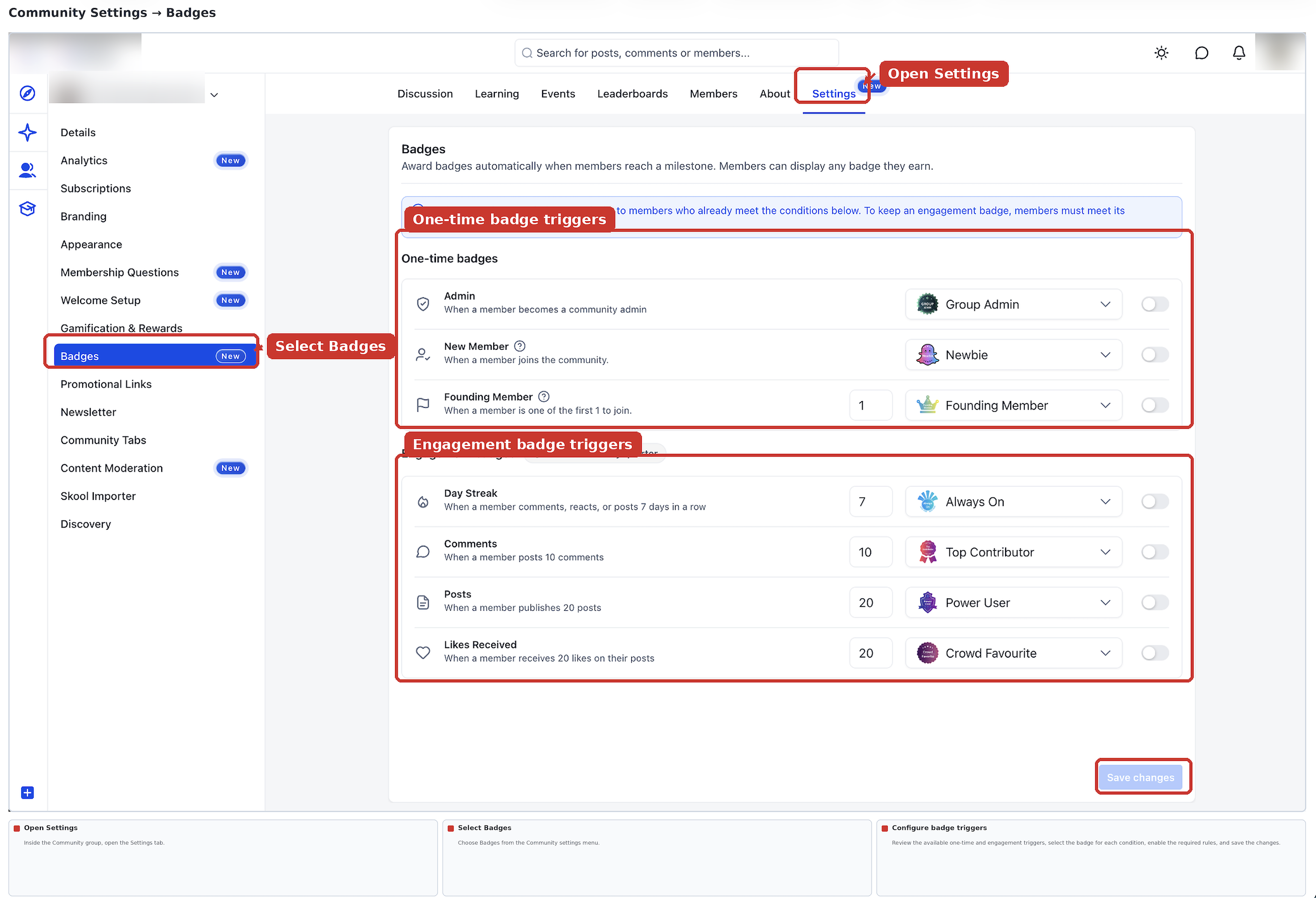
Set up badge triggers
- From your HighLevel subaccount, click Memberships in the left navigation menu.
- Select Communities, then click Groups.
- Open the Community group you want to configure.
- Inside the group, choose Settings.
- Select Badges.
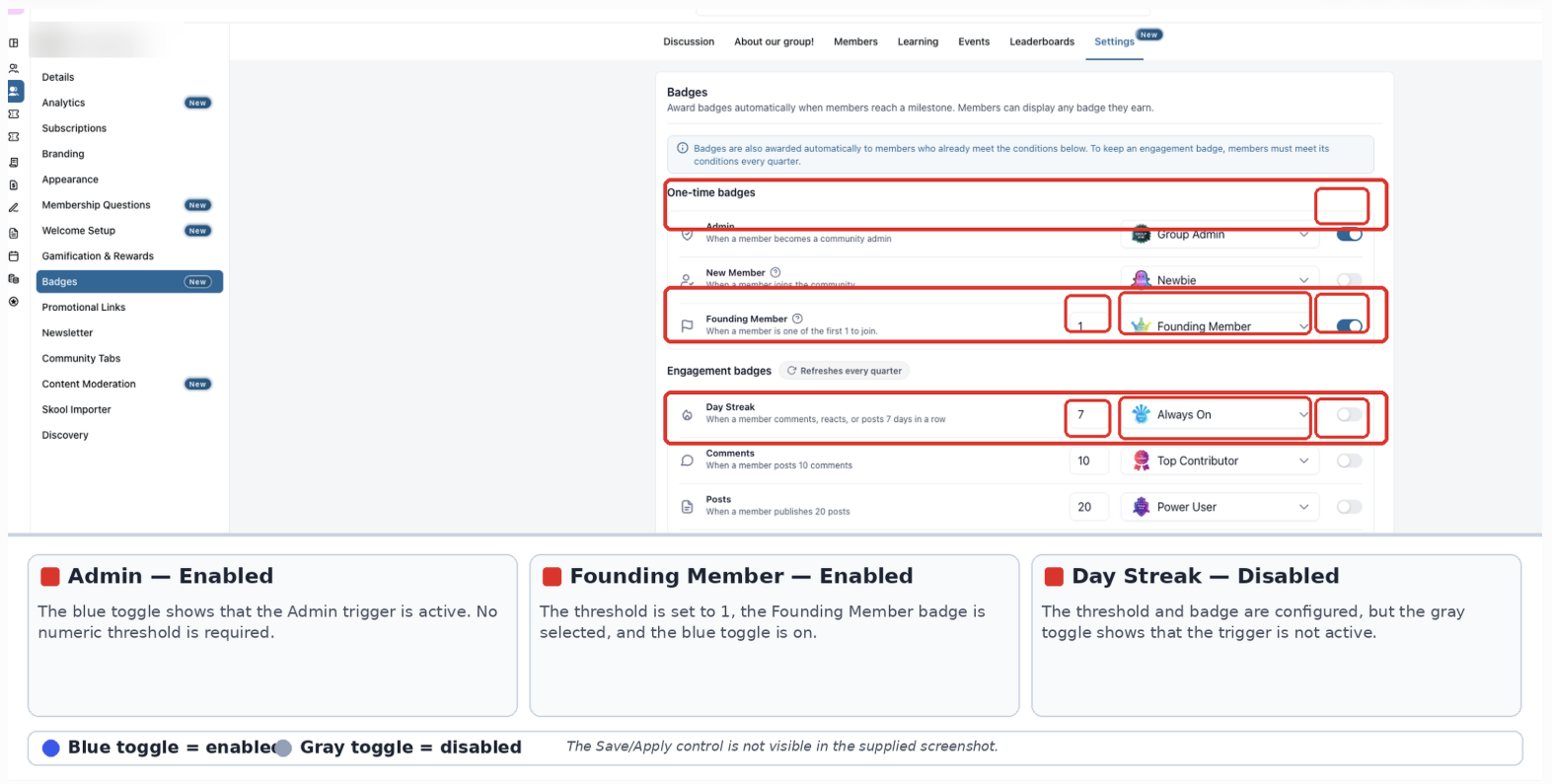
- Locate the one time or engagement badge trigger you wish to adjust.
- Enable the trigger.
- If the trigger includes a threshold, enter the required number of qualifying activities or days.
- Select the badge members should receive when they meet the condition.
- Apply or save the configuration using the available control.
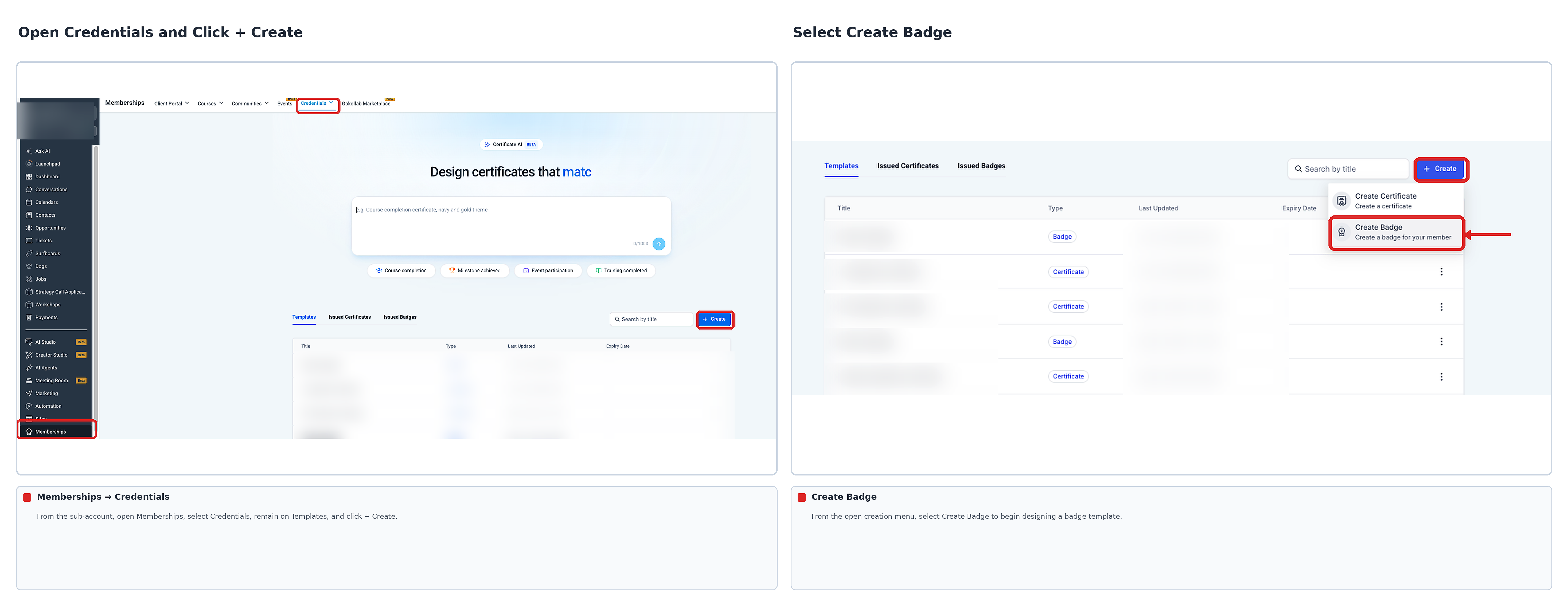
Create and customize badge templates
- From your HighLevel subaccount, go to Memberships in the left navigation menu.
- Select Credentials.
- Click the + Create button in the upper right corner.
- Choose Create Badge.
- Pick an available template or start with a blank design.
- If you select a template, click Create to open the builder.
- Customize the badge using the Text and Elements tools.
- Click Preview to review the badge.
- Click Save to store the badge template.
View and display badges as a member
- Access the Community where you have earned badges.
- Open your member profile.
- Select the Badges tab.
- Review your earned badges and progress toward upcoming achievements.
- Select an earned badge to display beside your name using the badge selection control.
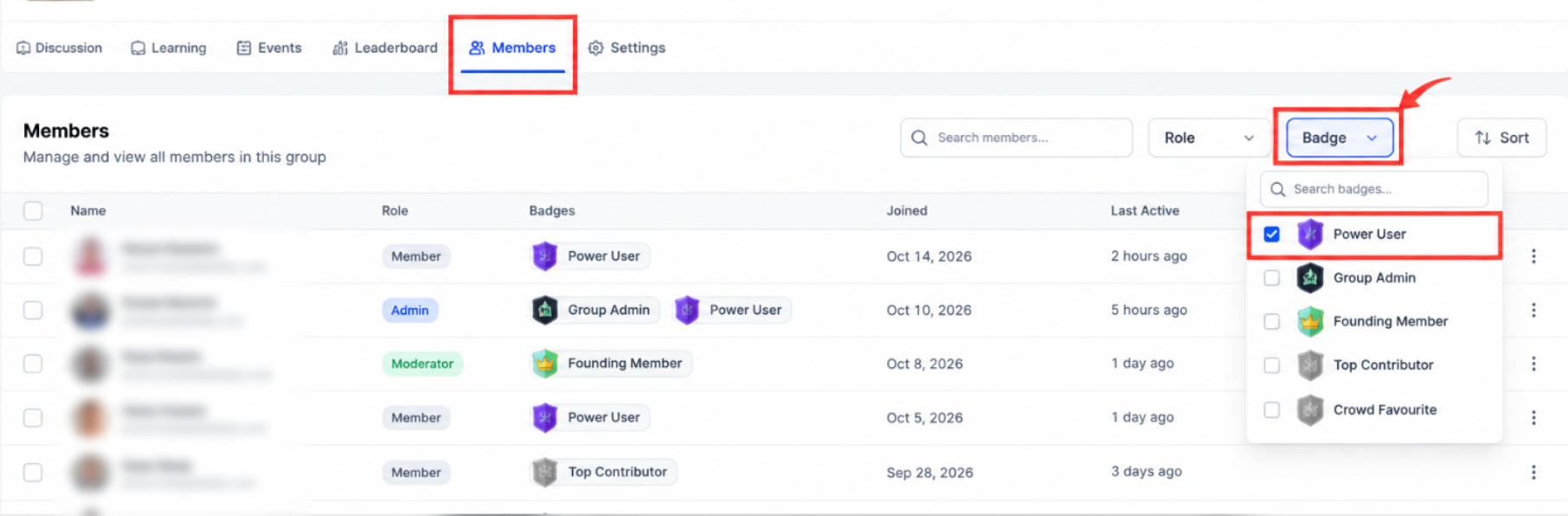
Filter members by badge
- From your HighLevel subaccount, select Memberships.
- Select Communities, then Groups.
- Open the Community group you want to review.
- Select the Members tab.
- Use the available badge filter to narrow the member list by badge.
- Review the matching members and available badge holder information.
06What it looks like in HighLevel
07Settings that matter
- Enable the trigger. Turns the badge award condition on so that members can receive the badge when they meet the criteria.
- Threshold. Specifies the number of activities, days, or likes required for a trigger to award its badge.
- Badge selection. Determines which badge image is given to members when the trigger condition is met.
- Badge filter. Allows administrators to narrow the member list to those who hold a specific badge.
08Things to know before you rely on it
- Badge designs are created in Credentials, separate from badge trigger configuration.
- Members can display only one earned badge next to their name at a time.
- Engagement badges refresh quarterly, resetting progress for ongoing awards.
- Available badge settings may vary based on your account access and the current Communities experience.
09How it connects to the rest of HighLevel
- See how to manage members inside groups for deeper engagement insight. Manage group members
- Explore badge design options within the Credentials area. Badge design tools
Michael's take

Starting with a few one time badges such as Newbie or Group Admin can give members immediate recognition.
Adding engagement badges like Top Contributor can encourage members to participate more.